> For the complete documentation index, see [llms.txt](https://docs.flosum.com/llms.txt). Markdown versions of documentation pages are available by appending `.md` to page URLs; this page is available as [Markdown](https://docs.flosum.com/backup-and-archive/backup-and-archive-docs-de/einstellungen/organisationseinstellungen/backup-and-archive-settings-integrations.md).
# Integrationseinstellungen ändern
{% hint style="success" %}
#### Erforderliche Benutzeranmeldeinformationen
\[**Flosum-Benutzer**] - **Backup & Archiv** Lizenz mit **App-Einstellungen** Berechtigungen
{% endhint %}
## Übersicht
Jede Ihrer Salesforce-Organisationen hat ihre eigene **Einstellungen** Seite, die unabhängig konfiguriert werden kann. **Einstellungen** Die Seite ist in drei Registerkarten unterteilt: **Allgemein**, **Benachrichtigungen**, und **Integrationen**. Dieser Artikel konzentriert sich auf die Einstellungen innerhalb der **Integrationen** Registerkarte. Anweisungen zu den anderen Registerkarten finden Sie in den folgenden Artikeln.
* [Allgemeine Einstellungen ändern](/backup-and-archive/backup-and-archive-docs-de/einstellungen/organisationseinstellungen/backup-and-archive-settings-general-settings.md)
* [Benachrichtigungseinstellungen ändern](/backup-and-archive/backup-and-archive-docs-de/einstellungen/organisationseinstellungen/backup-and-archive-settings-notifications.md)
Flosum Backup & Archive stellt eine Lightning Web Component bereit, mit der Sie archivierte Dateien direkt in Ihrer Salesforce-Organisation anzeigen können. Diese Komponente wird beim ersten Verbinden mit Ihrer Salesforce-Organisation automatisch als Managed Package installiert. Über die **Integrationen** Registerkarte können Sie den Status des **Flosum Backup** Pakets überwachen und alle verfügbaren Updates installieren.
### Integrations-Einstellungen
{% stepper %}
{% step %}
### Zugriff auf Integrations-Einstellungen
Nachfolgend finden Sie Anweisungen zum Zugriff auf die Integrations-Einstellungen und einen kurzen Überblick über die verschiedenen Integrationszustände.
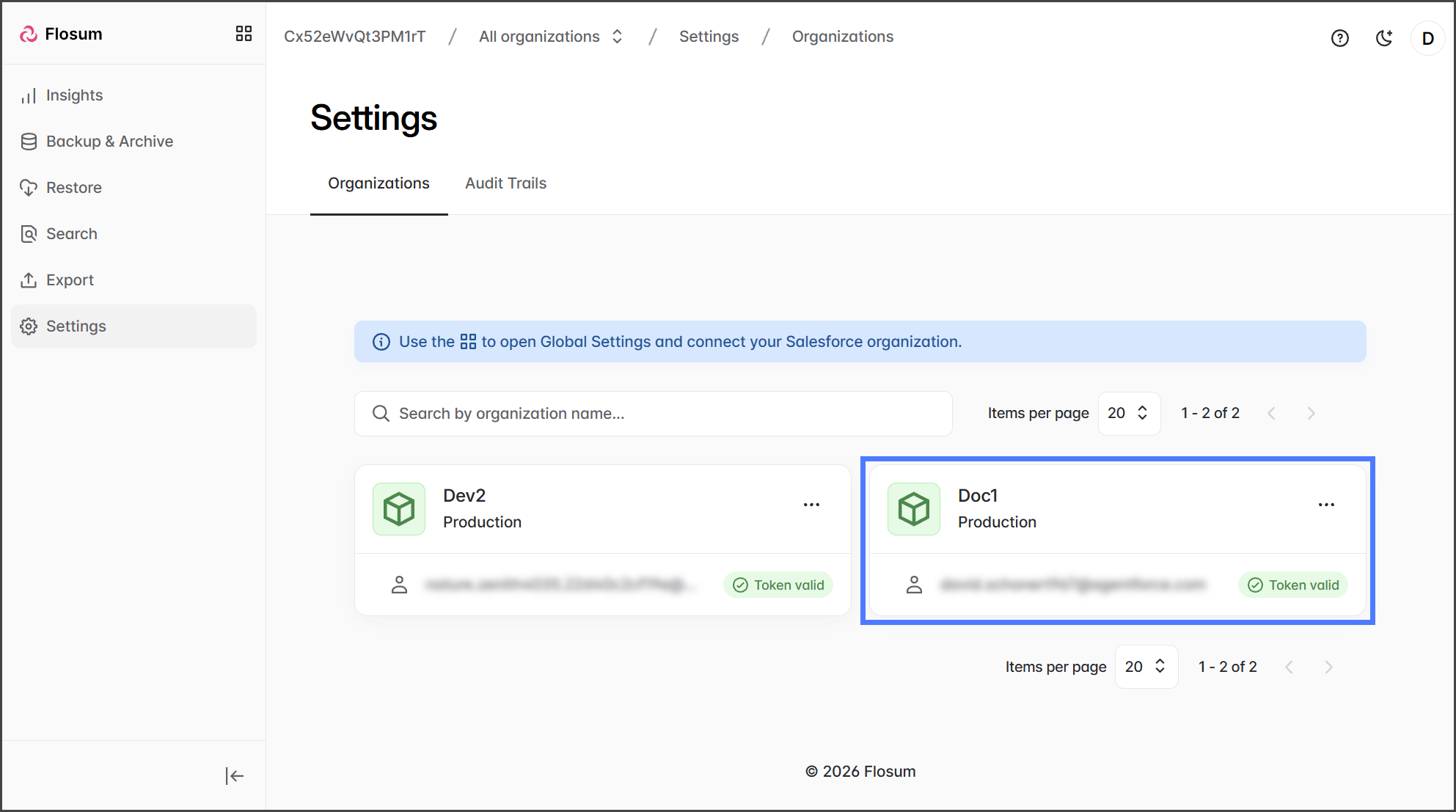
1. Klicken Sie **Einstellungen** im Seitenleistenmenü.
2. Klicken Sie auf die **Organisation** um die Einstellungen für zu ändern.
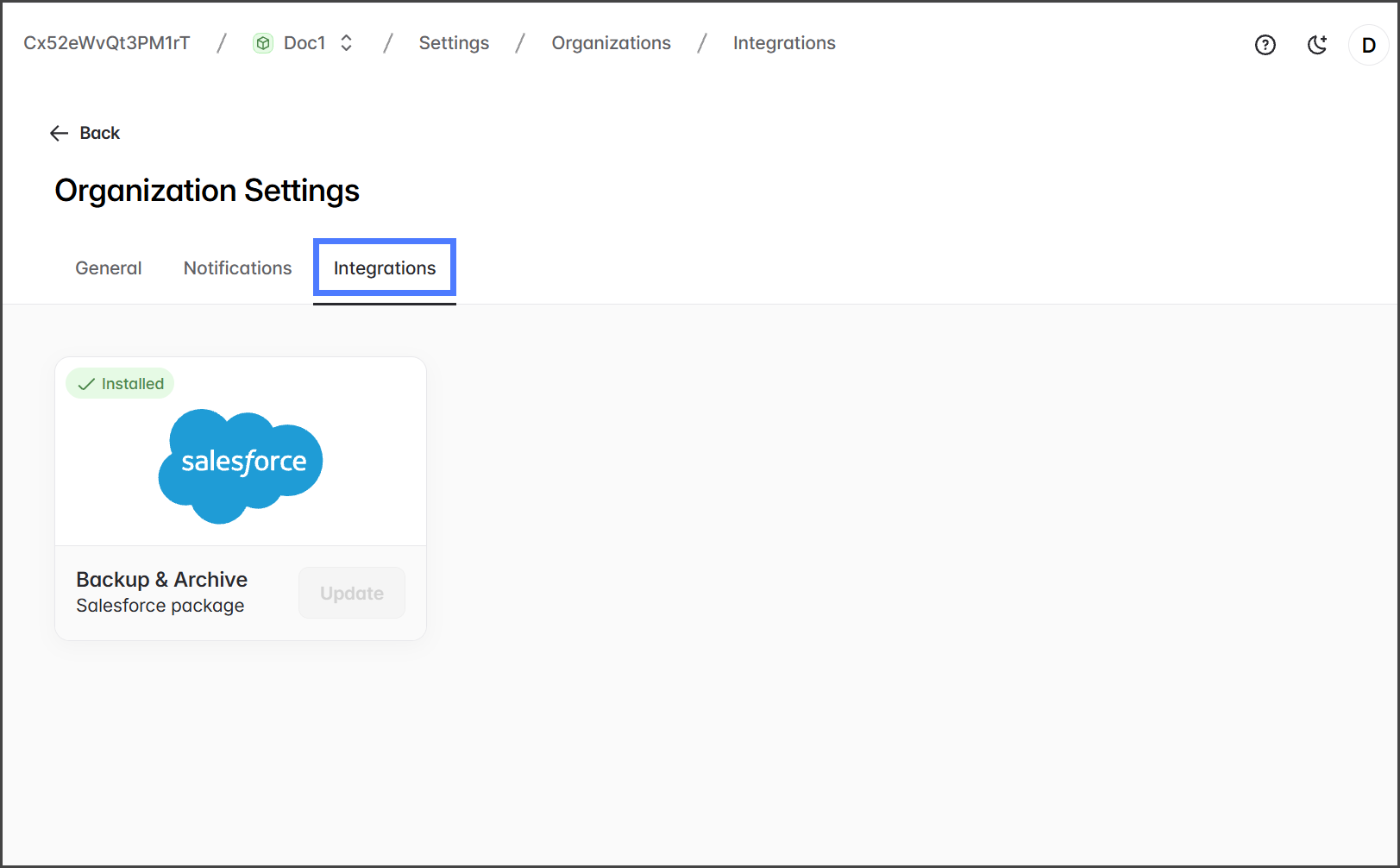
3. Klicken Sie auf die **Integrationen** Registerkarte.
{% endstep %}
{% step %}
### Paket installieren
Nachfolgend finden Sie Anweisungen zur Installation des **Backup & Archive** Salesforce-Pakets, falls es nicht installiert ist.
{% hint style="info" %}
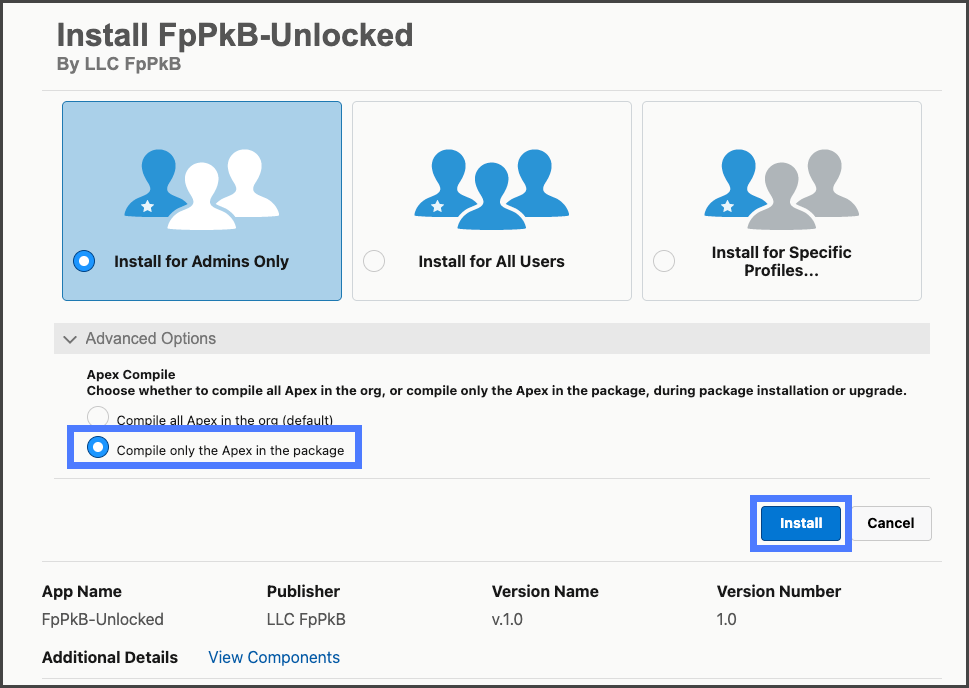
Um Installationsfehler zu vermeiden, die durch vorhandenes Apex in der Salesforce-Organisation verursacht werden, installieren Sie das Backup & Archive Salesforce-Paket mit der **Erweiterten Optionen** → **Nur das Apex im Paket kompilieren** Option.
{% endhint %}
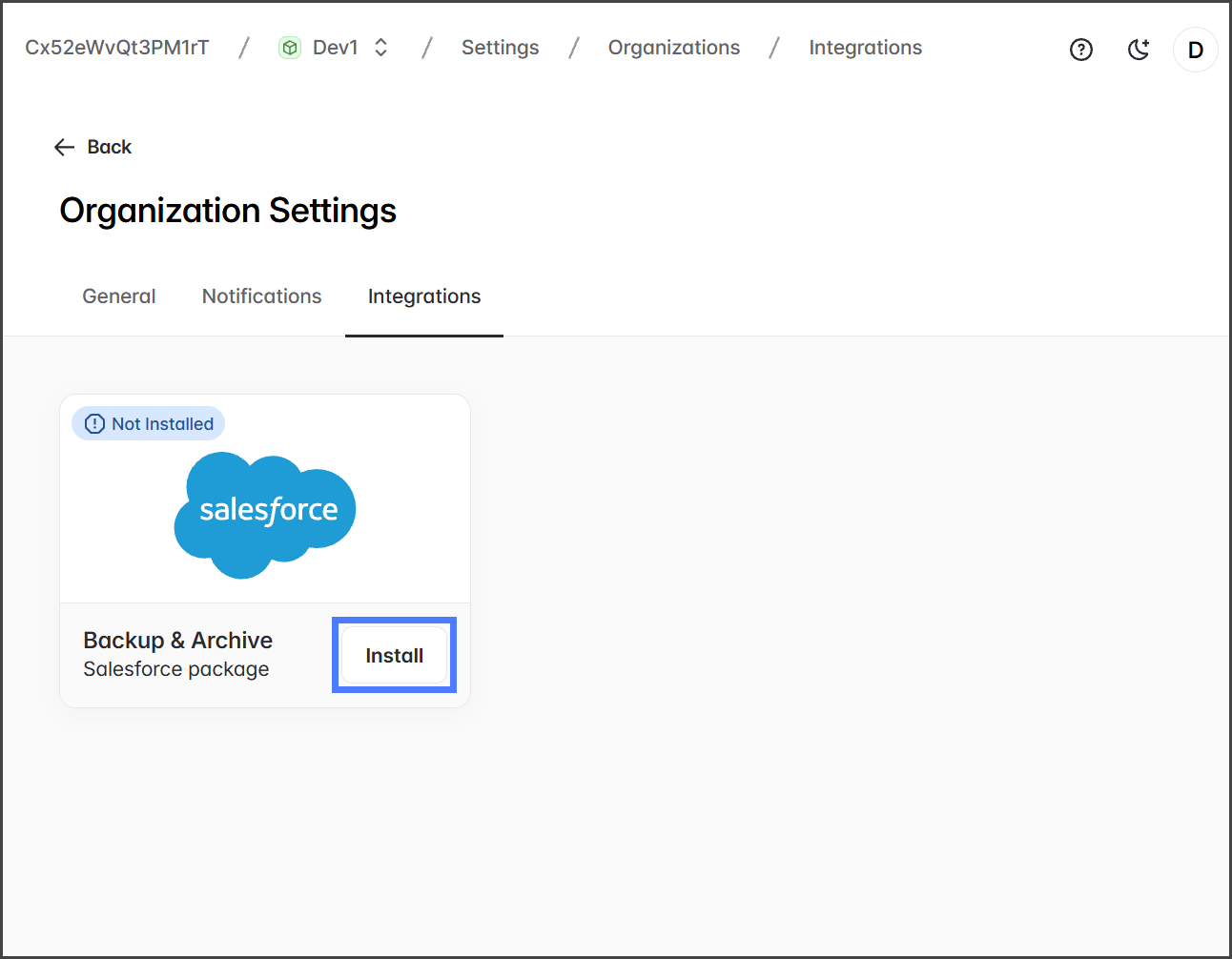
1. Klicken Sie **Installieren**.
2. Schließen Sie alle Salesforce-Anmelde- oder Authentifizierungsaufforderungen ab.
3. Auf der Seite zur Installation des Salesforce-Pakets.
1. Erweitern Sie die **Erweiterten Optionen**.
2. Auswählen **Nur das Apex im Paket kompilieren**.
3. Klicken Sie **Installieren**.
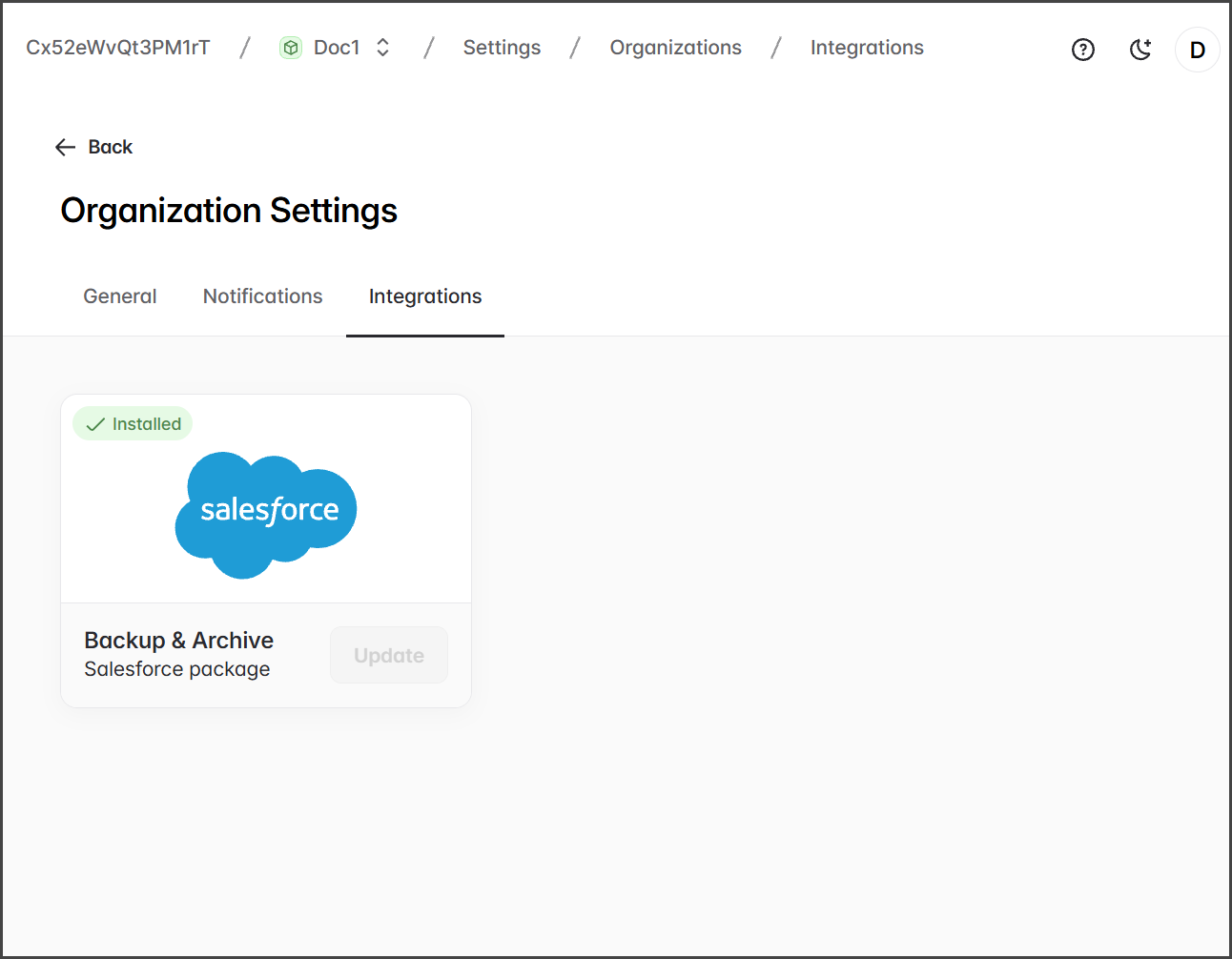
4. Nach der Installation wird auf der Seite Backup & Archive > Einstellungen > Integrationen das **Backup & Archive** Salesforce-Paket als **Installiert**.
{% endstep %}
{% step %}
### Paket aktualisieren
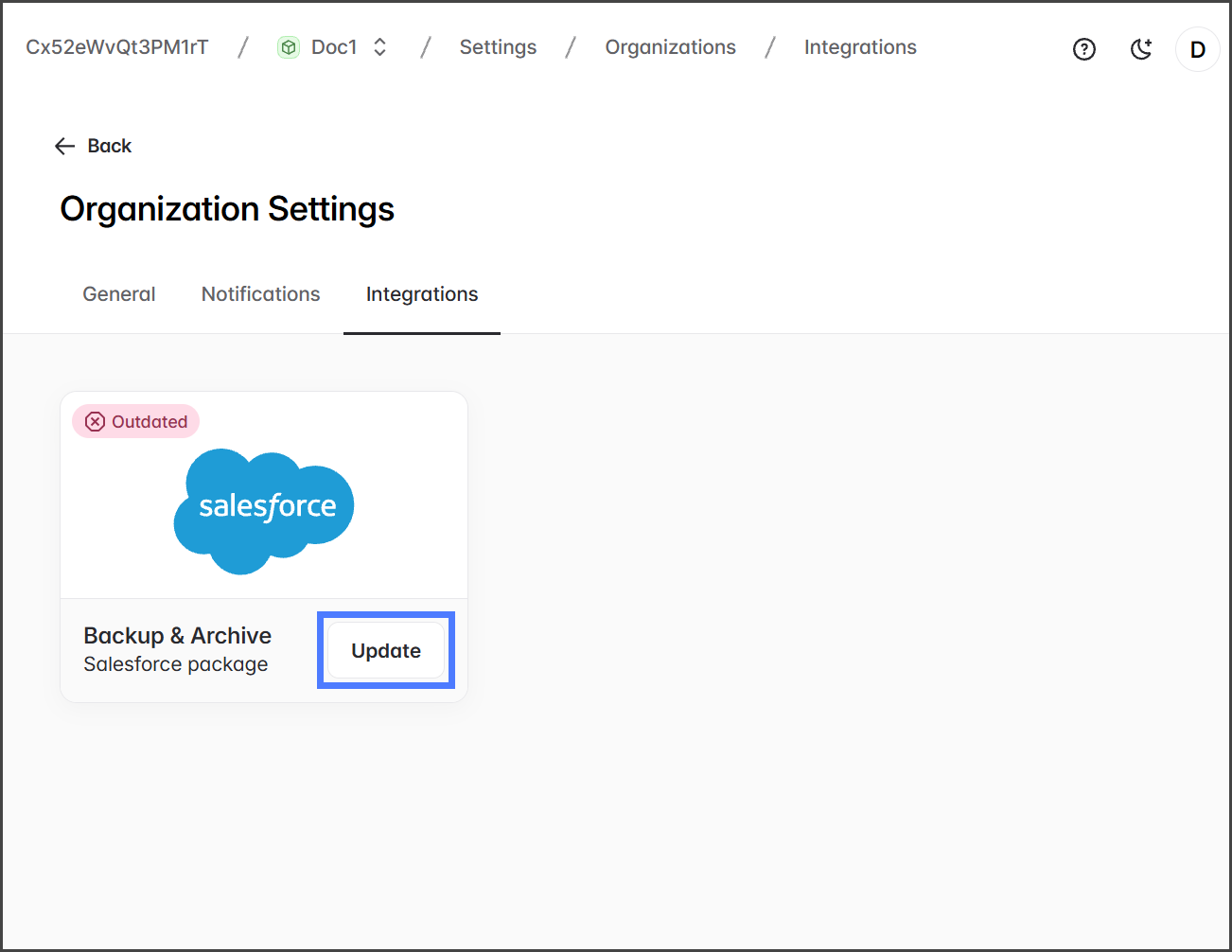
1. Um das Paket zu aktualisieren, klicken Sie auf **Aktualisieren**.
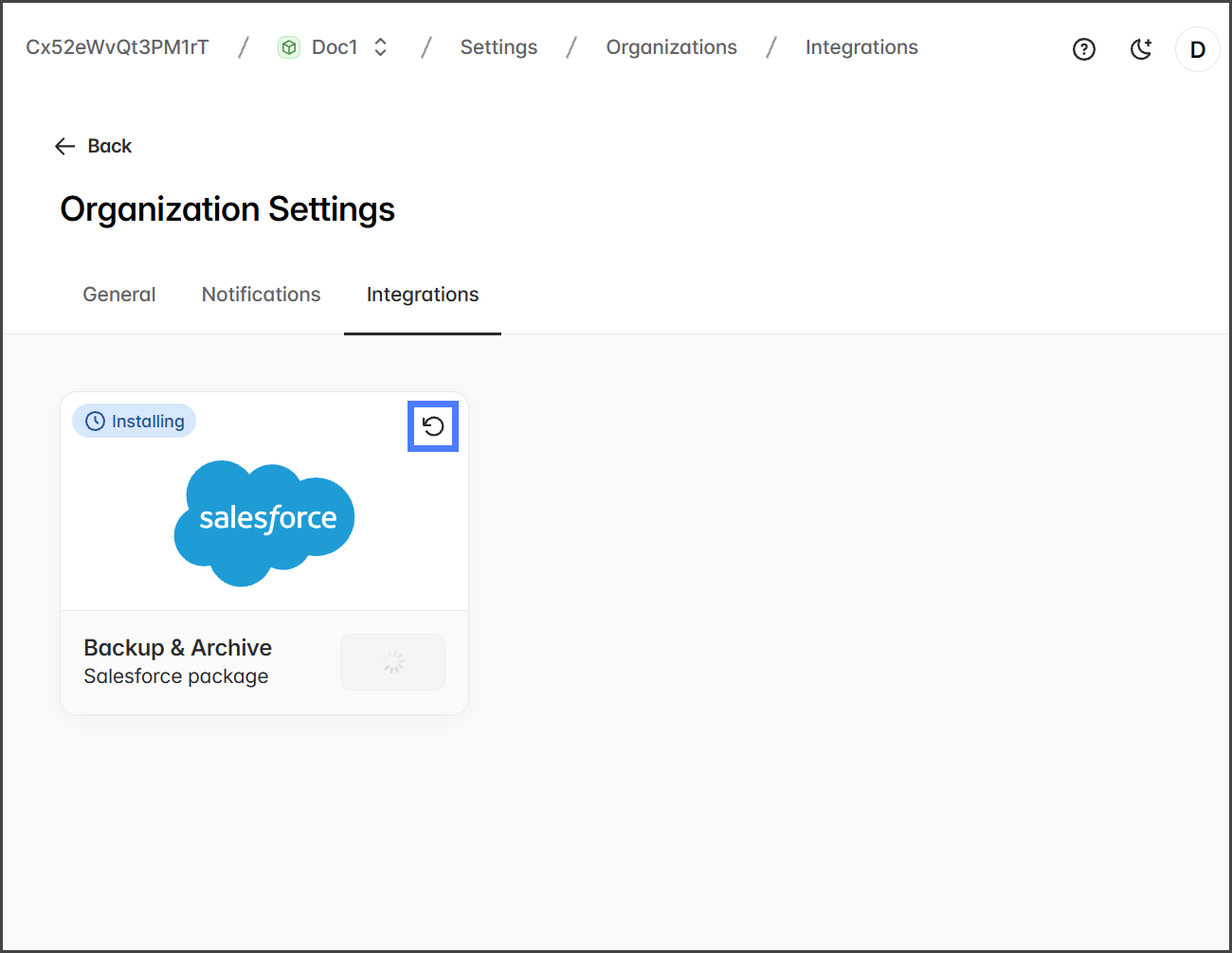
2. Warten Sie, bis das Paket installiert ist.
3. Klicken Sie auf die **Aktualisieren** Symbol, um zu prüfen, ob die Installation abgeschlossen ist.
{% endstep %}
{% endstepper %}
---
# Agent Instructions
This documentation is published with GitBook. GitBook is the documentation platform designed so that both humans and AI agents can read, navigate, and reason over technical content effectively. Learn more at gitbook.com.
## Querying This Documentation
If you need additional information that is not directly available in this page, you can query the documentation by asking a question.
Perform an HTTP GET request on the following URL with the `ask` and `goal` query parameters:
```
GET https://docs.flosum.com/backup-and-archive/backup-and-archive-docs-de/einstellungen/organisationseinstellungen/backup-and-archive-settings-integrations.md?ask=&goal=
```
`ask` is the immediate question: it should be specific, self-contained, and written in natural language.
`goal` is what the user is ultimately trying to achieve, the reason they need the answer. Sharing it helps GitBook give you a better, more relevant answer. A goal is most helpful when it describes the outcome the user wants rather than restating the question. For example, with `ask=how do I create an API token`, a goal like `automate deployments from our CI pipeline` lets GitBook tailor the answer to that use case.
The response will contain a direct answer to the question and relevant excerpts and sources from the documentation.
Use this mechanism when the answer is not explicitly present in the current page, you need clarification or additional context, or you want to retrieve related documentation sections.