> For the complete documentation index, see [llms.txt](https://docs.flosum.com/llms.txt). Markdown versions of documentation pages are available by appending `.md` to page URLs; this page is available as [Markdown](https://docs.flosum.com/backup-and-archive/backup-and-archive-docs-ja/backup-and-archive/inpto/kaibunoinpto.md).

# アーカイブのインポート

{% hint style="success" %}

#### 必須ユーザー資格情報

\[**Flosum ユーザー**] - **バックアップとアーカイブ** ライセンスと **バックアップとアーカイブ** 権限
{% endhint %}

## ![](https://3874940933-files.gitbook.io/~/files/v0/b/gitbook-x-prod.appspot.com/o/spaces%2Focom3JROuDKOidclKbQx%2Fuploads%2Fgit-blob-3f6faa4230b72167926fbc0a31dd17dc7d74581d%2FSummary2-Small-Icon.svg?alt=media) 概要

Backup & Archive を使用すると、他のバックアップアプリケーションからアーカイブされたデータを AWS S3 バケットにインポートできます。本ガイドでは、インポート手順と必要なディレクトリおよびファイル構成について説明します。

{% hint style="info" %}
アーカイブはからのみインポートできます **AWS S3 バケット**.
{% endhint %}

## インポートを開始

{% stepper %}
{% step %}

### インポートを作成

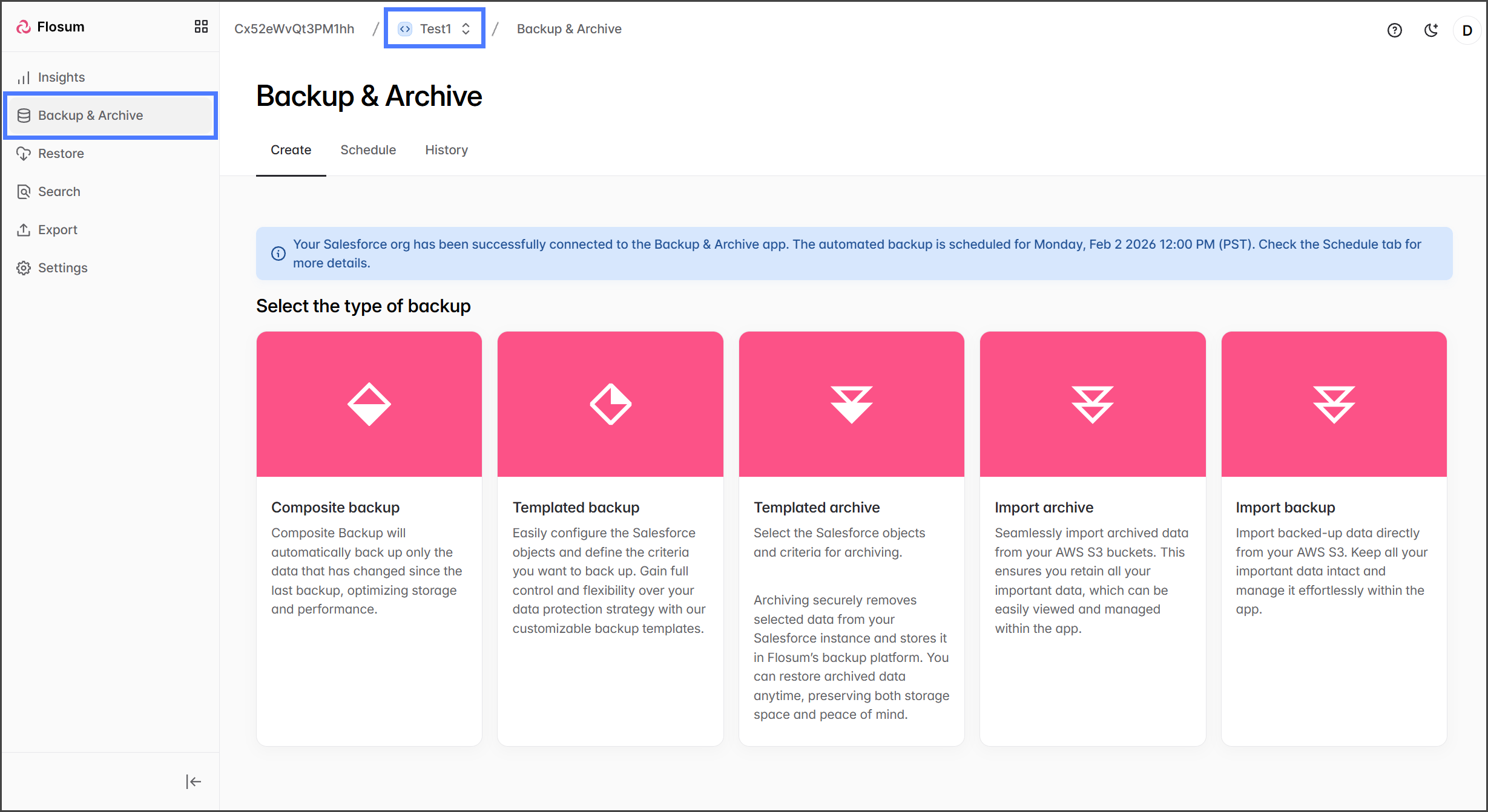
1. クリック **Backup & Archive** 左側のサイドバーメニューから。
2. クリック **組織スイッチャー** パンくずリストから。&#x20;

   <div align="left"><figure><img src="https://3874940933-files.gitbook.io/~/files/v0/b/gitbook-x-prod.appspot.com/o/spaces%2Focom3JROuDKOidclKbQx%2Fuploads%2F10kTqhZZM5doAHkOnMiF%2FImportingAnArchive-S01-01.png?alt=media&amp;token=c9b498af-15b2-43e5-a856-97969a375e45" alt="" width="563"><figcaption></figcaption></figure></div>
3. インポート先の組織を選択します。&#x20;

   <div align="left"><figure><img src="https://3874940933-files.gitbook.io/~/files/v0/b/gitbook-x-prod.appspot.com/o/spaces%2Focom3JROuDKOidclKbQx%2Fuploads%2F52Q1T5qAT1zvJzbU5PVg%2FImportingAnArchive-S01-02.png?alt=media&amp;token=36a87c6f-7af3-4271-8500-6c7e3c835517" alt="" width="563"><figcaption></figcaption></figure></div>
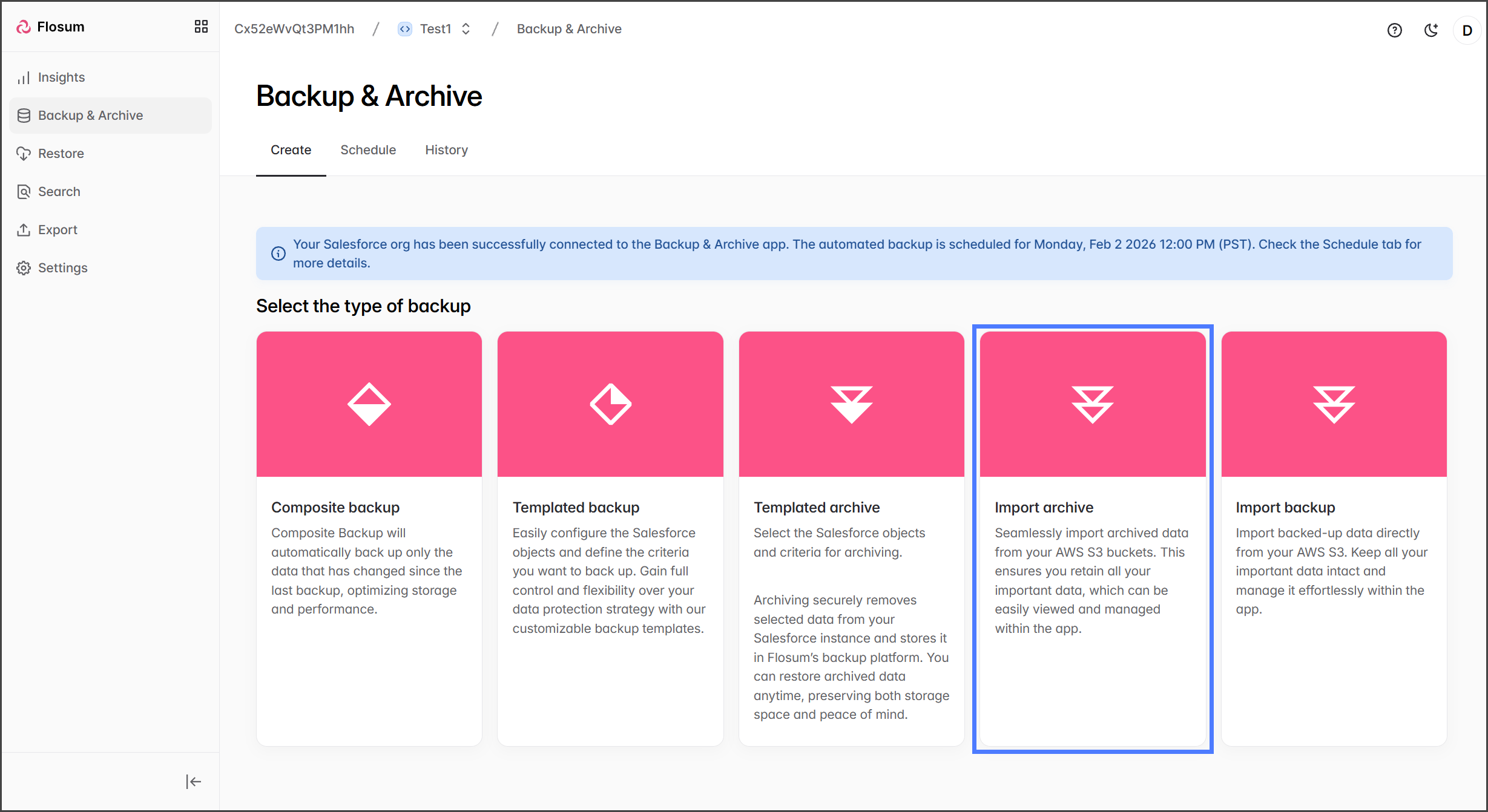
4. クリック **アーカイブをインポート**.&#x20;

   <div align="left"><figure><img src="https://3874940933-files.gitbook.io/~/files/v0/b/gitbook-x-prod.appspot.com/o/spaces%2Focom3JROuDKOidclKbQx%2Fuploads%2FCog6pYSDZeaoRKvYPEtx%2FImportingAnArchive-S01-03.png?alt=media&amp;token=c1f66fee-9278-447b-ba88-4dfb003c4043" alt="" width="563"><figcaption></figcaption></figure></div>

{% endstep %}

{% step %}

### S3 バケットを接続

インポート処理は AWS S3 バケットからのみアーカイブをインポートできます。

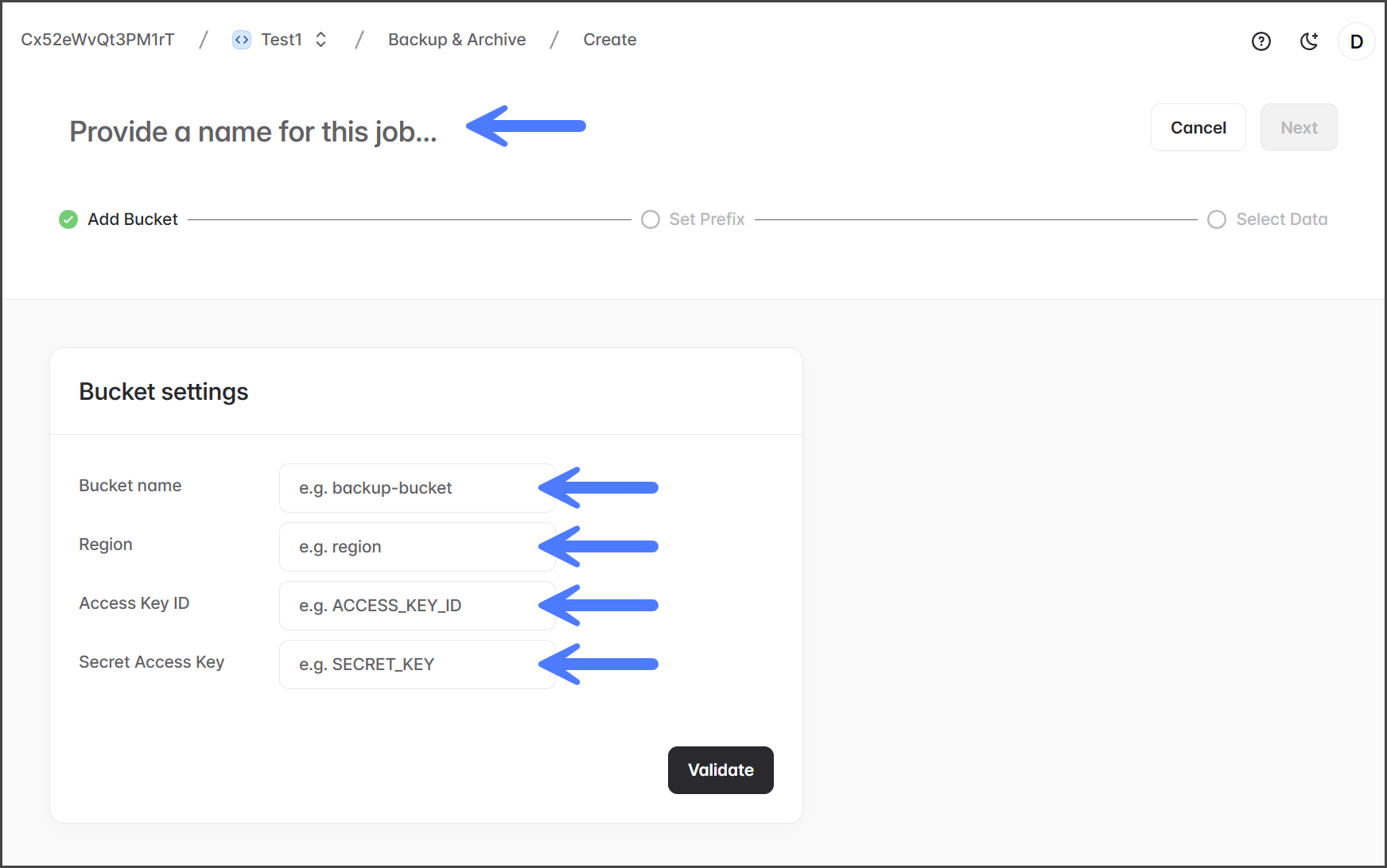
1. 入力してください **名前** インポートジョブの。
2. 入力してください **バケット設定** の値。各項目の説明は下の表を参照してください。&#x20;

   <div align="left"><figure><img src="https://3874940933-files.gitbook.io/~/files/v0/b/gitbook-x-prod.appspot.com/o/spaces%2Focom3JROuDKOidclKbQx%2Fuploads%2FoUfktEXV0pcTGCSPmq9y%2FImportingAnArchive-S02-01.png?alt=media&amp;token=4146a247-7295-4632-bb87-0f0943fdbf90" alt="" width="563"><figcaption></figcaption></figure></div>

<table><thead><tr><th width="160.33331298828125">項目</th><th>AWS 項目</th></tr></thead><tbody><tr><td><strong>バケット名</strong></td><td>Amazon S3 > バケット > <strong>名前</strong></td></tr><tr><td><strong>リージョン</strong></td><td>Amazon S3 > バケット > <strong>AWS リージョン</strong> （含めるのは <strong>リージョン</strong> のみであり、 <strong>リージョン名</strong>は含めないでください。例えば、ストレージが <strong>米国東部（バージニア北部） us-east-1</strong>にある場合は、 <strong><code>us-east-1</code></strong>.)</td></tr><tr><td><strong>アクセスキー ID</strong></td><td>生成された <strong>アクセスキー ID</strong> バケット作成時に。</td></tr><tr><td><strong>シークレットアクセスキー</strong></td><td>生成された <strong>シークレットアクセスキー</strong> バケット作成時に。</td></tr></tbody></table>

3. クリック **検証** をクリックして S3 バケットへの接続を確認します。&#x20;

   <div align="left"><figure><img src="https://3874940933-files.gitbook.io/~/files/v0/b/gitbook-x-prod.appspot.com/o/spaces%2Focom3JROuDKOidclKbQx%2Fuploads%2FAT8xhVrb9NRkxABS6LBw%2FImportingAnArchive-S02-02.png?alt=media&amp;token=a0225042-3f0d-496e-a82c-4b7741414ace" alt="" width="563"><figcaption></figcaption></figure></div>
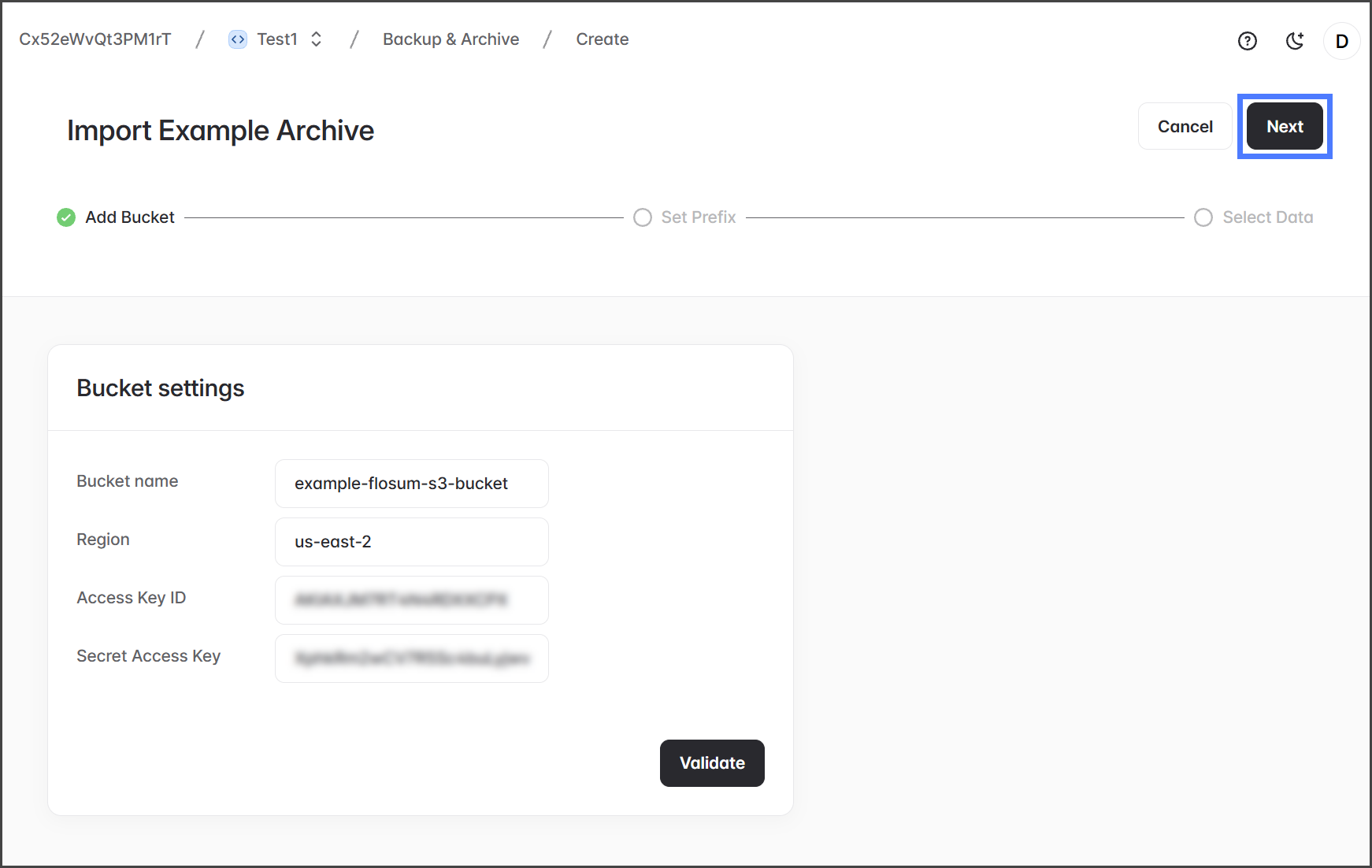
4. バケットへの接続に成功すると、 **バケットの認証情報は有効です** というメッセージが表示され、 **次へ** ボタンが有効になります。
5. クリック **次へ**.&#x20;

   <div align="left"><figure><img src="https://3874940933-files.gitbook.io/~/files/v0/b/gitbook-x-prod.appspot.com/o/spaces%2Focom3JROuDKOidclKbQx%2Fuploads%2FmK51nsJxuMOOS92ii5p4%2FImportingAnArchive-S02-03.png?alt=media&amp;token=8f866d21-a07b-4894-a169-7adf8c7d99f7" alt="" width="563"><figcaption></figcaption></figure></div>

{% endstep %}

{% step %}

### プレフィックスを入力

生成された **プレフィックス** 設定は異なる構造のアーカイブを処理するために使用されます。次の例のような入れ子構造のディレクトリをインポートできます：

```
s3://my_bucket/
├── 00DWU000001IVG52AO/
│   └── nested/
│       └── path/
│           └── in/
│               └── bucket/
│                   └── export-directory_2024-7-29_17_5/
│                       ├── archive_export_1.zip
│                       ... other files
│
├── {other_org_id}/
... other directories
```

{% hint style="info" %}
AWS S3 バケットにはディレクトリという概念は存在しません。私たちは区切り文字として `/` 文字を使用します。
{% endhint %}

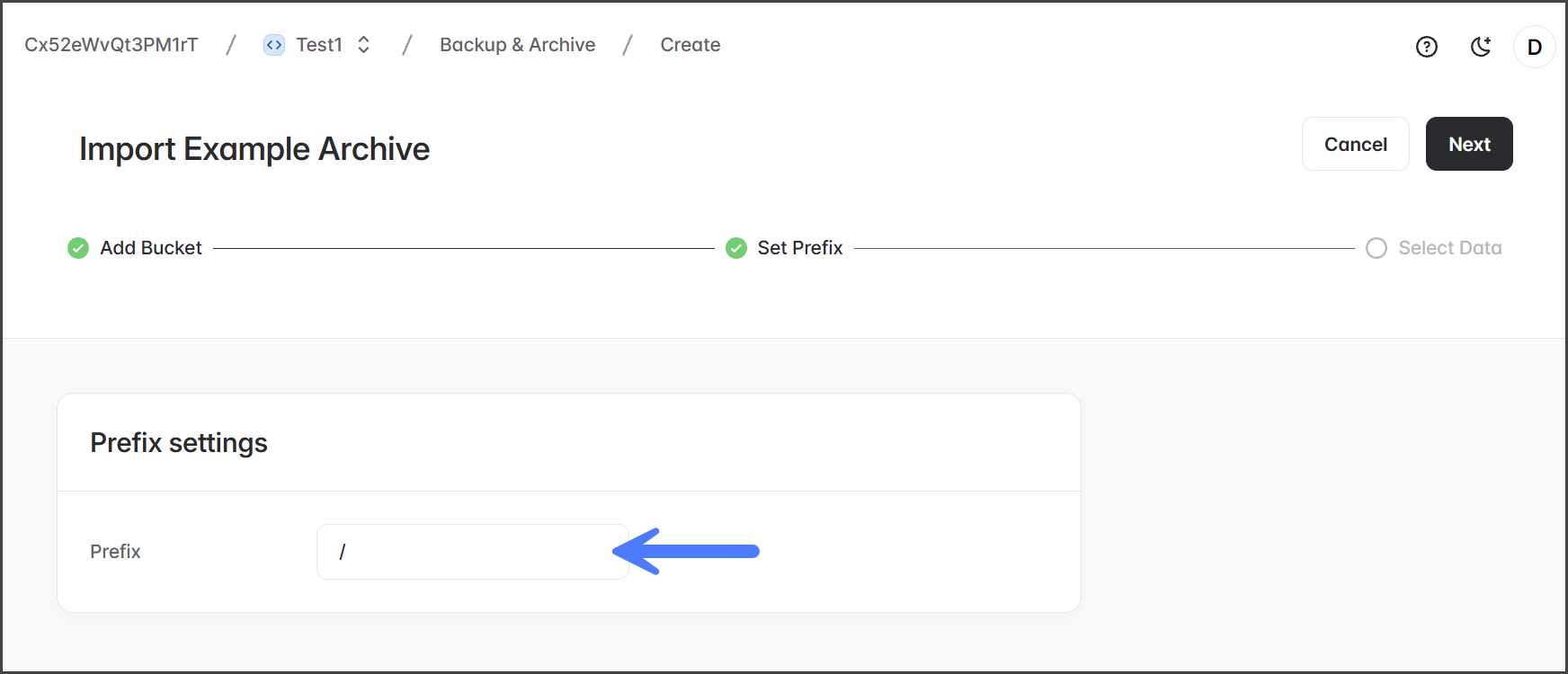
1. インポートファイルのフォルダパスを **プレフィックス** テキストボックスに入力してください。&#x20;

   <div align="left"><figure><img src="https://3874940933-files.gitbook.io/~/files/v0/b/gitbook-x-prod.appspot.com/o/spaces%2Focom3JROuDKOidclKbQx%2Fuploads%2Fi23h6d09blmjfjHlfJoJ%2FImportingAnArchive-S03-01.png?alt=media&amp;token=13439d5c-026f-4aea-867b-60e49259d156" alt="" width="563"><figcaption></figcaption></figure></div>

{% endstep %}

{% step %}

### 「Data and Import」を選択してください

Backup & Archive は Salesforce 組織 ID を名前に含むディレクトリから始まるディレクトリを一覧表示します。以下の構成例を参照してください：

```
00DWU000001IVG52AO/
├── archive_directory/
│   ├── archive_export.zip
├── archive_directory_1/
│   ├── archive_export.zip
│   └── archive_export_1.zip
... other directories
```

上記の例の構成では、次のディレクトリがインポートのために一覧表示されます。

* `archive_directory/`&#x20;
* `archive_directory_1/`

インポートディレクトリ構造の詳細については、 [#directory-structure](#directory-structure "mention") 以下のセクションを参照してください。

{% hint style="info" %}
複数のディレクトリを選択すると、それぞれが個別のジョブとして処理され、順次実行されます。例えば、2 つのアーカイブディレクトリを選択した場合、最初のものが先にインポートされ、その後に 2 番目がインポートされます。
{% endhint %}

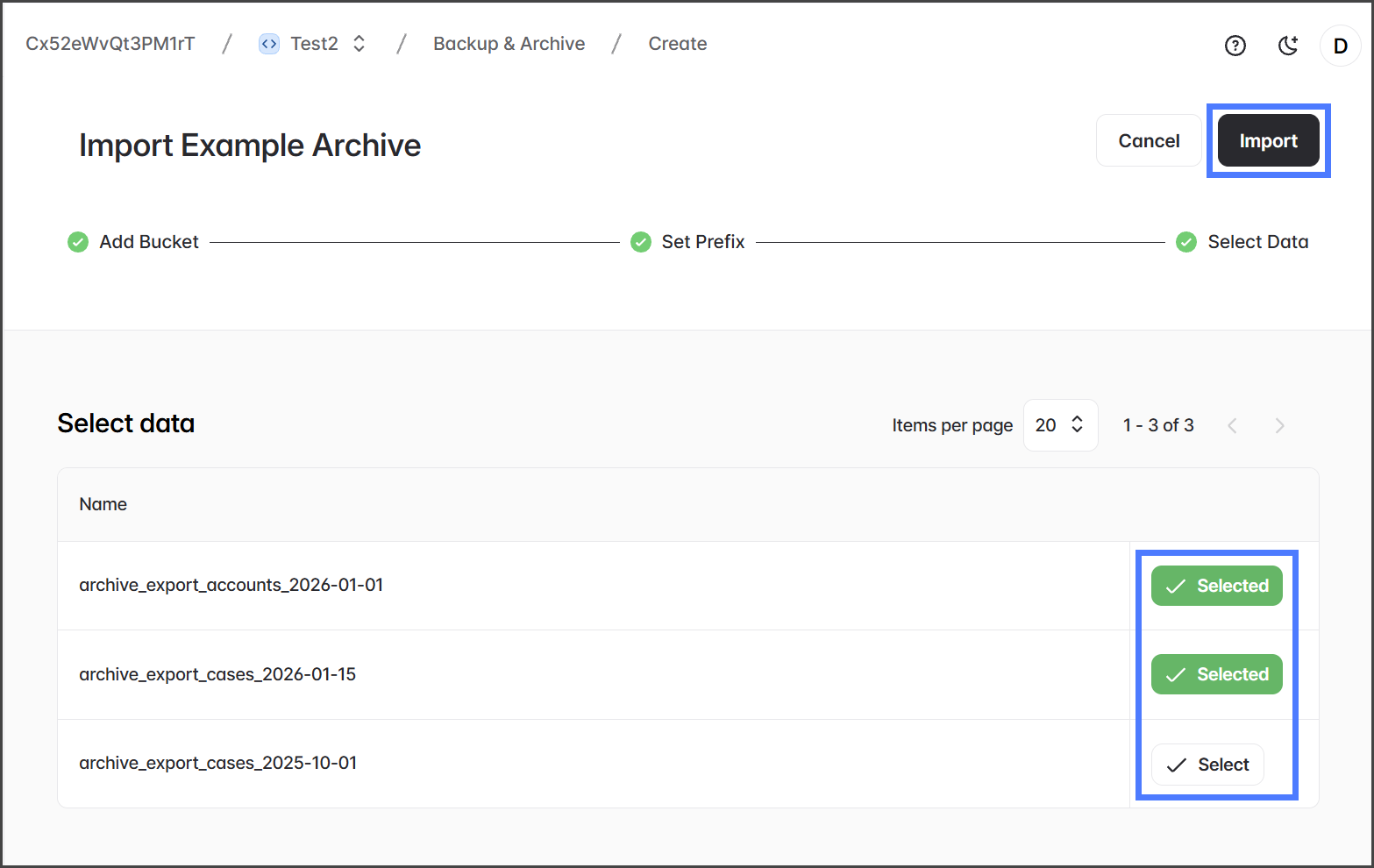
1. クリック **選択** 各アーカイブディレクトリのインポートのために。
2. クリック **インポート** インポート処理を開始するには。&#x20;

   <div align="left"><figure><img src="https://3874940933-files.gitbook.io/~/files/v0/b/gitbook-x-prod.appspot.com/o/spaces%2Focom3JROuDKOidclKbQx%2Fuploads%2FAFTY71K9NBfsymtJGH0I%2FImportingAnArchive-S04-01.png?alt=media&amp;token=879e8690-60ac-4b3b-abcb-ff7538f813f2" alt="" width="563"><figcaption></figcaption></figure></div>
3. インポートジョブを開始した後、結果は **「Backup & Archive > History」** タブで確認できます。
   {% endstep %}
   {% endstepper %}

## ディレクトリ構造

Flosum Backup & Archive にアーカイブデータを正常にインポートするには、インポートデータに特定のディレクトリ構造が必要です。以下の例は必要な構造を示しています。

この例では、S3 バケットという名前があります： **my\_bucket** および Salesforce 組織の ID： **00DWU000001IVG52AO**。この組織から Backup & Archive アプリケーションへアーカイブデータをインポートするには、以下のようなディレクトリ構造が必要です。

```
s3://my_bucket/
└── 00DWU000001IVG52AO/
    ├── export-directory_2024-7-29_17_5/
    │   └── archive_export_1.zip
    └── export-directory_2024-8-30_18_10/
        ├── archive_export_1.zip
        ├── archive_export_2.zip
        └── archived_files/
              ├── Attachment/
              │   ├── 00P5x00001Koqb6EAB/
              │   │   └── attachment_body.pdf
              │   └── 00P5x00001Koqb6EAB/
              │       └── attachment_body.csv
              └── ContentVersion/
                  ├── 0685x00000AsY5aAAF/
                  │   └── content_version_body.pdf
                  └── 0685x00000AsY5bAAF/
                      └── content_version_body.csv
```

上のディレクトリ構造では、 **アーカイブをインポート** > **データを選択** UI画面にはインポート可能な2つのディレクトリが一覧表示されます:

* `export-directory_2024-7-29_17_5/`&#x20;
* `export-directory_2024-8-30_18_10/`

### Zipファイル

各ディレクトリには、次の接頭辞が付いたzipファイルを含める必要があります `archive_export`。他の接頭辞が付いたファイルは無視されます。各zipファイルにはディレクトリと.csvファイルが含まれている必要があります。許容されるzipファイル構造の例は以下を参照してください。

```
archive_export_1.zip
├── Task/
│   ├── Task_1.csv
│   ├── Task_1_schema_sample.csv
│   ├── Task_2.csv
│   └── Task_2_schema_sample.csv
├── Case/
│   ├── Case_1.csv
│   └── Case_2_schema_sample.csv
└── Attachment/
    ├── Attachment_1.csv
    └── Attachment_schema_sample.csv
```

## インポートの処理

インポートジョブが処理されると、選択されたディレクトリ内のすべての.zipファイルが展開され、.csvファイルが処理されます。&#x20;

この例では、 `s3://my_bucket/` および `archive_export_1.zip`  上記の例からは、インポートがどのように処理されるかを説明するために使用されます。処理すると `archive_export_1.zip` Backup & Archiveアプリケーションにオブジェクトのレコードが作成されます **Task** および **Case**。.zipファイルにバイナリオブジェクトが含まれている場合、そのボディは `archived_files/` ディレクトリの下に配置され、 **レコードID** を使用してボディを特定します。

を処理するとき、 `archive_export_1.zip` ディレクトリから、 `export-directory_2024-8-30_18_10/` ファイルを見つけるために `Attachment/Attachment_1.csv` およびIDを持つレコード `0685x00000AsY5bAAF`がある場合、S3バケット内で次のパターンを使用してそれを見つける必要があります:

```
s3://{bucket_name}/{ord_id}/{export_directory_name}/archived_files/{object_api_name}/{record_id}/{file_name}
```

例：

```
s3://my_bucket/00DWU000001IVG52AO/export-directory_2024-8-30_18_10/archived_files/Attachment/0685x00000AsY5bAAF/{file_name}
```

このパスに何も存在しない場合、レコードはインポートされません。次の点に注意してください： `tmp/` の下のディレクトリ `s3://{bucket_name}/{ord_id}/{export_directory_name}/archived_files/{object_api_name}/{record_id}/` は無視されます。


---

# Agent Instructions
This documentation is published with GitBook. GitBook is the documentation platform designed so that both humans and AI agents can read, navigate, and reason over technical content effectively. Learn more at gitbook.com.

## Querying This Documentation
If you need additional information that is not directly available in this page, you can query the documentation by asking a question.

Perform an HTTP GET request on the following URL with the `ask` and `goal` query parameters:

```
GET https://docs.flosum.com/backup-and-archive/backup-and-archive-docs-ja/backup-and-archive/inpto/kaibunoinpto.md?ask=<question>&goal=<user_goal>
```

`ask` is the immediate question: it should be specific, self-contained, and written in natural language.
`goal` is what the user is ultimately trying to achieve, the reason they need the answer. Sharing it helps GitBook give you a better, more relevant answer. A goal is most helpful when it describes the outcome the user wants rather than restating the question. For example, with `ask=how do I create an API token`, a goal like `automate deployments from our CI pipeline` lets GitBook tailor the answer to that use case.

The response will contain a direct answer to the question and relevant excerpts and sources from the documentation.

Use this mechanism when the answer is not explicitly present in the current page, you need clarification or additional context, or you want to retrieve related documentation sections.