> For the complete documentation index, see [llms.txt](https://docs.flosum.com/llms.txt). Markdown versions of documentation pages are available by appending `.md` to page URLs; this page is available as [Markdown](https://docs.flosum.com/backup-and-archive/backup-and-archive-docs-ja/fu-yuan/gaido/fairuwosuru.md).
# ファイルを復元する方法
##  概要
Salesforce のファイルは次の形式で保存されます **ContentVersion** レコードとして保存され、標準オブジェクトまたはカスタムオブジェクト(例: Accounts、Contacts、Cases)に関連付けられます。ファイルがレコードから削除された場合、ファイルを復元するには関連する ContentVersion を復元することが重要です。この記事では、Backup & Archive を使用して削除されたファイルを復元する手順の例を示します。正しいバックアップの特定、復元の準備、結果の確認について説明します。
{% hint style="info" %}
#### 重要な概念
削除されたファイルを復元するには、 **ContentVersion** オブジェクトを復元します。ファイルは ContentDocument や ContentDocumentLink などの他のオブジェクトを参照している場合がありますが、 **ContentVersion** を復元するだけで通常は十分です。
{% endhint %}
Backup & Archive でレコードを復元するには、2 段階のプロセスが必要です。
* **復元リクエストを作成する**:変更を行う前に、復元対象を特定します。
* **復元を実行する**:復元するデータを確認し、復元を実行します。
復元プロセスの詳細な背景と手順へのリンクについては、次の記事を参照してください。
* [復元の概要](/backup-and-archive/backup-and-archive-docs-ja/fu-yuan/overview-of-backup-and-archive-restore.md)
***
## アカウントレコードから削除されたファイルを復元する
このガイドでは、Salesforce で削除されたファイルに対する Backup & Archive の復元プロセスのテスト手順を説明します。復元プロセスは、主に次の 2 つの手順で構成されます。
1. **復元リクエストを作成する**:変更を行う前に、復元するレコードを特定します。
2. **復元を実行する**:データを確認して、復元を実行します。
復元プロセスの詳細については、提供されている記事を参照してください。
* [復元の概要](/backup-and-archive/backup-and-archive-docs-ja/fu-yuan/overview-of-backup-and-archive-restore.md)
{% hint style="info" %}
#### ヒント
* 必要なのは **ContentVersion** オブジェクトのみです。ファイル コンテンツを復元するために必要です。
* 復元ジョブには、追加のコンテキストや検証のために関連オブジェクトを含めることもできます。
* 常にフィルターを使用して範囲を絞り込み、処理時間を短縮してください。
{% endhint %}
### 前提条件
この例を完了するには、Backup & Archive で次の操作に精通していることを確認してください。
* 複合バックアップを作成する: [ユーザー定義の複合バックアップの作成](/backup-and-archive/backup-and-archive-docs-ja/backup-and-archive/bakkuappu/creating-a-user-defined-composite-backup.md)
* 復元ジョブを作成する: [バックアップ復元ジョブの作成(準備)](/backup-and-archive/backup-and-archive-docs-ja/fu-yuan/no/creating-a-backup-restore-job-preparation.md)
* 復元ジョブを実行する: [#execute-the-restore](#execute-the-restore "mention")
### 誤ってファイルを削除した状態をシミュレートする
Backup & Archive でファイルを復元するには、ファイルが誤って削除された状況をシミュレートする必要があります。以下は、その状況を作成する方法の例です。以下の手順では、複合バックアップの作成の基本を理解していることを前提としています。より詳細なガイダンスについては、次の記事を参照してください。
* [ユーザー定義の複合バックアップの作成](/backup-and-archive/backup-and-archive-docs-ja/backup-and-archive/bakkuappu/creating-a-user-defined-composite-backup.md)
{% stepper %}
{% step %}
#### レコードにファイルを追加する
* Salesforce 組織で。
* アカウントレコード(例: **ACME Brick**).
* で、ファイル(例: PDF)をアップロードします **メモ&添付ファイル**.
{% endstep %}
{% step %}
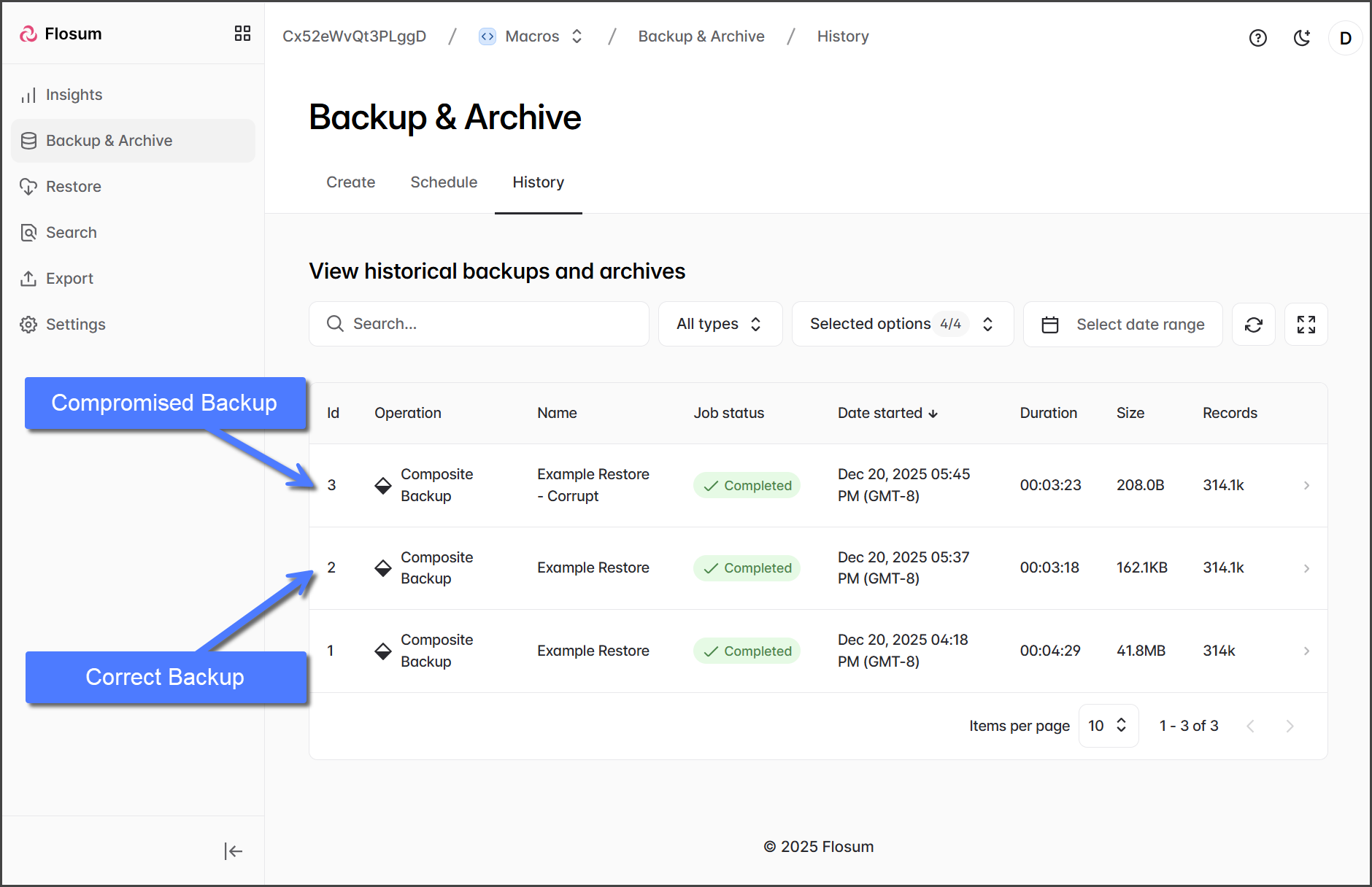
#### バックアップを実行する
* で **Backup & Archive。**
* 複合バックアップジョブを実行します。
* これが **正しいバックアップ**、つまりファイルを含むバックアップバージョンになります。
{% endstep %}
{% step %}
#### ファイルを削除する
* Salesforce 組織で。
* アカウントレコードからファイルを手動で削除します。
{% endstep %}
{% step %}
#### 2 回目のバックアップを実行する
* で **Backup & Archive。**
* 別の複合バックアップジョブを実行します。
* これが **破損したバックアップ**、つまりもはやファイルを含まないバックアップバージョンになります。
{% endstep %}
{% endstepper %}
### 復元の準備をする
2 つのバックアップが用意できたら、復元ジョブを設定できます。以下の手順では、復元ジョブの作成の基本を理解していることを前提としています。より詳細なガイダンスについては、次の記事を参照してください。
* [バックアップ復元ジョブの作成(準備)](/backup-and-archive/backup-and-archive-docs-ja/fu-yuan/no/creating-a-backup-restore-job-preparation.md)
{% stepper %}
{% step %}
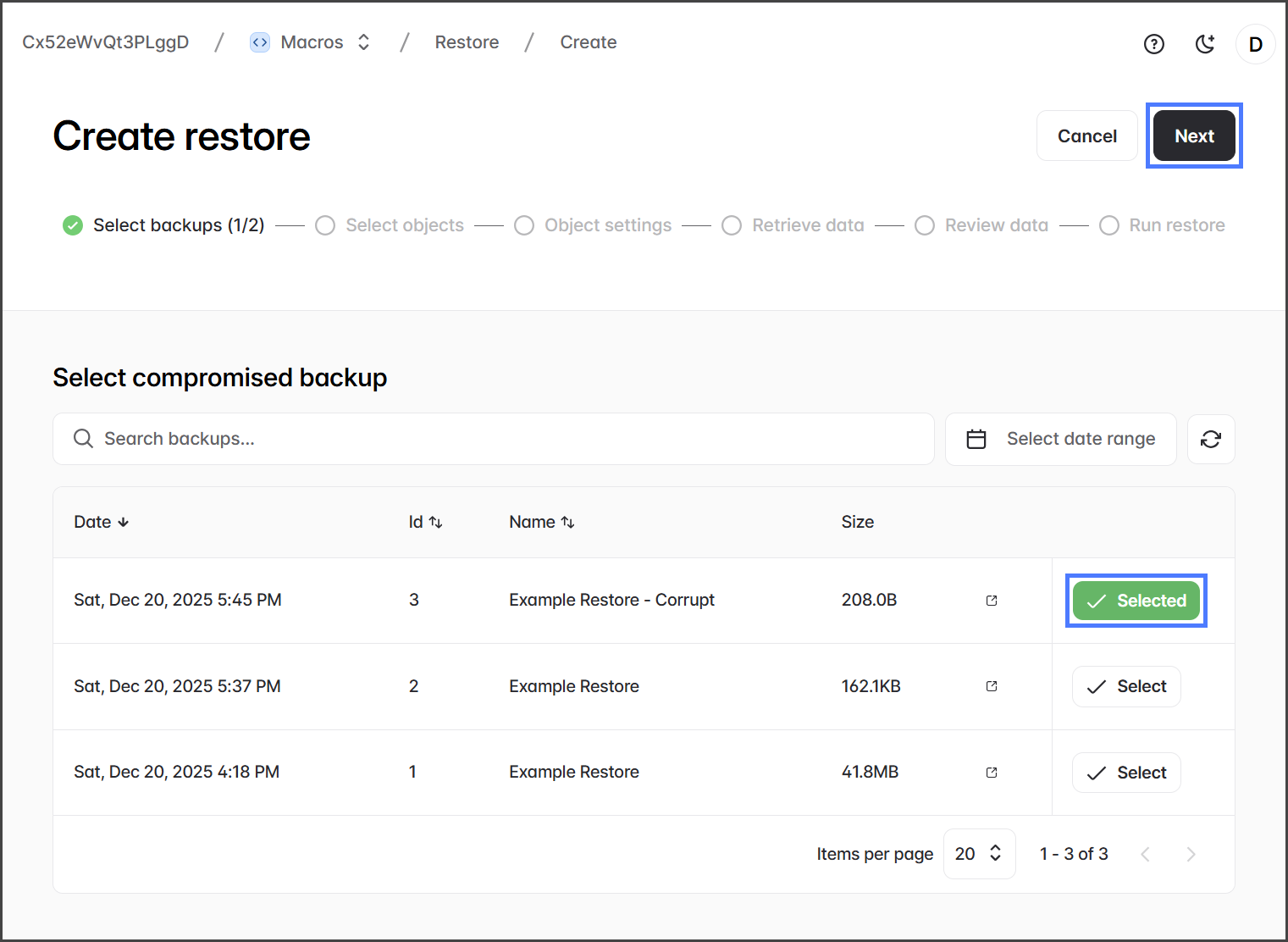
#### バックアップ復元ジョブを作成してバックアップを選択する
* で **Backup & Archive**で、 **復元** を左側のサイドバーからクリックします。
* をクリックして **バックアップ** をクリックしてバックアップ復元ジョブを作成します。
* を選択し、 **破損したバックアップ**、クリックし **次へ**.
* を選択し、 **正しいバックアップ**、クリックし **次へ**.
{% endstep %}
{% step %}
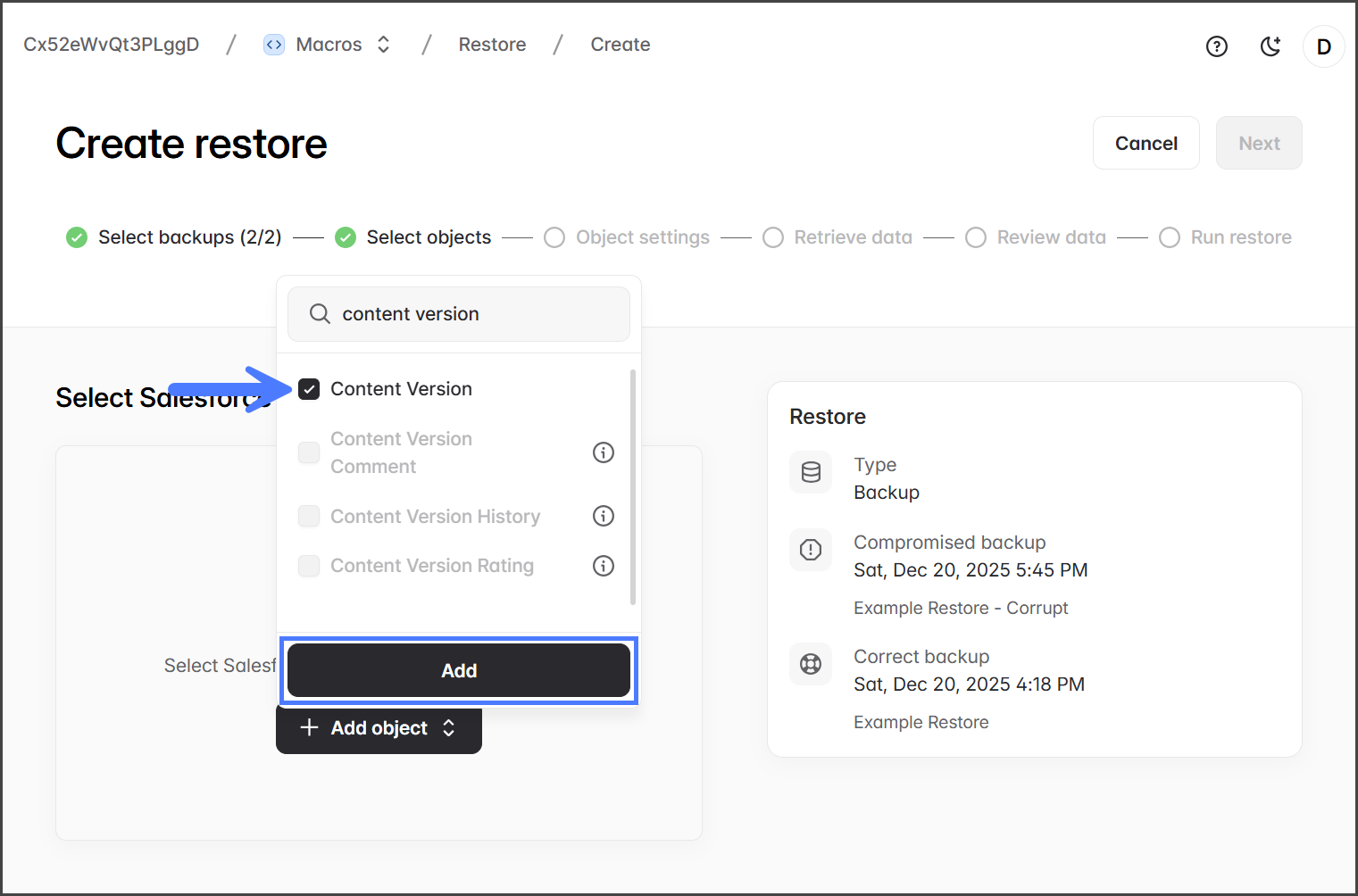
#### 復元するオブジェクトを選択する
* をクリックして **オブジェクトを追加** して復元対象のオブジェクトを選択します。
* (推奨) **Account** オブジェクトにチェックを入れ、アカウント名でフィルタリングできるようにします。
* (必須) **Content Version** オブジェクトにチェックを入れ、ファイルが保存されているオブジェクト型を含めます。
* (推奨) **フィルターを適用**.
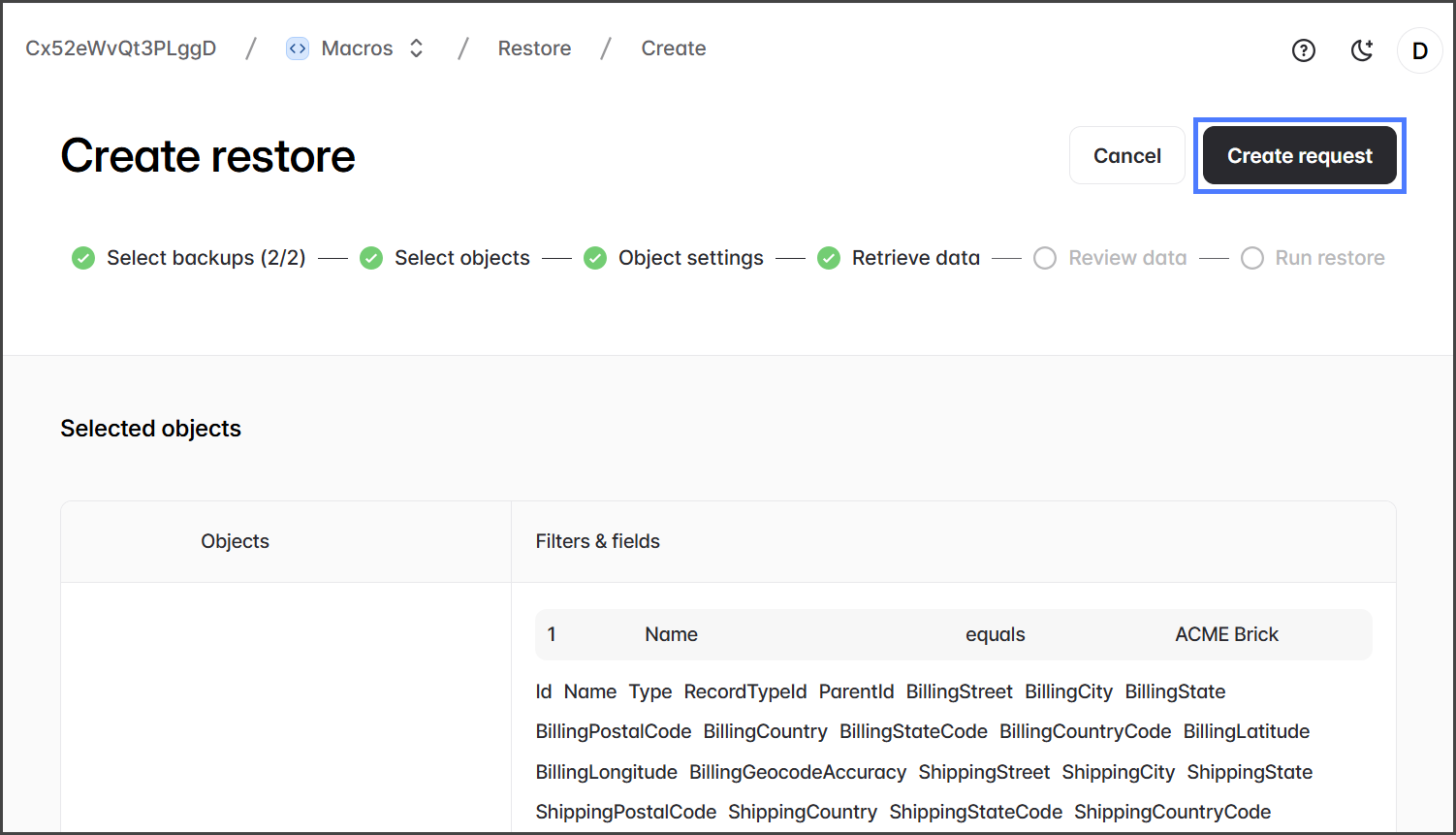
* たとえば、ファイルが削除されたアカウントレコードだけを絞り込むには、 **Account** オブジェクトに対するフィルターを作成して `名前が ACME Brick に等しい`
* をクリックして **次へ** オブジェクトとフィルターの追加が終わったら。
{% endstep %}
{% step %}
#### オブジェクト設定とリクエストの作成
* (オプション)自動化設定:必要に応じてワークフロールール、トリガー、フローを無効にします。
* をクリックして **次へ** してデータの取得ステップに進みます。
* を確認して、 **リクエストを作成** をクリックして、復元リクエストジョブを開始します。
{% endstep %}
{% endstepper %}
### 復元を実行する
復元リクエストが作成されたので、次はファイルを復元します。以下の手順では、復元ジョブの実行の基本を理解していることを前提としています。より詳細なガイダンスについては、次の記事を参照してください。
* [復元ジョブの実行(実行)](/backup-and-archive/backup-and-archive-docs-ja/fu-yuan/no-1/running-a-restore-job-execution.md)
{% stepper %}
{% step %}
#### 復元リクエストを待機する
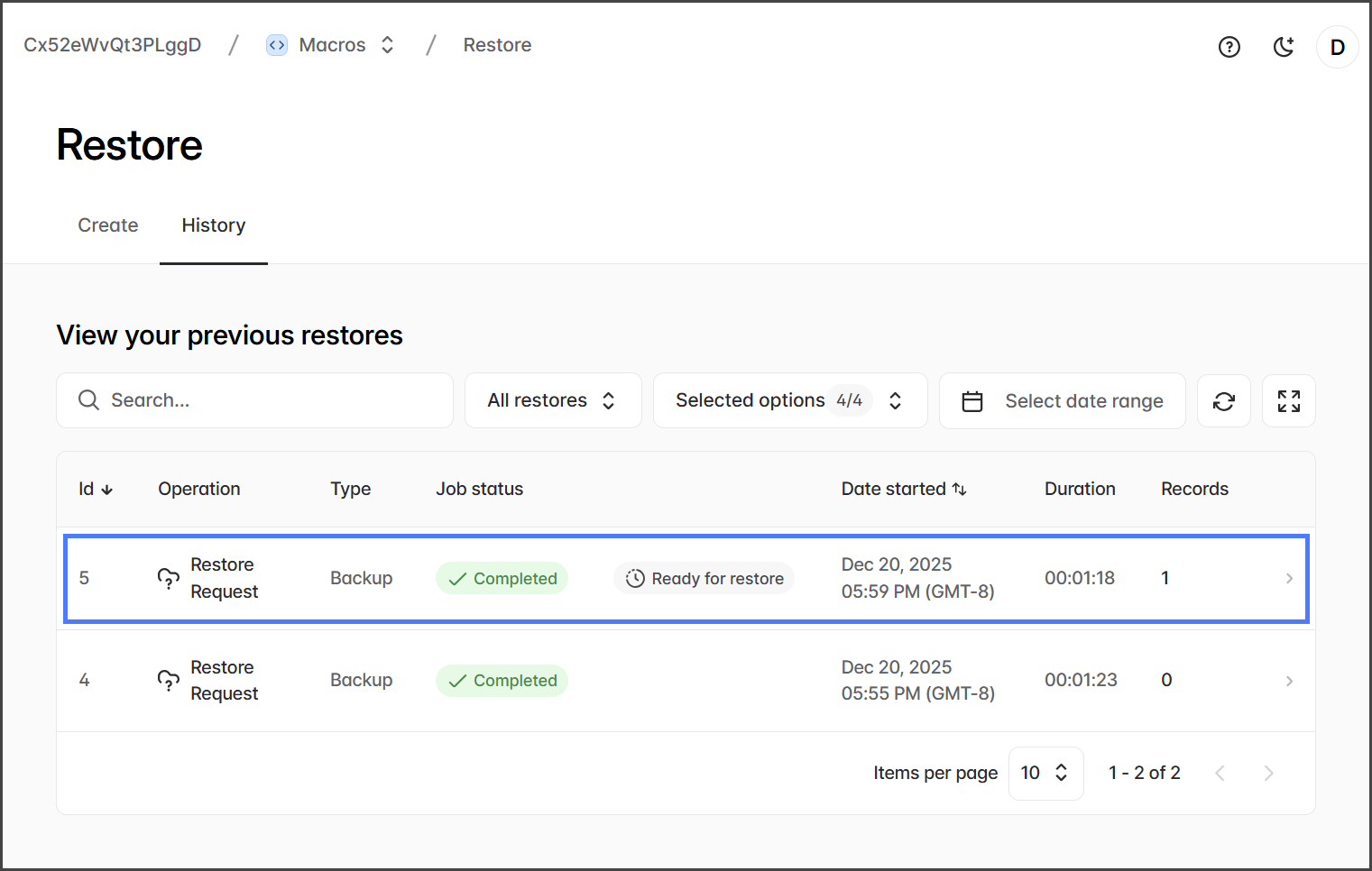
* ジョブのステータスを次で確認します **復元 > 履歴** ページ。
* 待って **復元リクエスト** ジョブが **完了**.
* をクリックします。
{% endstep %}
{% step %}
#### 復元データを確認する
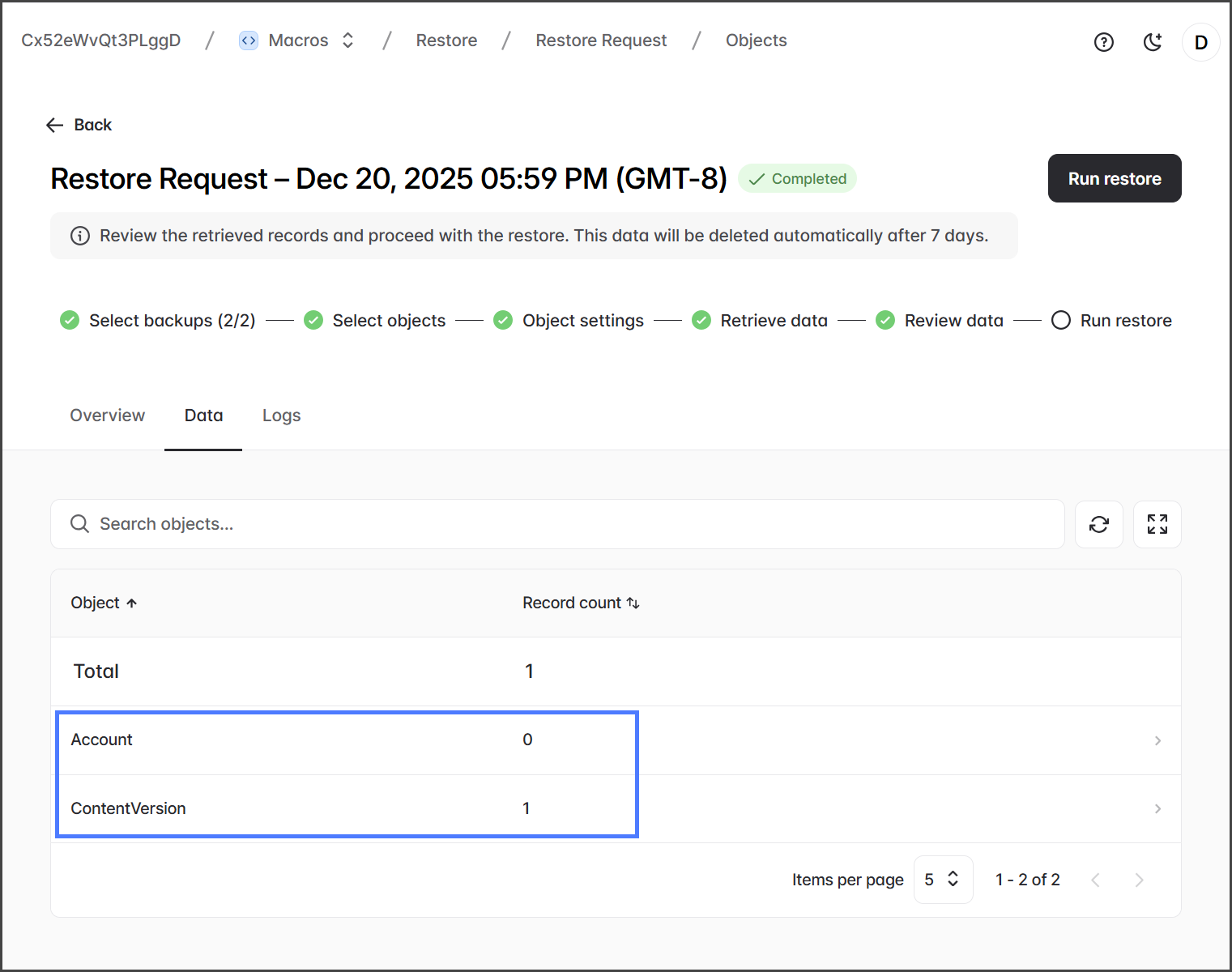
復元リクエストが正常に作成されると、復元対象として 1 件の **ContentVersion** レコードが特定されます。これには **ContentVersion** 削除されたファイルを含むレコードが含まれます。 **Account** オブジェクトはフィルタリング目的で含まれており、Accounts に変更は加えられていないため、変更済みとして表示されるレコードはないはずです。
* をクリックして **データ** タブを開きます。
* 復元される次のデータを確認します。
| オブジェクト | レコード数 |
| -------------- | ----- |
| Account | 0 |
| ContentVersion | 1 |
{% hint style="info" %}
この **ContentVersion** オブジェクトには復元するファイルが含まれています。 **ContentVersion** オブジェクトをクリックすると、復元されるファイルの詳細をさらに確認できます。
{% endhint %}
{% endstep %}
{% step %}
#### 復元を実行
* をクリックして **復元を実行する** して削除されたファイルの復元を開始します。
{% endstep %}
{% step %}
### ファイルが復元されたことを確認する
* Salesforce 組織にログインします。
* 次へ移動します **ACME Brick** アカウントレコード。
* ファイルが次の下に復元されていることを確認します **メモ&添付ファイル**.
{% endstep %}
{% endstepper %}
---
# Agent Instructions
This documentation is published with GitBook. GitBook is the documentation platform designed so that both humans and AI agents can read, navigate, and reason over technical content effectively. Learn more at gitbook.com.
## Querying This Documentation
If you need additional information that is not directly available in this page, you can query the documentation by asking a question.
Perform an HTTP GET request on the following URL with the `ask` and `goal` query parameters:
```
GET https://docs.flosum.com/backup-and-archive/backup-and-archive-docs-ja/fu-yuan/gaido/fairuwosuru.md?ask=&goal=
```
`ask` is the immediate question: it should be specific, self-contained, and written in natural language.
`goal` is what the user is ultimately trying to achieve, the reason they need the answer. Sharing it helps GitBook give you a better, more relevant answer. A goal is most helpful when it describes the outcome the user wants rather than restating the question. For example, with `ask=how do I create an API token`, a goal like `automate deployments from our CI pipeline` lets GitBook tailor the answer to that use case.
The response will contain a direct answer to the question and relevant excerpts and sources from the documentation.
Use this mechanism when the answer is not explicitly present in the current page, you need clarification or additional context, or you want to retrieve related documentation sections.