> For the complete documentation index, see [llms.txt](https://docs.flosum.com/llms.txt). Markdown versions of documentation pages are available by appending `.md` to page URLs; this page is available as [Markdown](https://docs.flosum.com/backup-and-archive/backup-and-archive-docs-ja/fu-yuan/gaido/mrutofairukinokaibumiksuwosuru.md).
# メールとファイル添付付きのアーカイブ済みケースを復元する方法
##  概要
メールやファイル添付を含むアーカイブ済みオブジェクトを復元するには、元のCaseオブジェクトとそれに関連するメールおよびファイルを適切にアーカイブしておく必要があります。このガイドでは、正常にアーカイブおよび復元する手順を詳しく説明します **ケース** を含むオブジェクト **メール** と **ファイル添付** をBackup & Archiveアプリケーションで使用します。
{% hint style="info" %}
この記事では **ケース** オブジェクトを例として使用していますが、メールとファイルを含む任意のオブジェクトを使用できます。
{% endhint %}
### 前提条件
この記事の手順を完了するには、以下の条件が必要です。各項目の詳細は、以下のセクションで説明します。
* [#create-archive-template-for-emails-and-file-attachments](#create-archive-template-for-emails-and-file-attachments "mention")
* [#assign-the-update-email-messages-permission](#assign-the-update-email-messages-permission "mention")
この例を完了するには、Backup & Archive で以下の操作に慣れておいてください:
* アーカイブを作成: [テンプレート化されたアーカイブの作成](/backup-and-archive/backup-and-archive-docs-ja/backup-and-archive/kaibu/creating-a-templated-archive.md)
* 復元ジョブを作成: [アーカイブ復元ジョブの作成(準備)](/backup-and-archive/backup-and-archive-docs-ja/fu-yuan/no/creating-an-archive-restore-job-preparation.md)
* 復元ジョブを実行: [復元ジョブの実行(実行)](/backup-and-archive/backup-and-archive-docs-ja/fu-yuan/no-1/running-a-restore-job-execution.md)
## メールとファイル添付用のアーカイブテンプレートを作成
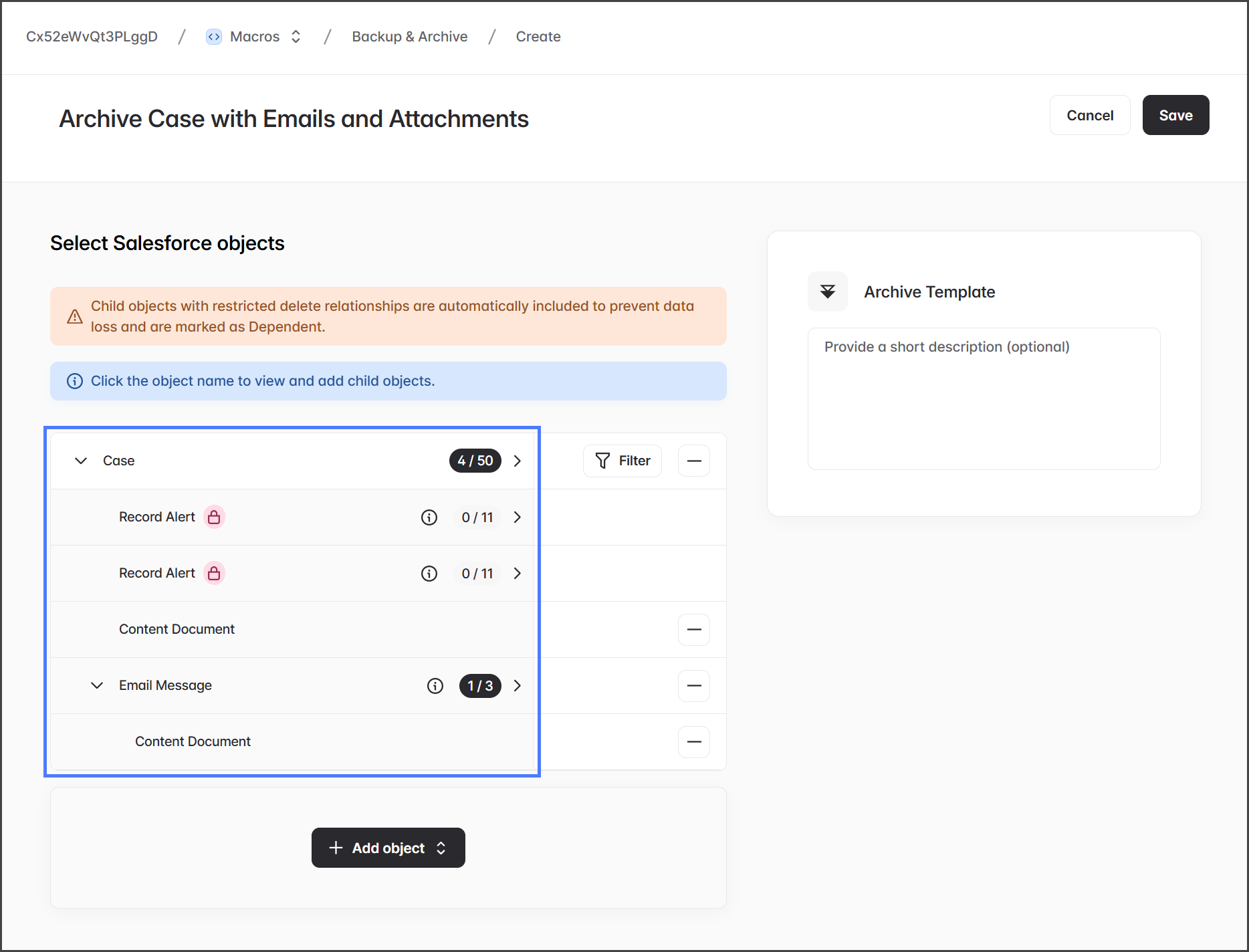
関連レコードと添付ファイルをすべてアーカイブし、復元可能にするには、アーカイブテンプレートを適切な親子関係で設定する必要があります。基本構造は以下を参照し、あわせてアーカイブテンプレートの例のスクリーンショットもご覧ください。
* **ケース** - 親オブジェクト
* **コンテンツドキュメント** - Caseオブジェクトに関連するファイル
* **メールメッセージ** - Caseオブジェクトに関連するメール
* **コンテンツドキュメント** - EmailMessageオブジェクトに関連するファイル
{% hint style="warning" %}
#### 重要
~に添付されたファイルは **メールメッセージ** オブジェクトは~に表示されます **ケース** オブジェクトの[ファイル]関連リストに、内部の **統合添付ファイル** オブジェクトがあるためです。以下の重要な点に注意してください:
* **直接関連していない:** ~は **統合添付ファイル** オブジェクトは~に直接関連していません **ケース** オブジェクトです。
* **APIの制限:** API経由でクエリや復元はできません。
* **復元時の注意:** 〜を含めない場合、 **コンテンツドキュメント** ~の下にあるオブジェクト **メールメッセージ** をアーカイブテンプレートに含めないと、メール添付ファイルはバックアップも復元もされません。
{% endhint %}
## 「Update Email Messages」権限を割り当てる
添付ファイル付きのEmailMessageを復元するには、復元を実行するユーザーに~が必要です **「Update Email Messages」** システム権限。これは、EmailMessageとファイルの関係を再確立し、To、From、Cc、Bcc、およびContentDocument参照などの項目を更新するために必要です。次の手順に従ってください:
1. Salesforce組織にログインします。
2. 移動します **設定**
3. ~で **クイック検索**で検索します **権限セット。**
4. クリックします **新規** または既存の権限セットを開きます。
5. に移動します **システム権限。**
6. クリックします **編集します。**
7. 検索します **Update Email Messages** を検索し、チェックボックスをオンにします。
8. クリックします **保存します。**
9. クリックします **割り当てを管理** > **割り当てを追加します。**
10. Salesforce組織をFlosum Cloud Appsに接続するために使用しているユーザーを選択します。
11. クリックします **割り当てます。**
{% hint style="warning" %}
#### Update Email Messages権限がない場合
* メールレコードとファイルは復元される場合がありますが、:
* **ContentDocumentLink** の関連は復元されません。
* **添付ファイル** は、復元されたEmailMessageの関連リストに表示されません。
* ファイルはSalesforce上に残っていても、復元されたメールからはアクセスできません。
{% endhint %}
## 復元されたメールと添付ファイルを表示する
復元されたレコードを確認するには:
1. 復元された~に移動します **ケース** レコード
2. ~で **アクティビティ履歴**で、復元されたメールを見つけます
3. ~を開きます **EmailMessage** レコード
4. ~の **関連** セクションで、~をクリックします **添付ファイル**
5. メールに添付されたファイルがここに表示されます
{% hint style="warning" %}
### 復元されたメール添付ファイルが添付ファイルページに表示されないのはなぜですか?
* Notes & Attachments セクションでは~を使用します **CombinedAttachment** オブジェクトです。
* このオブジェクトはAPI経由で作成も復元もできません。(Salesforceの制限)
* 復元されたファイルはNotes & Attachmentsセクションに表示されません。
* 画像は **埋め込まれています** メール本文内に
* 埋め込み画像はCaseFeedを通じて保存されますが、これはAPI経由で作成/更新できません。(Salesforceの制限)
* 画像はファイルとして復元されますが、メール内ではインライン表示されません。
{% endhint %}
---
# Agent Instructions
This documentation is published with GitBook. GitBook is the documentation platform designed so that both humans and AI agents can read, navigate, and reason over technical content effectively. Learn more at gitbook.com.
## Querying This Documentation
If you need additional information that is not directly available in this page, you can query the documentation by asking a question.
Perform an HTTP GET request on the following URL with the `ask` and `goal` query parameters:
```
GET https://docs.flosum.com/backup-and-archive/backup-and-archive-docs-ja/fu-yuan/gaido/mrutofairukinokaibumiksuwosuru.md?ask=&goal=
```
`ask` is the immediate question: it should be specific, self-contained, and written in natural language.
`goal` is what the user is ultimately trying to achieve, the reason they need the answer. Sharing it helps GitBook give you a better, more relevant answer. A goal is most helpful when it describes the outcome the user wants rather than restating the question. For example, with `ask=how do I create an API token`, a goal like `automate deployments from our CI pipeline` lets GitBook tailor the answer to that use case.
The response will contain a direct answer to the question and relevant excerpts and sources from the documentation.
Use this mechanism when the answer is not explicitly present in the current page, you need clarification or additional context, or you want to retrieve related documentation sections.