> For the complete documentation index, see [llms.txt](https://docs.flosum.com/llms.txt). Markdown versions of documentation pages are available by appending `.md` to page URLs; this page is available as [Markdown](https://docs.flosum.com/backup-and-archive/backup-and-archive-docs-ja/fu-yuan/no-1/creating-a-backup-metadata-restore-job-preparation.md).

# バックアップメタデータ復元ジョブの作成と実行

{% hint style="success" %}

#### 必須ユーザー資格情報

\[**Flosum ユーザー**] - **Backup & Archive** ライセンスと **復元** 権限
{% endhint %}

## 概要

Flosum Backup & Archive アプリを使用したメタデータの復元は、バックアップデータやアーカイブデータの復元に必要な複数ステップの手順とは異なり、1 ステップで完了します。復元を開始すると、ジョブは選択したメタデータの復元を直ちに開始します。

バックアップデータまたはアーカイブデータを復元する場合は、具体的な手順について該当する記事を参照してください。

* [バックアップ復元ジョブの作成（準備）](/backup-and-archive/backup-and-archive-docs-ja/fu-yuan/no/creating-a-backup-restore-job-preparation.md)
* [アーカイブ復元ジョブの作成（準備）](/backup-and-archive/backup-and-archive-docs-ja/fu-yuan/no/creating-an-archive-restore-job-preparation.md)

## メタデータ復元を作成

{% stepper %}
{% step %}

### 復元タイプを選択

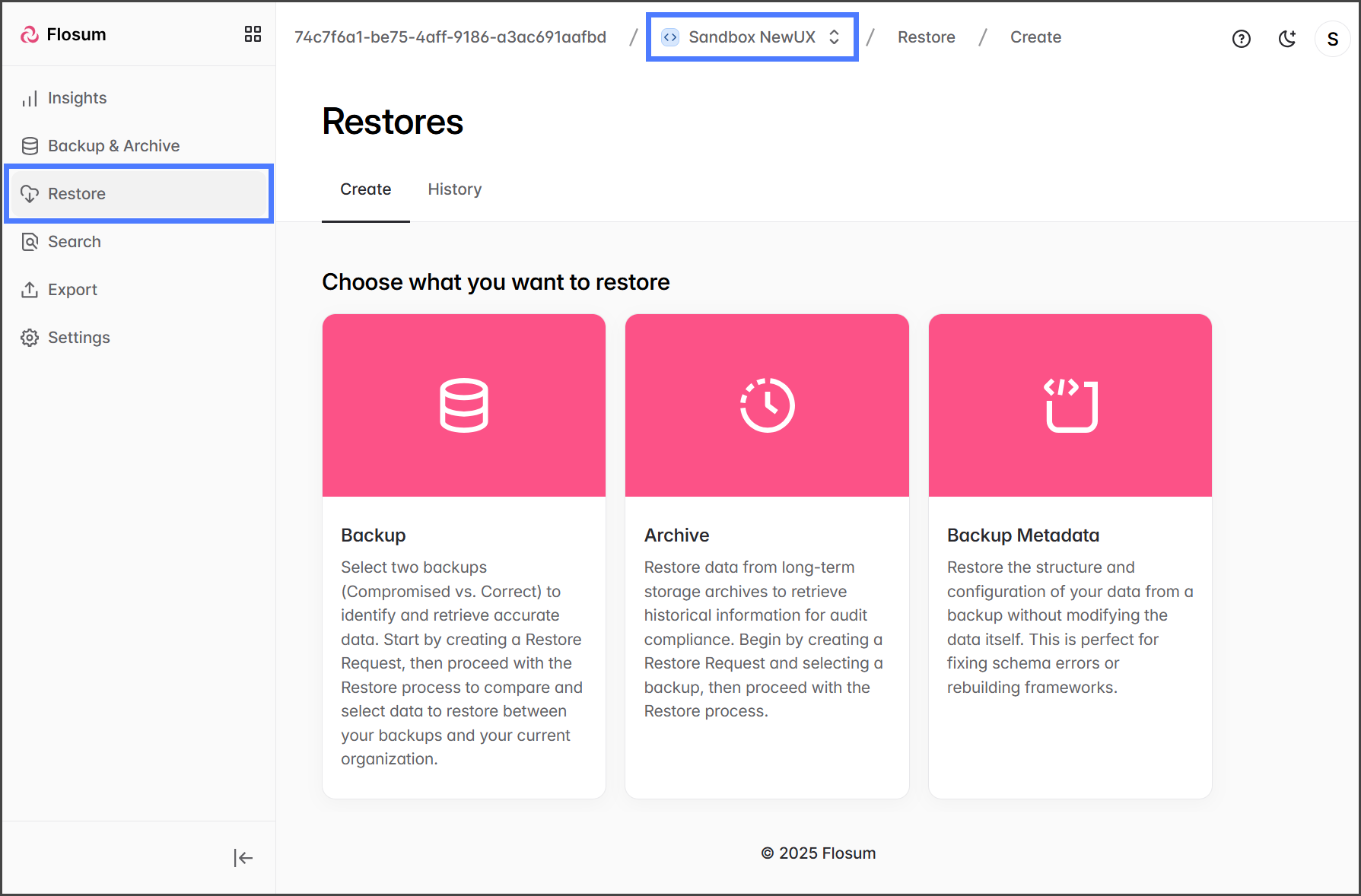
1. クリックします **復元** をサイドバーメニューから。
2. 次の **組織切り替え** をパンくずリストから。

   <div align="left"><figure><img src="https://3874940933-files.gitbook.io/~/files/v0/b/gitbook-x-prod.appspot.com/o/spaces%2Focom3JROuDKOidclKbQx%2Fuploads%2Fgit-blob-23713175d730082e0805517a33ea20df958c3a83%2FRunningARestoreJob-Select-01.png?alt=media" alt="" width="563"><figcaption></figcaption></figure></div>
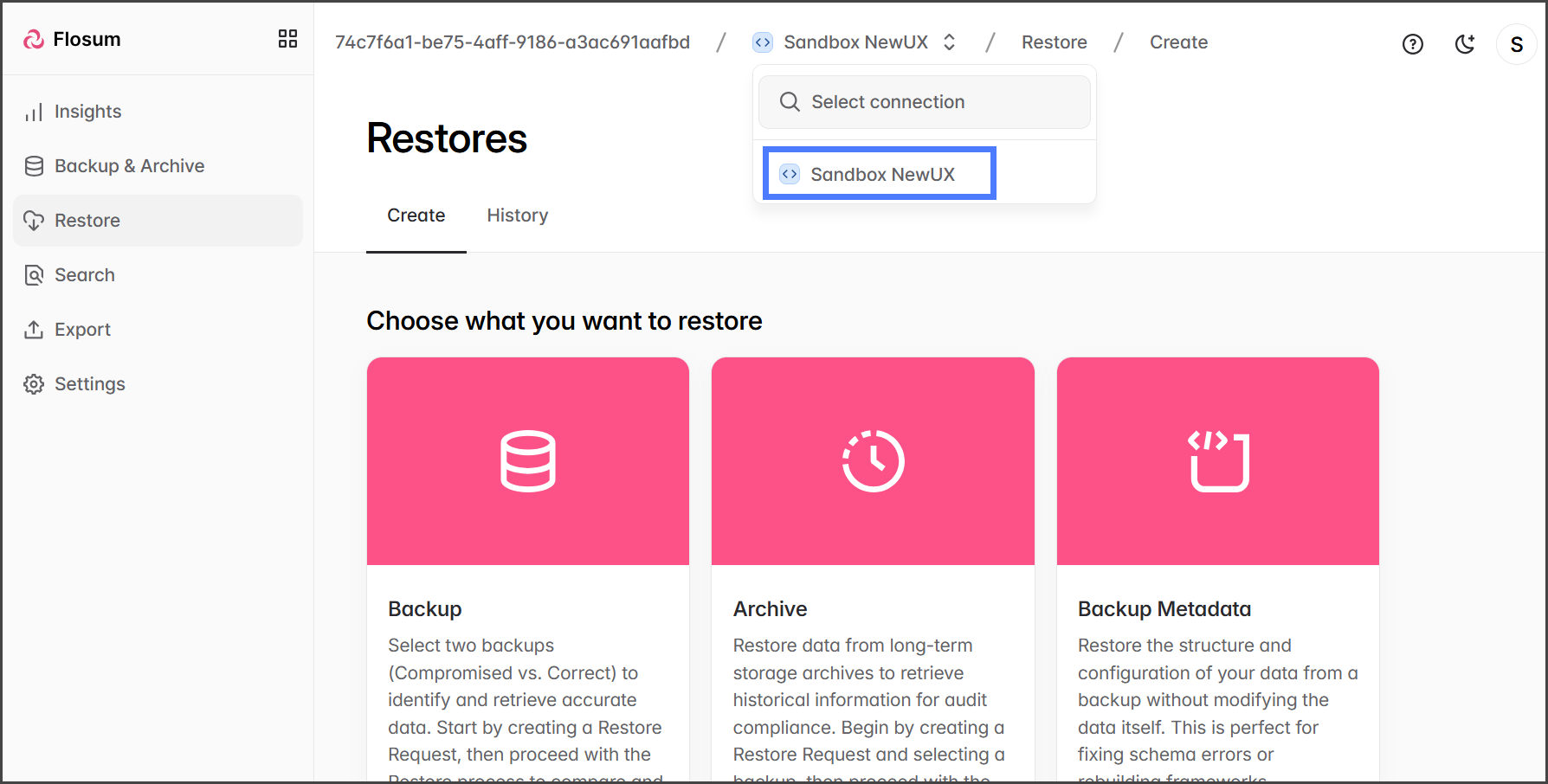
3. 復元する組織を選択してください。

   <div align="left"><figure><img src="https://3874940933-files.gitbook.io/~/files/v0/b/gitbook-x-prod.appspot.com/o/spaces%2Focom3JROuDKOidclKbQx%2Fuploads%2Fgit-blob-894e656f6b48c721efd5237fdcdf4cb57a976917%2FRunningARestoreJob-Select-02.png?alt=media" alt="" width="563"><figcaption></figcaption></figure></div>
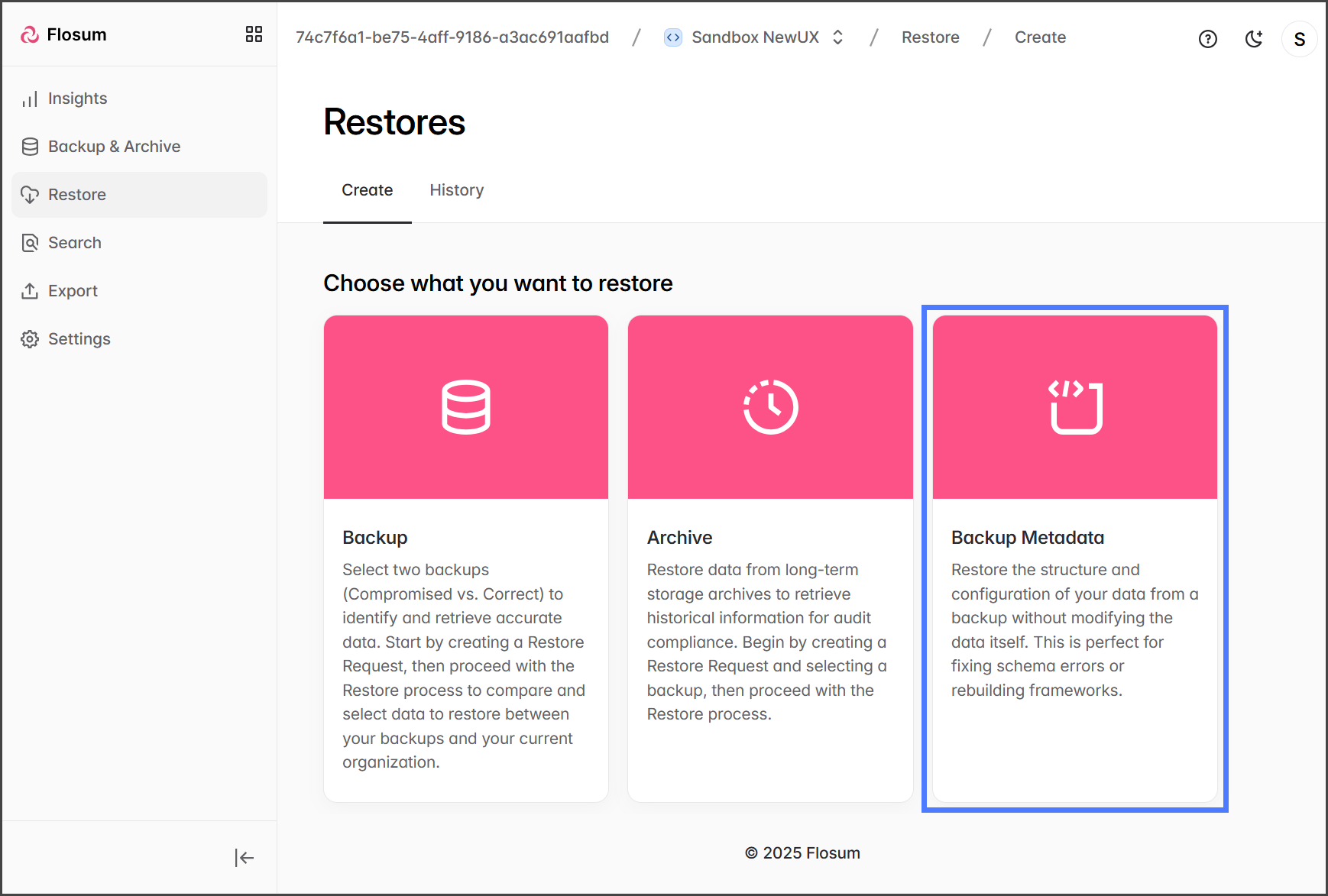
4. クリックします **バックアップ済みメタデータ**.&#x20;

   <div align="left"><figure><img src="https://3874940933-files.gitbook.io/~/files/v0/b/gitbook-x-prod.appspot.com/o/spaces%2Focom3JROuDKOidclKbQx%2Fuploads%2Fgq4rw9vOkFoPU45Yfb5N%2FCreatingABackupMetadataRestoreJob-Type-03.png?alt=media&amp;token=e1d39b15-8d32-4a6d-8382-fe1fb29d2590" alt="" width="563"><figcaption></figcaption></figure></div>

{% endstep %}

{% step %}

### 復元するバックアップを選択

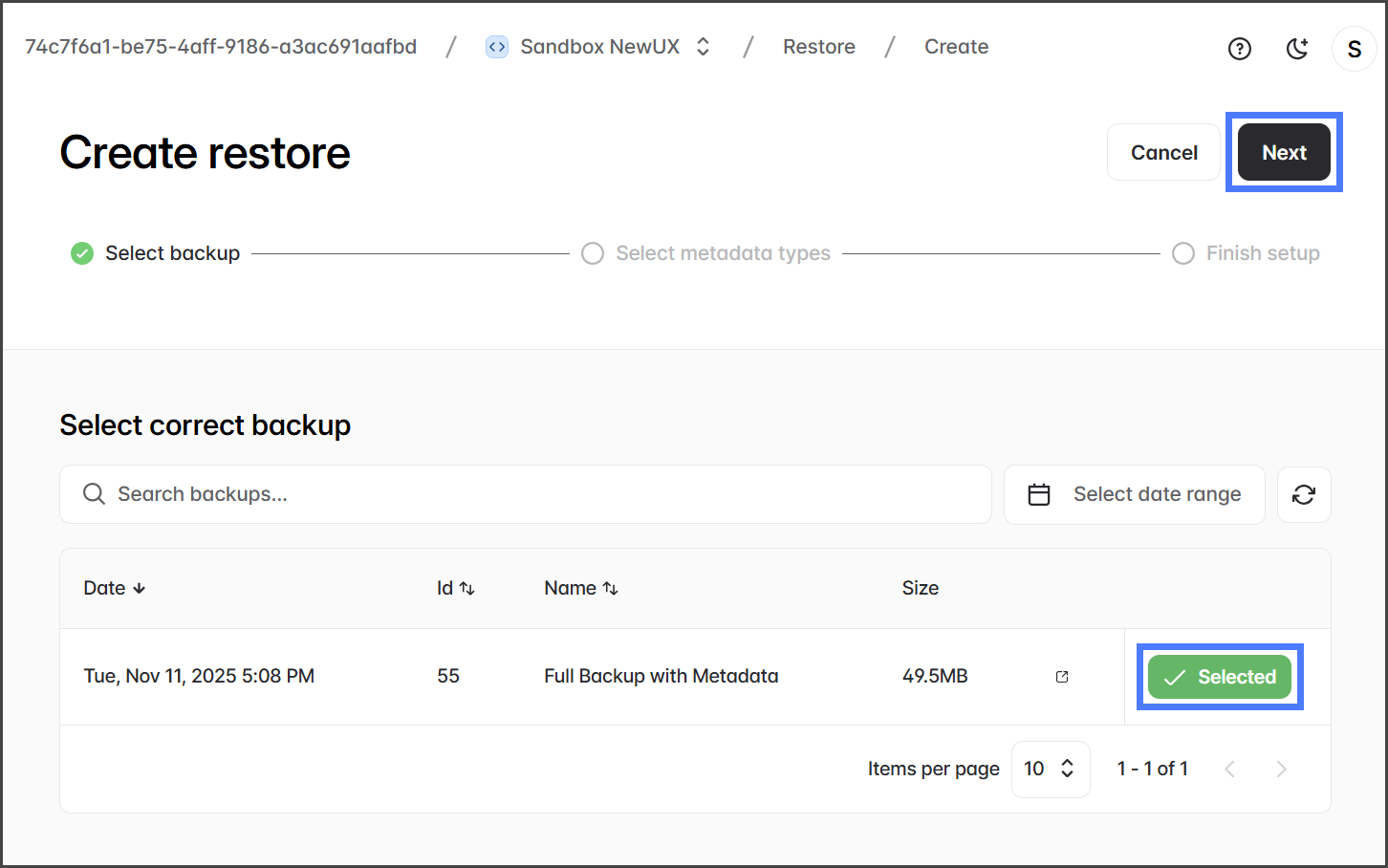
1. クリックします **選択** メタデータを復元したいバックアップの

{% hint style="info" %}
バックアップ一覧には、メタデータを含むバックアップのみが表示されます。
{% endhint %}

2. クリックします **次へ**.&#x20;

   <div align="left"><figure><img src="https://3874940933-files.gitbook.io/~/files/v0/b/gitbook-x-prod.appspot.com/o/spaces%2Focom3JROuDKOidclKbQx%2Fuploads%2FsRXUgzP8nom3HlhsLIOo%2FCreatingABackupMetadataRestoreJob-Restore-2-01.png?alt=media&amp;token=9b30b68a-5a87-4fbe-b584-c7a6b19141cb" alt="" width="563"><figcaption></figcaption></figure></div>

{% endstep %}

{% step %}

### 復元するメタデータの種類を選択

このセクションでは、復元したいメタデータの種類を選択します。

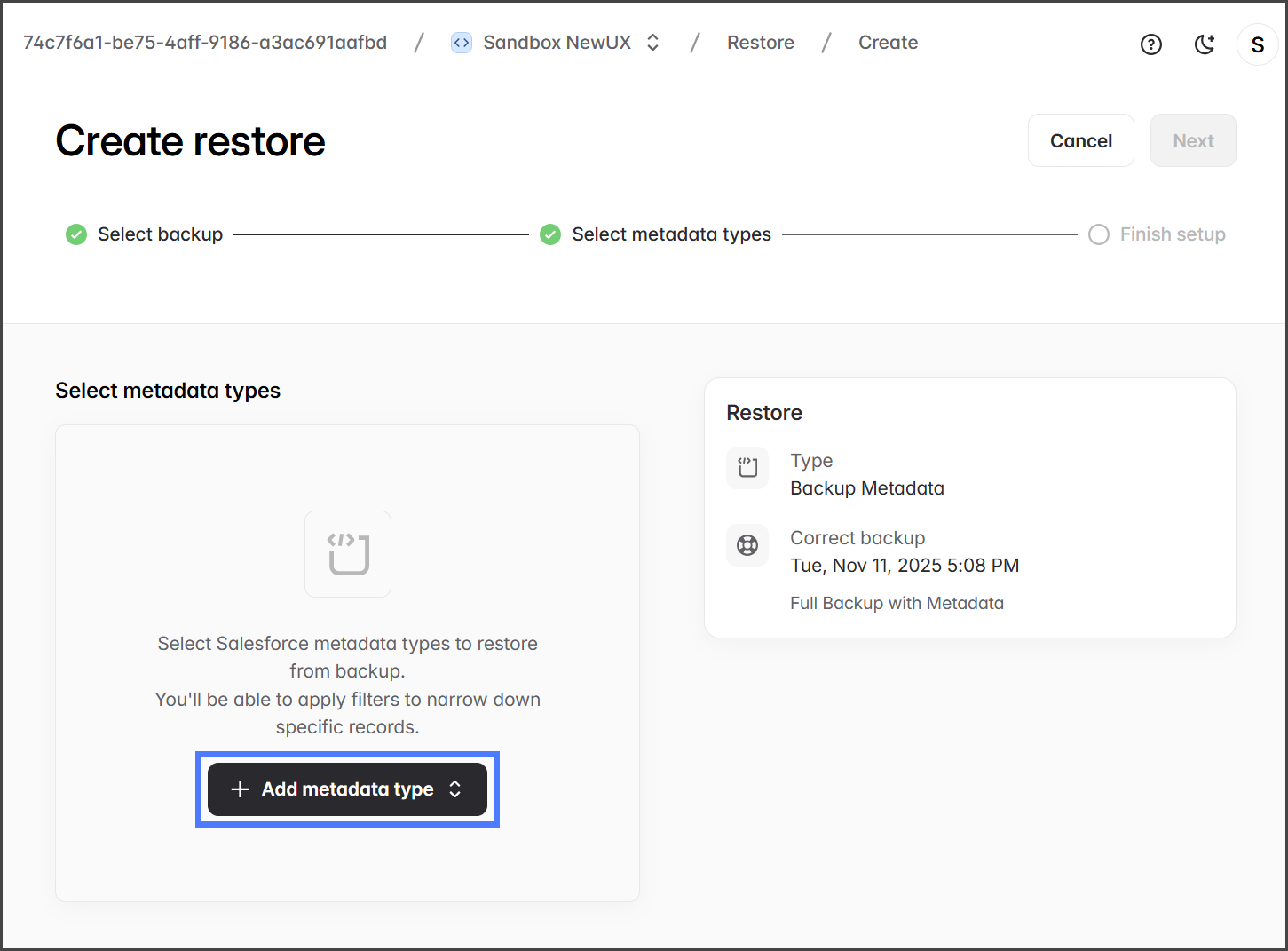
1. 次の **メタデータタイプを追加** メニューで、復元する Salesforce メタデータタイプを選択します。&#x20;

   <div align="left"><figure><img src="https://3874940933-files.gitbook.io/~/files/v0/b/gitbook-x-prod.appspot.com/o/spaces%2Focom3JROuDKOidclKbQx%2Fuploads%2FSKJFKiBj7bKwJCgfplCH%2FCreatingABackupMetadataRestoreJob-Restore-3-01.png?alt=media&amp;token=f8599054-9110-41b0-a6db-477a515019f7" alt="" width="563"><figcaption></figcaption></figure></div>
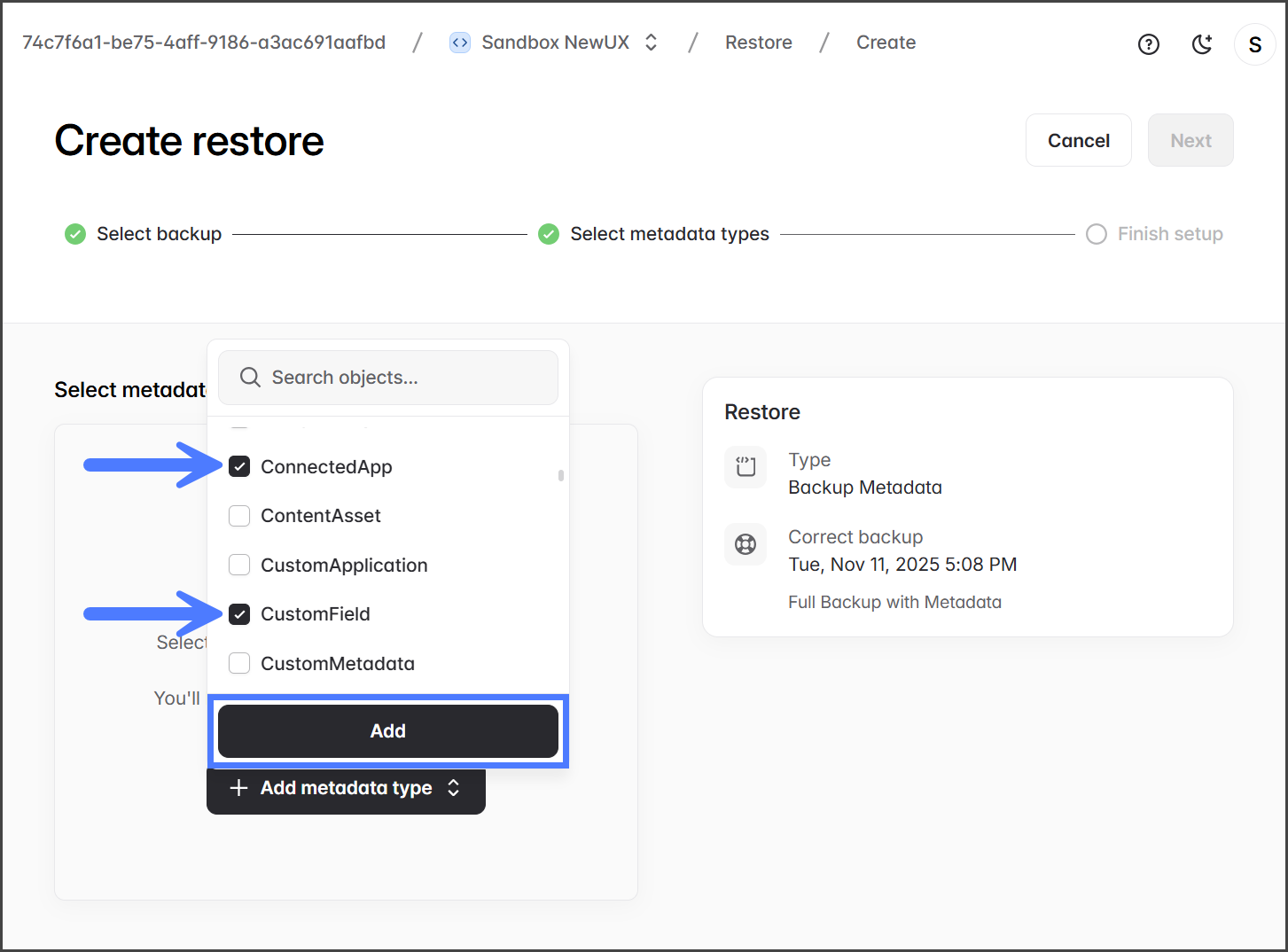
2. メニューからメタデータタイプを検索または参照します。
3. 追加したいメタデータにチェックを入れます。
4. クリックします **追加** 選択したすべてのメタデータタイプを追加するには&#x20;

   <div align="left"><figure><img src="https://3874940933-files.gitbook.io/~/files/v0/b/gitbook-x-prod.appspot.com/o/spaces%2Focom3JROuDKOidclKbQx%2Fuploads%2FPBLL2M1JE3bHPaoE0xhz%2FCreatingABackupMetadataRestoreJob-Restore-3-02.png?alt=media&amp;token=d7ceedec-2f11-48ff-969d-a7bcb2d6c16d" alt="" width="563"><figcaption></figcaption></figure></div>

{% endstep %}

{% step %}

### （任意）メタデータタイプにフィルターを追加

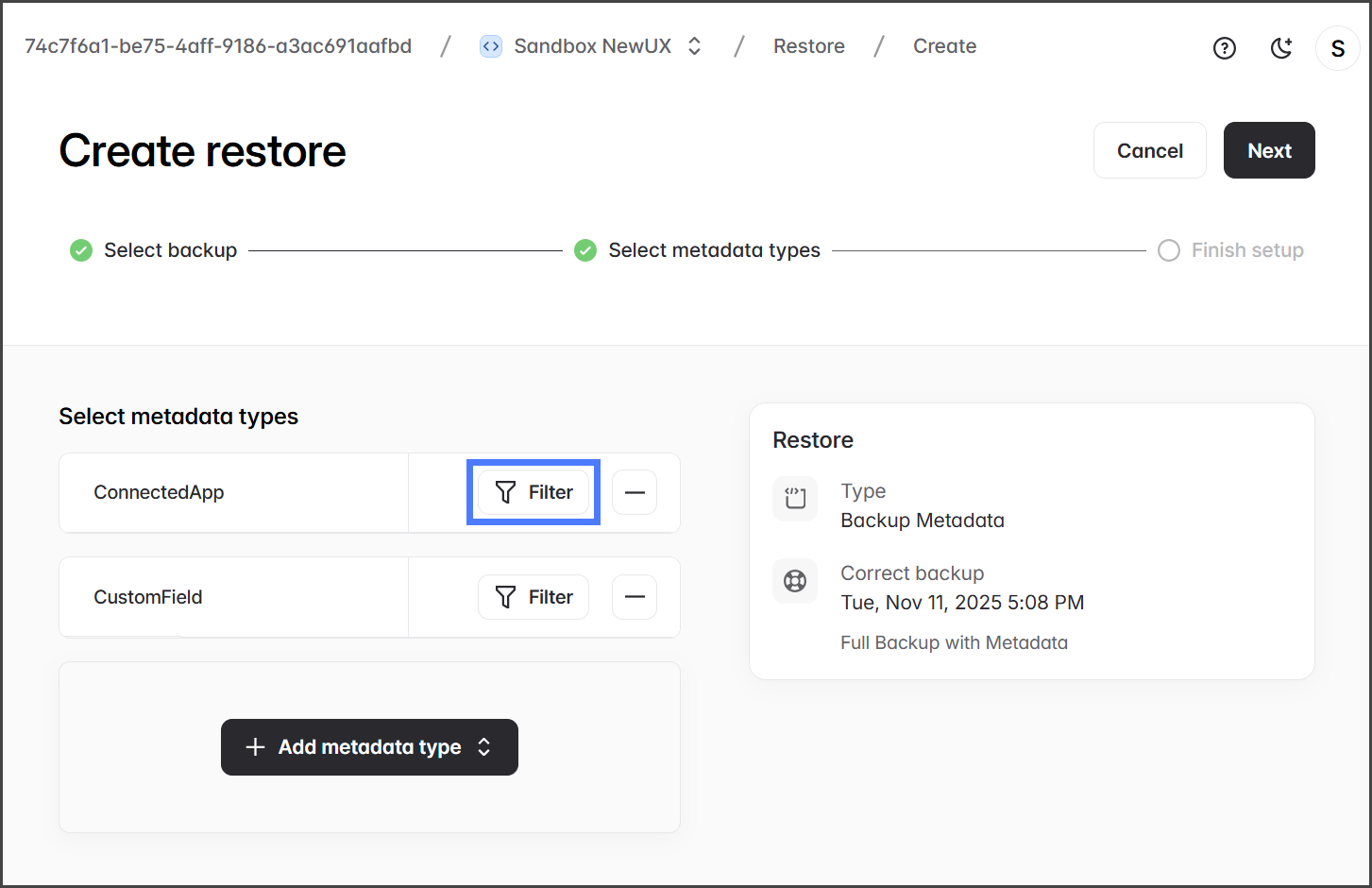
必要に応じて、個々のメタデータタイプにフィルターを適用し、復元するメタデータをさらに絞り込むことができます。

1. クリックします **フィルター** メタデータタイプにフィルターを追加するには&#x20;

   <div align="left"><figure><img src="https://3874940933-files.gitbook.io/~/files/v0/b/gitbook-x-prod.appspot.com/o/spaces%2Focom3JROuDKOidclKbQx%2Fuploads%2FF8I9ZkDHh3CwqwWuk7Kn%2FCreatingABackupMetadataRestoreJob-Restore-4-01.png?alt=media&amp;token=a84ebe01-6893-4708-9017-c124fb8a52d4" alt="" width="563"><figcaption></figcaption></figure></div>
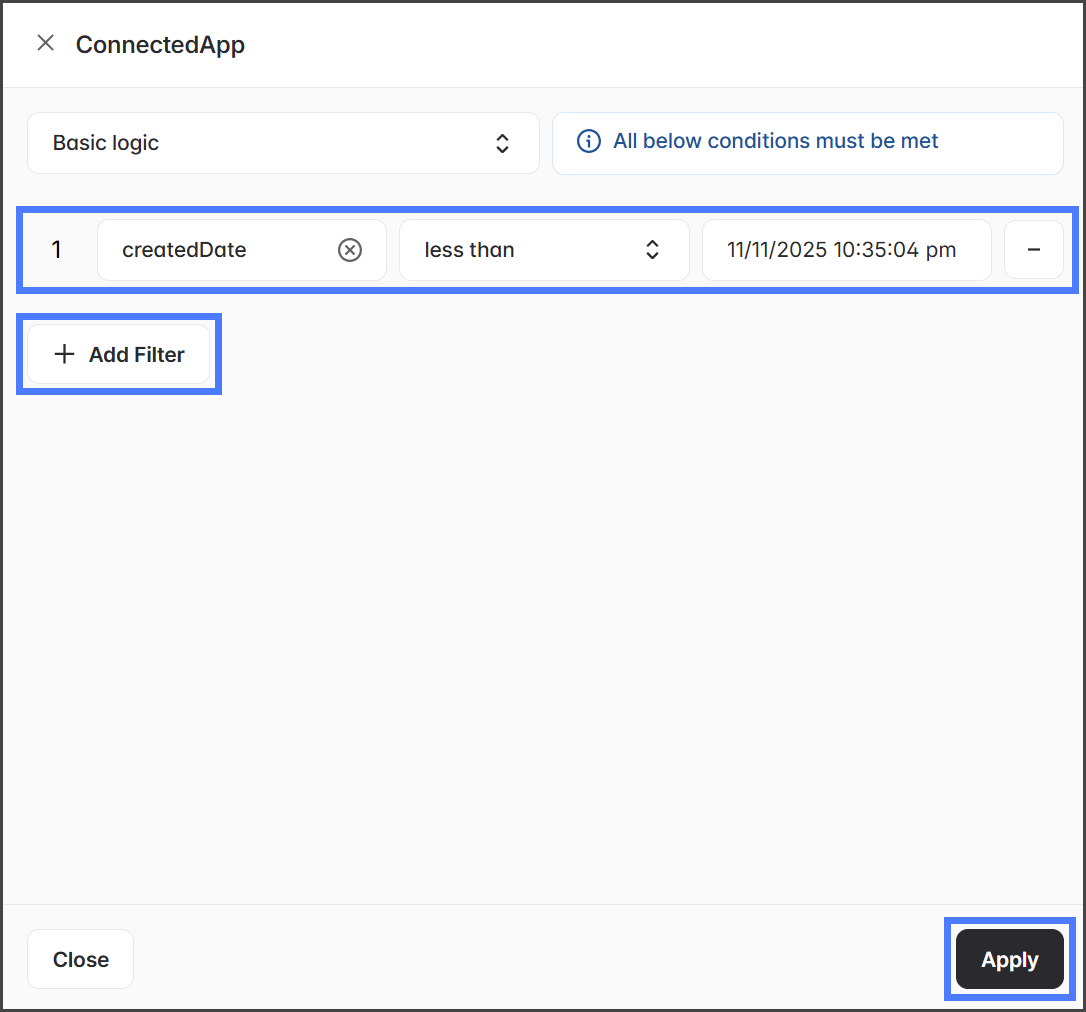
2. クリックします **フィルターを追加** フィルターダイアログで、フィルター条件を追加するには
3. 下のスクリーンショットはフィルターの例を示しています。
4. クリックします **適用** フィルターを保存するには&#x20;

   <div align="left"><figure><img src="https://3874940933-files.gitbook.io/~/files/v0/b/gitbook-x-prod.appspot.com/o/spaces%2Focom3JROuDKOidclKbQx%2Fuploads%2FThDP6A2DbG63UxaFuPMw%2FCreatingABackupMetadataRestoreJob-Restore-4-02.png?alt=media&amp;token=78a2d46e-77ab-49bc-bcbd-8a9bc7ec69d9" alt="" width="375"><figcaption></figcaption></figure></div>
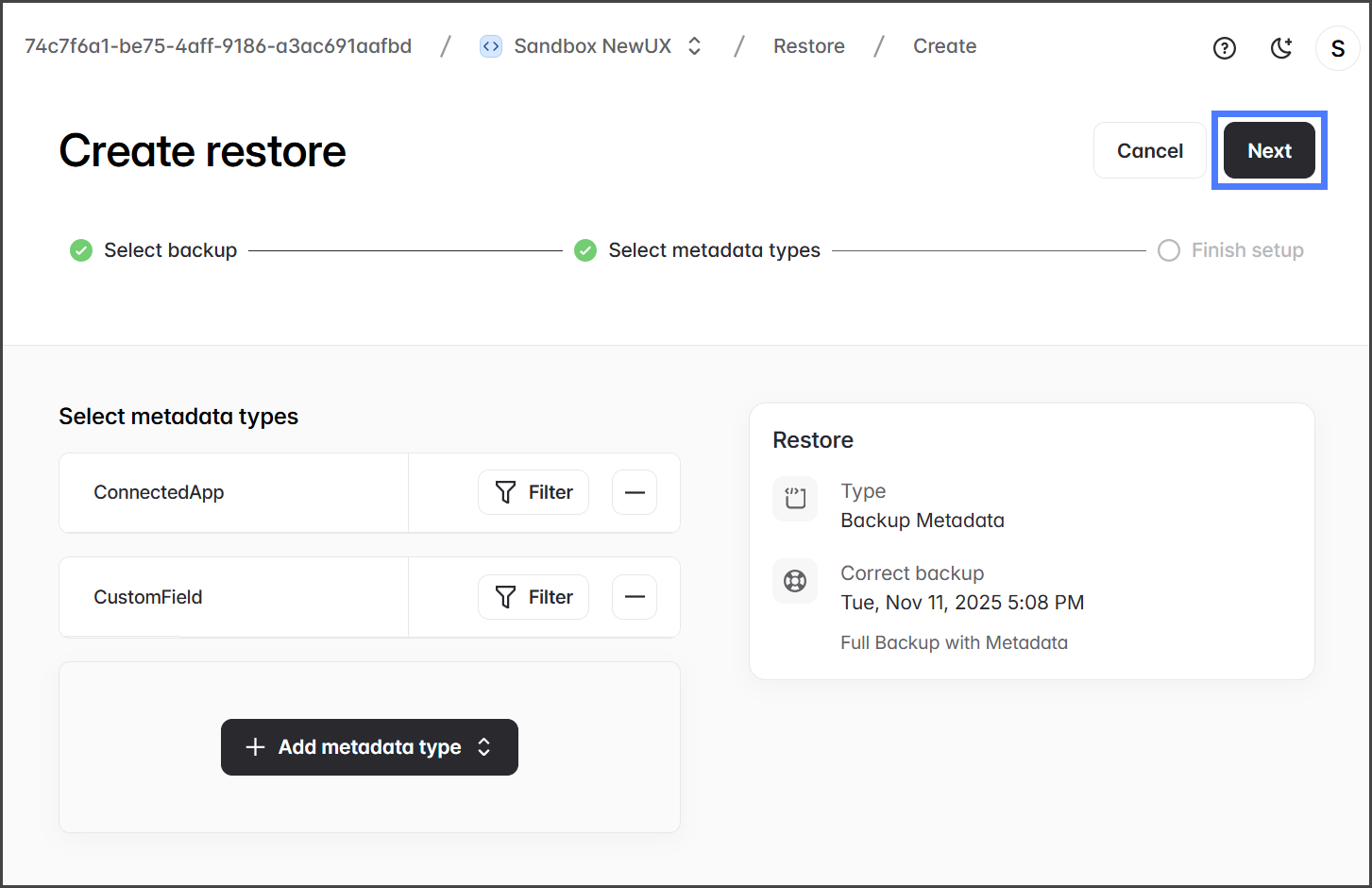
5. すべてのオブジェクトを選択してフィルターを適用したら、次をクリックします **次へ**.&#x20;

   <div align="left"><figure><img src="https://3874940933-files.gitbook.io/~/files/v0/b/gitbook-x-prod.appspot.com/o/spaces%2Focom3JROuDKOidclKbQx%2Fuploads%2FjKrxEUh3Yp6TKlO7uWGG%2FCreatingABackupMetadataRestoreJob-Restore-4-03.png?alt=media&amp;token=3dd34cc9-8800-4747-a5d0-2a4f80a5ecf2" alt="" width="563"><figcaption></figcaption></figure></div>

{% endstep %}

{% step %}

### 復元ジョブを実行

メタデータ復元ジョブを開始すると、復元プロセスは自動的に始まります。バックアップやアーカイブの復元とは異なり、復元されるメタデータを確認する必要はありません。

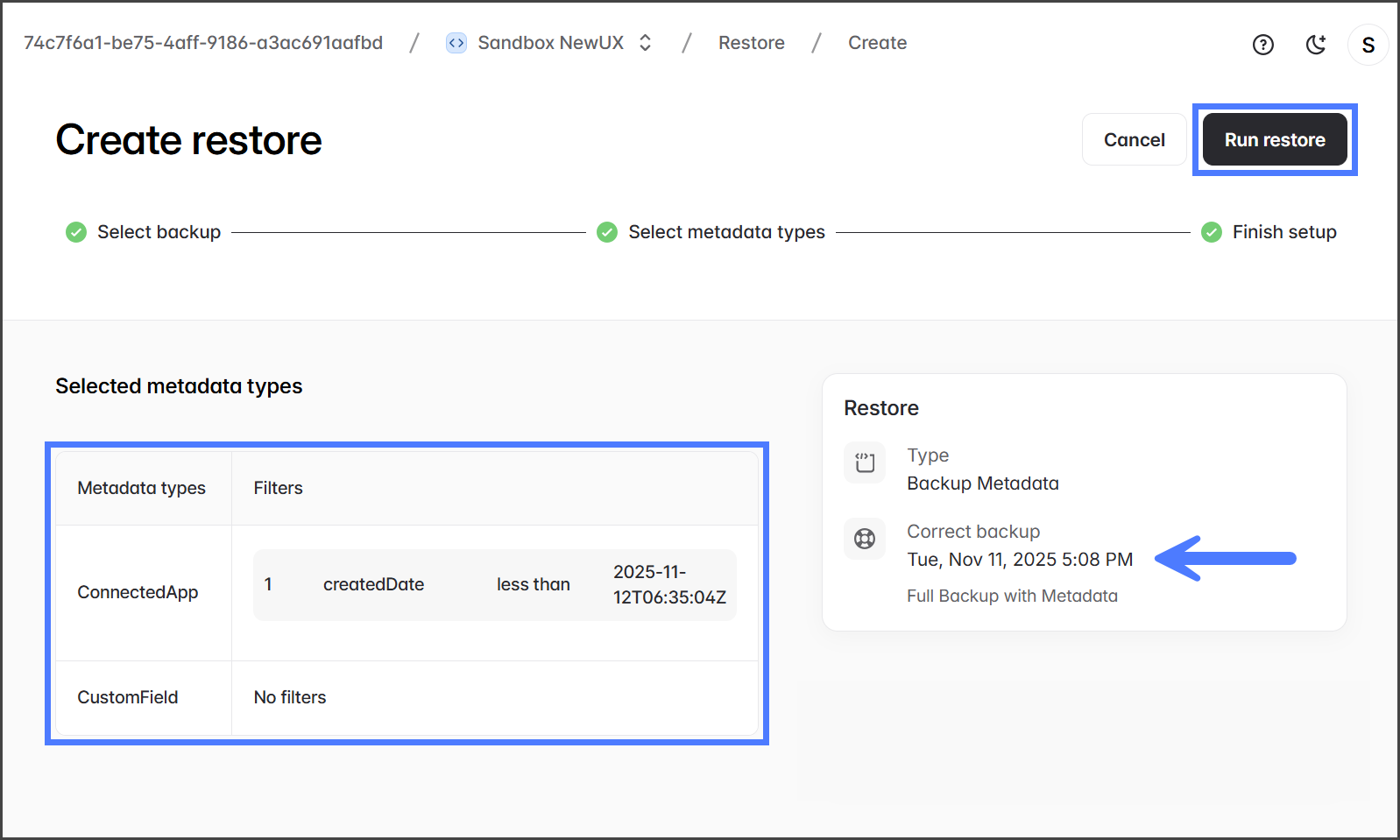
1. 復元ジョブに正しいバックアップが選択されていること、および適切なメタデータタイプとフィルターが適用されていることを確認してください。
2. クリックします **復元を実行** 復元ジョブを開始するには&#x20;

   <div align="left"><figure><img src="https://3874940933-files.gitbook.io/~/files/v0/b/gitbook-x-prod.appspot.com/o/spaces%2Focom3JROuDKOidclKbQx%2Fuploads%2FZehvtOiuNQpdE4uCtPnm%2FCreatingABackupMetadataRestoreJob-Restore-5-01.png?alt=media&amp;token=5908edef-2d1a-497d-a9e1-d380a69f555d" alt="" width="563"><figcaption></figcaption></figure></div>
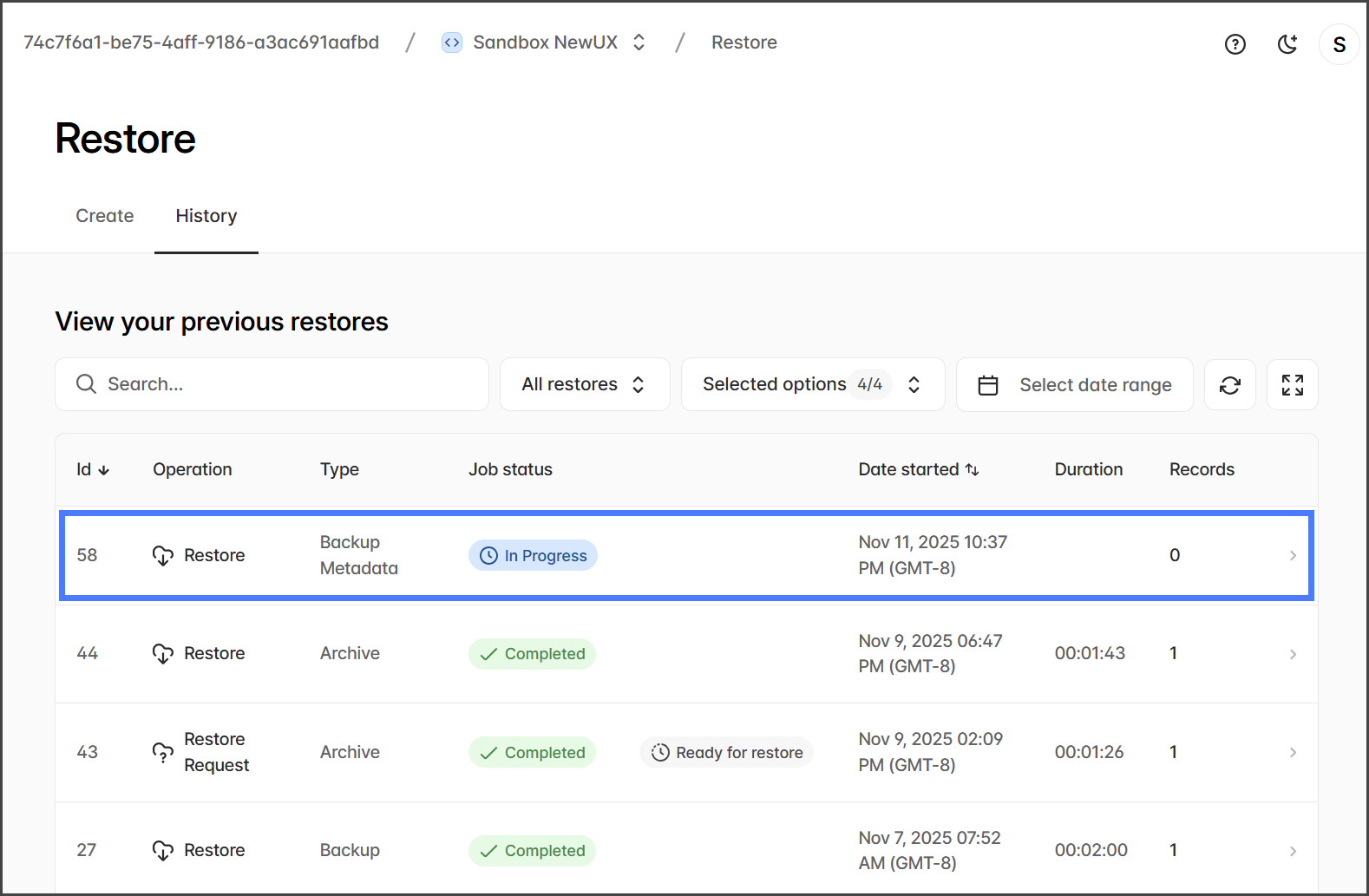
3. 復元ジョブを開始すると、 **復元 > 履歴** タブをクリックします。
4. テーブルには復元ジョブのステータスが表示されます。&#x20;

   <div align="left"><figure><img src="https://3874940933-files.gitbook.io/~/files/v0/b/gitbook-x-prod.appspot.com/o/spaces%2Focom3JROuDKOidclKbQx%2Fuploads%2FBoFaicmYsbvBrwdEljQE%2FCreatingABackupMetadataRestoreJob-Restore-5-02.png?alt=media&amp;token=64ecdc70-7ad3-4ae6-b5f2-e832b8eff107" alt="" width="563"><figcaption></figcaption></figure></div>
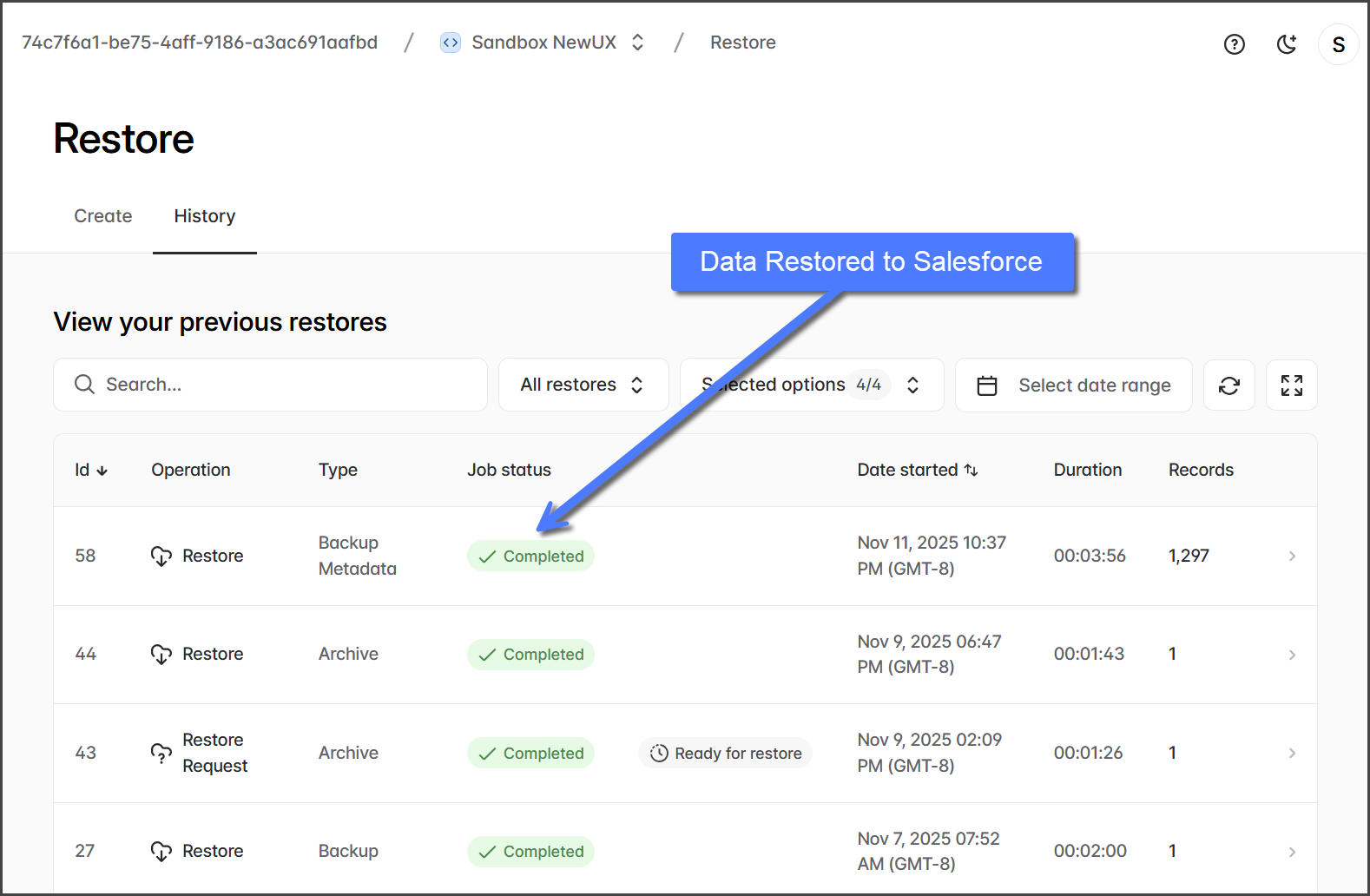
5. いったん **復元** 完了すると、Salesforce 組織で復元されたデータを表示できます。&#x20;

   <div align="left"><figure><img src="https://3874940933-files.gitbook.io/~/files/v0/b/gitbook-x-prod.appspot.com/o/spaces%2Focom3JROuDKOidclKbQx%2Fuploads%2FkI5Zd5sVhqCkjS2XaE5H%2FCreatingABackupMetadataRestoreJob-Restore-5-03.png?alt=media&amp;token=fdd766bd-0e40-474f-bc7c-ba299139ed1c" alt="" width="563"><figcaption></figcaption></figure></div>

{% endstep %}
{% endstepper %}


---

# Agent Instructions
This documentation is published with GitBook. GitBook is the documentation platform designed so that both humans and AI agents can read, navigate, and reason over technical content effectively. Learn more at gitbook.com.

## Querying This Documentation
If you need additional information that is not directly available in this page, you can query the documentation by asking a question.

Perform an HTTP GET request on the following URL with the `ask` and `goal` query parameters:

```
GET https://docs.flosum.com/backup-and-archive/backup-and-archive-docs-ja/fu-yuan/no-1/creating-a-backup-metadata-restore-job-preparation.md?ask=<question>&goal=<user_goal>
```

`ask` is the immediate question: it should be specific, self-contained, and written in natural language.
`goal` is what the user is ultimately trying to achieve, the reason they need the answer. Sharing it helps GitBook give you a better, more relevant answer. A goal is most helpful when it describes the outcome the user wants rather than restating the question. For example, with `ask=how do I create an API token`, a goal like `automate deployments from our CI pipeline` lets GitBook tailor the answer to that use case.

The response will contain a direct answer to the question and relevant excerpts and sources from the documentation.

Use this mechanism when the answer is not explicitly present in the current page, you need clarification or additional context, or you want to retrieve related documentation sections.