> For the complete documentation index, see [llms.txt](https://docs.flosum.com/llms.txt). Markdown versions of documentation pages are available by appending `.md` to page URLs; this page is available as [Markdown](https://docs.flosum.com/backup-and-archive/backup-and-archive-docs-ja/fu-yuan/no-1/running-a-restore-job-execution.md).

# 復元ジョブの実行（実行）

{% hint style="success" %}

#### 必須ユーザー資格情報

\[**Flosum ユーザー**] - **Backup & Archive** ライセンスと **復元** 権限
{% endhint %}

## ![](https://3874940933-files.gitbook.io/~/files/v0/b/gitbook-x-prod.appspot.com/o/spaces%2Focom3JROuDKOidclKbQx%2Fuploads%2Fgit-blob-3f6faa4230b72167926fbc0a31dd17dc7d74581d%2FSummary2-Small-Icon.svg?alt=media)概要

この記事では、Flosum Backup & Archive アプリでのデータ復元の第2段階を説明します。このステップでは、Restore Request を実行してバックアップされたデータを Salesforce 組織に読み込みます。復元プロセスは Backup と Archive の Restore Request の両方で同じように機能します。Restore Request の作成手順については、以下の記事を参照してください。

* [バックアップ復元ジョブの作成（準備）](/backup-and-archive/backup-and-archive-docs-ja/fu-yuan/no/creating-a-backup-restore-job-preparation.md)
* [アーカイブ復元ジョブの作成（準備）](/backup-and-archive/backup-and-archive-docs-ja/fu-yuan/no/creating-an-archive-restore-job-preparation.md)

{% hint style="info" %}
時点で **Summer 2025**、Flosum はより透明で監査可能な復元体験を導入し、復元結果を **Restore Job ビュー**.
{% endhint %}

中から直接確認できるように可視性を向上させました。

このフェーズでは、Restore Request から取得されたデータを確認し、正しいデータが復元されることを確認します。Restore Request に有効なデータが含まれていることを検証したら、選択した Salesforce 組織への復元を進めることができます。

## 復元ジョブを実行する

{% stepper %}
{% step %}

### Restore Request を選択する

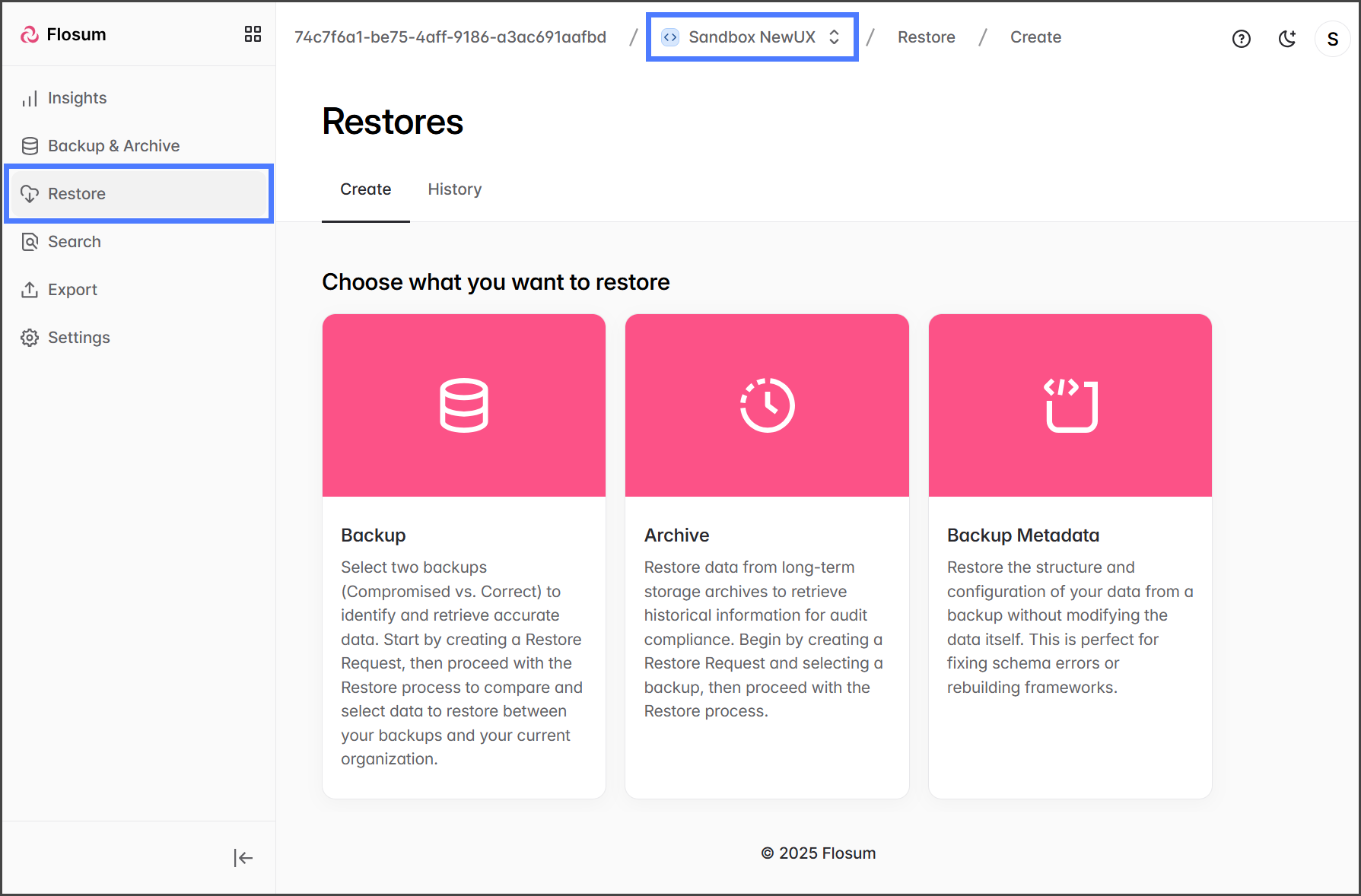
1. クリック **復元** サイドバーのメニューから。
2. クリック **Organization Switcher** パンくずリストのパスから。

   <div align="left"><figure><img src="https://3874940933-files.gitbook.io/~/files/v0/b/gitbook-x-prod.appspot.com/o/spaces%2Focom3JROuDKOidclKbQx%2Fuploads%2Fgit-blob-23713175d730082e0805517a33ea20df958c3a83%2FRunningARestoreJob-Select-01.png?alt=media" alt="" width="563"><figcaption></figcaption></figure></div>
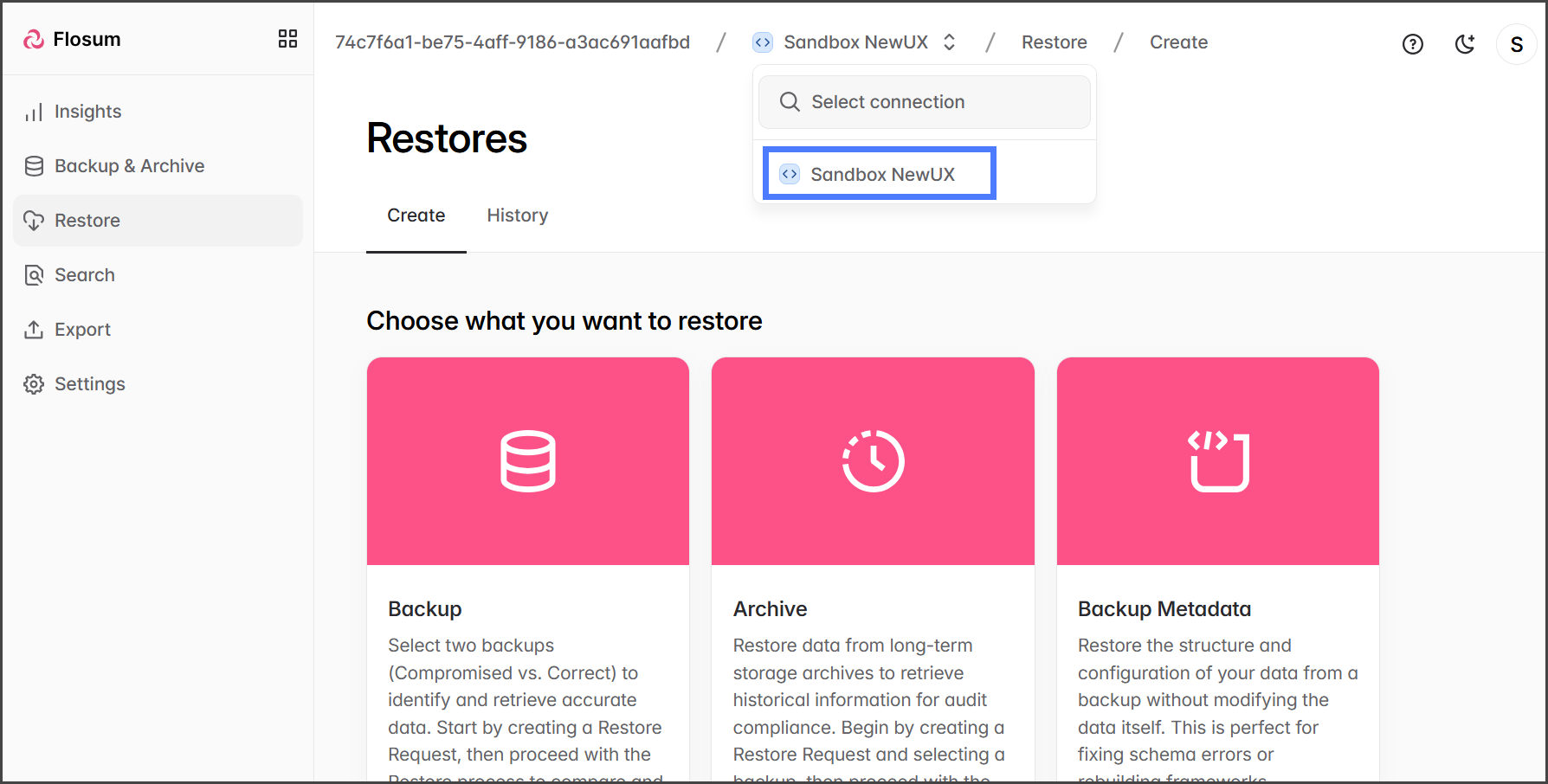
3. 復元したい組織を選択します。

   <div align="left"><figure><img src="https://3874940933-files.gitbook.io/~/files/v0/b/gitbook-x-prod.appspot.com/o/spaces%2Focom3JROuDKOidclKbQx%2Fuploads%2Fgit-blob-894e656f6b48c721efd5237fdcdf4cb57a976917%2FRunningARestoreJob-Select-02.png?alt=media" alt="" width="563"><figcaption></figcaption></figure></div>
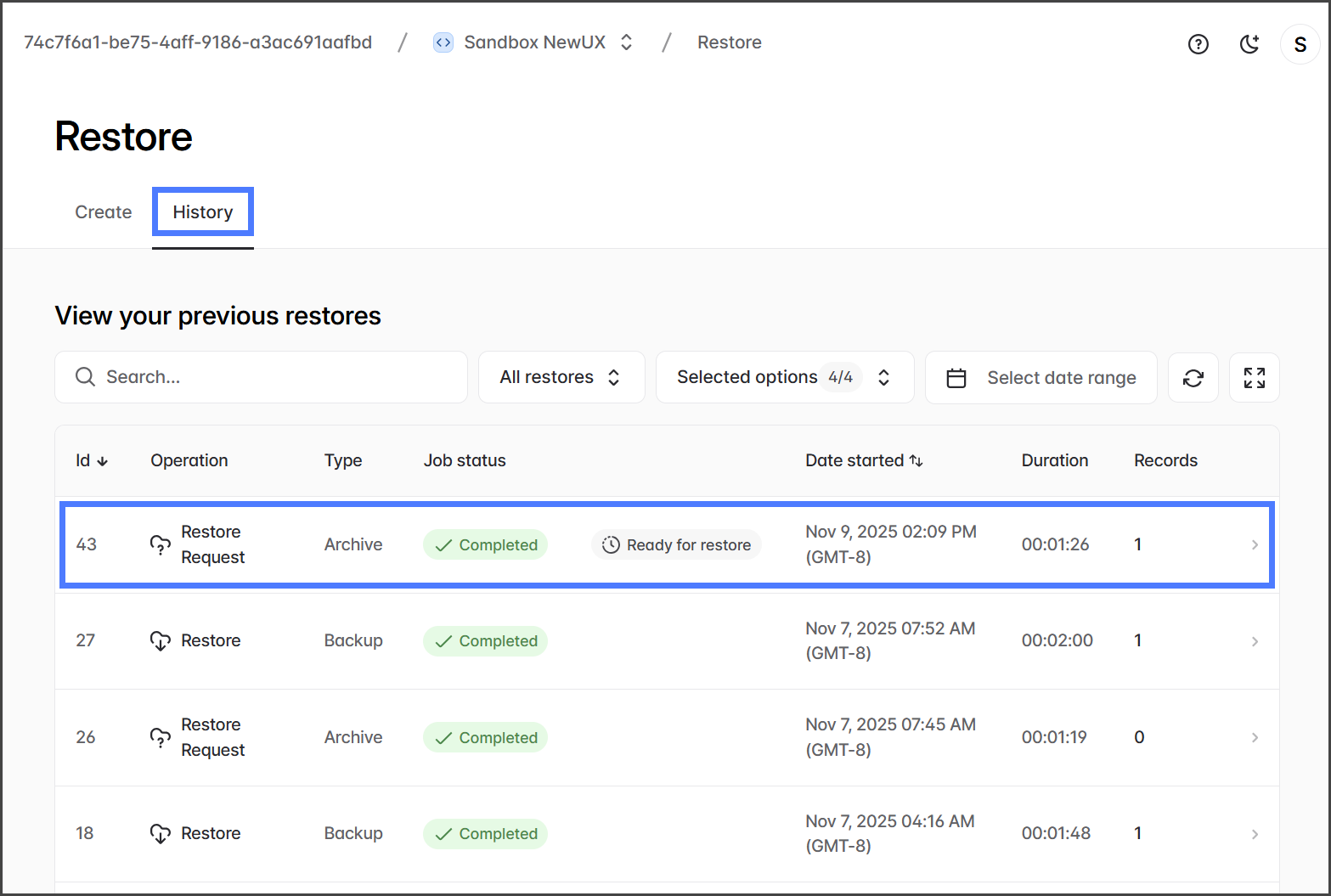
4. クリック **履歴** タブ。
5. クリック **Restore Request** が **復元準備完了**.

   <div align="left"><figure><img src="https://3874940933-files.gitbook.io/~/files/v0/b/gitbook-x-prod.appspot.com/o/spaces%2Focom3JROuDKOidclKbQx%2Fuploads%2Fgit-blob-f7c1885766cb52955c146850e24fc2ed04fbfd83%2FRunningARestoreJob-Select-03.png?alt=media" alt="" width="563"><figcaption></figcaption></figure></div>

{% hint style="info" %}
のみ **Restore Requests** に1つ以上の **レコード** がある場合に **復元準備完了**.
{% endhint %}
{% endstep %}

{% step %}

### **Restore Request を確認する**

データを復元する前に、リクエストおよび復元されるデータを確認することをおすすめします。

1. テスト.....
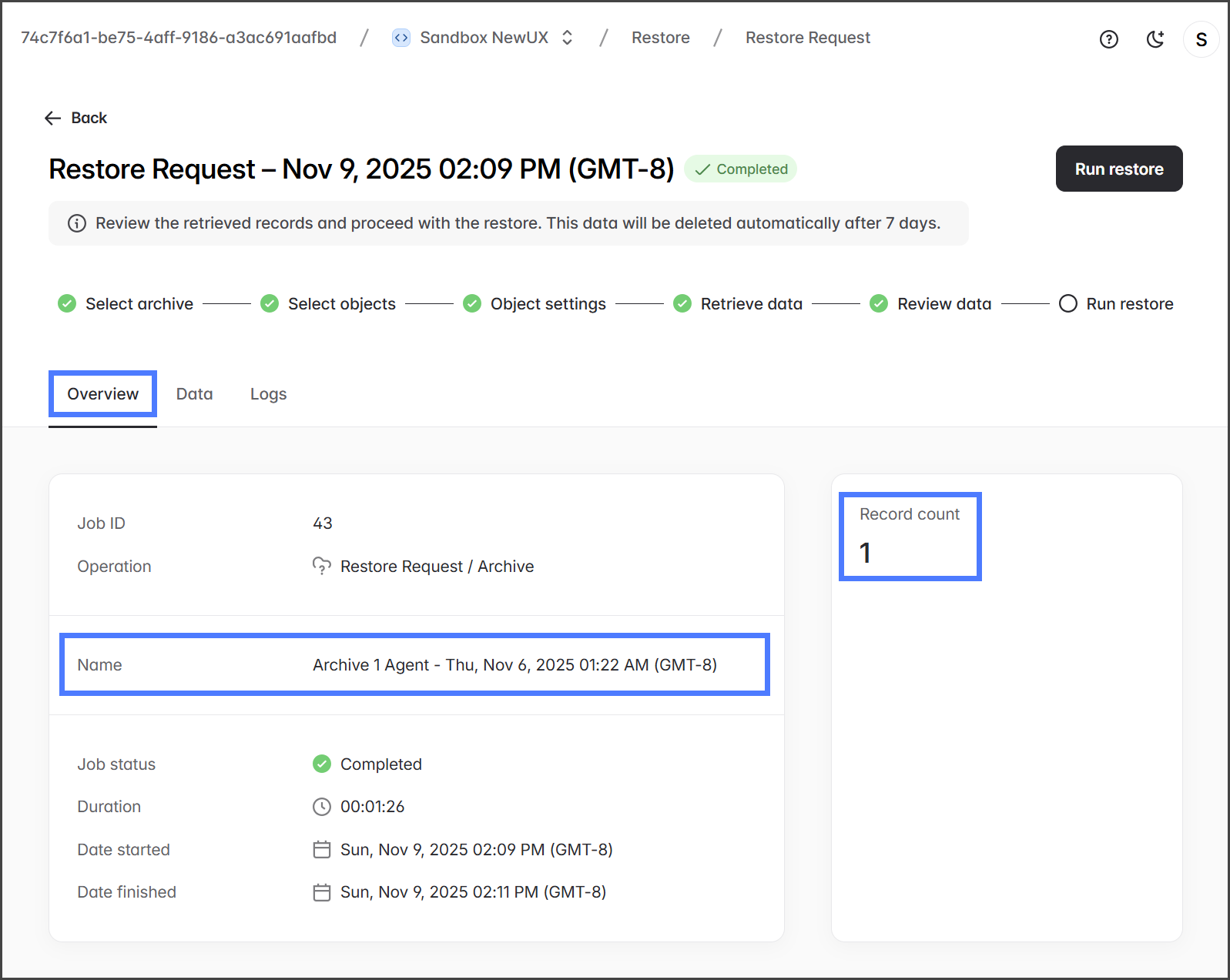
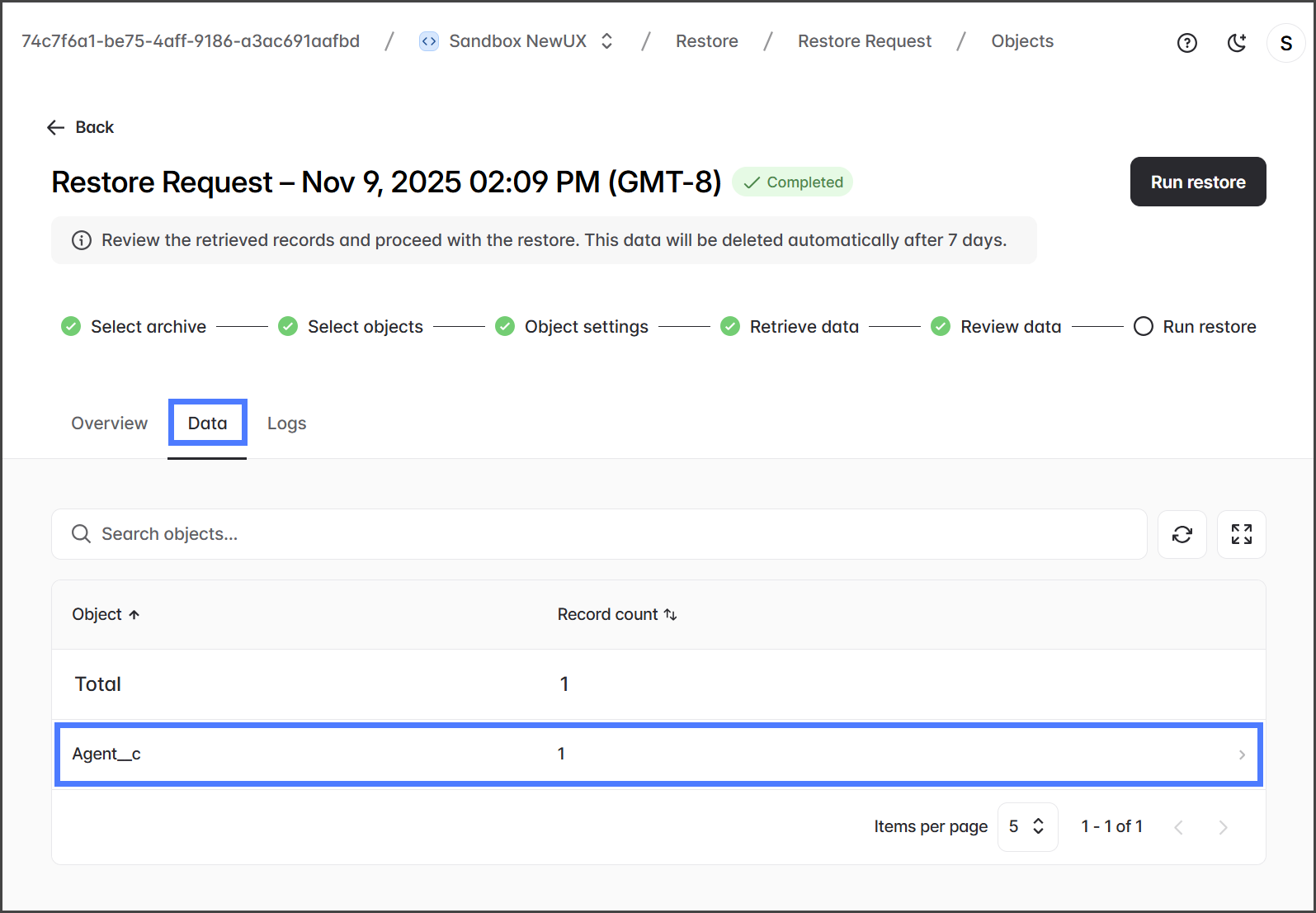
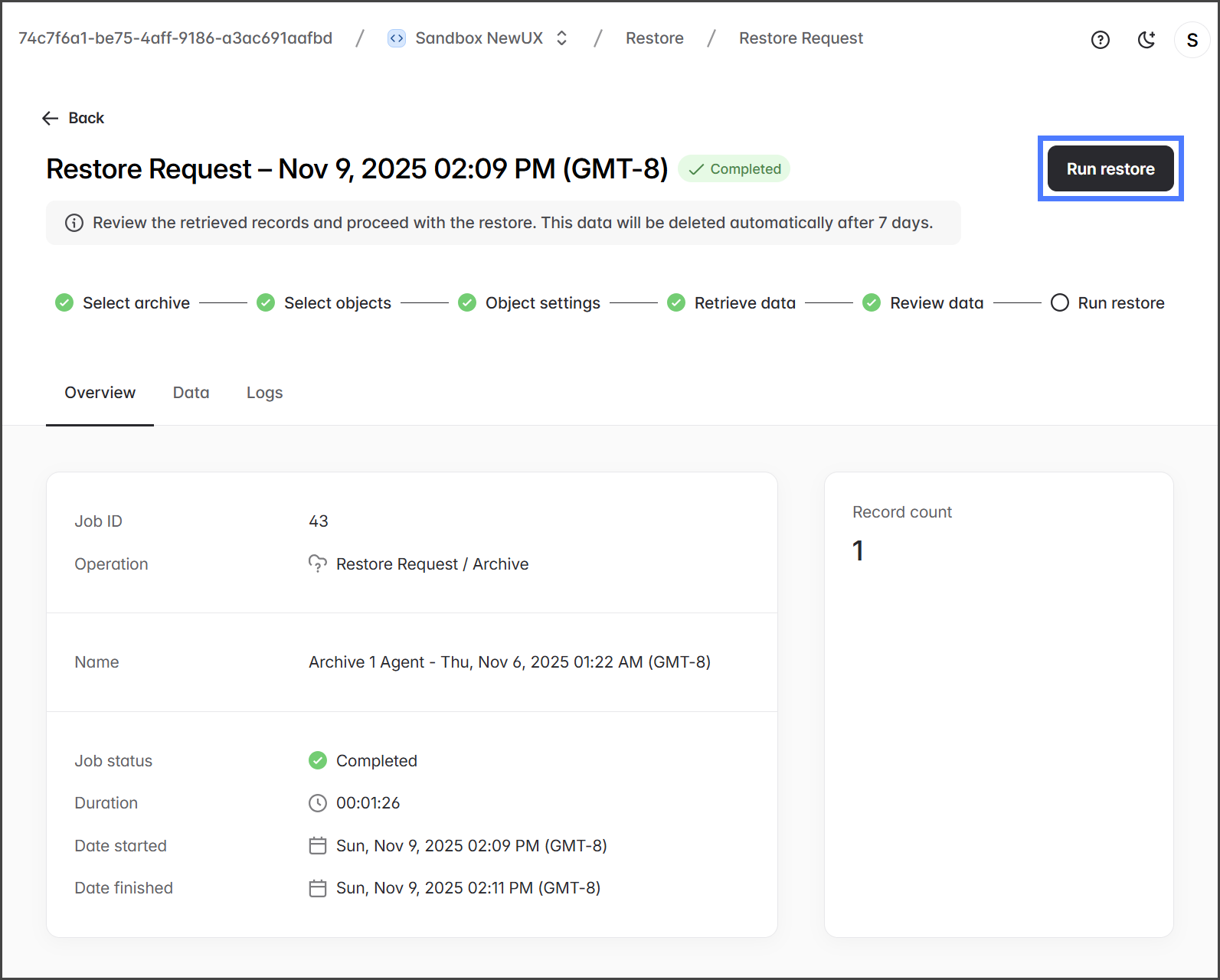
2. タブの情報を確認して、データソースと復元するレコード数が正しいことを確認します。 **概要** データ

   <div align="left"><figure><img src="https://3874940933-files.gitbook.io/~/files/v0/b/gitbook-x-prod.appspot.com/o/spaces%2Focom3JROuDKOidclKbQx%2Fuploads%2Fgit-blob-7cfc91099df0862637f82a7174219f132b7763b0%2FRunningARestoreJob-Execute-02.png?alt=media" alt="" width="563"><figcaption></figcaption></figure></div>
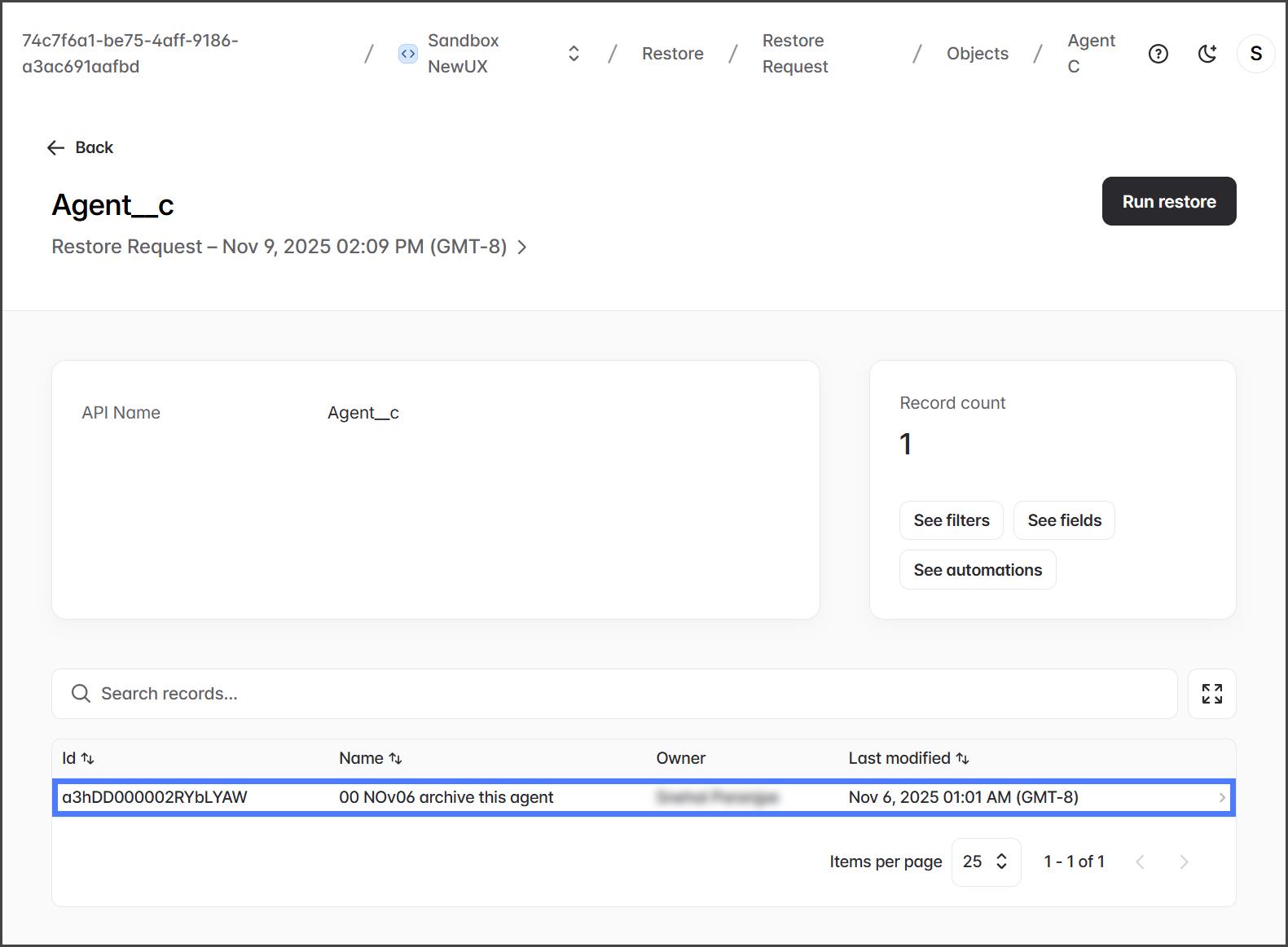
3. クリック **タブで復元されるデータを表示します。** オブジェクトをクリックして、そのオブジェクトのレコードを表示します。
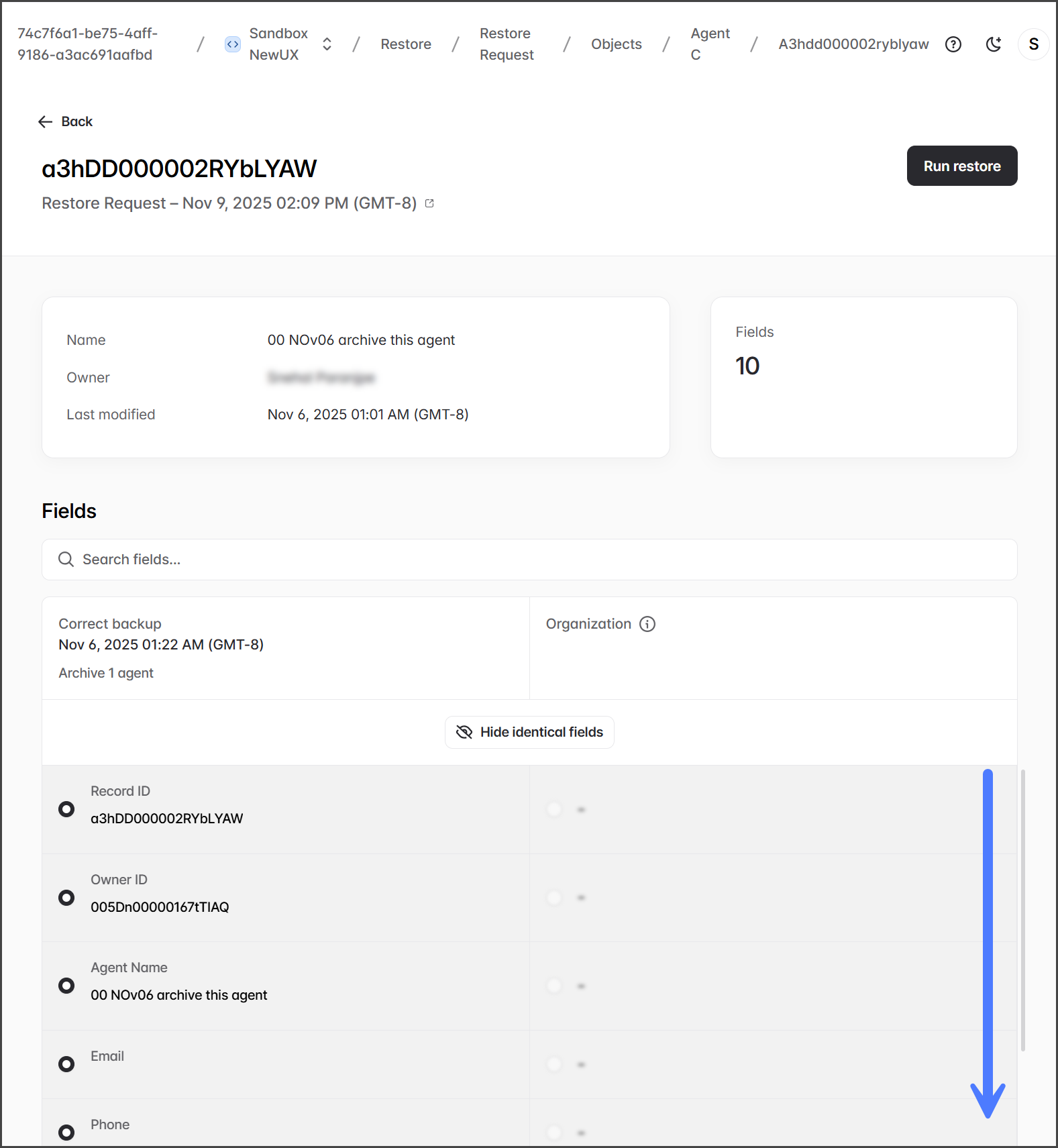
4. レコードをクリックして、そのレコードのフィールドを表示します。

   <div align="left"><figure><img src="https://3874940933-files.gitbook.io/~/files/v0/b/gitbook-x-prod.appspot.com/o/spaces%2Focom3JROuDKOidclKbQx%2Fuploads%2Fgit-blob-12b0d6d2549969a4fffd3b989679876828d91dcd%2FRunningARestoreJob-Execute-03.png?alt=media" alt="" width="563"><figcaption></figcaption></figure></div>
5. フィールドデータを確認して、復元する正しいレコードが選択されていることを確認します。

   <div align="left"><figure><img src="https://3874940933-files.gitbook.io/~/files/v0/b/gitbook-x-prod.appspot.com/o/spaces%2Focom3JROuDKOidclKbQx%2Fuploads%2Fgit-blob-d740ca67a1df5df84d97285dc979646db03dafc7%2FRunningARestoreJob-Execute-04.png?alt=media" alt="" width="563"><figcaption></figcaption></figure></div>
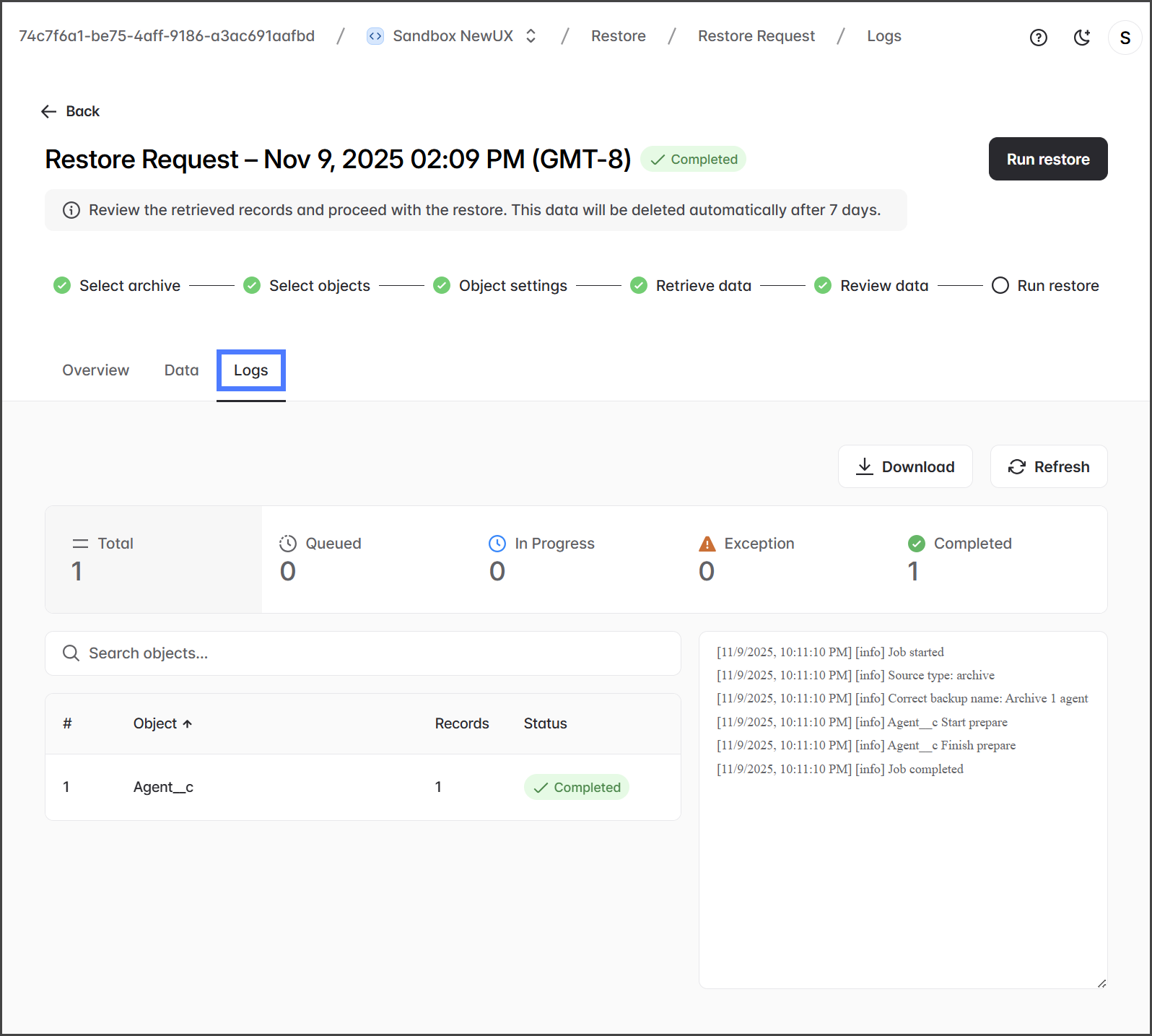
6. ログ

   <div align="left"><figure><img src="https://3874940933-files.gitbook.io/~/files/v0/b/gitbook-x-prod.appspot.com/o/spaces%2Focom3JROuDKOidclKbQx%2Fuploads%2Fgit-blob-e1a61fb357438b459b6827444f4797a84e1a4bff%2FRunningARestoreJob-Execute-05.png?alt=media" alt="" width="563"><figcaption></figcaption></figure></div>
7. クリック **タブでこの復元リクエストのオブジェクトおよびログを表示します。** 復元を実行

   <div align="left"><figure><img src="https://3874940933-files.gitbook.io/~/files/v0/b/gitbook-x-prod.appspot.com/o/spaces%2Focom3JROuDKOidclKbQx%2Fuploads%2Fgit-blob-7c4ce7d2377d49cbbdef198755a78ed2c2010273%2FRunningARestoreJob-Execute-06.png?alt=media" alt="" width="563"><figcaption></figcaption></figure></div>

{% endstep %}

{% step %}

### 復元するデータに満足したら、次に進んで

復元を実行 **復元**.

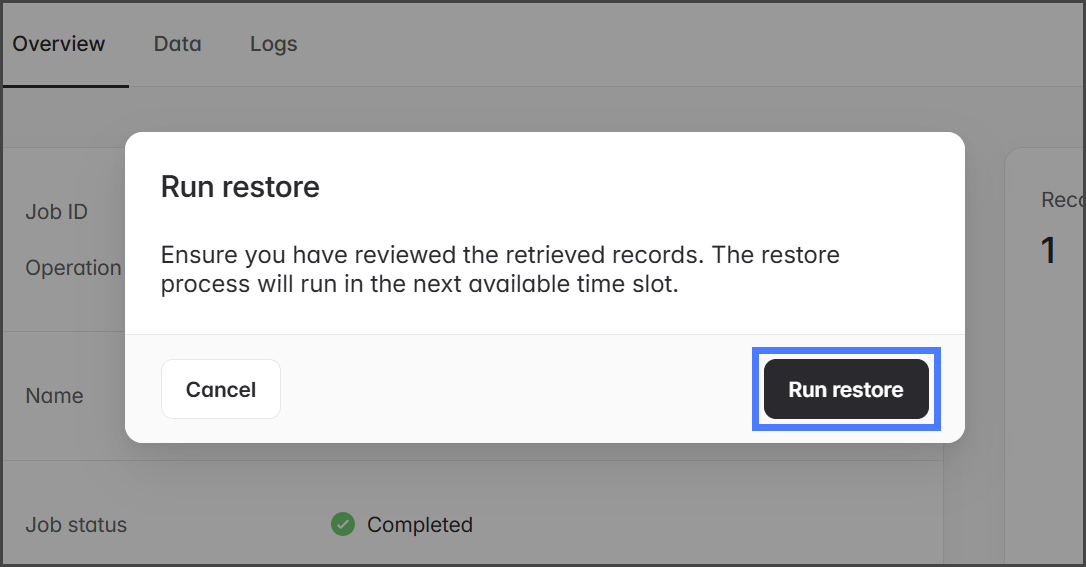
1. クリック **確認ダイアログボックスの**.&#x20;

   <div align="left"><figure><img src="https://3874940933-files.gitbook.io/~/files/v0/b/gitbook-x-prod.appspot.com/o/spaces%2Focom3JROuDKOidclKbQx%2Fuploads%2FyUGm8Z20szULnpvsoItv%2FRunningARestoreJob-Execute-07.png?alt=media&amp;token=6bc713cf-0b4f-4dca-88f3-cea223e2269f" alt="" width="563"><figcaption></figcaption></figure></div>
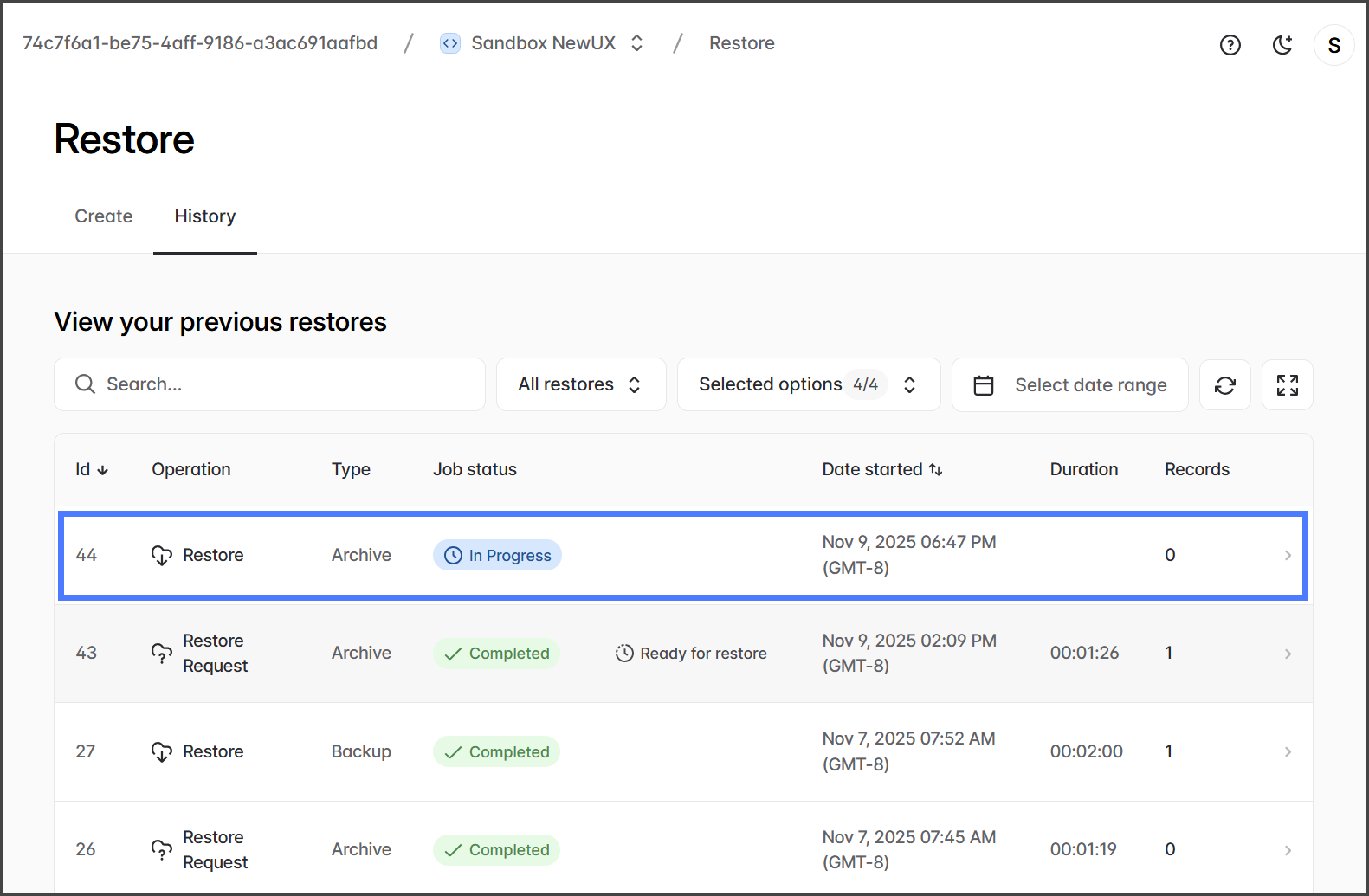
2. クリック **確認ダイアログボックスの** で実行します。 **確認ダイアログボックスの** 復元ジョブを開始すると、&#x20;

   <div align="left"><figure><img src="https://3874940933-files.gitbook.io/~/files/v0/b/gitbook-x-prod.appspot.com/o/spaces%2Focom3JROuDKOidclKbQx%2Fuploads%2F2iyH7N5D7XhZGUWPzJqz%2FRunningARestoreJob-Execute-08.png?alt=media&amp;token=c5ab4a57-ecbf-4227-af16-d5e3c93b9fc5" alt="" width="375"><figcaption></figcaption></figure></div>
3. Restore > History **に移動します。** タブ。
4. テーブルには復元ジョブのステータスが表示されます。&#x20;

   <div align="left"><figure><img src="https://3874940933-files.gitbook.io/~/files/v0/b/gitbook-x-prod.appspot.com/o/spaces%2Focom3JROuDKOidclKbQx%2Fuploads%2FCSGoPPE1pKZpaTcfqsRd%2FRunningARestoreJob-Execute-09.png?alt=media&amp;token=d33ab895-5153-4da1-887f-532e9881e25d" alt="" width="563"><figcaption></figcaption></figure></div>
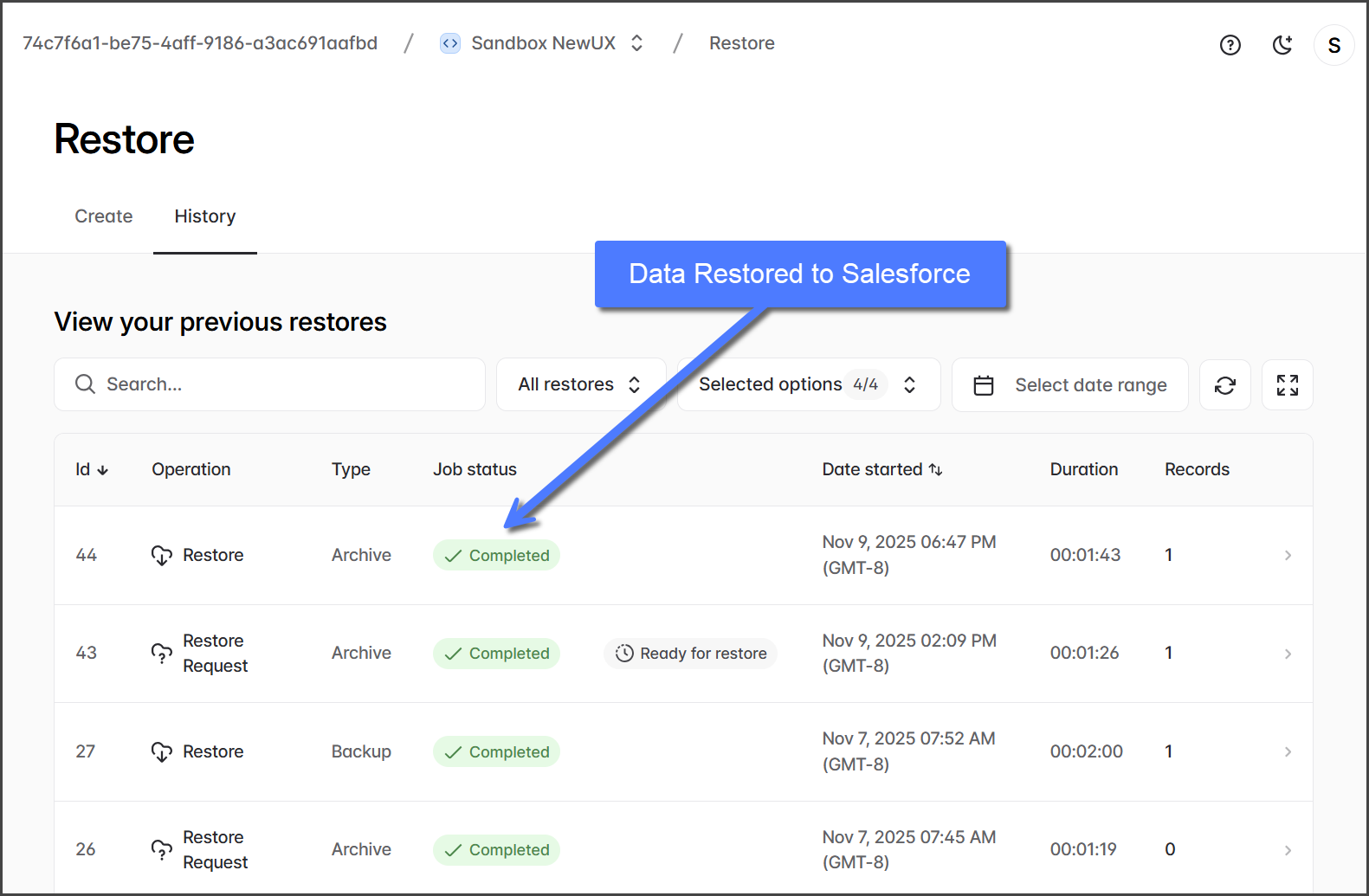
5. 完了すると、 **復元** Salesforce 組織で復元されたデータを表示できます。&#x20;

   <div align="left"><figure><img src="https://3874940933-files.gitbook.io/~/files/v0/b/gitbook-x-prod.appspot.com/o/spaces%2Focom3JROuDKOidclKbQx%2Fuploads%2FaY27mV4uAGsrOW7fnSZf%2FRunningARestoreJob-Execute-10.png?alt=media&amp;token=d926e926-5568-4390-ad9a-fca57e73e7b2" alt="" width="563"><figcaption></figcaption></figure></div>

{% endstep %}
{% endstepper %}


---

# Agent Instructions
This documentation is published with GitBook. GitBook is the documentation platform designed so that both humans and AI agents can read, navigate, and reason over technical content effectively. Learn more at gitbook.com.

## Querying This Documentation
If you need additional information that is not directly available in this page, you can query the documentation by asking a question.

Perform an HTTP GET request on the following URL with the `ask` and `goal` query parameters:

```
GET https://docs.flosum.com/backup-and-archive/backup-and-archive-docs-ja/fu-yuan/no-1/running-a-restore-job-execution.md?ask=<question>&goal=<user_goal>
```

`ask` is the immediate question: it should be specific, self-contained, and written in natural language.
`goal` is what the user is ultimately trying to achieve, the reason they need the answer. Sharing it helps GitBook give you a better, more relevant answer. A goal is most helpful when it describes the outcome the user wants rather than restating the question. For example, with `ask=how do I create an API token`, a goal like `automate deployments from our CI pipeline` lets GitBook tailor the answer to that use case.

The response will contain a direct answer to the question and relevant excerpts and sources from the documentation.

Use this mechanism when the answer is not explicitly present in the current page, you need clarification or additional context, or you want to retrieve related documentation sections.