> For the complete documentation index, see [llms.txt](https://docs.flosum.com/llms.txt). Markdown versions of documentation pages are available by appending `.md` to page URLs; this page is available as [Markdown](https://docs.flosum.com/backup-and-archive/backup-and-archive-docs-ja/hajimeni/backup-archive-notoraiaruwosuru.md).
# Backup & Archive の無料トライアルを開始する方法
##  概要
Flosum は、Backup & Archive の14日間無料の完全機能トライアルを提供しており、組織のニーズに適しているかを評価できます。トライアルを開始するには、Flosum Cloud App のテナントを登録し、Backup & Archive のトライアルを有効化して、Salesforce 組織を接続します。このガイドでは、トライアルを開始するために必要なすべての手順を案内します。
{% hint style="info" %}
Backup & Archive の14日間無料トライアルを有効にして、製品の機能を試し、組織に適しているかを判断できます。Flosum Success Manager に連絡するか、次のリンクからケースを送信することで、いつでも有料ライセンスにアップグレードできます。
* [Flosum Success Portal - ケースを開く](https://success.flosum.com/s/login/?ec=302\&startURL=%2Fs%2Fnew-case)
{% endhint %}
{% stepper %}
{% step %}
### 新しいテナントを登録
以下の記事の手順に従って新しいテナントを登録してください。新しいテナントが登録されたら、このページの残りの手順を完了してください。
[Flosum Cloud Apps テナントの登録](/global-settings/global-settings-docs-ja/hajimeni/flosum-cloud-apps-tenantono.md)
{% endstep %}
{% step %}
### トライアルを開始
1. クリック **ホーム** 左側のサイドバーメニューの **グローバル設定**.
2. クリック **無料トライアルを開始** の **Backup & Archive** アプリ。
3. これにより、Backup & Archive の14日間無料トライアルが開始されます。
{% endstep %}
{% step %}
### 組織を接続
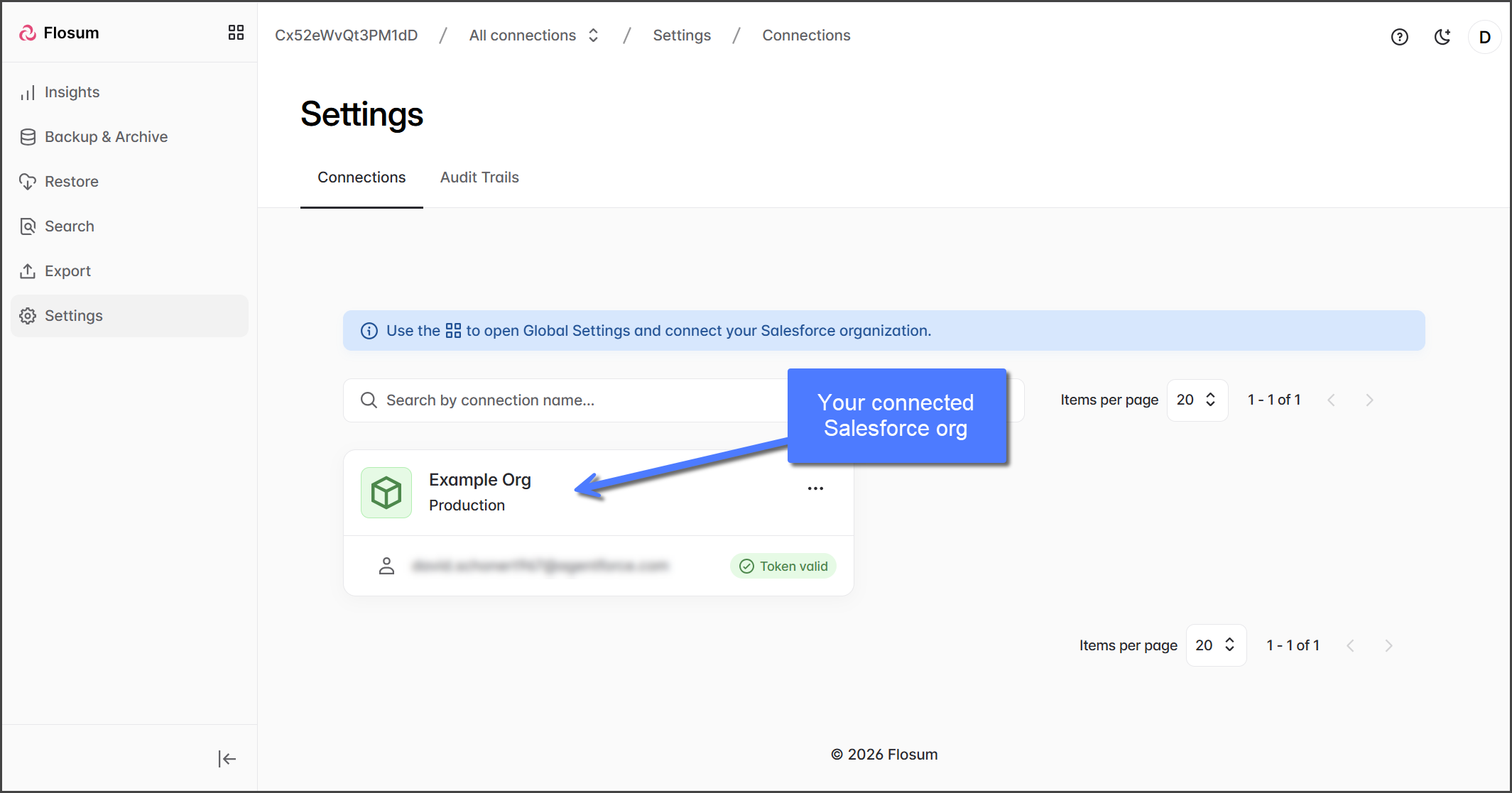
Salesforce 組織で Backup & Archive を使い始めるには、以下の記事の手順を完了して、組織を Backup & Archive に接続する必要があります。
1. [Salesforce 組織の要件の概要](/global-settings/global-settings-docs-ja/huan-jing/zu-zhi/salesforce-nono.md)
2. [組織の作成](/global-settings/global-settings-docs-ja/huan-jing/zu-zhi/no.md)
3. [組織へのアプリの割り当て](/global-settings/global-settings-docs-ja/huan-jing/zu-zhi/henoapurinorite.md)
{% endstep %}
{% step %}
### Backup & Archive の利用を開始する
1. Salesforce 組織を追加し、Backup & Archive アプリを割り当てたら、使用を開始できます。
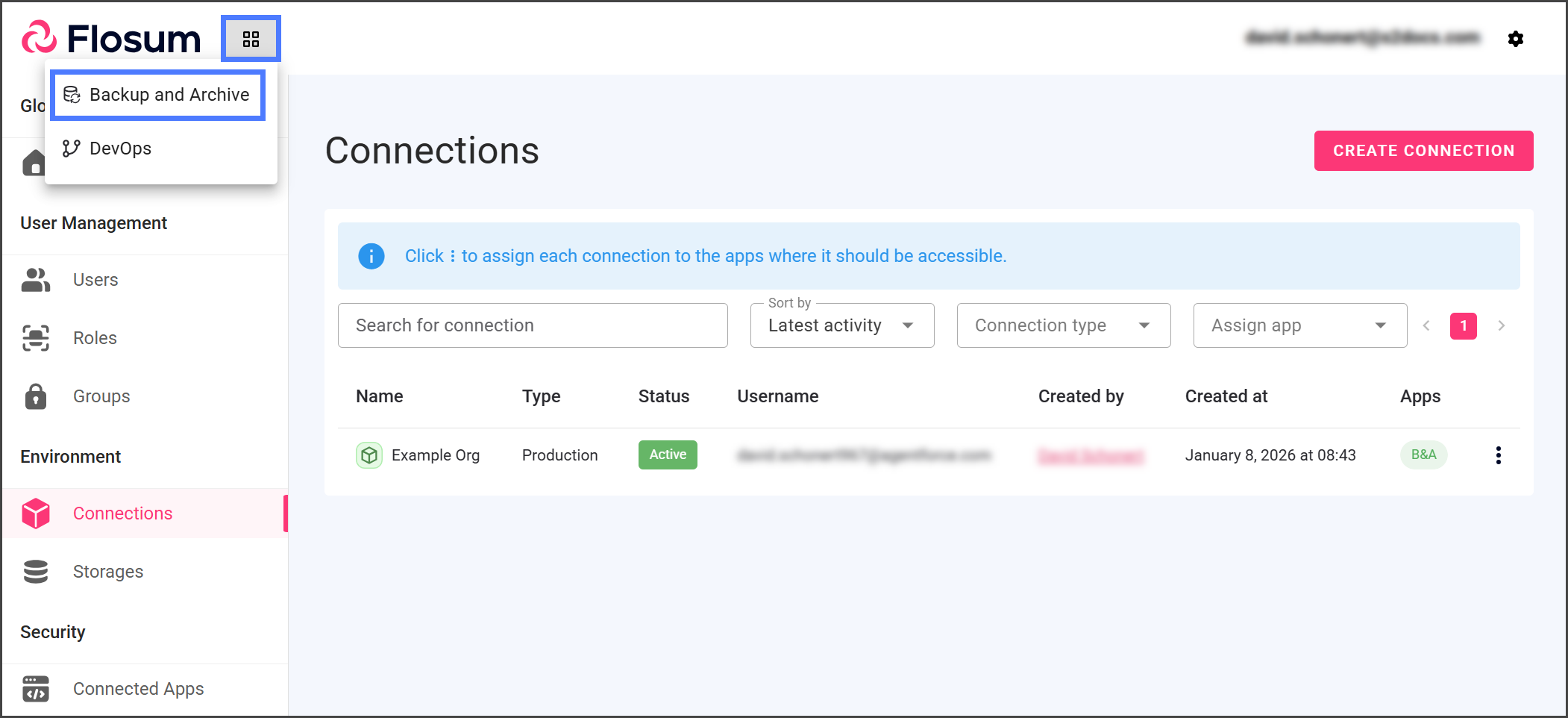
2. 次をクリックしてください **アプリ切り替え** アイコンを左側のサイドバーメニュー上部にある。
3. クリック **Backup & Archive**.
4. その **Backup & Archive** アプリは新しいタブで開きます。
{% endstep %}
{% step %}
### (任意)ユーザーを割り当てる
新しいテナントを登録すると、システム管理者権限を持つユーザーアカウントが作成されます。Flosum Cloud App テナントに追加ユーザーを追加するには、手順について以下の記事を参照してください。
* [ロール、グループ、ユーザーの概要](/global-settings/global-settings-docs-ja/yz/rrugurpuyzno.md)
* [ロールの作成](/global-settings/global-settings-docs-ja/yz/rru/rruno.md)
* [グループの作成](/global-settings/global-settings-docs-ja/yz/gurpu/gurpuno.md)
* [ユーザーの作成](/global-settings/global-settings-docs-ja/yz/yz/yzno.md)
{% endstep %}
{% endstepper %}
---
# Agent Instructions
This documentation is published with GitBook. GitBook is the documentation platform designed so that both humans and AI agents can read, navigate, and reason over technical content effectively. Learn more at gitbook.com.
## Querying This Documentation
If you need additional information that is not directly available in this page, you can query the documentation by asking a question.
Perform an HTTP GET request on the following URL with the `ask` and `goal` query parameters:
```
GET https://docs.flosum.com/backup-and-archive/backup-and-archive-docs-ja/hajimeni/backup-archive-notoraiaruwosuru.md?ask=&goal=
```
`ask` is the immediate question: it should be specific, self-contained, and written in natural language.
`goal` is what the user is ultimately trying to achieve, the reason they need the answer. Sharing it helps GitBook give you a better, more relevant answer. A goal is most helpful when it describes the outcome the user wants rather than restating the question. For example, with `ask=how do I create an API token`, a goal like `automate deployments from our CI pipeline` lets GitBook tailor the answer to that use case.
The response will contain a direct answer to the question and relevant excerpts and sources from the documentation.
Use this mechanism when the answer is not explicitly present in the current page, you need clarification or additional context, or you want to retrieve related documentation sections.