> For the complete documentation index, see [llms.txt](https://docs.flosum.com/llms.txt). Markdown versions of documentation pages are available by appending `.md` to page URLs; this page is available as [Markdown](https://docs.flosum.com/backup-and-archive/backup-and-archive-docs-ja/salesforce-deno-backup-archive/bakkuappu/obujekutonibakkuappubotanwosuru.md).

# オブジェクトにバックアップ履歴ボタンを追加する

## ![](https://3874940933-files.gitbook.io/~/files/v0/b/gitbook-x-prod.appspot.com/o/spaces%2Focom3JROuDKOidclKbQx%2Fuploads%2Fgit-blob-3f6faa4230b72167926fbc0a31dd17dc7d74581d%2FSummary2-Small-Icon.svg?alt=media) 概要

バックアップ履歴ボタンは、オブジェクトで初めて使用する前に、そのオブジェクトのリストビューに追加する必要があります。この手順は、オブジェクトごとに一度だけ必要です。このガイドでは、その手順の完了方法を説明します。

{% hint style="info" %}
異なるオブジェクトタイプでバックアップ履歴を使用するには、各オブジェクトのリストビューにバックアップ履歴ボタンを追加します。
{% endhint %}

## バックアップ履歴ボタンを追加

{% stepper %}
{% step %}

### オブジェクトマネージャーでオブジェクトを開く

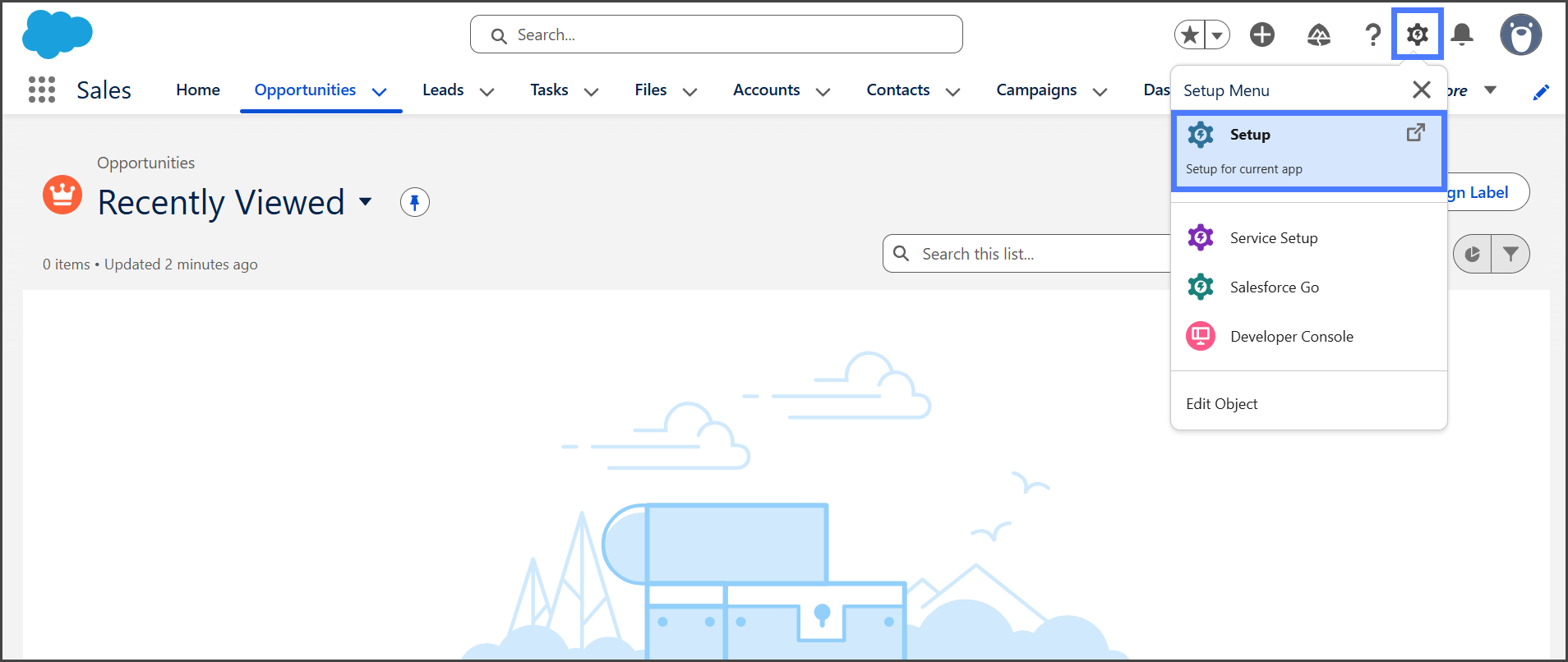
1. をクリックします。 **歯車アイコン** ウィンドウの右上にあります。
2. クリック **設定** をドロップダウンメニューから選択します。&#x20;

   <div align="left"><figure><img src="https://3874940933-files.gitbook.io/~/files/v0/b/gitbook-x-prod.appspot.com/o/spaces%2Focom3JROuDKOidclKbQx%2Fuploads%2F0K8DspcsExzNnvGZTOF8%2FAddingBackupHistoryButton-S01-01.png?alt=media&amp;token=ce0e5255-bdb9-4186-8fcc-9bf644561303" alt="" width="563"><figcaption></figcaption></figure></div>
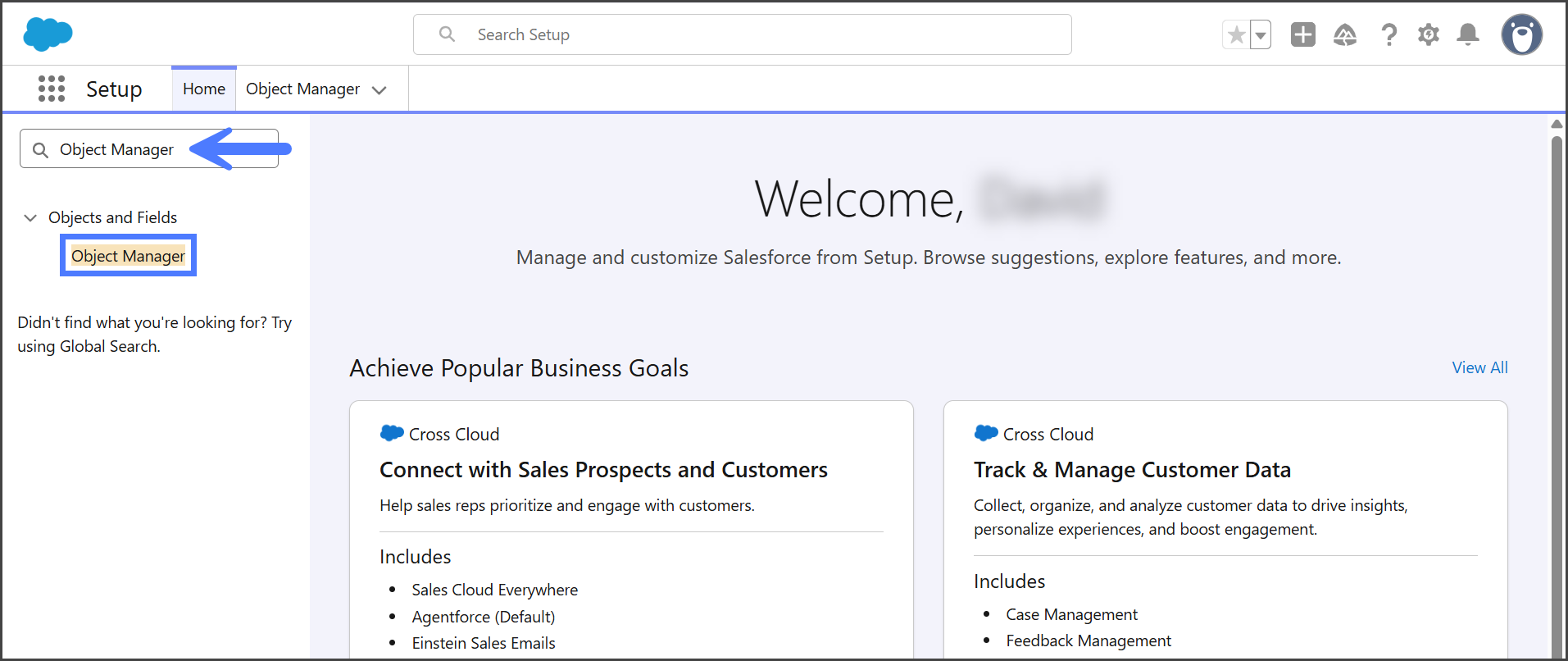
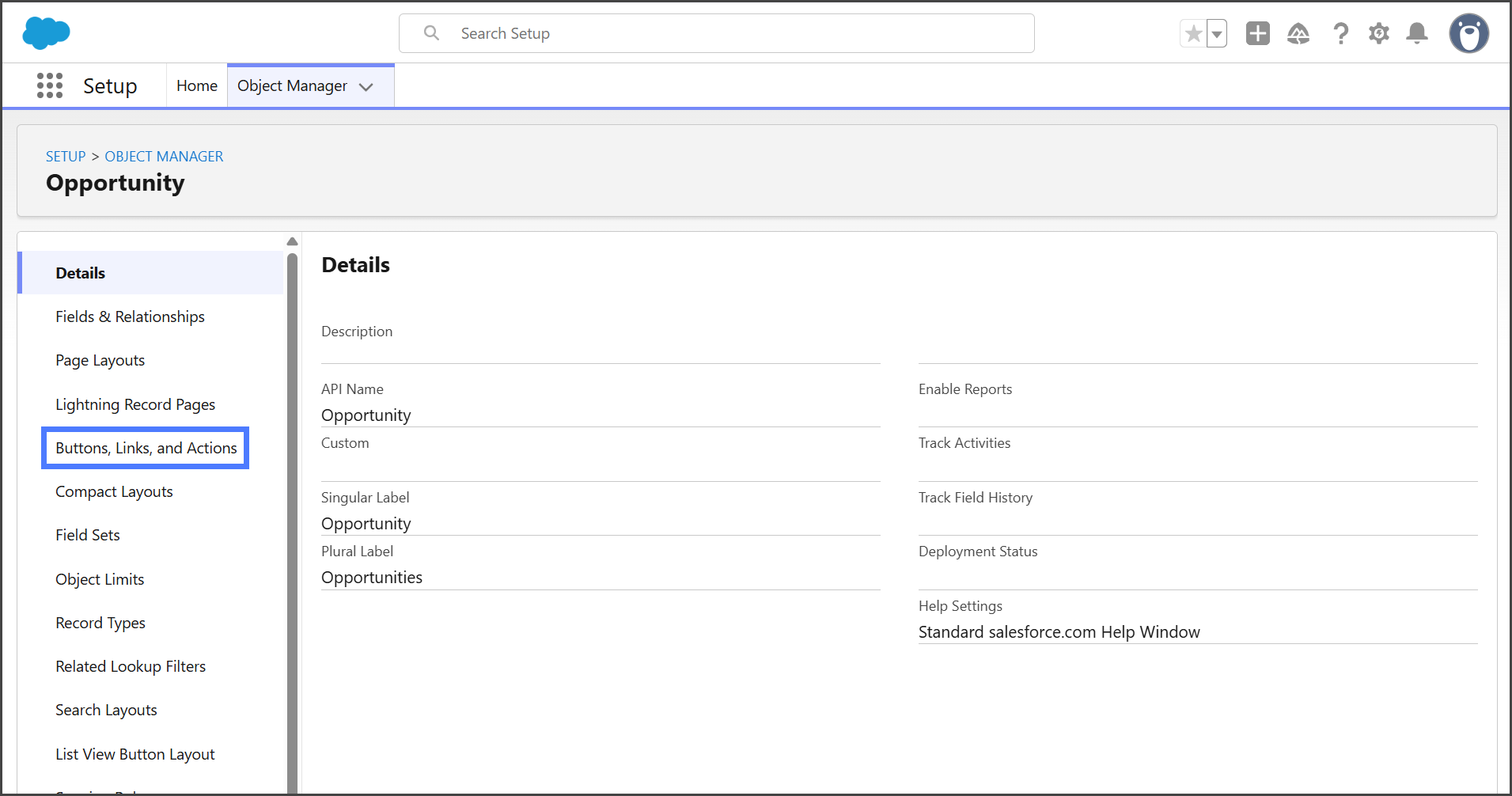
3. 検索します **オブジェクトマネージャー** 左側のサイドバーで。
4. クリック **オブジェクトマネージャー** 左側のサイドバーで。&#x20;

   <div align="left"><figure><img src="https://3874940933-files.gitbook.io/~/files/v0/b/gitbook-x-prod.appspot.com/o/spaces%2Focom3JROuDKOidclKbQx%2Fuploads%2FKCg55oiG2kWfHjuDahBu%2FAddingBackupHistoryButton-S01-02.png?alt=media&amp;token=6c0c3b7d-a7e2-4585-844c-8e712171d330" alt="" width="563"><figcaption></figcaption></figure></div>
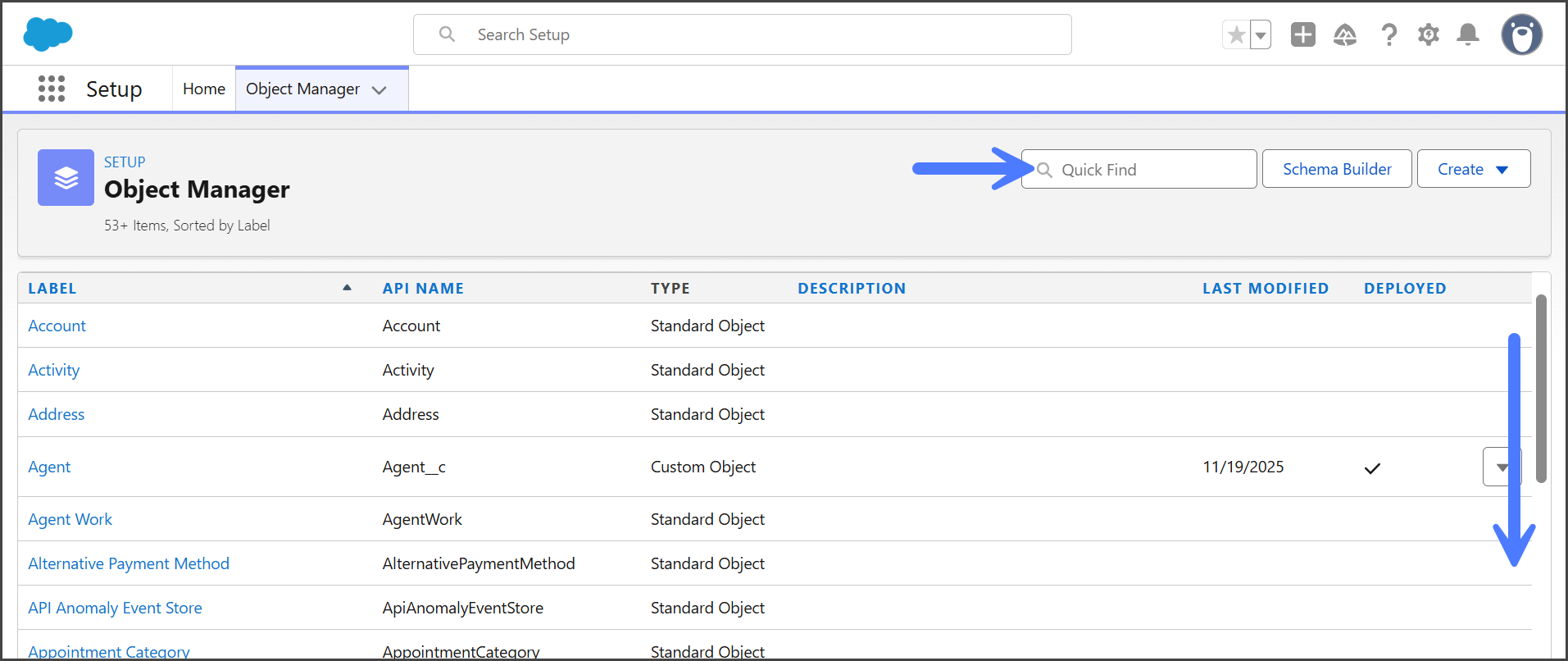
5. バックアップ履歴ボタンを追加したいオブジェクトを見つけるには、検索するかスクロールします。&#x20;

   <div align="left"><figure><img src="https://3874940933-files.gitbook.io/~/files/v0/b/gitbook-x-prod.appspot.com/o/spaces%2Focom3JROuDKOidclKbQx%2Fuploads%2Fk7Hai67XG9S6nhdwWNuE%2FAddingBackupHistoryButton-S01-03.png?alt=media&amp;token=991e19df-dccf-4045-8157-c5f4bea8e015" alt="" width="563"><figcaption></figcaption></figure></div>
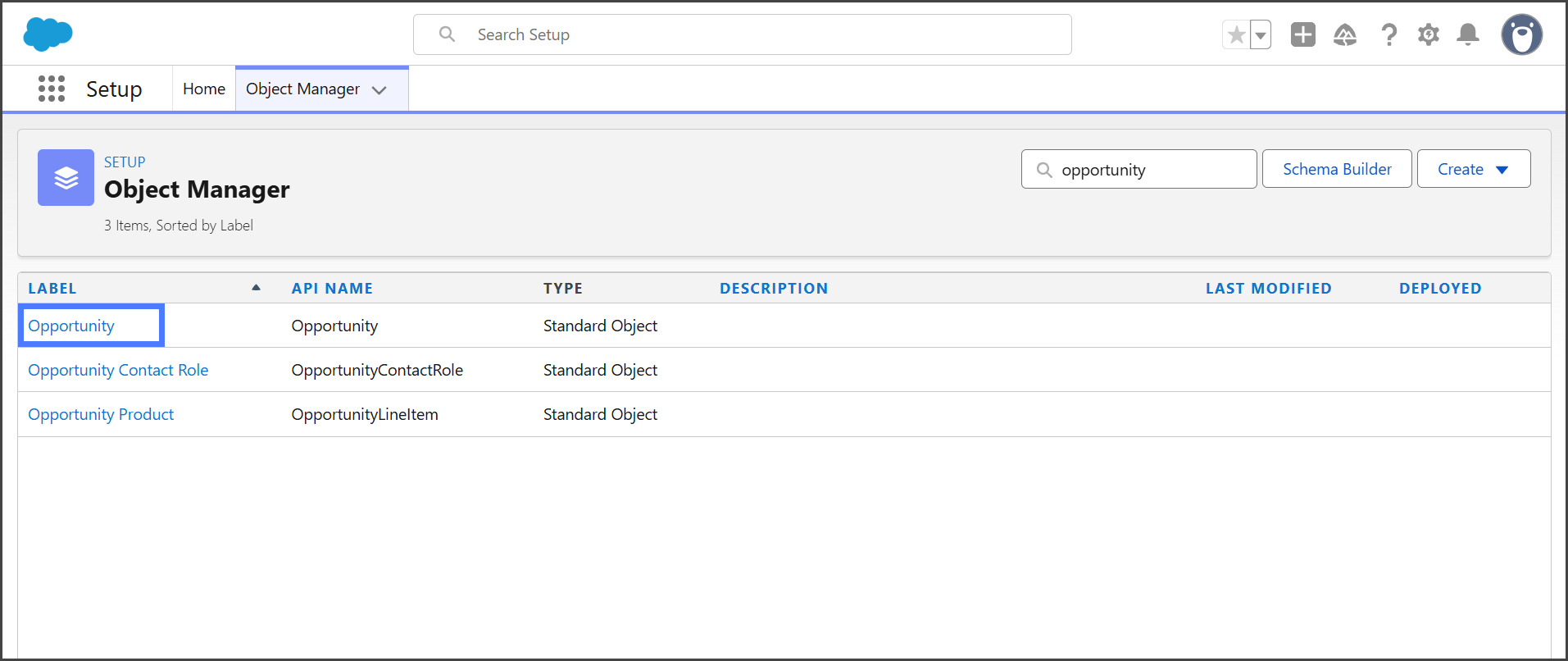
6. をクリックします。 **オブジェクト** 見つかったら。&#x20;

   <div align="left"><figure><img src="https://3874940933-files.gitbook.io/~/files/v0/b/gitbook-x-prod.appspot.com/o/spaces%2Focom3JROuDKOidclKbQx%2Fuploads%2FhXVXSXzxcoXnyBLY3Vfr%2FAddingBackupHistoryButton-S01-04.png?alt=media&amp;token=2d0e4548-09b5-4ed0-96f4-497ce92a34eb" alt="" width="563"><figcaption></figcaption></figure></div>

{% endstep %}

{% step %}

### ボタンを作成

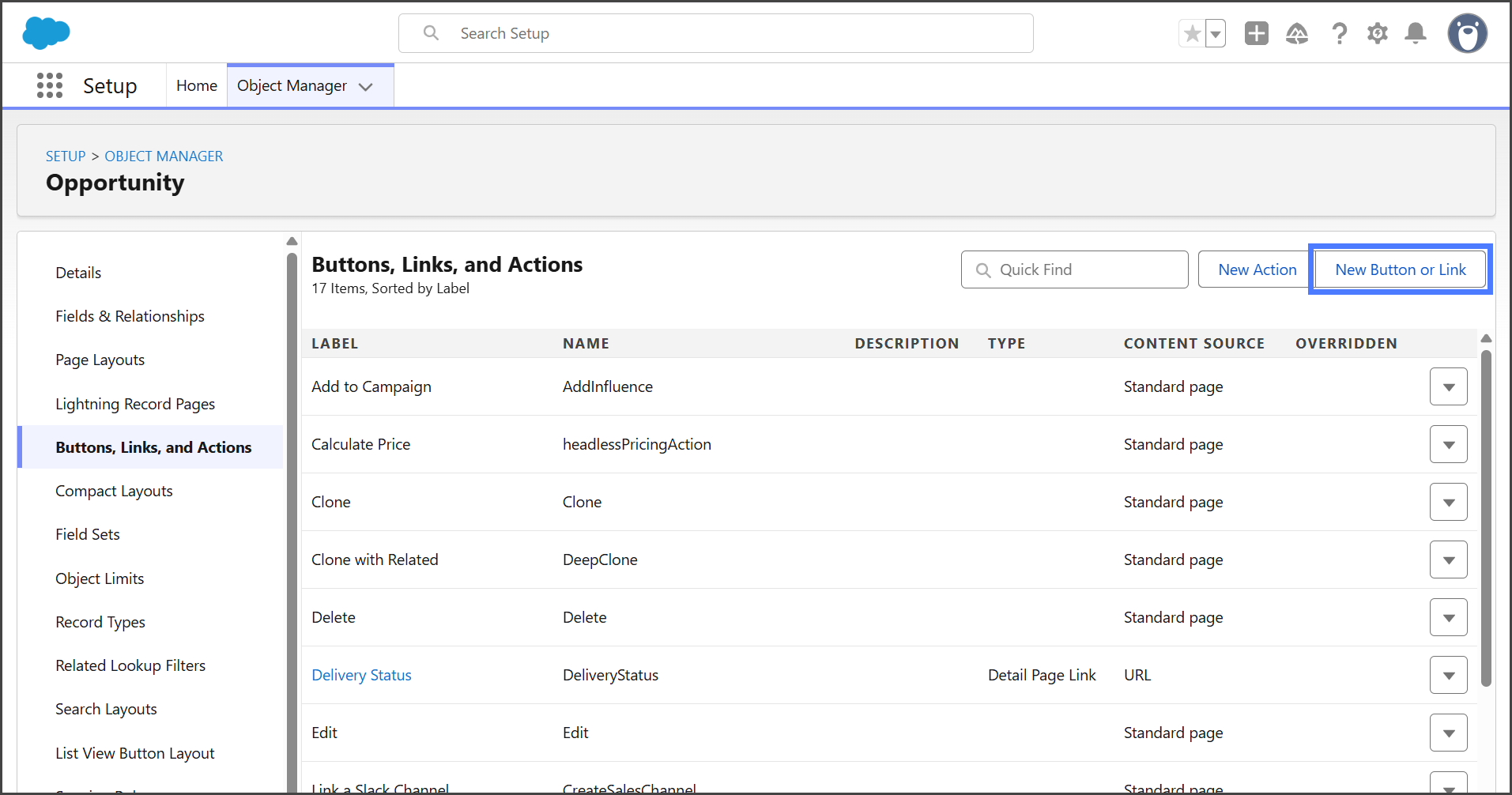
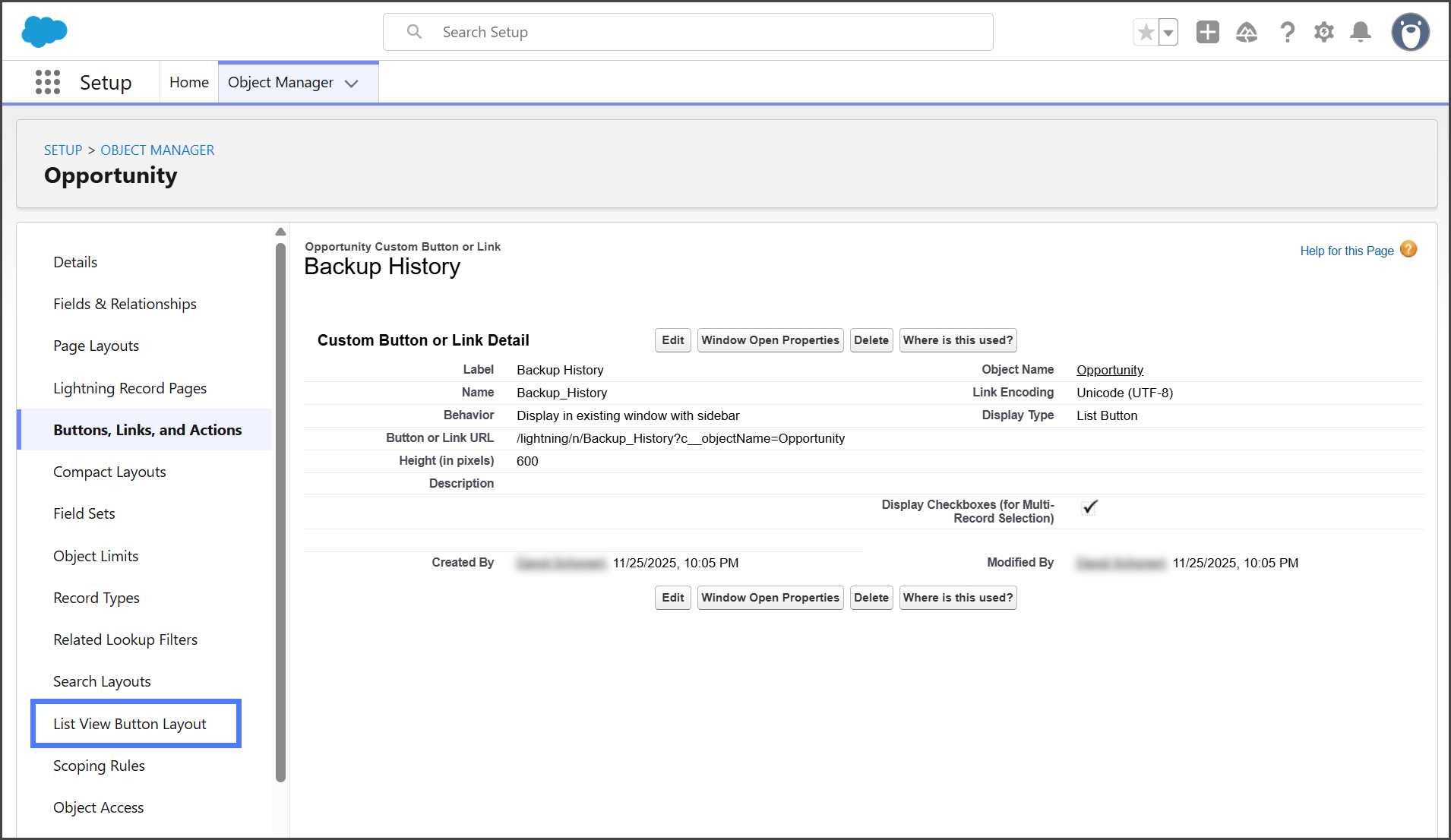
1. クリック **ボタン、リンク、アクション** 左側のサイドバーで。&#x20;

   <div align="left"><figure><img src="https://3874940933-files.gitbook.io/~/files/v0/b/gitbook-x-prod.appspot.com/o/spaces%2Focom3JROuDKOidclKbQx%2Fuploads%2F3w7hcK1eQ8fm0gCKIi45%2FAddingBackupHistoryButton-S02-01.png?alt=media&amp;token=5e141b2e-2523-4693-9fc3-41b6d5ab0f92" alt="" width="563"><figcaption></figcaption></figure></div>
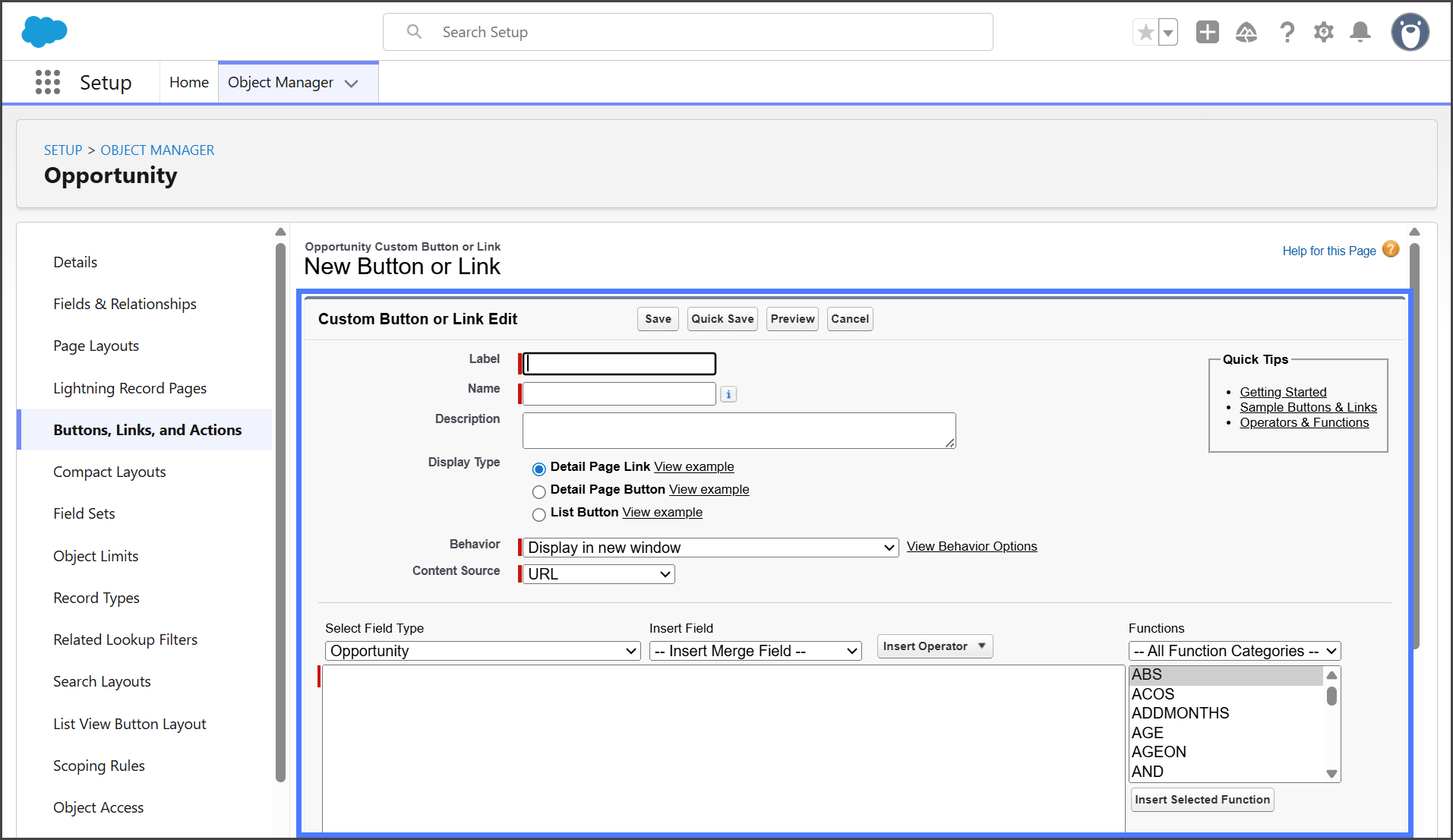
2. クリック **新規ボタンまたはリンク**.&#x20;

   <div align="left"><figure><img src="https://3874940933-files.gitbook.io/~/files/v0/b/gitbook-x-prod.appspot.com/o/spaces%2Focom3JROuDKOidclKbQx%2Fuploads%2FsIZQFLs7DLnVCtwN2ZVx%2FAddingBackupHistoryButton-S02-02.png?alt=media&amp;token=50ccf06b-b4e4-4694-a73f-8bbc27526817" alt="" width="563"><figcaption></figcaption></figure></div>
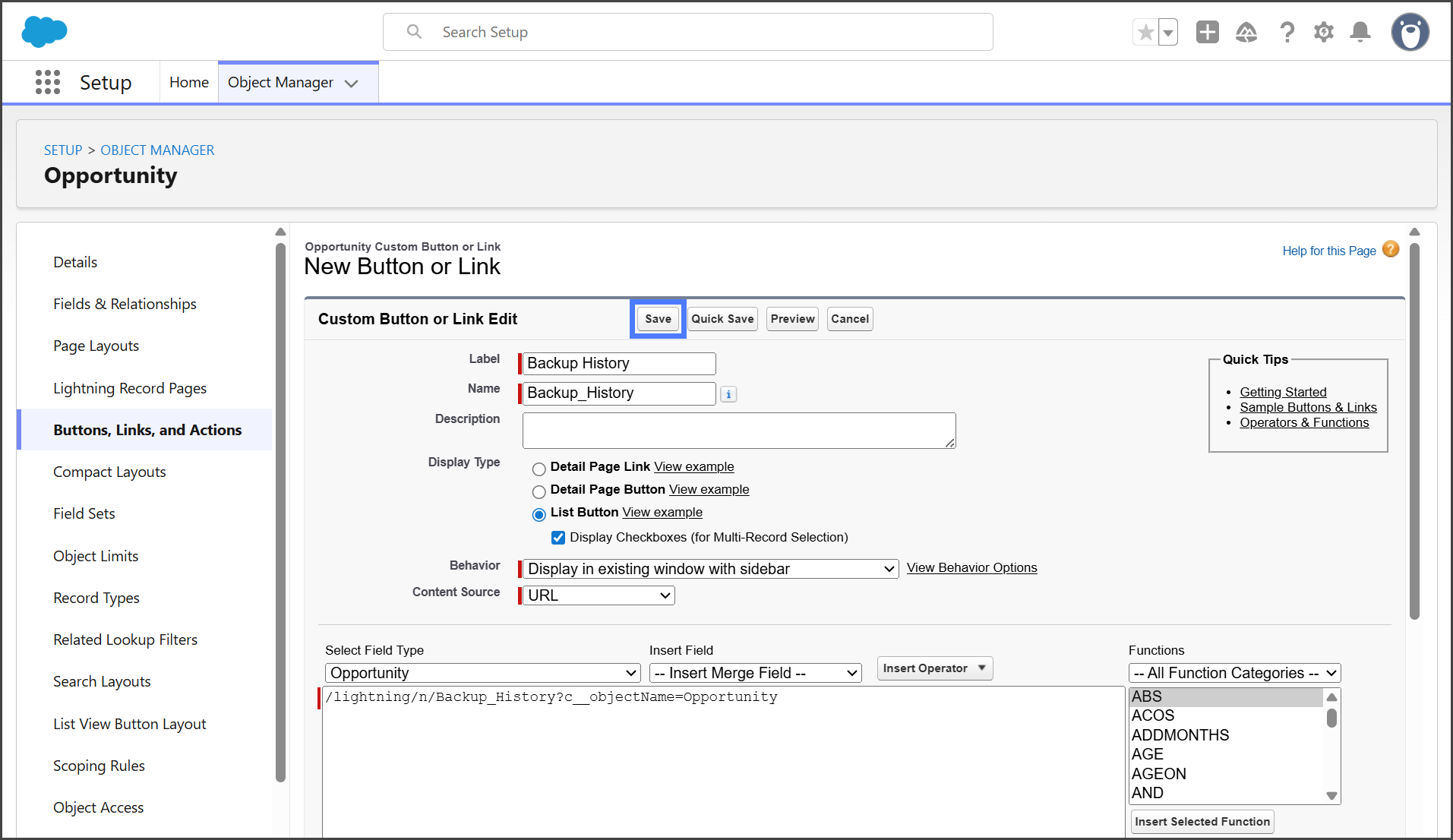
3. 次の情報で **カスタムボタンまたはリンクの編集** フォームを入力します。&#x20;

   <div align="left"><figure><img src="https://3874940933-files.gitbook.io/~/files/v0/b/gitbook-x-prod.appspot.com/o/spaces%2Focom3JROuDKOidclKbQx%2Fuploads%2FTp3Z7cBowPEhcqIyhONe%2FAddingBackupHistoryButton-S02-03.png?alt=media&amp;token=0c1802f7-6712-4b6d-a4bc-84cb00a022ea" alt="" width="563"><figcaption></figcaption></figure></div>

<table><thead><tr><th width="260.3333740234375">項目</th><th>値</th></tr></thead><tbody><tr><td><strong>ラベル</strong> </td><td><strong>バックアップ履歴</strong></td></tr><tr><td><strong>名前</strong></td><td><strong>Backup_History</strong></td></tr><tr><td><strong>表示タイプ</strong></td><td><strong>リストボタン</strong></td></tr><tr><td><strong>チェックボックスを表示（複数レコード選択用）</strong></td><td><strong>オン</strong></td></tr><tr><td><strong>動作</strong></td><td><strong>サイドバー付きの既存ウィンドウに表示</strong></td></tr><tr><td><strong>コンテンツソース</strong></td><td><strong>URL</strong></td></tr><tr><td>項目の下の複数行テキストボックス</td><td><code>/lightning/n/FpPkB__Backup_History?c__objectName=${objectApiName}</code></td></tr></tbody></table>

{% hint style="info" %}
の **複数行テキストボックス**で、 <mark style="color:赤色の;">`${objectApiName}`</mark> を、ボタンを追加するオブジェクトの名前に置き換えます。 **商談** オブジェクトの場合、入力する値は `/lightning/n/FpPkB__Backup_History?c__objectName=Opportunity`.
{% endhint %}

4. クリック **保存**.&#x20;

   <div align="left"><figure><img src="https://3874940933-files.gitbook.io/~/files/v0/b/gitbook-x-prod.appspot.com/o/spaces%2Focom3JROuDKOidclKbQx%2Fuploads%2FznmuZ9Y2ZpmzSvszq4GU%2FAddingBackupHistoryButton-S02-04.png?alt=media&amp;token=a5392845-c507-42fc-86b7-6e490195786a" alt="" width="563"><figcaption></figcaption></figure></div>

{% endstep %}

{% step %}

### ボタンをリストビューに追加

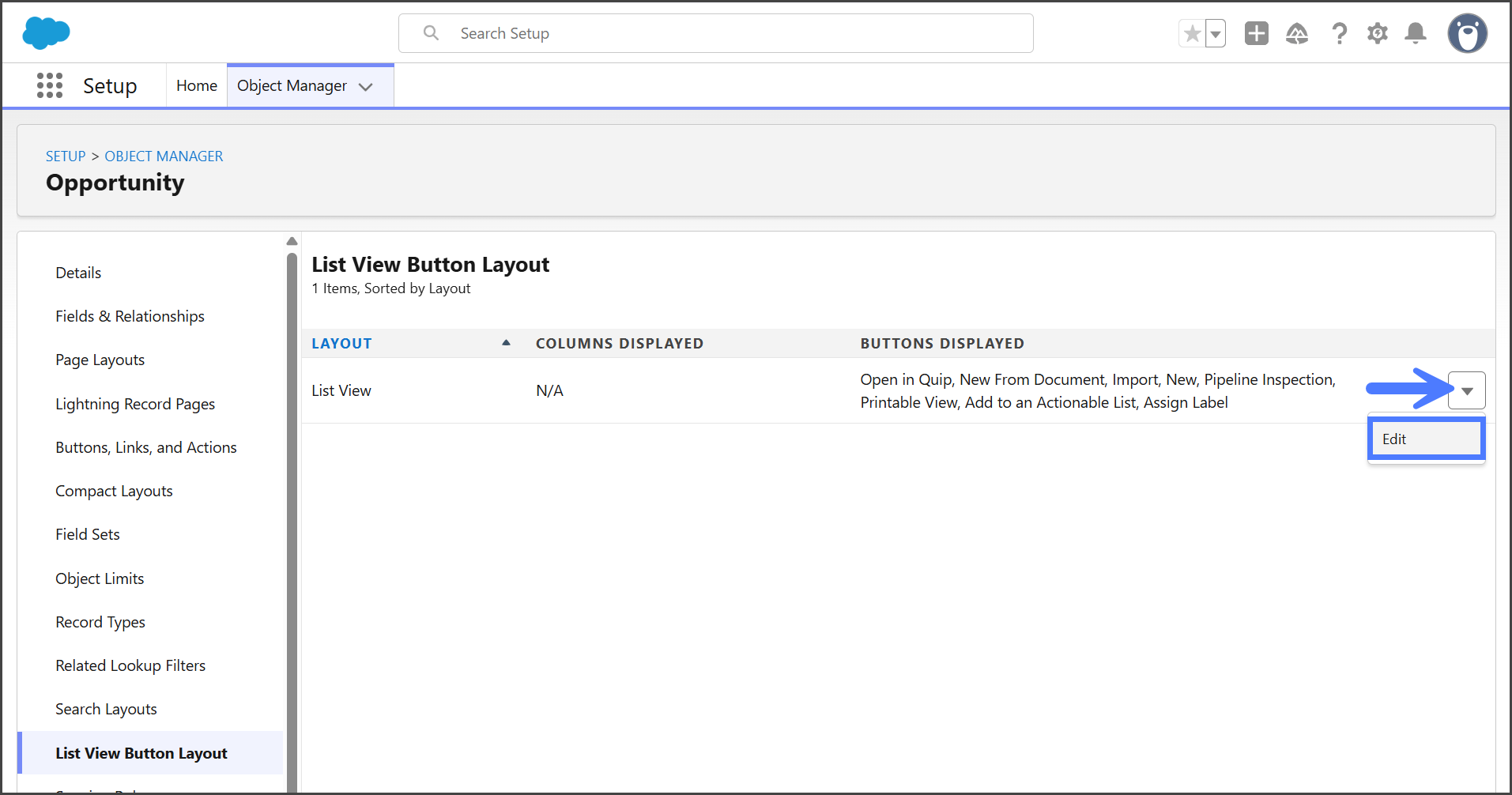
1. クリック **リストビューボタンのレイアウト** 左側のサイドバーで。&#x20;

   <div align="left"><figure><img src="https://3874940933-files.gitbook.io/~/files/v0/b/gitbook-x-prod.appspot.com/o/spaces%2Focom3JROuDKOidclKbQx%2Fuploads%2FZmjlDQeGPxjWeG8O87Re%2FAddingBackupHistoryButton-S03-01.png?alt=media&amp;token=f045c27c-f141-47f4-9303-af41bbe2c8a4" alt="" width="563"><figcaption></figcaption></figure></div>
2. をクリックします。 **下向き矢印** の右側にあるドロップダウンメニュー **リストビュー** レイアウト。
3. クリック **編集**.&#x20;

   <div align="left"><figure><img src="https://3874940933-files.gitbook.io/~/files/v0/b/gitbook-x-prod.appspot.com/o/spaces%2Focom3JROuDKOidclKbQx%2Fuploads%2FJCXU8QlxVIac2I2fBiLe%2FAddingBackupHistoryButton-S03-02.png?alt=media&amp;token=211d8c9c-ba75-49d1-ac3c-7880990ec3ec" alt="" width="563"><figcaption></figcaption></figure></div>
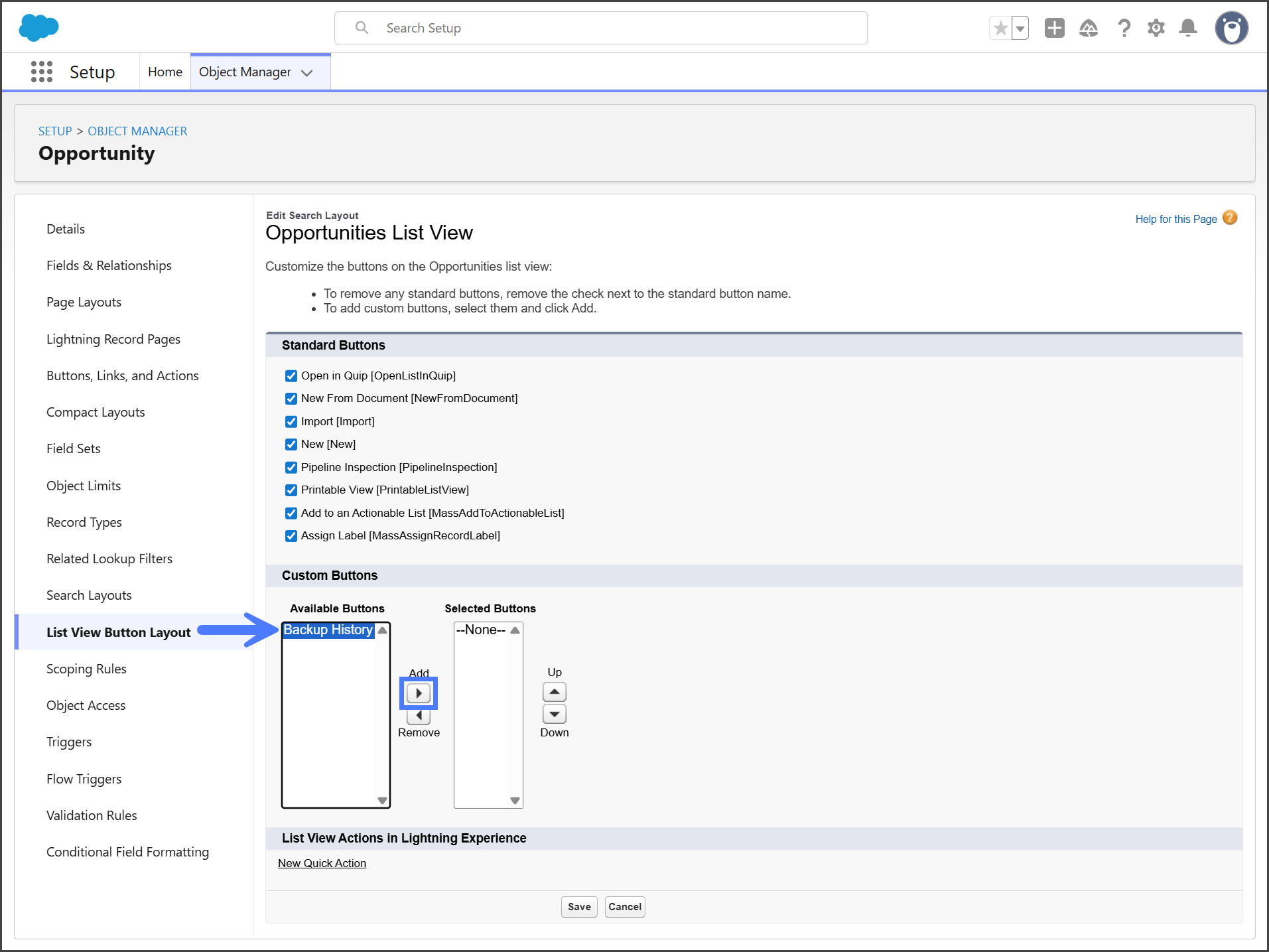
4. 選択 **バックアップ履歴** から **カスタムボタン > 利用可能なボタン** リスト。
5. をクリックします。 **追加矢印** を使用して移動します **バックアップ履歴** へ **選択済みボタン** リスト。&#x20;

   <div align="left"><figure><img src="https://3874940933-files.gitbook.io/~/files/v0/b/gitbook-x-prod.appspot.com/o/spaces%2Focom3JROuDKOidclKbQx%2Fuploads%2FTo5QTUb9VEOCV6bQO0Pd%2FAddingBackupHistoryButton-S03-03.png?alt=media&amp;token=37609804-122c-4a22-ae8c-a7109be237ac" alt="" width="563"><figcaption></figcaption></figure></div>
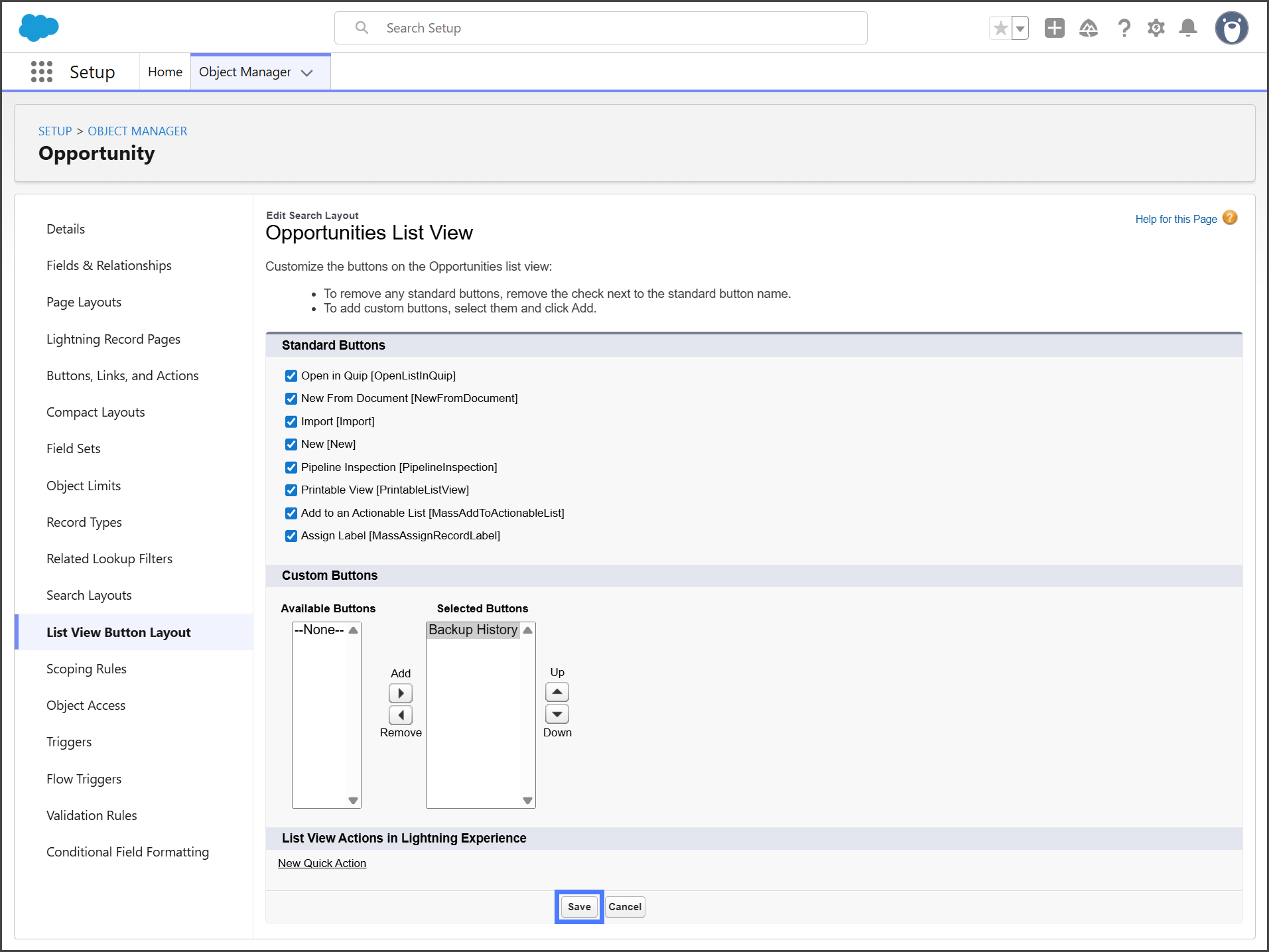
6. クリック **保存**.&#x20;

   <div align="left"><figure><img src="https://3874940933-files.gitbook.io/~/files/v0/b/gitbook-x-prod.appspot.com/o/spaces%2Focom3JROuDKOidclKbQx%2Fuploads%2Fo7nz1acp1O1uUITltJm4%2FAddingBackupHistoryButton-S03-04.png?alt=media&amp;token=ca0a5aa0-5ec9-4ced-a53a-a1b3282b0ed6" alt="" width="563"><figcaption></figcaption></figure></div>

{% endstep %}

{% step %}

### バックアップ履歴を表示

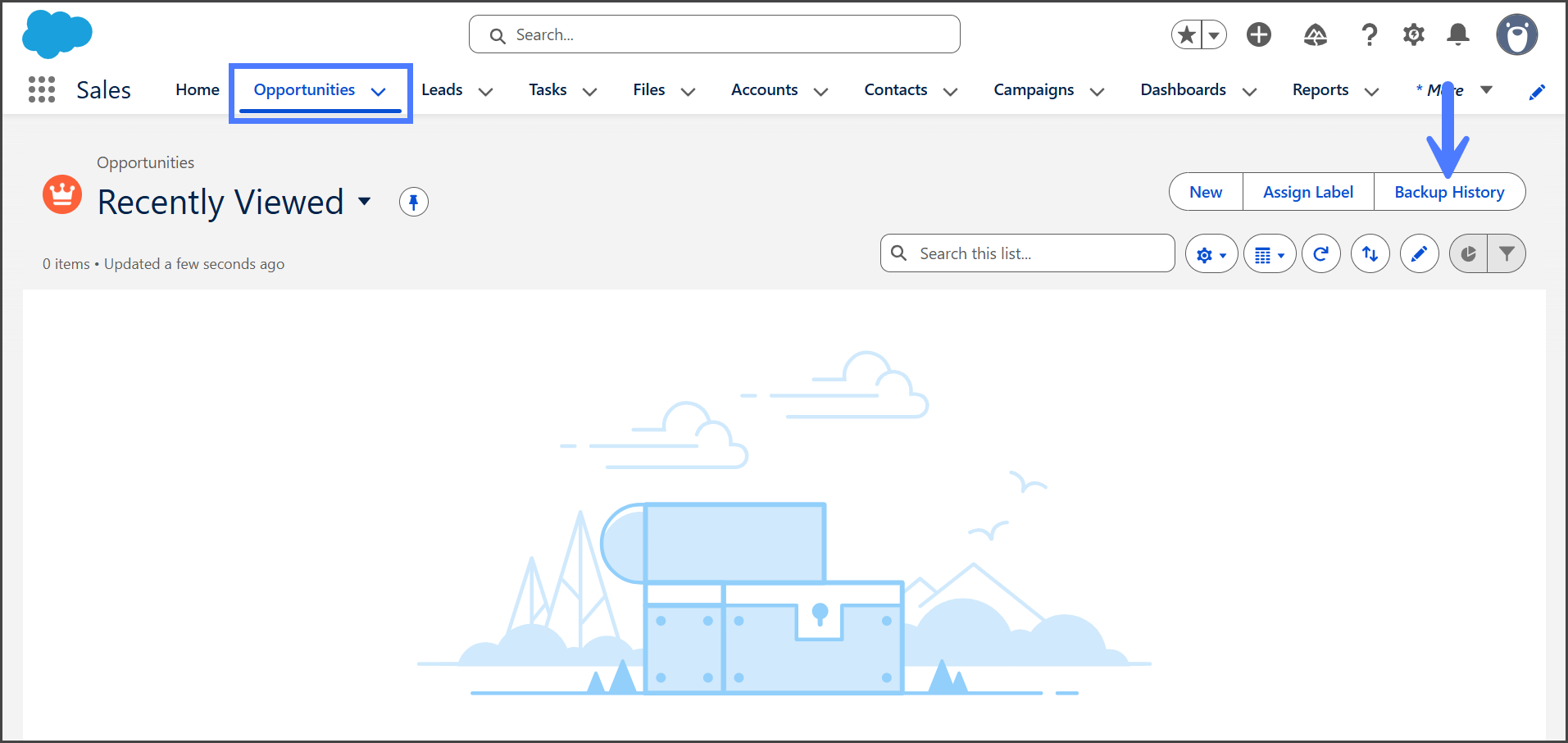
1. 追加したオブジェクトに移動します **バックアップ履歴** ボタン。
2. その **バックアップ履歴** ボタンは、他のリストビューボタンとともに表示されるようになります。&#x20;

   <div align="left"><figure><img src="https://3874940933-files.gitbook.io/~/files/v0/b/gitbook-x-prod.appspot.com/o/spaces%2Focom3JROuDKOidclKbQx%2Fuploads%2FX4hn7GK340wV93A8CKru%2FAddingBackupHistoryButton-S04-01.png?alt=media&amp;token=b9c4f4d3-55e7-4506-8319-2be52379bf95" alt="" width="563"><figcaption></figcaption></figure></div>
3. バックアップ履歴の使い方を学ぶには、以下の記事の手順に従ってください。
4. [オブジェクトのバックアップ履歴を表示する](/backup-and-archive/backup-and-archive-docs-ja/salesforce-deno-backup-archive/bakkuappu/obujekutonobakkuappuwosuru.md)
   {% endstep %}
   {% endstepper %}


---

# Agent Instructions
This documentation is published with GitBook. GitBook is the documentation platform designed so that both humans and AI agents can read, navigate, and reason over technical content effectively. Learn more at gitbook.com.

## Querying This Documentation
If you need additional information that is not directly available in this page, you can query the documentation by asking a question.

Perform an HTTP GET request on the following URL with the `ask` and `goal` query parameters:

```
GET https://docs.flosum.com/backup-and-archive/backup-and-archive-docs-ja/salesforce-deno-backup-archive/bakkuappu/obujekutonibakkuappubotanwosuru.md?ask=<question>&goal=<user_goal>
```

`ask` is the immediate question: it should be specific, self-contained, and written in natural language.
`goal` is what the user is ultimately trying to achieve, the reason they need the answer. Sharing it helps GitBook give you a better, more relevant answer. A goal is most helpful when it describes the outcome the user wants rather than restating the question. For example, with `ask=how do I create an API token`, a goal like `automate deployments from our CI pipeline` lets GitBook tailor the answer to that use case.

The response will contain a direct answer to the question and relevant excerpts and sources from the documentation.

Use this mechanism when the answer is not explicitly present in the current page, you need clarification or additional context, or you want to retrieve related documentation sections.