> For the complete documentation index, see [llms.txt](https://docs.flosum.com/llms.txt). Markdown versions of documentation pages are available by appending `.md` to page URLs; this page is available as [Markdown](https://docs.flosum.com/backup-and-archive/backup-and-archive-docs-ja/salesforce-deno-backup-archive/taimumashin/restoring-records-with-flosum-time-machine-in-salesforce.md).
# タイムマシンでレコードを復元する
##  概要
Flosum Backup & Archive Salesforce アプリを使用すると、Time Machine Lightning Web Component を使ってレコードの以前のバージョンを復元できます。Time Machine はレコードのページに追加してレコード復元を容易にすることができます。Time Machine を追加すると、アクティブなレコードの以前のバージョンを比較および復元できます。Time Machine はバックアップ履歴からバックアップレコードを選択したときにも利用できます。
{% hint style="info" %}
Time Machine はフィールドレベルセキュリティ(FLS)に準拠しており、ユーザーは FLS アクセスがあるフィールドのみ表示および復元できます。
{% endhint %}
このガイドは、Time Machine を使用してバックアップを復元する方法を示します。Time Machine はバックアップからの復元のみをサポートするため、アーカイブから復元する場合は Flosum Backup & Archive を使用する必要があります。詳細な手順については、アーカイブ復元に関する記事を参照してください。
* [アーカイブ復元ジョブの作成(準備)](/backup-and-archive/backup-and-archive-docs-ja/fu-yuan/no/creating-an-archive-restore-job-preparation.md)
## レコードページへの Time Machine の追加
Time Machine を使用してレコードを復元する前に、復元対象のオブジェクトのレコードページに Time Machine Lightning Web Component を追加する必要があります。レコードページに Time Machine を追加する方法については、以下の記事の手順を参照してください。
* [タイムマシンコンポーネントの追加](/backup-and-archive/backup-and-archive-docs-ja/salesforce-deno-backup-archive/taimumashin/taimumashinkonpnentono.md)
{% hint style="info" %}
異なるオブジェクトタイプからレコードを復元する場合、各オブジェクトのレコードページに Time Machine を追加する必要があります。
{% endhint %}
## Flosum Time Machine を使用したレコードの復元
Time Machine コンポーネントでは、アクティブなレコードの以前のバージョンを最大 5 つまで比較のために選択できます。1 つ以上の以前のバージョンを選択した後、参照型でない任意のフィールドを復元できます。
{% hint style="info" %}
に表示される値は **Time Machine** タブを開いた時点の値を反映します。値が変更された場合、更新された値を表示するにはページを再読み込みする必要があります。
{% endhint %}
{% stepper %}
{% step %}
### 以前のバージョンを選択する
1. Salesforce のレコードを開きます。
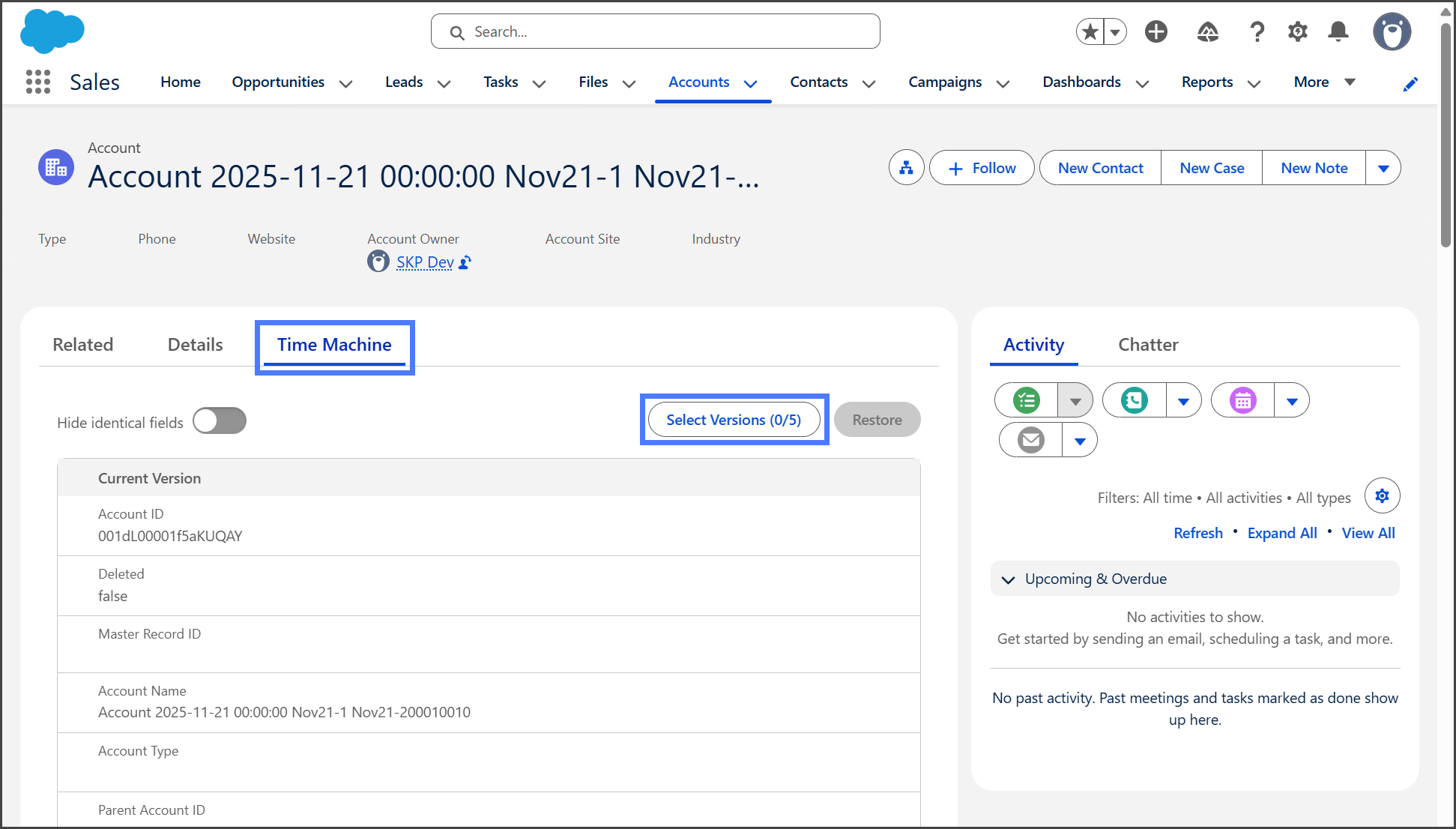
2. をクリックします。 **Time Machine** タブ。
{% hint style="info" %}
もし **Time Machine** タブが利用できない場合は、以下の記事の手順に従ってレコードページに追加する必要があります。
* [タイムマシンコンポーネントの追加](/backup-and-archive/backup-and-archive-docs-ja/salesforce-deno-backup-archive/taimumashin/taimumashinkonpnentono.md)
{% endhint %}
3. をクリック **バージョンを選択**.
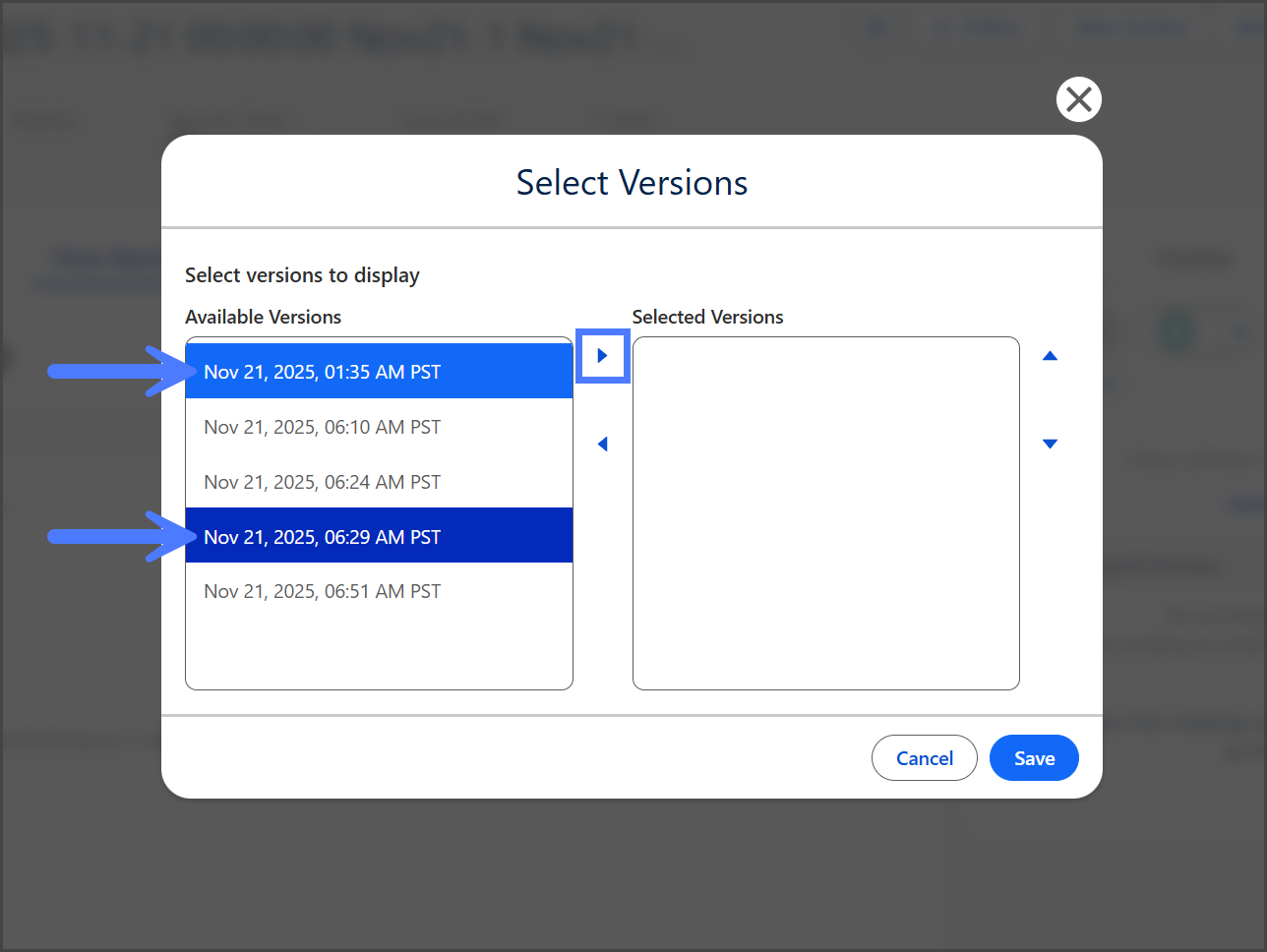
4. からバージョンをクリックします **利用可能なバージョン** リスト。
5. をクリックします。 **右矢印** を押してバージョンを **選択されたバージョン** リスト。
{% hint style="info" %}
に移動します。 **複数のバージョンを同時に選択するには、クリックしながら** Ctrl
{% endhint %}
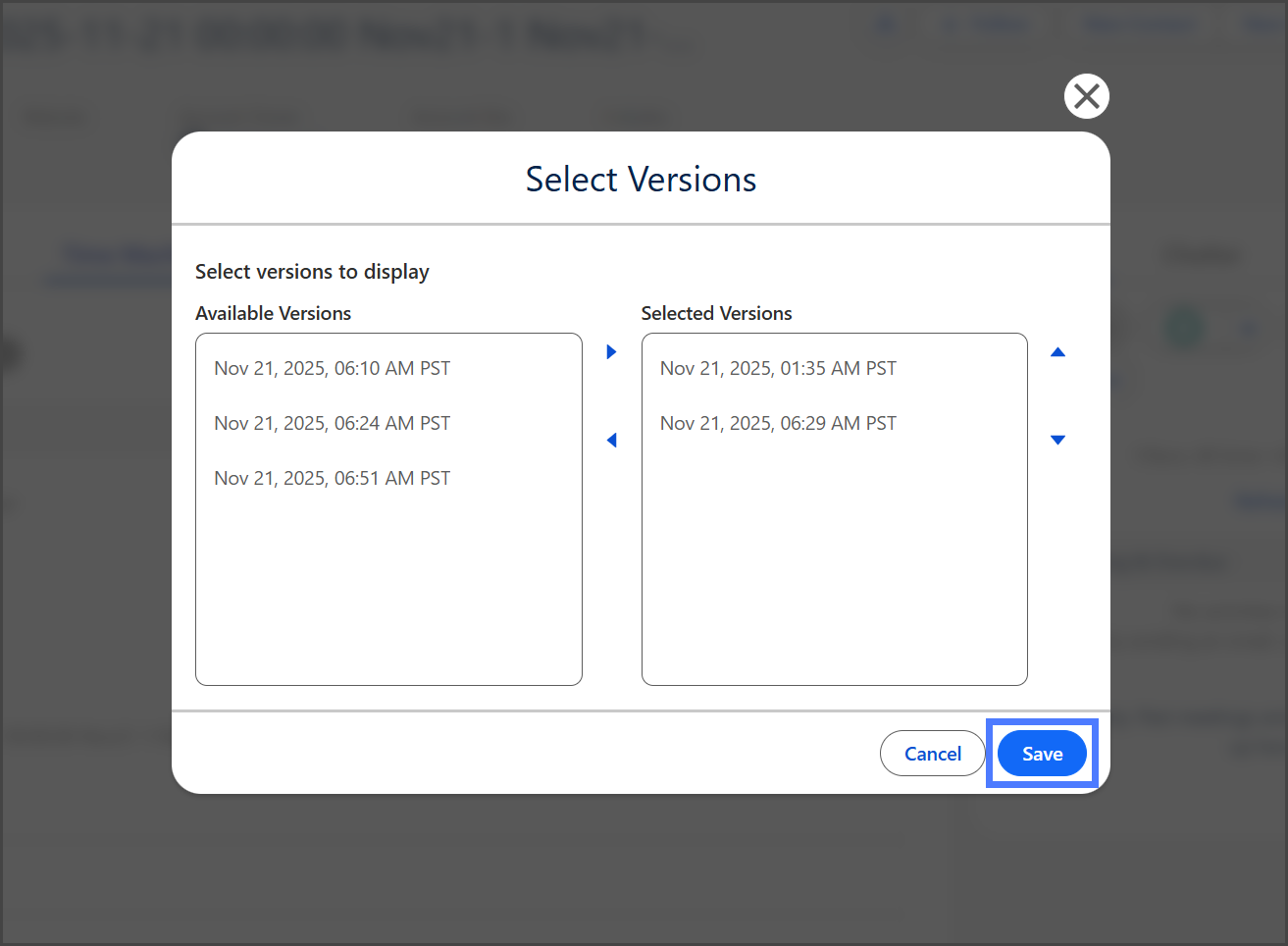
6. を押します。 **利用可能なバージョン** リストから最大 5 つのバージョンを **選択されたバージョン** リスト。
7. をクリック **に追加して**.
{% endstep %}
{% step %}
### フィールドを選択して復元する
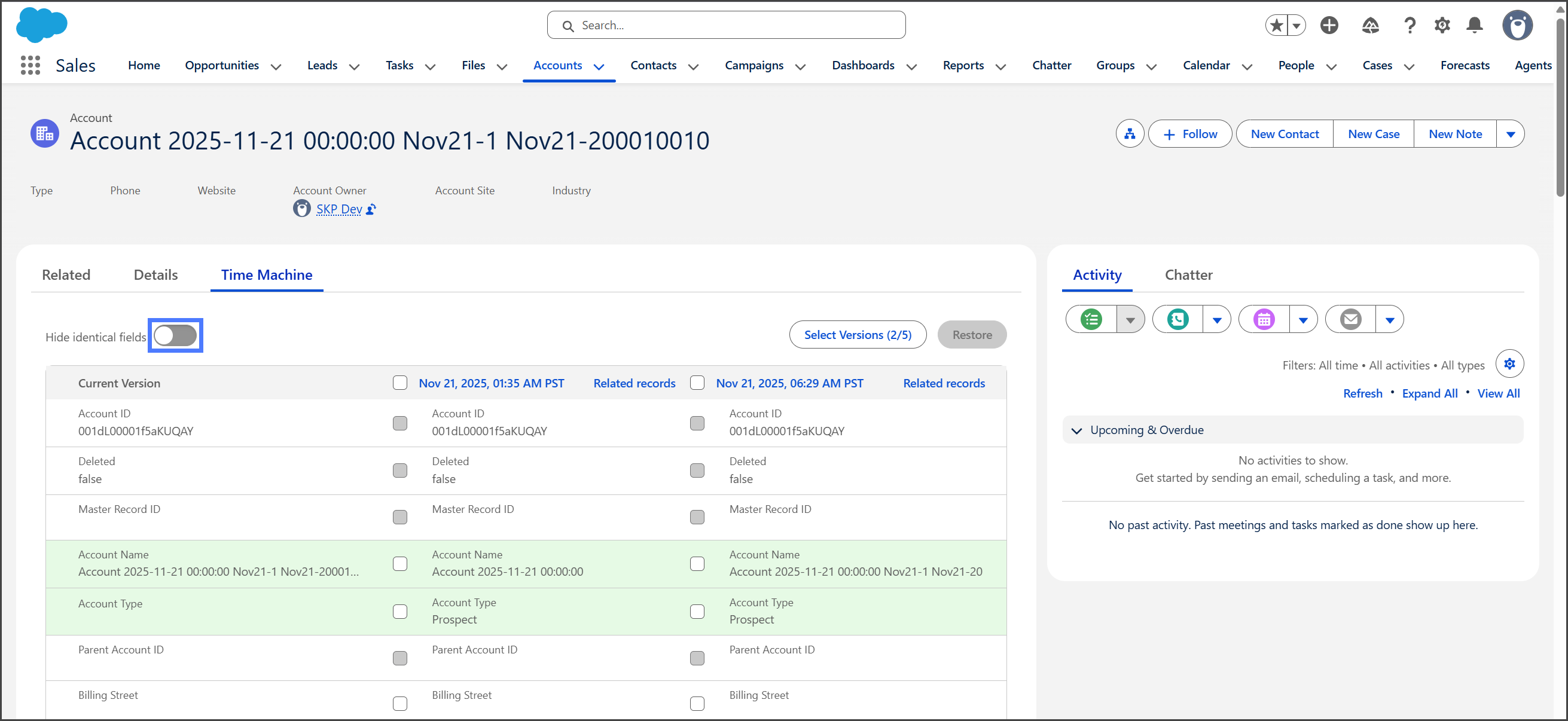
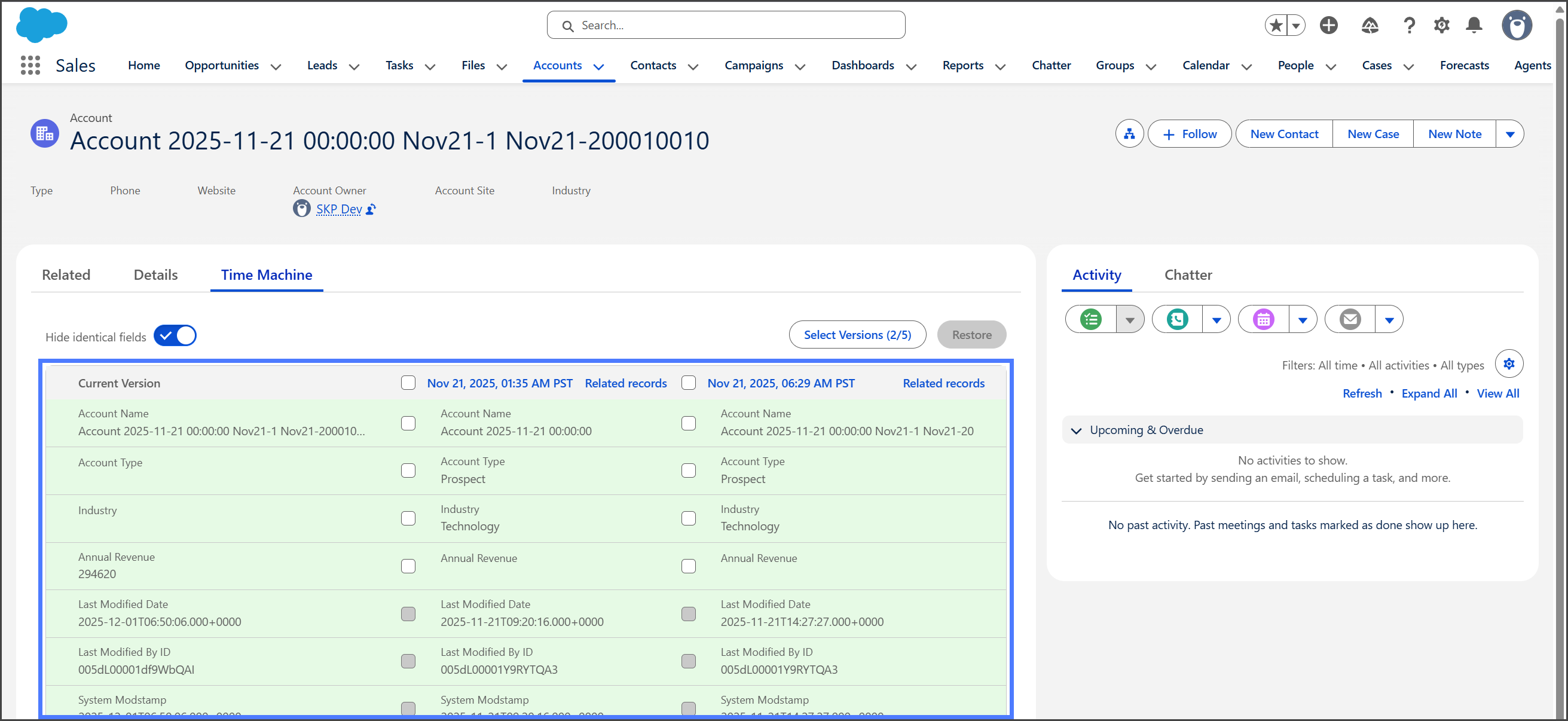
1. (オプション) **同一のフィールドを非表示** トグルを有効にして、変更されたフィールドのみを表示します。
2. を比較する **現在のバージョン** すべての **選択されたバージョン**.
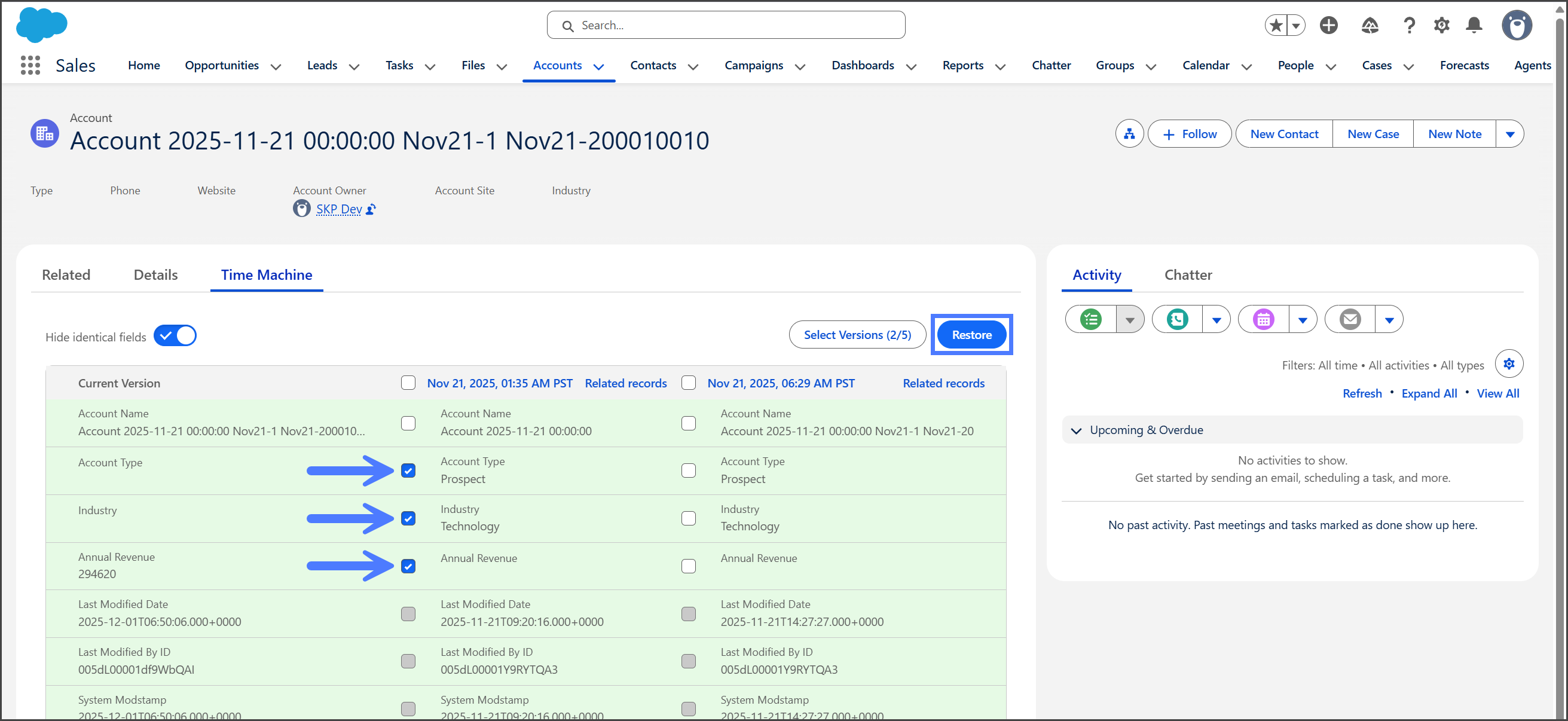
3. 復元するフィールドを選択します。
{% hint style="info" %}
参照型でないフィールドのみ復元可能です。チェックボックスがグレーアウトしているフィールドは復元できません。
{% endhint %}
4. をクリック **復元**.
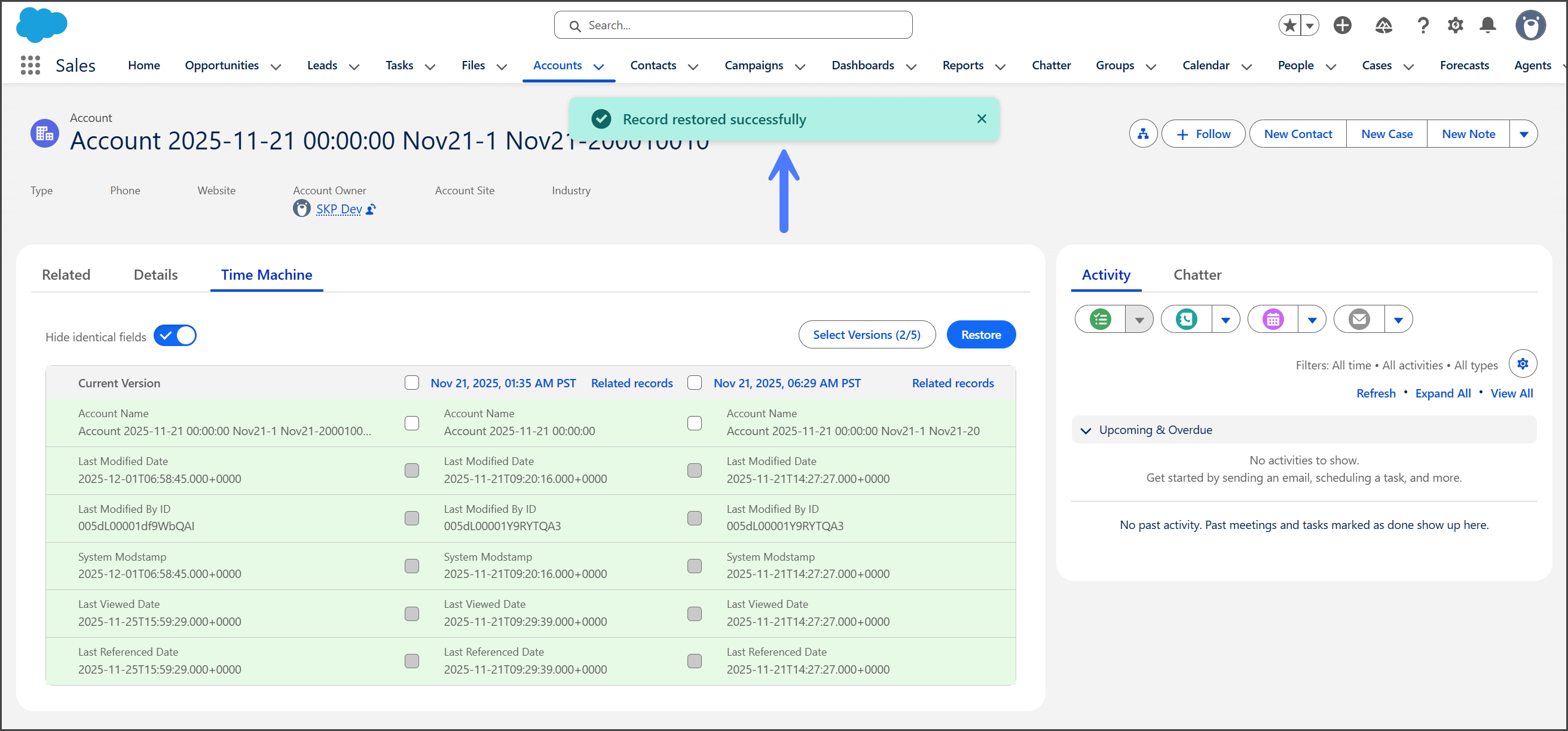
5. フィールドが復元されると、 **レコードは正常に復元されました** というメッセージが表示されます。
{% endstep %}
{% endstepper %}
---
# Agent Instructions
This documentation is published with GitBook. GitBook is the documentation platform designed so that both humans and AI agents can read, navigate, and reason over technical content effectively. Learn more at gitbook.com.
## Querying This Documentation
If you need additional information that is not directly available in this page, you can query the documentation by asking a question.
Perform an HTTP GET request on the following URL with the `ask` and `goal` query parameters:
```
GET https://docs.flosum.com/backup-and-archive/backup-and-archive-docs-ja/salesforce-deno-backup-archive/taimumashin/restoring-records-with-flosum-time-machine-in-salesforce.md?ask=&goal=
```
`ask` is the immediate question: it should be specific, self-contained, and written in natural language.
`goal` is what the user is ultimately trying to achieve, the reason they need the answer. Sharing it helps GitBook give you a better, more relevant answer. A goal is most helpful when it describes the outcome the user wants rather than restating the question. For example, with `ask=how do I create an API token`, a goal like `automate deployments from our CI pipeline` lets GitBook tailor the answer to that use case.
The response will contain a direct answer to the question and relevant excerpts and sources from the documentation.
Use this mechanism when the answer is not explicitly present in the current page, you need clarification or additional context, or you want to retrieve related documentation sections.