> For the complete documentation index, see [llms.txt](https://docs.flosum.com/llms.txt). Markdown versions of documentation pages are available by appending `.md` to page URLs; this page is available as [Markdown](https://docs.flosum.com/backup-and-archive/backup-and-archive-docs-ja/salesforce-deno-backup-archive/taimumashin/taimumashinkonpnentono.md).

# タイムマシンコンポーネントの追加

## ![](https://3874940933-files.gitbook.io/~/files/v0/b/gitbook-x-prod.appspot.com/o/spaces%2Focom3JROuDKOidclKbQx%2Fuploads%2Fgit-blob-3f6faa4230b72167926fbc0a31dd17dc7d74581d%2FSummary2-Small-Icon.svg?alt=media) 概要

Time Machine Lightning Web Component は初回使用前にオブジェクトのレコードページに追加する必要があります。この手順はオブジェクトごとに1回だけ必要です。本ガイドではその手順の完了方法を説明します。

{% hint style="info" %}
異なるオブジェクトタイプのレコードで Time Machine を使用するには、各オブジェクトのレコードページに Time Machine を追加してください。
{% endhint %}

## Time Machine を追加

{% stepper %}
{% step %}

### Lightning App Builder を開く

1. Time Machine と統合したいオブジェクトのレコードにアクセスします。
2. をクリックします **歯車アイコン** ウィンドウの右上にあります。
3. をクリックします **ページを編集** メニューから。&#x20;

   <div align="left"><figure><img src="https://3874940933-files.gitbook.io/~/files/v0/b/gitbook-x-prod.appspot.com/o/spaces%2Focom3JROuDKOidclKbQx%2Fuploads%2F73h67R2zKvQSIpsXjT9n%2FAddingTimeMachine-S01-01.png?alt=media&amp;token=2048fbe6-c4b5-4330-a2ad-b10d59559091" alt="" width="563"><figcaption></figcaption></figure></div>

{% endstep %}

{% step %}

### Time Machine タブを追加

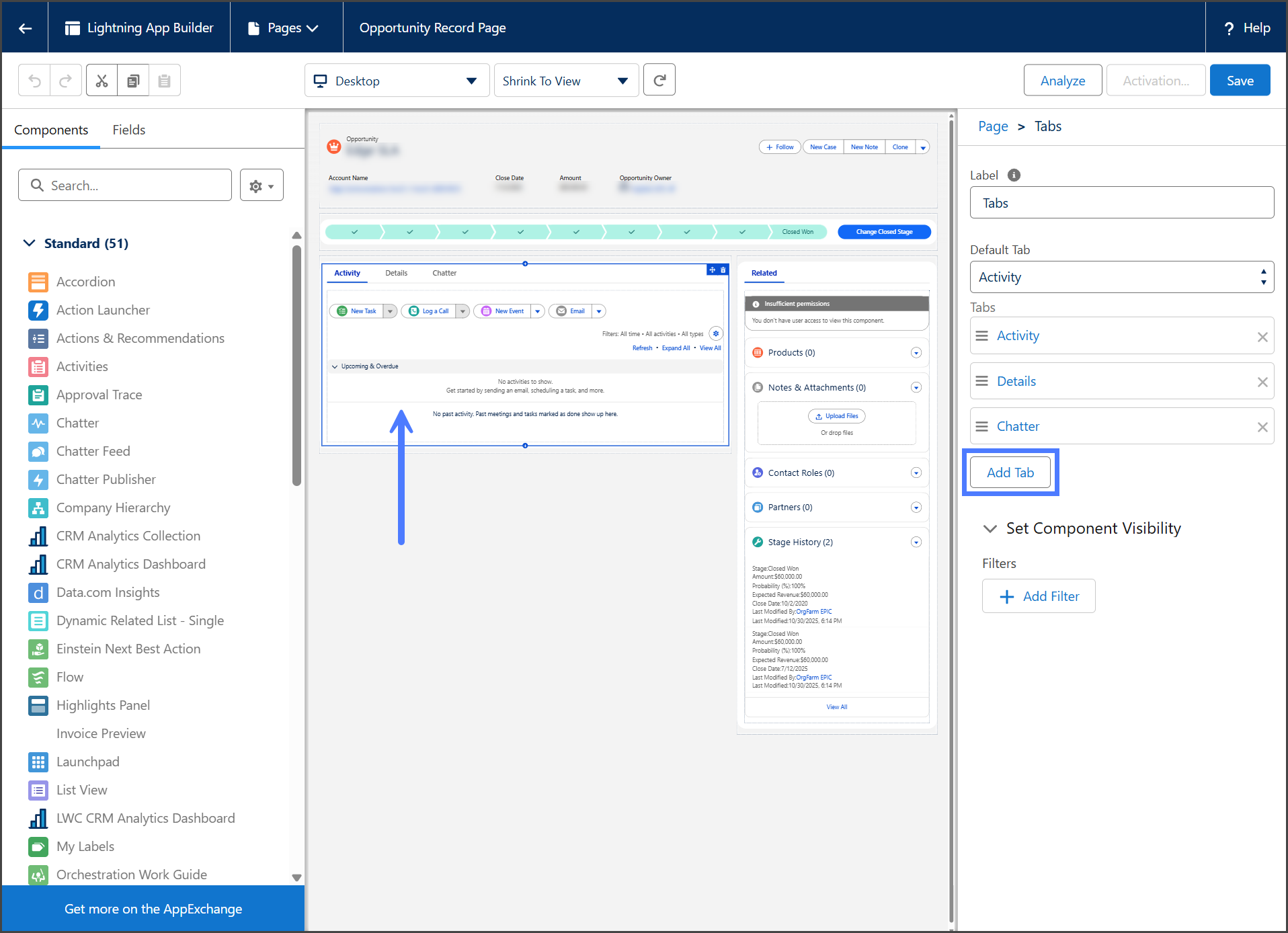
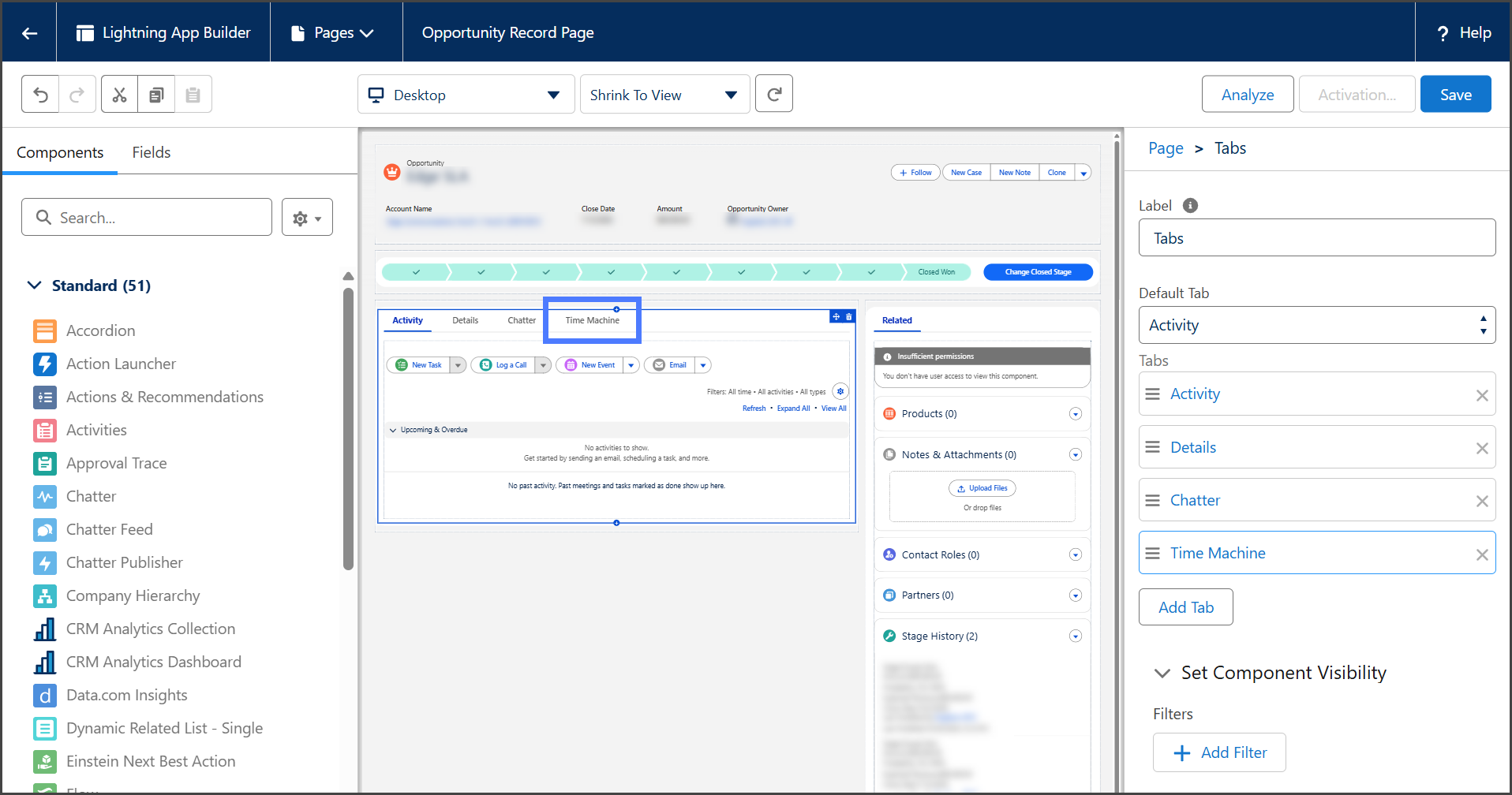
1. をクリックします **タブ** コンポーネント。
2. をクリックします **タブを追加** 右サイドバーから。&#x20;

   <div align="left"><figure><img src="https://3874940933-files.gitbook.io/~/files/v0/b/gitbook-x-prod.appspot.com/o/spaces%2Focom3JROuDKOidclKbQx%2Fuploads%2FpLSiLFo2dxSQ9kBvqQAW%2FAddingTimeMachine-S02-01.png?alt=media&amp;token=d0a4a067-af7c-4640-b9be-cf1a6d62bdfe" alt="" width="563"><figcaption></figcaption></figure></div>
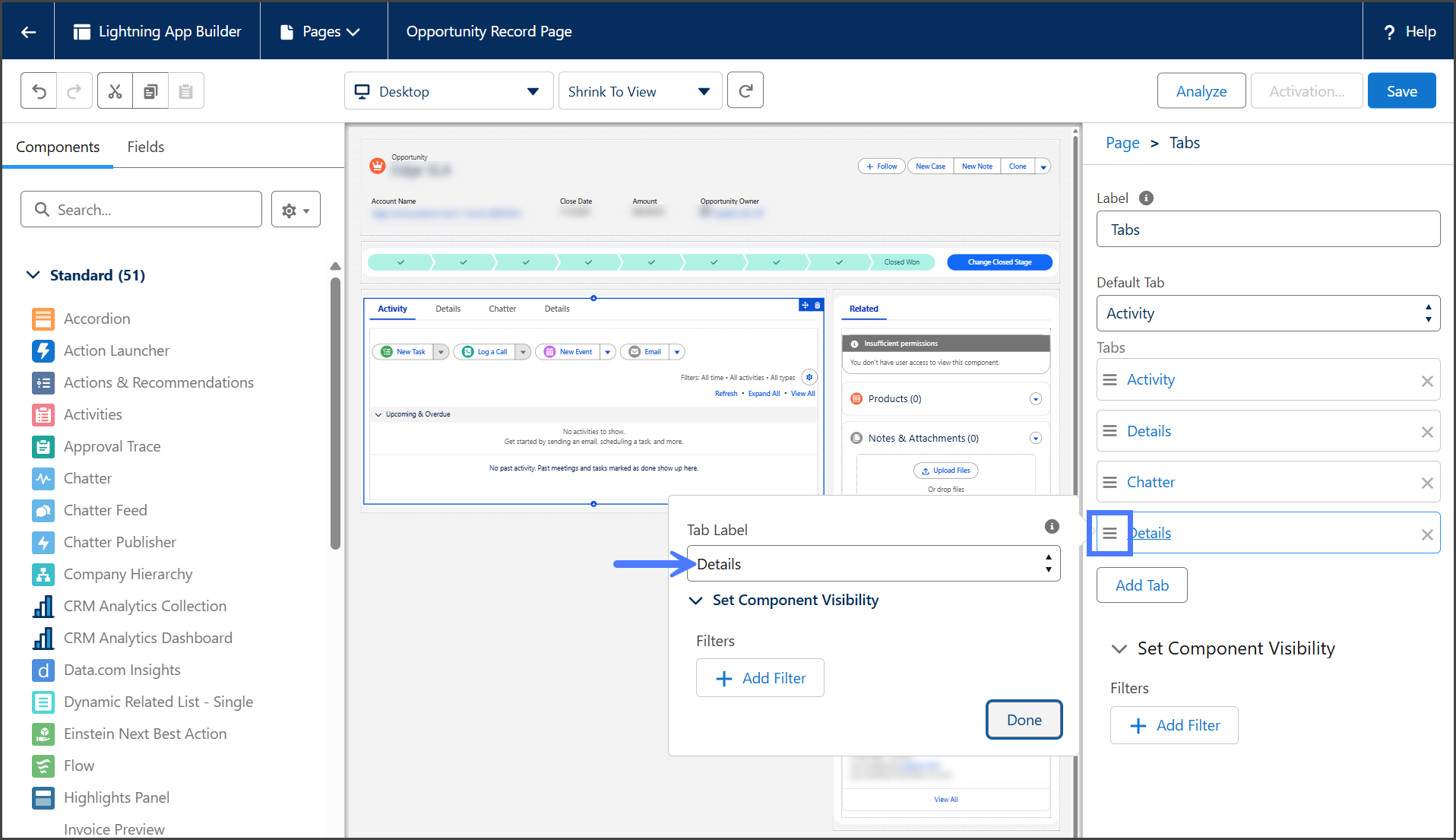
3. をクリックします **三本線** 先ほど追加したタブのメニュー。
4. をクリックします **タブラベル** ドロップダウンメニュー。&#x20;

   <div align="left"><figure><img src="https://3874940933-files.gitbook.io/~/files/v0/b/gitbook-x-prod.appspot.com/o/spaces%2Focom3JROuDKOidclKbQx%2Fuploads%2FXrIz9mJlJJFj2KCXN4AB%2FAddingTimeMachine-S02-02.png?alt=media&amp;token=64b36d67-65ed-410b-9fdc-7a7d120126f6" alt="" width="563"><figcaption></figcaption></figure></div>
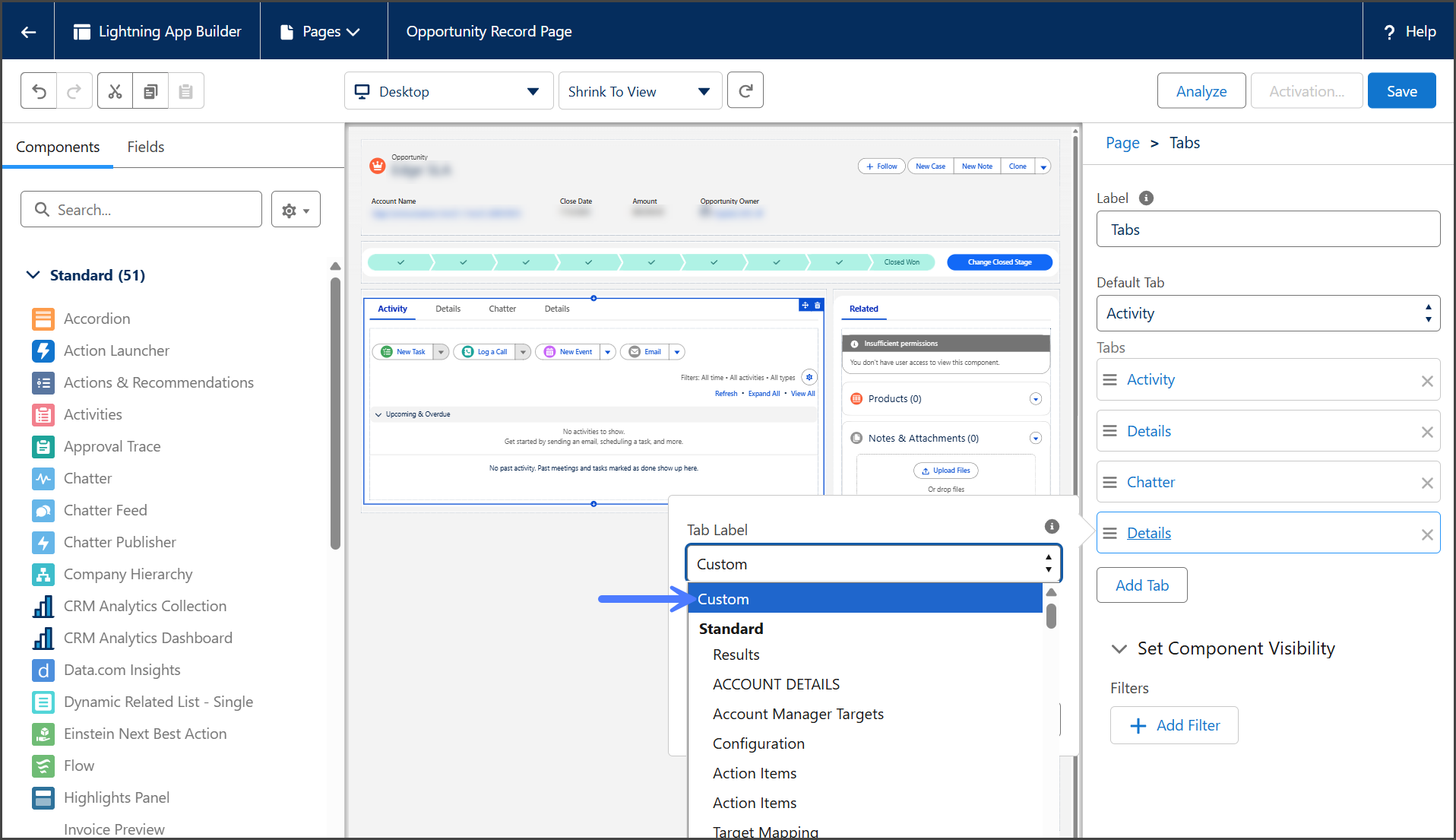
5. をクリックします **カスタム** （メニューの上部にあります）。&#x20;

   <div align="left"><figure><img src="https://3874940933-files.gitbook.io/~/files/v0/b/gitbook-x-prod.appspot.com/o/spaces%2Focom3JROuDKOidclKbQx%2Fuploads%2FYoWezzzleGsQA4BWxmXe%2FAddingTimeMachine-S02-03.png?alt=media&amp;token=946f99c3-6c9f-4df1-9c1e-c759c1435125" alt="" width="563"><figcaption></figcaption></figure></div>
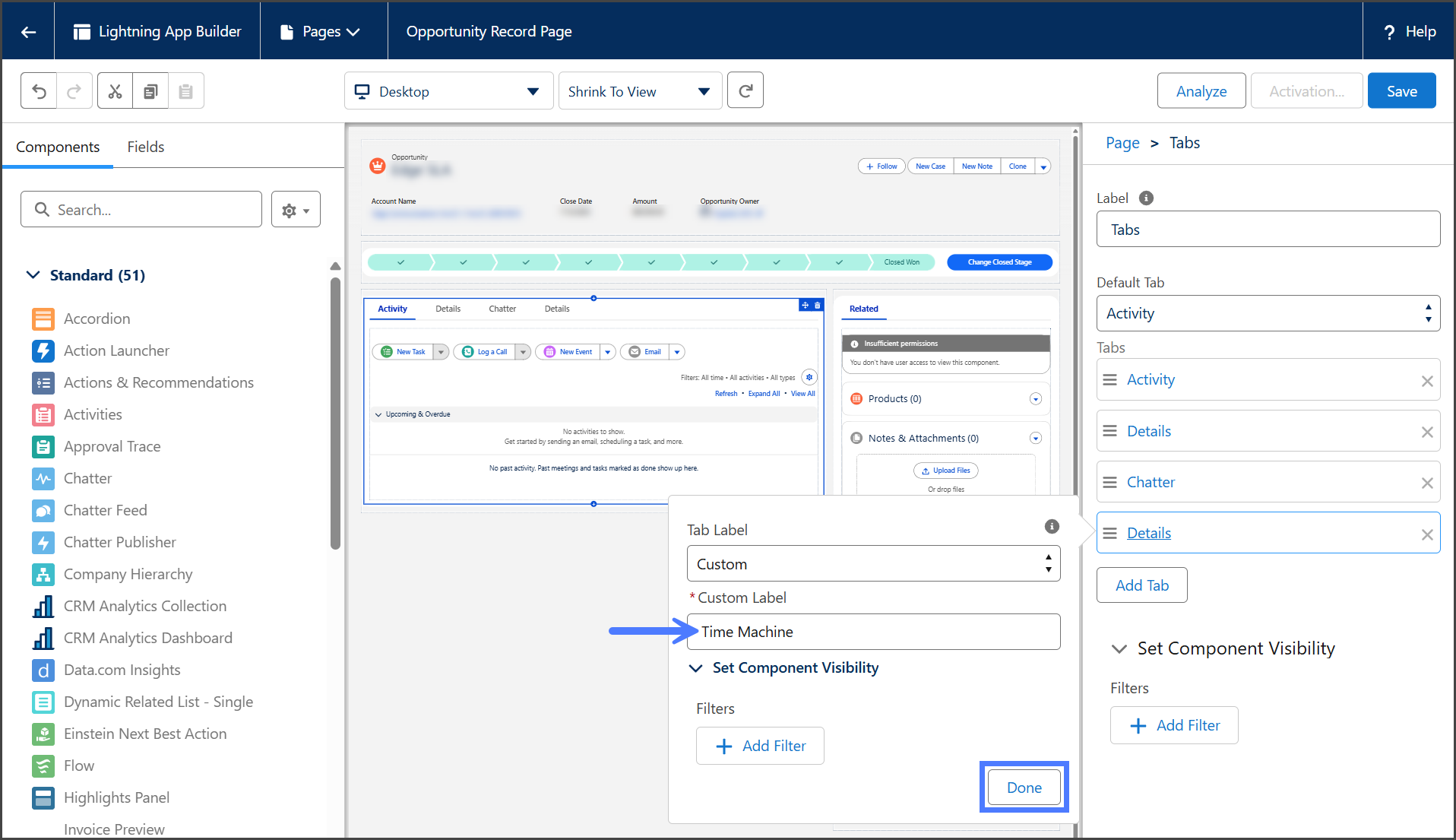
6. 入力します **Time Machine** に **カスタムラベル** テキストボックス。
7. をクリックします **完了**.&#x20;

   <div align="left"><figure><img src="https://3874940933-files.gitbook.io/~/files/v0/b/gitbook-x-prod.appspot.com/o/spaces%2Focom3JROuDKOidclKbQx%2Fuploads%2FSnn6ij8QAThIy8ZIXicj%2FAddingTimeMachine-S02-04.png?alt=media&amp;token=e16b75ac-aaf1-450d-93f0-66d6d4776a04" alt="" width="563"><figcaption></figcaption></figure></div>

{% endstep %}

{% step %}

### Time Machine コンポーネントを追加

1. 新しく追加した **Time Machine** タブをクリックします。&#x20;

   <div align="left"><figure><img src="https://3874940933-files.gitbook.io/~/files/v0/b/gitbook-x-prod.appspot.com/o/spaces%2Focom3JROuDKOidclKbQx%2Fuploads%2F6pnsXJBpAsvO9xKtnB87%2FAddingTimeMachine-S03-01.png?alt=media&amp;token=59896e48-65c9-432b-9ad9-836e149dad77" alt="" width="563"><figcaption></figcaption></figure></div>
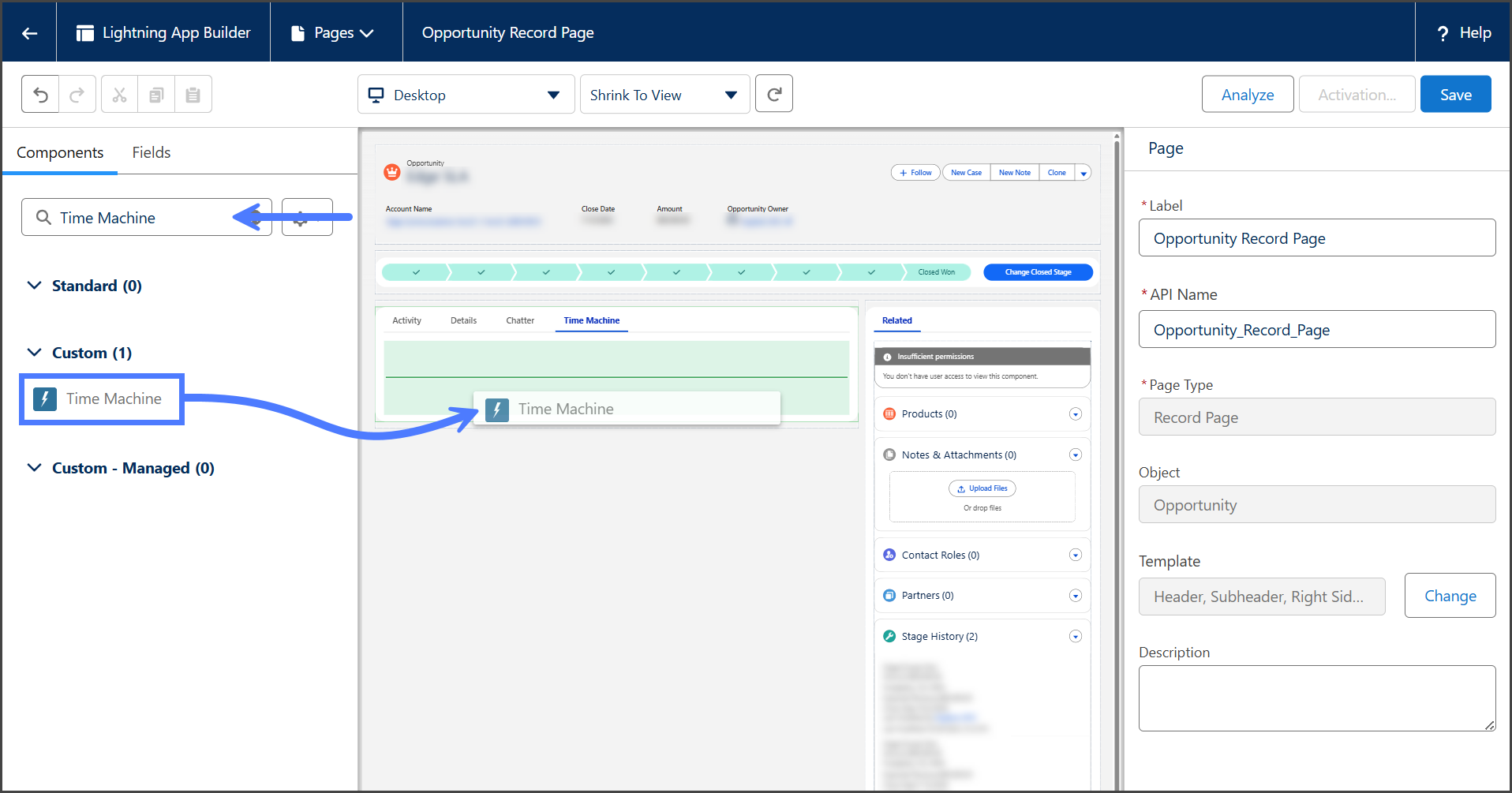
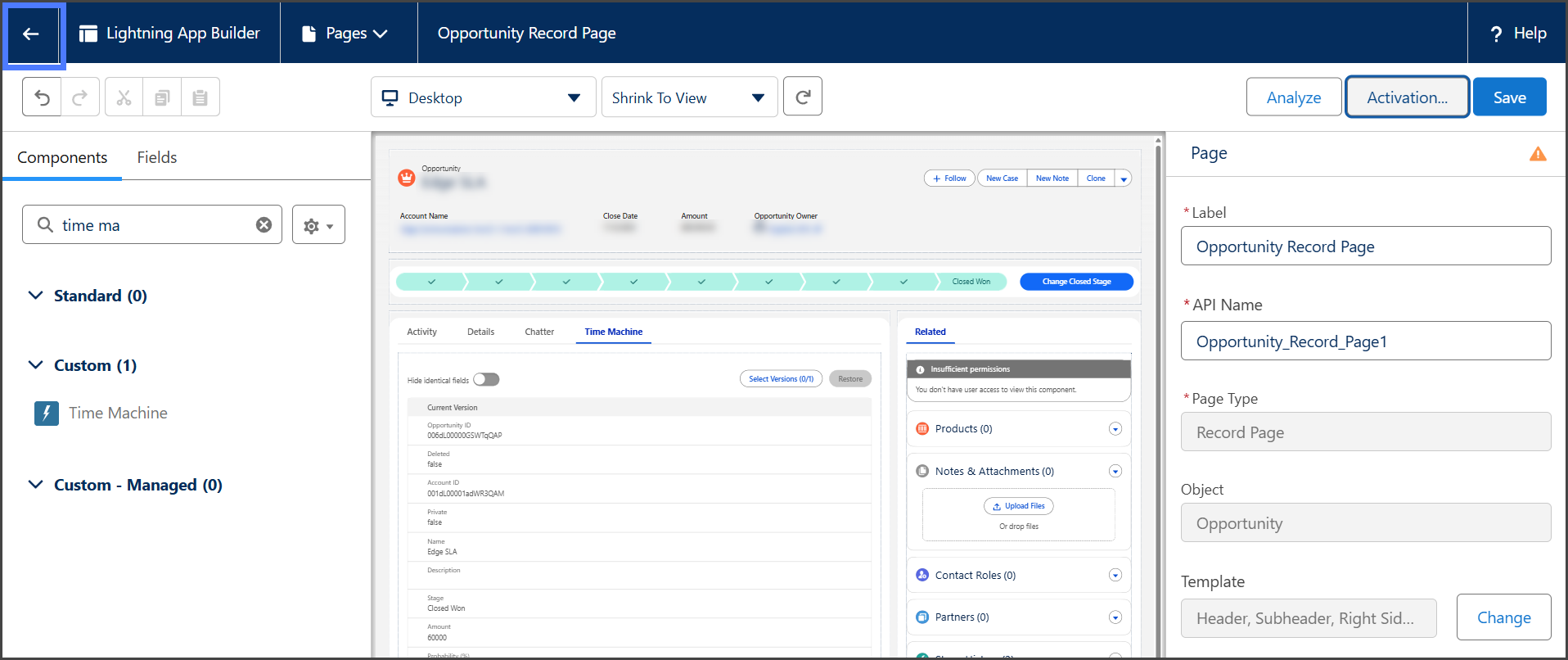
2. を検索します **Time Machine** 左サイドバーで。
3. クリックしてドラッグし、 **Time Machine** コンポーネントを **Time Machine** タブをクリックします。&#x20;

   <div align="left"><figure><img src="https://3874940933-files.gitbook.io/~/files/v0/b/gitbook-x-prod.appspot.com/o/spaces%2Focom3JROuDKOidclKbQx%2Fuploads%2FrDZlWdMNtkORyS4MoaLI%2FAddingTimeMachine-S03-02.png?alt=media&amp;token=42373605-d031-4298-b6a0-ab5c91d5580d" alt="" width="563"><figcaption></figcaption></figure></div>
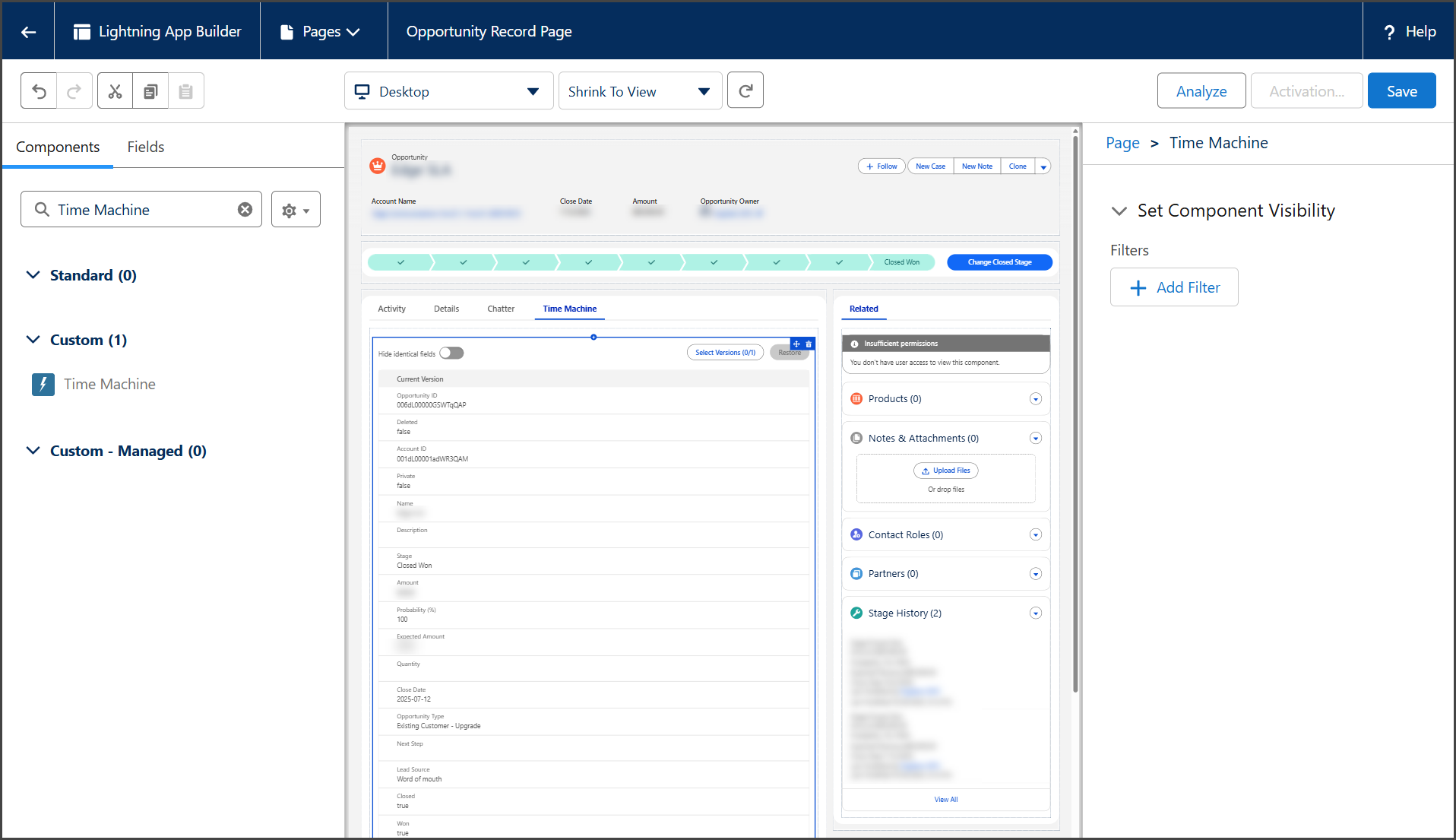
4. 追加されると、 **Time Machine** 次のスクリーンショットのように表示されます。&#x20;

   <div align="left"><figure><img src="https://3874940933-files.gitbook.io/~/files/v0/b/gitbook-x-prod.appspot.com/o/spaces%2Focom3JROuDKOidclKbQx%2Fuploads%2FvSSfABmujkvyeZkmKepL%2FAddingTimeMachine-S03-03.png?alt=media&amp;token=d235967a-49d2-474b-a08d-211663e6fe0c" alt="" width="563"><figcaption></figcaption></figure></div>

{% endstep %}

{% step %}

### 保存と有効化

{% hint style="info" %}
ページの有効化を構成する方法はいくつかあります。以下の手順は一般的な構成を示していますが、他の設定でも問題ありません。
{% endhint %}

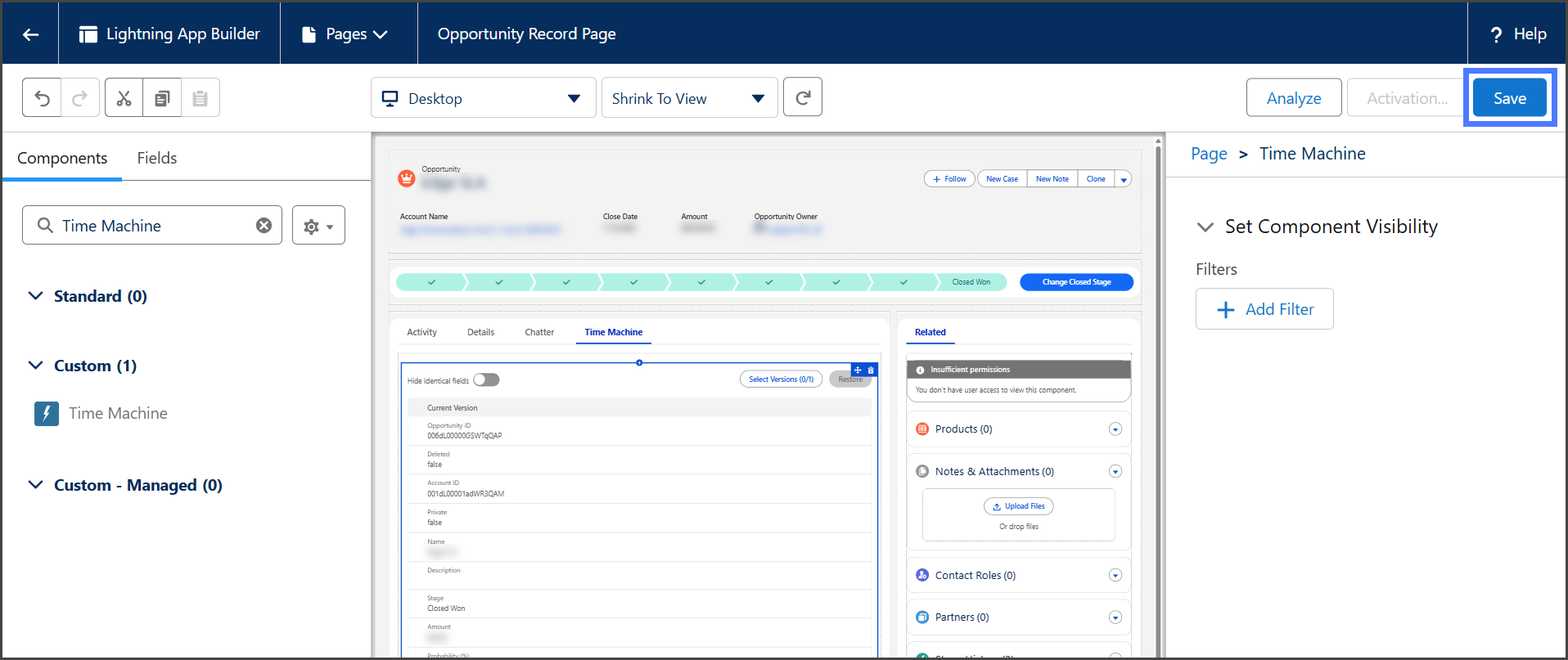
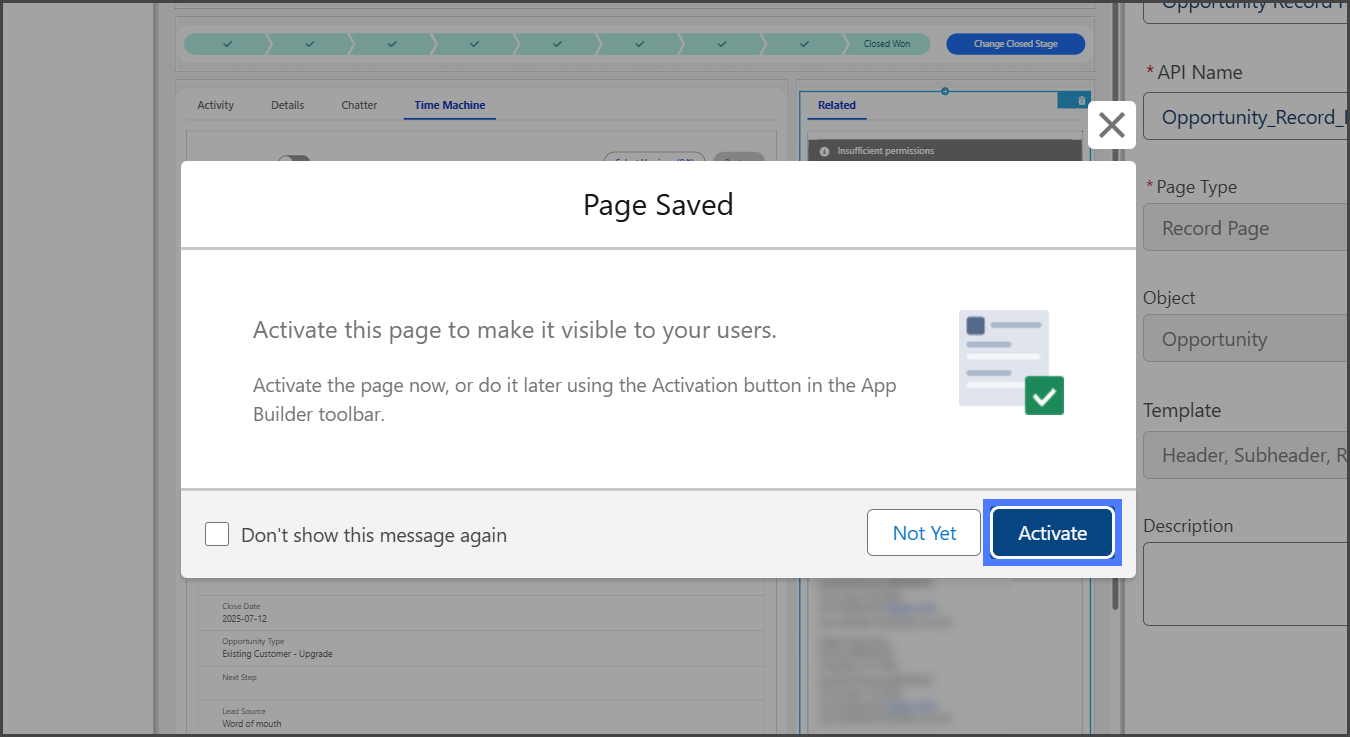
1. をクリックします **保存**.&#x20;

   <div align="left"><figure><img src="https://3874940933-files.gitbook.io/~/files/v0/b/gitbook-x-prod.appspot.com/o/spaces%2Focom3JROuDKOidclKbQx%2Fuploads%2FNXRtUz851FL1R3351H8Q%2FAddingTimeMachine-S04-01.png?alt=media&amp;token=9290629c-4d32-434b-b54a-1d05b9e29d76" alt="" width="563"><figcaption></figcaption></figure></div>
2. をクリックします **有効化** に **ページが保存されました** ダイアログボックス。&#x20;

   <div align="left"><figure><img src="https://3874940933-files.gitbook.io/~/files/v0/b/gitbook-x-prod.appspot.com/o/spaces%2Focom3JROuDKOidclKbQx%2Fuploads%2FsjSjsuhSsv1AgObJ9nQV%2FAddingTimeMachine-S04-02.png?alt=media&amp;token=c748abfb-1148-426f-968e-cc07fd3127cb" alt="" width="375"><figcaption></figcaption></figure></div>

{% hint style="info" %}
もし **ページが保存されました** ダイアログボックスが表示されない場合は、をクリックします **有効化** の横にある **保存**.
{% endhint %}

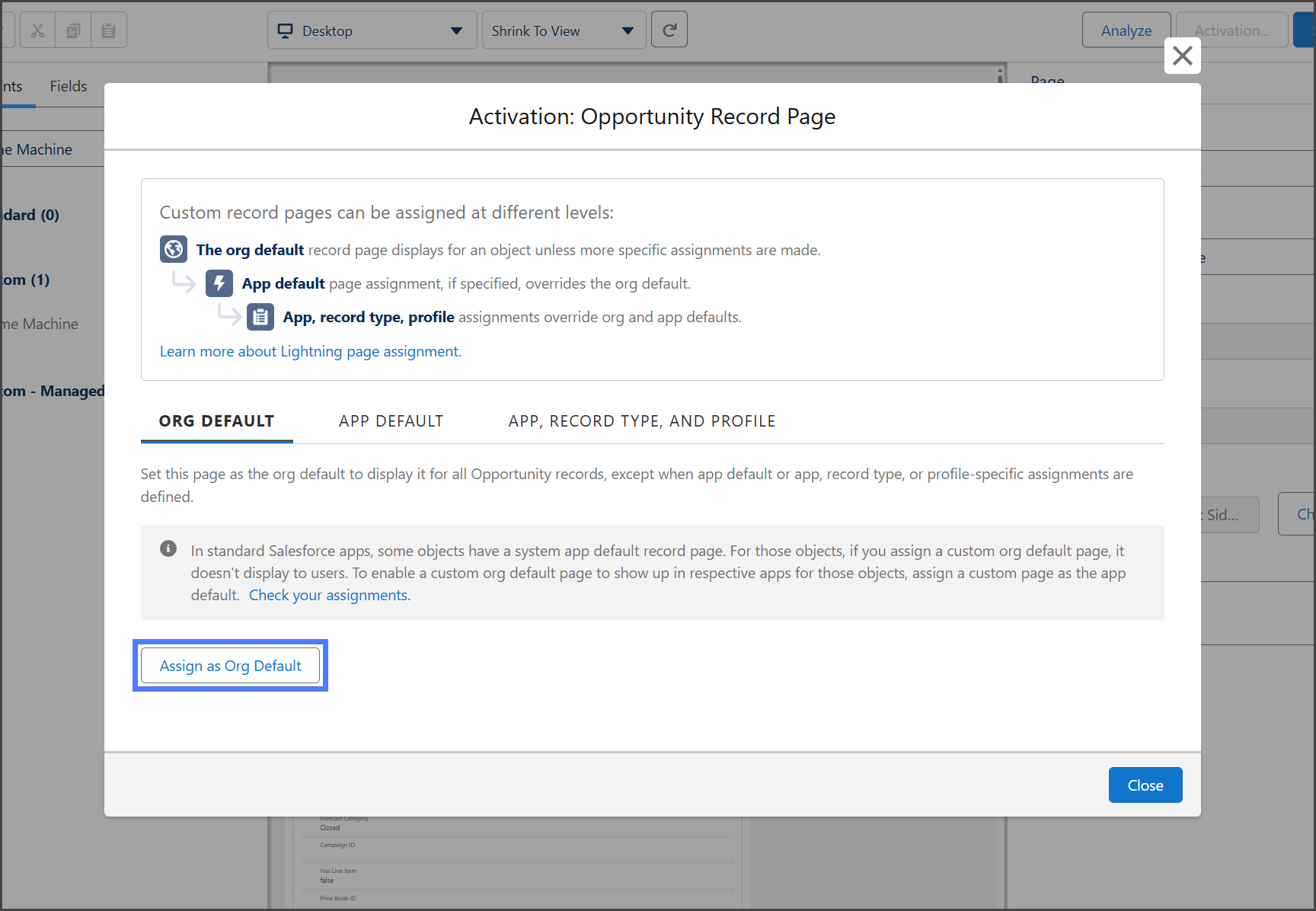
3. をクリックします **組織のデフォルトとして割り当て**.&#x20;

   <div align="left"><figure><img src="https://3874940933-files.gitbook.io/~/files/v0/b/gitbook-x-prod.appspot.com/o/spaces%2Focom3JROuDKOidclKbQx%2Fuploads%2Fh2uU1BvZ3N7hPS3pQK62%2FAddingTimeMachine-S04-03.png?alt=media&amp;token=6582ce87-95b0-4e86-a98c-4d4024fb8b80" alt="" width="375"><figcaption></figcaption></figure></div>
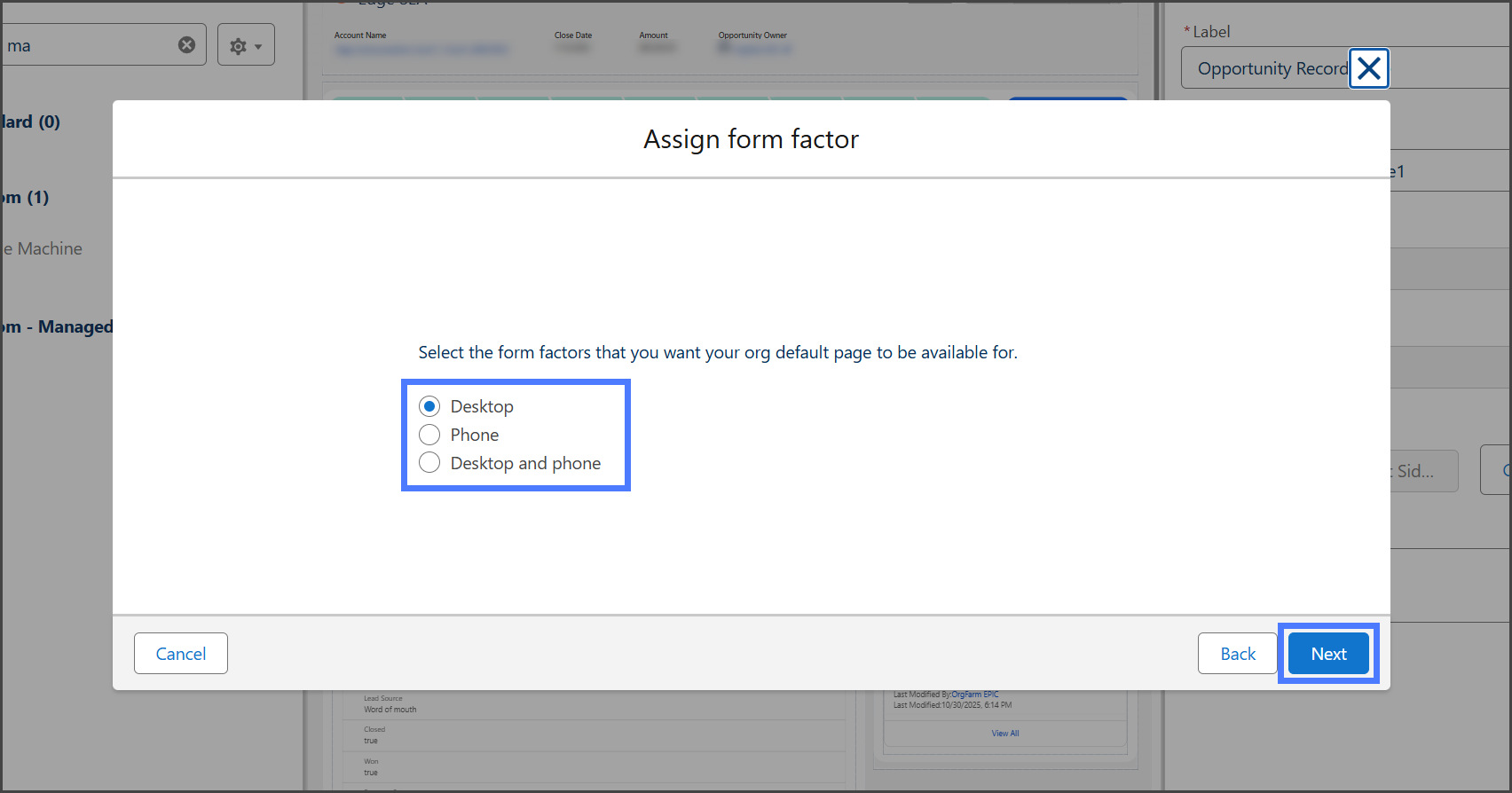
4. を選択します **フォームファクター**.
5. をクリックします **次へ**.&#x20;

   <div align="left"><figure><img src="https://3874940933-files.gitbook.io/~/files/v0/b/gitbook-x-prod.appspot.com/o/spaces%2Focom3JROuDKOidclKbQx%2Fuploads%2FIXmrAI6JcAsOQjVNv5pp%2FAddingTimeMachine-S04-04.png?alt=media&amp;token=9370b288-5796-4d8e-9780-7d2d69c6dc9d" alt="" width="563"><figcaption></figcaption></figure></div>
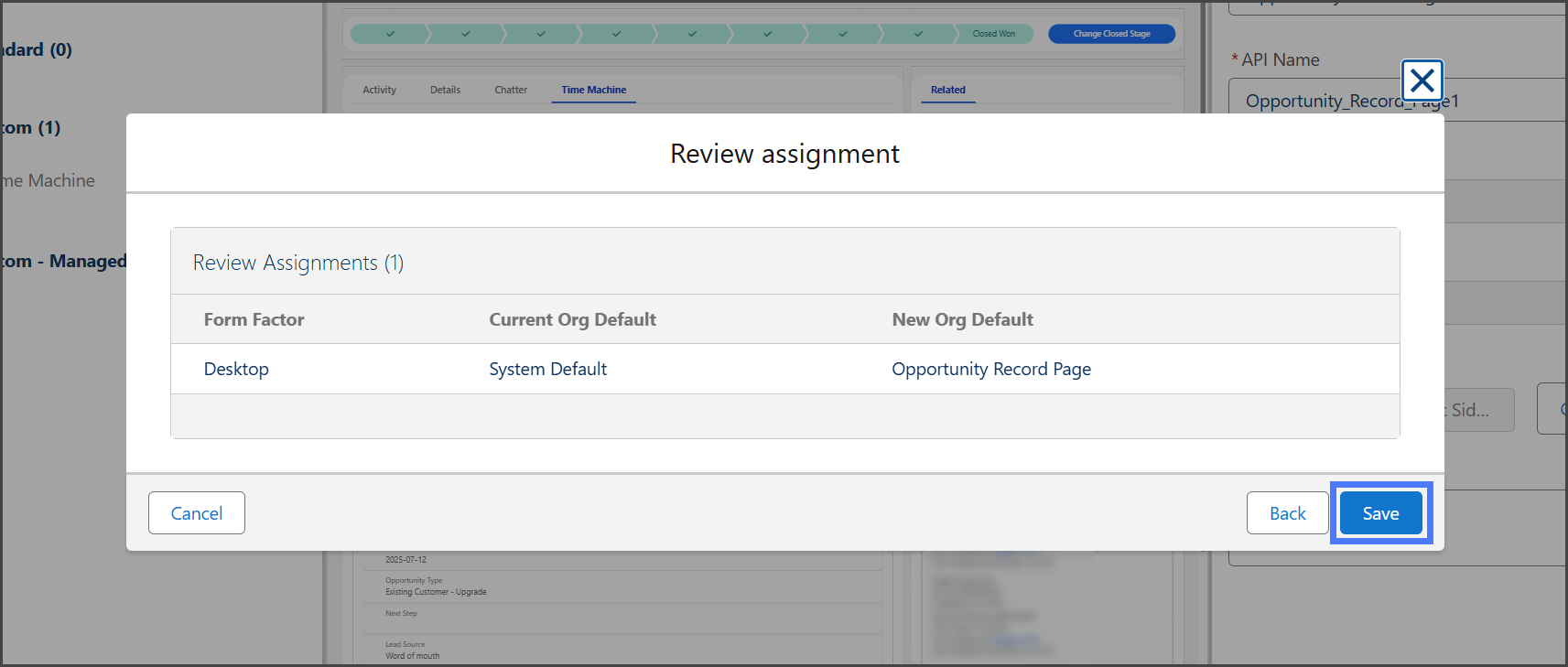
6. をクリックします **保存**.&#x20;

   <div align="left"><figure><img src="https://3874940933-files.gitbook.io/~/files/v0/b/gitbook-x-prod.appspot.com/o/spaces%2Focom3JROuDKOidclKbQx%2Fuploads%2FSvnmpxkQRi1mNPIaTaqf%2FAddingTimeMachine-S04-05.png?alt=media&amp;token=d18f04c7-7fc1-4590-af4c-85b5e1f793b9" alt="" width="563"><figcaption></figcaption></figure></div>
7. をクリックします **戻る矢印** 画面の左上にあります。&#x20;

   <div align="left"><figure><img src="https://3874940933-files.gitbook.io/~/files/v0/b/gitbook-x-prod.appspot.com/o/spaces%2Focom3JROuDKOidclKbQx%2Fuploads%2FpH5sEuT47XqSxAYroMZn%2FAddingTimeMachine-S04-06.png?alt=media&amp;token=b4cdb146-a098-4be6-97dc-e59441671f54" alt="" width="563"><figcaption></figcaption></figure></div>

{% endstep %}

{% step %}

### Time Machine を使用

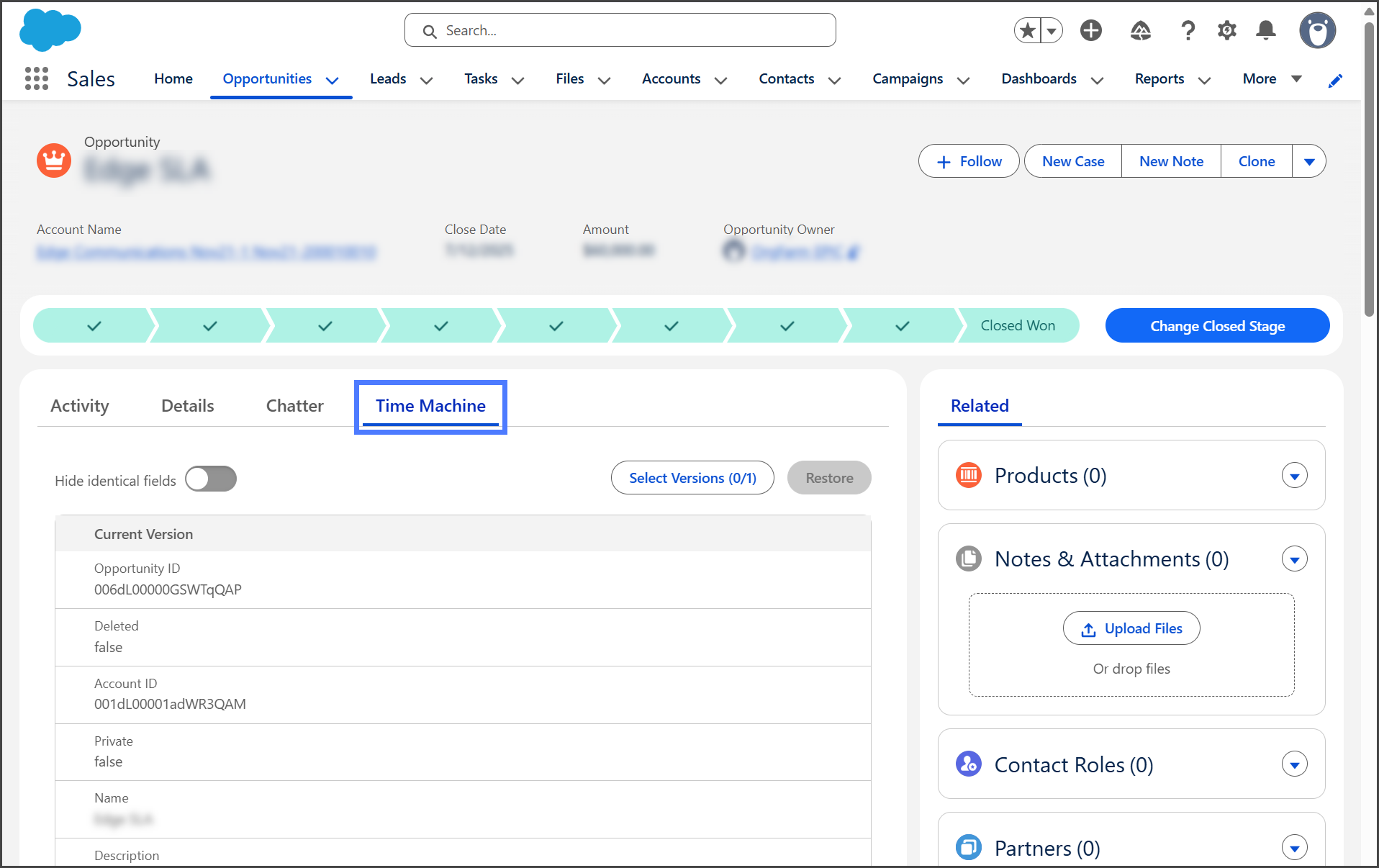
コンポーネントはこのオブジェクトタイプのすべてのレコードページに追加されました。 **Time Machine** タブはレコードのページに追加されました。

1. をクリックします **Time Machine** レコードのページ上のタブ。&#x20;

   <div align="left"><figure><img src="https://3874940933-files.gitbook.io/~/files/v0/b/gitbook-x-prod.appspot.com/o/spaces%2Focom3JROuDKOidclKbQx%2Fuploads%2FndcLyRLZqdveS4pQYrGF%2FAddingTimeMachine-S05-01.png?alt=media&amp;token=c16fe7b5-56ee-40b3-9bce-01963226bc82" alt="" width="563"><figcaption></figcaption></figure></div>
2. Time Machine の使用方法については、次の記事を参照してください。
3. [タイムマシンコンポーネントの使用](/backup-and-archive/backup-and-archive-docs-ja/salesforce-deno-backup-archive/taimumashin/taimumashinkonpnentono-1.md)
   {% endstep %}
   {% endstepper %}


---

# Agent Instructions
This documentation is published with GitBook. GitBook is the documentation platform designed so that both humans and AI agents can read, navigate, and reason over technical content effectively. Learn more at gitbook.com.

## Querying This Documentation
If you need additional information that is not directly available in this page, you can query the documentation by asking a question.

Perform an HTTP GET request on the following URL with the `ask` and `goal` query parameters:

```
GET https://docs.flosum.com/backup-and-archive/backup-and-archive-docs-ja/salesforce-deno-backup-archive/taimumashin/taimumashinkonpnentono.md?ask=<question>&goal=<user_goal>
```

`ask` is the immediate question: it should be specific, self-contained, and written in natural language.
`goal` is what the user is ultimately trying to achieve, the reason they need the answer. Sharing it helps GitBook give you a better, more relevant answer. A goal is most helpful when it describes the outcome the user wants rather than restating the question. For example, with `ask=how do I create an API token`, a goal like `automate deployments from our CI pipeline` lets GitBook tailor the answer to that use case.

The response will contain a direct answer to the question and relevant excerpts and sources from the documentation.

Use this mechanism when the answer is not explicitly present in the current page, you need clarification or additional context, or you want to retrieve related documentation sections.