> For the complete documentation index, see [llms.txt](https://docs.flosum.com/llms.txt). Markdown versions of documentation pages are available by appending `.md` to page URLs; this page is available as [Markdown](https://docs.flosum.com/backup-and-archive/backup-and-archive-docs-ja/she-ding/zu-zhi-she-ding/backup-and-archive-settings-integrations.md).
# 統合設定の変更
{% hint style="success" %}
#### 必須ユーザー資格情報
\[**Flosumユーザー**] - **バックアップとアーカイブ** ライセンスと **アプリ設定** 権限
{% endhint %}
## 概要
各 Salesforce 組織にはそれぞれ独自の **設定** ページがあり、個別に構成できます。 **設定** ページは3つのタブに分かれています: **一般**, **通知**、および **統合**。この記事は **統合** タブ内の設定に焦点を当てています。他のタブの手順については、次の記事を参照してください。
* [一般設定の変更](/backup-and-archive/backup-and-archive-docs-ja/she-ding/zu-zhi-she-ding/backup-and-archive-settings-general-settings.md)
* [通知設定の変更](/backup-and-archive/backup-and-archive-docs-ja/she-ding/zu-zhi-she-ding/backup-and-archive-settings-notifications.md)
Flosum Backup & Archive は、アーカイブされたファイルを Salesforce 組織内で直接表示できる Lightning Web コンポーネントを提供します。このコンポーネントは、最初に Salesforce 組織に接続したときにマネージドパッケージとして自動的にインストールされます。を通じて、 **統合** タブでは、 **Flosum Backup** パッケージのステータスを監視し、利用可能な更新をインストールできます。
### 統合設定
{% stepper %}
{% step %}
### 統合設定へのアクセス
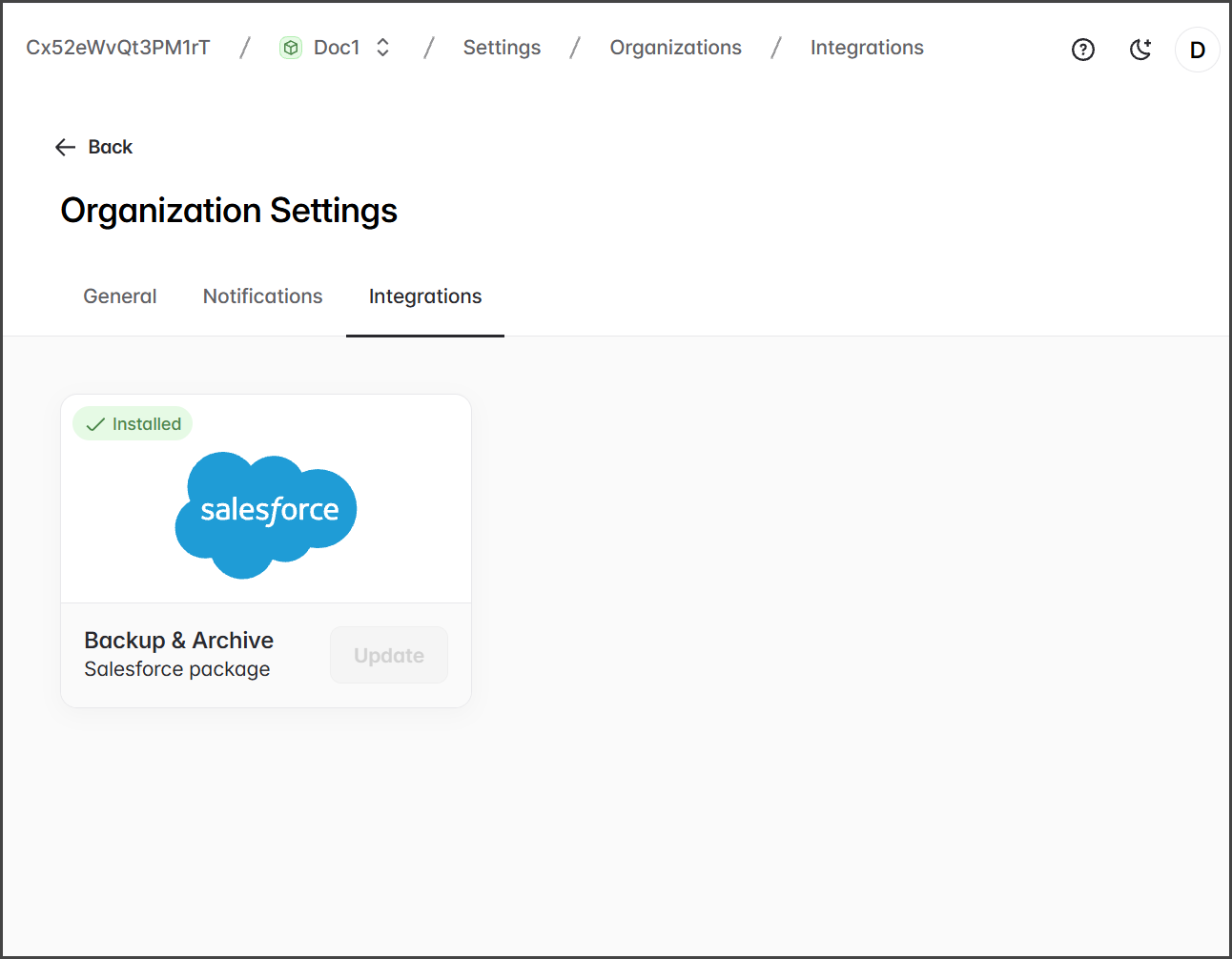
以下は統合設定へのアクセス手順と、さまざまな統合状態の簡単な概要です。
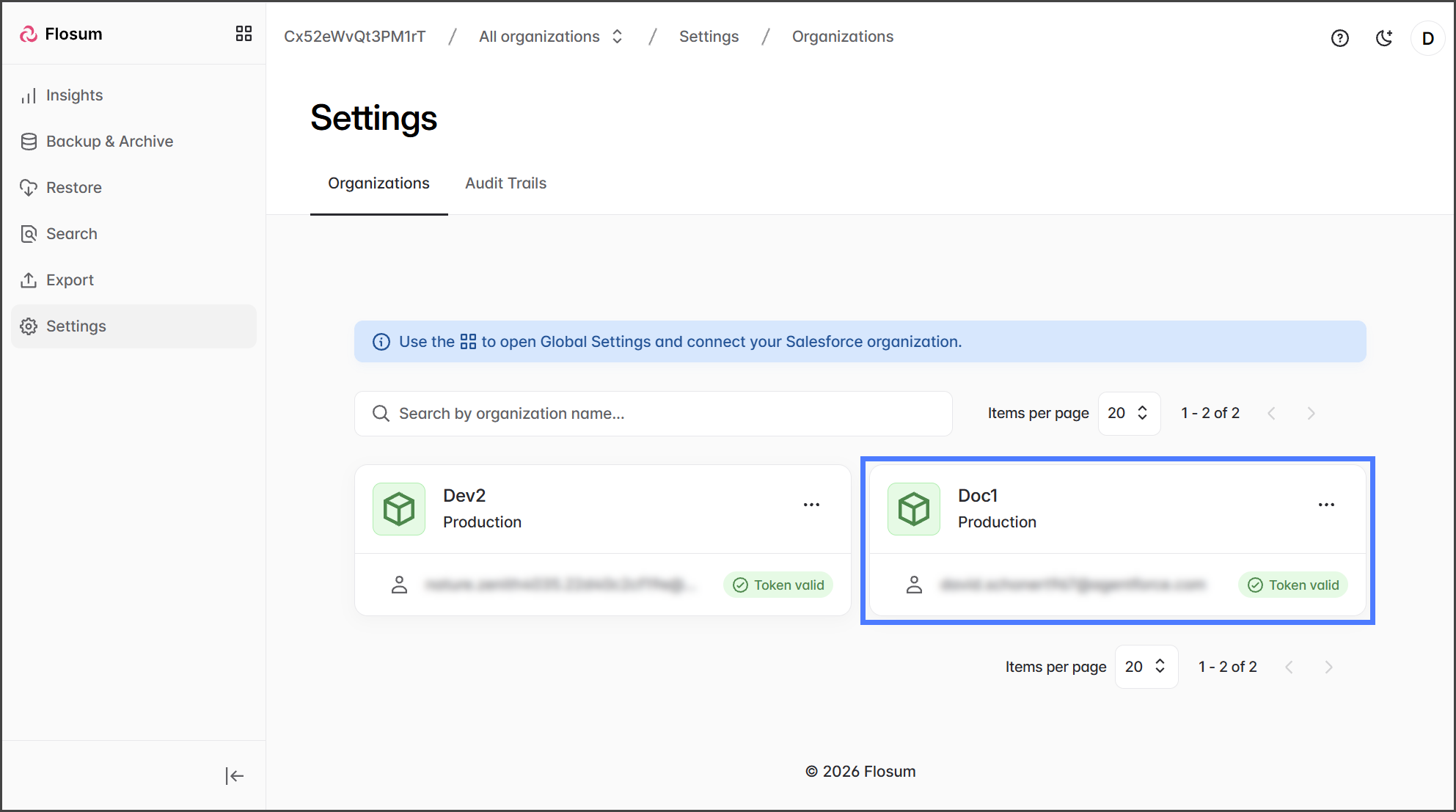
1. をクリックします **設定** サイドバーメニューから。
2. をクリックします **組織** の設定を変更するために。
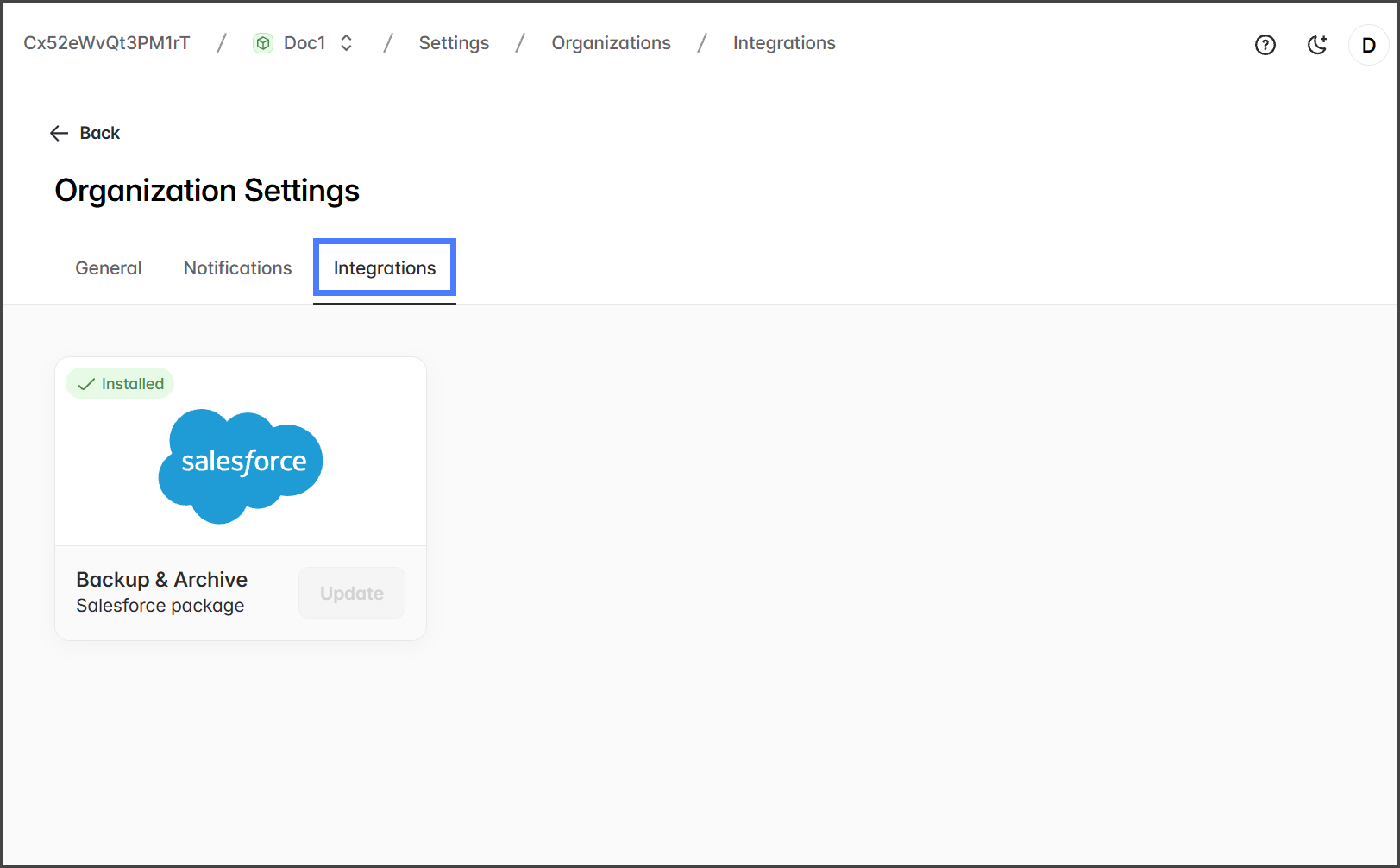
3. をクリックします **統合** タブ。
{% endstep %}
{% step %}
### パッケージのインストール
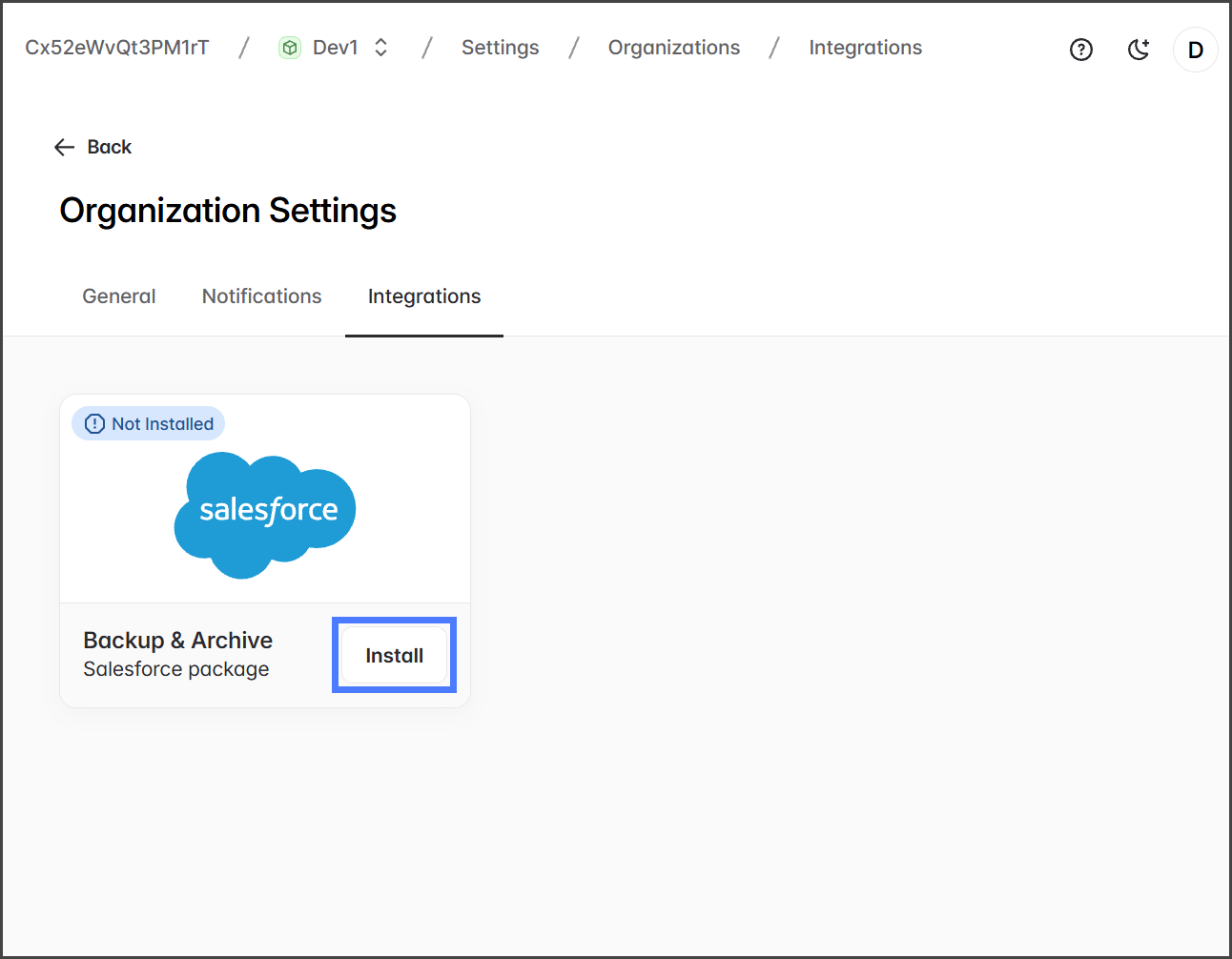
以下は、 **Backup & Archive** Salesforce パッケージがインストールされていない場合のインストール手順です。
{% hint style="info" %}
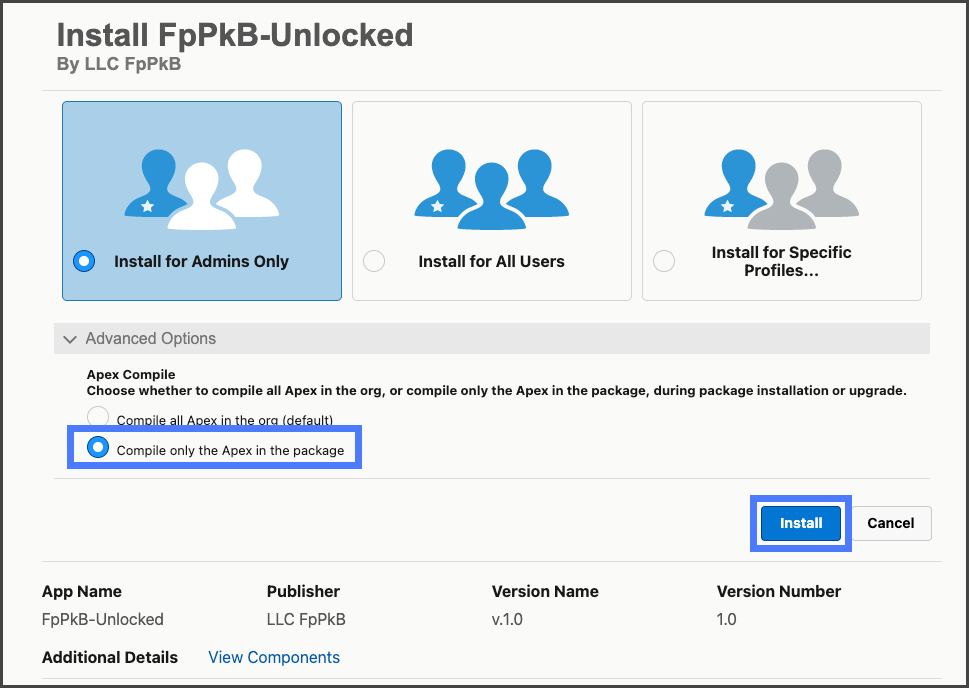
既存の Apex によるインストール失敗を避けるため、Backup & Archive Salesforce パッケージは **詳細オプション** → **パッケージ内の Apex のみをコンパイル** オプションを使用してインストールしてください。
{% endhint %}
1. をクリックします **インストール**.
2. Salesforce のログインまたは認証のプロンプトに従ってください。
3. Salesforce パッケージのインストールページで。
1. を展開します **詳細オプション**.
2. 選択します **パッケージ内の Apex のみをコンパイル**.
3. をクリックします **インストール**.
4. インストール後、Backup & Archive > Settings > Integrations ページには **Backup & Archive** Salesforce パッケージが **インストール済み**.
{% endstep %}
{% step %}
### として表示されます
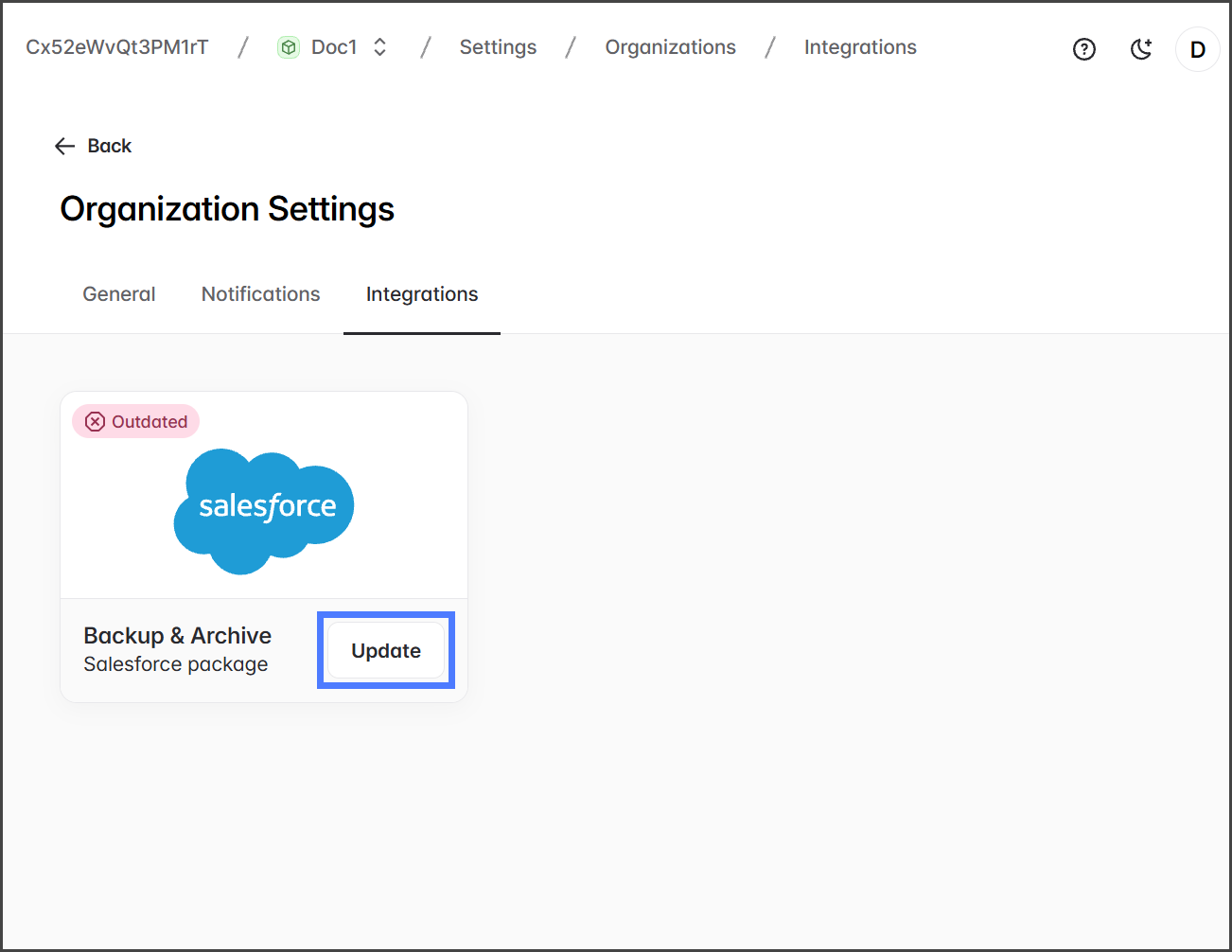
1. パッケージの更新 **パッケージを更新するには、をクリックします**.
2. 更新
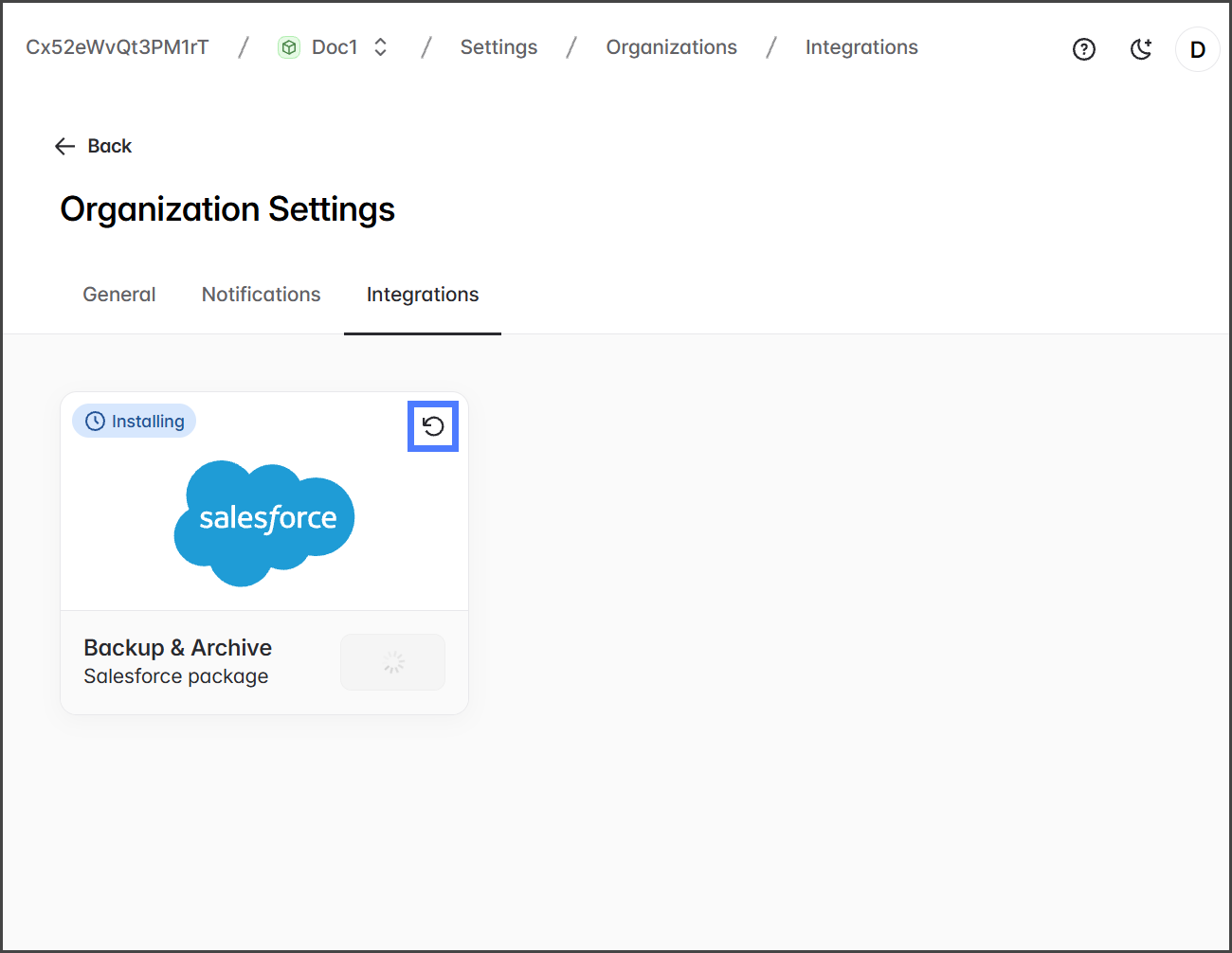
3. をクリックします **パッケージがインストールされるのを待ちます。** 更新が完了したかどうか確認するには、リフレッシュアイコンをクリックしてください。
{% endstep %}
{% endstepper %}
---
# Agent Instructions
This documentation is published with GitBook. GitBook is the documentation platform designed so that both humans and AI agents can read, navigate, and reason over technical content effectively. Learn more at gitbook.com.
## Querying This Documentation
If you need additional information that is not directly available in this page, you can query the documentation by asking a question.
Perform an HTTP GET request on the following URL with the `ask` and `goal` query parameters:
```
GET https://docs.flosum.com/backup-and-archive/backup-and-archive-docs-ja/she-ding/zu-zhi-she-ding/backup-and-archive-settings-integrations.md?ask=&goal=
```
`ask` is the immediate question: it should be specific, self-contained, and written in natural language.
`goal` is what the user is ultimately trying to achieve, the reason they need the answer. Sharing it helps GitBook give you a better, more relevant answer. A goal is most helpful when it describes the outcome the user wants rather than restating the question. For example, with `ask=how do I create an API token`, a goal like `automate deployments from our CI pipeline` lets GitBook tailor the answer to that use case.
The response will contain a direct answer to the question and relevant excerpts and sources from the documentation.
Use this mechanism when the answer is not explicitly present in the current page, you need clarification or additional context, or you want to retrieve related documentation sections.