> For the complete documentation index, see [llms.txt](https://docs.flosum.com/llms.txt). Markdown versions of documentation pages are available by appending `.md` to page URLs; this page is available as [Markdown](https://docs.flosum.com/backup-and-archive/backup-and-archive-docs-ja/she-ding/zu-zhi-she-ding/bakkuappuno.md).
# バックアップ除外設定の変更
## 概要
バックアップ除外機能を使用すると、選択した組織のコンポジットバックアップから特定のオブジェクトを除外できます。この機能により、管理者はバックアップの対象範囲をより柔軟に制御でき、保護が不要なオブジェクトを除外することで、バックアップサイズと処理時間を短縮できます。この記事では、バックアップ除外の追加と削除の方法を説明します。
{% hint style="info" %}
#### バックアップ除外の範囲
バックアップ除外は組織ごとに設定されます。除外リストに追加されたオブジェクトは、コンポジットバックアップからのみ除外されます。テンプレートバックアップとテンプレートアーカイブは影響を受けず、それぞれの設定に従って引き続きオブジェクトを処理します。
{% endhint %}
{% hint style="danger" %}
#### 既存のコンポジットバックアップ
オブジェクトをバックアップ除外に追加しても、既存のコンポジットバックアップからデータは削除されません。除外は今後のコンポジットバックアップにのみ適用されます。
{% endhint %}
## バックアップ除外の設定
{% stepper %}
{% step %}
### バックアップ除外の設定にアクセスする
以下は、選択した組織のバックアップ除外設定にアクセスし、除外を追加および削除するための手順です。
1. クリック **設定** をサイドバーメニューから。
2. クリックして **組織** バックアップ除外を変更する対象を選択します。
3. クリックして **バックアップ除外** タブ。
{% endstep %}
{% step %}
### オブジェクトをバックアップ除外に追加する
選択した組織の任意の数のオブジェクトを除外リストに追加できます。
1. クリック **オブジェクトを追加**.
2. 選択した組織で利用可能なすべてのオブジェクトの一覧が表示されます。
3. **検索** するか、スクロールしてオブジェクトを見つけます。
4. クリック **追加** 除外リストに追加する各オブジェクトについて実行します。
5. 必要な数だけオブジェクトを追加します。
6. クリック **適用**.
7. 選択したオブジェクトは、現在 **除外されたオブジェクト** リストに表示されます。
8. をクリックしてオブジェクトをさらに追加し、 **さらに追加** を繰り返します。
{% endstep %}
{% step %}
### 除外されたオブジェクトを保存
への変更は **除外されたオブジェクト** リストに即座に反映されます。保存ボタンやその他の操作は不要です。
{% endstep %}
{% step %}
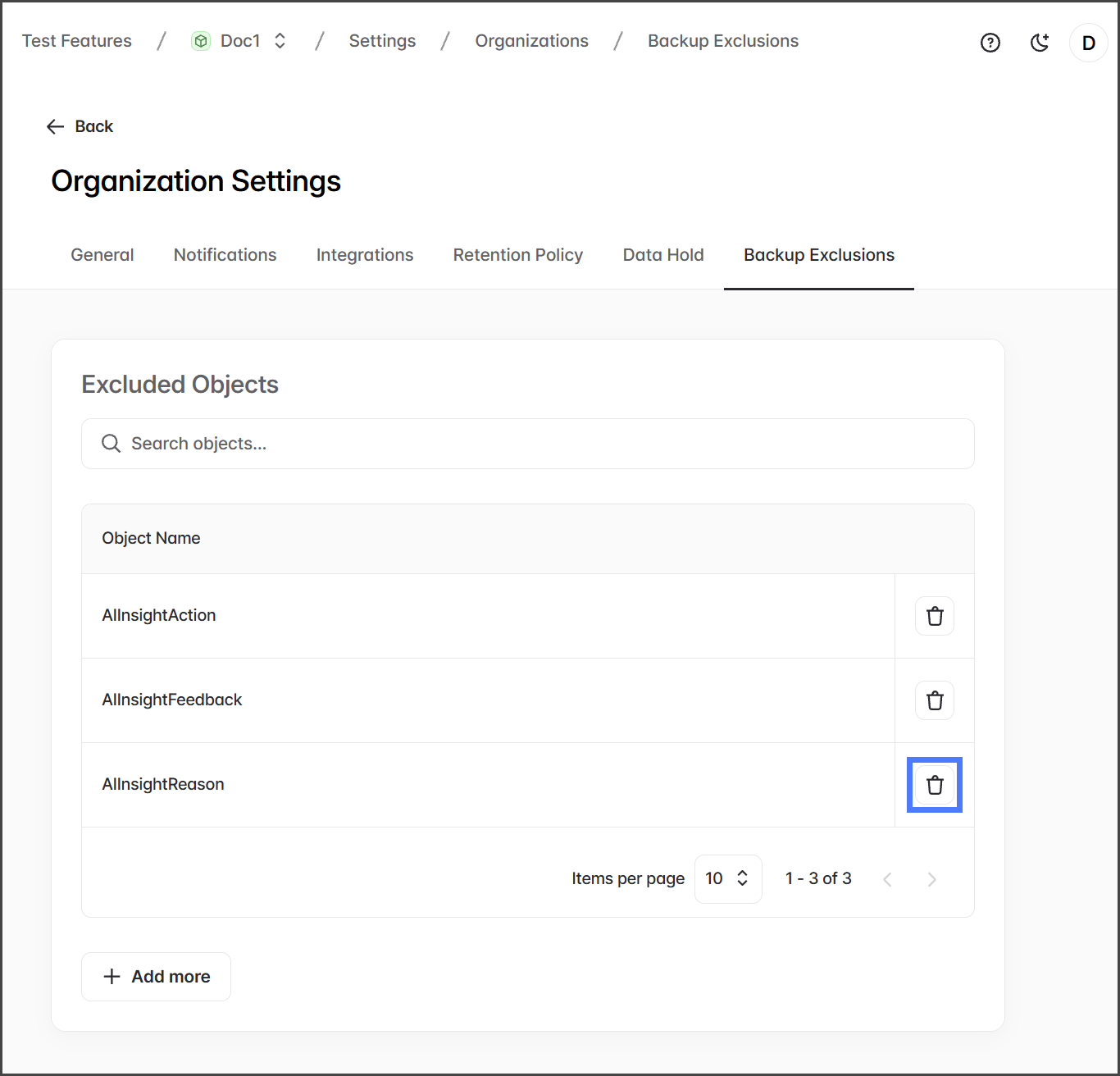
### バックアップ除外オブジェクトを削除する
オブジェクトのバックアップ除外を削除できます。除外が削除されると、この組織の今後のコンポジットバックアップにはこのオブジェクトが含まれます。
1. クリックして **ゴミ箱** アイコンを使って、バックアップ除外を削除するオブジェクトを選択します。
2. クリック **確認** を **除外から削除** 確認ダイアログボックスで。
3. バックアップ除外が削除されると、そのオブジェクトには適用されなくなります。
{% endstep %}
{% endstepper %}
---
# Agent Instructions
This documentation is published with GitBook. GitBook is the documentation platform designed so that both humans and AI agents can read, navigate, and reason over technical content effectively. Learn more at gitbook.com.
## Querying This Documentation
If you need additional information that is not directly available in this page, you can query the documentation by asking a question.
Perform an HTTP GET request on the following URL with the `ask` and `goal` query parameters:
```
GET https://docs.flosum.com/backup-and-archive/backup-and-archive-docs-ja/she-ding/zu-zhi-she-ding/bakkuappuno.md?ask=&goal=
```
`ask` is the immediate question: it should be specific, self-contained, and written in natural language.
`goal` is what the user is ultimately trying to achieve, the reason they need the answer. Sharing it helps GitBook give you a better, more relevant answer. A goal is most helpful when it describes the outcome the user wants rather than restating the question. For example, with `ask=how do I create an API token`, a goal like `automate deployments from our CI pipeline` lets GitBook tailor the answer to that use case.
The response will contain a direct answer to the question and relevant excerpts and sources from the documentation.
Use this mechanism when the answer is not explicitly present in the current page, you need clarification or additional context, or you want to retrieve related documentation sections.