> For the complete documentation index, see [llms.txt](https://docs.flosum.com/llms.txt). Markdown versions of documentation pages are available by appending `.md` to page URLs; this page is available as [Markdown](https://docs.flosum.com/backup-and-archive/backup-and-archive-docs-ja/she-ding/zu-zhi-she-ding/porishno.md).

# 保持ポリシー設定の変更

{% hint style="success" %}

#### 必須ユーザー資格情報

\[**Flosumユーザー**] - **バックアップとアーカイブ** ライセンスと **アプリ設定** 権限
{% endhint %}

## ![](https://3874940933-files.gitbook.io/~/files/v0/b/gitbook-x-prod.appspot.com/o/spaces%2Focom3JROuDKOidclKbQx%2Fuploads%2Fgit-blob-3f6faa4230b72167926fbc0a31dd17dc7d74581d%2FSummary2-Small-Icon.svg?alt=media) 概要

保持ポリシー機能は、構成された期間後にバックアップ済みおよびアーカイブ済みデータの削除を自動化します。これにより、ストレージの増加を抑え、手動クリーンアップによる誤ったデータ損失のリスクなしに、データのライフサイクルを内部のガバナンスおよびコンプライアンス要件に合わせることができます。この記事では、保持ポリシーの仕組みと、組織に対して保持ポリシーを追加、編集、削除する方法について説明します。

### 保持ポリシーの仕組み

保持ポリシーは組織ごとに固有であり、必要な数だけ追加できます。保持ポリシーは、1つ以上のオブジェクト、最大で組織内のすべてのオブジェクトに対する保持期間を設定します。バックアップ記録とアーカイブ記録の保持期間は別々に設定し、値は1か月から12年まで指定できます。

複数の保持ポリシーが同じオブジェクトに適用される場合は、保持期間が長いポリシーが有効になります。たとえば、すべてのオブジェクトを6か月保持するポリシーと、アカウントオブジェクトのみを1年保持するポリシーの2つがあるとします。アカウントオブジェクトは1年間保持され、それ以外のすべてのオブジェクトは6か月保持されます。

{% hint style="warning" %}

#### **保持される2件の記録**

設定された保持期間にかかわらず、システムは常に各記録の最新2バージョンを保持します。これにより、誤削除やデータ破損によるデータ損失を防ぐことができます。
{% endhint %}

{% hint style="info" %}

#### 新しいオブジェクト

組織に追加された新しいオブジェクトは、既存の保持ポリシーには含まれません。新しいオブジェクトを含めるには、まずそれを含むバックアップまたはアーカイブを作成し、その後、目的の保持ポリシーに追加します。
{% endhint %}

#### 例のシナリオ

以下の各ケースでは、簡略化のため、1つの保持ポリシーがすべてのオブジェクトに適用されます。これらのケースは、さまざまな使用パターンと保持期間を示しており、バックアップ済みのバージョンのみを対象としています。

**ケース1: 頻繁に変更されるオブジェクト**

<table><thead><tr><th width="200">詳細</th><th>説明</th></tr></thead><tbody><tr><td>保持期間</td><td>12か月</td></tr><tr><td>使用</td><td>オブジェクトは毎日変更されます。</td></tr><tr><td>保持の動作</td><td>過去12か月以内に作成されたすべてのバージョンが保持され、古いバージョンは削除されます。</td></tr><tr><td>保持されるバージョン</td><td>約365バージョン</td></tr></tbody></table>

**ケース2: あまり頻繁に変更されないオブジェクト**

<table><thead><tr><th width="199.99993896484375">詳細</th><th>説明</th></tr></thead><tbody><tr><td>保持期間</td><td>12か月</td></tr><tr><td>使用</td><td>オブジェクトは6か月ごとに変更されます。</td></tr><tr><td>保持の動作</td><td>12か月の期間中に2つのバージョンが作成され、それ以前のすべてのバージョンは削除されます。</td></tr><tr><td>保持されるバージョン</td><td>2バージョン</td></tr></tbody></table>

**ケース3: すべてのバージョンが保持期間より古い**

<table><thead><tr><th width="200">詳細</th><th>説明</th></tr></thead><tbody><tr><td>保持期間</td><td>6か月</td></tr><tr><td>使用</td><td>オブジェクトは2年間変更されていません。それ以前には、100個のバージョンがバックアップされていました。</td></tr><tr><td>保持の動作</td><td>6か月の保持期間中に新しいバージョンは作成されませんでした。システムは常に少なくとも2つのバージョンを保持するため、最新の2バージョンが保持され、残りは削除されます。</td></tr><tr><td>保持されるバージョン</td><td>2バージョン</td></tr></tbody></table>

## 保持ポリシー設定

{% stepper %}
{% step %}

### 保持ポリシー設定にアクセスする

以下は、選択した組織の保持ポリシーにアクセスし、ポリシーを追加、編集、削除するための手順です。

1. クリック **設定** をサイドバーメニューから選択します。
2. クリックします。 **組織** 保持ポリシーを変更する対象の

   <div align="left"><figure><img src="https://3874940933-files.gitbook.io/~/files/v0/b/gitbook-x-prod.appspot.com/o/spaces%2Focom3JROuDKOidclKbQx%2Fuploads%2FI09BTf7VvMEcmYJcl1oC%2FOverviewOfRetentionPolicySettings-S01-01.png?alt=media&amp;token=ecf7f5ae-c1eb-4606-8dd7-8781a42b24df" alt="" width="563"><figcaption></figcaption></figure></div>
3. クリックします。 **保持ポリシー** タブ。

   <div align="left"><figure><img src="https://3874940933-files.gitbook.io/~/files/v0/b/gitbook-x-prod.appspot.com/o/spaces%2Focom3JROuDKOidclKbQx%2Fuploads%2F7u3K1iyDTzcACWcTI53q%2FOverviewOfRetentionPolicySettings-S01-02.png?alt=media&amp;token=d0416453-415b-45c8-abb6-2cdcd20939da" alt="" width="563"><figcaption></figcaption></figure></div>

{% endstep %}

{% step %}

### ポリシーの追加と期間の設定

1. クリック **さらに追加** の下部にある **保持ポリシーテンプレート** セクション。

   <div align="left"><figure><img src="https://3874940933-files.gitbook.io/~/files/v0/b/gitbook-x-prod.appspot.com/o/spaces%2Focom3JROuDKOidclKbQx%2Fuploads%2FcRHGb4uFRSNpKNj0aQJs%2FOverviewOfRetentionPolicySettings-S02-01.png?alt=media&amp;token=c70935f3-88a9-48fb-9e37-7e26801aacb6" alt="" width="563"><figcaption></figcaption></figure></div>
2. 入力してください **名前** をポリシーテンプレートに対して。

   <div align="left"><figure><img src="https://3874940933-files.gitbook.io/~/files/v0/b/gitbook-x-prod.appspot.com/o/spaces%2Focom3JROuDKOidclKbQx%2Fuploads%2FVKwkUAtJa1Ptx3MOB7Ak%2FOverviewOfRetentionPolicySettings-S02-02.png?alt=media&amp;token=26aa98c2-0d78-41ff-9297-86cc46e21870" alt="" width="563"><figcaption></figcaption></figure></div>
3. バックアップ記録の保持期間を設定します。
   1. 〜の **バックアップの保持期間** テキストボックスに、このポリシーでバックアップ記録を保持する月数または年数を入力します。
   2. クリックします。 **月/年** ドロップダウンメニュー。
   3. このポリシーのバックアップ記録に使用する時間間隔を選択します。

      <div align="left"><figure><img src="https://3874940933-files.gitbook.io/~/files/v0/b/gitbook-x-prod.appspot.com/o/spaces%2Focom3JROuDKOidclKbQx%2Fuploads%2FhDdmeibWR3K7WeCm38co%2FOverviewOfRetentionPolicySettings-S02-03.png?alt=media&amp;token=94fb4737-b536-4397-854c-0e9273e485bd" alt="" width="563"><figcaption></figcaption></figure></div>
4. アーカイブ記録の保持期間を設定します。
   1. 〜の **アーカイブの保持期間** テキストボックスに、このポリシーでアーカイブ記録を保持する月数または年数を入力します。
   2. クリックします。 **月/年** ドロップダウンメニュー。
   3. このポリシーのアーカイブ記録に使用する時間間隔を選択します。
      {% endstep %}

{% step %}

### オブジェクトを追加

**すべてのオブジェクトを追加**

1. クリック **すべて選択** この保持ポリシーにすべてのオブジェクトを含めるには。

   <div align="left"><figure><img src="https://3874940933-files.gitbook.io/~/files/v0/b/gitbook-x-prod.appspot.com/o/spaces%2Focom3JROuDKOidclKbQx%2Fuploads%2FhQhbwHzS0IBxlz0CZSdP%2FOverviewOfRetentionPolicySettings-S03-01.png?alt=media&amp;token=87afdde6-8083-432c-b546-cbafb04bb97c" alt="" width="563"><figcaption></figcaption></figure></div>
2. その **追加済み** タブにすべてのオブジェクトが含まれるようになります。

   <div align="left"><figure><img src="https://3874940933-files.gitbook.io/~/files/v0/b/gitbook-x-prod.appspot.com/o/spaces%2Focom3JROuDKOidclKbQx%2Fuploads%2FPyeqkTpeoCm8TAq5ZnIf%2FOverviewOfRetentionPolicySettings-S03-02.png?alt=media&amp;token=b1764716-8576-4c4c-bb99-bc0a999a3136" alt="" width="563"><figcaption></figcaption></figure></div>

**個別のオブジェクトを追加**

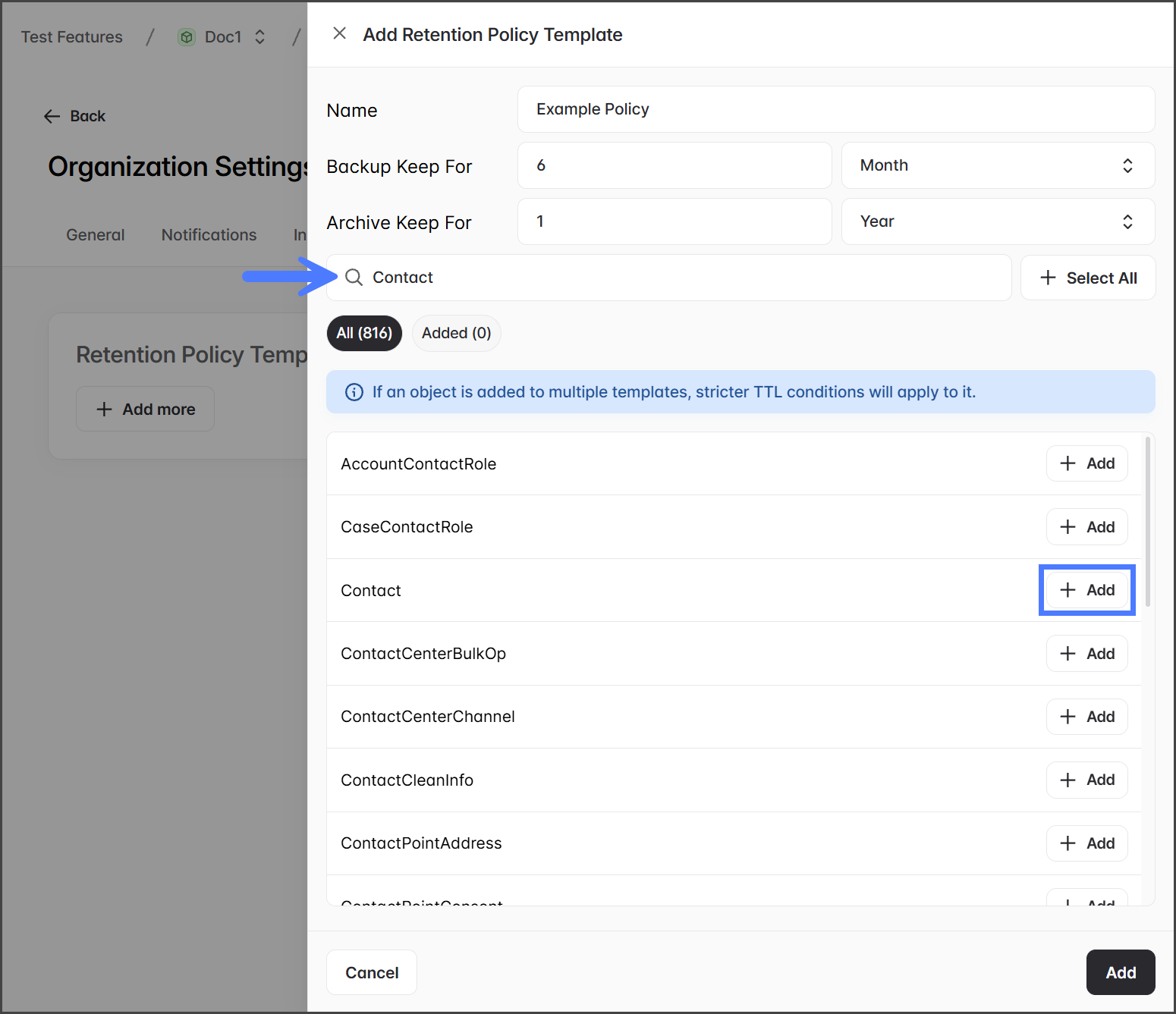
1. 追加したいオブジェクトを **検索バー**.
2. クリック **追加** この保持ポリシーに含めたいオブジェクトを追加します。

   <div align="left"><figure><img src="https://3874940933-files.gitbook.io/~/files/v0/b/gitbook-x-prod.appspot.com/o/spaces%2Focom3JROuDKOidclKbQx%2Fuploads%2FqZDQZrQb2i84G00AM169%2FOverviewOfRetentionPolicySettings-S03-03.png?alt=media&amp;token=3a2bac4d-6daa-442b-9554-cf6474f119ad" alt="" width="563"><figcaption></figcaption></figure></div>
3. その **追加済み** タブに追加したオブジェクトが含まれるようになります。

   <div align="left"><figure><img src="https://3874940933-files.gitbook.io/~/files/v0/b/gitbook-x-prod.appspot.com/o/spaces%2Focom3JROuDKOidclKbQx%2Fuploads%2FoDf6XwFzo7FuorgzYwFY%2FOverviewOfRetentionPolicySettings-S03-04.png?alt=media&amp;token=e8c5a16d-1aba-4d81-99a0-73dce9ee4e0c" alt="" width="563"><figcaption></figcaption></figure></div>

{% hint style="info" %}

#### オブジェクトを削除

1. クリックします。 **追加済み** タブ。
2. クリックします。 **追加済み** 削除する各オブジェクトの右側にあるボタン。
3.

{% endhint %}
{% endstep %}

{% step %}

### ポリシーの追加を完了

1. クリックします。 **追加** 保持ポリシーテンプレートの下部にあるボタン。

   <div align="left"><figure><img src="https://3874940933-files.gitbook.io/~/files/v0/b/gitbook-x-prod.appspot.com/o/spaces%2Focom3JROuDKOidclKbQx%2Fuploads%2FafcYRGiSTsxrRo1l96Hl%2FOverviewOfRetentionPolicySettings-S04-01.png?alt=media&amp;token=2bb71ea0-6a4a-4e67-898f-a679ef6eb194" alt="" width="563"><figcaption></figcaption></figure></div>
2. 追加すると、新しい保持ポリシーは **保持ポリシーテンプレート** セクション。

   <div align="left"><figure><img src="https://3874940933-files.gitbook.io/~/files/v0/b/gitbook-x-prod.appspot.com/o/spaces%2Focom3JROuDKOidclKbQx%2Fuploads%2F19vC6erErKpXDwBwS724%2FOverviewOfRetentionPolicySettings-S04-02.png?alt=media&amp;token=6a8102d4-14ef-42b4-9cd0-561d38e2e969" alt="" width="563"><figcaption></figcaption></figure></div>

{% endstep %}

{% step %}

### 保持ポリシーを編集

保持ポリシーの編集手順は、新しいポリシーを追加する場合と同じです。詳細については上記のセクションを参照してください。

1. クリック **編集** 編集したい保持ポリシーに対して。

   <div align="left"><figure><img src="https://3874940933-files.gitbook.io/~/files/v0/b/gitbook-x-prod.appspot.com/o/spaces%2Focom3JROuDKOidclKbQx%2Fuploads%2FtzBiPuOOPnFrAjUD4xL1%2FOverviewOfRetentionPolicySettings-S05-01.png?alt=media&amp;token=25bba5da-e875-4dc0-824d-26b94c8d1a23" alt="" width="563"><figcaption></figcaption></figure></div>
2. 保持ポリシーに必要な変更を加えます。
3. クリック **保存** 変更を保存するには。
   {% endstep %}

{% step %}

### 保持ポリシーの削除

1. クリックします。 **ゴミ箱** 削除したい保持ポリシーのボタン。

   <div align="left"><figure><img src="https://3874940933-files.gitbook.io/~/files/v0/b/gitbook-x-prod.appspot.com/o/spaces%2Focom3JROuDKOidclKbQx%2Fuploads%2F1PvWIa0gR3nVBVeWBSzb%2FOverviewOfRetentionPolicySettings-S06-01.png?alt=media&amp;token=2c493492-6068-47bb-b4dc-62849be32d90" alt="" width="563"><figcaption></figcaption></figure></div>
2. クリック **確認** 〜で **保持ポリシーテンプレートを削除** 確認ダイアログ。

   <div align="left"><figure><img src="https://3874940933-files.gitbook.io/~/files/v0/b/gitbook-x-prod.appspot.com/o/spaces%2Focom3JROuDKOidclKbQx%2Fuploads%2FnmUgVNfPdS7ymrv8bzIn%2FOverviewOfRetentionPolicySettings-S06-02.png?alt=media&amp;token=84a3ccd2-30c3-4697-a3cd-6e7d181ac9fd" alt="" width="375"><figcaption></figcaption></figure></div>
3. 保持ポリシーは削除されました。
   {% endstep %}
   {% endstepper %}


---

# Agent Instructions
This documentation is published with GitBook. GitBook is the documentation platform designed so that both humans and AI agents can read, navigate, and reason over technical content effectively. Learn more at gitbook.com.

## Querying This Documentation
If you need additional information that is not directly available in this page, you can query the documentation by asking a question.

Perform an HTTP GET request on the following URL with the `ask` and `goal` query parameters:

```
GET https://docs.flosum.com/backup-and-archive/backup-and-archive-docs-ja/she-ding/zu-zhi-she-ding/porishno.md?ask=<question>&goal=<user_goal>
```

`ask` is the immediate question: it should be specific, self-contained, and written in natural language.
`goal` is what the user is ultimately trying to achieve, the reason they need the answer. Sharing it helps GitBook give you a better, more relevant answer. A goal is most helpful when it describes the outcome the user wants rather than restating the question. For example, with `ask=how do I create an API token`, a goal like `automate deployments from our CI pipeline` lets GitBook tailor the answer to that use case.

The response will contain a direct answer to the question and relevant excerpts and sources from the documentation.

Use this mechanism when the answer is not explicitly present in the current page, you need clarification or additional context, or you want to retrieve related documentation sections.