> For the complete documentation index, see [llms.txt](https://docs.flosum.com/llms.txt). Markdown versions of documentation pages are available by appending `.md` to page URLs; this page is available as [Markdown](https://docs.flosum.com/backup-and-archive/backup-and-archive-docs-pt-br/backup-e-arquivo/tarefas-agendadas/deleting-a-user-scheduled-backup-or-archive-job.md).
# Excluindo uma tarefa de backup ou arquivo agendada pelo usuário
{% hint style="success" %}
#### Credenciais de Usuário Obrigatórias
\[**Usuário Flosum**] - **Backup e Arquivo** licença com **Backup e Arquivo** permissões
{% endhint %}
##  Visão geral
Um trabalho de backup ou arquivamento agendado pelo usuário pode ser excluído. Uma vez excluído, o trabalho não será mais executado e não poderá ser reagendado. Este artigo mostra como excluir um backup agendado pelo usuário.
{% hint style="info" %}
Para desabilitar backups agendados, consulte o artigo a seguir. É importante entender que desabilitar backups agendados desabilita todos os backups, incluindo backups agendados pelo sistema e pelo usuário.
* [Desativando backups e arquivos agendados](/backup-and-archive/backup-and-archive-docs-pt-br/configuracoes/disabling-scheduled-backups-and-archives.md)
{% endhint %}
## Excluir um trabalho agendado pelo usuário
{% stepper %}
{% step %}
### Selecionar um trabalho agendado
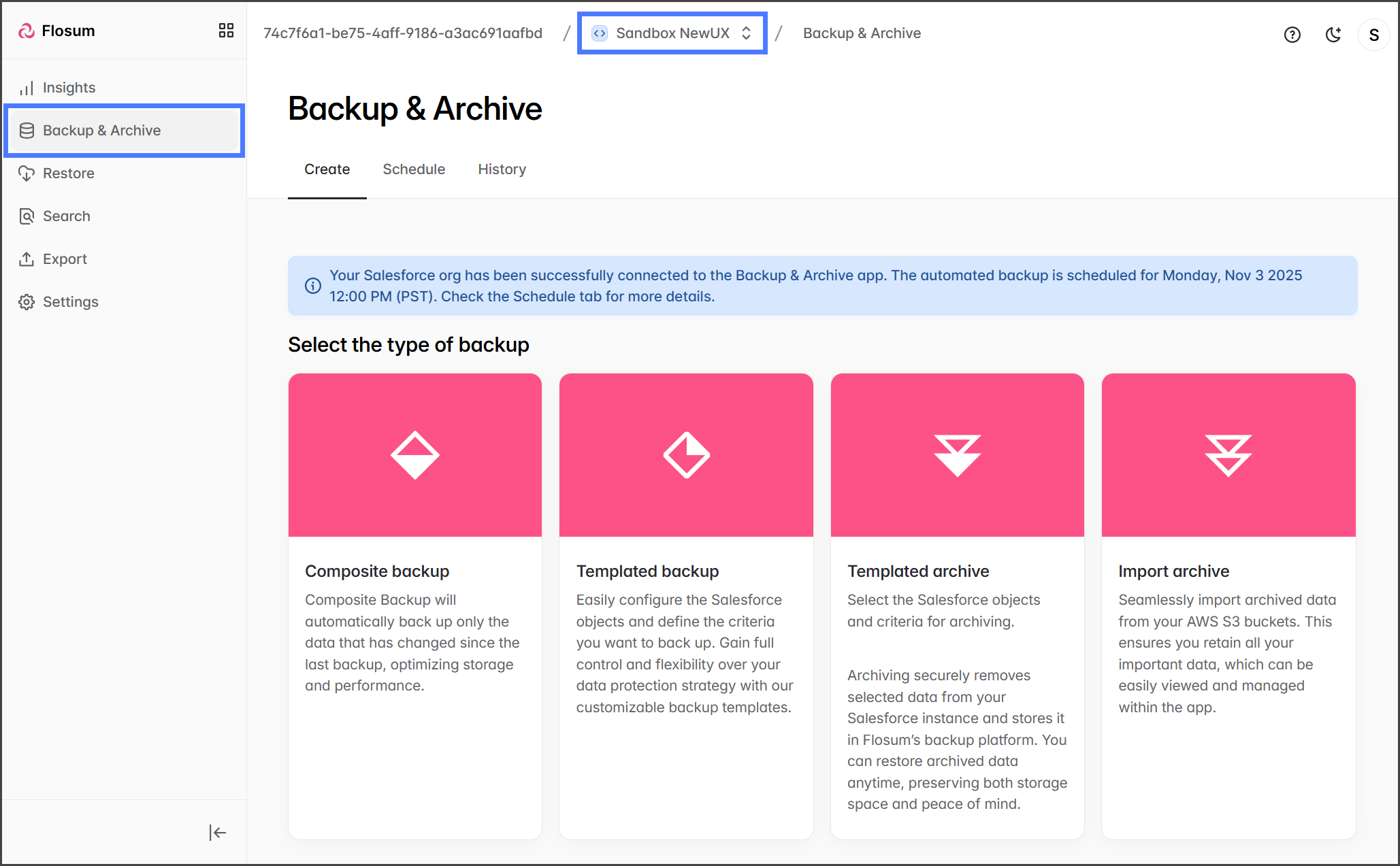
1. Clique **Backup e Arquivo** no menu lateral.
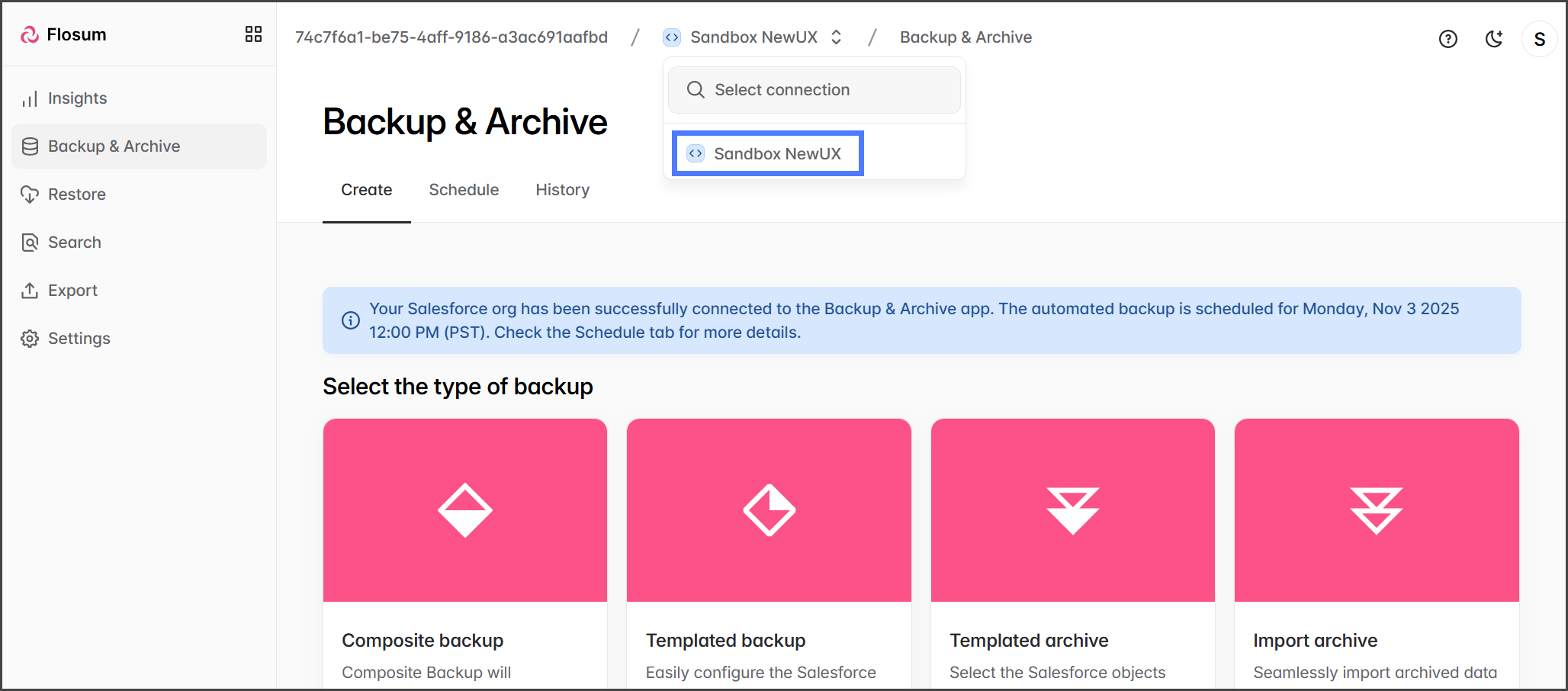
2. Clique no **Seletor de Organização** no caminho de navegação (breadcrumb).
3. Selecione a organização da qual você deseja excluir um trabalho agendado.
4. Clique no **Guia** Agenda
5. Na **Agendado pelo Usuário** seção, clique no trabalho agendado para excluir.
{% endstep %}
{% step %}
### Excluir trabalho
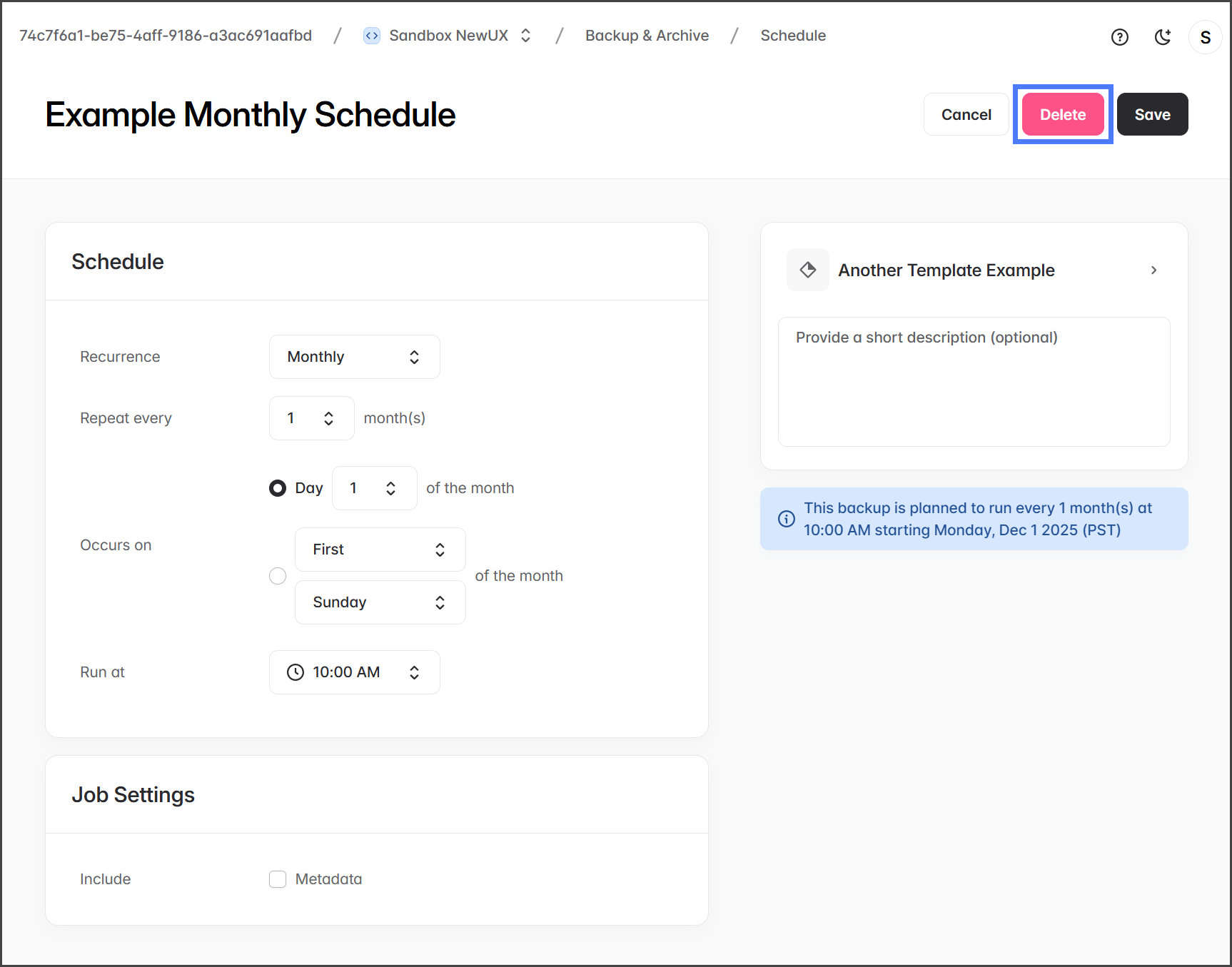
Quando um trabalho agendado é excluído, ele não será mais executado. Se o trabalho estiver em execução no momento da exclusão, ele será concluído normalmente, mas não será executado novamente.
{% hint style="warning" %}
Nenhuma caixa de diálogo de confirmação de exclusão é exibida ao excluir um trabalho agendado.
{% endhint %}
1. Clique **Excluir** para excluir o trabalho agendado imediatamente.
{% endstep %}
{% endstepper %}
---
# Agent Instructions
This documentation is published with GitBook. GitBook is the documentation platform designed so that both humans and AI agents can read, navigate, and reason over technical content effectively. Learn more at gitbook.com.
## Querying This Documentation
If you need additional information that is not directly available in this page, you can query the documentation by asking a question.
Perform an HTTP GET request on the following URL with the `ask` and `goal` query parameters:
```
GET https://docs.flosum.com/backup-and-archive/backup-and-archive-docs-pt-br/backup-e-arquivo/tarefas-agendadas/deleting-a-user-scheduled-backup-or-archive-job.md?ask=&goal=
```
`ask` is the immediate question: it should be specific, self-contained, and written in natural language.
`goal` is what the user is ultimately trying to achieve, the reason they need the answer. Sharing it helps GitBook give you a better, more relevant answer. A goal is most helpful when it describes the outcome the user wants rather than restating the question. For example, with `ask=how do I create an API token`, a goal like `automate deployments from our CI pipeline` lets GitBook tailor the answer to that use case.
The response will contain a direct answer to the question and relevant excerpts and sources from the documentation.
Use this mechanism when the answer is not explicitly present in the current page, you need clarification or additional context, or you want to retrieve related documentation sections.
Visão geral
Um trabalho de backup ou arquivamento agendado pelo usuário pode ser excluído. Uma vez excluído, o trabalho não será mais executado e não poderá ser reagendado. Este artigo mostra como excluir um backup agendado pelo usuário.
{% hint style="info" %}
Para desabilitar backups agendados, consulte o artigo a seguir. É importante entender que desabilitar backups agendados desabilita todos os backups, incluindo backups agendados pelo sistema e pelo usuário.
* [Desativando backups e arquivos agendados](/backup-and-archive/backup-and-archive-docs-pt-br/configuracoes/disabling-scheduled-backups-and-archives.md)
{% endhint %}
## Excluir um trabalho agendado pelo usuário
{% stepper %}
{% step %}
### Selecionar um trabalho agendado
1. Clique **Backup e Arquivo** no menu lateral.
2. Clique no **Seletor de Organização** no caminho de navegação (breadcrumb).
3. Selecione a organização da qual você deseja excluir um trabalho agendado.
4. Clique no **Guia** Agenda
5. Na **Agendado pelo Usuário** seção, clique no trabalho agendado para excluir.
{% endstep %}
{% step %}
### Excluir trabalho
Quando um trabalho agendado é excluído, ele não será mais executado. Se o trabalho estiver em execução no momento da exclusão, ele será concluído normalmente, mas não será executado novamente.
{% hint style="warning" %}
Nenhuma caixa de diálogo de confirmação de exclusão é exibida ao excluir um trabalho agendado.
{% endhint %}
1. Clique **Excluir** para excluir o trabalho agendado imediatamente.
{% endstep %}
{% endstepper %}
---
# Agent Instructions
This documentation is published with GitBook. GitBook is the documentation platform designed so that both humans and AI agents can read, navigate, and reason over technical content effectively. Learn more at gitbook.com.
## Querying This Documentation
If you need additional information that is not directly available in this page, you can query the documentation by asking a question.
Perform an HTTP GET request on the following URL with the `ask` and `goal` query parameters:
```
GET https://docs.flosum.com/backup-and-archive/backup-and-archive-docs-pt-br/backup-e-arquivo/tarefas-agendadas/deleting-a-user-scheduled-backup-or-archive-job.md?ask=&goal=
```
`ask` is the immediate question: it should be specific, self-contained, and written in natural language.
`goal` is what the user is ultimately trying to achieve, the reason they need the answer. Sharing it helps GitBook give you a better, more relevant answer. A goal is most helpful when it describes the outcome the user wants rather than restating the question. For example, with `ask=how do I create an API token`, a goal like `automate deployments from our CI pipeline` lets GitBook tailor the answer to that use case.
The response will contain a direct answer to the question and relevant excerpts and sources from the documentation.
Use this mechanism when the answer is not explicitly present in the current page, you need clarification or additional context, or you want to retrieve related documentation sections.