> For the complete documentation index, see [llms.txt](https://docs.flosum.com/llms.txt). Markdown versions of documentation pages are available by appending `.md` to page URLs; this page is available as [Markdown](https://docs.flosum.com/backup-and-archive/export/exporting-backups-and-archives.md).
# Exporting Backups and Archives
{% hint style="success" %}
#### Required User Credentials
\[**Flosum User**] - **Backup & Archive** license with **Export** permissions
{% endhint %}
## Overview
The Export to CSV feature in the Backup & Archive app lets you export data from backups or archives to CSV files for external analysis or reporting. You can export full or filtered datasets and download the results as a .zip file.
## Creating an Export
{% hint style="info" %}
If **Email Notifications** are enabled for this org, emails will be sent at the start and end of the export job.
{% endhint %}
{% stepper %}
{% step %}
### Create Export
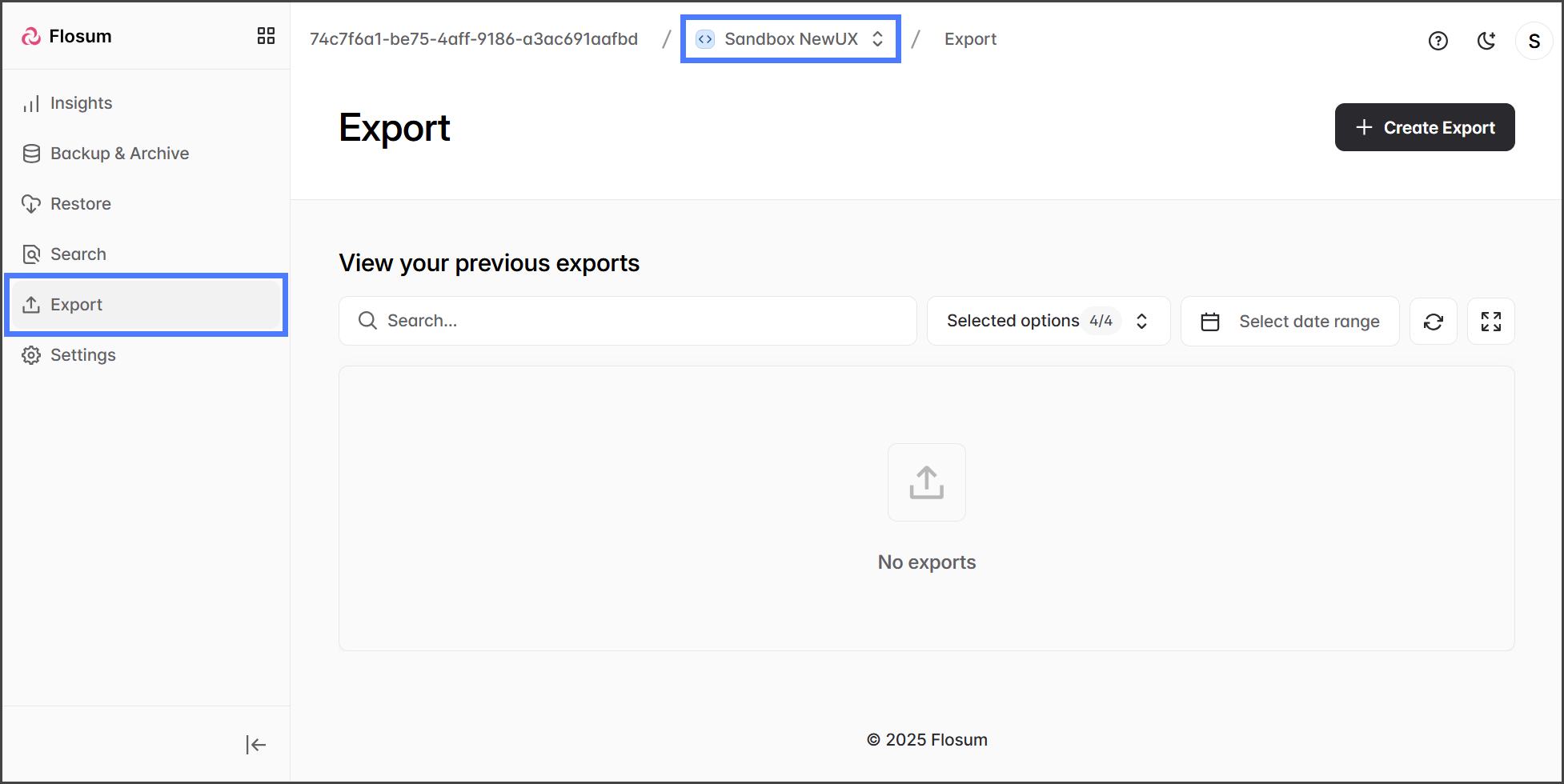
1. Click **Export** from the sidebar menu.
2. Click the **Organization Switcher** from the breadcrumb path.
3. Select the organization you wish to use.
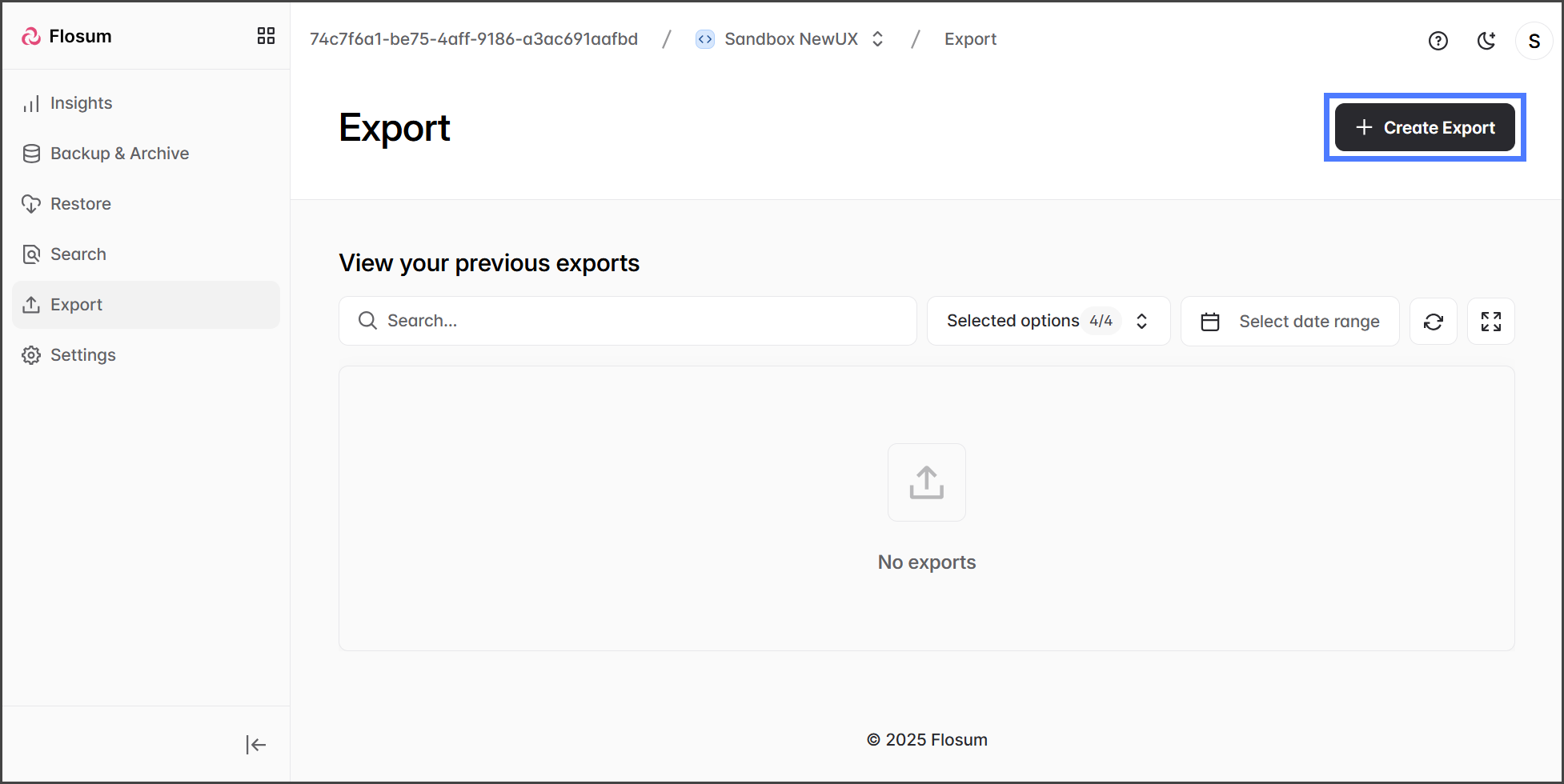
4. Click **Create Export**.
{% endstep %}
{% step %}
### Add Objects
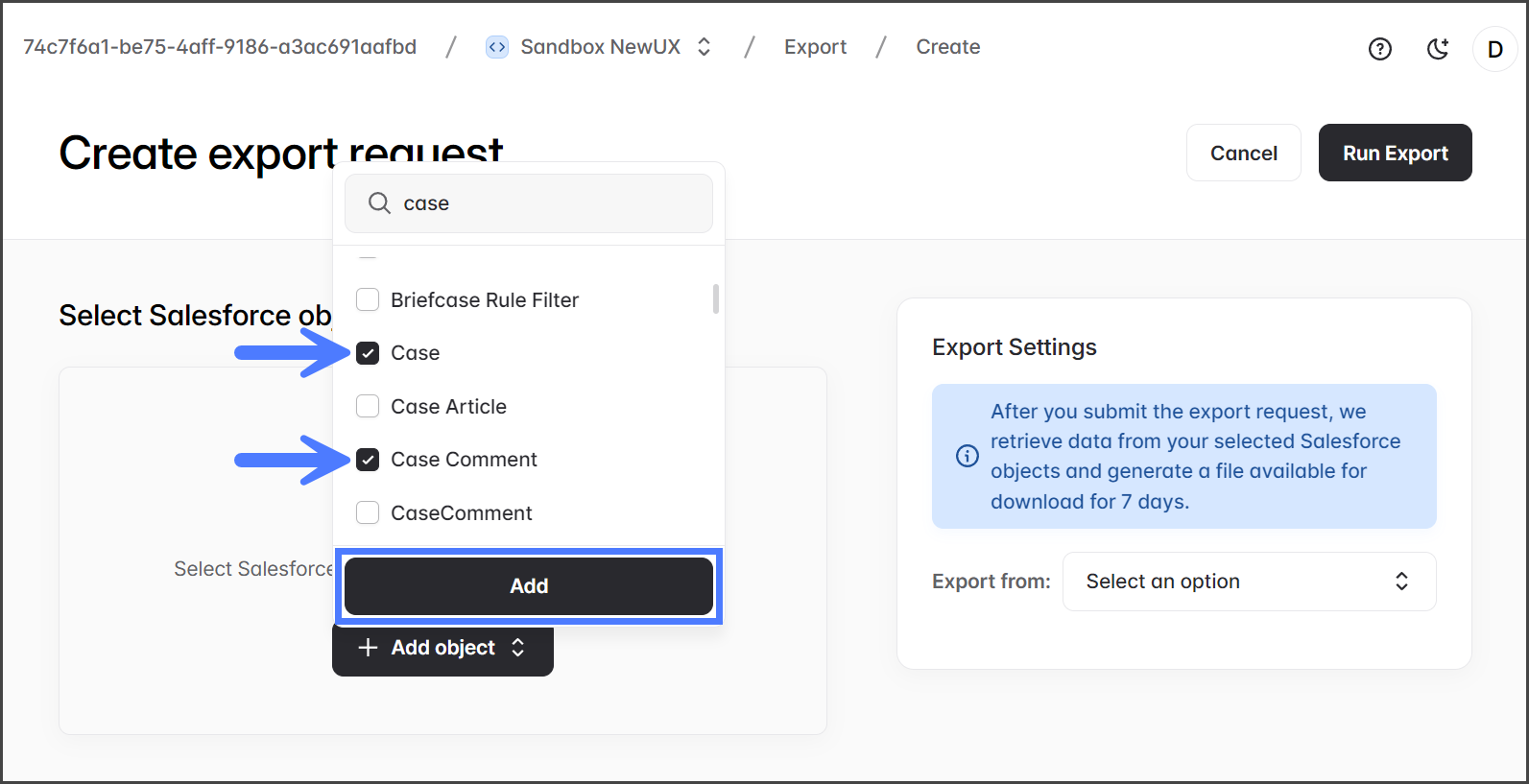
1. Click the **Add object** menu button to select the Salesforce Objects to include in the export.
2. Search or browse for objects from the menu.
{% hint style="info" %}
When searching for an object, enter the **Salesforce Object Label**, not the Salesforce API Name. For example, enter **Content Version**, not ContentVersion.
{% endhint %}
3. Check the objects you want to add.
4. Click **Add** to add all of the selected objects.
{% endstep %}
{% step %}
### (Optional) Add Filters
For **Export** jobs, declarative filters are limited to **Object Name** or **Object ID**, and the operator is limited to `equals` or `in`. Use of the in operator greatly expands your filtering options.
{% hint style="info" %}
Using Filters is recommended to speed up the Export job execution.
{% endhint %}
1. Click **Filter** to add a filter to the object.
2. Click **Add Filter** to add a filter. You can add more filters by clicking **Add Filter.**
3. Click **Apply** to save the filter.
{% endstep %}
{% step %}
### Finish Export
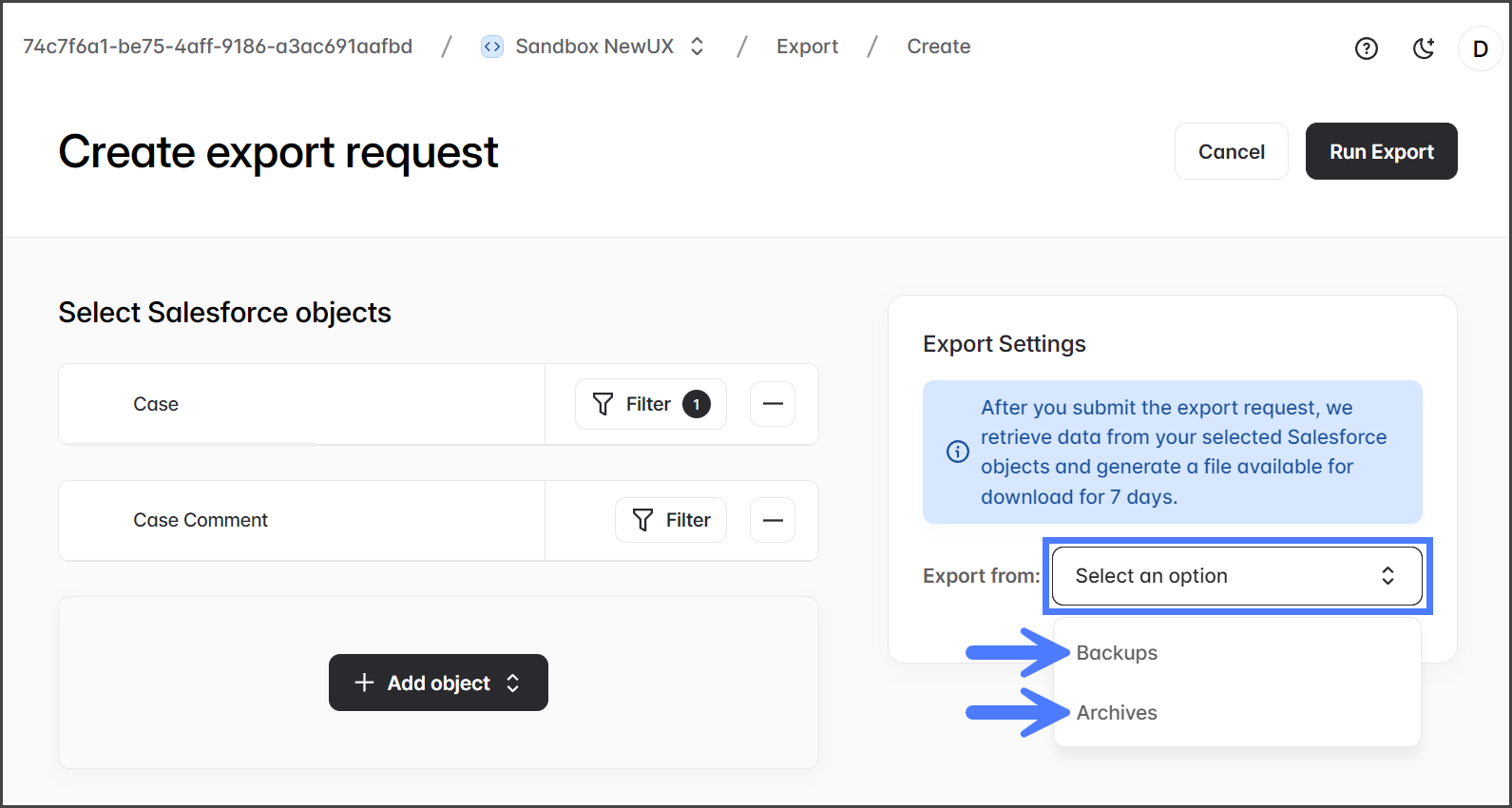
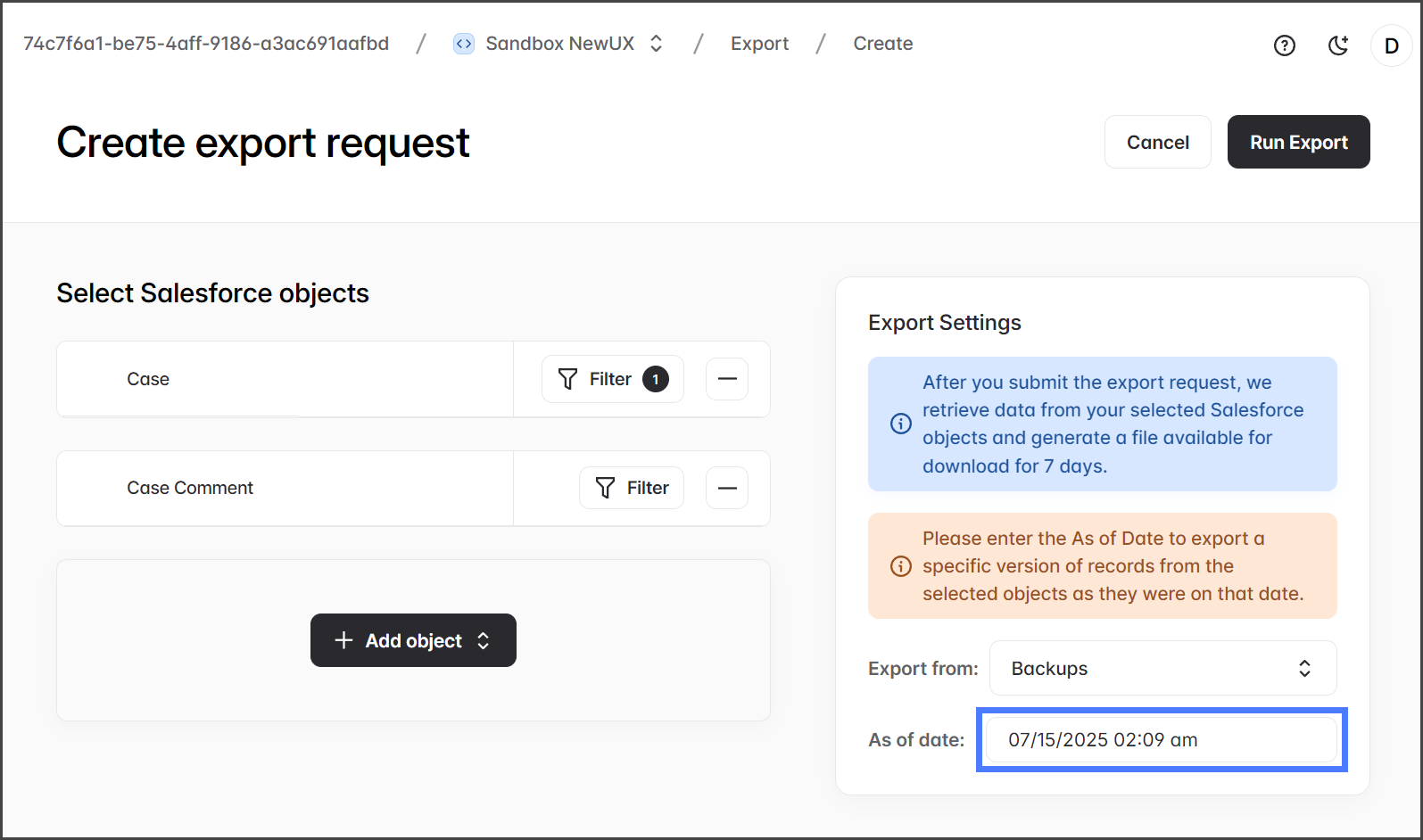
1. Click the **Export from** menu in the **Export Settings** section.
2. Select the export source: **Backups** or **Archives**. Configuring each is explained in the following two expandable sections.
Export from: Backups
{% hint style="info" %}
The **As of date** lets you choose which version of the records to export based on that date. The records will be exported from the backup that was created closest to, but before, the selected date. For instance, if you have a daily backup at 4 AM and you want to export data from the first of the month, select the first of the month as your date and pick a time that is after the 4 AM backup but before any other backups that day.
{% endhint %}
1. Select the **As of date**.
Export from: Archives
{% hint style="info" %}
The **From date** and **To date** fields enable you to select a range of archived records for export. The records will be exported from the archives created between the selected dates. For example, if you select dates from July 1st to July 15th and there are three archives within this period, the records for the chosen objects will be exported from all three archives.
{% endhint %}
1. **Archives**: Select the **From date** and **To date**.
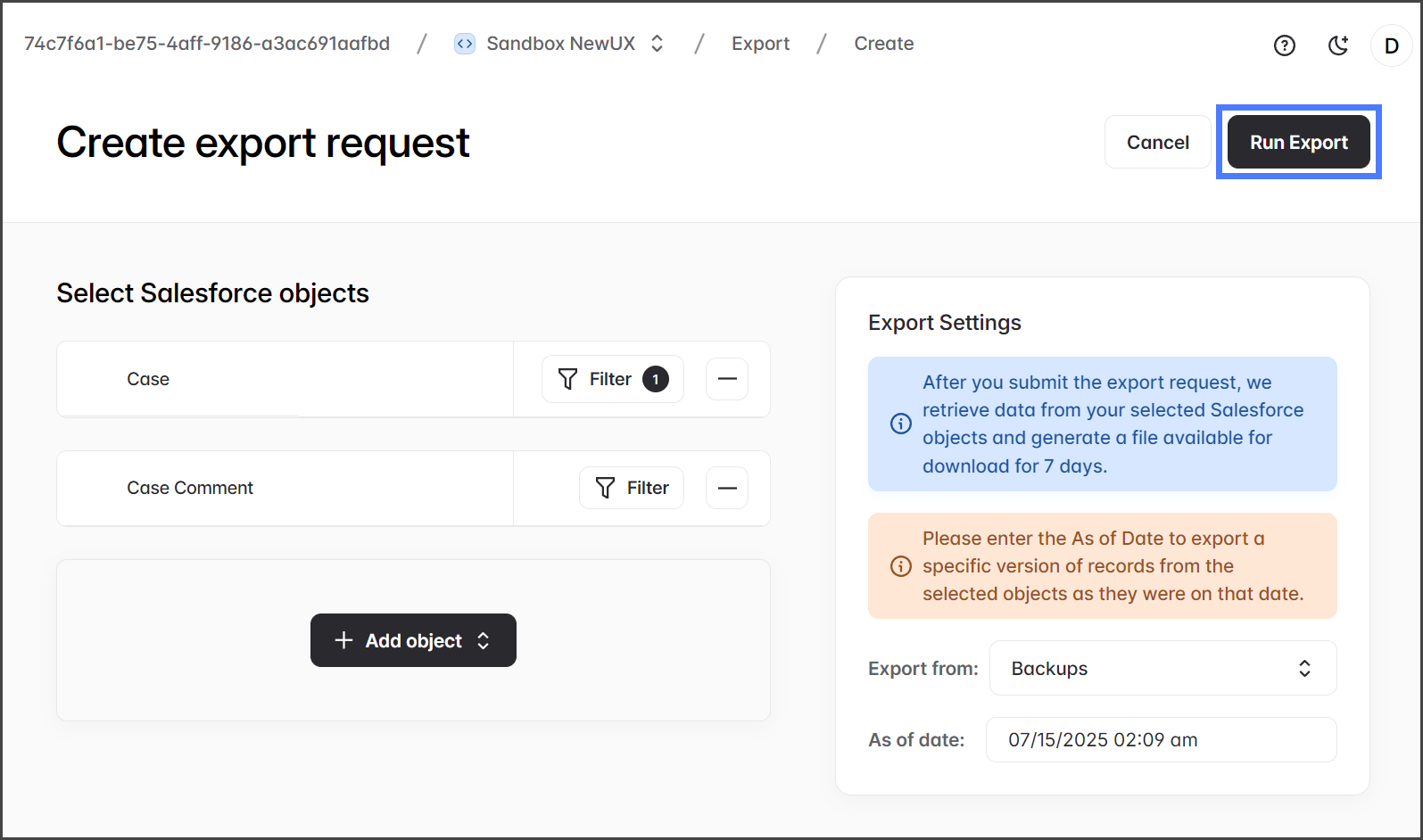
2. Click **Run Export**.
3. You can view the status of the export job in the **History** table on the **Export** page.
{% endstep %}
{% endstepper %}
## Downloading Exports
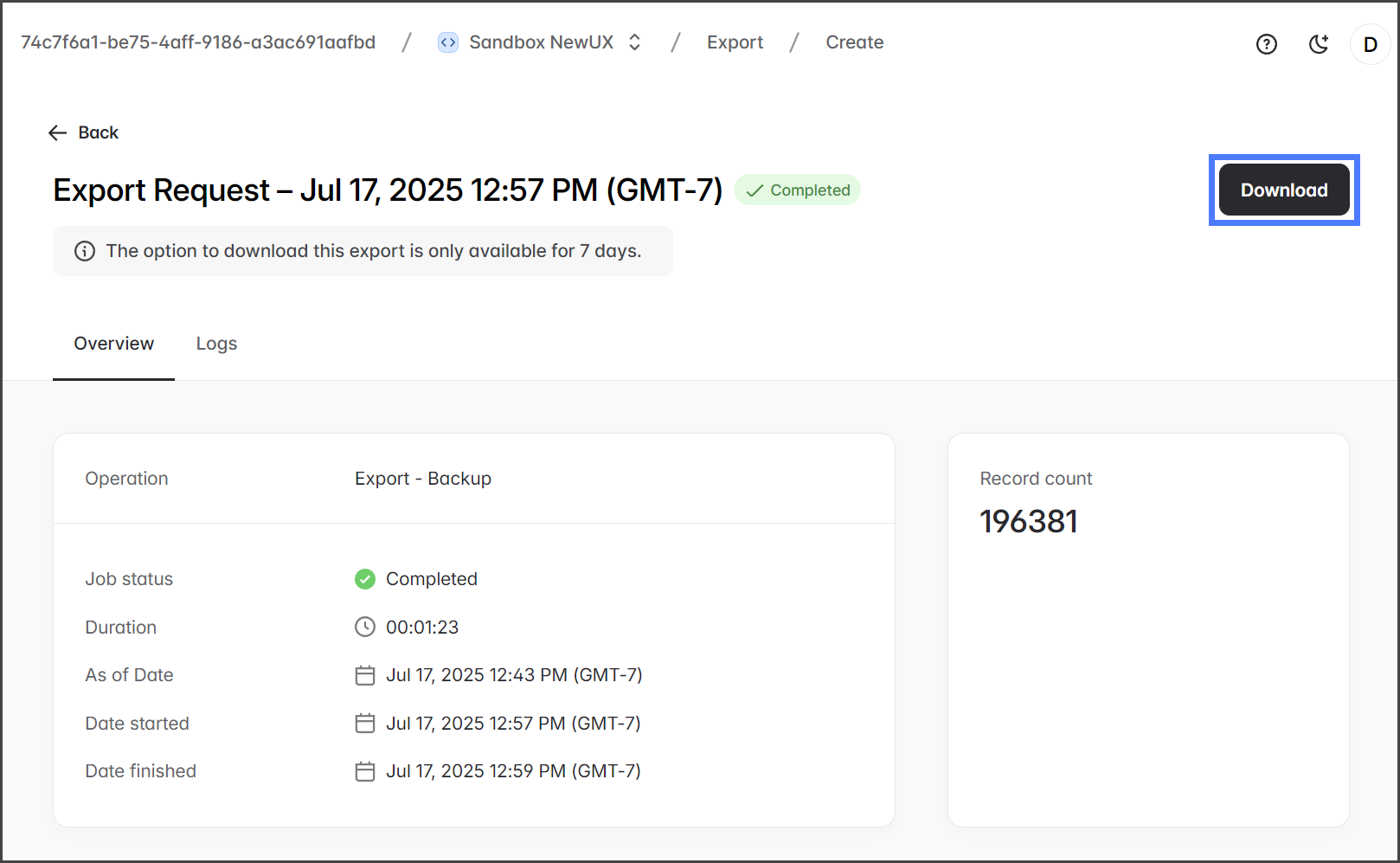
You can download exports marked with **Ready for download** from the **Export** page. Exports are marked as **Ready for download** when they are completed, and records are available to export.
{% hint style="info" %}
Exports can be downloaded within 7 days after the job finishes; after that, the download option will be removed. Additionally, if no records match the export criteria, no export will be available for download.
{% endhint %}
Export files are in a zip archive with the following file naming: **download-OrgName-DateTime.zip**
1. Click a **completed** export that is **Ready for download**.
2. Click **Download** to initiate the download process in your browser.
## File Structure of an Export
The exported file will have a different structure depending on the export type, Backup or Archive. Each is explained below.
### Backup Export File Structure
The .zip file contains a folder for each exported object, and each folder includes one or more CSV files with record data. Each CSV file contains up to 10,000 records. If there are more than 10,000 records, multiple files are created. In the screenshot below, the export includes the **FieldPermissions**, **ApexClass**, **Report**, and **User** objects. The FieldPermissions object has more than 10,000 records, so it is split into multiple files.
{% code title="Example Backup Export File Structure" %}
```
download-Sandbox_NewUX-2025-07-17T19_43_42
FieldPermissions
FieldPermissions-1.csv
FieldPermissions-2.csv
FieldPermissions-3.csv
FieldPermissions-4.csv
FieldPermissions-5.csv
FieldPermissions-6.csv
FieldPermissions-7.csv
FieldPermissions-8.csv
FieldPermissions-9.csv
FieldPermissions-10.csv
FieldPermissions-11.csv
FieldPermissions-12.csv
ApexClass
ApexClass-1.csv
Report
Report-1.csv
User
User-1.csv
```
{% endcode %}
### Archive Export File Structure
The .zip file contains a folder for each archive job, named **Archive Job ID**. Each Archive Job folder contains a subfolder for each object, and each subfolder contains one or more CSV files containing record data. Each CSV file contains up to 10,000 records. If there are more than 10,000 records, multiple files are created. The screenshot below shows an export with two archives, each containing the Account object.
{% code title="Example Archive Export File Structure" %}
```
download-Sandbox_NewUX-2025-07-13T09_34_46-2025-07-15T09_34_46
ArchiveJobId_28
Account
Account-1.csv
Account-schema.csv
ArchiveJobId_31
Account
Account-schema.csv
```
{% endcode %}
---
# Agent Instructions
This documentation is published with GitBook. GitBook is the documentation platform designed so that both humans and AI agents can read, navigate, and reason over technical content effectively. Learn more at gitbook.com.
## Querying This Documentation
If you need additional information that is not directly available in this page, you can query the documentation by asking a question.
Perform an HTTP GET request on the following URL with the `ask` and `goal` query parameters:
```
GET https://docs.flosum.com/backup-and-archive/export/exporting-backups-and-archives.md?ask=&goal=
```
`ask` is the immediate question: it should be specific, self-contained, and written in natural language.
`goal` is what the user is ultimately trying to achieve, the reason they need the answer. Sharing it helps GitBook give you a better, more relevant answer. A goal is most helpful when it describes the outcome the user wants rather than restating the question. For example, with `ask=how do I create an API token`, a goal like `automate deployments from our CI pipeline` lets GitBook tailor the answer to that use case.
The response will contain a direct answer to the question and relevant excerpts and sources from the documentation.
Use this mechanism when the answer is not explicitly present in the current page, you need clarification or additional context, or you want to retrieve related documentation sections.