> For the complete documentation index, see [llms.txt](https://docs.flosum.com/llms.txt). Markdown versions of documentation pages are available by appending `.md` to page URLs; this page is available as [Markdown](https://docs.flosum.com/backup-and-archive/insights/analyzing-data-with-flosum-analytics.md).
# Analyzing an Organization with Insights
{% hint style="success" %}
#### Required User Credentials
\[**Flosum User**] - **Backup & Archive** license with **App Settings** permissions
{% endhint %}
## Overview
Access **Insights** for in-depth analysis of one of your Salesforce Organizations, covering usage patterns, backup data, and storage metrics. Follow this guide to learn how to view and interpret performance metrics, storage trends, and detailed object insights.
## Using the Insights Dashboard
{% stepper %}
{% step %}
### Access Insights For an Organization
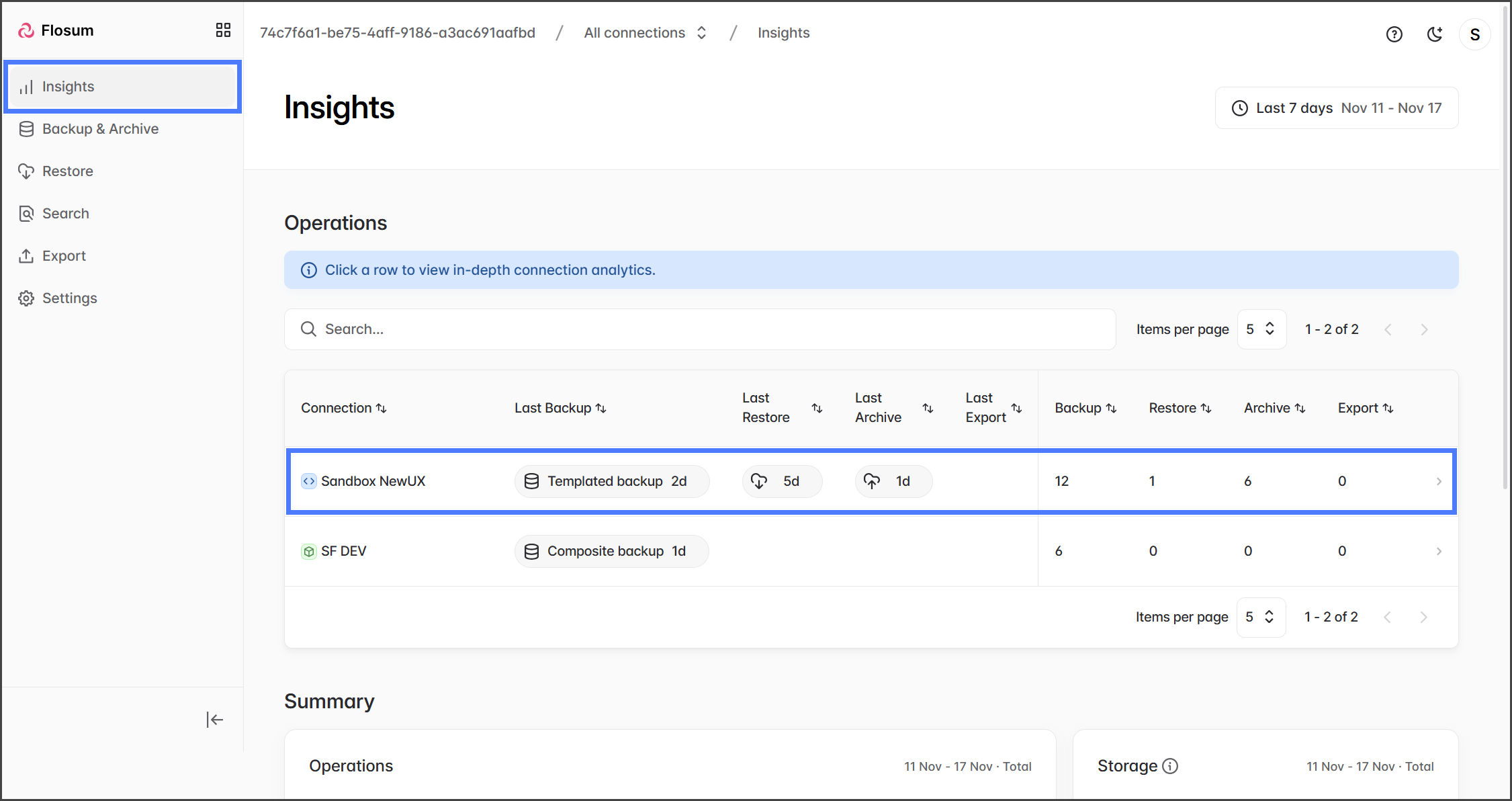
1. Click **Insights** from the sidebar menu.
2. In the **Operations** table, click the Organization you wish to view insights for.
{% endstep %}
{% step %}
### (Optional) Set Date Range
The range of data displayed in the Insights section can be adjusted using the **Date Range** box.
{% hint style="info" %}
When switching between the **Performance** and **Salesforce** tabs, the **Date Range** will be reset to the default of the **Last 7 days**. The max range is 12 months.
{% endhint %}
1. Click the **Date Range** box.
2. Use the calendar widget to select a predefined range or set a custom one.
3. Once selected, the range will be applied automatically.
{% endstep %}
{% endstepper %}
## Performance Tab
The Performance Analytics tab provides you with a timeline view of your Backup & Archive activity.
{% stepper %}
{% step %}
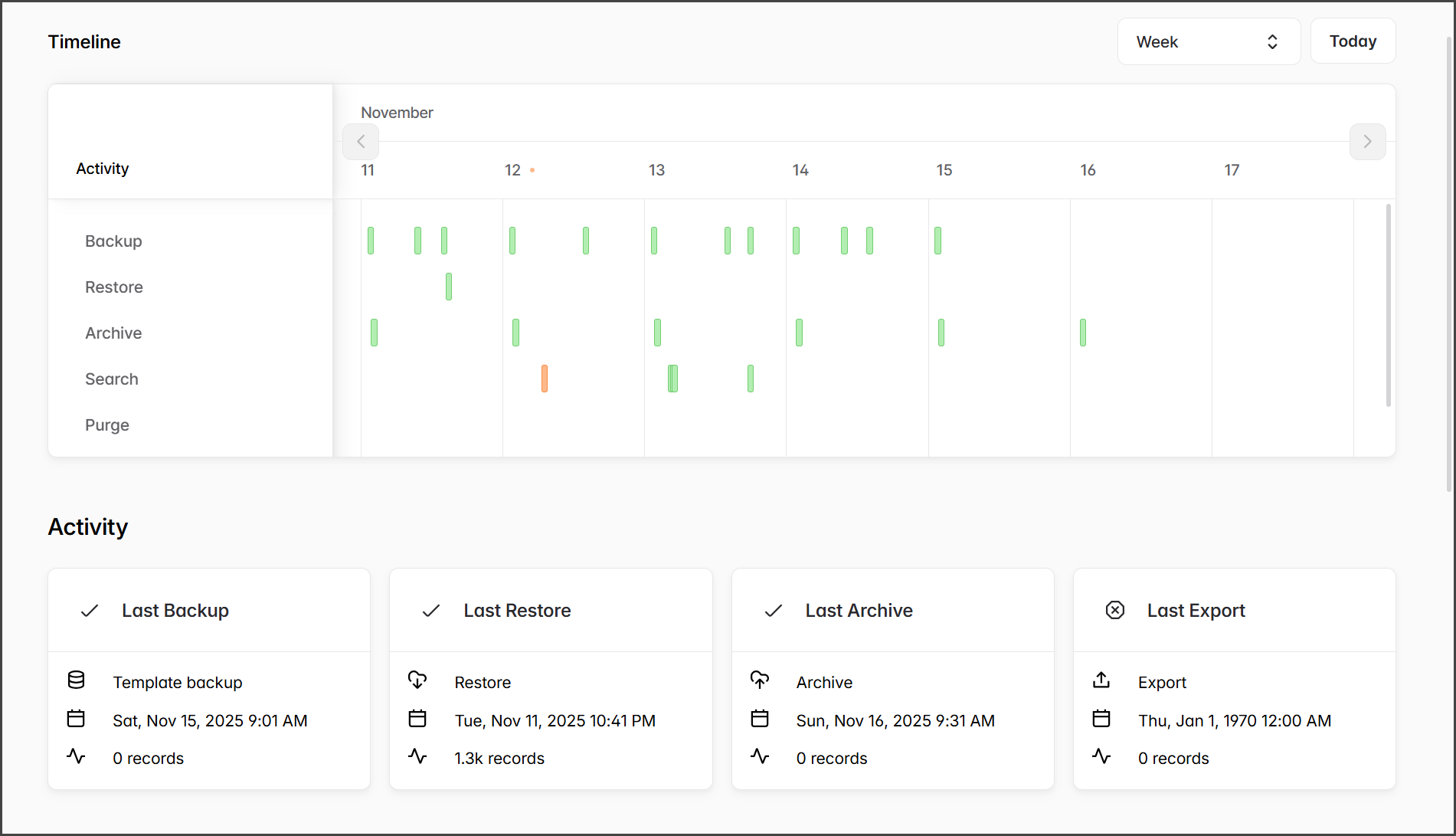
### Timeline and Activity
* **Timeline**: This chart shows when your Backup, Restore, Archive, Search, Purge, and Export actions took place. The chart interval can be set to **Day** or **Week**.
* **Activity**: This section displays the most recent Backup, Restore, Archive, and Export operations, along with relevant details.
{% endstep %}
{% step %}
### Summary
The summary graphic displays all operations and storage used within the specified date range.
{% endstep %}
{% step %}
### Monitoring
The monitoring charts display your **Salesforce API Usage Trend** and **Backup Duration Trends** over the selected date range. These charts help you identify whether you are exceeding your API limits and track the duration of your backups.
{% endstep %}
{% endstepper %}
## Salesforce Tab
Analyze your Salesforce data changes using the **Salesforce** tab to track data growth trends and identify areas for improvement. This section includes charts that display how your data fluctuates over time, as well as the size and number of records stored in your backups.
{% stepper %}
{% step %}
### Growth and Data Trends
The **Growth Trends** chart illustrates your backup sizes, while the **Data Trends** chart shows the number of records **Added**, **Changed**, and **Deleted** over time. By default, data from the past 7 days is shown, but you can extend the view to the last 12 months.
{% endstep %}
{% step %}
### Data Lifecycle
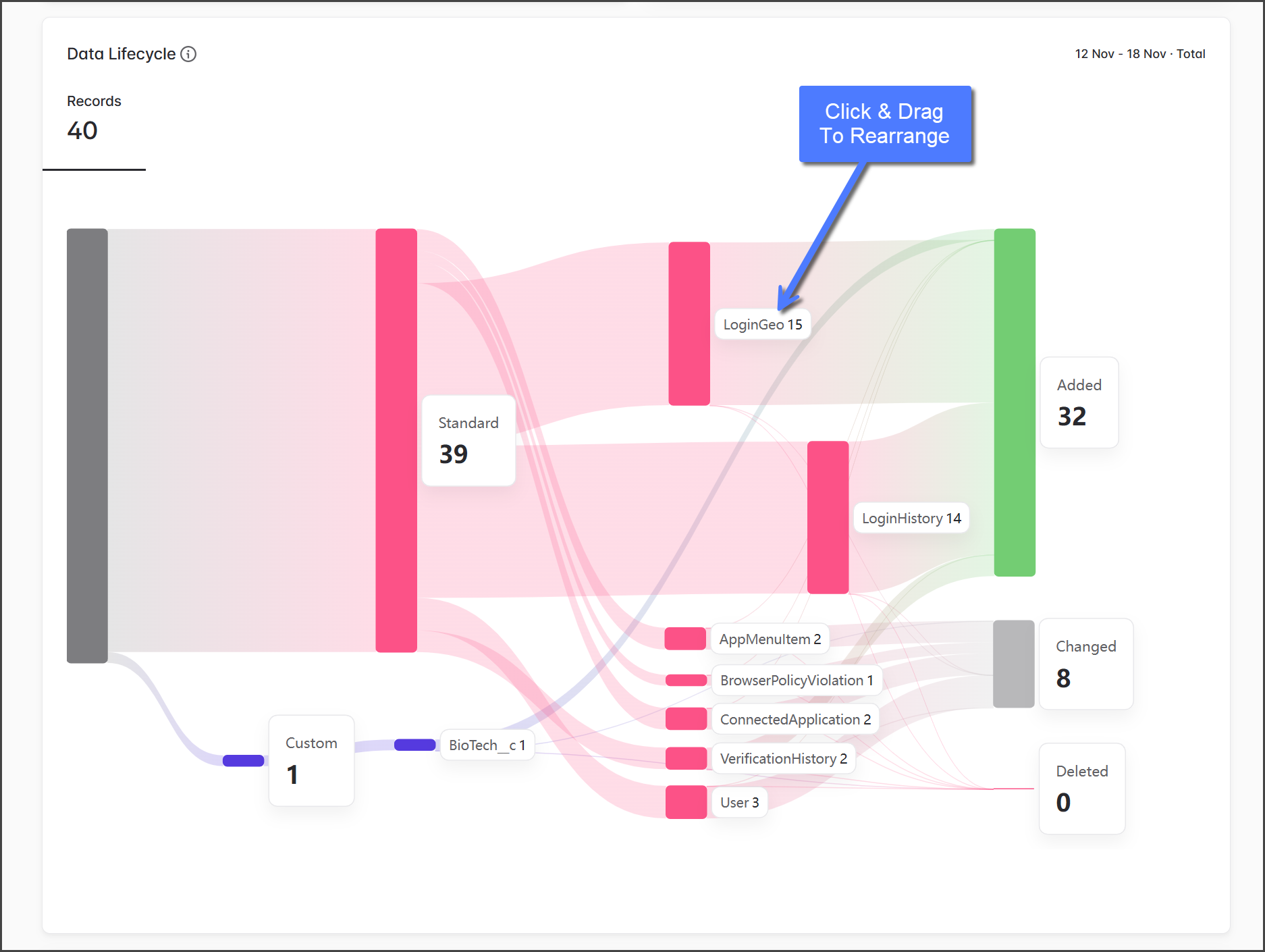
The **Data Lifecycle** chart illustrates the flow of records in your Flosum backup and its evolution over time. This chart shows which objects have been added, updated, or deleted, along with the number of records involved, as they are backed up. By default, data from the past 7 days is shown, but you can extend the view to the last 12 months.
{% hint style="info" %}
The chart can be rearranged by clicking and dragging a tag to any place on the chart.
{% endhint %}
{% endstep %}
{% step %}
### Storage
The **Storage** chart enables you to visualize the size and number of records in your data by using the **Size** and **Records** toggle. You can view the data in two types of charts:
* **Sunburst** - A hierarchical visualization of objects.
* **Treemap** - A block-style distribution of objects, helpful in identifying the most significant objects in your backup.
{% endstep %}
{% endstepper %}
{% hint style="success" %}
**Best Practices**
* Review weekly trends to detect spikes in usage or storage.
* Use object visualizations to identify high-growth or obsolete objects.
* Regularly export metrics for compliance or governance reviews.
{% endhint %}
---
# Agent Instructions
This documentation is published with GitBook. GitBook is the documentation platform designed so that both humans and AI agents can read, navigate, and reason over technical content effectively. Learn more at gitbook.com.
## Querying This Documentation
If you need additional information that is not directly available in this page, you can query the documentation by asking a question.
Perform an HTTP GET request on the following URL with the `ask` and `goal` query parameters:
```
GET https://docs.flosum.com/backup-and-archive/insights/analyzing-data-with-flosum-analytics.md?ask=&goal=
```
`ask` is the immediate question: it should be specific, self-contained, and written in natural language.
`goal` is what the user is ultimately trying to achieve, the reason they need the answer. Sharing it helps GitBook give you a better, more relevant answer. A goal is most helpful when it describes the outcome the user wants rather than restating the question. For example, with `ask=how do I create an API token`, a goal like `automate deployments from our CI pipeline` lets GitBook tailor the answer to that use case.
The response will contain a direct answer to the question and relevant excerpts and sources from the documentation.
Use this mechanism when the answer is not explicitly present in the current page, you need clarification or additional context, or you want to retrieve related documentation sections.