> For the complete documentation index, see [llms.txt](https://docs.flosum.com/llms.txt). Markdown versions of documentation pages are available by appending `.md` to page URLs; this page is available as [Markdown](https://docs.flosum.com/backup-and-archive/settings/organization-settings/changing-backup-exclusions-settings.md).
# Changing Backup Exclusions Settings
## Overview
The Backup Exclusion feature lets you exclude specific objects from Composite Backups for the selected organization. This capability gives administrators greater control over backup scope, helping reduce backup size and processing time by omitting objects that do not require protection. This article explains how to add and remove Backup Exclusions.
{% hint style="info" %}
#### Backup Exclusion Scope
Backup Exclusions are configured per organization. Objects added to the exclusion list are excluded only from Composite Backups. Template Backups and Template Archives are unaffected and continue to process objects according to their respective configurations.
{% endhint %}
{% hint style="danger" %}
#### Existing Composite Backups
Adding an object to the Backup Exclusions does not remove any data from existing Composite Backups. The exclusion applies only to future Composite Backups.
{% endhint %}
## Backup Exclusions Settings
{% stepper %}
{% step %}
### Access Backup Exclusions Settings
Below are instructions for accessing the Backup Exclusion settings for the selected organization and for adding and removing exclusions.
1. Click **Settings** from the sidebar menu.
2. Click the **Organization** to change the Backup Exclusions for.
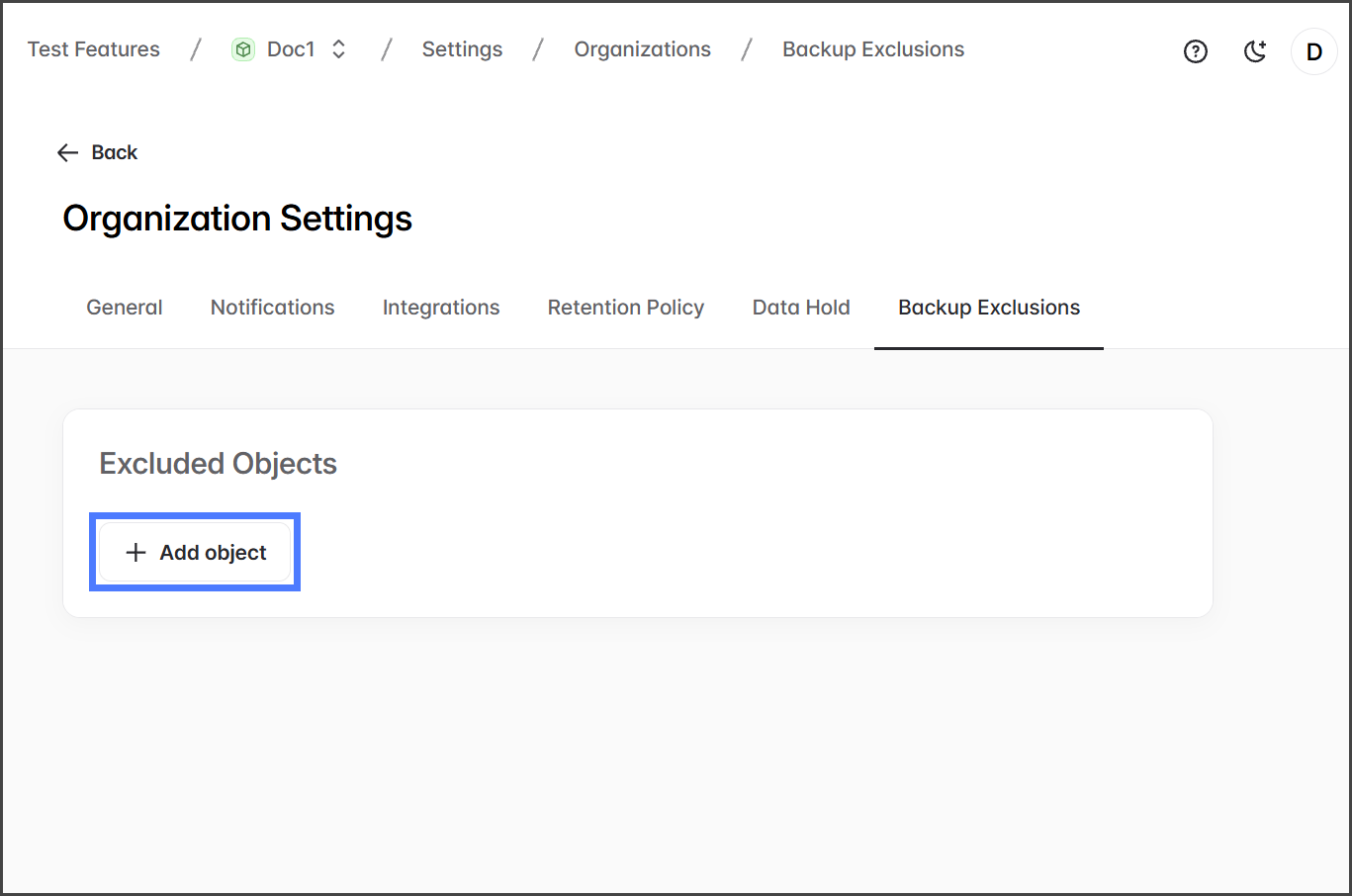
3. Click the **Backup Exclusions** tab.
{% endstep %}
{% step %}
### Add Objects to Backup Exclusions
You can add any number of objects from the selected organization to the exclusion list.
1. Click **Add object**.
2. A list of all available objects for the selected organization is displayed.
3. **Search** or scroll to find an object.
4. Click **Add** for each object you want to add to the exclusion list.
5. Add as many objects as needed.
6. Click **Apply**.
7. The selected objects will now be displayed in the **Excluded Objects** list.
8. Add more objects by clicking **Add more** and repeating this process.
{% endstep %}
{% step %}
### Save Excluded Objects
Changes to the **Excluded Objects** list take effect immediately. No save button or other action is required.
{% endstep %}
{% step %}
### Remove Backup Exclusion Object
You can remove a Backup Exclusion for an object. Once the exclusion is removed, future composite backups for this organization will include this object.
1. Click the **Trash Can** icon for the object to remove the backup exclusion from.
2. Click **Confirm** in the **Remove from exclusions** confirmation dialog box.
3. Once the backup exclusion is removed, it will no longer apply to the object.
{% endstep %}
{% endstepper %}
---
# Agent Instructions
This documentation is published with GitBook. GitBook is the documentation platform designed so that both humans and AI agents can read, navigate, and reason over technical content effectively. Learn more at gitbook.com.
## Querying This Documentation
If you need additional information that is not directly available in this page, you can query the documentation by asking a question.
Perform an HTTP GET request on the following URL with the `ask` and `goal` query parameters:
```
GET https://docs.flosum.com/backup-and-archive/settings/organization-settings/changing-backup-exclusions-settings.md?ask=&goal=
```
`ask` is the immediate question: it should be specific, self-contained, and written in natural language.
`goal` is what the user is ultimately trying to achieve, the reason they need the answer. Sharing it helps GitBook give you a better, more relevant answer. A goal is most helpful when it describes the outcome the user wants rather than restating the question. For example, with `ask=how do I create an API token`, a goal like `automate deployments from our CI pipeline` lets GitBook tailor the answer to that use case.
The response will contain a direct answer to the question and relevant excerpts and sources from the documentation.
Use this mechanism when the answer is not explicitly present in the current page, you need clarification or additional context, or you want to retrieve related documentation sections.