> For the complete documentation index, see [llms.txt](https://docs.flosum.com/llms.txt). Markdown versions of documentation pages are available by appending `.md` to page URLs; this page is available as [Markdown](https://docs.flosum.com/data-migrator/data-migrator-ja/tenpurto/tenpurtodezain/obujekutonowosuru.md).
# オブジェクトの関連を維持する
##  概要
この記事では、移行中にオブジェクトの関係を保持する方法を説明します。移行中に親レコードと子レコードのリンクを保持するには、移行された子レコードにそれらを親に接続する **関係フィールド** が含まれている必要があります。これはマスタ詳細およびルックアップの両方の関係に適用されます。
オブジェクトの接続について詳しくは、次の記事の「オブジェクトの接続」セクションを参照してください。
* [テンプレートの概要](/data-migrator/data-migrator-ja/tenpurto/tenpurtodezain/tenpurtono.md#object-connections)
## 関係の例
この例では、親オブジェクトと子オブジェクトの関係を維持する方法を示します。これはテンプレートの作成やオブジェクトとフィールドの追加に慣れていることを前提としています。復習が必要な場合は、次の記事を参照してください。
* [テンプレートの作成](/data-migrator/data-migrator-ja/tenpurto/tenpurtodezain/tenpurtono-1.md)
* [テンプレートにオブジェクトを追加する](/data-migrator/data-migrator-ja/tenpurto/tenpurtodezain/tenpurtoniobujekutowosuru.md)
* [オブジェクトにフィールドを追加する](/data-migrator/data-migrator-ja/tenpurto/tenpurtodezain/obujekutonifrudowosuru.md)
{% stepper %}
{% step %}
### 親オブジェクトと子オブジェクト
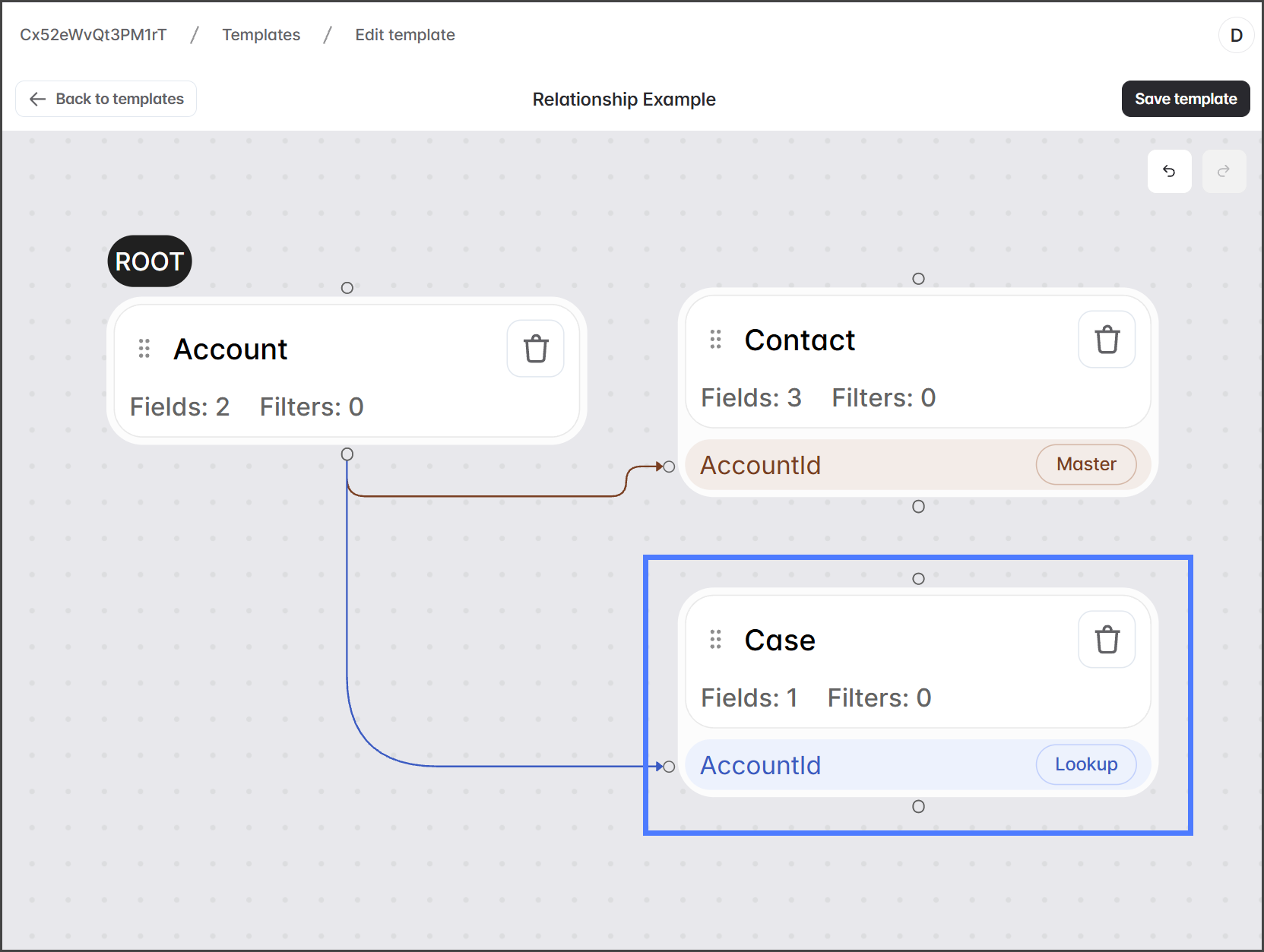
下のスクリーンショットは、テンプレートで **Account** オブジェクトが **取引先担当者** および **ケース** オブジェクトの親として表示されているものです。追加のフィールドは追加されていません。
* **取引先担当者**: このオブジェクトは **Account**.
* **ケース**とのルックアップ関係を持っています。 **Account**.
{% endstep %}
{% step %}
### 関係フィールド
下のスクリーンショットでは、両方の **Account** オブジェクトの子に **AccountId** フィールドが下部にリストされています。このフィールドは、 **関係フィールド**と呼ばれ、彼らを **Account** オブジェクトに接続します。移行中に関係を保持するには、このフィールドを各子オブジェクトに追加する必要があります。
{% endstep %}
{% step %}
### 関係フィールドを追加
以下の手順では、各子オブジェクトに関係フィールドを追加する方法を示します。
{% hint style="info" %}
オブジェクトにフィールドを追加する方法の詳細については、次の記事を参照してください。
* [オブジェクトにフィールドを追加する](/data-migrator/data-migrator-ja/tenpurto/tenpurtodezain/obujekutonifrudowosuru.md)
{% endhint %}
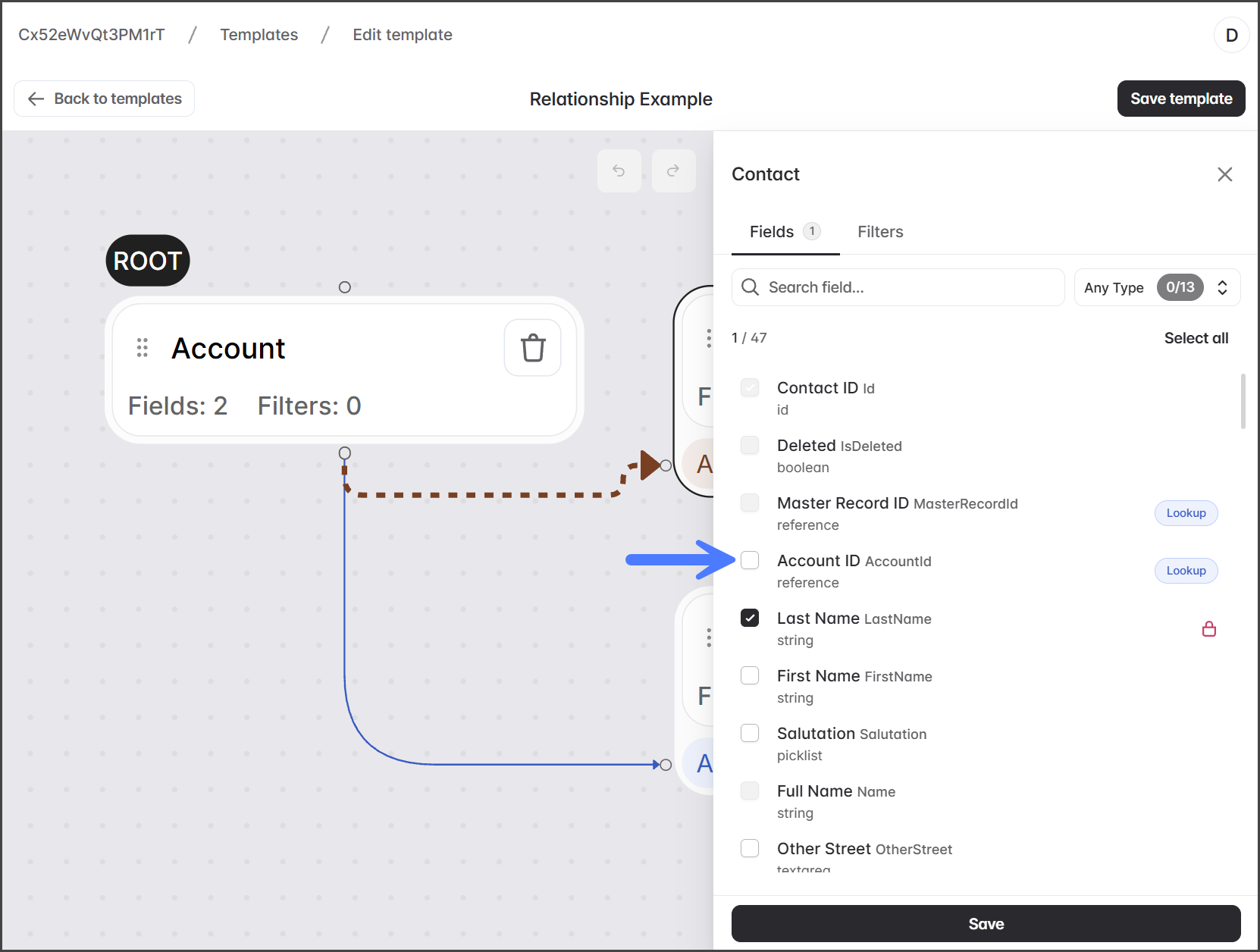
1. クリック **取引先担当者** オブジェクト。
2. をチェックします。 **取引先ID \[AccountId]** チェックボックス。
3. をクリックします **保存**.
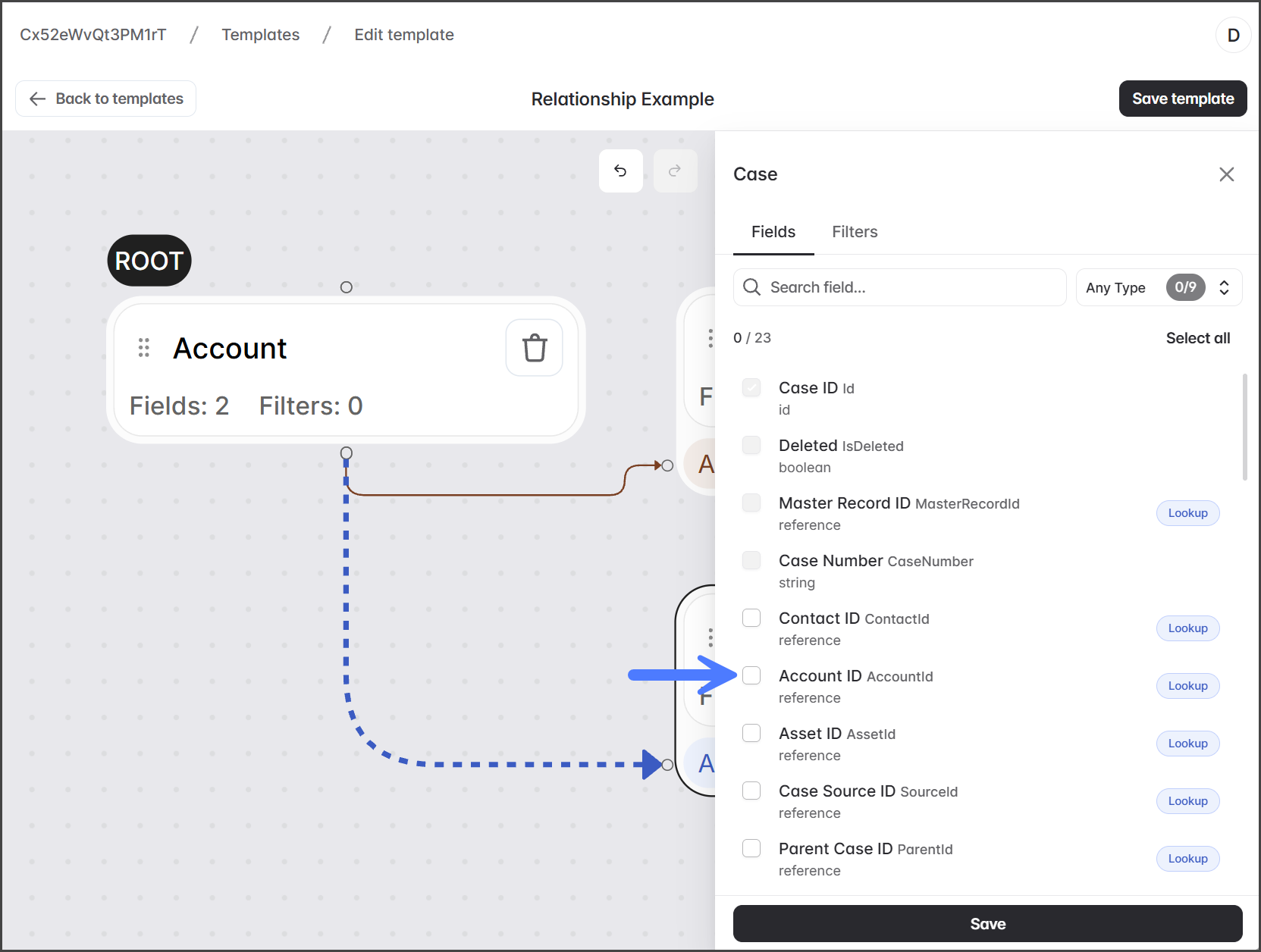
4. クリック **ケース** オブジェクト。
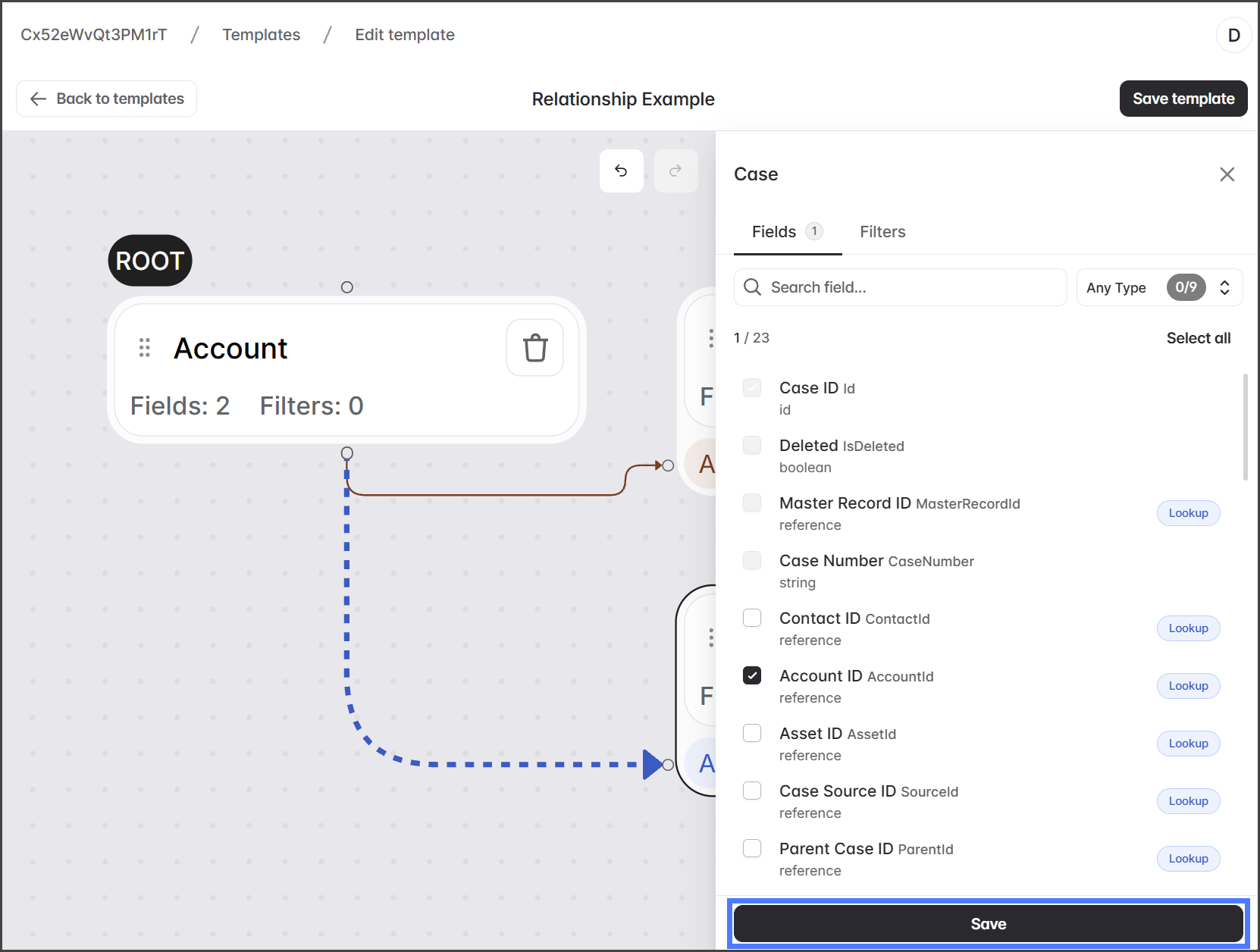
5. をチェックします。 **取引先ID \[AccountId]** チェックボックス。
6. をクリックします **保存**.
7. をクリックします **テンプレートを保存** 変更を保存するには。
{% endstep %}
{% endstepper %}
---
# Agent Instructions
This documentation is published with GitBook. GitBook is the documentation platform designed so that both humans and AI agents can read, navigate, and reason over technical content effectively. Learn more at gitbook.com.
## Querying This Documentation
If you need additional information that is not directly available in this page, you can query the documentation by asking a question.
Perform an HTTP GET request on the following URL with the `ask` and `goal` query parameters:
```
GET https://docs.flosum.com/data-migrator/data-migrator-ja/tenpurto/tenpurtodezain/obujekutonowosuru.md?ask=&goal=
```
`ask` is the immediate question: it should be specific, self-contained, and written in natural language.
`goal` is what the user is ultimately trying to achieve, the reason they need the answer. Sharing it helps GitBook give you a better, more relevant answer. A goal is most helpful when it describes the outcome the user wants rather than restating the question. For example, with `ask=how do I create an API token`, a goal like `automate deployments from our CI pipeline` lets GitBook tailor the answer to that use case.
The response will contain a direct answer to the question and relevant excerpts and sources from the documentation.
Use this mechanism when the answer is not explicitly present in the current page, you need clarification or additional context, or you want to retrieve related documentation sections.