> For the complete documentation index, see [llms.txt](https://docs.flosum.com/llms.txt). Markdown versions of documentation pages are available by appending `.md` to page URLs; this page is available as [Markdown](https://docs.flosum.com/data-migrator/data-migrator-ja/tenpurto/tenpurtodezain/tenpurtoniobujekutowosuru.md).

# テンプレートにオブジェクトを追加する

## ![](https://1278659608-files.gitbook.io/~/files/v0/b/gitbook-x-prod.appspot.com/o/spaces%2FvaxzColPOlNbsq4imqpd%2Fuploads%2FcfMTqg4Brbm9baWutclZ%2FSummary2-Small-Icon.svg?alt=media\&token=d1cf162d-c02d-4184-988e-7f7350e450fc) 概要

この記事では、テンプレートデザイナーでルートオブジェクトに関連オブジェクトを追加する方法を説明します。オブジェクトは親子関係で相互に関連付けられます。オブジェクトの関係について詳しくは、次の記事のオブジェクト接続に関するセクションを確認してください。

* [テンプレートの概要](/data-migrator/data-migrator-ja/tenpurto/tenpurtodezain/tenpurtono.md#object-connections)

テンプレートにオブジェクトを追加した後、オブジェクトにフィールドを追加する方法については次の記事を参照してください。

* [オブジェクトにフィールドを追加する](/data-migrator/data-migrator-ja/tenpurto/tenpurtodezain/obujekutonifrudowosuru.md)

{% hint style="info" %}
オブジェクトはルートだけでなく任意のオブジェクトに追加できるため、特定の移行要件に合わせてテンプレートをカスタマイズできます。
{% endhint %}

{% hint style="warning" %}

#### リレーションシップの保持

移行中に親レコードと子レコード間のリンクを保持するには、移行された子レコードには **リレーションシップ項目** 親レコードにそれらを接続するものです。これは、マスター詳細リレーションと参照関係の両方に適用されます。詳細については、次の記事を参照してください。

* [オブジェクトの関連を維持する](/data-migrator/data-migrator-ja/tenpurto/tenpurtodezain/obujekutonowosuru.md)
  {% endhint %}

## 子オブジェクトおよび親オブジェクトの追加

{% hint style="info" %}

#### テンプレートキャンバスの調整

作業している項目がディスプレイに収まるように、キャンバス表示を調整する必要があるかもしれません。キャンバスを操作する方法は次のとおりです：

* **ズームインとズームアウト**：マウスのスクロールホイールを使用するか、トラックパッドでピンチイン／ピンチアウトしてズームレベルを変更し、表示を調整します。
* **キャンバスのパン（移動）**：キャンバスをクリックしてホールドし、任意の方向にドラッグして表示を移動し、異なる領域を探索します。

これらのツールを試して、作業スペースを最適化し、必要な項目を快適にすべて表示できるようにしましょう。
{% endhint %}

{% stepper %}
{% step %}

### テンプレートを選択

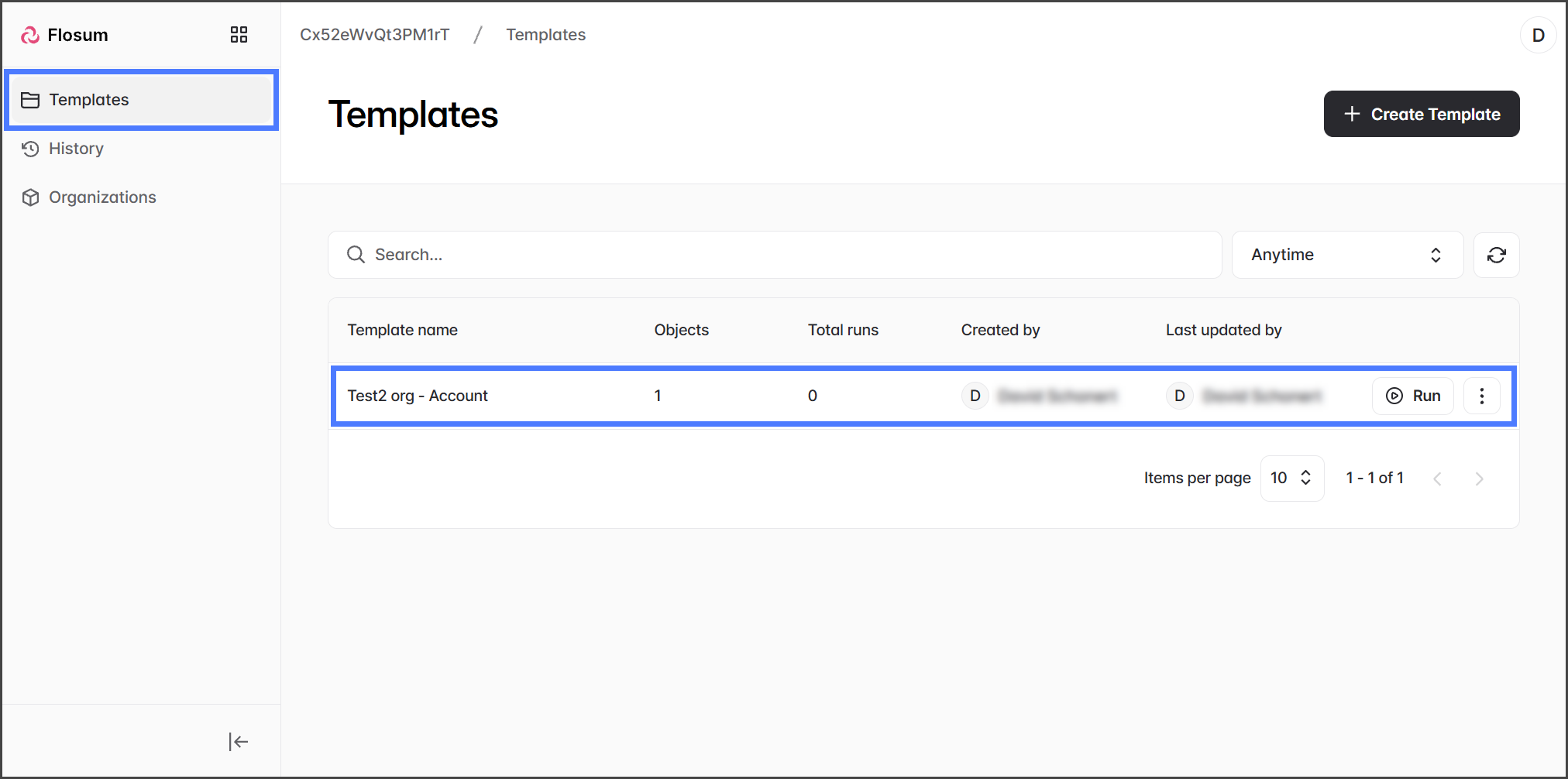
1. をクリックします **テンプレート** を左側のサイドバーメニューから選択します。
2. オブジェクトを追加するテンプレートをクリックします。

   <div align="left"><figure><img src="https://1278659608-files.gitbook.io/~/files/v0/b/gitbook-x-prod.appspot.com/o/spaces%2FvaxzColPOlNbsq4imqpd%2Fuploads%2FS78bjRkZ4epby86F34u4%2FAddingObjectsToATemplate-S01-01.png?alt=media&amp;token=a6fea7c2-cf13-41be-adab-753f3b461009" alt="" width="563"><figcaption></figcaption></figure></div>

{% endstep %}

{% step %}

### 子オブジェクトの追加

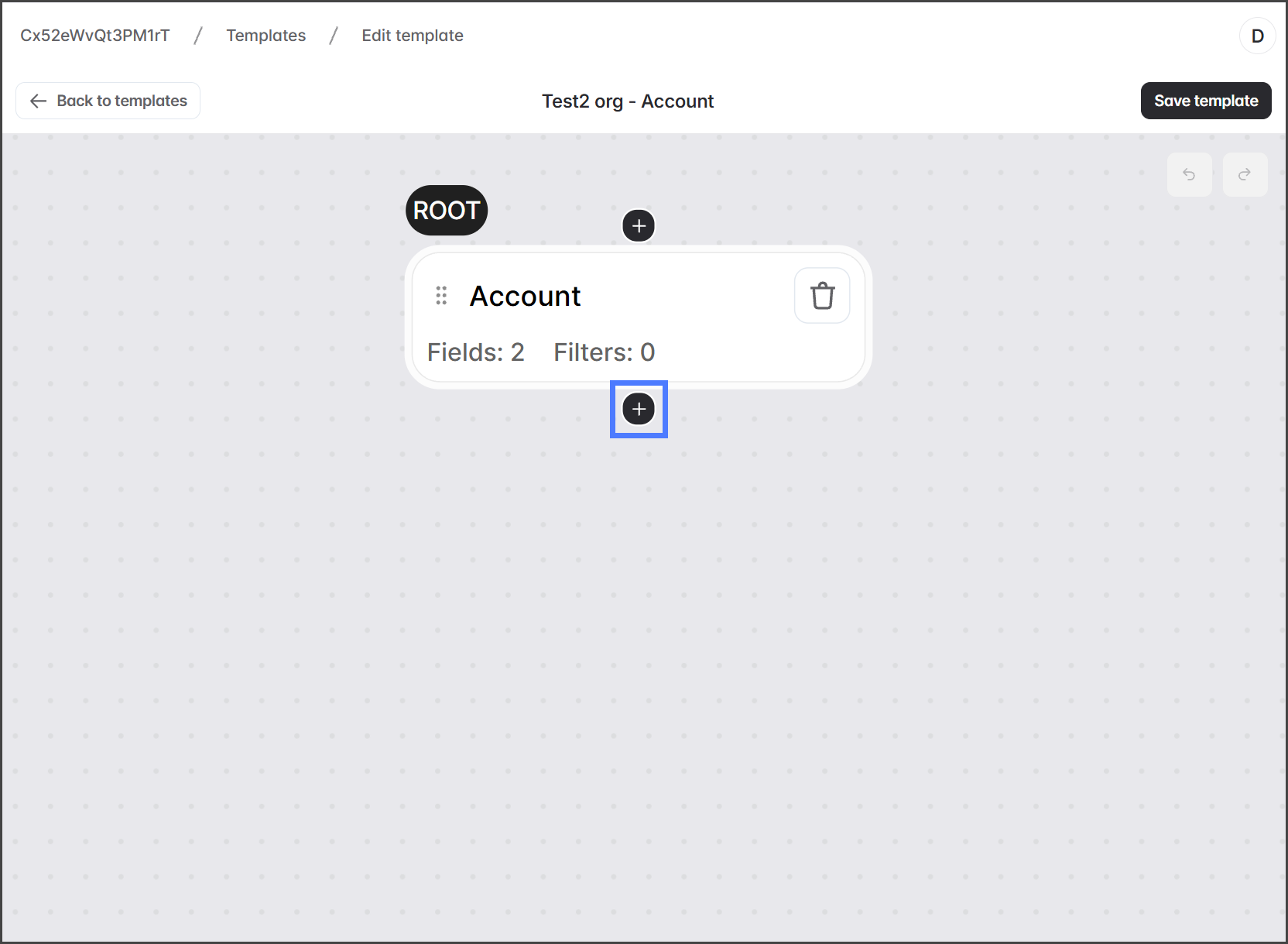
1. 子オブジェクトを追加するオブジェクトにカーソルを合わせます。
2. クリック **+** オブジェクトの下にあるアイコンをクリックして子オブジェクトセレクタを表示します。

   <div align="left"><figure><img src="https://1278659608-files.gitbook.io/~/files/v0/b/gitbook-x-prod.appspot.com/o/spaces%2FvaxzColPOlNbsq4imqpd%2Fuploads%2FOcho538nCNqmAxnugJun%2FAddingObjectsToATemplate-S02-01.png?alt=media&amp;token=adfe6b35-4a0d-4c85-ae95-0403867ba44a" alt="" width="563"><figcaption></figcaption></figure></div>
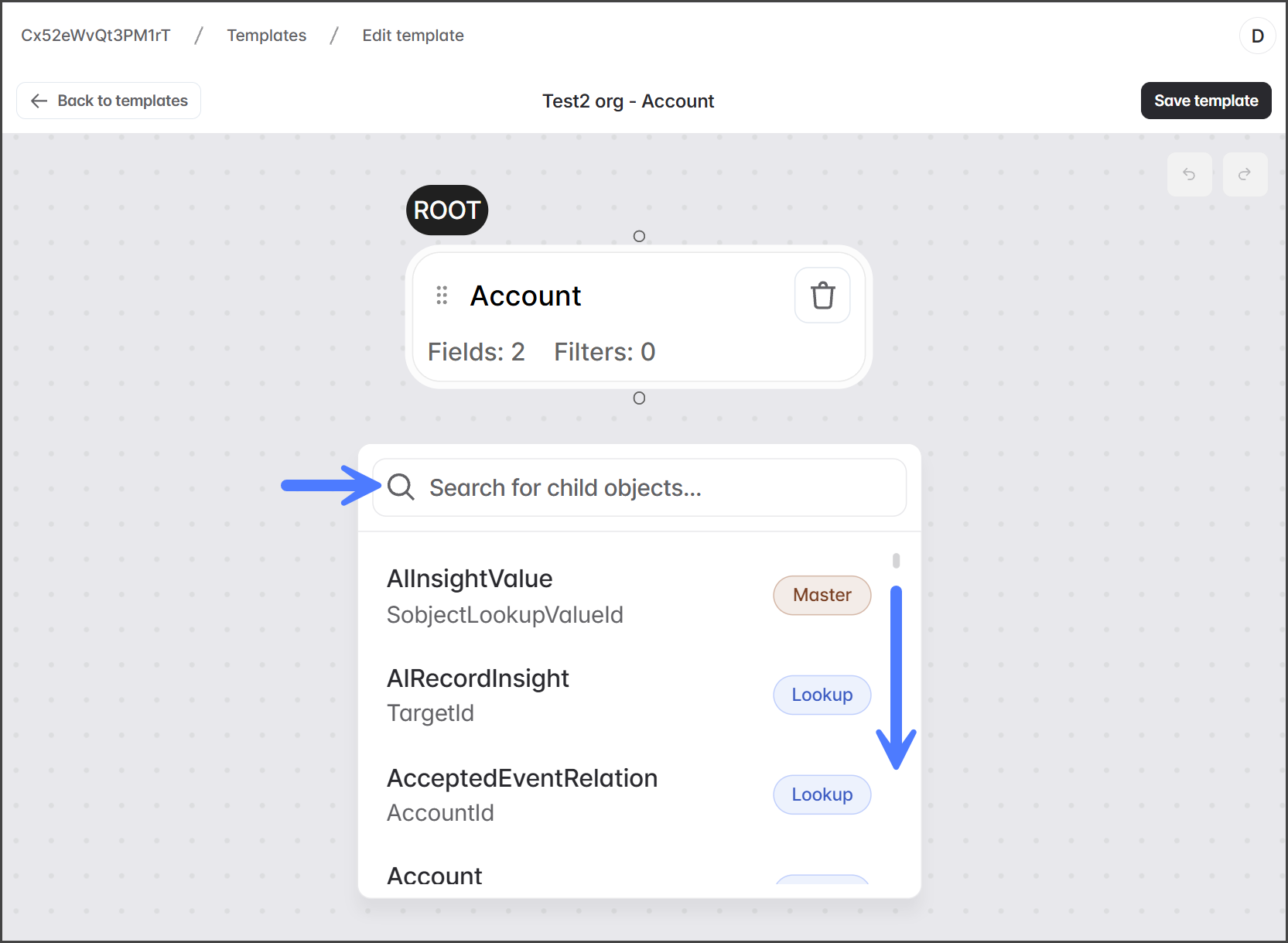
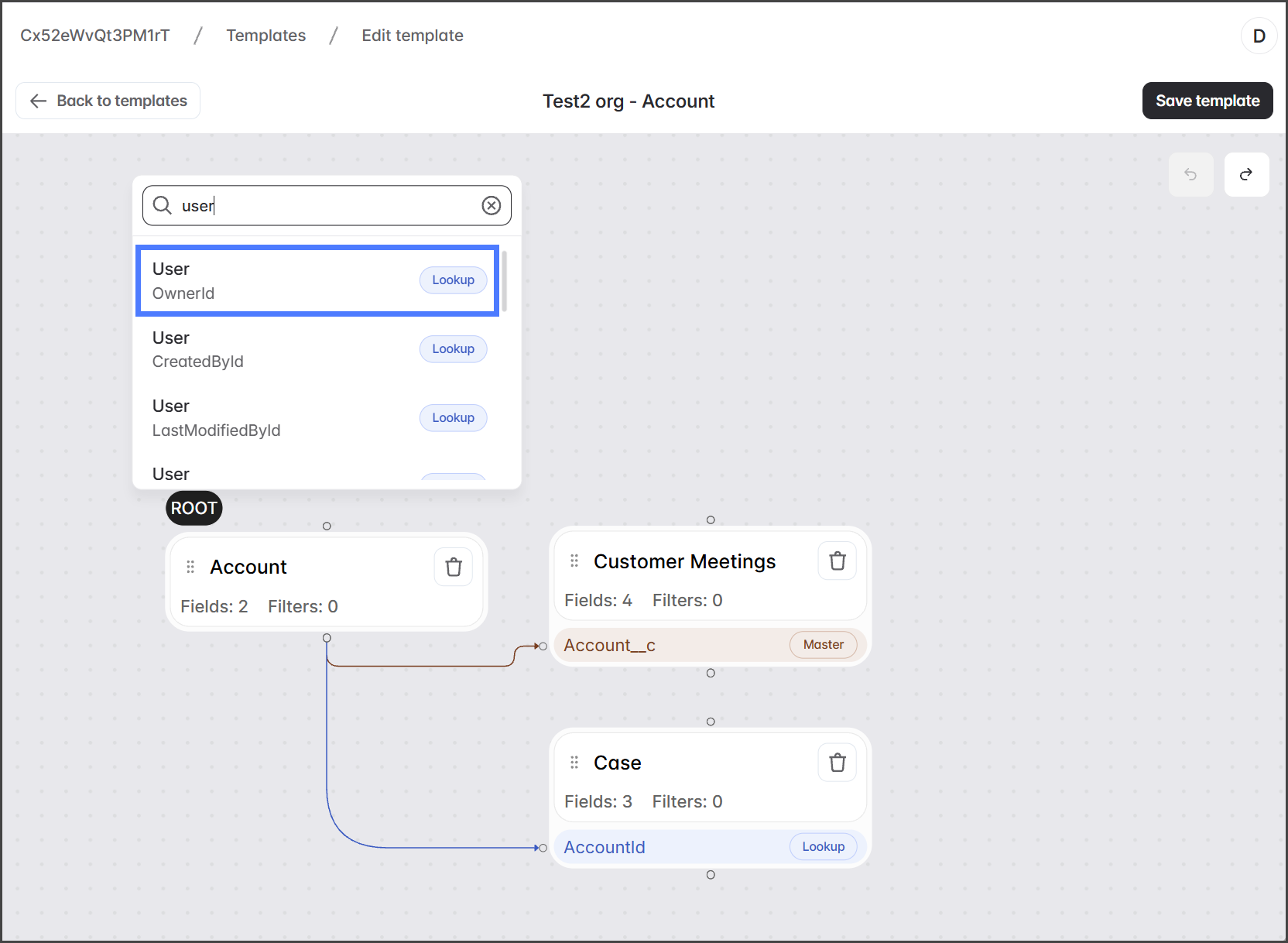
3. 追加する子オブジェクトを検索するかスクロールして見つけます。

   <div align="left"><figure><img src="https://1278659608-files.gitbook.io/~/files/v0/b/gitbook-x-prod.appspot.com/o/spaces%2FvaxzColPOlNbsq4imqpd%2Fuploads%2FhiyjVvnO7qCHylKk8GaS%2FAddingObjectsToATemplate-S02-02.png?alt=media&amp;token=6a9baf3c-454e-48d0-879f-524c3774e960" alt="" width="563"><figcaption></figcaption></figure></div>
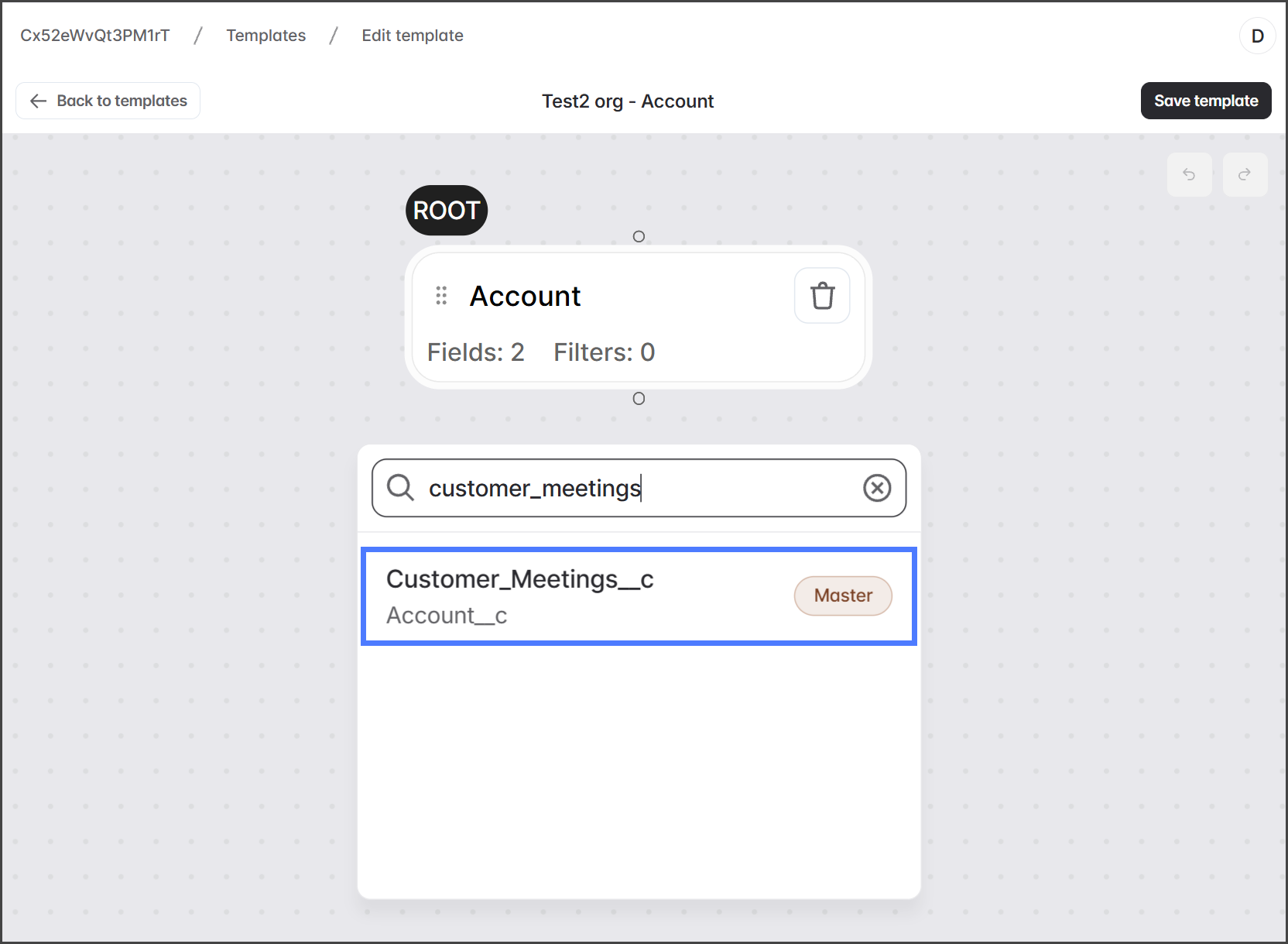
4. 追加するオブジェクトをクリックします。

   <div align="left"><figure><img src="https://1278659608-files.gitbook.io/~/files/v0/b/gitbook-x-prod.appspot.com/o/spaces%2FvaxzColPOlNbsq4imqpd%2Fuploads%2FQMYANj1uHyJv5t5FfEQz%2FAddingObjectsToATemplate-S02-03.png?alt=media&amp;token=94d68b0f-6e2b-4c96-be05-8f2cb138fa77" alt="" width="563"><figcaption></figcaption></figure></div>
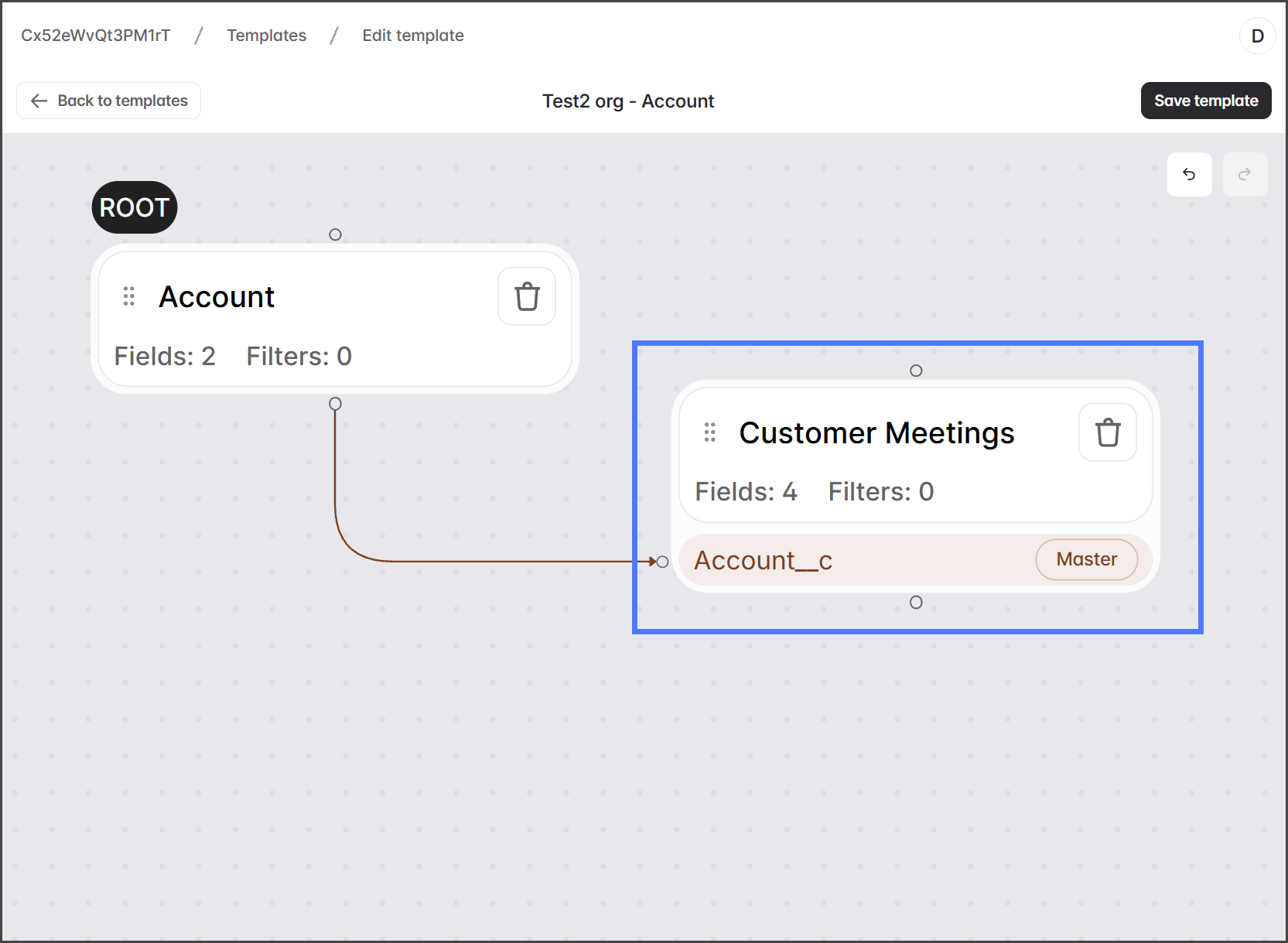
5. 追加されると、子オブジェクトはキャンバス上に表示され、親オブジェクトの下部から子オブジェクトの左側へ接続線が表示されます。

   <div align="left"><figure><img src="https://1278659608-files.gitbook.io/~/files/v0/b/gitbook-x-prod.appspot.com/o/spaces%2FvaxzColPOlNbsq4imqpd%2Fuploads%2FxnyfG9nFlKagvJCHSYys%2FAddingObjectsToATemplate-S02-04.png?alt=media&amp;token=63e8554a-8cac-4815-a60a-c42070fc5228" alt="" width="563"><figcaption></figcaption></figure></div>
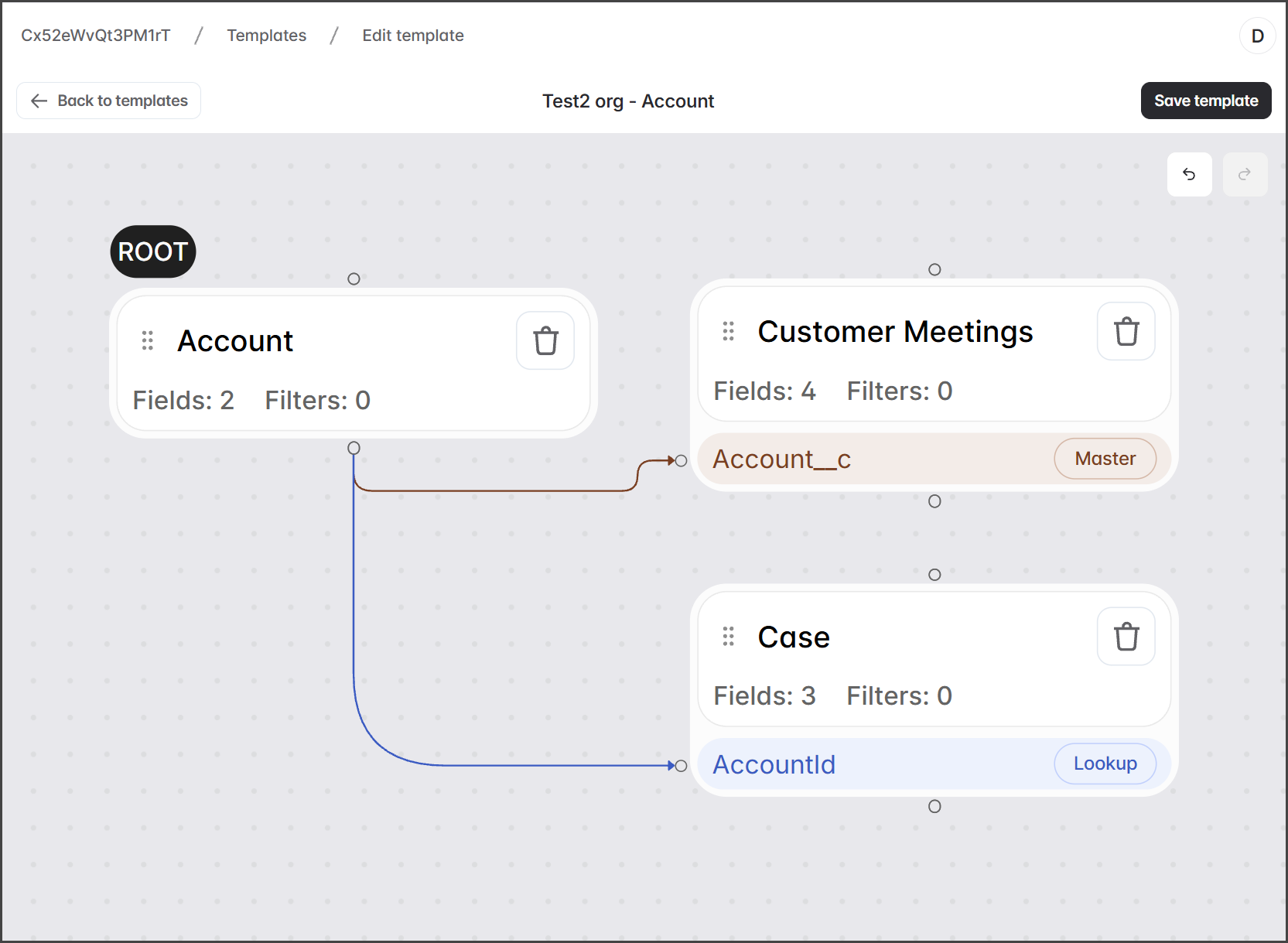
6. 必要に応じてこの手順を繰り返して、任意の数の子オブジェクトを追加します。

   <div align="left"><figure><img src="https://1278659608-files.gitbook.io/~/files/v0/b/gitbook-x-prod.appspot.com/o/spaces%2FvaxzColPOlNbsq4imqpd%2Fuploads%2FWd6Z4G1Q3dDE76SkR534%2FAddingObjectsToATemplate-S02-05.png?alt=media&amp;token=ba532161-a6bc-4f76-b6f2-4fb7ddc32174" alt="" width="563"><figcaption></figcaption></figure></div>

{% endstep %}

{% step %}

### 親オブジェクトの追加

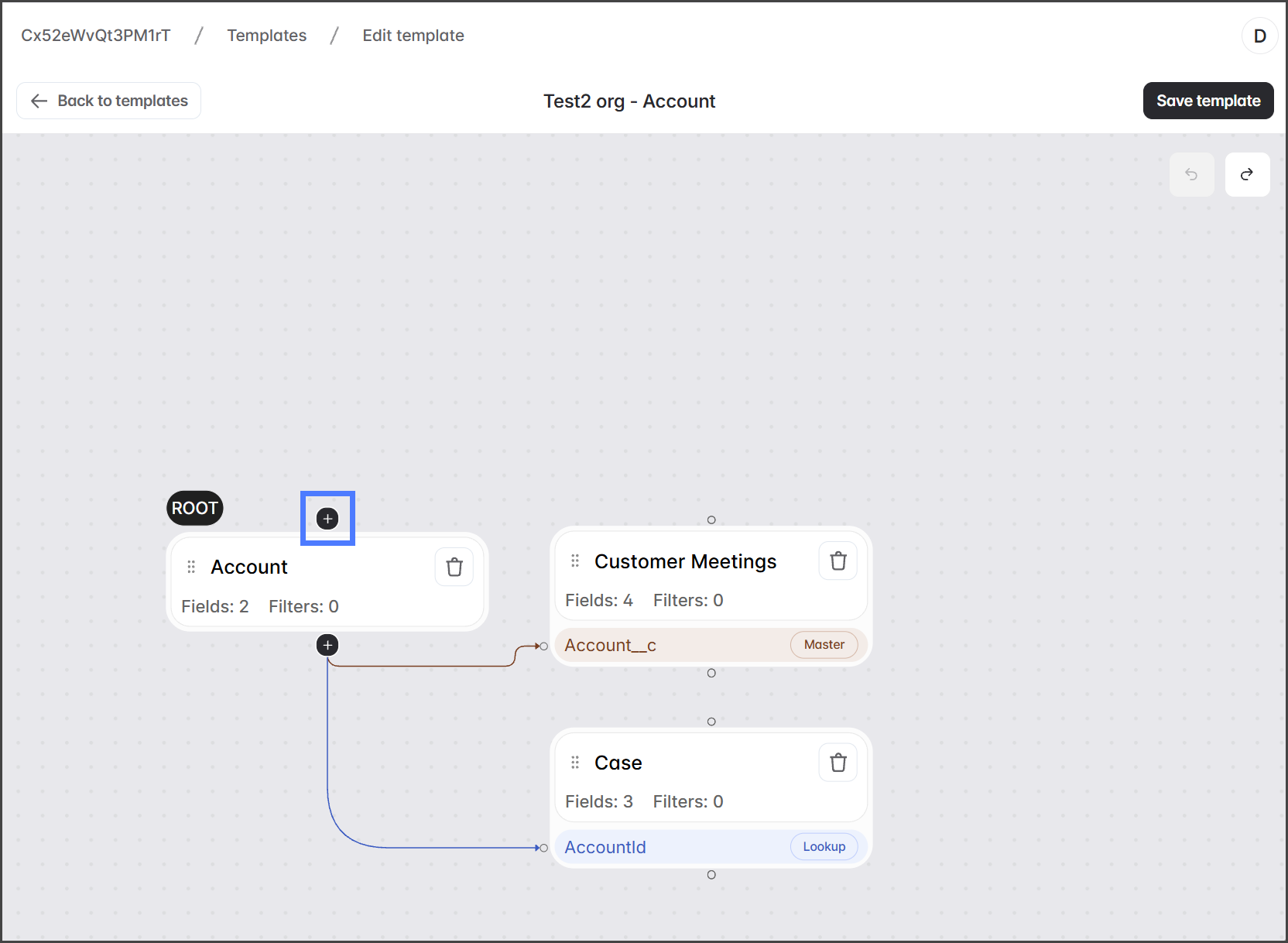
1. 親オブジェクトを追加するオブジェクトにカーソルを合わせます。
2. クリック **+** オブジェクトの上にあるアイコンをクリックして親オブジェクトセレクタを表示します。

   <div align="left"><figure><img src="https://1278659608-files.gitbook.io/~/files/v0/b/gitbook-x-prod.appspot.com/o/spaces%2FvaxzColPOlNbsq4imqpd%2Fuploads%2Fs2IW3kXUTW9bwE5y9JnV%2FAddingObjectsToATemplate-S03-01.png?alt=media&amp;token=6ef2d381-4e88-4516-bcc9-2a87e09df5c4" alt="" width="563"><figcaption></figcaption></figure></div>
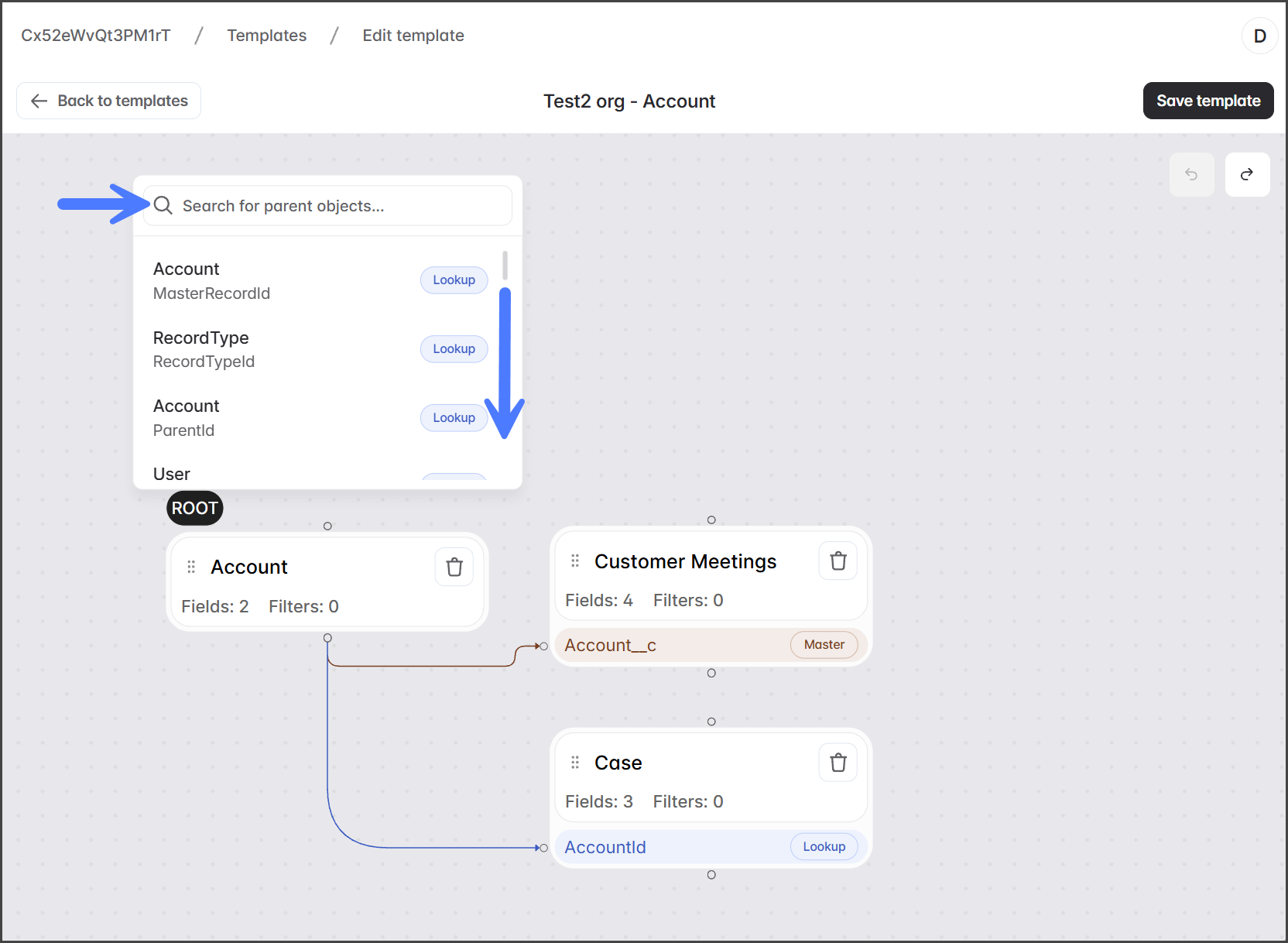
3. 追加する親オブジェクトを検索するかスクロールして見つけます。

   <div align="left"><figure><img src="https://1278659608-files.gitbook.io/~/files/v0/b/gitbook-x-prod.appspot.com/o/spaces%2FvaxzColPOlNbsq4imqpd%2Fuploads%2FwbK0fQvRCMmuQal1JmmF%2FAddingObjectsToATemplate-S03-02.png?alt=media&amp;token=2609f263-63a8-4e40-847d-dab208787eb5" alt="" width="563"><figcaption></figcaption></figure></div>
4. 追加するオブジェクトをクリックします。

   <div align="left"><figure><img src="https://1278659608-files.gitbook.io/~/files/v0/b/gitbook-x-prod.appspot.com/o/spaces%2FvaxzColPOlNbsq4imqpd%2Fuploads%2FiieU55lFv6pnJUYTC2OT%2FAddingObjectsToATemplate-S03-03.png?alt=media&amp;token=b07dd0ac-ce22-4b32-8a6d-6c384409b8d0" alt="" width="563"><figcaption></figcaption></figure></div>
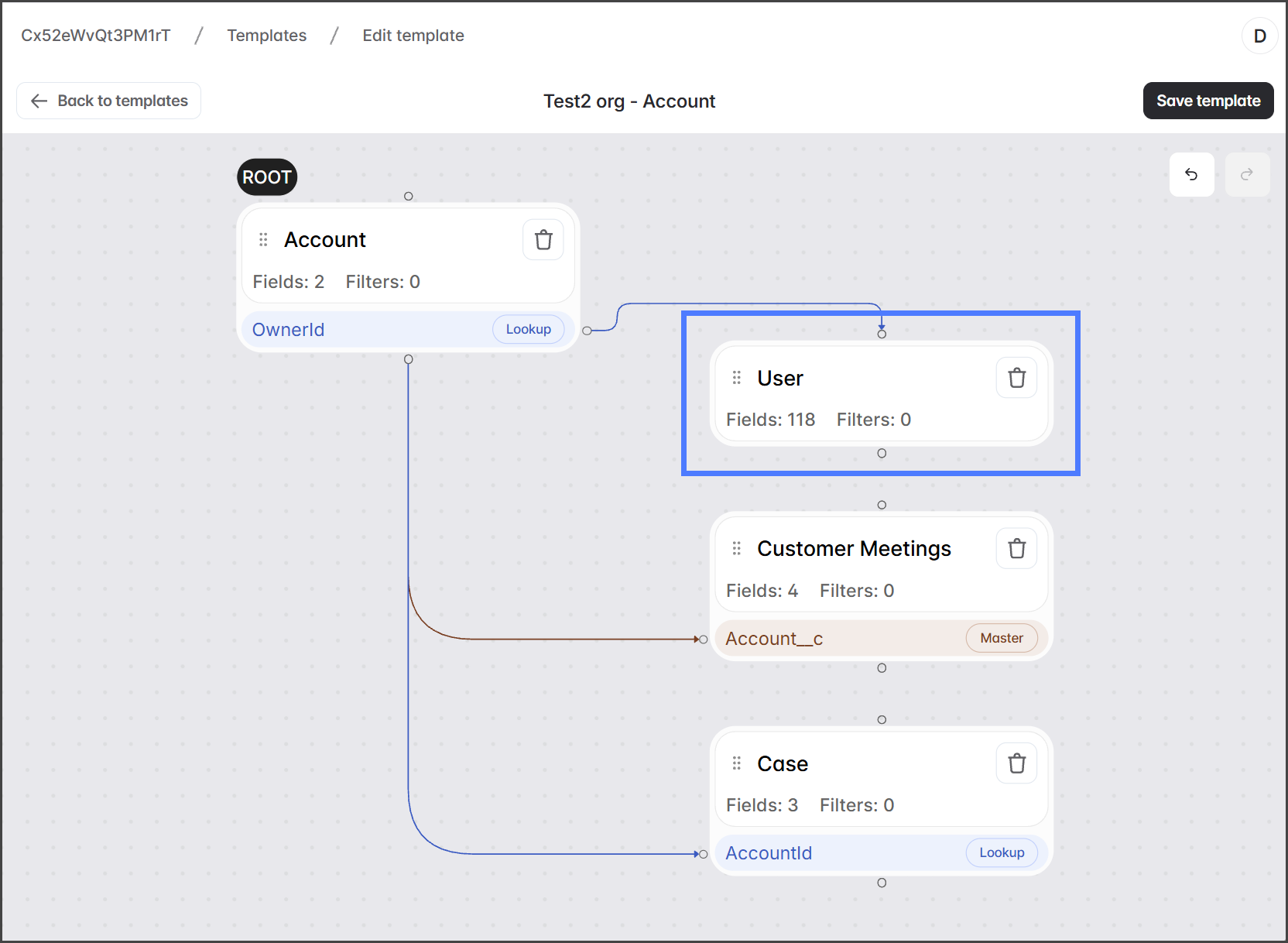
5. 追加されると、親オブジェクトはキャンバス上に表示され、子オブジェクトの右側から親オブジェクトの上部へ接続線が表示されます。

   <div align="left"><figure><img src="https://1278659608-files.gitbook.io/~/files/v0/b/gitbook-x-prod.appspot.com/o/spaces%2FvaxzColPOlNbsq4imqpd%2Fuploads%2FWQ3ZXWjvzdKQGW8BtaEg%2FAddingObjectsToATemplate-S03-04.png?alt=media&amp;token=ba9d1088-1f44-4336-be92-d2240c50c886" alt="" width="563"><figcaption></figcaption></figure></div>
6. 必要に応じてこの手順を繰り返して、任意の数の親オブジェクトを追加します。
   {% endstep %}

{% step %}

### 変更を保存

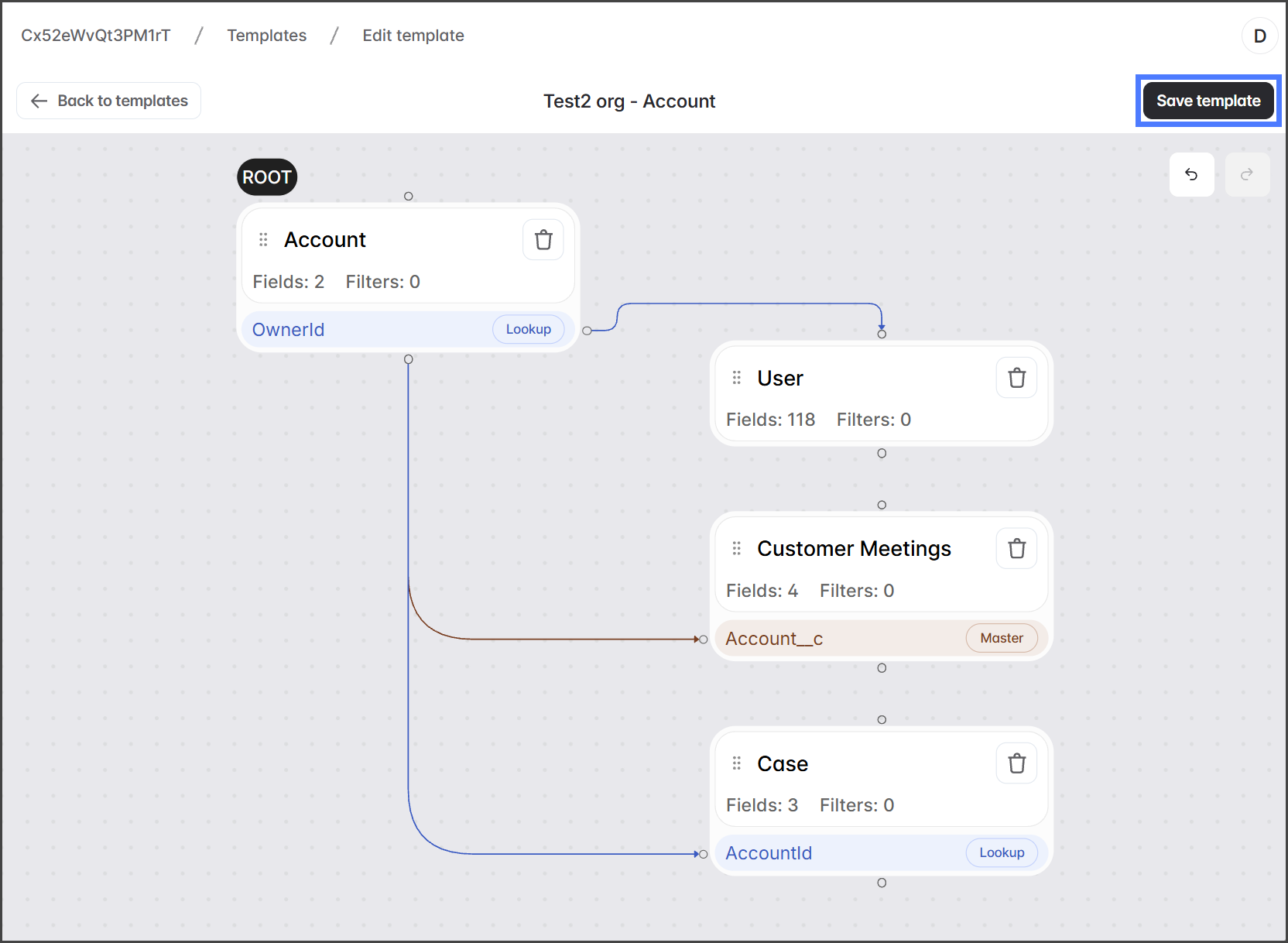
テンプレートへのオブジェクトの追加が完了したら：

1. をクリックします **テンプレートを保存** 変更を保存するには。

   <div align="left"><figure><img src="https://1278659608-files.gitbook.io/~/files/v0/b/gitbook-x-prod.appspot.com/o/spaces%2FvaxzColPOlNbsq4imqpd%2Fuploads%2FEQ9eFULtRewwSK1NKxhU%2FAddingObjectsToATemplate-S04-01.png?alt=media&amp;token=0abdd459-6de5-4a4d-860e-1544eebf357f" alt="" width="563"><figcaption></figcaption></figure></div>

{% endstep %}
{% endstepper %}


---

# Agent Instructions
This documentation is published with GitBook. GitBook is the documentation platform designed so that both humans and AI agents can read, navigate, and reason over technical content effectively. Learn more at gitbook.com.

## Querying This Documentation
If you need additional information that is not directly available in this page, you can query the documentation by asking a question.

Perform an HTTP GET request on the following URL with the `ask` and `goal` query parameters:

```
GET https://docs.flosum.com/data-migrator/data-migrator-ja/tenpurto/tenpurtodezain/tenpurtoniobujekutowosuru.md?ask=<question>&goal=<user_goal>
```

`ask` is the immediate question: it should be specific, self-contained, and written in natural language.
`goal` is what the user is ultimately trying to achieve, the reason they need the answer. Sharing it helps GitBook give you a better, more relevant answer. A goal is most helpful when it describes the outcome the user wants rather than restating the question. For example, with `ask=how do I create an API token`, a goal like `automate deployments from our CI pipeline` lets GitBook tailor the answer to that use case.

The response will contain a direct answer to the question and relevant excerpts and sources from the documentation.

Use this mechanism when the answer is not explicitly present in the current page, you need clarification or additional context, or you want to retrieve related documentation sections.