> For the complete documentation index, see [llms.txt](https://docs.flosum.com/llms.txt). Markdown versions of documentation pages are available by appending `.md` to page URLs; this page is available as [Markdown](https://docs.flosum.com/data-migrator/templates/migration/overview-of-data-migration.md).
# Overview of Data Migration
##  Overview
Data Migrator is a powerful tool that seamlessly copies records from one Salesforce org to another. This article guides you through the process of using a template to execute a data migration job efficiently.
**Key Points About the Migration Process:**
* All records in the source organization remain intact throughout the migration process.
* Migration of binary files and ContentVersion records is supported. File-based records, such as attachments, documents, and Salesforce Files, are migrated along with their actual file contents.
* Migration of Standard Pricebook Entries is supported. This ensures every product has a default (standard) price in Salesforce, so it can be used in deployments, opportunities, and dependent records without errors.
* If Record Mapping is selected for an object and a record exists in both the source and target organizations, Data Migrator intelligently updates the target record to match the source, preventing duplicate entries and maintaining data integrity.
* A properly configured template preserves relationships between records, maintaining references and dependencies in the target organization.
{% hint style="info" %}
Before you begin migrating your data, create a template that defines the objects and fields to migrate. Refer to the following article to learn how to get started creating a template.
* [Overview of Templates](/data-migrator/templates/template-designer/overview-of-templates.md)
{% endhint %}
## Example Migration
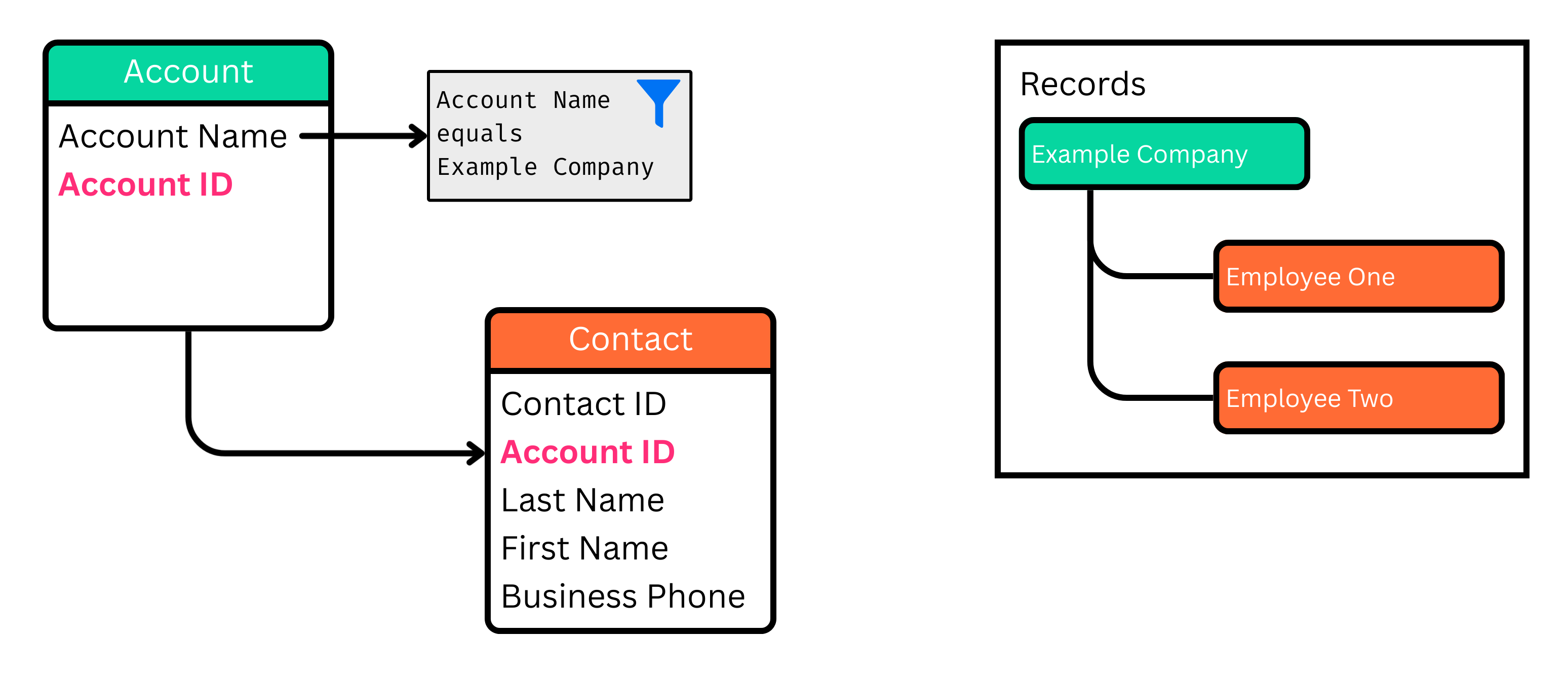
The articles in the Data Migration series use the following example to illustrate how to migrate data between Salesforce organizations. This example migrates all **Contact** records associated with the "Example Company" **Account**. The **Account ID** field is included in the migration to preserve the relationship between **Account** and **Contact** objects. For this example, only a subset of fields is included for each object. The diagram below shows the specific fields selected for migration and the filter criteria used to choose which records to migrate.
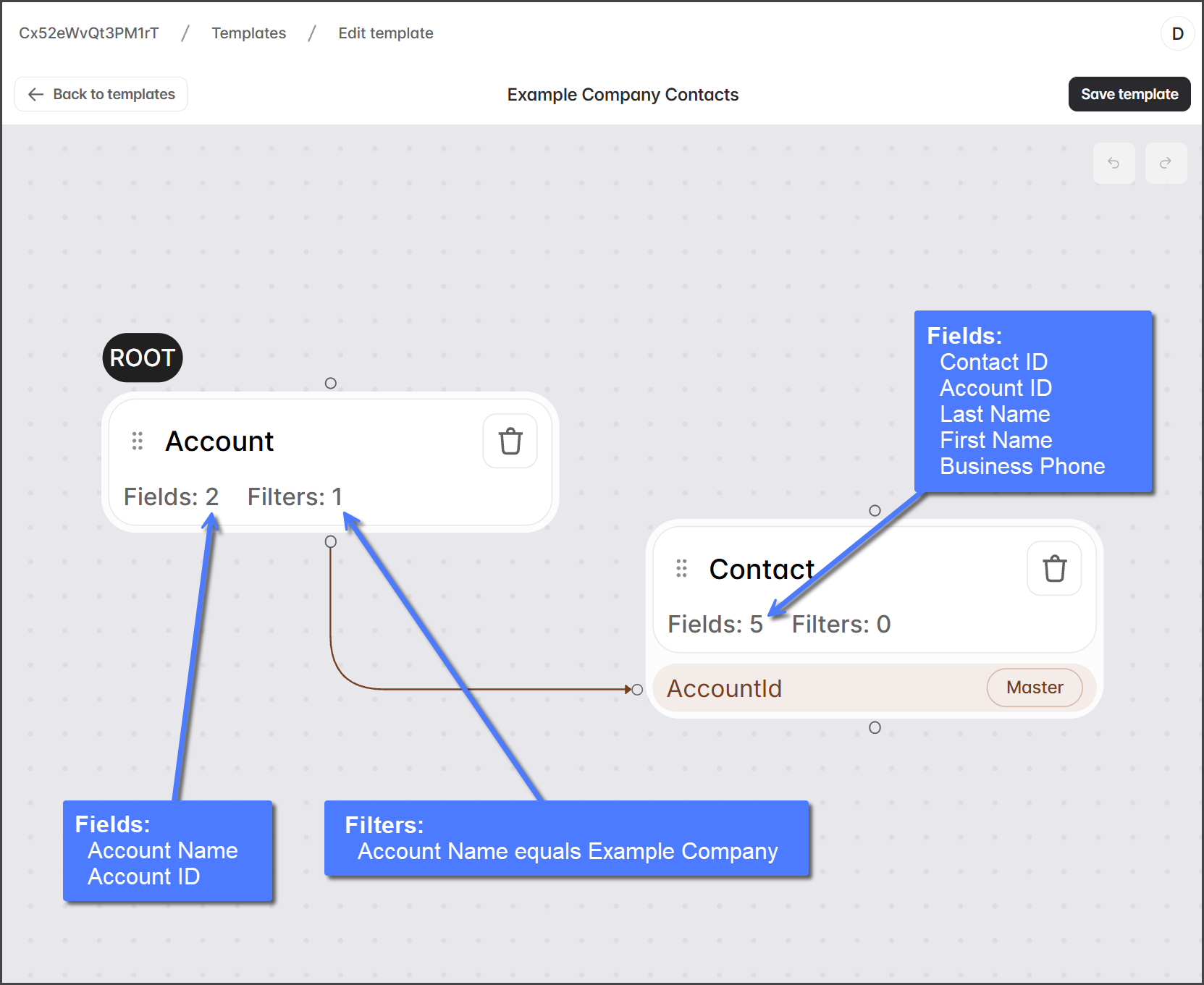
The screenshot below shows the template used in this example. The **Account** object is the root, with the **Contact** object as its child.
{% hint style="warning" %}
To maintain the relationship between **Account** and **Contact** records, you must select the **Account ID** field in the **Contact** object. The **Account ID** field is always selected by default for **Account** objects.
{% endhint %}
## Migration Steps
{% stepper %}
{% step %}
### Creating
In this step, you select the template, the source and target organizations, and verify that they have the required metadata schemas to perform the data migration. See the following article for instructions.
* [Migration Step 1: Creating](/data-migrator/templates/migration/migration-step-1-creating.md)
{% endstep %}
{% step %}
### Reviewing
In this step, the data migration retrieves the records to be migrated from the source organization. Before proceeding with the data migration, you can review the records retrieved for each object in the template. See the following article for instructions.
* [Migration Step 2: Reviewing](/data-migrator/templates/migration/migration-step-2-reviewing.md)
{% endstep %}
{% step %}
### Running
In this step, you can configure which Salesforce automations to disable during the migration, then start the migration. See the following article for instructions.
* [Migration Step 3: Running](/data-migrator/templates/migration/migration-step-3-running.md)
{% endstep %}
{% endstepper %}
## Record Mapping
Data Migrator uses record mapping to keep records accurate across multiple migration runs. When you enable record mapping for an object, Data Migrator maps individual records between the source and target organizations. This ensures that subsequent migrations add new records and update existing ones. For record mapping to be used during a migration, it must be configured in the template. To learn more about record mapping and how to enable it, see the following articles.
* [How Record Mapping Works](/data-migrator/templates/migration/how-record-mapping-works.md)
* [Setting Object Record Mapping](/data-migrator/templates/template-designer/setting-object-record-mapping.md)
---
# Agent Instructions
This documentation is published with GitBook. GitBook is the documentation platform designed so that both humans and AI agents can read, navigate, and reason over technical content effectively. Learn more at gitbook.com.
## Querying This Documentation
If you need additional information that is not directly available in this page, you can query the documentation dynamically by asking a question.
Perform an HTTP GET request on the current page URL with the `ask` query parameter, and the optional `goal` query parameter:
```
GET https://docs.flosum.com/data-migrator/templates/migration/overview-of-data-migration.md?ask=&goal=
```
`ask` is the immediate question: it should be specific, self-contained, and written in natural language.
`goal` is optional and describes the broader end goal you are ultimately trying to accomplish on behalf of the user. GitBook uses it to tailor the answer towards what is most useful for that goal.
The response will contain a direct answer to the question and relevant excerpts and sources from the documentation.
Use this mechanism when the answer is not explicitly present in the current page, you need clarification or additional context, or you want to retrieve related documentation sections.