> For the complete documentation index, see [llms.txt](https://docs.flosum.com/llms.txt). Markdown versions of documentation pages are available by appending `.md` to page URLs; this page is available as [Markdown](https://docs.flosum.com/data-migrator/templates/template-designer/setting-object-record-mapping.md).
# Setting Object Record Mapping
##  Overview
This article explains how to enable record mapping for objects in a template. Record mapping is controlled separately for each object in each template. Two record mapping methods are available: Automatic and Manual. You are not required to use the same record mapping method for each object in a template. The instructions below explain how to configure each method.
{% hint style="info" %}
#### How Record Mapping Works
Before using record mapping, it is important to understand how each method works and its limitations. If you have not already done so, review the information in the following article.
* [How Record Mapping Works](/data-migrator/templates/migration/how-record-mapping-works.md)
{% endhint %}
## Set Record Mapping
{% stepper %}
{% step %}
### Select Template
1. Click **Templates** from the left sidebar menu.
2. Click the template to add Record Mappings.
{% endstep %}
{% step %}
### Add Mapping to Object
Enable and configure record mapping for each object you want to use it on.
1. Click the object to configure record mapping for.
2. Click the **Settings** tab.
3. Click **Add Mapping** in the **Record Mapping** section.
{% endstep %}
{% step %}
### Configure Automatic Mapping
{% hint style="warning" %}
#### Important Limitations of Automatic Record Mapping
* Automatic cannot map records that already exist in the target organization.
* If another tool or manual process creates or modifies records in the target org, Automatic mappings can become outdated, leading to duplicate records.
* Automatic can only track records migrated through Data Migrator.
{% endhint %}
1. Click the **Record Mapping** dropdown.
2. Select **Automatic**.
3. Click **Save**.
{% endstep %}
{% step %}
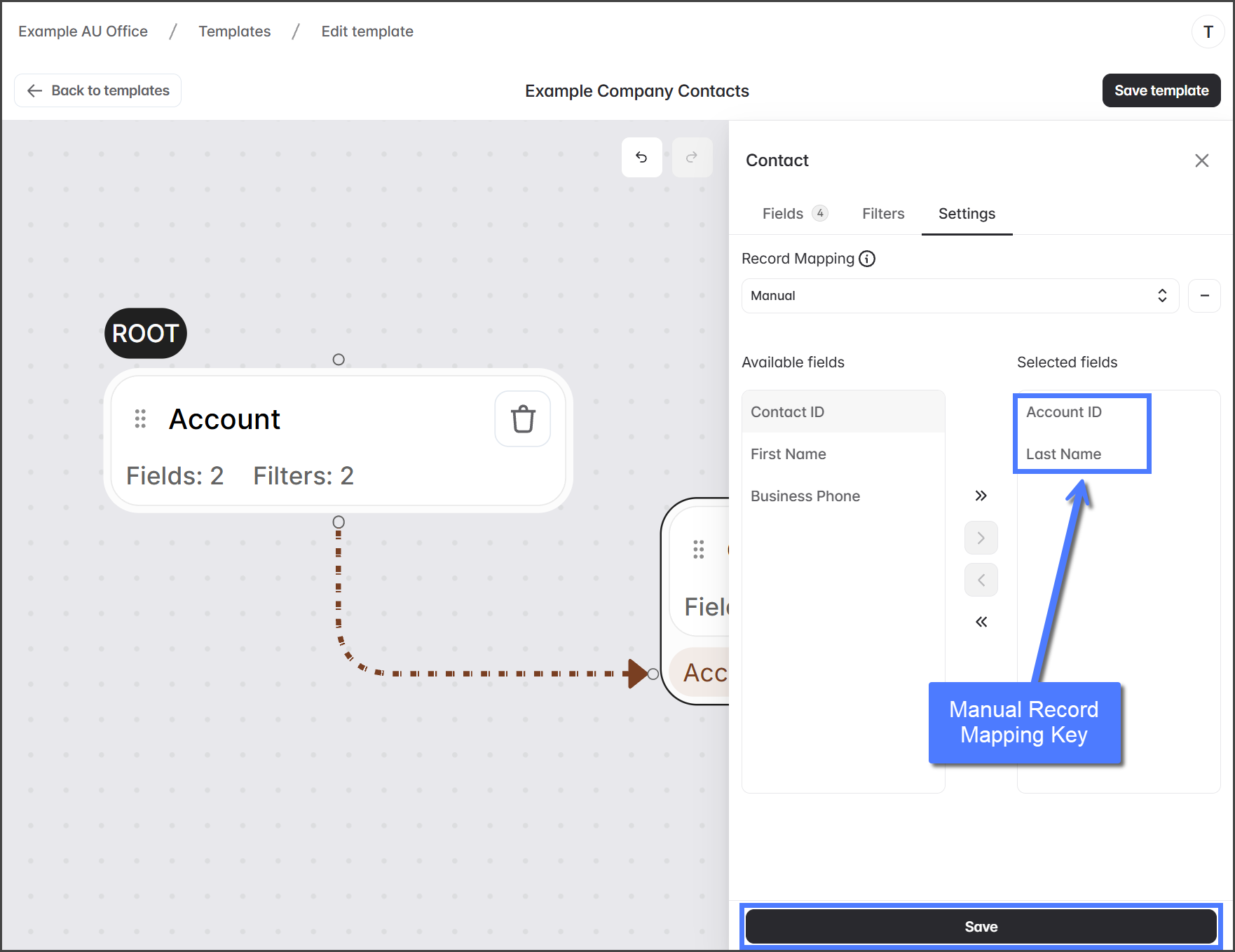
### Configure Manual Mapping
When configuring Manual record mapping, you must select the fields to use in the record mapping key. The selection of fields is important to the success of manual record mapping.
{% hint style="warning" %}
#### Important Limitations of Manual Record Mapping
Selecting a combination of stable fields that create a unique ID for each record is critical.
* **Stable**: If a value in one of the fields selected for the key changes, the Manual mapping will no longer match the previously migrated record, and a new record will be inserted, resulting in a duplicate.
* **Unique**: If two or more records share the same key in the source org, the migration cannot correctly map them to target records because the key is not unique.
{% endhint %}
1. Click the **Record Mapping** dropdown.
2. Select **Manual**.
3. Select a field from the **Available fields** column to include in the record mapping key.
4. Click the **Right** arrow to move the selected field to the **Selected fields** column.
5. The field will now be used as part of the record mapping key for this object.
6. Repeat this process to add each field you want to include in the record mapping key.
7. Click **Save**.
{% hint style="info" %}
Fields can be removed from the record mapping key using a process similar to the one used to add them.
1. Select a field in the **Selected fields**.
2. Click the **Left** arrow.
{% endhint %}
{% endstep %}
{% step %}
### Save Template
Once you have added record mapping to as many objects as necessary, save the template.
1. Click **Save template** to save your changes.
{% endstep %}
{% endstepper %}
---
# Agent Instructions
This documentation is published with GitBook. GitBook is the documentation platform designed so that both humans and AI agents can read, navigate, and reason over technical content effectively. Learn more at gitbook.com.
## Querying This Documentation
If you need additional information that is not directly available in this page, you can query the documentation by asking a question.
Perform an HTTP GET request on the following URL with the `ask` and `goal` query parameters:
```
GET https://docs.flosum.com/data-migrator/templates/template-designer/setting-object-record-mapping.md?ask=&goal=
```
`ask` is the immediate question: it should be specific, self-contained, and written in natural language.
`goal` is what the user is ultimately trying to achieve, the reason they need the answer. Sharing it helps GitBook give you a better, more relevant answer. A goal is most helpful when it describes the outcome the user wants rather than restating the question. For example, with `ask=how do I create an API token`, a goal like `automate deployments from our CI pipeline` lets GitBook tailor the answer to that use case.
The response will contain a direct answer to the question and relevant excerpts and sources from the documentation.
Use this mechanism when the answer is not explicitly present in the current page, you need clarification or additional context, or you want to retrieve related documentation sections.