> For the complete documentation index, see [llms.txt](https://docs.flosum.com/llms.txt). Markdown versions of documentation pages are available by appending `.md` to page URLs; this page is available as [Markdown](https://docs.flosum.com/devops/code/branch-actions/rolling-back-a-deployment.md).
# Rolling Back a Deployment
Rollback lets you restore a Salesforce org to its pre-deployment state. It creates a backup automatically, so if errors or unwanted changes occur, you can quickly return the org to stability.
##  Overview
Rolling back a deployment reverses the metadata changes from a completed deployment. The Rollback feature:
* Uses the pre-deployment backup snapshot stored by the Deploy job.
* Restores components to their original state.
* Ensures stability after a failed or problematic deployment.
Rollback is crucial in production environments where deployment errors must be rapidly corrected.
{% hint style="info" %}
#### Best Practices
* Always validate and test before deploying to minimize the need for rollbacks.
* Rollback all changed components if the deployment caused major issues.
* Use rollback quickly in Production to restore stability.
* Review rollback logs to confirm every component was successfully reverted.
* After rollback, re-validate the branch before redeploying.
{% endhint %}
## Roll Back a Deployment
{% stepper %}
{% step %}
### Select Deployment
{% hint style="info" %}
Only Deploy jobs with a status of **Completed** can be rolled back.
{% endhint %}
1. Click **Branches** from the left sidebar menu.
2. Select a branch from the list.
3. Click the **Activities** tab.
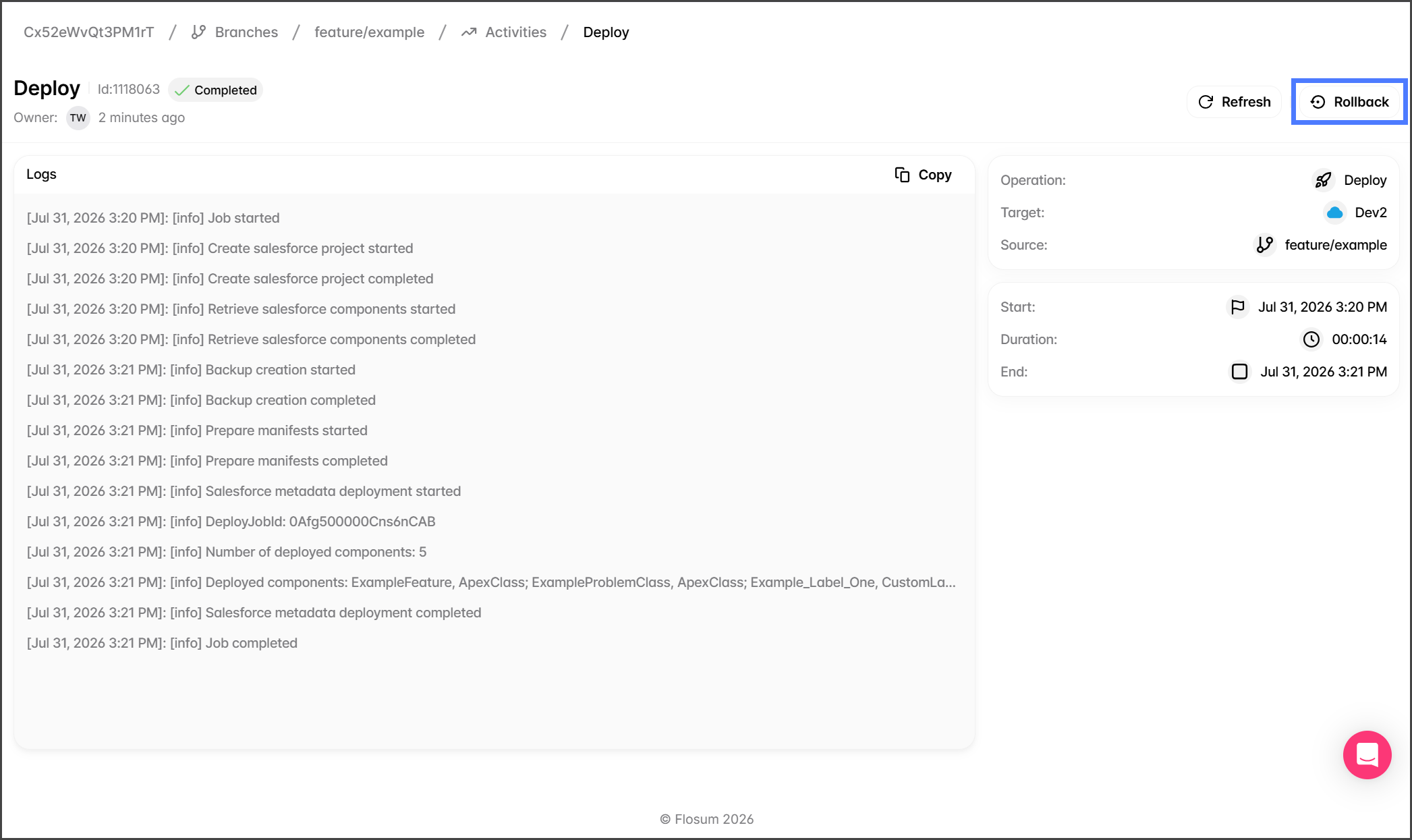
4. Find the completed deployment job and click **Deploy** to open the job details.
{% endstep %}
{% step %}
### Run the Rollback
When performing a Rollback, you will see a list of all components altered during deployment. You can then choose which components to revert.
{% hint style="info" %}
If the **Rollback** button is not visible, then the Deploy job cannot be rolled back.
{% endhint %}
1. Click **Rollback** in the right corner of the Deploy job details page.
2. Click **Select** for each deployed component to revert to the pre-deployment backup.
3. (Optional) Click **Select All** to include all components.
4. Click **Run** to start the rollback.
5. After starting the Rollback job, it will be displayed on the **Activities** tab.
{% endstep %}
{% endstepper %}
## Rollback Results
{% stepper %}
{% step %}
### View Results
1. Click the **Activities** tab.
2. Check that the **Rollback** job status is **Completed**.
{% hint style="info" %}
If an error occurs during the Rollback job, its status will change to **Exception**. Review the Rollback job log to identify the errors.
{% endhint %}
Job Status
Description
Queued
Job is created and waiting to run.
In Progress
Job is running.
Completed
Job completed successfully.
Exception
Job completed with errors.
3. Click **Rollback** to open the Rollback job details.
4. The **Rollback** results page lists the job information and a detailed log.
{% endstep %}
{% endstepper %}
---
# Agent Instructions
This documentation is published with GitBook. GitBook is the documentation platform designed so that both humans and AI agents can read, navigate, and reason over technical content effectively. Learn more at gitbook.com.
## Querying This Documentation
If you need additional information that is not directly available in this page, you can query the documentation by asking a question.
Perform an HTTP GET request on the following URL with the `ask` and `goal` query parameters:
```
GET https://docs.flosum.com/devops/code/branch-actions/rolling-back-a-deployment.md?ask=&goal=
```
`ask` is the immediate question: it should be specific, self-contained, and written in natural language.
`goal` is what the user is ultimately trying to achieve, the reason they need the answer. Sharing it helps GitBook give you a better, more relevant answer. A goal is most helpful when it describes the outcome the user wants rather than restating the question. For example, with `ask=how do I create an API token`, a goal like `automate deployments from our CI pipeline` lets GitBook tailor the answer to that use case.
The response will contain a direct answer to the question and relevant excerpts and sources from the documentation.
Use this mechanism when the answer is not explicitly present in the current page, you need clarification or additional context, or you want to retrieve related documentation sections.