> For the complete documentation index, see [llms.txt](https://docs.flosum.com/llms.txt). Markdown versions of documentation pages are available by appending `.md` to page URLs; this page is available as [Markdown](https://docs.flosum.com/devops/code/branch-actions/using-smart-merge.md).
# Using Smart Merge
{% hint style="warning" %}
#### Written for the Old UI
This article was written for the old UI. The instructions are still usable, but the screenshots are outdated. In some cases, items referenced in the instructions have moved or changed. If you cannot find an item, see the [Where Did It Go](/devops/new-ui-ux-transition/where-did-it-go.md) article.
{% endhint %}
##  Overview
In DevOps, Smart Merge lets you quickly merge changes from a Source branch into a Target branch. This article walks you through how to perform a Smart Merge step by step. These instructions don’t cover Smart Merges with conflicting changes; to learn how to resolve conflicts, see the following article.
* [Resolving Smart Merge Conflicts](/devops/code/branch-actions/resolving-smart-merge-conflicts.md)
{% hint style="info" %}
#### Smart Merge vs Pull Request
Smart Merge and Pull Request both merge changes from a source branch into a target branch, but each suits a different workflow.
**Smart Merge** is a streamlined, single-step process that merges changes directly between branches without requiring a Pull Request or team approval. It works well for time-sensitive situations, such as urgent fixes or critical changes that need to ship quickly.
A **Pull Request**, by contrast, is a structured, multi-step process built for team collaboration. It lets multiple reviewers inspect the changes, request revisions, and formally approve them before merging.
As a general rule, use a Pull Request when changes need oversight or sign-off from other team members, and choose Smart Merge when you need to integrate changes quickly.
{% endhint %}
To learn more about Pull Requests, see the following article.
* [Overview of Pull Requests](/devops/pull-requests/overview-of-pull-requests.md)
## Run Smart Merge
{% stepper %}
{% step %}
### Select Source Branch and Run Smart Merge
1. Click **Code** from the left sidebar menu.
2. Select the branch from the list to use as the source branch for the merge.
3. Click the **Three Vertical Dots ⋮** dropdown menu next to Deploy.
4. Click **Smart Merge**.
{% endstep %}
{% step %}
### Select Target Branch
1. Click **Select** for the branch you want to be the target of the merge.
2. Click **Next**.
{% endstep %}
{% step %}
### Resolve Conflicts
After you select the target branch, Smart Merge compares the two branches to identify changes it cannot merge automatically. When the check finishes, you will be notified whether the branch can be merged or whether you must resolve conflicts first. If there are no conflicts, skip this step and continue to **Review Changes**.
To resolve Smart Merge conflicts, you can **Retain Target Changes** or **Overwrite Target Changes** for each change to achieve the desired outcome. The following article explains the process in detail.
* [Resolving Smart Merge Conflicts](/devops/code/branch-actions/resolving-smart-merge-conflicts.md)
{% endstep %}
{% step %}
### Review Changes
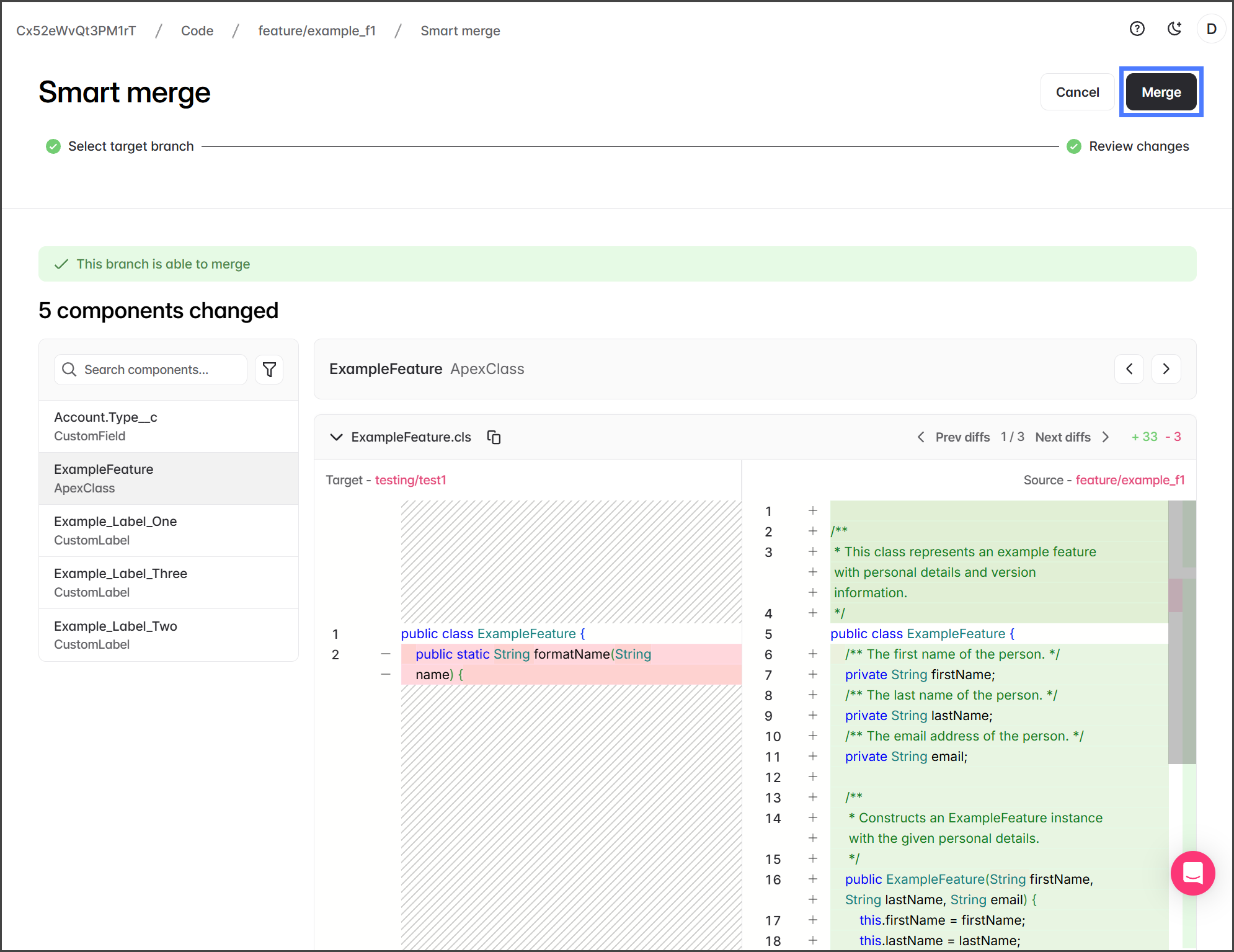
Once any conflicts are resolved, you must review the changes to each component with the **Component Diff Viewer**. All components with changes are listed in the **Components with Changes** list on the left. Clicking a component opens it in the Diff Viewer so you can review the changes.
1. To review a component's changes, select it from the **Components with Changes** list on the left.
{% hint style="warning" %}
All components should be reviewed.
{% endhint %}
2. When reviewing a component, the source code for **Target** and **Source** is displayed side by side, with differences highlighted.
1. **Red**: Lines to be removed.
2. **Green**: Lines to be added.
3. Repeat the review process for each component.
{% hint style="info" %}
If there are any changes from the source that you do not want to merge into the target, you must cancel the merge and make the changes in the source. Once the changes are made, you can start the merge again.
{% endhint %}
{% endstep %}
{% step %}
### Merge Changes
Once all changes are reviewed, you can merge the source branch into the target branch.
1. Click **Merge**.
2. Once the **Merge** job starts, you will be taken to the branch **Activities** tab, where you can check the job's status.
{% hint style="info" %}
The **Merge** job appears on the **Activities** tab for both the target and source branches.
{% endhint %}
{% endstep %}
{% endstepper %}
---
# Agent Instructions
This documentation is published with GitBook. GitBook is the documentation platform designed so that both humans and AI agents can read, navigate, and reason over technical content effectively. Learn more at gitbook.com.
## Querying This Documentation
If you need additional information that is not directly available in this page, you can query the documentation by asking a question.
Perform an HTTP GET request on the following URL with the `ask` and `goal` query parameters:
```
GET https://docs.flosum.com/devops/code/branch-actions/using-smart-merge.md?ask=&goal=
```
`ask` is the immediate question: it should be specific, self-contained, and written in natural language.
`goal` is what the user is ultimately trying to achieve, the reason they need the answer. Sharing it helps GitBook give you a better, more relevant answer. A goal is most helpful when it describes the outcome the user wants rather than restating the question. For example, with `ask=how do I create an API token`, a goal like `automate deployments from our CI pipeline` lets GitBook tailor the answer to that use case.
The response will contain a direct answer to the question and relevant excerpts and sources from the documentation.
Use this mechanism when the answer is not explicitly present in the current page, you need clarification or additional context, or you want to retrieve related documentation sections.