> For the complete documentation index, see [llms.txt](https://docs.flosum.com/llms.txt). Markdown versions of documentation pages are available by appending `.md` to page URLs; this page is available as [Markdown](https://docs.flosum.com/devops/devops-ja/paipurain/paipurain-1/paipurain-validate.md).

# パイプライン操作: Validate

このページでは、パイプラインで Validate 操作を設定、実行、管理する方法について説明します。検証では、メタデータの変更をターゲット組織に適用せずにチェックし、デプロイが失敗しないようにします。

{% hint style="warning" %}

#### 旧UI向けに作成

この記事は旧UI向けに作成されました。手順は今でも使用できますが、スクリーンショットは古くなっています。場合によっては、手順で参照されている項目が移動または変更されていることがあります。項目が見つからない場合は、 [どこに行ったのか](/devops/devops-ja/shii-uiux-heno/dokonittanoka.md) 記事。
{% endhint %}

## ![](https://225042527-files.gitbook.io/~/files/v0/b/gitbook-x-prod.appspot.com/o/spaces%2FRpUu5iMlzMFAudyBvMOl%2Fuploads%2FG5ZbxX918xOHwbAwAJ4n%2FSummary2-Small-Icon.svg?alt=media\&token=da26a67f-ff7f-47b3-8669-06be960dc2d7) 概要

この **検証** この操作は、変更が正常に適用できるかを確認するためにデプロイをシミュレートします。チェックを実行し、（必要に応じて）テストも実行しますが、ターゲット組織にはメタデータはコミットされません。パイプラインに Validate ステップを追加すると最も有用なのは、次のような場合です：

* 本番デプロイ前に変更をテストする。
* 依存関係が満たされていることを確認する。
* Apex テストが合格することを確認する。

{% hint style="info" %}

#### ベスト プラクティス

* 本番デプロイの前に、必ず下位環境で検証する。
* 設定 **失敗時** の横に **ロールバック** より安全な自動化のための操作。
* 上位環境で完全なテストスイートを実行し、Apex の問題を早期に発見します。
* 各検証の後にログを確認し、依存関係が不足していないことを確認します。
  {% endhint %}

## 検証操作の構成

{% hint style="info" %}
以下の手順は、このパイプライン操作の構成に適用されます。パイプラインステップの追加と次のステップの設定に関する一般的な手順については、次の記事を参照してください。

[パイプラインステップの追加](/devops/devops-ja/paipurain/paipurainsuteppuno/paipurainsuteppuno.md)
{% endhint %}

{% stepper %}
{% step %}

### 操作と対象を選択

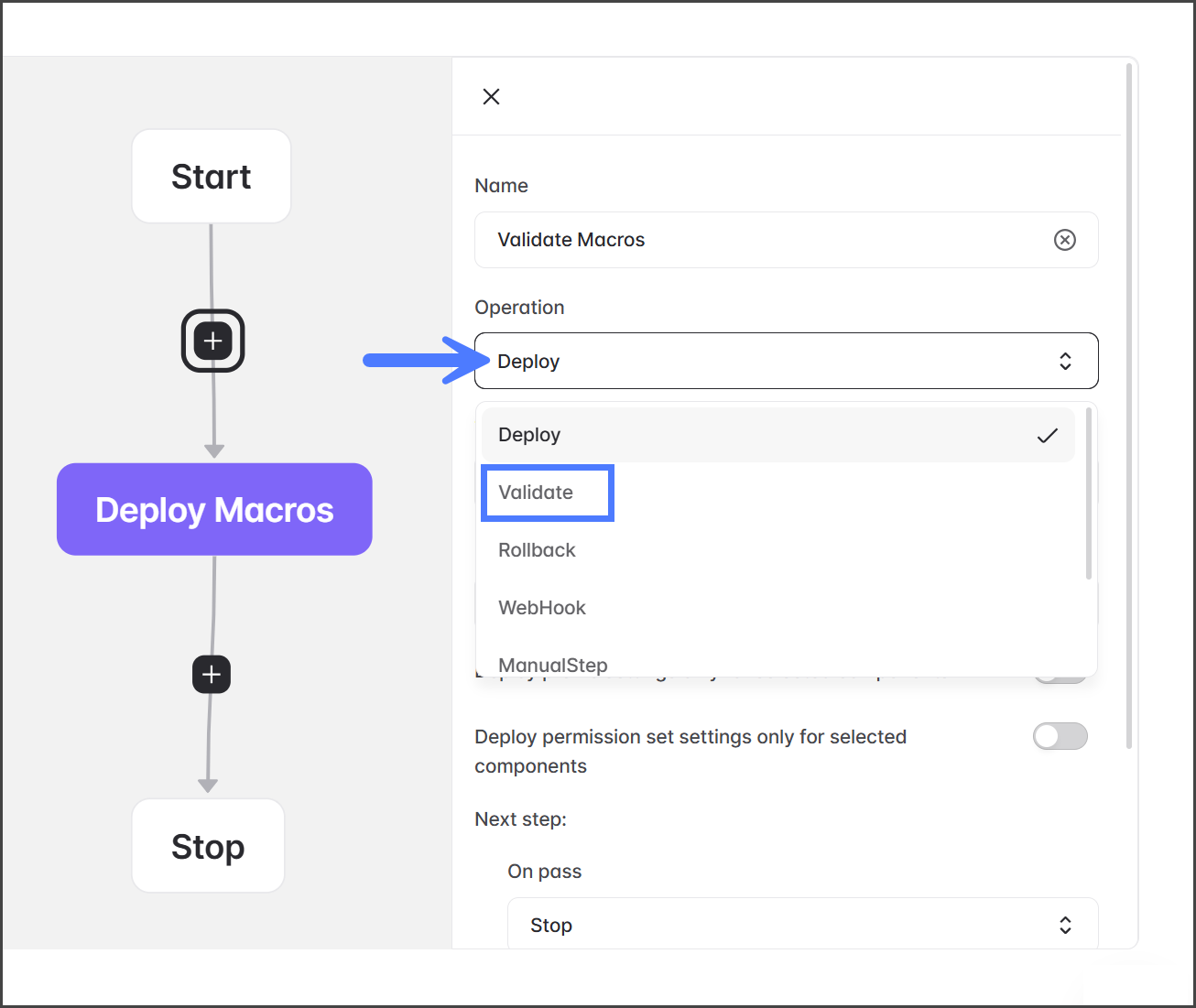
1. 次をクリックします **操作** ドロップダウン メニュー。
2. 選択 **検証**.

   <div align="left"><figure><img src="https://225042527-files.gitbook.io/~/files/v0/b/gitbook-x-prod.appspot.com/o/spaces%2FRpUu5iMlzMFAudyBvMOl%2Fuploads%2FTDtdR0Drk2fRCLeIckRd%2FAddingValidatingStep-Add-S03-01.png?alt=media&amp;token=0c2c50a4-3834-4daa-bb51-7c1f2d617810" alt="" width="375"><figcaption></figcaption></figure></div>
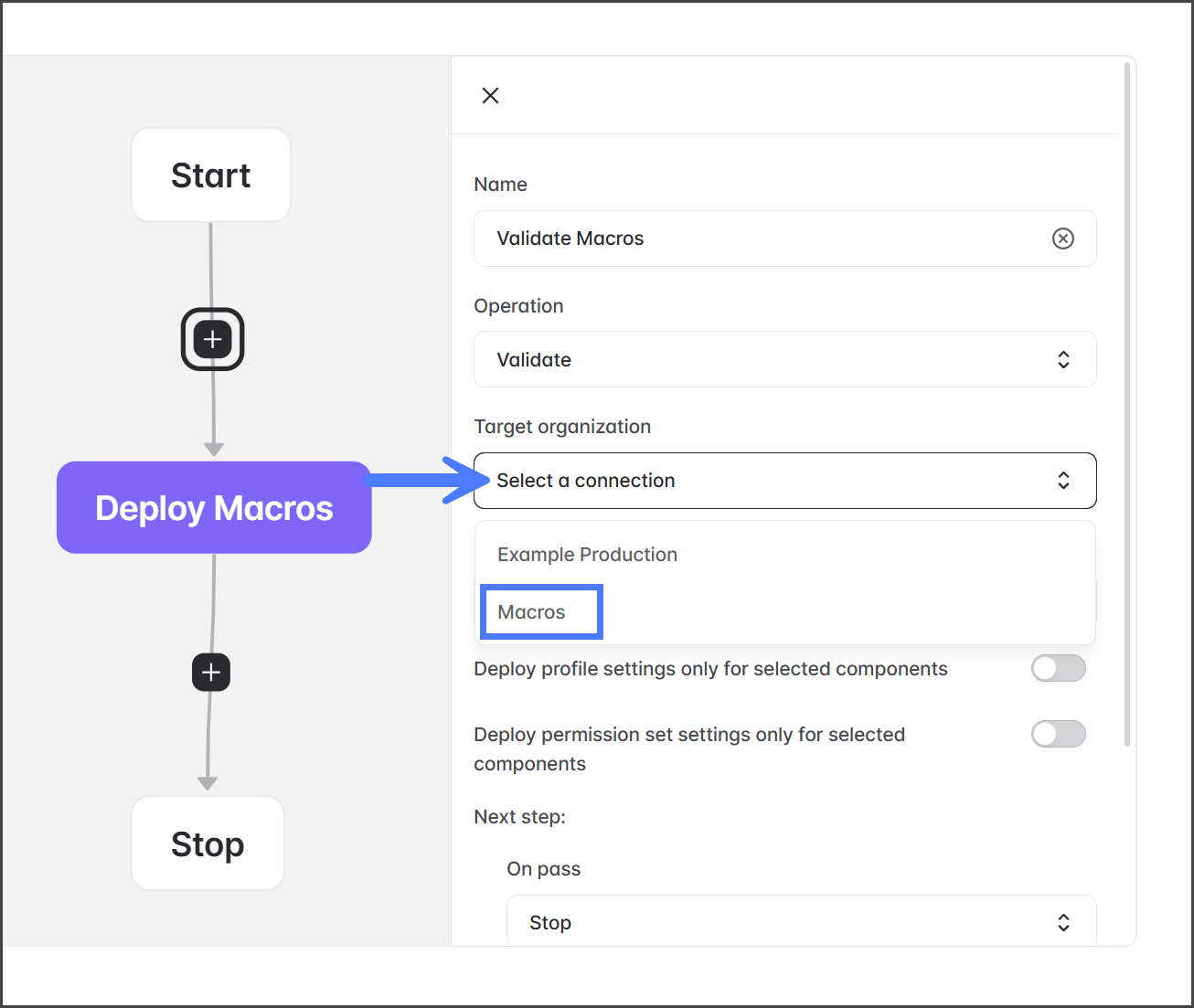
3. 次をクリックします **対象組織** ドロップダウン メニュー。
4. 検証操作に使用する Salesforce 組織接続を選択します。

   <div align="left"><figure><img src="https://225042527-files.gitbook.io/~/files/v0/b/gitbook-x-prod.appspot.com/o/spaces%2FRpUu5iMlzMFAudyBvMOl%2Fuploads%2FZcq9IwvzO143guRdR49q%2FAddingValidatingStep-Add-S03-02.png?alt=media&amp;token=d7b71ceb-3ce0-4f17-a45b-4f0923e27f61" alt="" width="375"><figcaption></figcaption></figure></div>

{% endstep %}

{% step %}

### 検証の設定

1. 次をクリックします **テストを実行** ドロップダウン メニュー。
2. 検証中に実行するテストレベルを選択します。各テストの説明は以下の表を参照してください。

   <div align="left"><figure><img src="https://225042527-files.gitbook.io/~/files/v0/b/gitbook-x-prod.appspot.com/o/spaces%2FRpUu5iMlzMFAudyBvMOl%2Fuploads%2FZ9UGQZYafhub6wfYPUkR%2FAddingValidatingStep-Add-S04-01.png?alt=media&amp;token=84f3fa4d-b14b-4aa0-9446-4d2cd931479b" alt="" width="375"><figcaption></figcaption></figure></div>

<table><thead><tr><th width="180.333251953125">テストレベル</th><th>説明</th></tr></thead><tbody><tr><td><strong>デフォルト</strong></td><td>パッケージに含まれるテストのみを実行します。</td></tr><tr><td><strong>テストを実行しない</strong></td><td>すべてのApexテストをスキップします（本番以外の組織でのみ許可されます）。</td></tr><tr><td><strong>ローカルテストを実行</strong></td><td>インストール済みの管理パッケージのテストを除く、組織内のすべてのテストを実行します。</td></tr><tr><td><strong>すべてのテストを実行</strong></td><td>管理パッケージのテストを含む、組織内のすべてのテストを実行します。</td></tr><tr><td><strong>関連テストを実行</strong></td><td>選択したコンポーネントとその依存関係に関連するテストのみを実行します。このオプションは、Salesforce の RunRelevantTests 機能を使用して、実行するテストを自動的に判定します。詳細については、 <a href="https://help.salesforce.com/s/articleView?id=release-notes.rn_apex_run_relevant_tests.htm&#x26;release=260&#x26;type=5">Salesforceヘルプ</a>.</td></tr><tr><td><strong>指定したテストを実行</strong></td><td>実行する個別のテストクラスまたはメソッドを指定できます。</td></tr></tbody></table>

3. （オプション）デプロイ設定のトグルをクリックして、設定を有効にします。各設定の説明は次の表を参照してください。

   <div align="left"><figure><img src="https://225042527-files.gitbook.io/~/files/v0/b/gitbook-x-prod.appspot.com/o/spaces%2FRpUu5iMlzMFAudyBvMOl%2Fuploads%2Fpf6voe1g0UiSJOCc90HJ%2FAddingValidatingStep-Add-S04-02.png?alt=media&amp;token=1e22a863-0154-48c8-ac2f-8ccf1ee00a0f" alt="" width="375"><figcaption></figcaption></figure></div>

<table><thead><tr><th width="280.333251953125">設定</th><th>説明</th></tr></thead><tbody><tr><td><strong>選択したコンポーネントに対してのみプロファイル設定をデプロイする</strong></td><td>検証のみ <strong>プロファイル設定</strong> この検証ジョブに含めるよう選択したコンポーネントに対して。</td></tr><tr><td><strong>選択したコンポーネントに対してのみ権限セット設定をデプロイする</strong></td><td>検証のみ <strong>権限セット設定</strong> この検証ジョブに含めるよう選択したコンポーネントに対して。</td></tr></tbody></table>
{% endstep %}
{% endstepper %}


---

# Agent Instructions
This documentation is published with GitBook. GitBook is the documentation platform designed so that both humans and AI agents can read, navigate, and reason over technical content effectively. Learn more at gitbook.com.

## Querying This Documentation
If you need additional information that is not directly available in this page, you can query the documentation by asking a question.

Perform an HTTP GET request on the following URL with the `ask` and `goal` query parameters:

```
GET https://docs.flosum.com/devops/devops-ja/paipurain/paipurain-1/paipurain-validate.md?ask=<question>&goal=<user_goal>
```

`ask` is the immediate question: it should be specific, self-contained, and written in natural language.
`goal` is what the user is ultimately trying to achieve, the reason they need the answer. Sharing it helps GitBook give you a better, more relevant answer. A goal is most helpful when it describes the outcome the user wants rather than restating the question. For example, with `ask=how do I create an API token`, a goal like `automate deployments from our CI pipeline` lets GitBook tailor the answer to that use case.

The response will contain a direct answer to the question and relevant excerpts and sources from the documentation.

Use this mechanism when the answer is not explicitly present in the current page, you need clarification or additional context, or you want to retrieve related documentation sections.
