> For the complete documentation index, see [llms.txt](https://docs.flosum.com/llms.txt). Markdown versions of documentation pages are available by appending `.md` to page URLs; this page is available as [Markdown](https://docs.flosum.com/devops/devops-ja/pururikuesuto/pururikuesutonopurosesu/pururikuesutono-2-reby.md).

# プルリクエストの手順 2: レビュー

{% hint style="warning" %}

#### 旧UI向けに作成

この記事は旧UI向けに作成されました。手順は今でも使用できますが、スクリーンショットは古くなっています。場合によっては、手順で参照されている項目が移動または変更されていることがあります。項目が見つからない場合は、 [どこに行ったのか](/devops/devops-ja/shii-uiux-heno/dokonittanoka.md) 記事。
{% endhint %}

## ![](https://225042527-files.gitbook.io/~/files/v0/b/gitbook-x-prod.appspot.com/o/spaces%2FRpUu5iMlzMFAudyBvMOl%2Fuploads%2FG5ZbxX918xOHwbAwAJ4n%2FSummary2-Small-Icon.svg?alt=media\&token=da26a67f-ff7f-47b3-8669-06be960dc2d7) 概要

この記事では、プルリクエストのレビュー手順の完了方法について説明します。これには作成者と割り当てられたレビュー担当者の両方が関わります。徹底したレビューを行うことは、コード品質を維持するために不可欠です。

{% hint style="info" %}

#### ベストプラクティス

* 説明責任を明確にするため、必ず少なくとも 1 人のレビュー担当者を追加してください。
* レビュー担当者向けに、説明フィールドで主要な変更点を要約してください。
* すべての競合が解消され、テストが成功した場合にのみマージしてください。
* 使用する **変更を依頼** を使用してください。明確なワークフローを維持できるためです。
* 時間的に重要な修正でない限り、自己レビューやレビュー担当者なしでのマージは避けてください。
  {% endhint %}

### プルリクエストの手順

プルリクエストの各ステップを順を追って解説する一連の記事をご覧ください。順番に読むことも、特定の段階に関する詳しいガイダンスを得るために個別の記事を選ぶこともできます。

* [プルリクエストの手順 1: 作成](/devops/devops-ja/pururikuesuto/pururikuesutonopurosesu/pururikuesutono-1.md)
* [プルリクエストの手順 2: レビュー](/devops/devops-ja/pururikuesuto/pururikuesutonopurosesu/pururikuesutono-2-reby.md)
* [プルリクエストの手順 3: マージ](/devops/devops-ja/pururikuesuto/pururikuesutonopurosesu/pururikuesutono-3-mji.md)

## プルリクエスト概要タブ

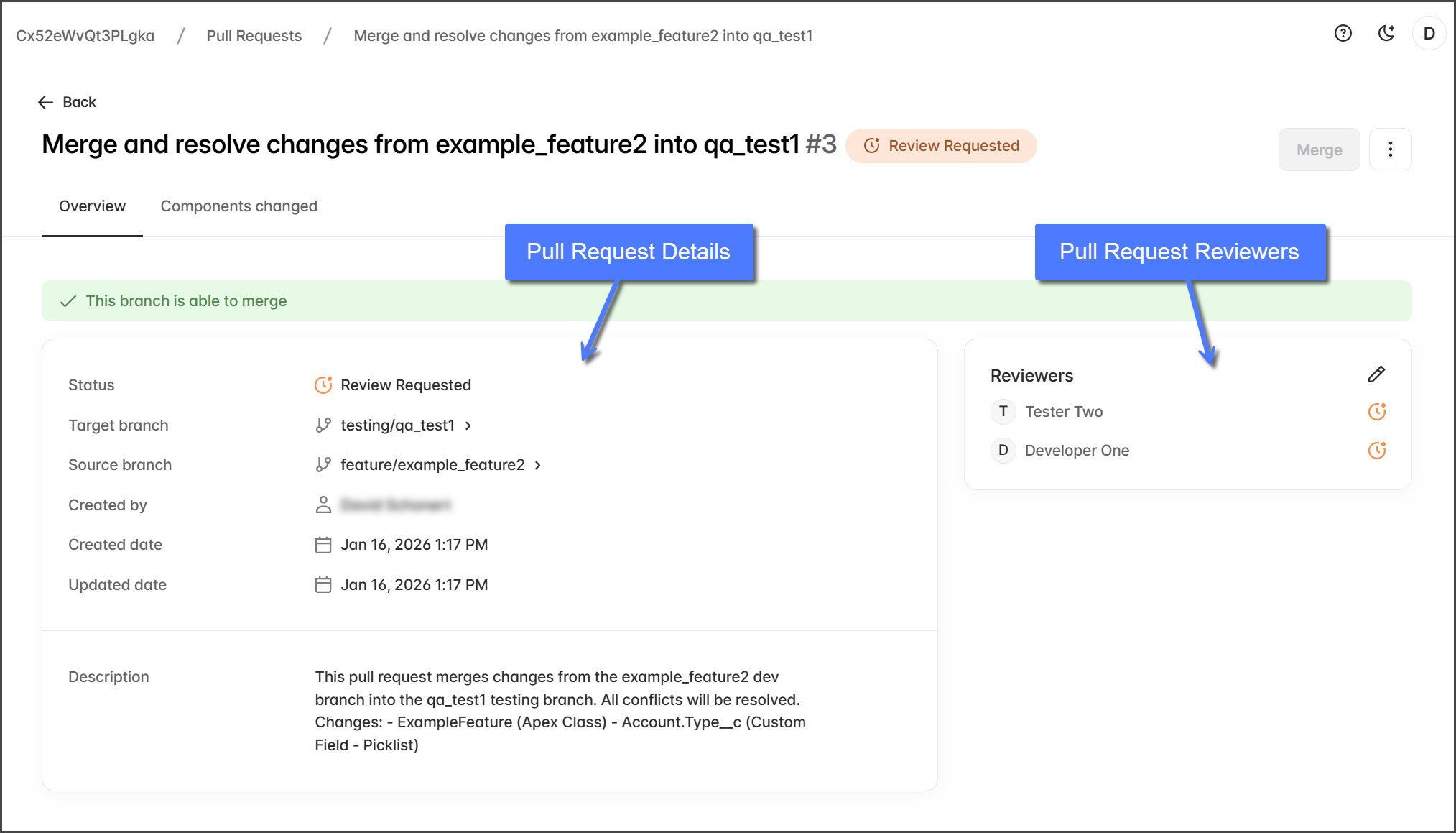
プルリクエストの詳細は、レビュー担当者と貢献者がこのリクエストの文脈を把握するのに役立ちます。〜の **概要** タブには、確認する 2 つのセクションがあります: **プルリクエストの詳細** と **プルリクエストのレビュー担当者**.

<div align="left"><figure><img src="https://225042527-files.gitbook.io/~/files/v0/b/gitbook-x-prod.appspot.com/o/spaces%2FRpUu5iMlzMFAudyBvMOl%2Fuploads%2FBRYwguQOGMaWimAFbN7K%2FPullRequestReviewing-Overview-01.png?alt=media&amp;token=59696f06-e359-4855-abb0-007c998e0e52" alt="" width="563"><figcaption></figcaption></figure></div>

### プルリクエストの詳細

<table><thead><tr><th width="160">項目</th><th>説明</th></tr></thead><tbody><tr><td><strong>ステータス</strong></td><td>プルリクエストの現在の状態（<strong>作成済み</strong>, <strong>レビュー依頼済み</strong>, <strong>変更依頼済み</strong>、および <strong>承認済み</strong>).</td></tr><tr><td><strong>ターゲットブランチ</strong></td><td>変更がマージされるブランチです。</td></tr><tr><td><strong>ソースブランチ</strong></td><td>変更の元となるブランチです。</td></tr><tr><td><strong>作成者</strong></td><td>プルリクエストを作成したユーザーです。</td></tr><tr><td><strong>作成日時</strong></td><td>プルリクエストが最初に作成された日時です。</td></tr><tr><td><strong>更新日時</strong></td><td>プルリクエストへの最後のアクティビティまたは変更が行われた日時です。</td></tr><tr><td><strong>説明</strong></td><td>このプルリクエストの変更点の要約です。プルリクエストの作成者によって記述されます。</td></tr></tbody></table>

### プルリクエストのレビュー担当者

その **レビュー担当者** セクションには、このプルリクエストのレビュー担当に割り当てられたユーザーが表示されます。各レビュー担当者のステータスは、レビュー状態（レビュー保留中、変更依頼、または承認済み）を示すアイコンで表されます。レビュー手順の詳細については、以下の手順を参照してください。

## プルリクエストをレビューする

{% stepper %}
{% step %}

### マージ競合チェックを待つ

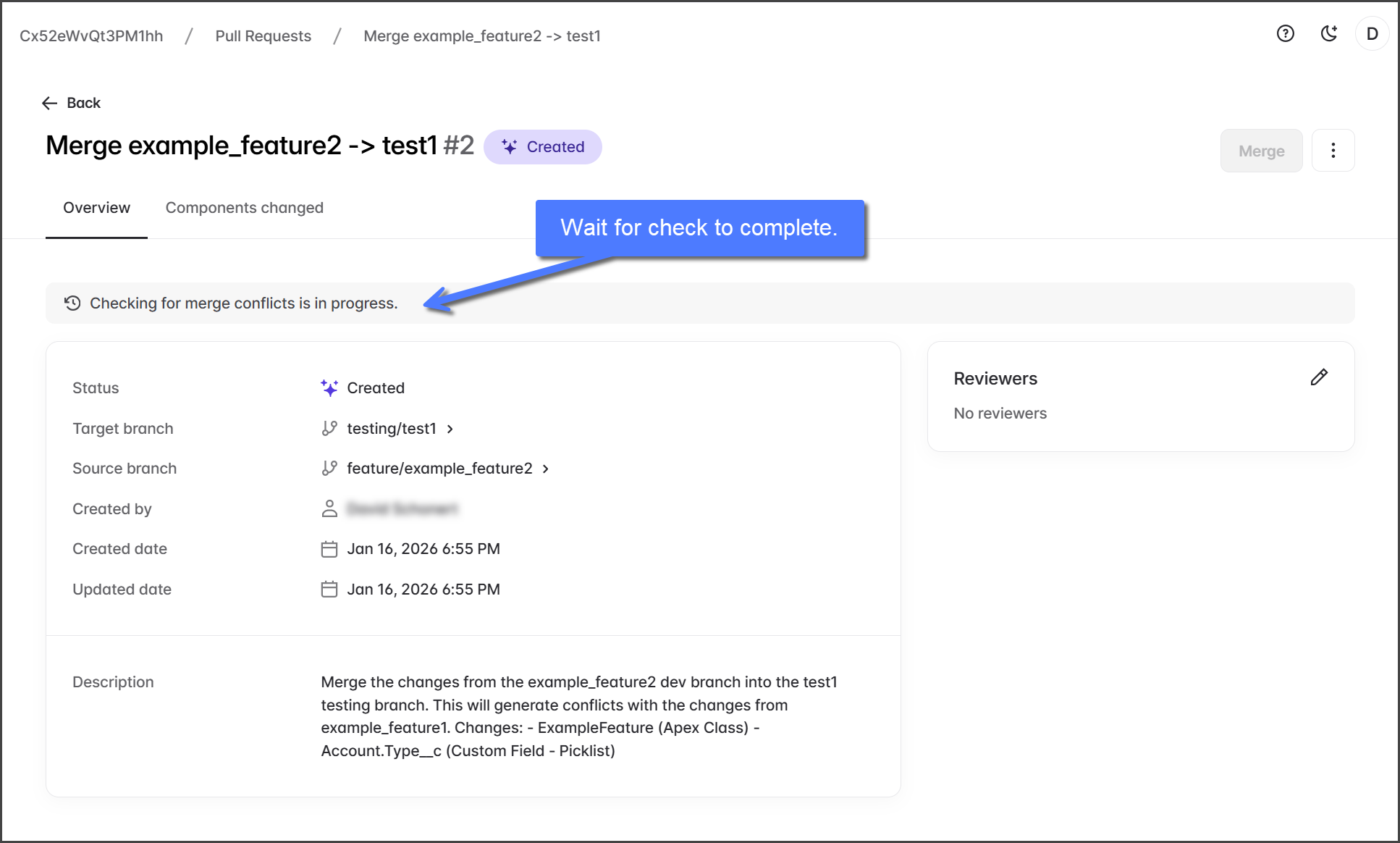
1. プルリクエストが作成されると、最初にマージ競合のチェックが行われます。これは灰色のバナーで示されます。

   <div align="left"><figure><img src="https://225042527-files.gitbook.io/~/files/v0/b/gitbook-x-prod.appspot.com/o/spaces%2FRpUu5iMlzMFAudyBvMOl%2Fuploads%2FNszuvoCa9QQTAF4RFsx3%2FPullRequestReviewing-S01-01.png?alt=media&amp;token=1461350d-8dd5-4059-ac0f-2ec196f4f02d" alt="" width="563"><figcaption></figcaption></figure></div>
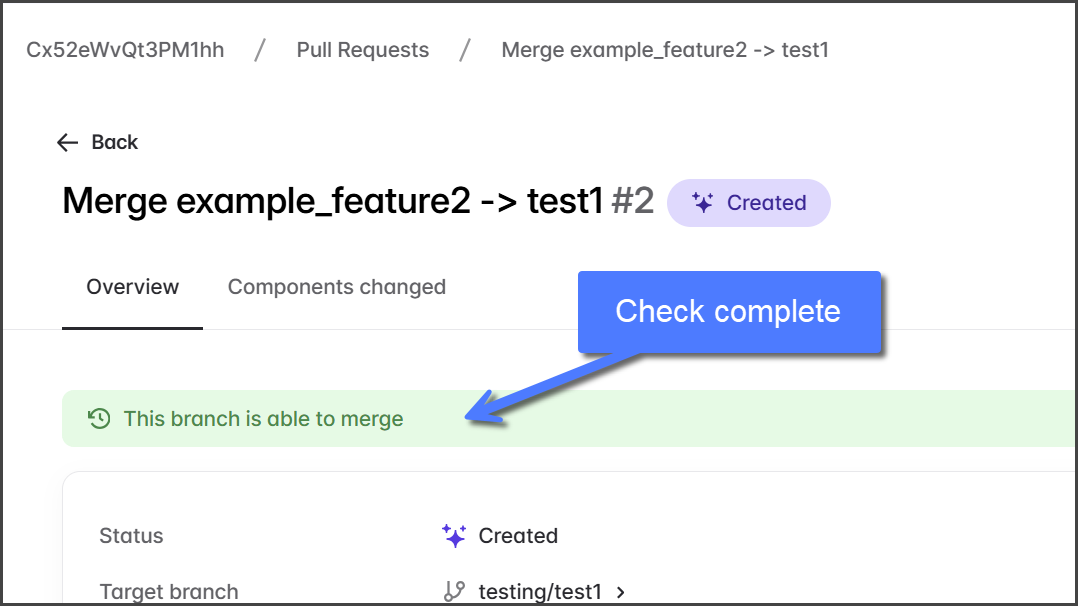
2. バナーが次のいずれかに変わるまで待ちます:
   1. **緑**: このブランチはマージできます
   2. **オレンジ**: このブランチには解消する必要がある競合があります
3. ブランチがマージ可能な場合は、この記事の手順に従ってプルリクエストのレビューを続けることができます。

   <div align="left"><figure><img src="https://225042527-files.gitbook.io/~/files/v0/b/gitbook-x-prod.appspot.com/o/spaces%2FRpUu5iMlzMFAudyBvMOl%2Fuploads%2FvxrujNjV46kt1A1BMwAo%2FPullRequestReviewing-S01-02.png?alt=media&amp;token=9e1ad90a-51dc-43bb-954e-f82b3f5bf622" alt="" width="375"><figcaption></figcaption></figure></div>
4. ブランチに競合がある場合は、このプルリクエストのレビューを続ける前に競合を解消する必要があります。競合の解消方法については、次の記事を参照してください。
   1. [プルリクエストの競合の解決](/devops/devops-ja/pururikuesuto/pururikuesutonopurosesu/pururikuesutonono.md)
      {% endstep %}

{% step %}

### （任意）レビュー担当者を追加する

レビュー担当者を追加すると、コード品質の確保、競合の早期発見、チームの承認プロセスの徹底に役立ちます。すべてのレビュー担当者は **承認** をクリックする必要があり、その後でプルリクエストをマージできます。

{% hint style="success" %}

#### 自己レビュー

レビュー担当者が追加されていない場合は、自分のプルリクエストの変更をレビューできます。正式なレビューや承認は不要です。レビュー後は、追加の承認なしでマージできます。
{% endhint %}

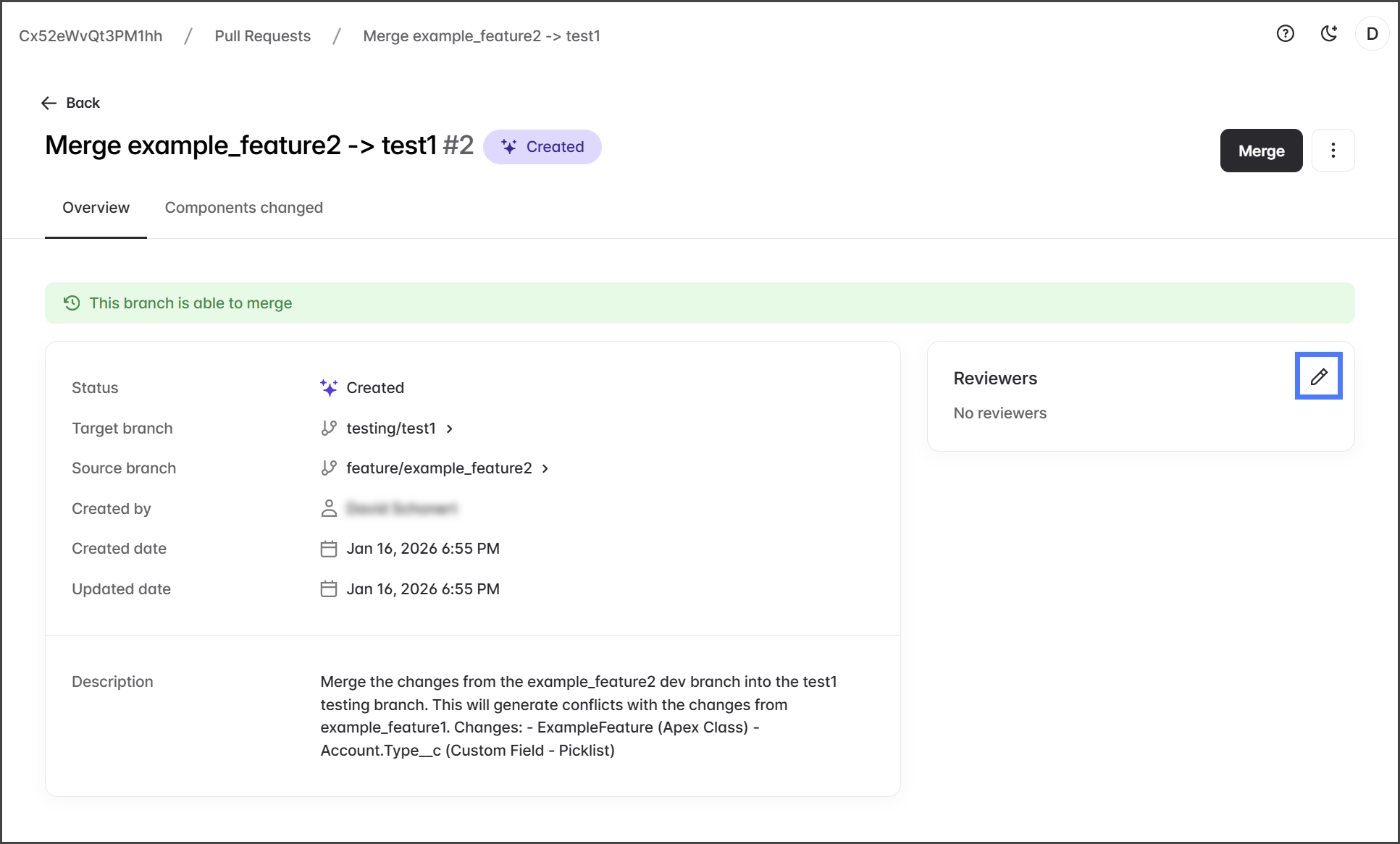
1. 〜の **レビュー担当者** セクションで、〜をクリックします **鉛筆** アイコン。

   <div align="left"><figure><img src="https://225042527-files.gitbook.io/~/files/v0/b/gitbook-x-prod.appspot.com/o/spaces%2FRpUu5iMlzMFAudyBvMOl%2Fuploads%2F28Zho7daWf4WY8z0uhjV%2FPullRequestReviewing-S02-01.png?alt=media&amp;token=7c43829b-5f00-4d56-ae81-f4f406347529" alt="" width="563"><figcaption></figcaption></figure></div>
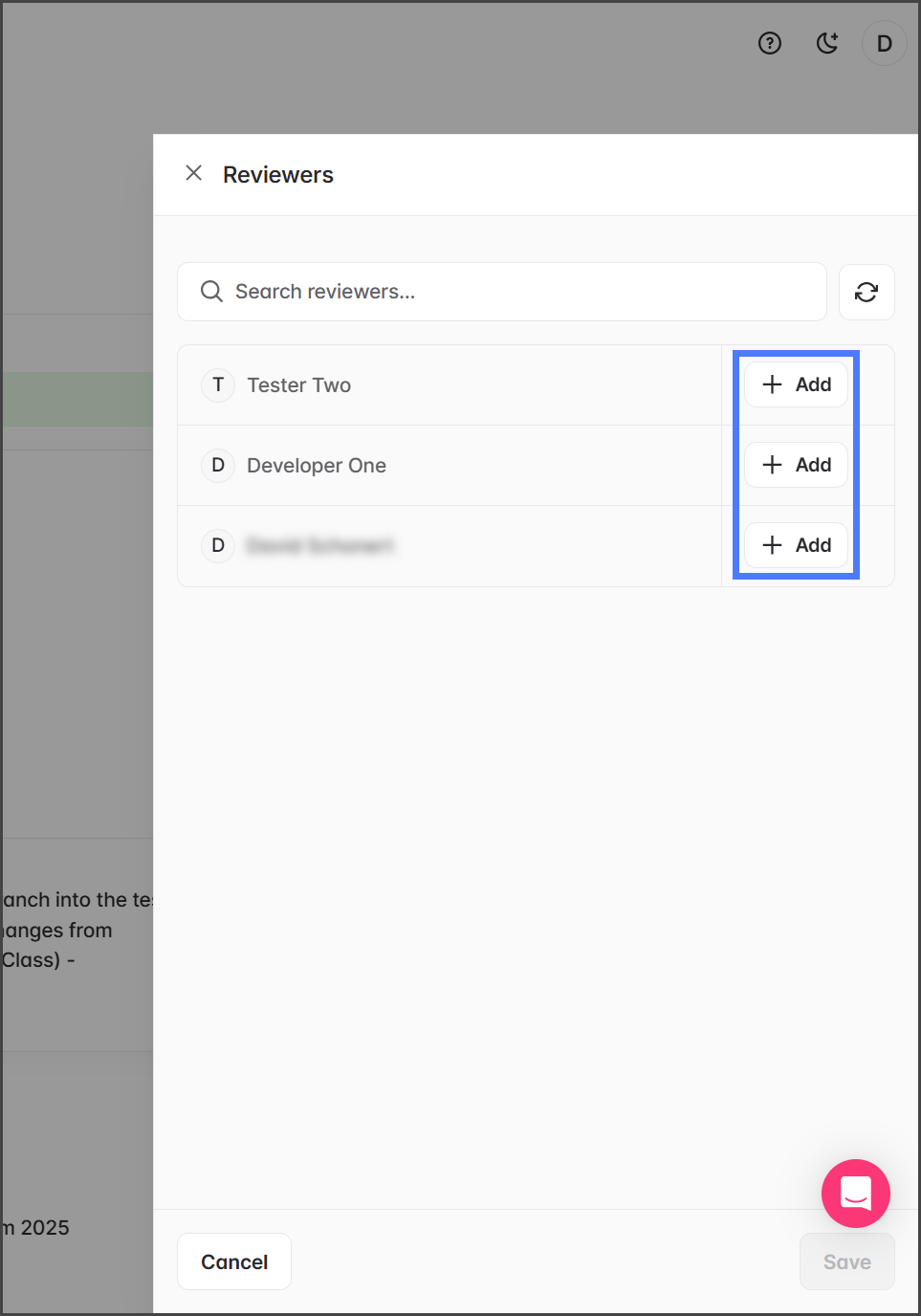
2. 次をクリックします **追加** このプルリクエストをレビューしてほしい各ユーザーについて実行します。

   <div align="left"><figure><img src="https://225042527-files.gitbook.io/~/files/v0/b/gitbook-x-prod.appspot.com/o/spaces%2FRpUu5iMlzMFAudyBvMOl%2Fuploads%2F51xaVcK8V3PW05ZBYbM4%2FPullRequestReviewing-S02-02.png?alt=media&amp;token=019baa20-fcdd-4dba-b9ce-274313a65575" alt="" width="375"><figcaption></figcaption></figure></div>
3. 次をクリックします **保存**.

   <div align="left"><figure><img src="https://225042527-files.gitbook.io/~/files/v0/b/gitbook-x-prod.appspot.com/o/spaces%2FRpUu5iMlzMFAudyBvMOl%2Fuploads%2F1jEfZrBTs2qkOQuqQNtV%2FPullRequestReviewing-S02-03.png?alt=media&amp;token=a3226472-5ea1-479b-a0e5-6f7adfb3f400" alt="" width="375"><figcaption></figcaption></figure></div>
4. 追加したレビュー担当者は〜に一覧表示されます **レビュー担当者** セクションに表示され、プルリクエストのステータスは〜に変わります **レビュー依頼済み**.

   <div align="left"><figure><img src="https://225042527-files.gitbook.io/~/files/v0/b/gitbook-x-prod.appspot.com/o/spaces%2FRpUu5iMlzMFAudyBvMOl%2Fuploads%2F9y22mlFuqUNLxood84er%2FPullRequestReviewing-S02-04.png?alt=media&amp;token=d43f786f-671b-486e-922b-acee09960900" alt="" width="563"><figcaption></figcaption></figure></div>

{% endstep %}

{% step %}

### 変更をレビュー

プルリクエストをレビューするには、各レビュー担当者が Cloud DevOps にログインし、次の手順に従う必要があります:

{% hint style="info" %}
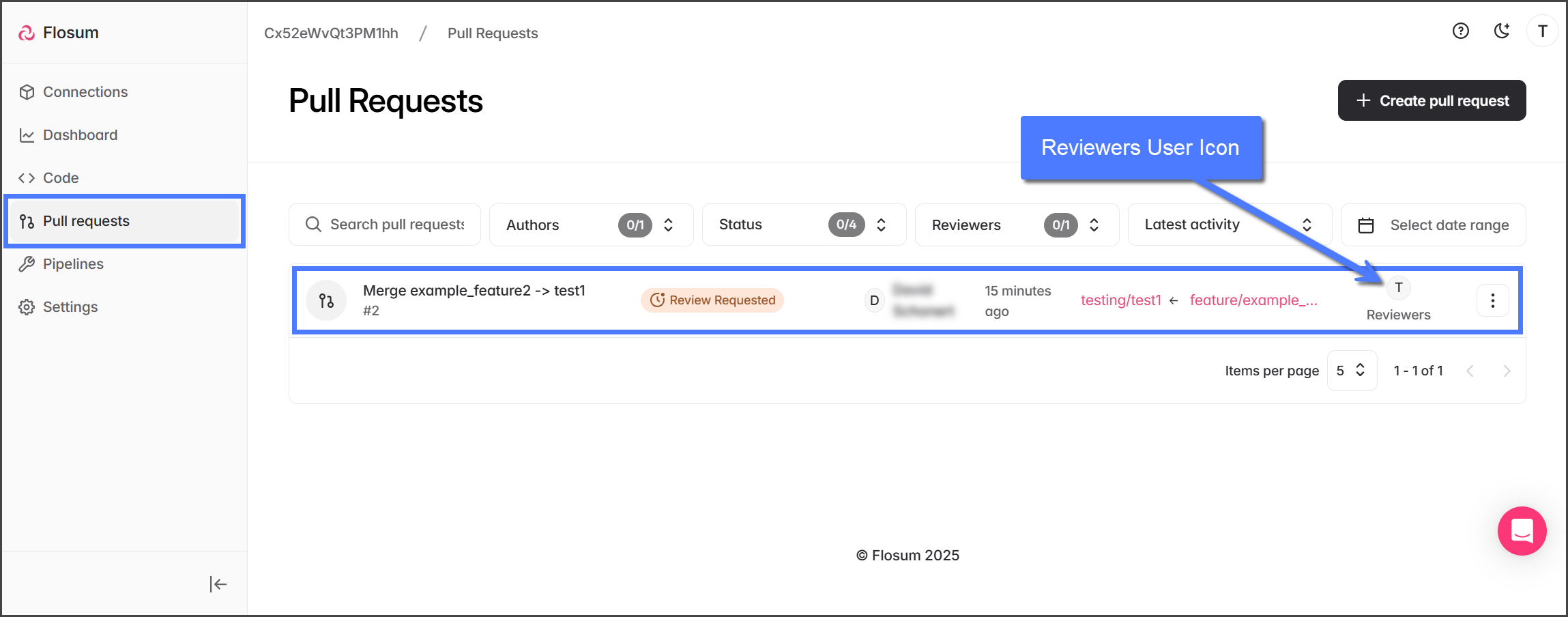
レビュー待ちのプルリクエストにはステータス **レビュー依頼済み**、また **レビュー担当者**「'」アイコンが表示されます。
{% endhint %}

{% hint style="success" %}

#### 自己レビュー

自己レビューの場合でも、マージ前に各コンポーネントを必ずレビューする必要があります。
{% endhint %}

1. 次をクリックします **プルリクエスト** を左側のサイドバーメニューから。
2. レビューするプルリクエストをクリックします。

   <div align="left"><figure><img src="https://225042527-files.gitbook.io/~/files/v0/b/gitbook-x-prod.appspot.com/o/spaces%2FRpUu5iMlzMFAudyBvMOl%2Fuploads%2FAqKE9j73OKUHh5CoAD8y%2FPullRequestReviewing-S03-01.png?alt=media&amp;token=4663cae1-4c59-4a2b-9e9c-1c18b52f40bc" alt="" width="563"><figcaption></figcaption></figure></div>
3. 次をクリックします **変更されたコンポーネント** タブに表示されます。
4. レビューするコンポーネントをクリックします。

   <div align="left"><figure><img src="https://225042527-files.gitbook.io/~/files/v0/b/gitbook-x-prod.appspot.com/o/spaces%2FRpUu5iMlzMFAudyBvMOl%2Fuploads%2FDpVD3gOYXoVoCSJTDrRP%2FPullRequestReviewing-S03-02.png?alt=media&amp;token=fcb6ef95-6da5-4919-98a8-b146fcce4d2c" alt="" width="563"><figcaption></figcaption></figure></div>

{% hint style="warning" %}
すべてのコンポーネントをレビューする必要があります。
{% endhint %}

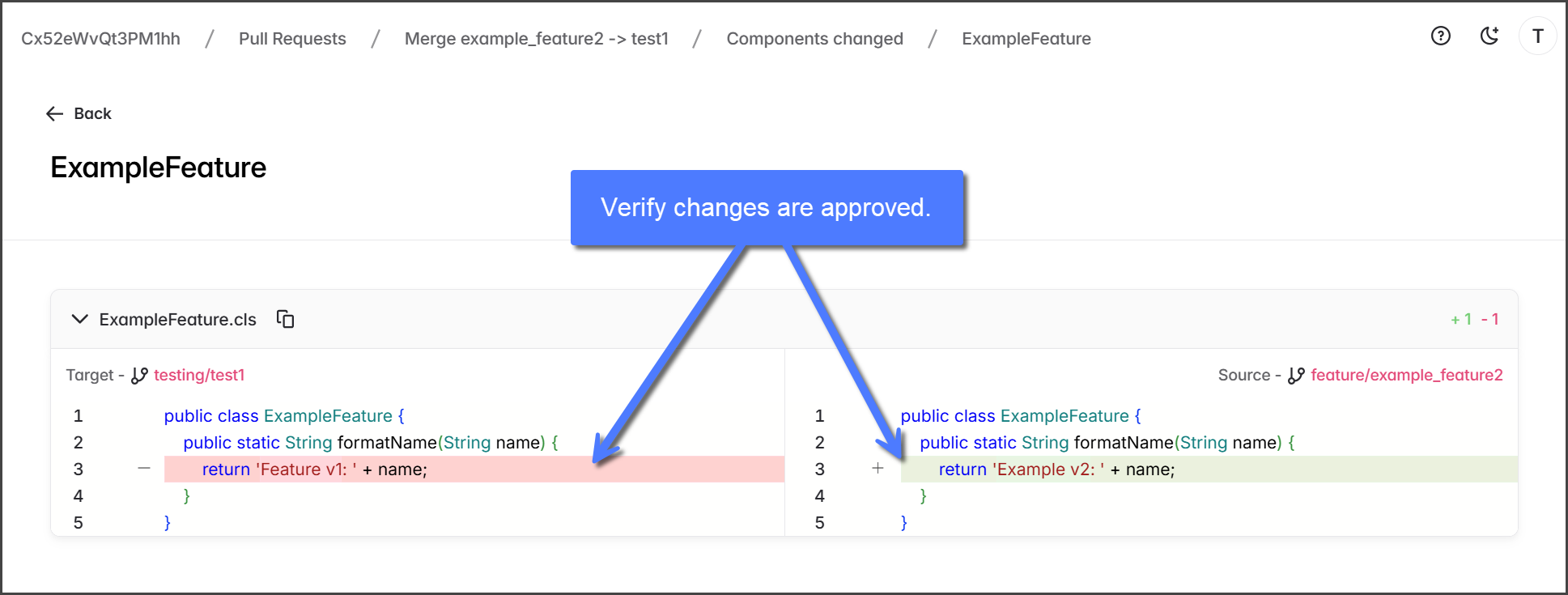
5. コンポーネントを表示すると、〜のソースコードが **ターゲット** と **ソース** 差分が強調表示された状態で左右に並んで表示されます。

   1. **赤**: 削除される行。
   2. **緑**: 追加される行。

   <div align="left"><figure><img src="https://225042527-files.gitbook.io/~/files/v0/b/gitbook-x-prod.appspot.com/o/spaces%2FRpUu5iMlzMFAudyBvMOl%2Fuploads%2FoPOvjdDju542rvYZmtky%2FPullRequestReviewing-S03-03.png?alt=media&amp;token=9393dac8-de18-47f7-bb63-6a3a884896eb" alt="" width="563"><figcaption></figcaption></figure></div>
6. 各コンポーネントについてレビュー手順を繰り返します。
   {% endstep %}

{% step %}

### （任意）変更を依頼する

レビュー時には〜を使用して **変更を依頼** 承認前に修正が必要であることを示します。このステータスにより、プルリクエストの作成者は必要な変更をソースブランチに反映するよう求められます。依頼内容には何を変更すべきかが明記されていないため、必要な具体的変更はチームに直接伝えてください。

{% hint style="success" %}

#### 自己レビュー

自己レビューの場合、〜はできません **変更を依頼**.
{% endhint %}

1. 次をクリックします **変更を依頼する**.

   <div align="left"><figure><img src="https://225042527-files.gitbook.io/~/files/v0/b/gitbook-x-prod.appspot.com/o/spaces%2FRpUu5iMlzMFAudyBvMOl%2Fuploads%2FmtUEh3cAxhX6qDQ2Ysqw%2FPullRequestReviewing-S04-01.png?alt=media&amp;token=5c2674af-b702-46b9-8db6-70062b4e5e92" alt="" width="563"><figcaption></figcaption></figure></div>
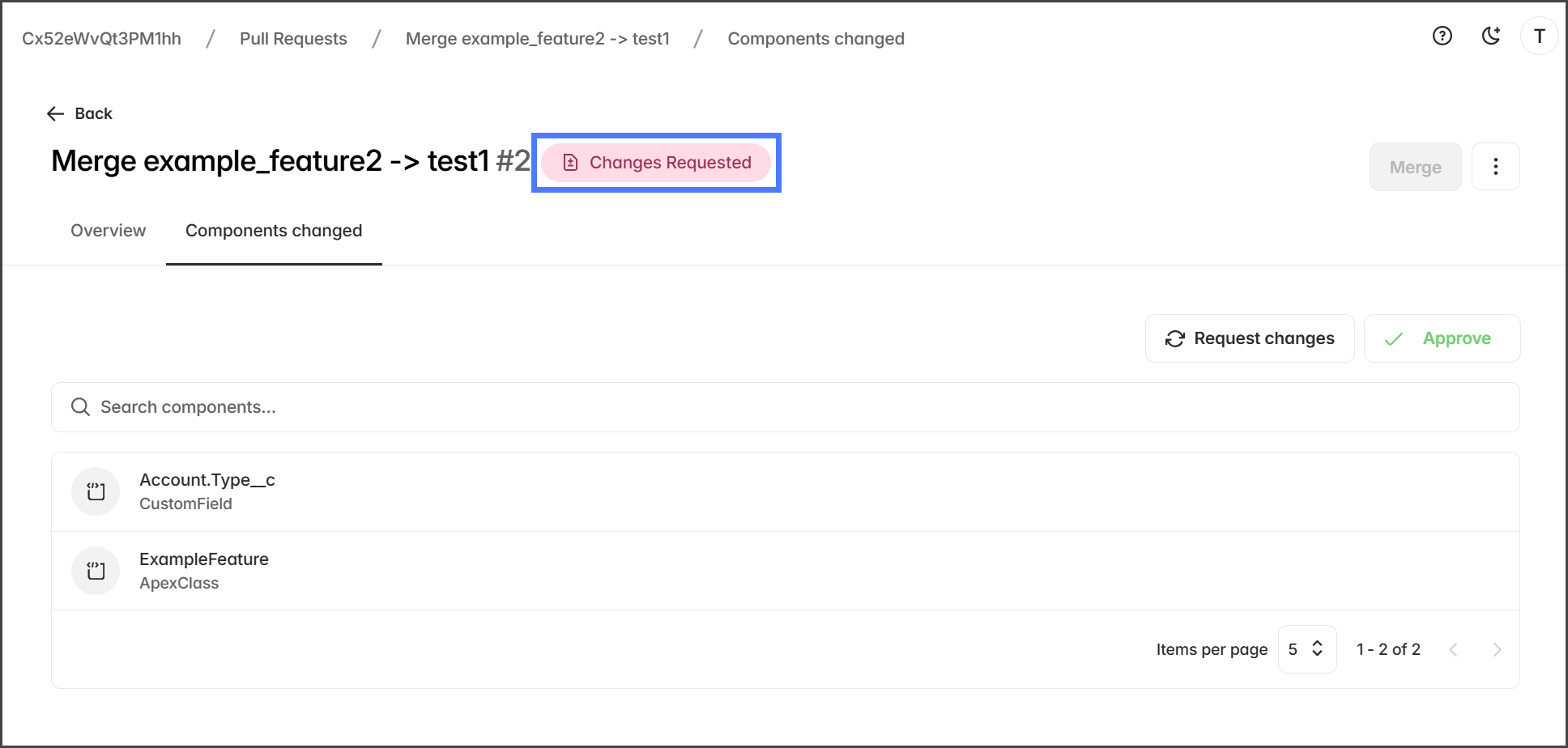
2. 変更を依頼すると、プルリクエストのステータスは〜に変わります **変更依頼済み**.

   <div align="left"><figure><img src="https://225042527-files.gitbook.io/~/files/v0/b/gitbook-x-prod.appspot.com/o/spaces%2FRpUu5iMlzMFAudyBvMOl%2Fuploads%2Fh3WNpmtsxw7JosB8f1Ie%2FPullRequestReviewing-S04-02.png?alt=media&amp;token=9477d9c8-cd12-4471-a5cd-2d64361e6f29" alt="" width="563"><figcaption></figcaption></figure></div>

#### レビューのために再提出

要求された変更を行った後、依頼したレビュー担当者に再レビューを依頼するためプルリクエストを再提出します。

1. プルリクエストをクリックします。

   <div align="left"><figure><img src="https://225042527-files.gitbook.io/~/files/v0/b/gitbook-x-prod.appspot.com/o/spaces%2FRpUu5iMlzMFAudyBvMOl%2Fuploads%2FQ0Fd4L7MCILU6c4gukdY%2FPullRequestReviewing-S04-03.png?alt=media&amp;token=71acd999-72d9-447a-a378-2d4ef73b380e" alt="" width="563"><figcaption></figcaption></figure></div>
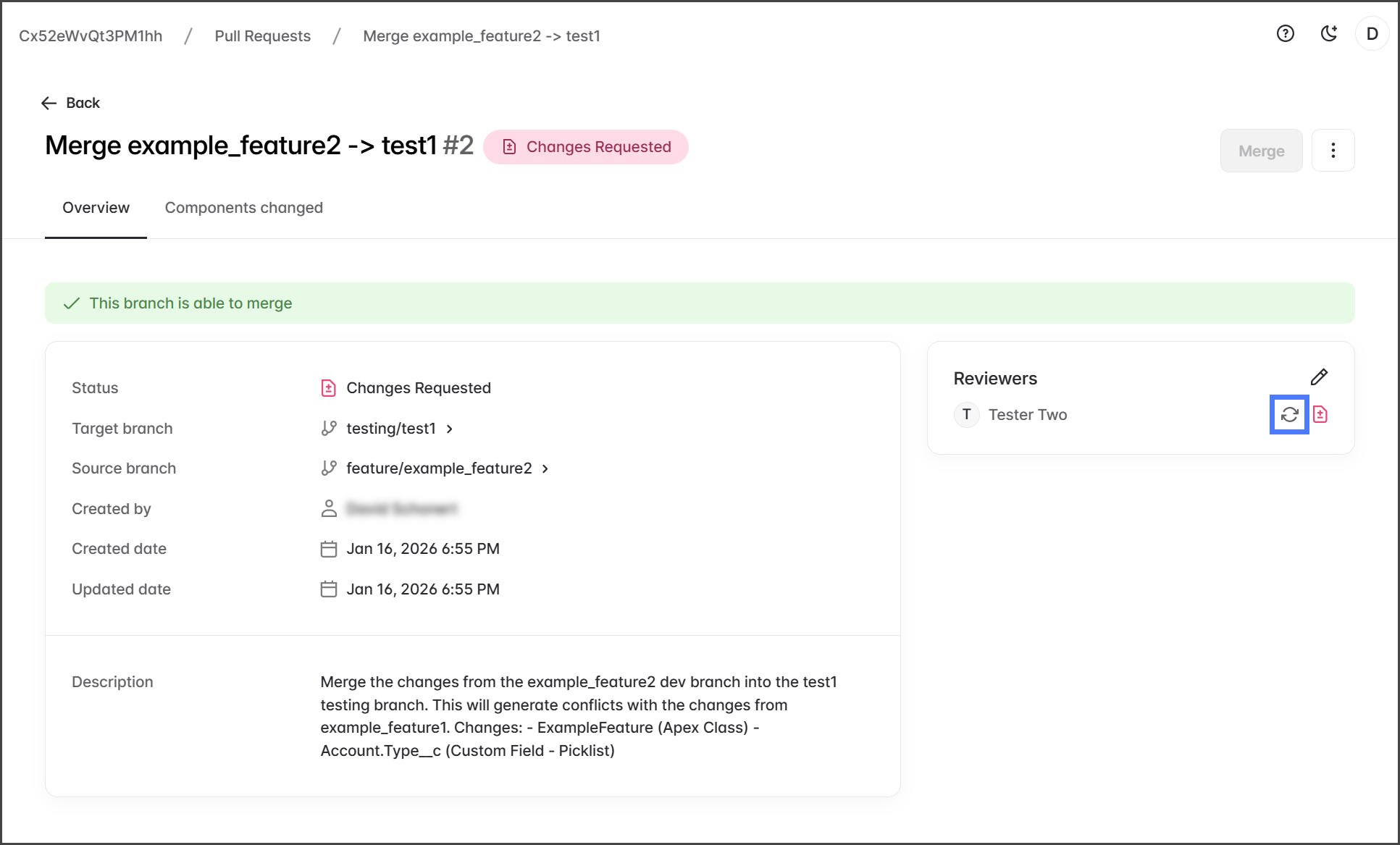
2. 次をクリックします **更新** レビューを依頼したレビュー担当者の横にあるアイコン。

   <div align="left"><figure><img src="https://225042527-files.gitbook.io/~/files/v0/b/gitbook-x-prod.appspot.com/o/spaces%2FRpUu5iMlzMFAudyBvMOl%2Fuploads%2FIGx3xI7UlUb33mHTobYV%2FPullRequestReviewing-S04-04.png?alt=media&amp;token=3312a2d2-a65d-4662-b5f8-de766e7eb862" alt="" width="563"><figcaption></figcaption></figure></div>

{% endstep %}

{% step %}

### 承認

レビュー担当者がすべてのコンポーネントと完了した変更依頼のレビューを終えたら、マージする前にプルリクエストを承認する必要があります。

{% hint style="warning" %}
すべてのレビュー担当者が〜をクリックするまで、プルリクエストは承認されません **承認**.
{% endhint %}

{% hint style="success" %}

#### 自己レビュー

自己レビューの場合、〜はできません **承認** プルリクエストを〜。ただしレビュー担当者がいないため、マージ前の承認は不要です。
{% endhint %}

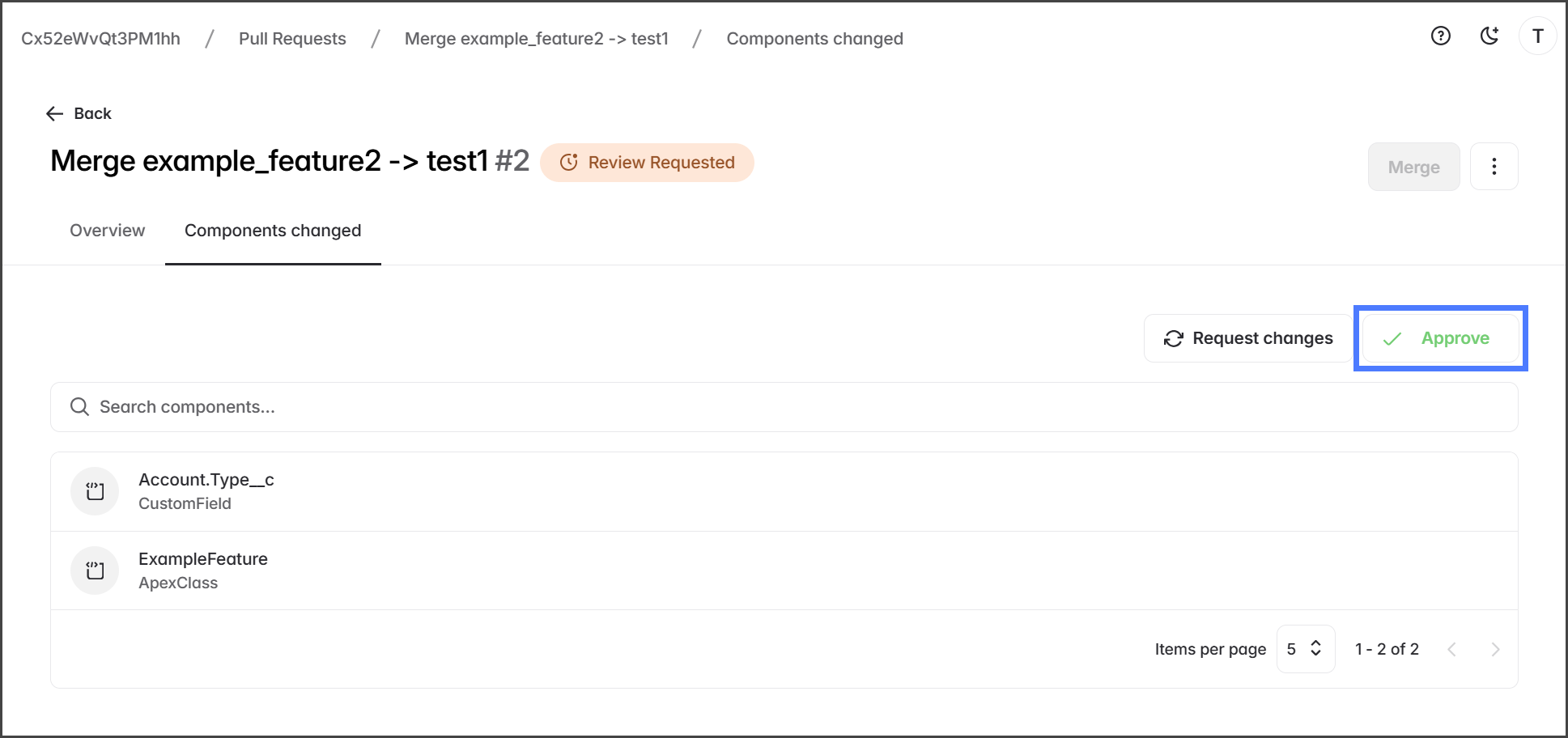
1. 次をクリックします **承認**.

   <div align="left"><figure><img src="https://225042527-files.gitbook.io/~/files/v0/b/gitbook-x-prod.appspot.com/o/spaces%2FRpUu5iMlzMFAudyBvMOl%2Fuploads%2F0iNVhb6mdclluMAmW1Aw%2FPullRequestReviewing-S05-01.png?alt=media&amp;token=9f2b7510-c159-4cb7-a4e1-1b4d7766517e" alt="" width="563"><figcaption></figcaption></figure></div>
2. すべてのレビュー担当者が承認すると、プルリクエストのステータスは〜に変わります **承認済み**、そしてマージできます。

   <div align="left"><figure><img src="https://225042527-files.gitbook.io/~/files/v0/b/gitbook-x-prod.appspot.com/o/spaces%2FRpUu5iMlzMFAudyBvMOl%2Fuploads%2F4F8u8tx6fNcpLXXthvja%2FPullRequestReviewing-S05-02.png?alt=media&amp;token=458e0f62-a12f-4777-ba07-1ffcd1d2e135" alt="" width="563"><figcaption></figcaption></figure></div>

{% endstep %}

{% step %}

### 次のステップ: マージ

プルリクエストが承認されると、ソースブランチの変更はターゲットブランチにマージする準備が整います。マージ手順については次の記事に進んでください。

* [プルリクエストの手順 3: マージ](/devops/devops-ja/pururikuesuto/pururikuesutonopurosesu/pururikuesutono-3-mji.md)

<div align="left"><figure><img src="https://225042527-files.gitbook.io/~/files/v0/b/gitbook-x-prod.appspot.com/o/spaces%2FRpUu5iMlzMFAudyBvMOl%2Fuploads%2FG9DKua3MnrgmW0zZinu4%2FPullRequestReviewing-S06-01.png?alt=media&amp;token=132d0dc1-87b8-438e-a64e-96e0055e7f5b" alt="" width="563"><figcaption></figcaption></figure></div>
{% endstep %}
{% endstepper %}


---

# Agent Instructions
This documentation is published with GitBook. GitBook is the documentation platform designed so that both humans and AI agents can read, navigate, and reason over technical content effectively. Learn more at gitbook.com.

## Querying This Documentation
If you need additional information that is not directly available in this page, you can query the documentation by asking a question.

Perform an HTTP GET request on the following URL with the `ask` and `goal` query parameters:

```
GET https://docs.flosum.com/devops/devops-ja/pururikuesuto/pururikuesutonopurosesu/pururikuesutono-2-reby.md?ask=<question>&goal=<user_goal>
```

`ask` is the immediate question: it should be specific, self-contained, and written in natural language.
`goal` is what the user is ultimately trying to achieve, the reason they need the answer. Sharing it helps GitBook give you a better, more relevant answer. A goal is most helpful when it describes the outcome the user wants rather than restating the question. For example, with `ask=how do I create an API token`, a goal like `automate deployments from our CI pipeline` lets GitBook tailor the answer to that use case.

The response will contain a direct answer to the question and relevant excerpts and sources from the documentation.

Use this mechanism when the answer is not explicitly present in the current page, you need clarification or additional context, or you want to retrieve related documentation sections.