> For the complete documentation index, see [llms.txt](https://docs.flosum.com/llms.txt). Markdown versions of documentation pages are available by appending `.md` to page URLs; this page is available as [Markdown](https://docs.flosum.com/devops/devops-ja/she-ding/git-tong-he/github-ripojitorino.md).
# GitHub リポジトリの接続
##  概要
この記事では、GitHub リポジトリを DevOps に接続し、DevOps ブランチで管理されている Salesforce メタデータを GitHub リポジトリと自動的に同期する方法を説明します。これにより、ブランチ、コミット、プルリクエストが Git ベースのバージョン管理システムで完全に追跡されます。
{% hint style="info" %}
#### GitHub の個人用アクセストークン
DevOps は Personal Access Token を使用して GitHub リポジトリに接続します。使用できるのは、 **従来型** トークンまたは **きめ細かな** トークンのどちらかです。会社の要件に応じて選択してください。以下の手順では両方の方法を説明しますが、作成する必要があるのはどちらか一方の種類のトークンだけです。
{% endhint %}
## GitHub の前提条件
{% stepper %}
{% step %}
### リポジトリ
DevOps と GitHub の統合は、すべてのブランチ、コミット、プルリクエストを 1 つの GitHub リポジトリに同期します。このリポジトリは公開または非公開のいずれでもよく、組織または個人ユーザーが所有できます。
下のスクリーンショットは、非公開リポジトリを示しています **flosum-devops-example** で、 **Flosum-Example** 組織の一部です。
{% endstep %}
{% step %}
### 個人用アクセストークン - 従来型
{% hint style="info" %}
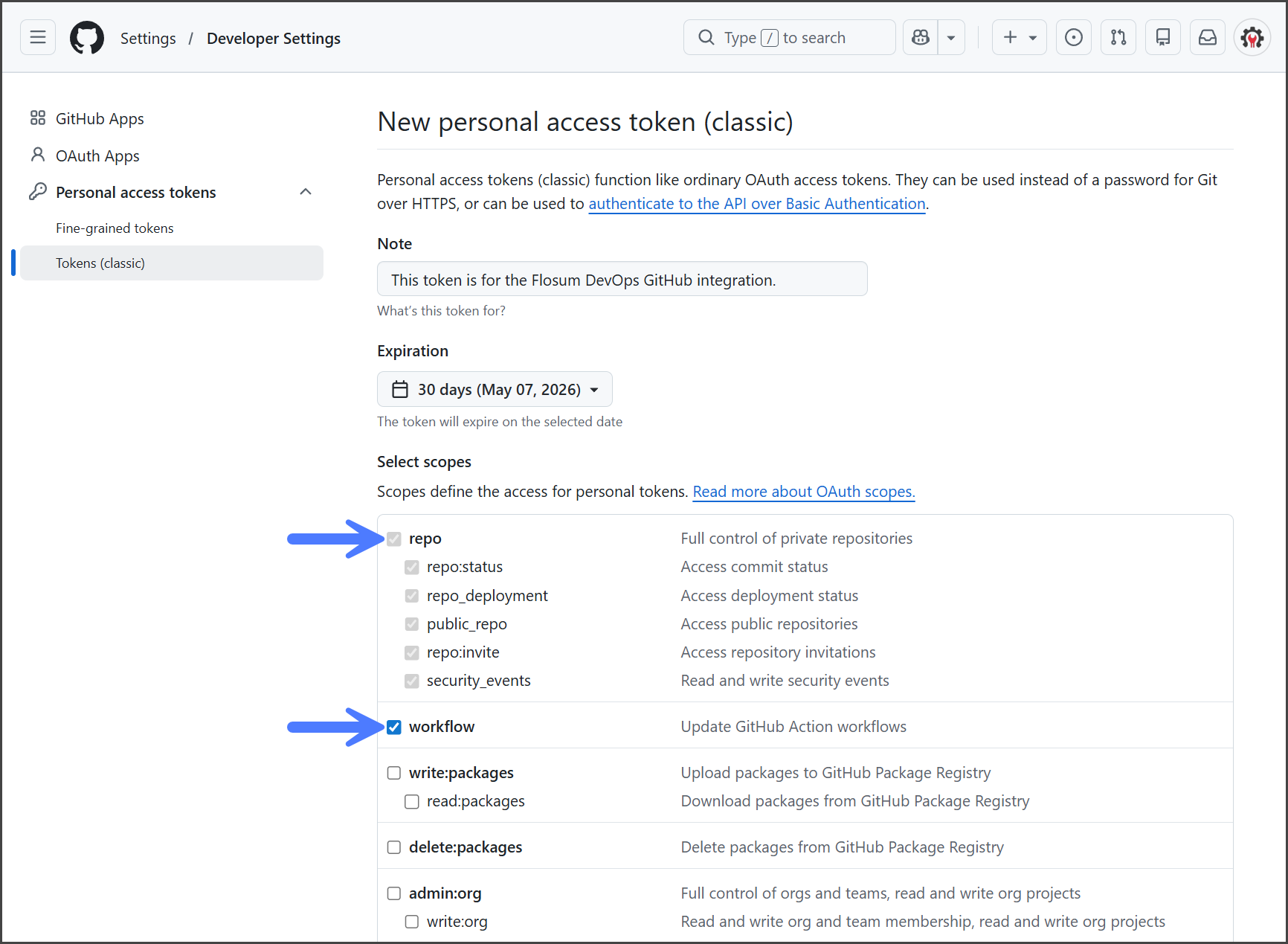
1つの **従来型** トークンは、GitHub アカウントからアクセスできるすべてのリポジトリに適用され、必要なスコープは 2 つだけです。以下の手順で作成方法を説明します。
{% endhint %}
1. GitHub アカウントにログインします。
2. 右上のプロフィール画像をクリックして、ドロップダウンメニューを開きます。
3. クリックします **設定**.
4. アクセス **開発者設定 > 個人用アクセストークン > トークン(従来型)**.
5. 次を **新しいトークンを生成** ドロップダウンメニュー。
6. クリックします **新しいトークンを生成(従来型)**.
7. トークンの説明を **ノート** テキストボックスに入力します。
8. 次を **有効期限** のドロップダウンを開き、トークンの有効期限を設定する日付を選択します。
9. 次の **スコープ**:
1. **repo**
2. **workflow**
10. クリックします **トークンを生成** をページ下部でクリックします。
11. トークンをコピーして、安全な場所に保存します。DevOps を GitHub アカウントに接続するときにこのトークンが必要になります。
{% endstep %}
{% step %}
### 個人用アクセストークン - きめ細かな
{% hint style="info" %}
1つの **きめ細かな** トークンは、選択したリポジトリと権限に限定されるため、DevOps に対しては **従来型** トークンよりも狭いアクセス権しか与えません。以下の手順で作成方法を説明します。
{% endhint %}
1. GitHub アカウントにログインします。
2. 右上のプロフィール画像をクリックして、ドロップダウンメニューを開きます。
3. クリックします **設定**.
4. アクセス **開発者設定 > 個人用アクセストークン > きめ細かなトークン**.
5. クリックします **新しいトークンを生成**.
6. トークン名を **トークン名** テキストボックスに入力します。
7. 次を **リソース所有者** ドロップダウンで、このトークンの対象となるリポジトリの所有者であるユーザーまたは組織を選択します。
8. 次を **有効期限** のドロップダウンを開き、トークンの有効期限を設定する日付を選択します。
9. 〜の下で **リポジトリアクセス**、 **選択したリポジトリのみ** を選択して、このトークンのスコープを選択したリポジトリのみに制限します。
{% hint style="info" %}
また、 **すべてのリポジトリ**を選択することもできますが、その場合、トークンは **リソース所有者**.
選択しないでください **公開リポジトリ**。このオプションは読み取り専用アクセスを付与しますが、DevOps の GitHub 統合には読み取りおよび書き込み権限が必要です。
{% endhint %}
10. 次を **リポジトリを選択** ドロップダウンで、このトークンに含めるすべてのリポジトリにチェックを付けます。
11. 〜の下で **権限**、 **権限を追加** をクリックして、下の表の各権限を追加します。
12. 各権限の **アクセス** ドロップダウンを下の表のアクセス列に合わせて設定します。
| 権限 | アクセス |
|---|
| 管理 | 読み取りと書き込み |
| コンテンツ | 読み取りと書き込み |
| メタデータ | 読み取り専用 |
| Webhook | 読み取りと書き込み |
{% hint style="info" %}
その **メタデータ** 権限は、別の権限が追加されると自動的に追加されます。
{% endhint %}
13. クリックします **トークンを生成**.
14. 確認ダイアログでトークンの設定を確認し、 **トークンを生成**.
15. トークンをコピーして、安全な場所に保存します。DevOps を GitHub アカウントに接続するときにこのトークンが必要になります。
{% endstep %}
{% endstepper %}
## GitHub に DevOps を接続
{% stepper %}
{% step %}
### Git 統合の設定にアクセス
1. クリックします **Git 統合** 左側のサイドバーメニューの **設定** セクションの下にある
2. 次を **設定** タブ。
{% endstep %}
{% step %}
### GitHub に接続
1. 次を **サービス種別** ドロップダウンメニュー。
2. 選択 **GitHub**.
3. 〜の **組織** テキストボックスに、接続先リポジトリを所有している GitHub 組織名を入力します。GitHub ユーザーアカウントが所有するリポジトリに接続する場合は空白のままにします。
{% hint style="info" %}
#### リポジトリパス
統合が接続を試みる GitHub リポジトリのパスは、 **組織** フィールドに値があるかどうかによって異なります。
もし **組織** そのフィールドに値がある場合、リポジトリパスは次のとおりです。
* `github.com/{Organization}/{Repository name}`
もし **組織** フィールドが空白の場合、リポジトリパスは次のとおりです。
* `github.com/{Username}/{Repository name}`
{% endhint %}
4. 〜の **ユーザー名** テキストボックスに、この統合に接続する GitHub ユーザー名を入力します。
5. 〜の **トークン** テキストボックスに、上記のセクションで作成した GitHub Personal Access Token を入力します。
6. 〜の **リポジトリ名** テキストボックスに、接続する GitHub リポジトリ名を入力します。
7. クリックします **接続**.
8. Git 統合が GitHub リポジトリに正常に接続されると、成功メッセージが表示されます。 **GitHub** その接続には組織が一覧表示され、ステータスは **接続済み**.
{% hint style="warning" %}
Git 統合の接続に失敗した場合は、エラーメッセージを確認して原因を特定してください。修正したら、再度接続を試してください。
{% endhint %}
{% endstep %}
{% step %}
### GitHub の同期
接続後、すべての DevOps ブランチの GitHub リポジトリとの同期が開始されます。同期の進行状況は **アクティビティ** タブ。
{% endstep %}
{% step %}
### GitHub リポジトリ
下のスクリーンショットは、DevOps に接続され、DevOps と同期されている GitHub リポジトリの例を示しています。
{% endstep %}
{% endstepper %}
---
# Agent Instructions
This documentation is published with GitBook. GitBook is the documentation platform designed so that both humans and AI agents can read, navigate, and reason over technical content effectively. Learn more at gitbook.com.
## Querying This Documentation
If you need additional information that is not directly available in this page, you can query the documentation by asking a question.
Perform an HTTP GET request on the following URL with the `ask` and `goal` query parameters:
```
GET https://docs.flosum.com/devops/devops-ja/she-ding/git-tong-he/github-ripojitorino.md?ask=&goal=
```
`ask` is the immediate question: it should be specific, self-contained, and written in natural language.
`goal` is what the user is ultimately trying to achieve, the reason they need the answer. Sharing it helps GitBook give you a better, more relevant answer. A goal is most helpful when it describes the outcome the user wants rather than restating the question. For example, with `ask=how do I create an API token`, a goal like `automate deployments from our CI pipeline` lets GitBook tailor the answer to that use case.
The response will contain a direct answer to the question and relevant excerpts and sources from the documentation.
Use this mechanism when the answer is not explicitly present in the current page, you need clarification or additional context, or you want to retrieve related documentation sections.