> For the complete documentation index, see [llms.txt](https://docs.flosum.com/llms.txt). Markdown versions of documentation pages are available by appending `.md` to page URLs; this page is available as [Markdown](https://docs.flosum.com/devops/new-ui-ux-transition/improved-code-viewer.md).
# Improved Code Viewer
## Overview
The Code Viewer has been updated for a more streamlined, powerful experience. Now, wherever code appears in DevOps, the Code Viewer delivers a unified, consistent experience across every tool. It offers two views, a single-component view and a diff view, that share the same design and flow.
Beyond navigation and comparison, the Code Viewer includes the standard editing and viewing features you expect from a modern code editor, such as syntax highlighting, auto-completion, bracket matching, auto-indentation, selection matching, and find-and-replace.
This article provides a detailed look at each view, including screenshots of the places where the Code Viewer is used in DevOps. For a general overview of all the new DevOps UI changes, see the following article.
* [What's New](/devops/new-ui-ux-transition/whats-new.md)
{% hint style="info" %}
#### One Consistent Experience
The Code Viewer now looks and behaves the same everywhere code appears in DevOps, so you only need to learn one interface.
{% endhint %}
## Single-Component View
The single-component view has a left sidebar for file navigation, letting you quickly switch between a component's files. For example, an **ApexClass** has a `cls` file and an `xml` file. You will find the single-component view in the following locations:
* **Organization** > **Component**
* **Branch** > **Component**
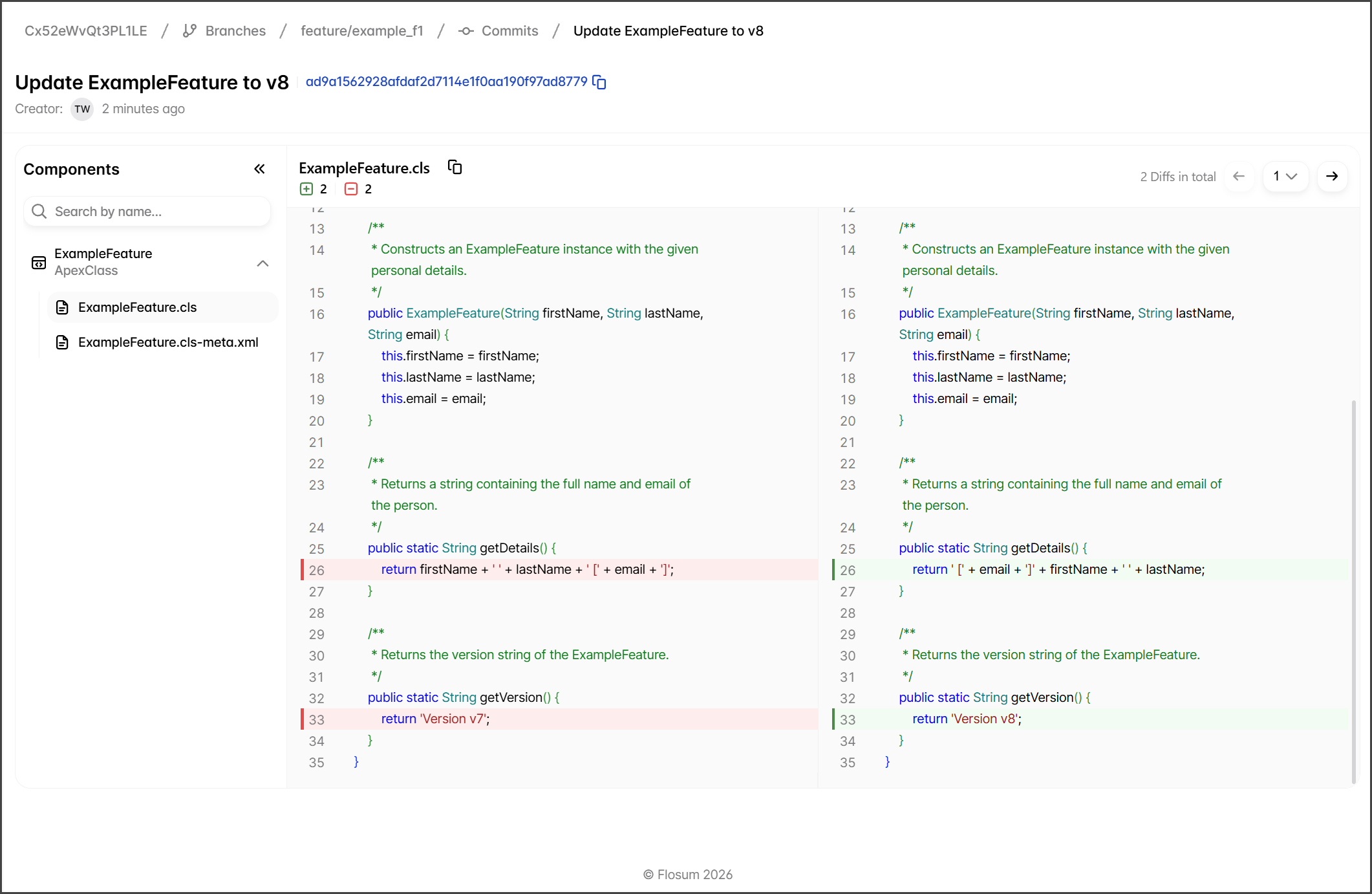
## Diff View
With the new difference viewer, each affected component and its files are now displayed on a left sidebar menu, allowing you to easily switch between files and components while the code differences are displayed side by side for quick comparison.
The diff view compares two versions of the same code side by side and highlights exactly what changed by marking added, removed, and modified lines so you can review each change at a glance. Matching lines stay aligned across both panes, so you can trace any change to its surrounding context as you move through the file.
You will find the diff view in the following areas:
* **Pull Request** > **Components Changed**
* **Smart Merge** > **Review Changes**
* **Overwrite Protection** > **Resolve Conflicts**
* **Branch** > **Commits**
---
# Agent Instructions
This documentation is published with GitBook. GitBook is the documentation platform designed so that both humans and AI agents can read, navigate, and reason over technical content effectively. Learn more at gitbook.com.
## Querying This Documentation
If you need additional information that is not directly available in this page, you can query the documentation by asking a question.
Perform an HTTP GET request on the following URL with the `ask` and `goal` query parameters:
```
GET https://docs.flosum.com/devops/new-ui-ux-transition/improved-code-viewer.md?ask=&goal=
```
`ask` is the immediate question: it should be specific, self-contained, and written in natural language.
`goal` is what the user is ultimately trying to achieve, the reason they need the answer. Sharing it helps GitBook give you a better, more relevant answer. A goal is most helpful when it describes the outcome the user wants rather than restating the question. For example, with `ask=how do I create an API token`, a goal like `automate deployments from our CI pipeline` lets GitBook tailor the answer to that use case.
The response will contain a direct answer to the question and relevant excerpts and sources from the documentation.
Use this mechanism when the answer is not explicitly present in the current page, you need clarification or additional context, or you want to retrieve related documentation sections.