> For the complete documentation index, see [llms.txt](https://docs.flosum.com/llms.txt). Markdown versions of documentation pages are available by appending `.md` to page URLs; this page is available as [Markdown](https://docs.flosum.com/devops/pipeline/pipeline-operations/pipeline-operation-validate.md).

# Pipeline Operation: Validate

This page explains how to configure, run, and manage a Validate operation in pipelines. Validation checks metadata changes without applying them to the target org, ensuring deployments won’t fail.

{% hint style="warning" %}

#### Written for the Old UI

This article was written for the old UI. The instructions are still usable, but the screenshots are outdated. In some cases, items referenced in the instructions have moved or changed. If you cannot find an item, see the [Where Did It Go](/devops/new-ui-ux-transition/where-did-it-go.md) article.
{% endhint %}

## ![](https://1800549522-files.gitbook.io/~/files/v0/b/gitbook-x-prod.appspot.com/o/spaces%2FRpUu5iMlzMFAudyBvMOl%2Fuploads%2FG5ZbxX918xOHwbAwAJ4n%2FSummary2-Small-Icon.svg?alt=media\&token=da26a67f-ff7f-47b3-8669-06be960dc2d7) Overview

The **Validate** operation simulates a deployment to confirm whether changes can be successfully applied. It runs checks and (optionally) executes tests, but no metadata is committed to the target org. Adding a Validate step to a pipeline is most useful when:

* Testing changes before a production deploy.
* Ensuring dependencies are met.
* Confirming Apex tests pass.

{% hint style="info" %}

#### Best Practices

* Always validate in lower environments before a production deployment.
* Configure **On fail** next to a **Rollback** operation for safer automation.
* Run complete test suites in higher environments to catch Apex issues early.
* Review logs after each validation to confirm that no dependencies are missing.
  {% endhint %}

## Validate Operation Configuration

{% hint style="info" %}
The instructions below apply to configuring this pipeline operation. For general instructions on adding a pipeline step and setting the next step, see the following article.

[Adding a Pipeline Step](/devops/pipeline/configuring-pipeline-steps/adding-a-pipeline-step.md)
{% endhint %}

{% stepper %}
{% step %}

### Select Operation and Target

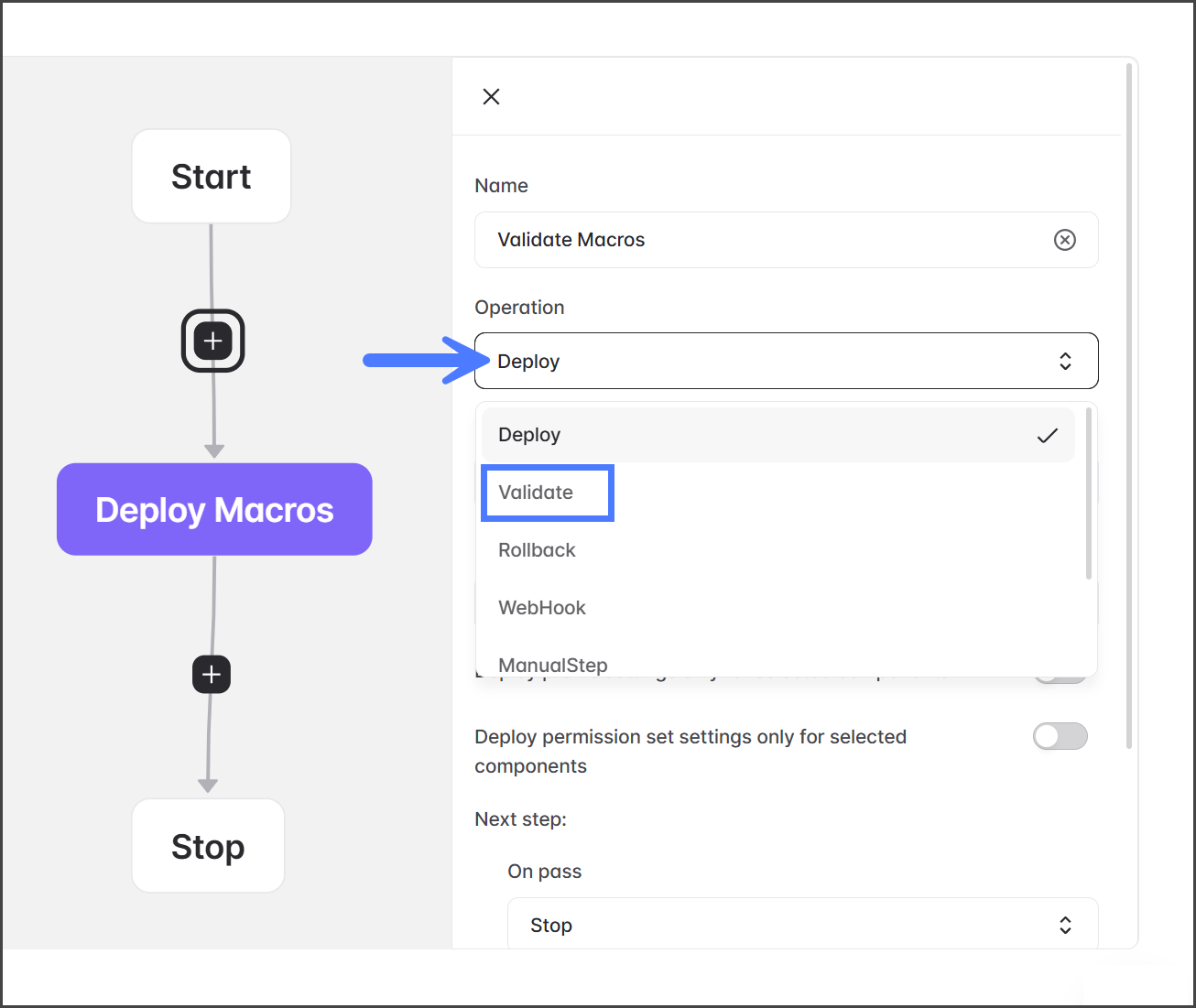
1. Click the **Operation** dropdown menu.
2. Select **Validate**.

   <div align="left"><figure><img src="https://1800549522-files.gitbook.io/~/files/v0/b/gitbook-x-prod.appspot.com/o/spaces%2FRpUu5iMlzMFAudyBvMOl%2Fuploads%2FTDtdR0Drk2fRCLeIckRd%2FAddingValidatingStep-Add-S03-01.png?alt=media&amp;token=0c2c50a4-3834-4daa-bb51-7c1f2d617810" alt="" width="375"><figcaption></figcaption></figure></div>
3. Click the **Target organization** dropdown menu.
4. Select the Salesforce org connection to use for the validation operation.

   <div align="left"><figure><img src="https://1800549522-files.gitbook.io/~/files/v0/b/gitbook-x-prod.appspot.com/o/spaces%2FRpUu5iMlzMFAudyBvMOl%2Fuploads%2FZcq9IwvzO143guRdR49q%2FAddingValidatingStep-Add-S03-02.png?alt=media&amp;token=d7b71ceb-3ce0-4f17-a45b-4f0923e27f61" alt="" width="375"><figcaption></figcaption></figure></div>

{% endstep %}

{% step %}

### Configure Validation

1. Click the **Run tests** dropdown menu.
2. Select the test level to run during validation. See the table below for an explanation of each test.

   <div align="left"><figure><img src="https://1800549522-files.gitbook.io/~/files/v0/b/gitbook-x-prod.appspot.com/o/spaces%2FRpUu5iMlzMFAudyBvMOl%2Fuploads%2FZ9UGQZYafhub6wfYPUkR%2FAddingValidatingStep-Add-S04-01.png?alt=media&amp;token=84f3fa4d-b14b-4aa0-9446-4d2cd931479b" alt="" width="375"><figcaption></figcaption></figure></div>

<table><thead><tr><th width="180.333251953125">Test Level</th><th>Description</th></tr></thead><tbody><tr><td><strong>Default</strong></td><td>Runs only the tests included in the package.</td></tr><tr><td><strong>Do not run tests</strong></td><td>Skips all Apex tests (allowed only in non-production orgs).</td></tr><tr><td><strong>Run local tests</strong></td><td>Executes all tests in the org except those from installed managed packages.</td></tr><tr><td><strong>Run all tests</strong></td><td>Runs every test in the org, including managed package tests.</td></tr><tr><td><strong>Run relevant tests</strong></td><td>Runs only the tests relevant to the selected components and their dependencies. This option uses Salesforce’s RunRelevantTests feature to automatically determine which tests to run. For more details, see <a href="https://help.salesforce.com/s/articleView?id=release-notes.rn_apex_run_relevant_tests.htm&#x26;release=260&#x26;type=5">Salesforce Help</a>.</td></tr><tr><td><strong>Run specified tests</strong></td><td>Lets you define individual test classes or methods to run.</td></tr></tbody></table>

3. (Optional) Click the deployment settings toggles to enable the settings. See the following table for an explanation of each setting.

   <div align="left"><figure><img src="https://1800549522-files.gitbook.io/~/files/v0/b/gitbook-x-prod.appspot.com/o/spaces%2FRpUu5iMlzMFAudyBvMOl%2Fuploads%2Fpf6voe1g0UiSJOCc90HJ%2FAddingValidatingStep-Add-S04-02.png?alt=media&amp;token=1e22a863-0154-48c8-ac2f-8ccf1ee00a0f" alt="" width="375"><figcaption></figcaption></figure></div>

<table><thead><tr><th width="280.333251953125">Setting</th><th>Description</th></tr></thead><tbody><tr><td><strong>Deploy profile settings only for selected components</strong></td><td>Only validate <strong>Profile Settings</strong> for the components you chose to include in this validation job.</td></tr><tr><td><strong>Deploy permission set settings only for selected components</strong></td><td>Only validate <strong>Permission Set Settings</strong> for the components you chose to include in this validation job.</td></tr></tbody></table>
{% endstep %}
{% endstepper %}


---

# Agent Instructions
This documentation is published with GitBook. GitBook is the documentation platform designed so that both humans and AI agents can read, navigate, and reason over technical content effectively. Learn more at gitbook.com.

## Querying This Documentation
If you need additional information that is not directly available in this page, you can query the documentation by asking a question.

Perform an HTTP GET request on the following URL with the `ask` and `goal` query parameters:

```
GET https://docs.flosum.com/devops/pipeline/pipeline-operations/pipeline-operation-validate.md?ask=<question>&goal=<user_goal>
```

`ask` is the immediate question: it should be specific, self-contained, and written in natural language.
`goal` is what the user is ultimately trying to achieve, the reason they need the answer. Sharing it helps GitBook give you a better, more relevant answer. A goal is most helpful when it describes the outcome the user wants rather than restating the question. For example, with `ask=how do I create an API token`, a goal like `automate deployments from our CI pipeline` lets GitBook tailor the answer to that use case.

The response will contain a direct answer to the question and relevant excerpts and sources from the documentation.

Use this mechanism when the answer is not explicitly present in the current page, you need clarification or additional context, or you want to retrieve related documentation sections.