> For the complete documentation index, see [llms.txt](https://docs.flosum.com/llms.txt). Markdown versions of documentation pages are available by appending `.md` to page URLs; this page is available as [Markdown](https://docs.flosum.com/global-settings/environment/organizations/assigning-an-app-to-an-organization.md).
# Assigning an App to an Organization
{% hint style="success" %}
#### Required User Credentials
\[**Flosum User**] - **SystemAdministrator** Role
{% endhint %}
##  Overview
The Global Settings app allows centralized management of which Flosum Cloud Apps are assigned to your Organizations. When a Salesforce org is linked, you can select the apps to assign to it. This article shows you how to assign an app to an Organization.
{% hint style="info" %}
#### Backup and Archive App
When assigning the Backup and Archive app, you also have to specify the storage and encryption key to use with it. See the [#encryption-keys](#encryption-keys "mention") section below for more information about how Flosum uses encryption keys to protect your data.
{% endhint %}
## Assigning an App
{% stepper %}
{% step %}
### Access Global Settings
1. From any **Flosum Cloud App**, click the **App Switcher** icon at the top of the left sidebar menu.
2. Click **Global Settings**.
3. The **Global Settings** app will open in a new tab.
{% hint style="info" %}
Global Settings can also be accessed by logging in directly via the Flosum Cloud Apps Login URL. See the following article for login instructions.
* [Log In To Global Settings](/global-settings/getting-started/log-in-to-global-settings.md)
{% endhint %}
{% endstep %}
{% step %}
### Assign Apps
{% hint style="warning" %}
Unchecking apps in the **Assign Apps** dialog will not remove them. To remove an assigned app, use the **Remove App** option. See the following article for instructions.
* [Removing an App from an Organization](/global-settings/environment/organizations/removing-an-app-from-an-organization.md)
{% endhint %}
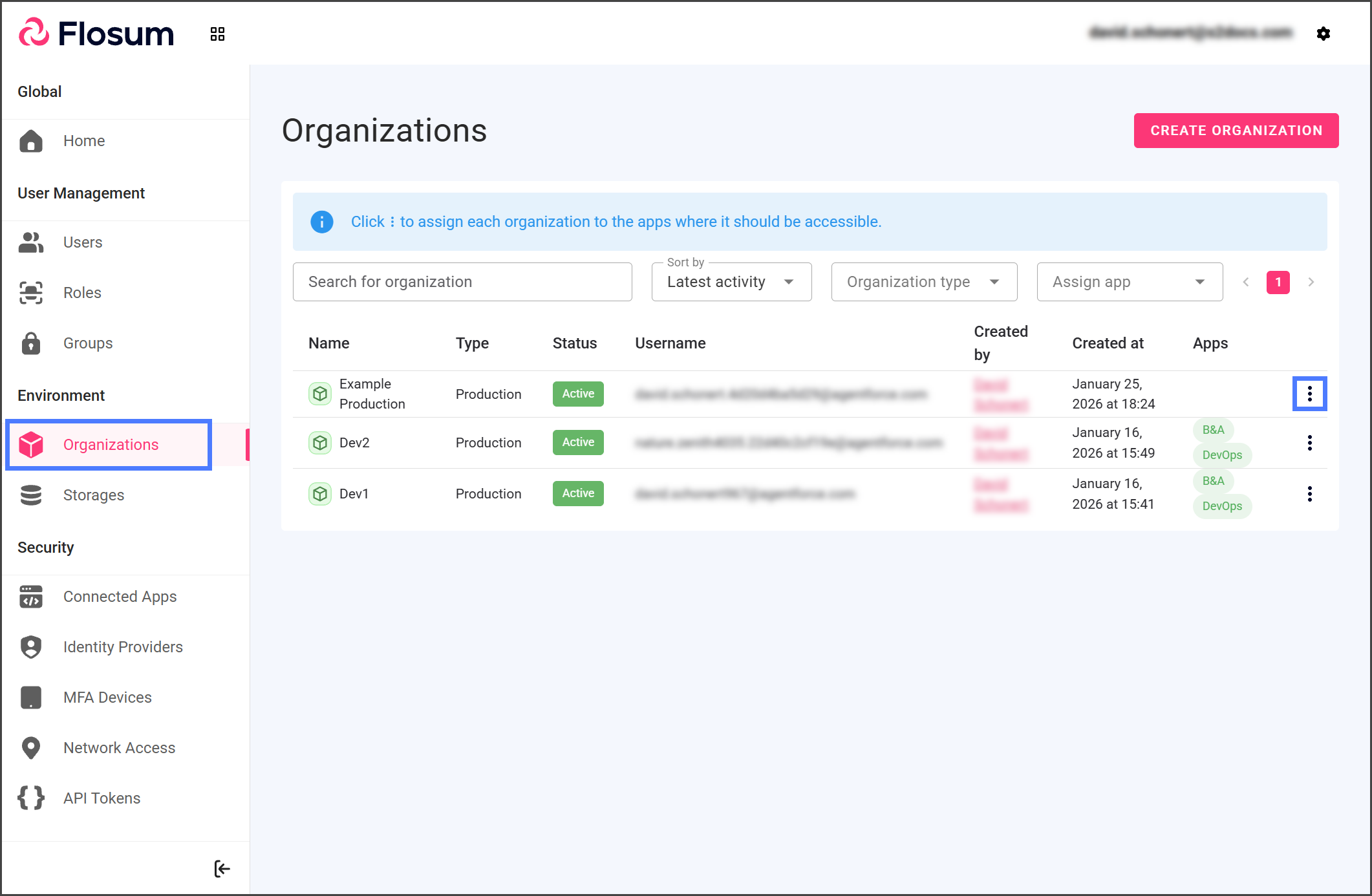
1. Click **Organizations** from the left sidebar.
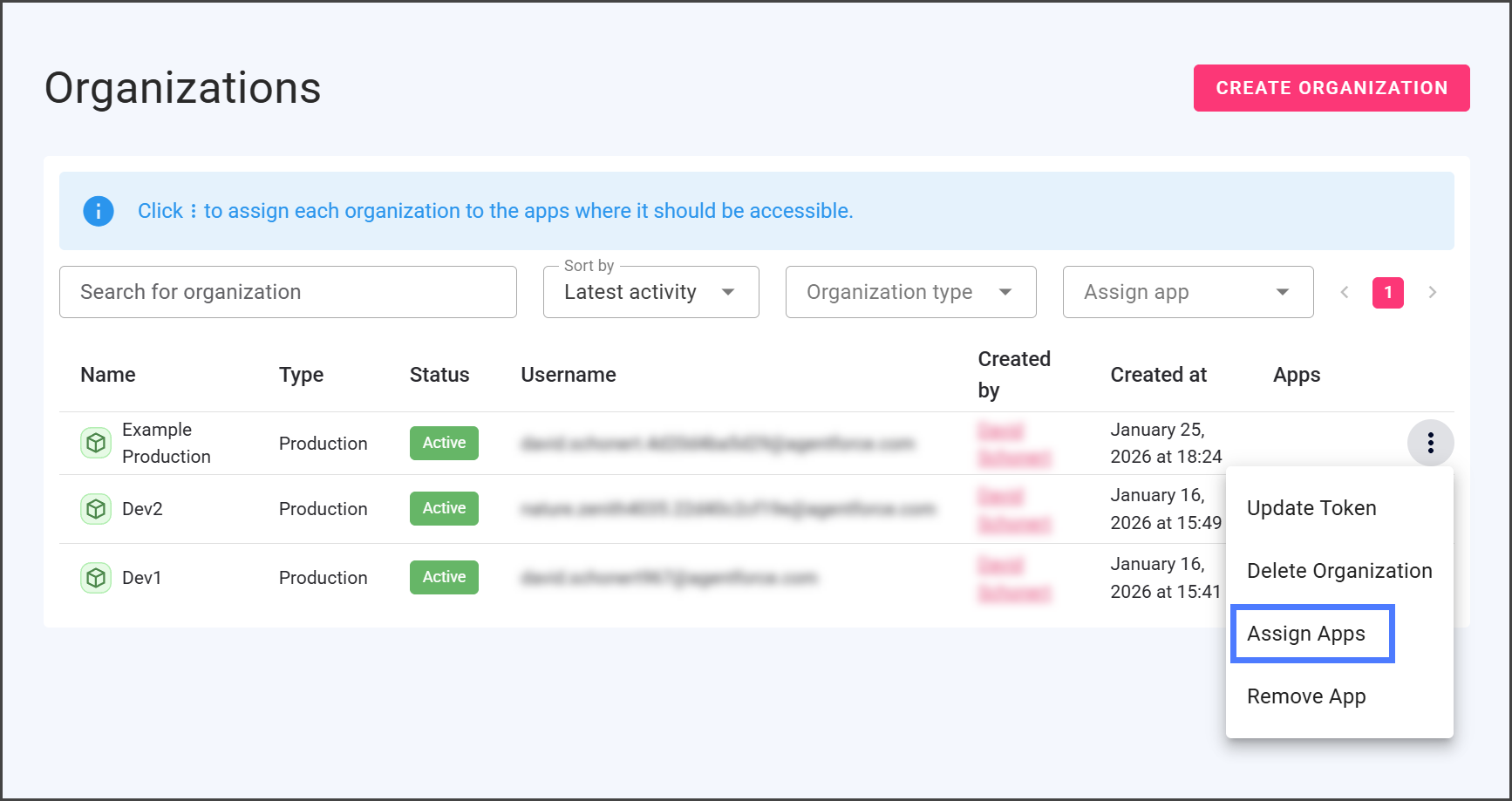
2. Click the **Three Vertical Dots** menu at the right end of the Organization you wish to assign apps to.
3. Click **Assign Apps**.
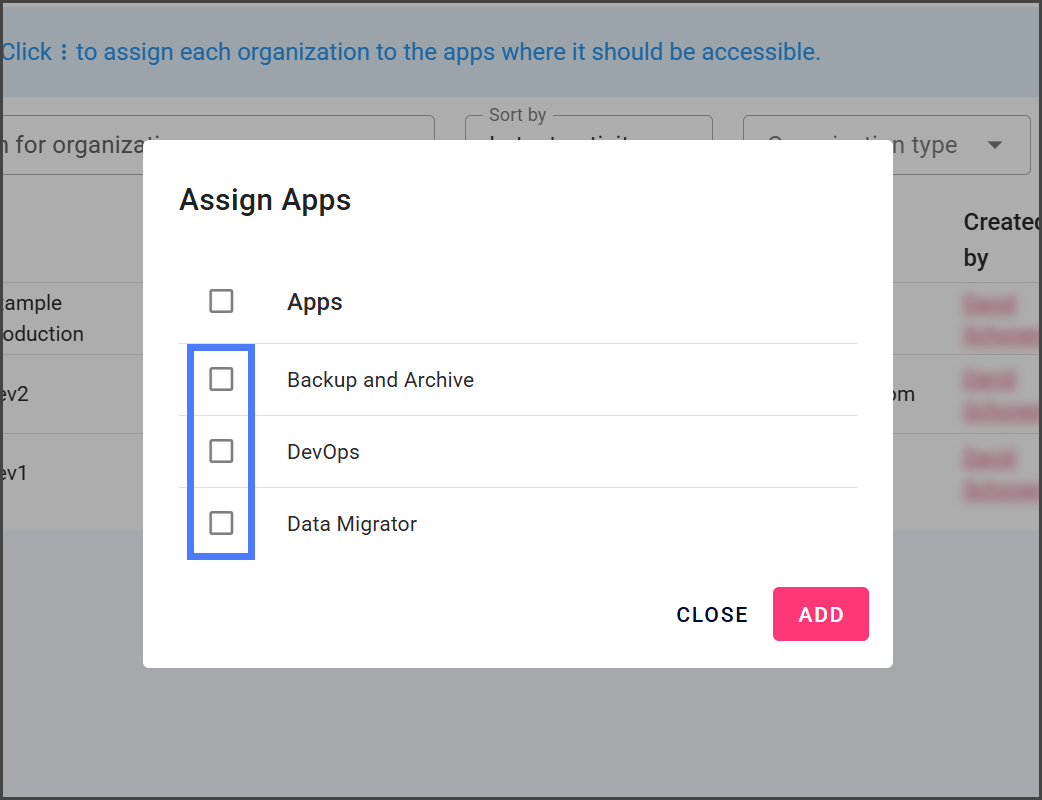
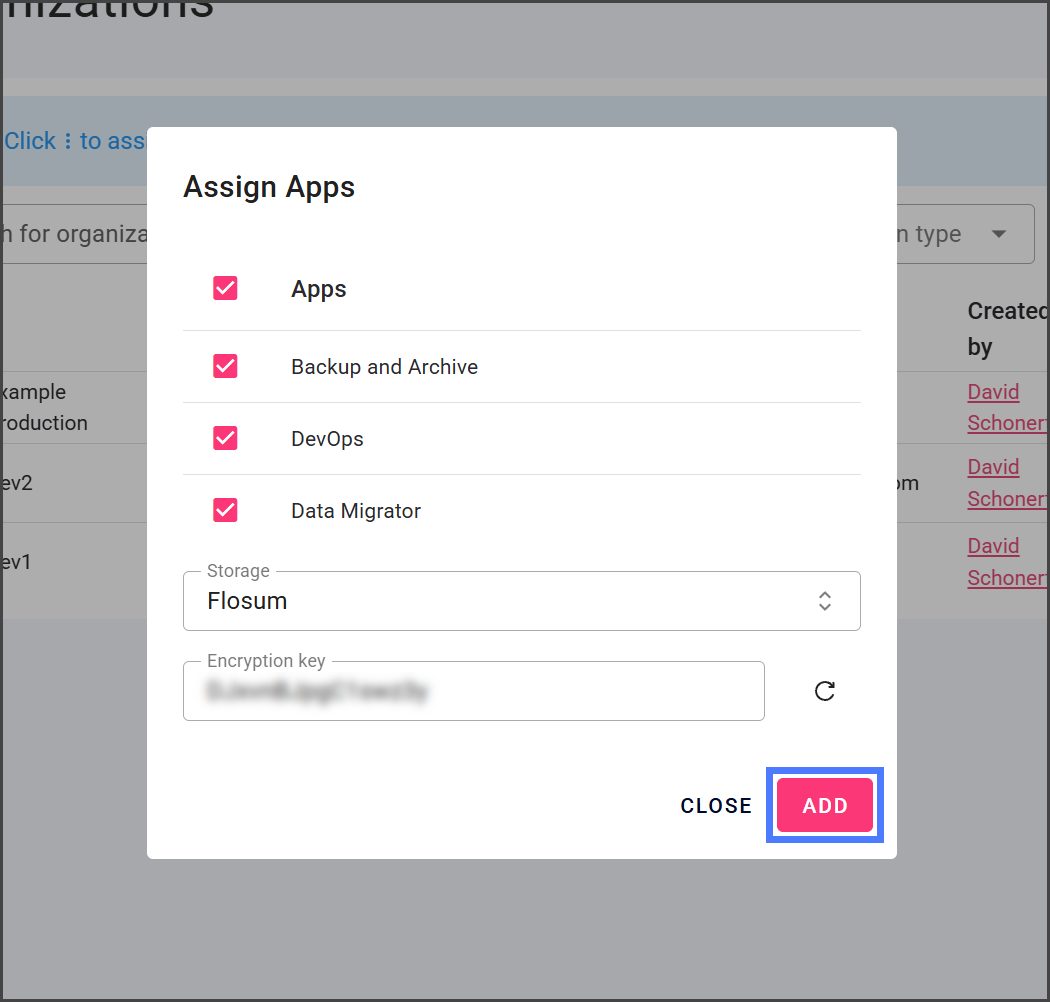
4. Check the checkbox next to the **Apps** you want to assign.
{% endstep %}
{% step %}
### Backup and Archive Storage and Encryption
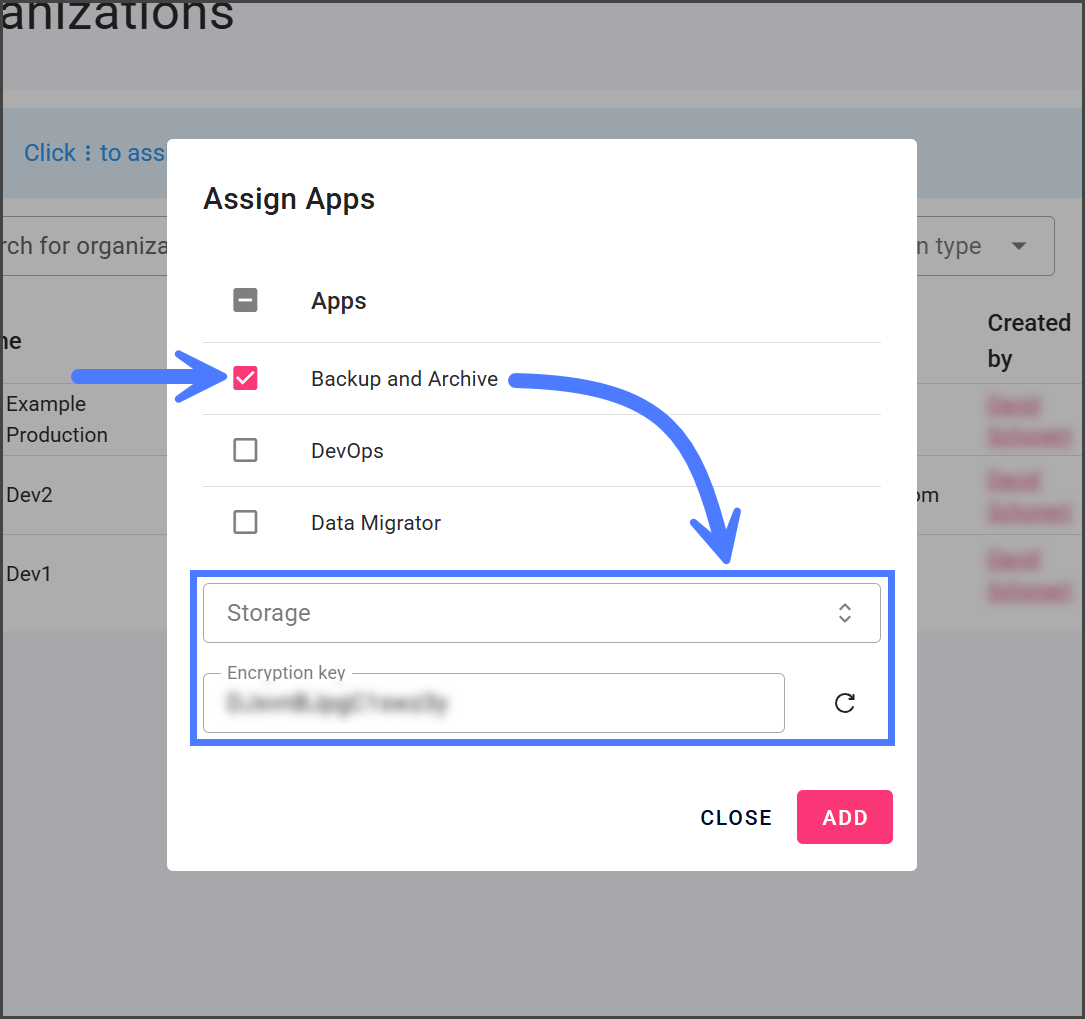
The **Backup and Archive** app requires you to specify a storage device for the organization's backup and archive data. If you check the **Backup and Archive** app to be added, the **Assign Apps** dialog will display a **Storage** selection and an **Encryption Key** field.
{% hint style="info" %}
#### Storage
Flosum provides secure, built-in storage for every tenant. For customers with specific requirements or existing cloud infrastructure, you can also connect your own storage in AWS S3, Azure Blob, or Google Cloud Storage, giving you control over where your data resides. Refer to the following articles for instructions on connecting storage.
* [Adding an AWS S3 Bucket for Storage](/global-settings/environment/storages/adding-an-aws-s3-bucket-for-storage.md)
* [Adding an Azure Blob for Storage](/global-settings/environment/storages/adding-an-azure-blob-for-storage.md)
* [Adding a Google Cloud Storage Bucket for Storage](/global-settings/environment/storages/adding-a-google-cloud-storage-bucket-for-storage.md)
{% endhint %}
{% hint style="info" %}
#### Encryption Key
See the [#encryption-keys](#encryption-keys "mention") section below for more information about how Flosum uses encryption keys to protect your data.
{% endhint %}
{% hint style="warning" %}
#### Reassigning Backup and Archive
When reassigning the **Backup and Archive** app to an organization previously associated with it, you cannot specify a new **Storage** or **Encryption Key**. The app will use the existing settings. To use a different storage or encryption key, delete the organization and add it again.
{% endhint %}
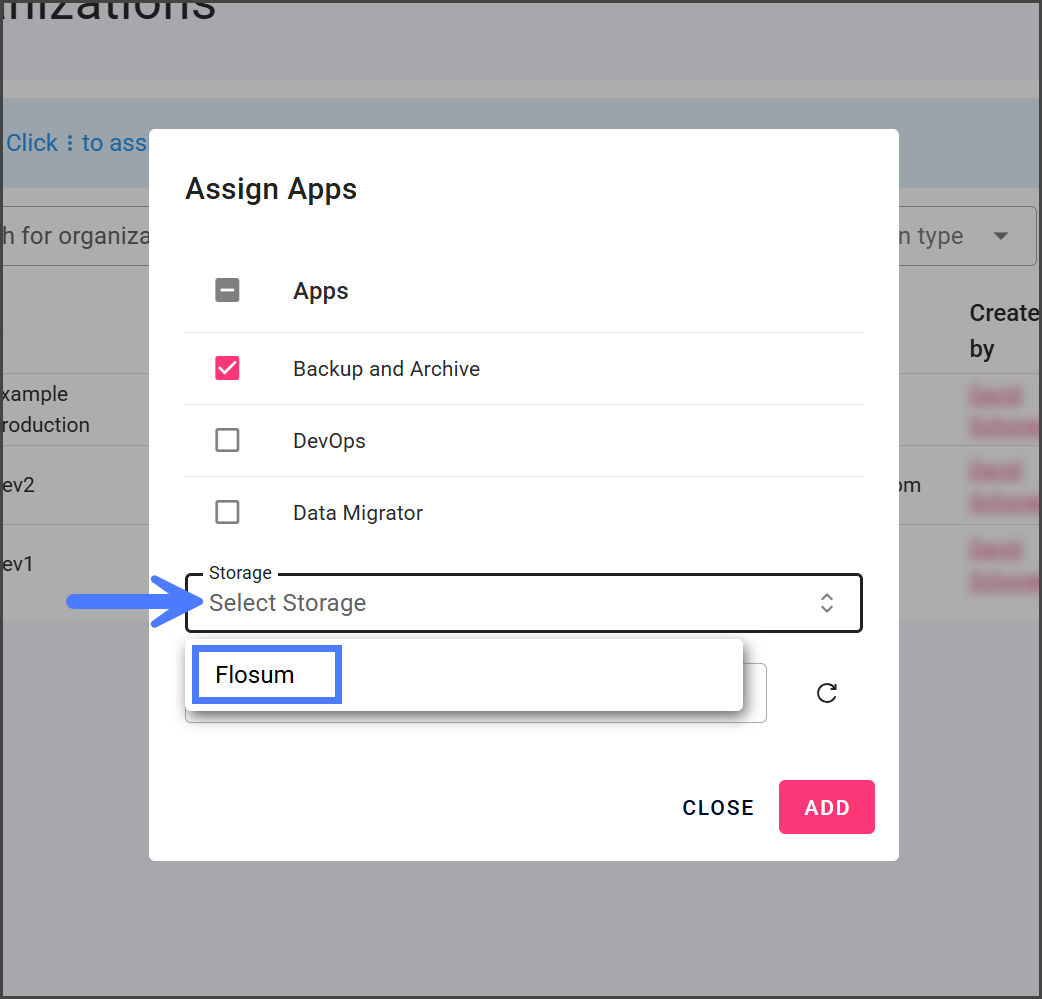
1. Click the **Backup and Archive** checkbox.
2. The **Storage** dropdown and **Encryption Key** textbox will be displayed.
3. Click the **Storage** dropdown**.**
4. Select the storage to use for this organization.
5. The **Encryption Key** is generated automatically.
6. (Optional) Click the **Refresh** icon next to the textbox to generate a new key, or enter your own, using a combination of uppercase and lowercase letters, numbers, and special characters up to 16 characters long.
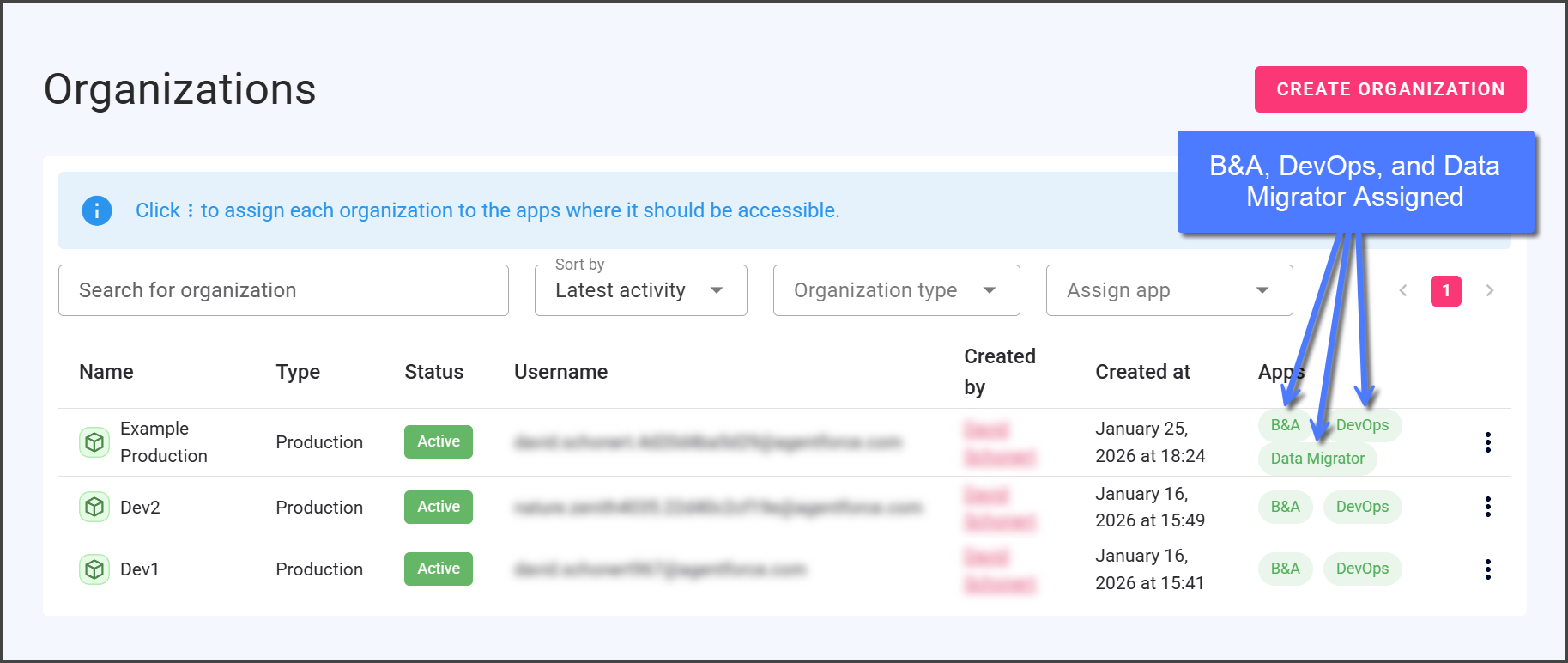
2. Once assigned, the apps will be listed for the organization.
{% endstep %}
{% endstepper %}
## Encryption Keys
Flosum ensures that all data stored by the Backup & Archive app for each Salesforce organization is securely encrypted with a unique **Encryption Key**. This key can be up to 16 characters long and is automatically generated when the Backup & Archive app is first added to an organization. Clicking the **Refresh** icon generates a new key, or users can enter their own. For optimal security, use a random mix of the following characters:
* Uppercase letters (A-Z)
* Lowercase letters (a-z)
* Digits (0-9)
* Special symbols (!, @, #, $, %, ^, &, \*, +, etc.)
{% hint style="warning" %}
Store the encryption key securely, as it cannot be retrieved later.
{% endhint %}
### Data Protection
All data is protected in transit using TLS encryption, ensuring secure communication. Once stored, AES-256 encryption safeguards data at rest, providing robust security. Backup files and associated metadata are encrypted to the same level, maintaining their confidentiality and integrity. This comprehensive approach ensures end-to-end data security across the entire pipeline.
### Flosum Hosted Tenants
The encryption key in your Flosum Cloud App database is securely stored and protected by AWS Key Management Service (KMS). This service uses a 32-byte (256-bit) AES-256 key, ensuring that the encryption key itself is protected before any encryption operations take place. This method provides an extra layer of defense against key exposure.
### Self-Hosted Tenants
With the recent Summer 2025 update to Flosum Cloud Apps, encryption keys are now securely stored in your self-hosted database using a 32-byte (256-bit) AES-256 key.
When migrating to the new Flosum app version, you will need to create a key by following these steps.
1. Generate 32-byte base64 key: `openssl rand -base64 32`
2. Add key to Docker Compose: `LOCAL_ORGANIZATION_ENCRYPTION_KEY=`
3. Update the Flosum app to complete the migration.
---
# Agent Instructions
This documentation is published with GitBook. GitBook is the documentation platform designed so that both humans and AI agents can read, navigate, and reason over technical content effectively. Learn more at gitbook.com.
## Querying This Documentation
If you need additional information that is not directly available in this page, you can query the documentation by asking a question.
Perform an HTTP GET request on the following URL with the `ask` and `goal` query parameters:
```
GET https://docs.flosum.com/global-settings/environment/organizations/assigning-an-app-to-an-organization.md?ask=&goal=
```
`ask` is the immediate question: it should be specific, self-contained, and written in natural language.
`goal` is what the user is ultimately trying to achieve, the reason they need the answer. Sharing it helps GitBook give you a better, more relevant answer. A goal is most helpful when it describes the outcome the user wants rather than restating the question. For example, with `ask=how do I create an API token`, a goal like `automate deployments from our CI pipeline` lets GitBook tailor the answer to that use case.
The response will contain a direct answer to the question and relevant excerpts and sources from the documentation.
Use this mechanism when the answer is not explicitly present in the current page, you need clarification or additional context, or you want to retrieve related documentation sections.