> For the complete documentation index, see [llms.txt](https://docs.flosum.com/llms.txt). Markdown versions of documentation pages are available by appending `.md` to page URLs; this page is available as [Markdown](https://docs.flosum.com/global-settings/global-settings-docs-de/benutzerverwaltung/benutzer/erste-anmeldung-eines-neuen-benutzers.md).

# Erste Anmeldung eines neuen Benutzers

## ![](https://1457152582-files.gitbook.io/~/files/v0/b/gitbook-x-prod.appspot.com/o/spaces%2FsEk2hU5IMh3HEY5dJZjR%2Fuploads%2FSxcnKlaJKPzDqONWoDNv%2FSummary2-Small-Icon.svg?alt=media\&token=5e3253d0-a069-4ba5-9c06-83c70bd0b21d)Übersicht

Nachdem der Systemadministrator ein Benutzerkonto erstellt hat, muss der Benutzer den ersten Anmeldevorgang abschließen, der das Ändern des Passworts beinhaltet. Dieser Artikel führt Sie durch den Prozess der erstmaligen Anmeldung an Ihrem Konto.

## Erste Anmeldung des Benutzers

{% hint style="info" %}
Bevor Sie mit dem Anmeldevorgang beginnen, stellen Sie sicher, dass Ihr Systemadministrator Ihnen Folgendes bereitgestellt hat:

* Die E-Mail-Adresse zur Anmeldung an Ihrem Konto.
* Das temporäre Passwort für Ihr Konto.
  {% endhint %}

{% stepper %}
{% step %}

### Anmelden

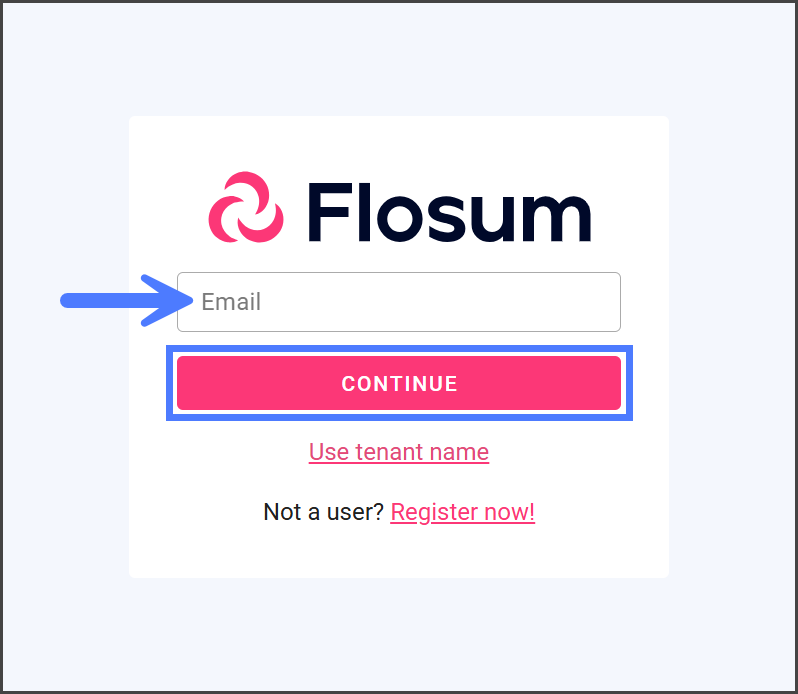
1. Geben Sie die vom Systemadministrator bereitgestellte Anmelde-URL in den Browser ein.
2. Geben Sie die **E-Mail** ein, die zur Registrierung des Benutzers verwendet wurde.
3. Klicken Sie auf **Fortfahren**.&#x20;

   <div align="left"><figure><img src="https://1457152582-files.gitbook.io/~/files/v0/b/gitbook-x-prod.appspot.com/o/spaces%2FsEk2hU5IMh3HEY5dJZjR%2Fuploads%2FkXv4bL5mk8qZCKFNWWge%2FGSCreatingAUser-Login-01.png?alt=media&amp;token=065e80af-3515-46bd-a68e-7e012cb86334" alt="" width="375"><figcaption></figcaption></figure></div>
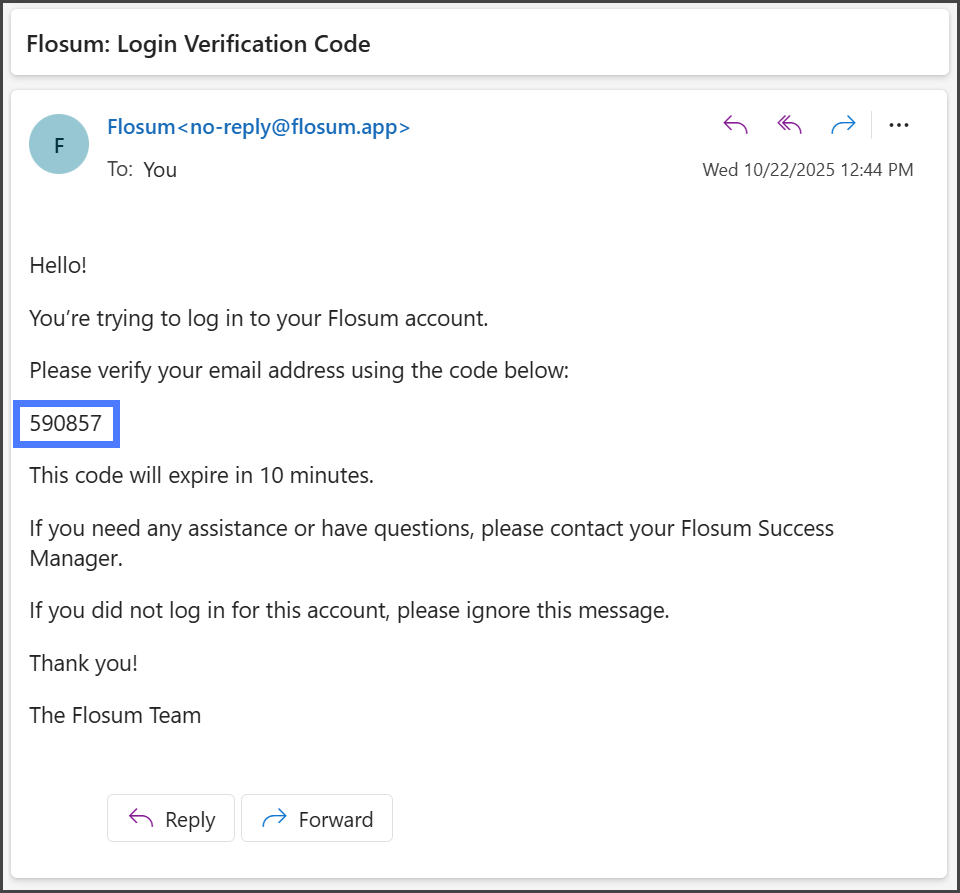
4. Greifen Sie auf Ihr E-Mail-Konto zu und öffnen Sie **Flosum: Anmeldebestätigungscode**.

   <div data-gb-custom-block data-tag="hint" data-style="info" class="hint hint-info"><p>Die E-Mail wird gesendet von <strong>no-reply@flosum.app</strong>. Überprüfen Sie Ihren Spam-Ordner, wenn Sie die E-Mail nicht erhalten haben.</p></div>
5. Kopieren Sie den Bestätigungscode.&#x20;

   <div align="left"><figure><img src="https://1457152582-files.gitbook.io/~/files/v0/b/gitbook-x-prod.appspot.com/o/spaces%2FsEk2hU5IMh3HEY5dJZjR%2Fuploads%2FcG4kQMuQuWuH6ylsIOYq%2FGSCreatingAUser-Login-02.png?alt=media&amp;token=9deb01a1-9ecc-46cd-a263-2902f994de79" alt="" width="563"><figcaption></figcaption></figure></div>
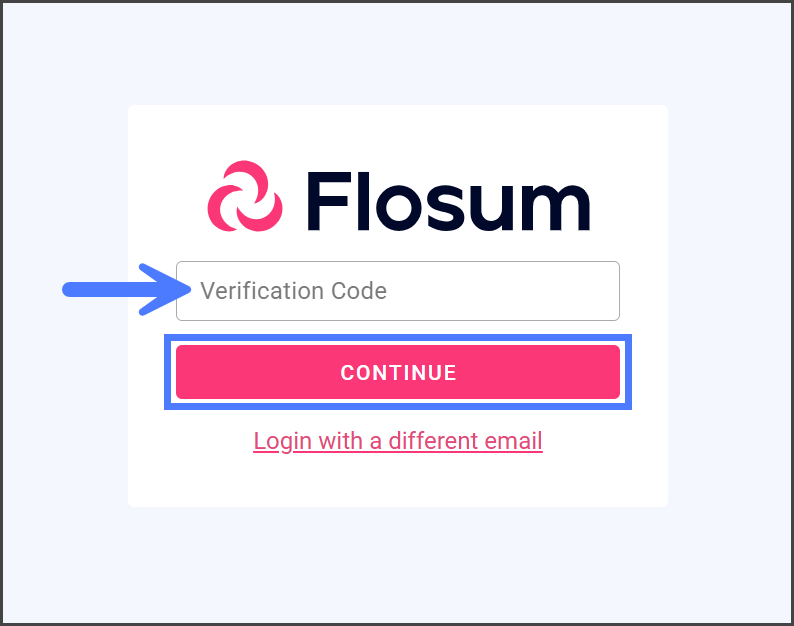
6. Geben Sie den kopierten Bestätigungscode in das **Bestätigungscode** Textfeld ein.
7. Klicken Sie auf **Fortfahren**.&#x20;

   <div align="left"><figure><img src="https://1457152582-files.gitbook.io/~/files/v0/b/gitbook-x-prod.appspot.com/o/spaces%2FsEk2hU5IMh3HEY5dJZjR%2Fuploads%2FOEBNHl4xsxjHtXLIWtcx%2FGSCreatingAUser-Login-03.png?alt=media&amp;token=355a1cfc-5eb1-4346-9751-ced2e2206f12" alt="" width="375"><figcaption></figcaption></figure></div>
8. Wählen Sie den Mandanten aus, bei dem Sie sich anmelden möchten.

{% hint style="warning" %}
Wenn Sie mehrere Mandanten haben und unsicher sind, welchen Mandanten Sie auswählen sollen, wenden Sie sich an Ihren Systemadministrator.
{% endhint %}

8. Klicken Sie auf **Fortfahren**.&#x20;

   <div align="left"><figure><img src="https://1457152582-files.gitbook.io/~/files/v0/b/gitbook-x-prod.appspot.com/o/spaces%2FsEk2hU5IMh3HEY5dJZjR%2Fuploads%2Fc7pg3G3etIotlCItzGIz%2FGSCreatingAUser-Login-04.png?alt=media&amp;token=9a06d7eb-2acf-4916-8436-350046ee7479" alt="" width="375"><figcaption></figcaption></figure></div>

{% endstep %}

{% step %}

### Temporäres Passwort ändern

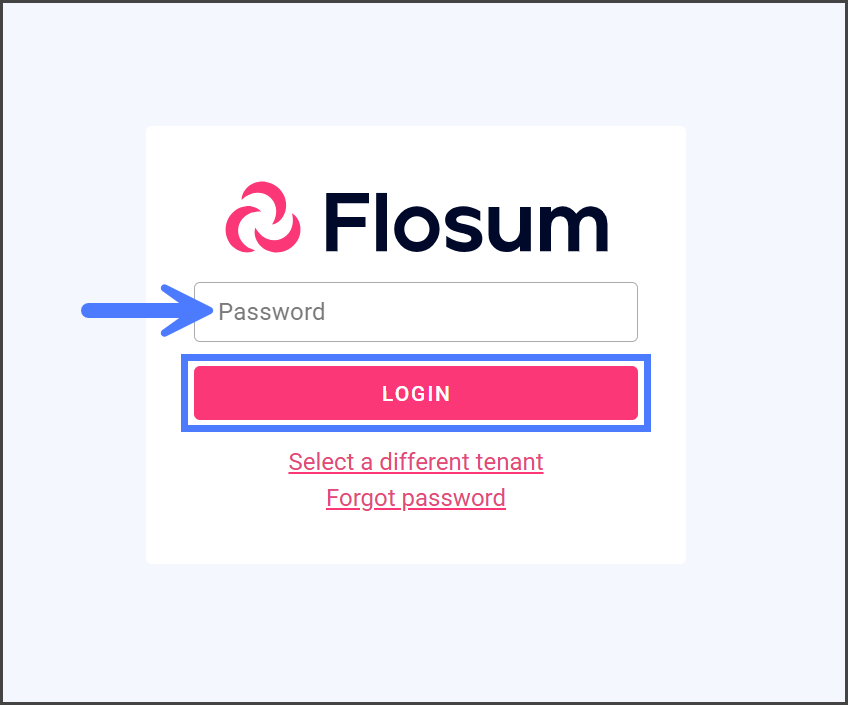
1. In das **Passwort** Textbox, geben Sie das **temporäre Passwort** ein, das der Systemadministrator bereitgestellt hat.
2. Klicken Sie auf **Anmelden**.&#x20;

   <div align="left"><figure><img src="https://1457152582-files.gitbook.io/~/files/v0/b/gitbook-x-prod.appspot.com/o/spaces%2FsEk2hU5IMh3HEY5dJZjR%2Fuploads%2F0tyJG7BCA78DIGDwucxH%2FGSCreatingAUser-Login-05.png?alt=media&amp;token=58666df6-737a-4e3c-8758-7da836052410" alt="" width="375"><figcaption></figcaption></figure></div>
3. Geben Sie ein **neues Passwort** ein, das die angegebenen Passwortanforderungen erfüllt.
4. Geben Sie das Passwort erneut in das **Bestätigen neues Passwort** Textfeld ein.
5. Klicken Sie auf **Passwort ändern**.&#x20;

   <div align="left"><figure><img src="https://1457152582-files.gitbook.io/~/files/v0/b/gitbook-x-prod.appspot.com/o/spaces%2FsEk2hU5IMh3HEY5dJZjR%2Fuploads%2FO1sblW9nqAmhWXLEH7C1%2FGSCreatingAUser-Login-06.png?alt=media&amp;token=5b2c4deb-2d15-4efa-b82c-529669313dcc" alt="" width="375"><figcaption></figcaption></figure></div>

{% endstep %}

{% step %}

### Mit neuem Passwort anmelden

1. Geben Sie die **E-Mail** ein, die zur Registrierung des Benutzers verwendet wurde.
2. Klicken Sie auf **Fortfahren**.&#x20;

   <div align="left"><figure><img src="https://1457152582-files.gitbook.io/~/files/v0/b/gitbook-x-prod.appspot.com/o/spaces%2FsEk2hU5IMh3HEY5dJZjR%2Fuploads%2FkXv4bL5mk8qZCKFNWWge%2FGSCreatingAUser-Login-01.png?alt=media&amp;token=065e80af-3515-46bd-a68e-7e012cb86334" alt="" width="375"><figcaption></figcaption></figure></div>
3. Greifen Sie auf Ihr E-Mail-Konto zu und öffnen Sie **Flosum: Anmeldebestätigungscode**.

   <div data-gb-custom-block data-tag="hint" data-style="info" class="hint hint-info"><p>Die E-Mail wird gesendet von <strong>no-reply@flosum.app</strong>. Überprüfen Sie Ihren Spam-Ordner, wenn Sie die E-Mail nicht erhalten haben.</p></div>
4. Kopieren Sie den Bestätigungscode.&#x20;

   <div align="left"><figure><img src="https://1457152582-files.gitbook.io/~/files/v0/b/gitbook-x-prod.appspot.com/o/spaces%2FsEk2hU5IMh3HEY5dJZjR%2Fuploads%2FcG4kQMuQuWuH6ylsIOYq%2FGSCreatingAUser-Login-02.png?alt=media&amp;token=9deb01a1-9ecc-46cd-a263-2902f994de79" alt="" width="563"><figcaption></figcaption></figure></div>
5. Geben Sie den kopierten Bestätigungscode in das **Bestätigungscode** Textfeld ein.
6. Klicken Sie auf **Fortfahren**.&#x20;

   <div align="left"><figure><img src="https://1457152582-files.gitbook.io/~/files/v0/b/gitbook-x-prod.appspot.com/o/spaces%2FsEk2hU5IMh3HEY5dJZjR%2Fuploads%2FOEBNHl4xsxjHtXLIWtcx%2FGSCreatingAUser-Login-03.png?alt=media&amp;token=355a1cfc-5eb1-4346-9751-ced2e2206f12" alt="" width="375"><figcaption></figcaption></figure></div>
7. Wählen Sie den Mandanten aus, bei dem Sie sich anmelden möchten.

{% hint style="warning" %}
Wenn Sie mehrere Mandanten haben und unsicher sind, welchen Mandanten Sie auswählen sollen, wenden Sie sich an Ihren Systemadministrator.
{% endhint %}

8. Klicken Sie auf **Fortfahren**.&#x20;

   <div align="left"><figure><img src="https://1457152582-files.gitbook.io/~/files/v0/b/gitbook-x-prod.appspot.com/o/spaces%2FsEk2hU5IMh3HEY5dJZjR%2Fuploads%2Fc7pg3G3etIotlCItzGIz%2FGSCreatingAUser-Login-04.png?alt=media&amp;token=9a06d7eb-2acf-4916-8436-350046ee7479" alt="" width="375"><figcaption></figcaption></figure></div>
9. In das **Passwort** Textbox, geben Sie das von Ihnen erstellte neue Passwort ein.
10. Klicken Sie auf **Anmelden**.&#x20;

    <div align="left"><figure><img src="https://1457152582-files.gitbook.io/~/files/v0/b/gitbook-x-prod.appspot.com/o/spaces%2FsEk2hU5IMh3HEY5dJZjR%2Fuploads%2F0tyJG7BCA78DIGDwucxH%2FGSCreatingAUser-Login-05.png?alt=media&amp;token=58666df6-737a-4e3c-8758-7da836052410" alt="" width="375"><figcaption></figcaption></figure></div>
11. Sie haben sich erfolgreich in Ihrem neuen Flosum-Konto angemeldet.
    {% endstep %}
    {% endstepper %}


---

# Agent Instructions
This documentation is published with GitBook. GitBook is the documentation platform designed so that both humans and AI agents can read, navigate, and reason over technical content effectively. Learn more at gitbook.com.

## Querying This Documentation
If you need additional information that is not directly available in this page, you can query the documentation by asking a question.

Perform an HTTP GET request on the following URL with the `ask` and `goal` query parameters:

```
GET https://docs.flosum.com/global-settings/global-settings-docs-de/benutzerverwaltung/benutzer/erste-anmeldung-eines-neuen-benutzers.md?ask=<question>&goal=<user_goal>
```

`ask` is the immediate question: it should be specific, self-contained, and written in natural language.
`goal` is what the user is ultimately trying to achieve, the reason they need the answer. Sharing it helps GitBook give you a better, more relevant answer. A goal is most helpful when it describes the outcome the user wants rather than restating the question. For example, with `ask=how do I create an API token`, a goal like `automate deployments from our CI pipeline` lets GitBook tailor the answer to that use case.

The response will contain a direct answer to the question and relevant excerpts and sources from the documentation.

Use this mechanism when the answer is not explicitly present in the current page, you need clarification or additional context, or you want to retrieve related documentation sections.