> For the complete documentation index, see [llms.txt](https://docs.flosum.com/llms.txt). Markdown versions of documentation pages are available by appending `.md` to page URLs; this page is available as [Markdown](https://docs.flosum.com/global-settings/global-settings-docs-de/umgebung/organisationen/eine-app-aus-einer-organisation-entfernen.md).
# Eine App aus einer Organisation entfernen
{% hint style="success" %}
#### Erforderliche Benutzeranmeldeinformationen
\[**Flosum-Benutzer**] - **Systemadministrator** Rolle
{% endhint %}
##  Übersicht
Die Global Settings-App ermöglicht die zentrale Verwaltung, welche Flosum-Cloud-Apps Ihren Organisationen zugewiesen sind. Dieser Artikel zeigt Ihnen, wie Sie eine App aus einer Organisation entfernen.
{% hint style="danger" %}
#### Warnung vor Datenverlust
Wenn eine App aus einer Salesforce-Organisation entfernt wird, werden alle mit dieser App für diese Organisation verbundenen Daten gelöscht. Beispielsweise gehen beim Entfernen der Backup & Archive-App alle Backups, Archive und historischen Daten im Zusammenhang mit dieser App verloren. Dies kann zum Verlust von Informationen führen, die nicht innerhalb der Salesforce-Organisation verfügbar sind.
{% endhint %}
{% hint style="info" %}
Überprüfen und aktualisieren Sie nach dem Entfernen einer App aus einer Organisation alle Rollen mit zugehörigen Berechtigungen entsprechend.
{% endhint %}
## App entfernen
{% stepper %}
{% step %}
### Zugriff auf Global Settings
1. Von jedem **Flosum Cloud App**, klicken Sie auf das **App-Wechsler** Symbol oben im linken Seitenleistenmenü.
2. Klicken Sie auf **Globale Einstellungen**.
3. Die **Globale Einstellungen** App wird in einem neuen Tab geöffnet.
{% hint style="info" %}
Auf die globalen Einstellungen kann auch zugegriffen werden, indem Sie sich direkt über die Flosum Cloud Apps Login-URL anmelden. Weitere Anweisungen zur Anmeldung finden Sie im folgenden Artikel.
* [Bei den globalen Einstellungen anmelden](/global-settings/global-settings-docs-de/erste-schritte/bei-den-globalen-einstellungen-anmelden.md)
{% endhint %}
{% endstep %}
{% step %}
### App entfernen
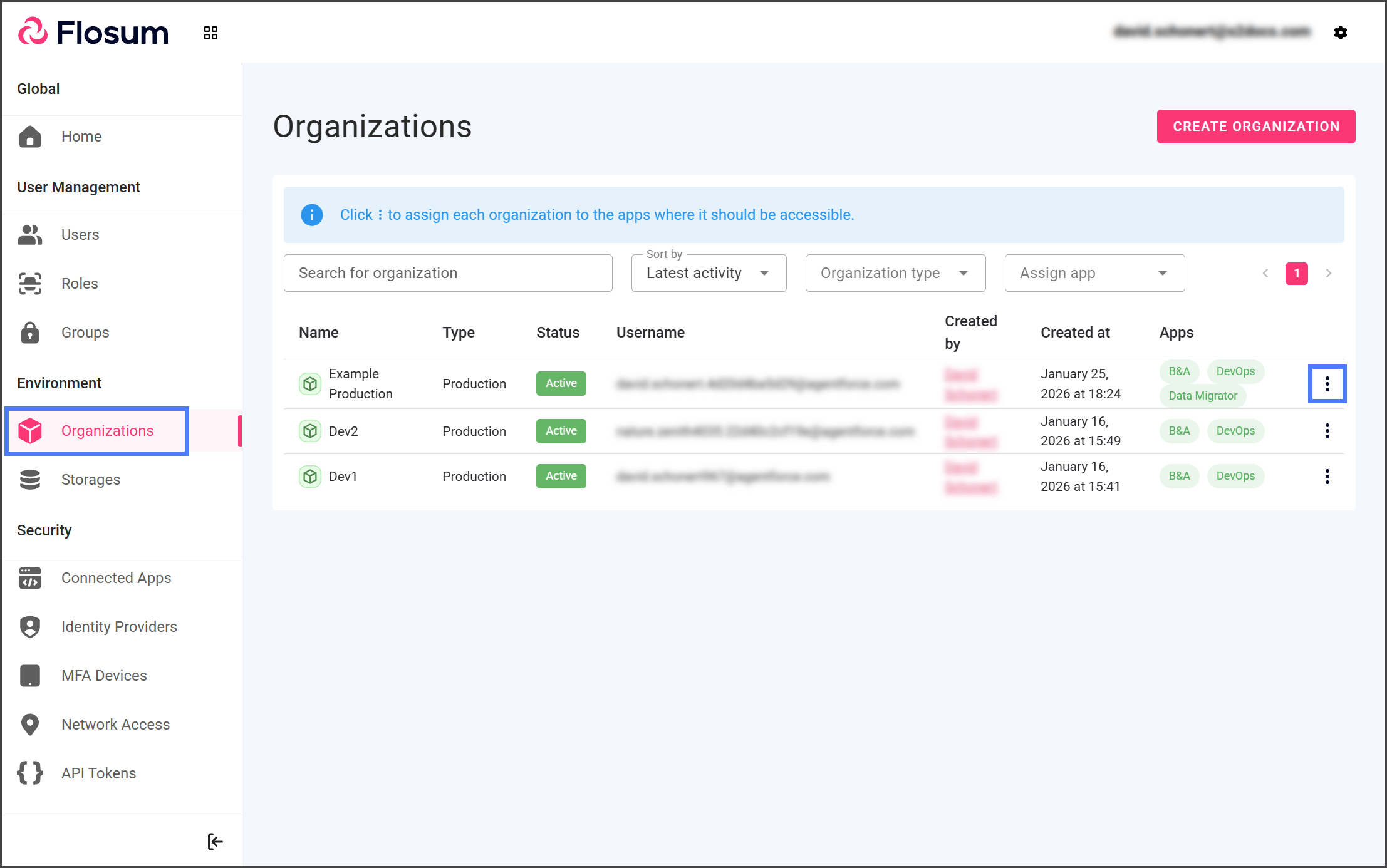
1. Klicken Sie **Organisationen** aus der linken Seitenleiste.
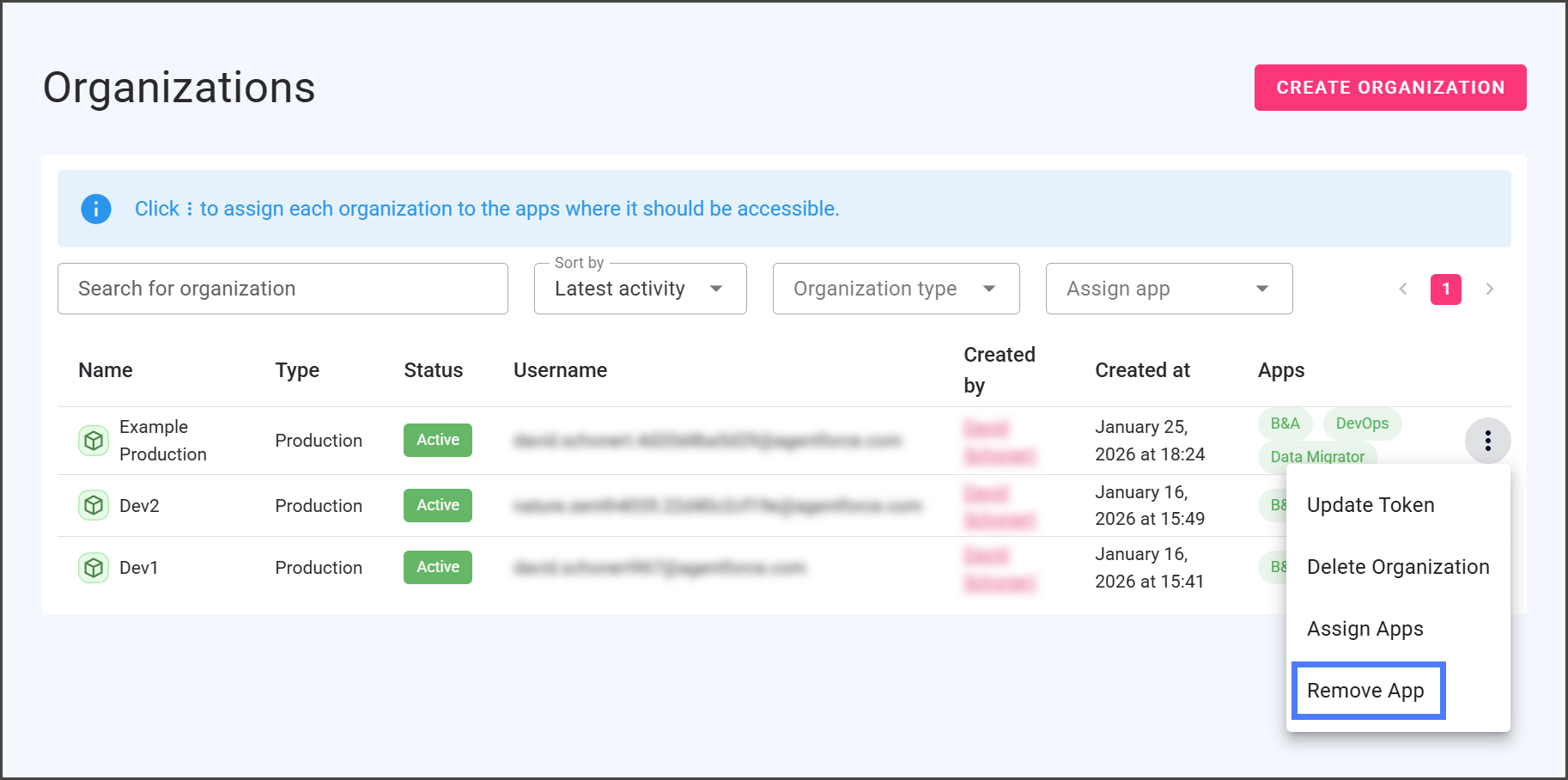
2. Klicken Sie auf die **drei vertikalen Punkte** im Menü am rechten Ende der Organisation, aus der Sie eine App entfernen möchten.
3. Klicken Sie **App entfernen**.
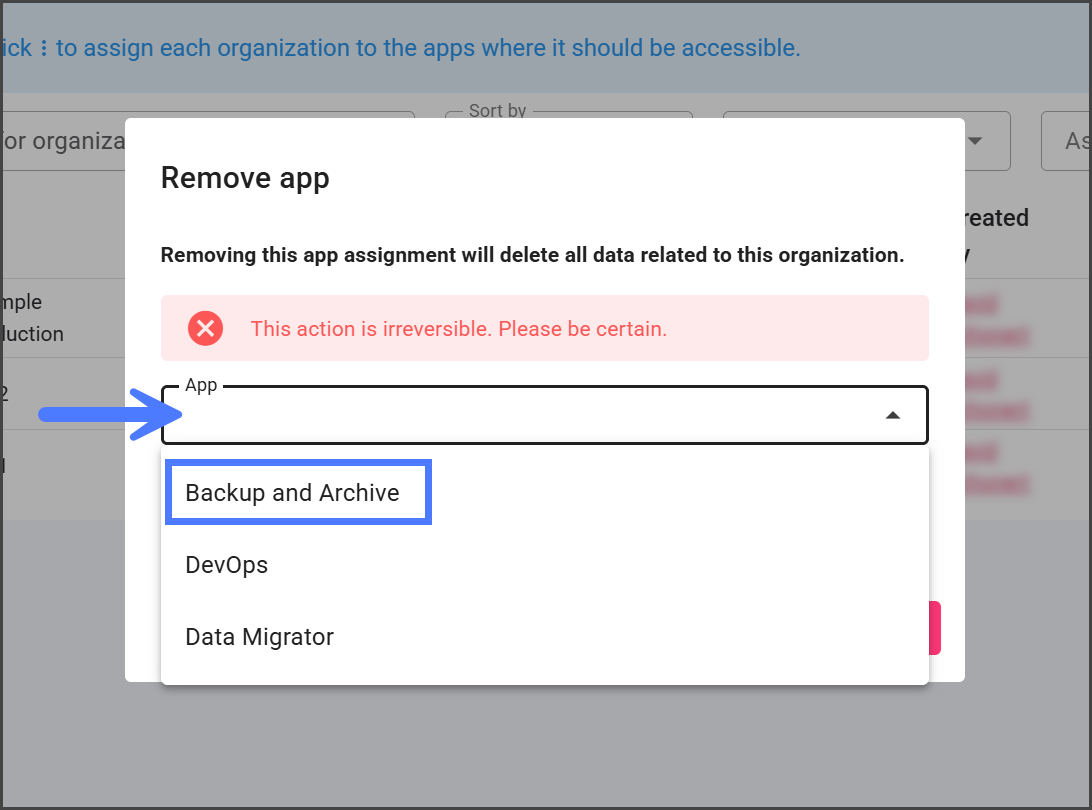
4. Klicken Sie auf die **App** Dropdown-Menü.
5. Wählen Sie die **App** zum Entfernen.
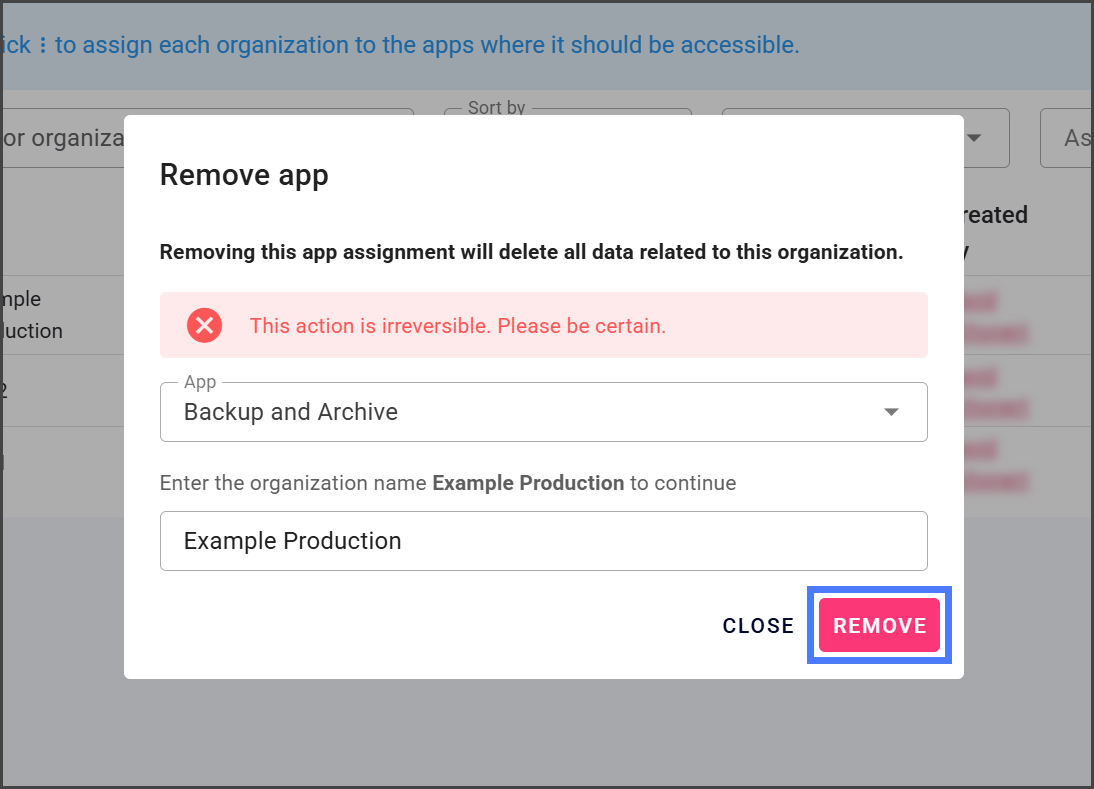
6. Um das Entfernen der App zu bestätigen, geben Sie den **Organisationsnamen** in das Textfeld ein.
{% hint style="info" %}
Der **Organisationsnamen** muss genau so eingegeben werden, wie im Textfeldlabel angezeigt, einschließlich Groß-/Kleinschreibung.
{% endhint %}
7. Klicken Sie **Entfernen**.
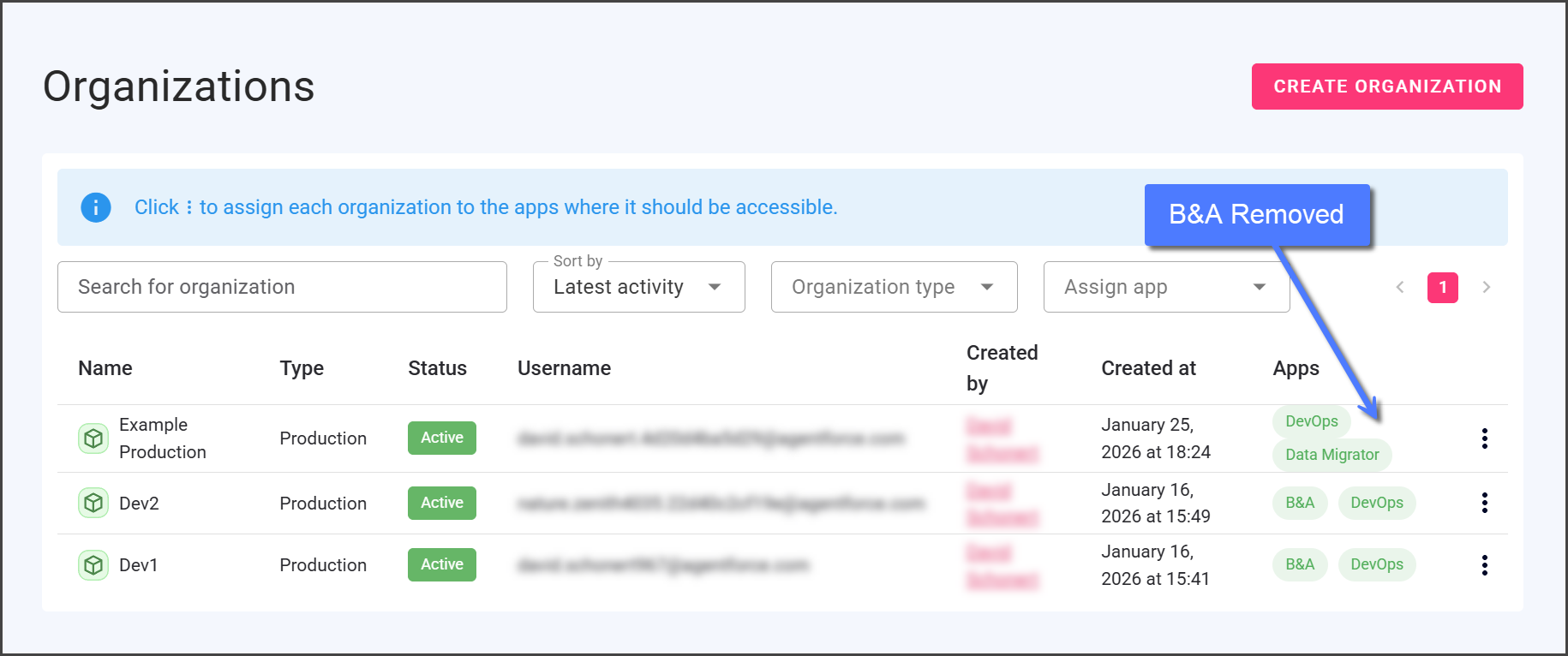
8. Nach dem Entfernen wird die Organisation die entfernte App nicht mehr auflisten.
{% endstep %}
{% endstepper %}
---
# Agent Instructions
This documentation is published with GitBook. GitBook is the documentation platform designed so that both humans and AI agents can read, navigate, and reason over technical content effectively. Learn more at gitbook.com.
## Querying This Documentation
If you need additional information that is not directly available in this page, you can query the documentation by asking a question.
Perform an HTTP GET request on the following URL with the `ask` and `goal` query parameters:
```
GET https://docs.flosum.com/global-settings/global-settings-docs-de/umgebung/organisationen/eine-app-aus-einer-organisation-entfernen.md?ask=&goal=
```
`ask` is the immediate question: it should be specific, self-contained, and written in natural language.
`goal` is what the user is ultimately trying to achieve, the reason they need the answer. Sharing it helps GitBook give you a better, more relevant answer. A goal is most helpful when it describes the outcome the user wants rather than restating the question. For example, with `ask=how do I create an API token`, a goal like `automate deployments from our CI pipeline` lets GitBook tailor the answer to that use case.
The response will contain a direct answer to the question and relevant excerpts and sources from the documentation.
Use this mechanism when the answer is not explicitly present in the current page, you need clarification or additional context, or you want to retrieve related documentation sections.