> For the complete documentation index, see [llms.txt](https://docs.flosum.com/llms.txt). Markdown versions of documentation pages are available by appending `.md` to page URLs; this page is available as [Markdown](https://docs.flosum.com/global-settings/global-settings-docs-ja/hajimeni/tenantono.md).
# テナント名の変更
{% hint style="success" %}
#### 必要なユーザー認証情報
\[**Flosumユーザー**] - **システム管理者** 役割
{% endhint %}
## 概要
新しいテナントが作成されると、その名前にはランダムな英数字の文字列が割り当てられます。複数のテナントを管理しやすくするために、説明的な名前を付けることは非常に役立ちます。このガイドでは、テナント名を変更する手順を案内します。
{% hint style="info" %}
テナント名の変更は任意であり、デフォルト名を無期限に使用することができます。
{% endhint %}
## テナント名の変更
{% stepper %}
{% step %}
### グローバル設定にアクセスする
1. 任意の **Flosum Cloud App**で、 **アプリスイッチャー** アイコンを左側のサイドバーメニュー上部でクリックします。
2. クリック **グローバル設定**.
3. その **グローバル設定** アプリは新しいタブで開きます。
{% hint style="info" %}
グローバル設定には、Flosum Cloud Apps のログインURLから直接ログインしてアクセスすることもできます。ログイン手順については、以下の記事を参照してください。
* [グローバル設定にログインする](/global-settings/global-settings-docs-ja/hajimeni/gurbaruniroguinsuru.md)
{% endhint %}
{% endstep %}
{% step %}
### 名前を変更する
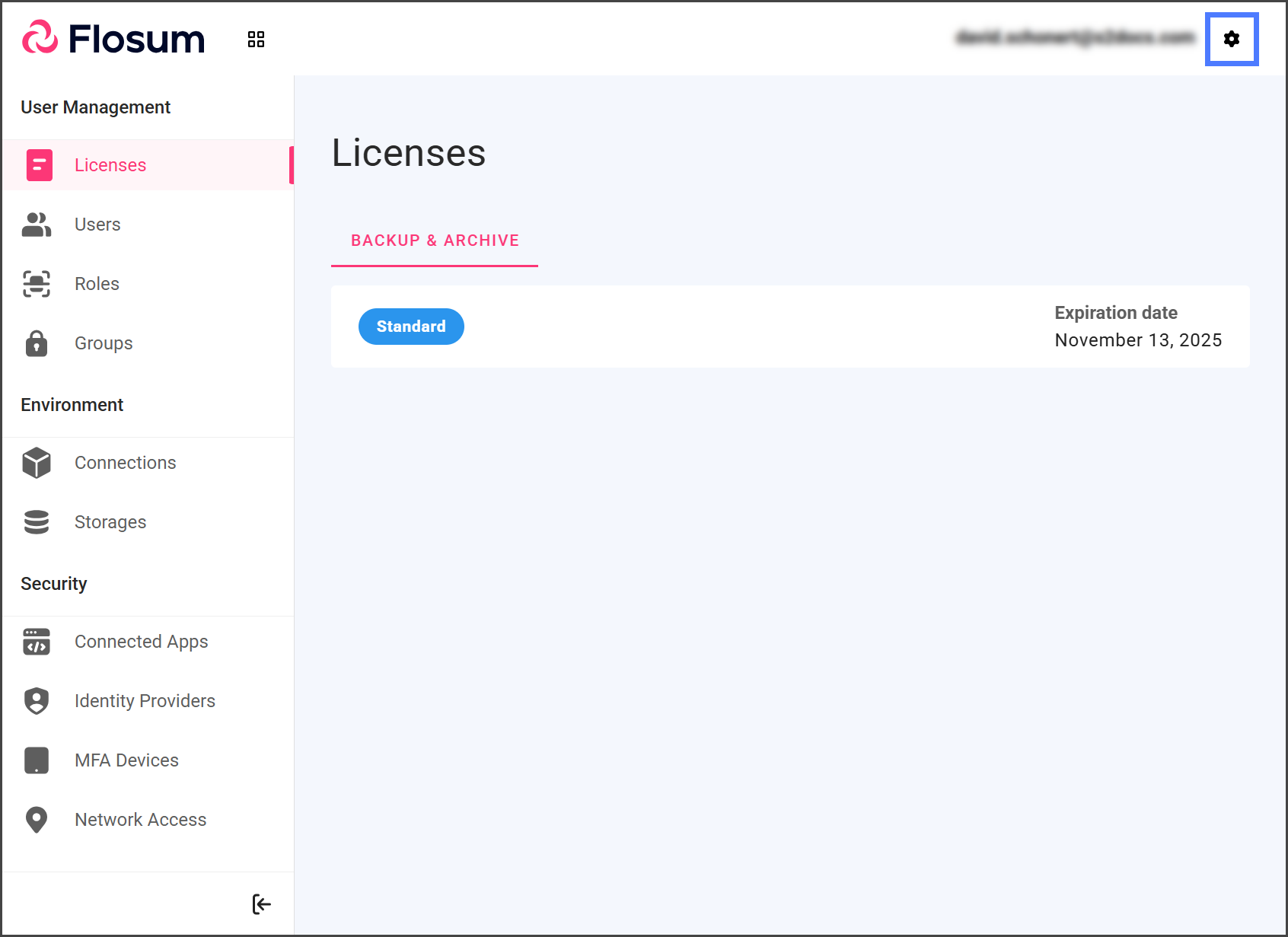
1. 次をクリックします **歯車** 右上のアイコン。
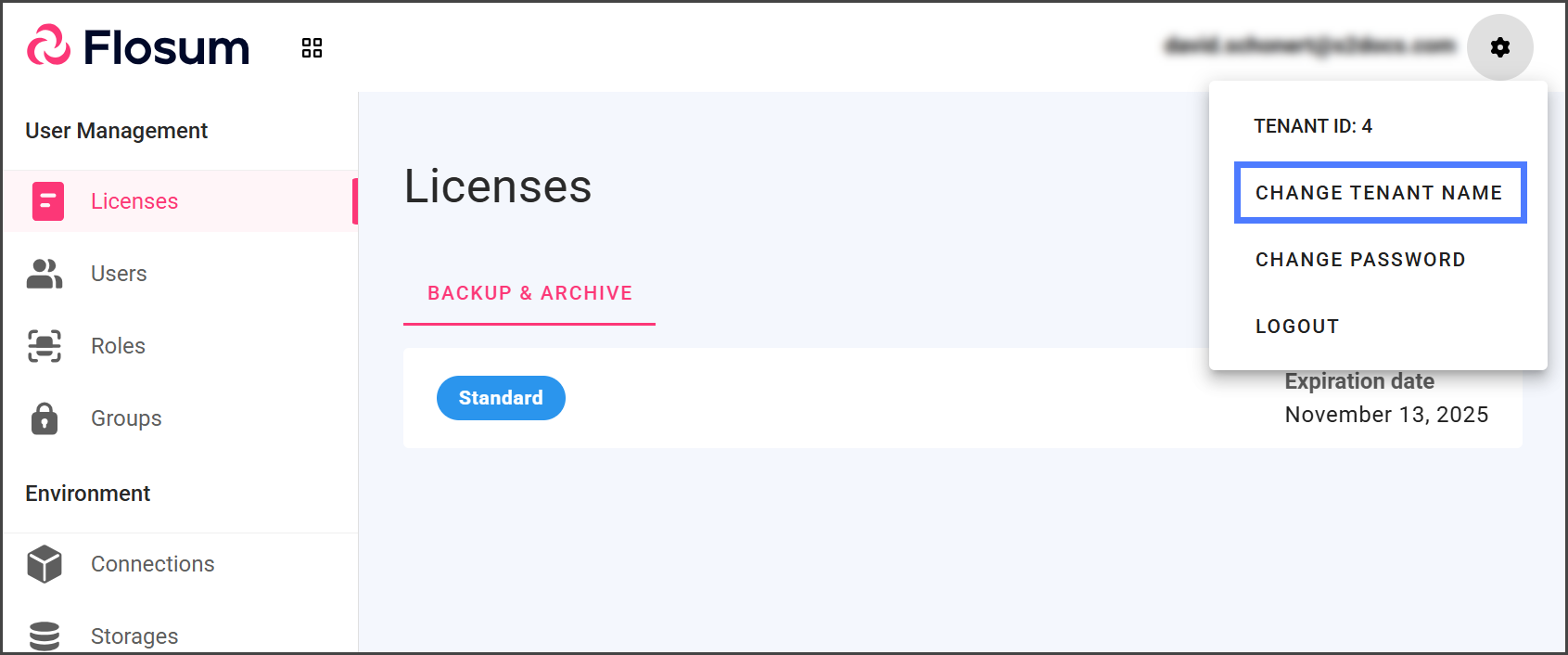
2. クリックします **テナント名の変更** ドロップダウンメニューの中で。
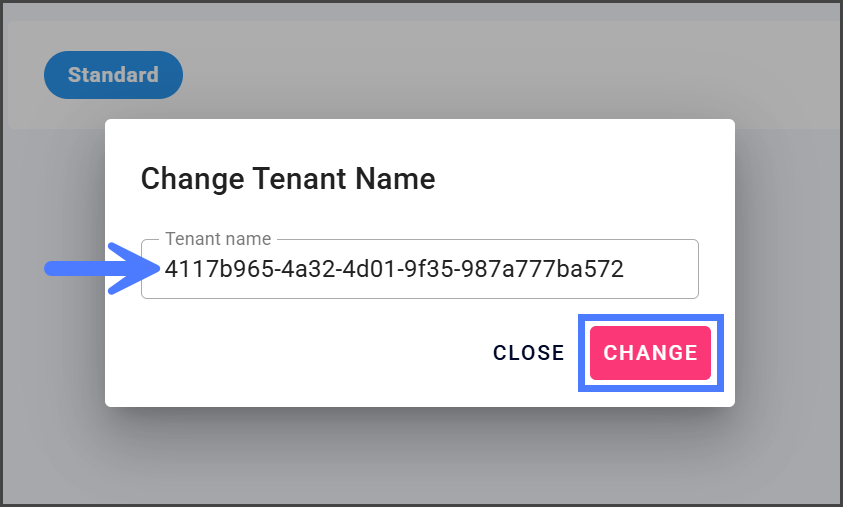
3. 次を変更します **テナント名** テキストボックスを希望の名前に変更します。
4. クリックします **変更する**.
{% endstep %}
{% step %}
### すべての Flosum Cloud アプリからログアウトする
{% hint style="info" %}
すべての Flosum Cloud アプリが更新されたテナント名を反映するようにするには:
1. 現在使用しているアプリからログアウトしてください。単にアプリのウィンドウやタブを閉じるだけでは不十分です。
2. アプリがまだ古いテナント名を表示している場合は、ログアウトして正しいテナント名で再度ログインしてください。
{% endhint %}
{% endstep %}
{% endstepper %}
---
# Agent Instructions
This documentation is published with GitBook. GitBook is the documentation platform designed so that both humans and AI agents can read, navigate, and reason over technical content effectively. Learn more at gitbook.com.
## Querying This Documentation
If you need additional information that is not directly available in this page, you can query the documentation by asking a question.
Perform an HTTP GET request on the following URL with the `ask` and `goal` query parameters:
```
GET https://docs.flosum.com/global-settings/global-settings-docs-ja/hajimeni/tenantono.md?ask=&goal=
```
`ask` is the immediate question: it should be specific, self-contained, and written in natural language.
`goal` is what the user is ultimately trying to achieve, the reason they need the answer. Sharing it helps GitBook give you a better, more relevant answer. A goal is most helpful when it describes the outcome the user wants rather than restating the question. For example, with `ask=how do I create an API token`, a goal like `automate deployments from our CI pipeline` lets GitBook tailor the answer to that use case.
The response will contain a direct answer to the question and relevant excerpts and sources from the documentation.
Use this mechanism when the answer is not explicitly present in the current page, you need clarification or additional context, or you want to retrieve related documentation sections.