> For the complete documentation index, see [llms.txt](https://docs.flosum.com/llms.txt). Markdown versions of documentation pages are available by appending `.md` to page URLs; this page is available as [Markdown](https://docs.flosum.com/global-settings/global-settings-docs-ja/huan-jing/zu-zhi/henoapurinorite.md).

# 組織へのアプリの割り当て

{% hint style="success" %}

#### 必要なユーザー認証情報

\[**Flosumユーザー**] - **システム管理者** 役割
{% endhint %}

## ![](https://1457003412-files.gitbook.io/~/files/v0/b/gitbook-x-prod.appspot.com/o/spaces%2FsEk2hU5IMh3HEY5dJZjR%2Fuploads%2FSxcnKlaJKPzDqONWoDNv%2FSummary2-Small-Icon.svg?alt=media\&token=5e3253d0-a069-4ba5-9c06-83c70bd0b21d) 概要

グローバル設定アプリでは、組織に割り当てる Flosum Cloud Apps を一元管理できます。Salesforce 組織がリンクされると、そこに割り当てるアプリを選択できます。この記事では、アプリを組織に割り当てる方法を説明します。

{% hint style="info" %}

#### バックアップとアーカイブアプリ

バックアップとアーカイブアプリを割り当てる際には、使用するストレージと暗号化キーも指定する必要があります。以下を参照してください [#encryption-keys](#encryption-keys "mention") Flosum がデータ保護に暗号化キーをどのように使用するかについての詳細は、以下のセクションを参照してください。
{% endhint %}

## アプリの割り当て

{% stepper %}
{% step %}

### グローバル設定にアクセスする

1. 任意の **Flosum Cloud App**で、 **アプリスイッチャー** アイコンを左側のサイドバーメニュー上部でクリックします。

   <div align="left"><figure><img src="https://1457003412-files.gitbook.io/~/files/v0/b/gitbook-x-prod.appspot.com/o/spaces%2FsEk2hU5IMh3HEY5dJZjR%2Fuploads%2Fgh5FcQCnErKAjJ7isiuB%2FGS-Access-01.png?alt=media&amp;token=ddf01506-f133-4e49-825a-76a2a237e3a8" alt="" width="563"><figcaption></figcaption></figure></div>
2. クリック **グローバル設定**.&#x20;

   <div align="left"><figure><img src="https://1457003412-files.gitbook.io/~/files/v0/b/gitbook-x-prod.appspot.com/o/spaces%2FsEk2hU5IMh3HEY5dJZjR%2Fuploads%2Fx5vntzgpLuT50fMTzwT9%2FGS-Access-02.png?alt=media&amp;token=f67a125f-5087-47c2-9bc6-9393c3d2b7a5" alt="" width="563"><figcaption></figcaption></figure></div>
3. その **グローバル設定** アプリは新しいタブで開きます。

{% hint style="info" %}
グローバル設定には、Flosum Cloud Apps のログインURLから直接ログインしてアクセスすることもできます。ログイン手順については、以下の記事を参照してください。

* [グローバル設定にログインする](/global-settings/global-settings-docs-ja/hajimeni/gurbaruniroguinsuru.md)
  {% endhint %}
  {% endstep %}

{% step %}

### アプリを割り当てる

{% hint style="warning" %}
のアプリのチェックを外しても **アプリを割り当てる** ダイアログでは削除されません。割り当て済みのアプリを削除するには、次の **アプリを削除** オプションを使用します。手順については、次の記事を参照してください。

* [組織からアプリを削除する](/global-settings/global-settings-docs-ja/huan-jing/zu-zhi/karaapuriwosuru.md)
  {% endhint %}

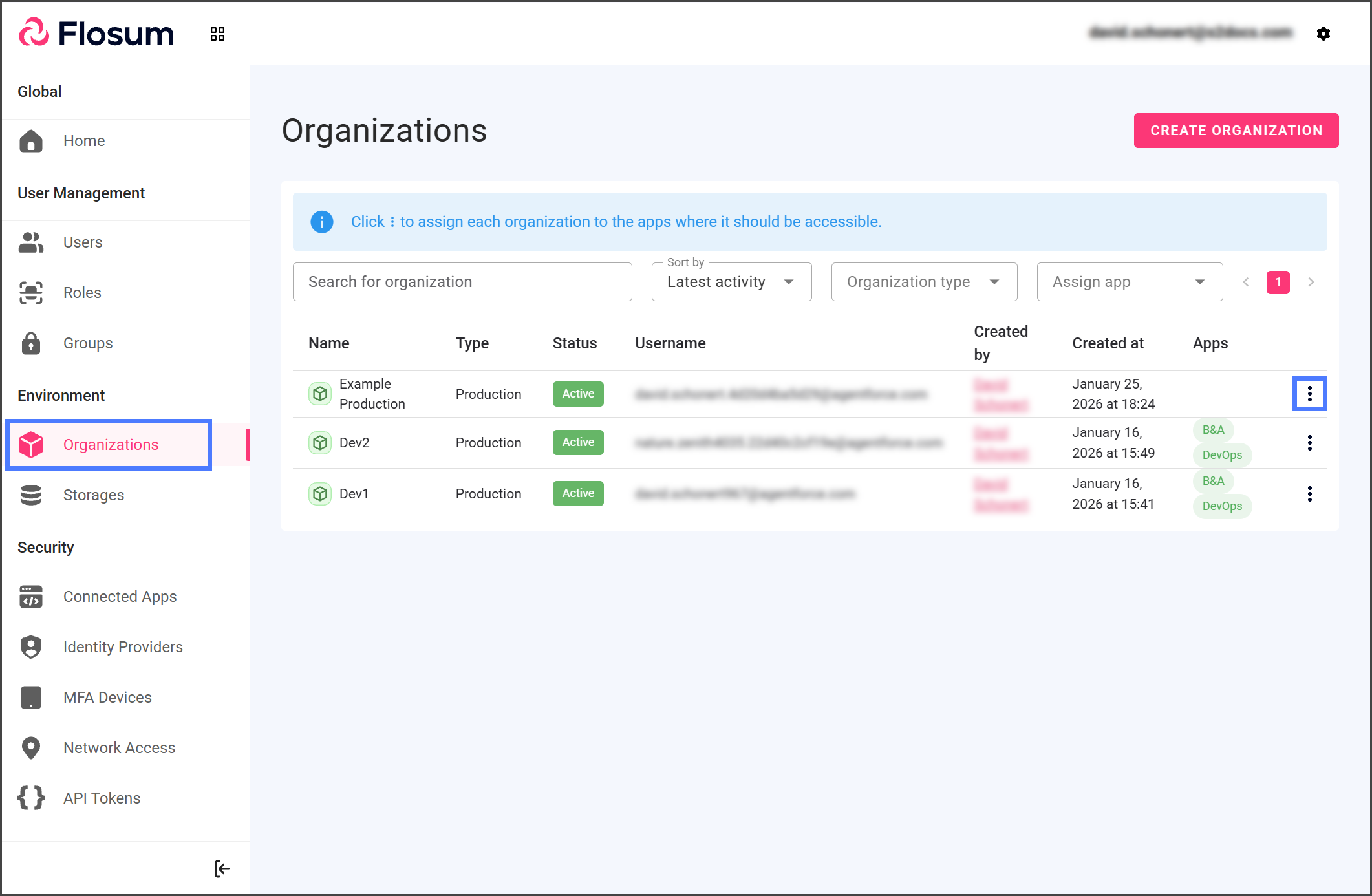
1. クリック **組織** 左側のサイドバーから。
2. 次をクリックしてください **縦の三点リーダー** アプリを割り当てたい組織の右端にあるメニュー。&#x20;

   <div align="left"><figure><img src="https://1457003412-files.gitbook.io/~/files/v0/b/gitbook-x-prod.appspot.com/o/spaces%2FsEk2hU5IMh3HEY5dJZjR%2Fuploads%2F2LIoicpknwfLT5caQE7N%2FAssignApp-S02-01.png?alt=media&amp;token=e1210461-7691-430f-8faf-6aca4856b011" alt="" width="563"><figcaption></figcaption></figure></div>
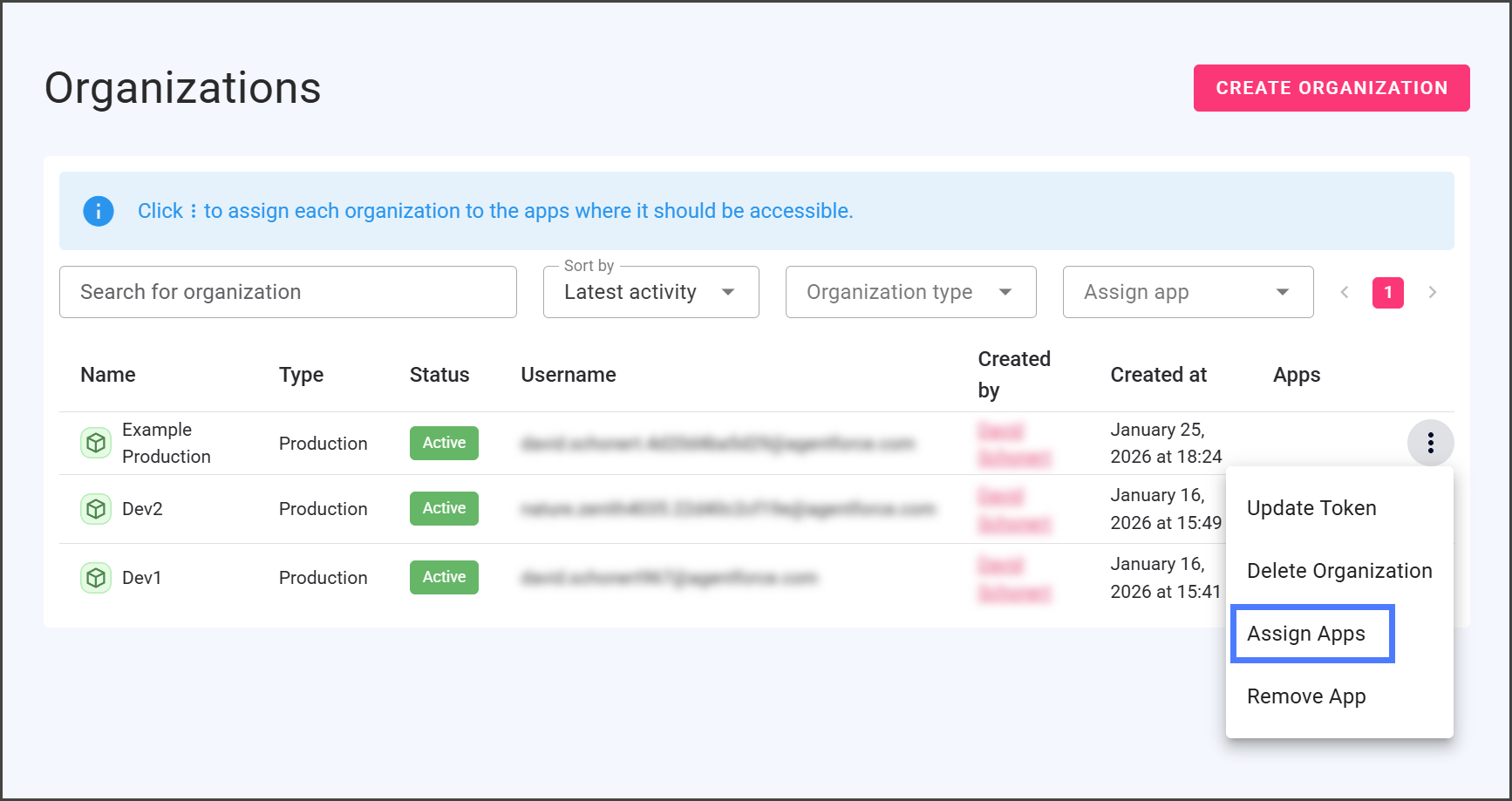
3. クリック **アプリを割り当てる**.&#x20;

   <div align="left"><figure><img src="https://1457003412-files.gitbook.io/~/files/v0/b/gitbook-x-prod.appspot.com/o/spaces%2FsEk2hU5IMh3HEY5dJZjR%2Fuploads%2F7kXoGxWBckFJQyEuyuHU%2FAssignApp-S02-02.png?alt=media&amp;token=74e6f79d-bf98-4182-8ff4-bde9fe268eed" alt="" width="563"><figcaption></figcaption></figure></div>
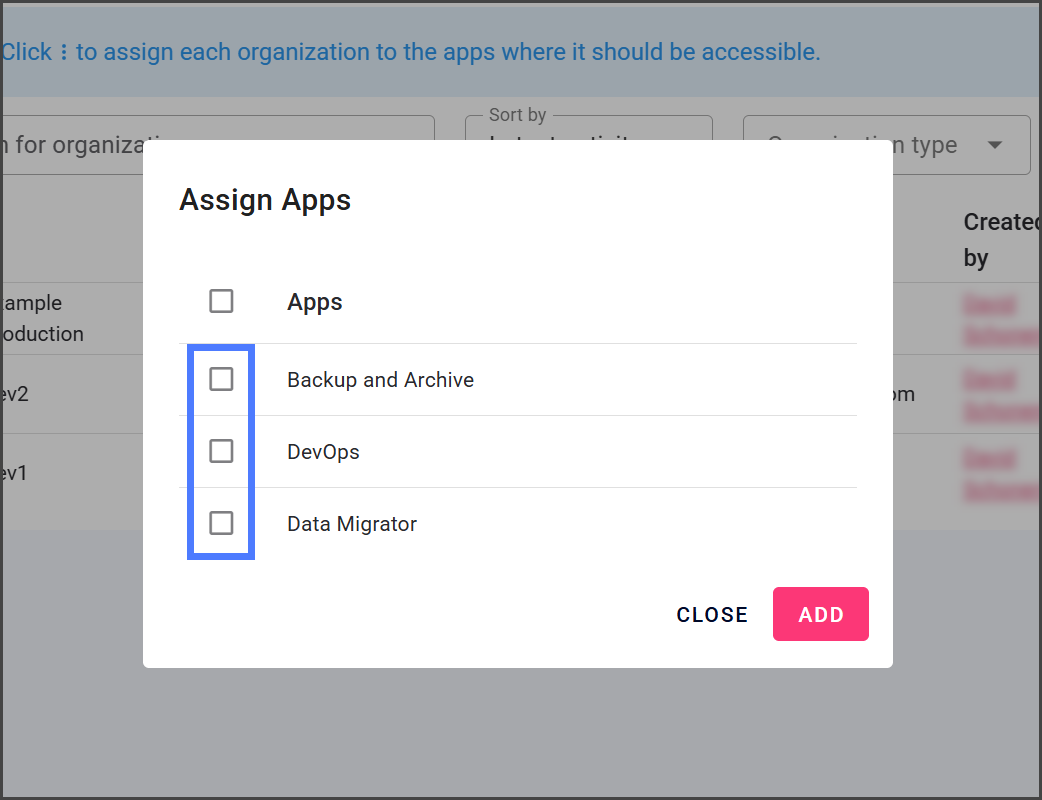
4. 次の横のチェックボックスをオンにします **アプリ** 割り当てたいものを。&#x20;

   <div align="left"><figure><img src="https://1457003412-files.gitbook.io/~/files/v0/b/gitbook-x-prod.appspot.com/o/spaces%2FsEk2hU5IMh3HEY5dJZjR%2Fuploads%2FAAxLZprvDHEcpyZKkgn2%2FAssignApp-S02-03.png?alt=media&amp;token=45c1b0c5-0407-4845-a1a9-6049c2a14622" alt="" width="563"><figcaption></figcaption></figure></div>

{% endstep %}

{% step %}

### バックアップとアーカイブのストレージと暗号化

この **バックアップとアーカイブ** アプリでは、組織のバックアップおよびアーカイブデータ用のストレージデバイスを指定する必要があります。次をオンにすると **バックアップとアーカイブ** アプリを追加する場合、次の **アプリを割り当てる** ダイアログに **ストレージ** の選択項目と **暗号化キー** フィールドが表示されます。

{% hint style="info" %}

#### ストレージ

Flosum は、すべてのテナントに対して安全な組み込みストレージを提供します。特定の要件や既存のクラウドインフラをお持ちのお客様は、AWS S3、Azure Blob、または Google Cloud Storage に独自のストレージを接続することもでき、データの保存場所を管理できます。ストレージの接続方法については、以下の記事を参照してください。

* [ストレージ用の AWS S3 バケットの追加](/global-settings/global-settings-docs-ja/huan-jing/sutorji/sutorjino-aws-s3-bakettono.md)
* [ストレージ用の Azure Blob の追加](/global-settings/global-settings-docs-ja/huan-jing/sutorji/sutorjino-azure-blob-no.md)
* [ストレージ用の Google Cloud Storage バケットを追加](/global-settings/global-settings-docs-ja/huan-jing/sutorji/sutorjino-google-cloud-storage-bakettowo.md)
  {% endhint %}

{% hint style="info" %}

#### 暗号化キー

次を参照してください [#encryption-keys](#encryption-keys "mention") Flosum がデータ保護に暗号化キーをどのように使用するかについての詳細は、以下のセクションを参照してください。
{% endhint %}

{% hint style="warning" %}

#### バックアップとアーカイブの再割り当て

を再割り当てする際は、 **バックアップとアーカイブ** 以前関連付けられていた組織にアプリを割り当てる場合、新しい **ストレージ** または **暗号化キー**を指定することはできません。アプリは既存の設定を使用します。別のストレージまたは暗号化キーを使用するには、組織を削除してから再度追加してください。
{% endhint %}

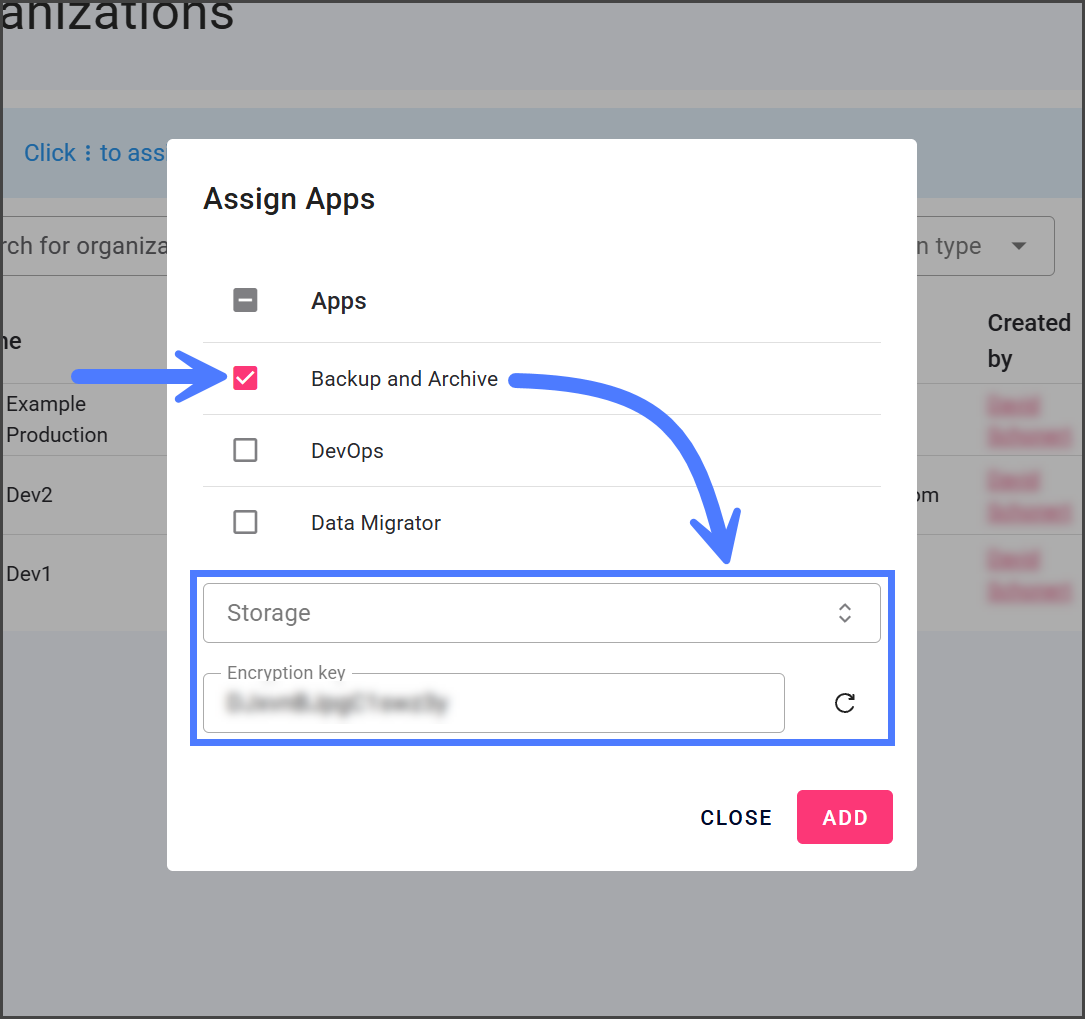
1. 次をクリックしてください **バックアップとアーカイブ** チェックボックス。
2. この **ストレージ** ドロップダウンと **暗号化キー** テキストボックスが表示されます。&#x20;

   <div align="left"><figure><img src="https://1457003412-files.gitbook.io/~/files/v0/b/gitbook-x-prod.appspot.com/o/spaces%2FsEk2hU5IMh3HEY5dJZjR%2Fuploads%2FvqqEzqpNIELKfii6EcL5%2FAssignApp-S03-02.png?alt=media&amp;token=25c520d9-902e-4655-b3be-6a0e34c4907e" alt="" width="563"><figcaption></figcaption></figure></div>
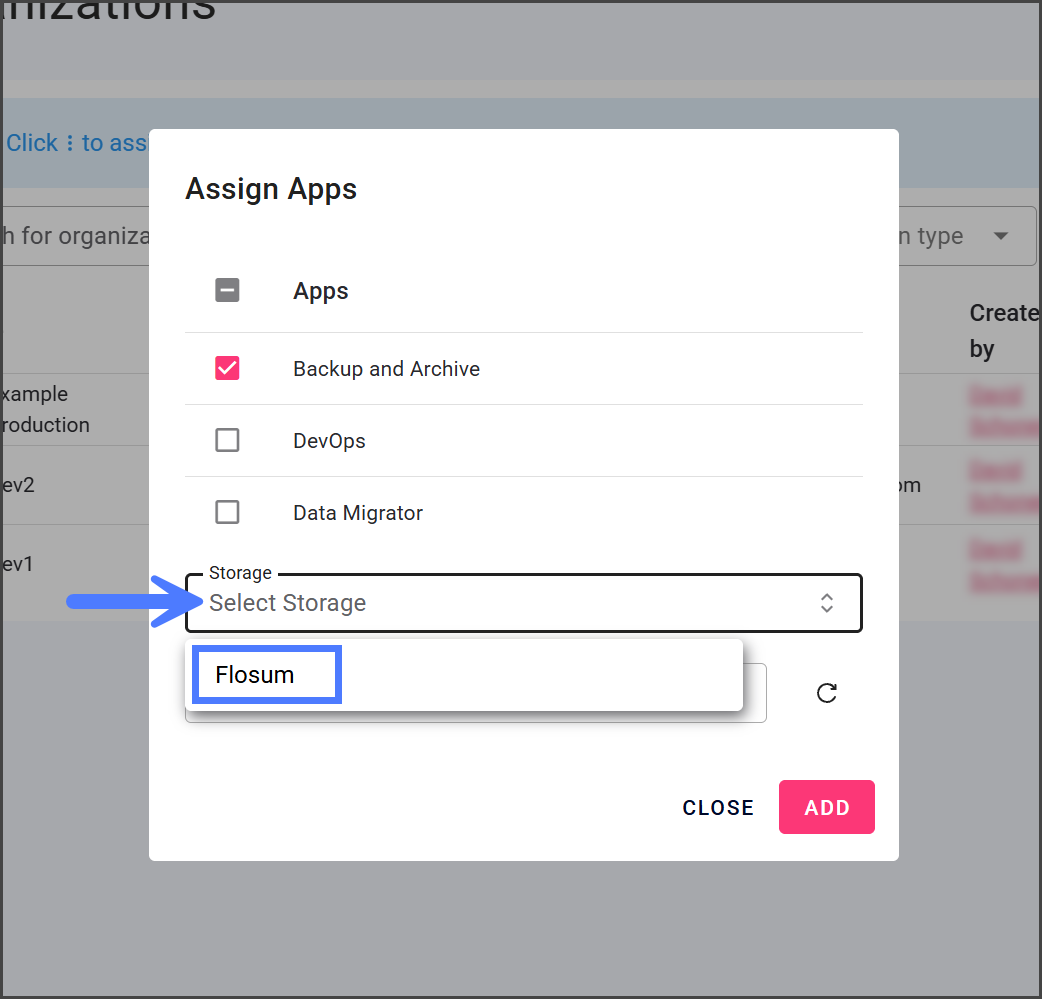
3. 次をクリックしてください **ストレージ** ドロップダウ&#x30F3;**.**
4. この組織で使用するストレージを選択します。&#x20;

   <div align="left"><figure><img src="https://1457003412-files.gitbook.io/~/files/v0/b/gitbook-x-prod.appspot.com/o/spaces%2FsEk2hU5IMh3HEY5dJZjR%2Fuploads%2Fc70B7lhxOf85rqqf2PMu%2FAssignApp-S03-03.png?alt=media&amp;token=8aef636c-0960-4e4f-851c-7a62c9b6193d" alt="" width="563"><figcaption></figcaption></figure></div>
5. この **暗号化キー** は自動的に生成されます。
6. （任意）次をクリックしてください **更新** テキストボックスの横にあるアイコンを使って新しいキーを生成するか、大文字・小文字の英字、数字、特殊文字を組み合わせて、最大 16 文字で独自のキーを入力します。&#x20;

   <div align="left"><figure><img src="https://1457003412-files.gitbook.io/~/files/v0/b/gitbook-x-prod.appspot.com/o/spaces%2FsEk2hU5IMh3HEY5dJZjR%2Fuploads%2FWkFOh6SK7SAjLpU3a3Q0%2FAssignApp-S03-04.png?alt=media&amp;token=cb044b9d-f148-4f80-960b-15fc55443b9f" alt="" width="563"><figcaption></figcaption></figure></div>

{% endstep %}

{% step %}

### アプリを追加

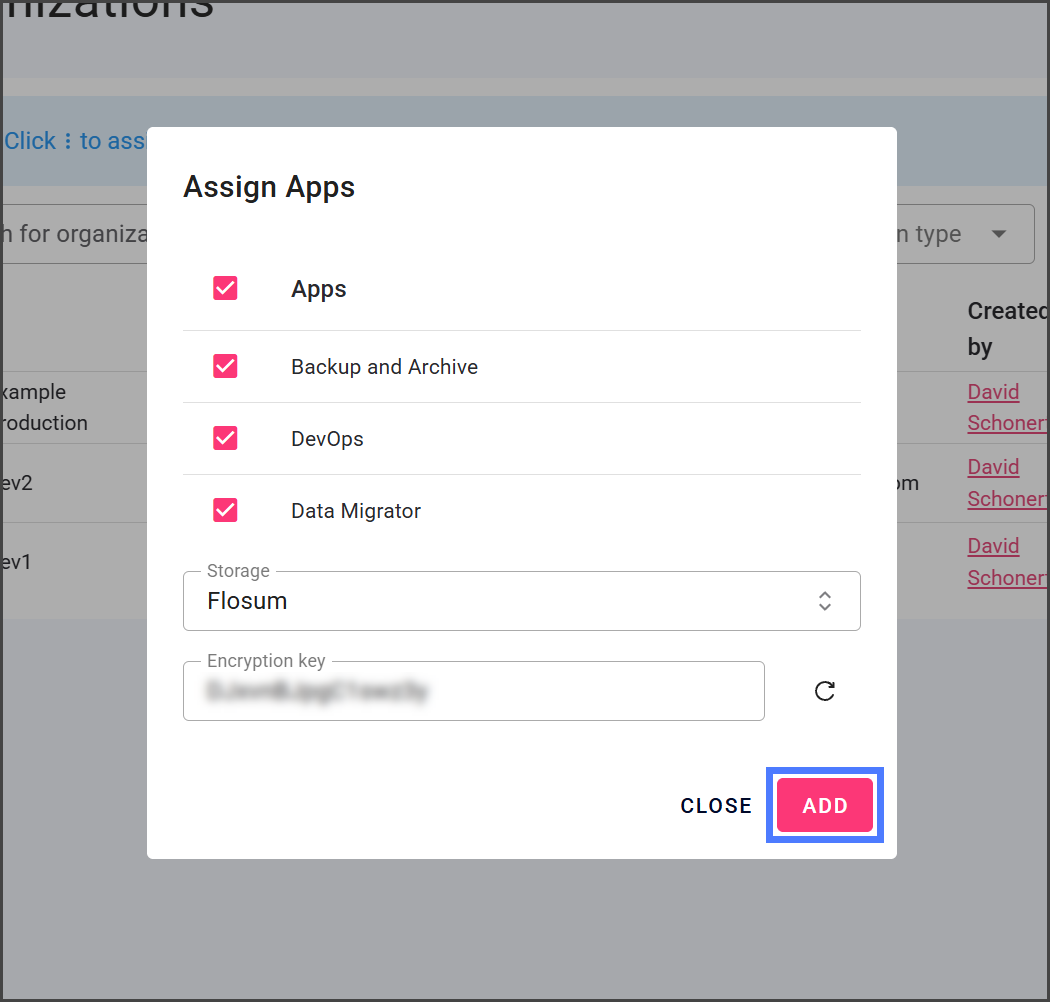
1. クリック **追加**.&#x20;

   <div align="left"><figure><img src="https://1457003412-files.gitbook.io/~/files/v0/b/gitbook-x-prod.appspot.com/o/spaces%2FsEk2hU5IMh3HEY5dJZjR%2Fuploads%2FYwEDTGhMeXyHAbxj8g6o%2FAssignApp-S04-01.png?alt=media&amp;token=569f5404-0209-479f-a027-554567ba2a33" alt="" width="563"><figcaption></figcaption></figure></div>
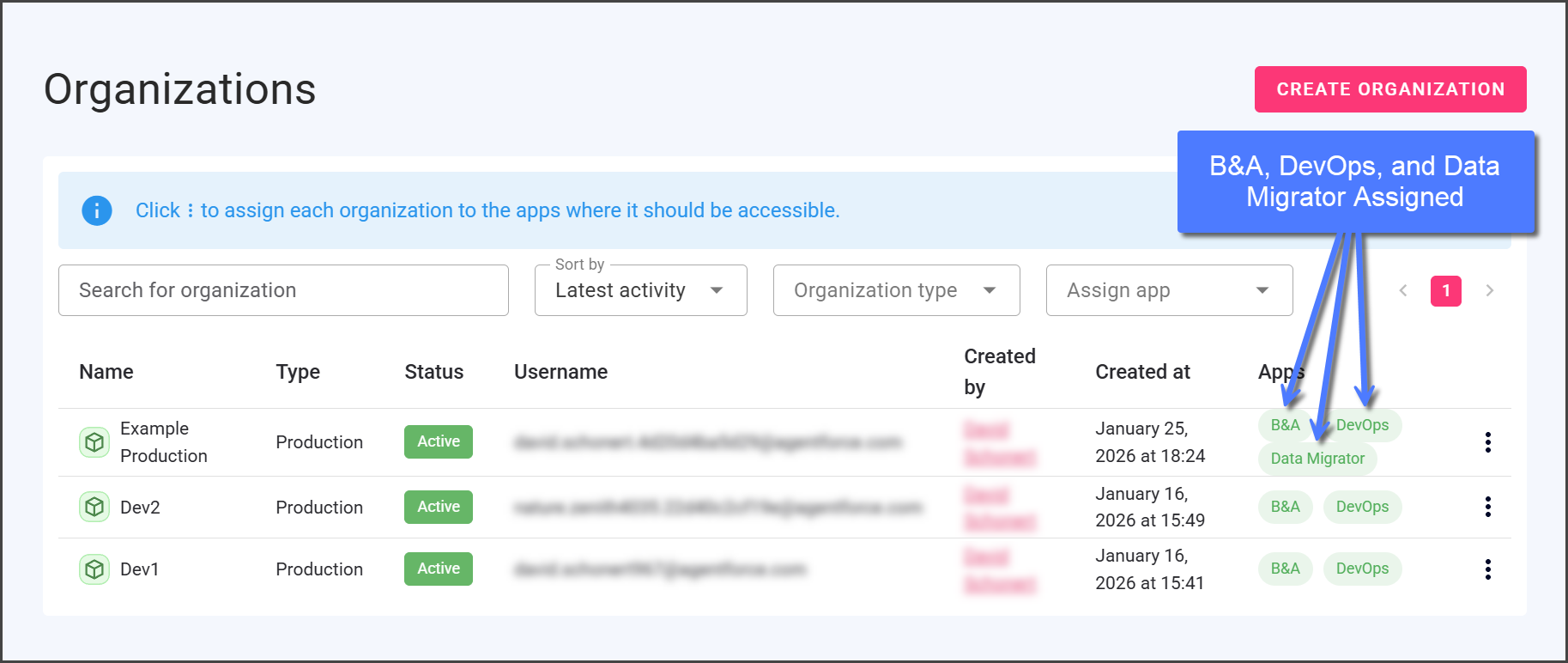
2. 割り当てが完了すると、アプリは組織に一覧表示されます。&#x20;

   <div align="left"><figure><img src="https://1457003412-files.gitbook.io/~/files/v0/b/gitbook-x-prod.appspot.com/o/spaces%2FsEk2hU5IMh3HEY5dJZjR%2Fuploads%2FBZO3aWYjbHrWMor9ZIY8%2FAssignApp-S04-02.png?alt=media&amp;token=d716bd86-942a-4f8f-9ad8-8e0a699007e4" alt="" width="563"><figcaption></figcaption></figure></div>

{% endstep %}
{% endstepper %}

## 暗号化キー

Flosum では、各 Salesforce 組織の Backup & Archive アプリによって保存されるすべてのデータが、固有の **暗号化キー**このキーによって安全に暗号化されます。このキーは最大 16 文字で、Backup & Archive アプリが組織に初めて追加されたときに自動生成されます。次をクリックすると **更新** アイコンで新しいキーを生成できます。または、ユーザーが独自に入力することもできます。最適なセキュリティのため、次の文字をランダムに組み合わせて使用してください。

* 大文字の英字（A-Z）
* 小文字の英字（a-z）
* 数字（0-9）
* 特殊記号（!, @, #, $, %, ^, &, \*, + など）

{% hint style="warning" %}
暗号化キーは後から取得できないため、安全に保管してください。
{% endhint %}

### データ保護

すべてのデータは TLS 暗号化によって転送中に保護され、安全な通信を確保します。保存後は AES-256 暗号化により保存時のデータが保護され、堅牢なセキュリティを提供します。バックアップファイルと関連メタデータも同じレベルで暗号化され、機密性と完全性が維持されます。この包括的なアプローチにより、パイプライン全体にわたるエンドツーエンドのデータセキュリティが確保されます。

### Flosum ホスト型テナント

Flosum Cloud App データベース内の暗号化キーは安全に保存され、AWS Key Management Service（KMS）によって保護されます。このサービスは 32 バイト（256 ビット）の AES-256 キーを使用し、いかなる暗号化操作が行われる前にも暗号化キー自体が保護されることを保証します。この方法は、キーの漏えいに対する追加の防御層を提供します。

### 自己ホスト型テナント

最近の2025年夏のFlosum Cloud Appsアップデートにより、暗号化キーは32バイト（256ビット）のAES-256キーを使用して、セルフホスト型データベースに安全に保存されるようになりました。

新しいFlosumアプリバージョンに移行する際には、次の手順に従ってキーを作成する必要があります。

1. 32バイトのBase64キーを生成する: `openssl rand -base64 32`
2. キーをDocker Composeに追加する: `LOCAL_ORGANIZATION_ENCRYPTION_KEY=<key>`
3. 移行を完了するためにFlosumアプリを更新してください。


---

# Agent Instructions
This documentation is published with GitBook. GitBook is the documentation platform designed so that both humans and AI agents can read, navigate, and reason over technical content effectively. Learn more at gitbook.com.

## Querying This Documentation
If you need additional information that is not directly available in this page, you can query the documentation by asking a question.

Perform an HTTP GET request on the following URL with the `ask` and `goal` query parameters:

```
GET https://docs.flosum.com/global-settings/global-settings-docs-ja/huan-jing/zu-zhi/henoapurinorite.md?ask=<question>&goal=<user_goal>
```

`ask` is the immediate question: it should be specific, self-contained, and written in natural language.
`goal` is what the user is ultimately trying to achieve, the reason they need the answer. Sharing it helps GitBook give you a better, more relevant answer. A goal is most helpful when it describes the outcome the user wants rather than restating the question. For example, with `ask=how do I create an API token`, a goal like `automate deployments from our CI pipeline` lets GitBook tailor the answer to that use case.

The response will contain a direct answer to the question and relevant excerpts and sources from the documentation.

Use this mechanism when the answer is not explicitly present in the current page, you need clarification or additional context, or you want to retrieve related documentation sections.