> For the complete documentation index, see [llms.txt](https://docs.flosum.com/llms.txt). Markdown versions of documentation pages are available by appending `.md` to page URLs; this page is available as [Markdown](https://docs.flosum.com/global-settings/global-settings-docs-ja/sekyuriti/apitkun/api-tkunno.md).
# API トークンの作成
{% hint style="success" %}
#### 必要なユーザー資格情報
\[**Flosum ユーザー**」 - 任意のロール
{% endhint %}
##  概要
この記事では、Flosum の API へのアクセスを許可するために使用する API トークンの作成方法を説明します。このトークンは、以下の API にアクセスするために使用できます。
* Flosum の SCIM API を使った Identity Provider のユーザー管理。
* Flosum の DevOps コマンドラインインターフェース。
## APIトークンを作成
{% stepper %}
{% step %}
### グローバル設定にアクセス
1. 任意の **Flosum Cloud App**で、 **アプリスイッチャー** アイコンを左側のサイドバーメニュー上部でクリックします。
2. クリック **グローバル設定**.
3. その **グローバル設定** アプリは新しいタブで開きます。
{% hint style="info" %}
グローバル設定には、Flosum Cloud Apps のログインURLから直接ログインしてアクセスすることもできます。ログイン手順については、以下の記事を参照してください。
* [グローバル設定にログインする](/global-settings/global-settings-docs-ja/hajimeni/gurbaruniroguinsuru.md)
{% endhint %}
{% endstep %}
{% step %}
### APIトークンを作成
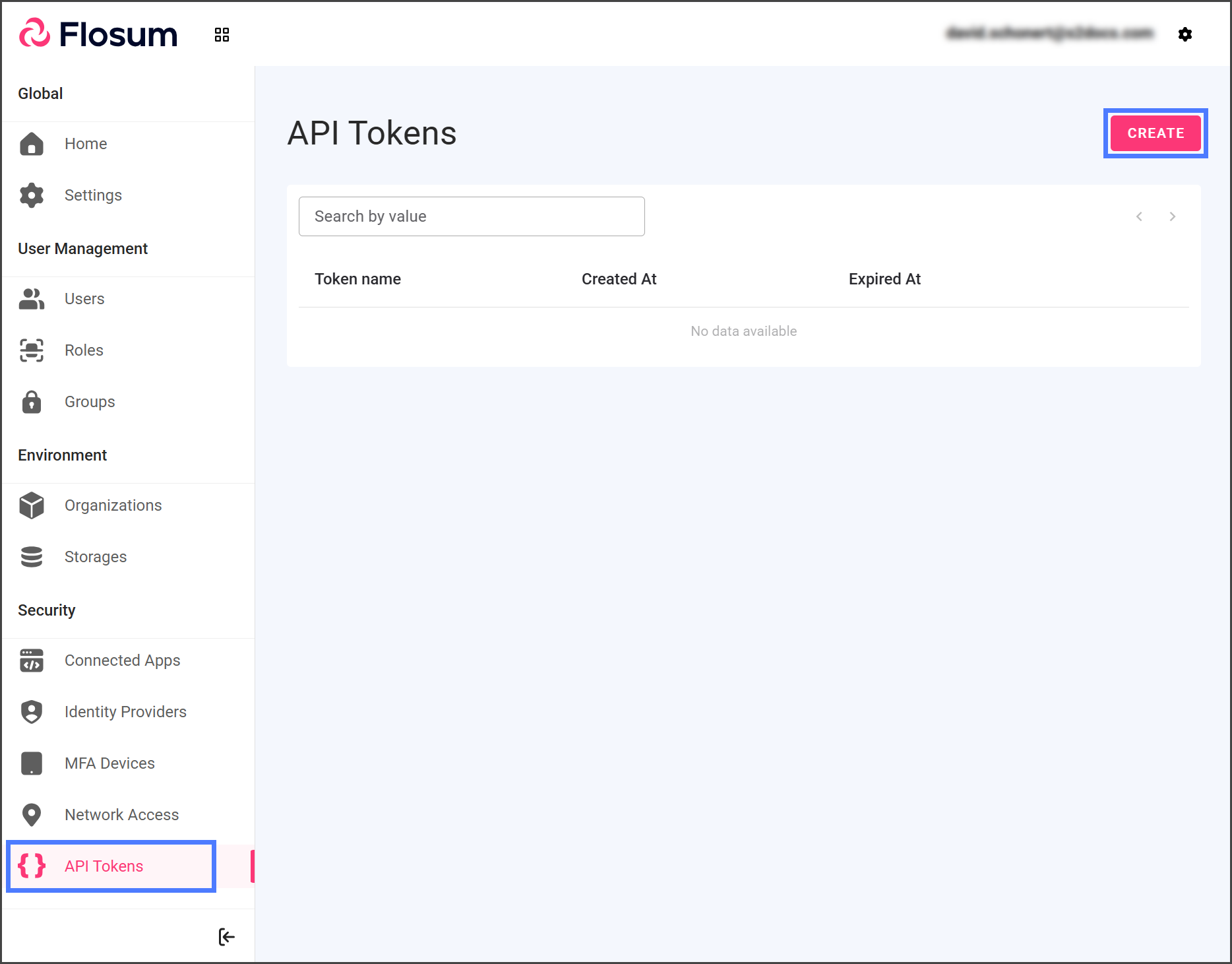
1. クリック **APIトークン** 左側のサイドバーメニューから。
2. クリック **作成**.
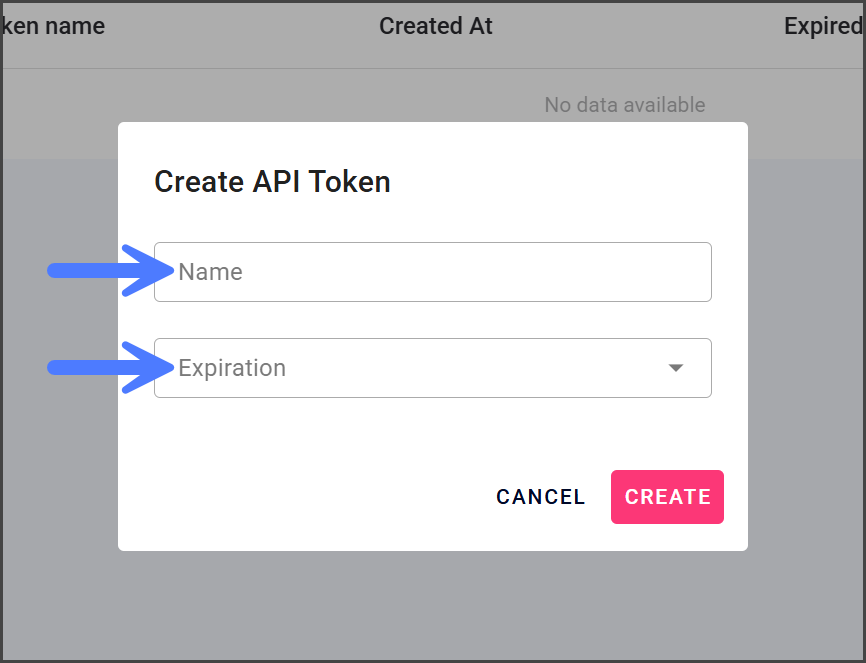
3. わかりやすい **名前** をトークンに入力します。
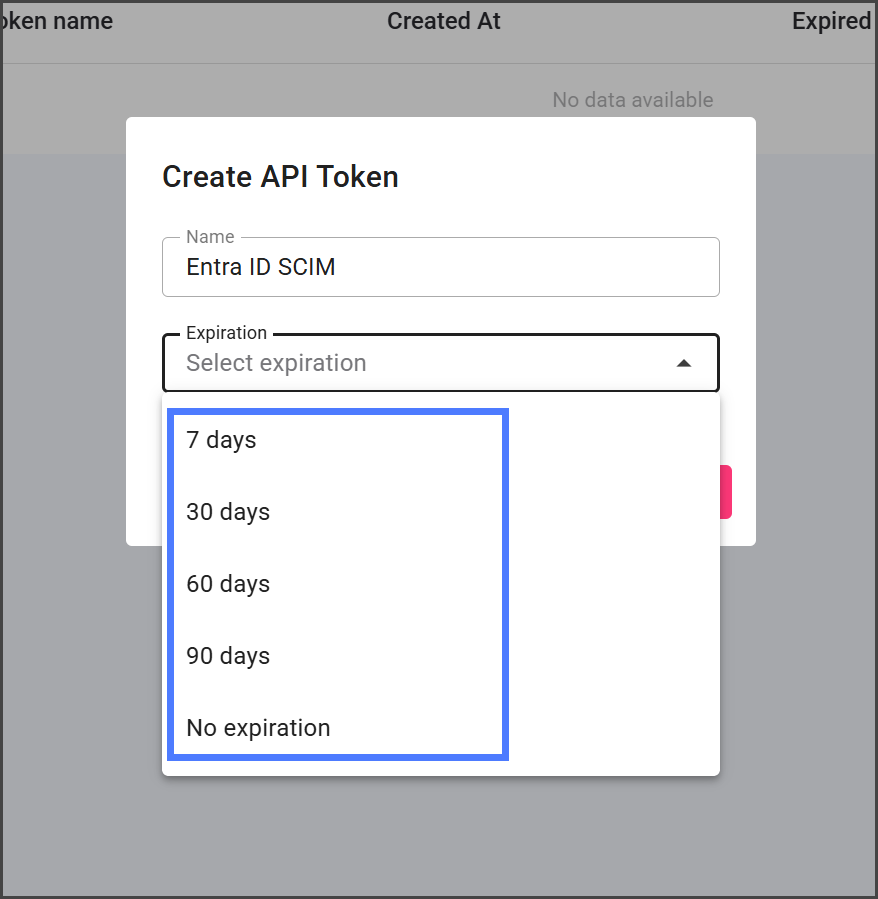
4. 次をクリックします **有効期限** ドロップダウンメニュー。
5. APIトークンを有効にする日数を選択します。
{% hint style="warning" %}
#### トークンの有効期限
APIトークンが期限切れになると、そのトークンを使用するサービスはFlosumのAPIにアクセスできなくなります。SSOアイデンティティプロバイダーのような継続的なアクセスを必要とするサービスの場合は、次を選択してください **有効期限なし**.
{% endhint %}
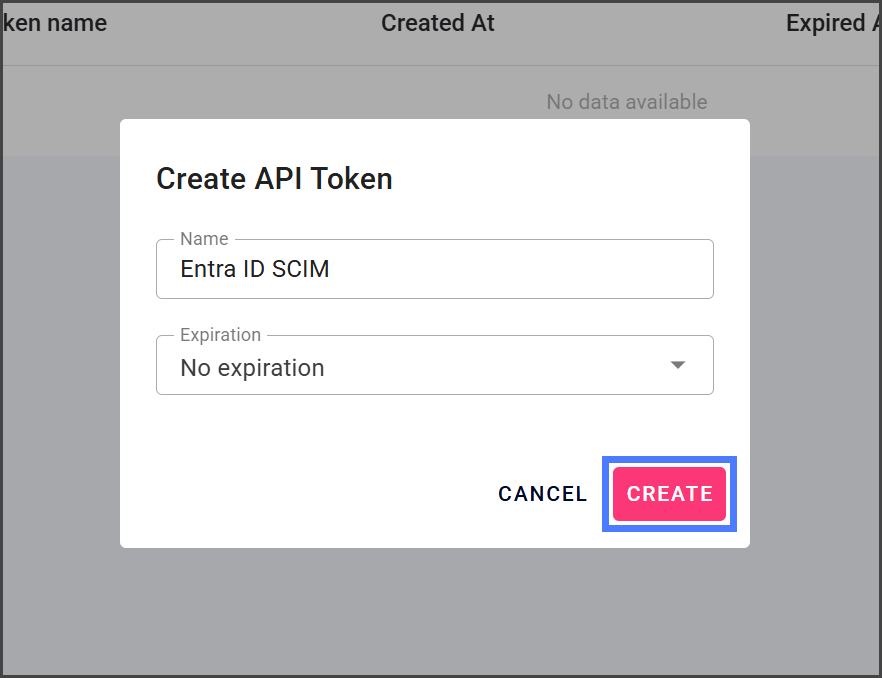
6. クリック **作成**.
{% endstep %}
{% step %}
### APIトークンを保存
{% hint style="warning" %}
#### APIトークン
APIトークンは一度しか表示されません。トークンを紛失した場合は、新しいトークンを生成するために更新する必要があります。トークンを更新すると以前のトークンは無効になり、それを使用しているすべてのサービスも更新する必要があります。
{% endhint %}
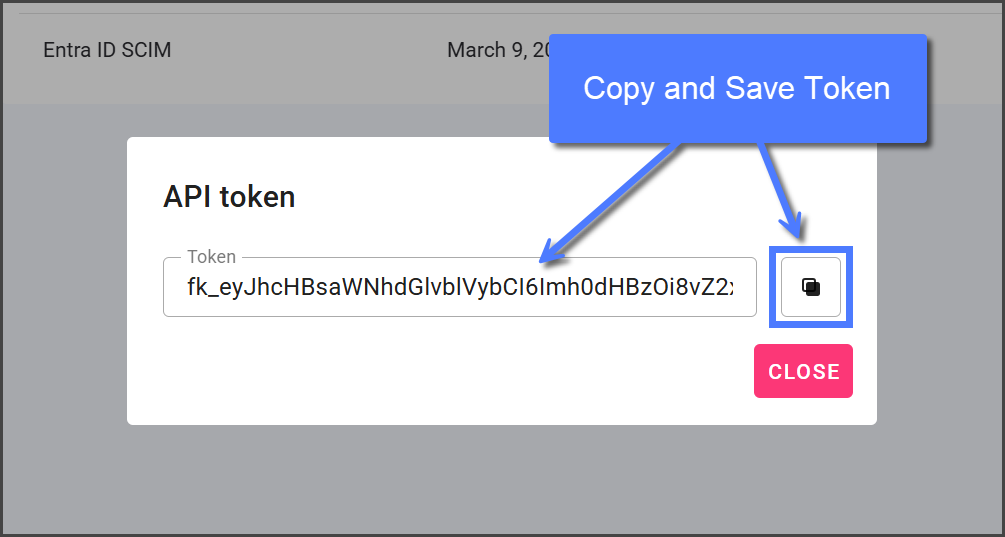
1. 作成すると、APIトークンが表示されます。
2. 次をクリックします **コピー** アイコンを使ってトークンをコピーし、安全な場所に保存してください。再度表示することはできません。
3. クリック **閉じる**.
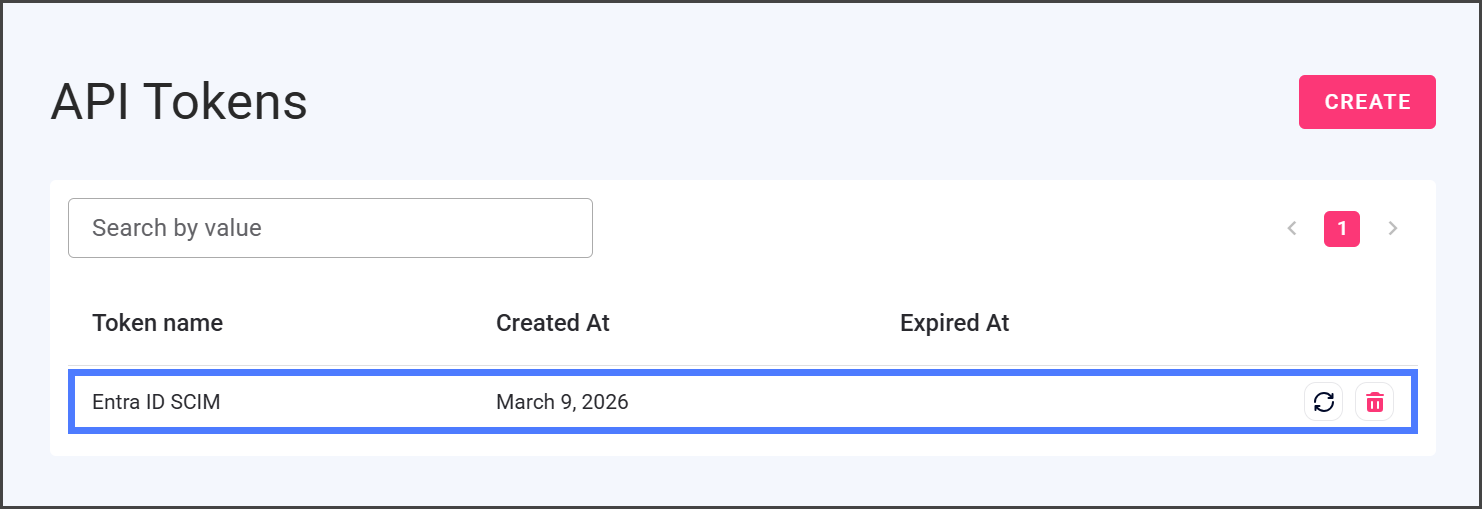
4. 作成したトークンは現在、APIトークン一覧テーブルに表示されています。
{% endstep %}
{% endstepper %}
---
# Agent Instructions
This documentation is published with GitBook. GitBook is the documentation platform designed so that both humans and AI agents can read, navigate, and reason over technical content effectively. Learn more at gitbook.com.
## Querying This Documentation
If you need additional information that is not directly available in this page, you can query the documentation by asking a question.
Perform an HTTP GET request on the following URL with the `ask` and `goal` query parameters:
```
GET https://docs.flosum.com/global-settings/global-settings-docs-ja/sekyuriti/apitkun/api-tkunno.md?ask=&goal=
```
`ask` is the immediate question: it should be specific, self-contained, and written in natural language.
`goal` is what the user is ultimately trying to achieve, the reason they need the answer. Sharing it helps GitBook give you a better, more relevant answer. A goal is most helpful when it describes the outcome the user wants rather than restating the question. For example, with `ask=how do I create an API token`, a goal like `automate deployments from our CI pipeline` lets GitBook tailor the answer to that use case.
The response will contain a direct answer to the question and relevant excerpts and sources from the documentation.
Use this mechanism when the answer is not explicitly present in the current page, you need clarification or additional context, or you want to retrieve related documentation sections.