> For the complete documentation index, see [llms.txt](https://docs.flosum.com/llms.txt). Markdown versions of documentation pages are available by appending `.md` to page URLs; this page is available as [Markdown](https://docs.flosum.com/global-settings/global-settings-docs-ja/sekyuriti/id-purobaidsso/scim-she-ding/okta-scim-she-ding.md).

# Okta - SCIM - 設定

{% hint style="success" %}

#### 重要なお知らせ

この記事の手順はサードパーティ製アプリを対象としており、最新バージョンを反映していない場合があります。これらの手順は作業を完了するためのガイドとしてご利用ください。ただし、一部の画面、項目名、手順が変更されている可能性があることにご注意ください。
{% endhint %}

## ![](https://1457003412-files.gitbook.io/~/files/v0/b/gitbook-x-prod.appspot.com/o/spaces%2FsEk2hU5IMh3HEY5dJZjR%2Fuploads%2FSxcnKlaJKPzDqONWoDNv%2FSummary2-Small-Icon.svg?alt=media\&token=5e3253d0-a069-4ba5-9c06-83c70bd0b21d) 概要

このページでは、Okta アイデンティティプロバイダーを Flosum の SCIM API を使用するように構成する方法の詳細を提供します。SCIM に関する詳細は、次の記事を参照してください。

* [Flosum 用の SCIM の設定](/global-settings/global-settings-docs-ja/sekyuriti/id-purobaidsso/flosum-no-scim-no.md)

{% hint style="warning" %}

#### カスタマー ホスト型

Flosum アプリを自社インフラでホストする顧客は、アプリにログインするためのカスタム URL を持ちます。このドキュメントを使用する際は、任意の部分を置き換えてください **Flosum ホスト型の URL** を自分の URL に置き換えてください。
{% endhint %}

## 前提条件

自動プロビジョニングを設定する前に、Flosum テナントで SAML ベースの SSO が適切に構成され、完全に機能していることを確認してください。

表示する **SAML 2.0（ヘッダー認証）** で **サインオン** タブで、次の項目が **SAML 2.0 属性** 正しく設定されていることを確認してください。下のスクリーンショットと表を参照してください。

<div align="left"><figure><img src="https://1457003412-files.gitbook.io/~/files/v0/b/gitbook-x-prod.appspot.com/o/spaces%2FsEk2hU5IMh3HEY5dJZjR%2Fuploads%2FpWzobeI27BeakNnatBRo%2FUsingJitProvisioning-Okta-01.png?alt=media&amp;token=9e347210-0c34-418e-be95-2b60bf854af2" alt="" width="524"><figcaption></figcaption></figure></div>

| 名前           | 値              |
| ------------ | -------------- |
| uniqueUserId | user.id        |
| firstName    | user.firstName |
| lastName     | user.lastName  |
| email        | user.email     |

Okta アイデンティティプロバイダーの追加と構成手順については、次の記事を参照してください。

* [ID プロバイダー（SSO）の追加](/global-settings/global-settings-docs-ja/sekyuriti/id-purobaidsso/id-purobaidssono-1.md)
* [Okta - SAML - 設定](/global-settings/global-settings-docs-ja/sekyuriti/id-purobaidsso/saml-id-purobaid/okta-saml-she-ding.md)

## Okta の構成

{% stepper %}
{% step %}

### API 統合の構成

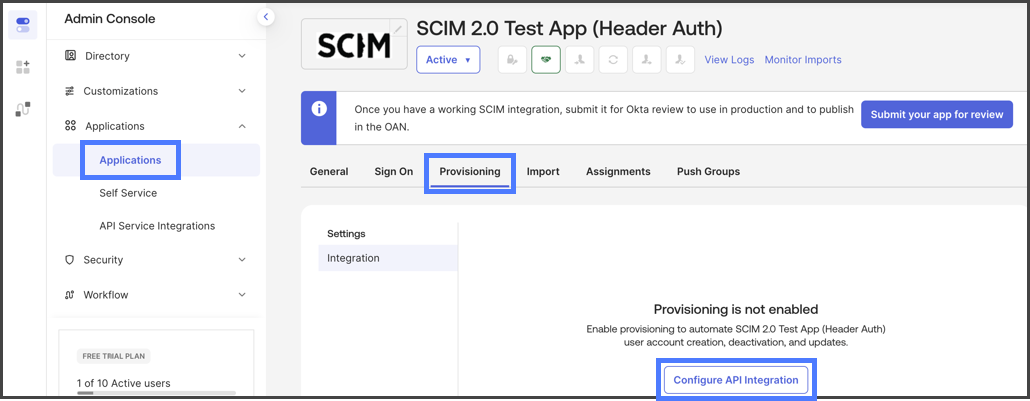
1. クリック **アプリケーション** の下にある **アプリケーション** 左側のサイドバーメニューで。
2. クリック **プロビジョニング** タブ。
3. クリック **API 統合の構成**.&#x20;

   <figure><img src="https://1457003412-files.gitbook.io/~/files/v0/b/gitbook-x-prod.appspot.com/o/spaces%2FsEk2hU5IMh3HEY5dJZjR%2Fuploads%2Fa53VbTX6dvjvlKlbv2wk%2FOktaScimConfig-S01-01.png?alt=media&amp;token=4eca1e03-37af-4741-8e5f-a0dac779e65e" alt=""><figcaption></figcaption></figure>
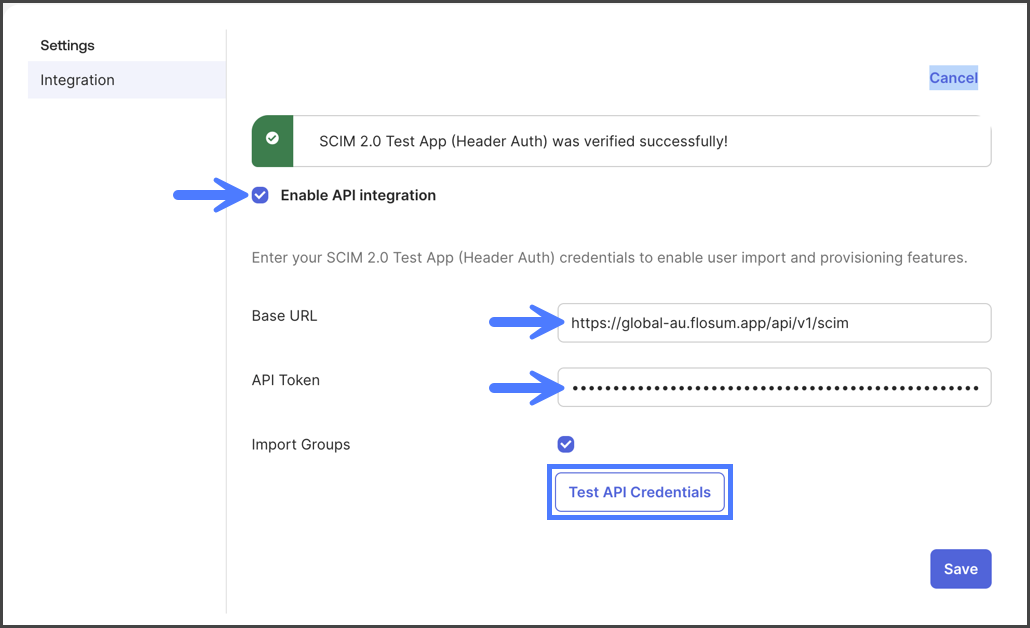
4. チェックする **API 統合** チェックボックス。
5. にある **ベース URL** テキストボックスに、以下の表から該当リージョンの SCIM API URL を入力します。

<table><thead><tr><th width="159.6666259765625">リージョン</th><th>SCIM API URL</th></tr></thead><tbody><tr><td>アメリカ合衆国</td><td>https://global-us.flosum.app/api/v1/scim</td></tr><tr><td>ドイツ</td><td>https://global-de.flosum.app/api/v1/scim</td></tr><tr><td>日本</td><td>https://global-jp.flosum.app/api/v1/scim</td></tr><tr><td>オーストラリア</td><td>https://global-au.flosum.app/api/v1/scim</td></tr></tbody></table>

6. にある **API トークン** テキストボックスに、グローバル設定の **API トークン**を入力します。API トークンをお持ちでない場合は、作成手順について次の記事を参照してください。
   1. [API トークンの作成](/global-settings/global-settings-docs-ja/sekyuriti/apitkun/api-tkunno.md)
7. クリック **API 資格情報をテスト**。成功した場合、次の「**{Your app name} was verified successfully!**」というメッセージが表示されます。&#x20;

   <div align="left"><figure><img src="https://1457003412-files.gitbook.io/~/files/v0/b/gitbook-x-prod.appspot.com/o/spaces%2FsEk2hU5IMh3HEY5dJZjR%2Fuploads%2FeO30krs1pP6ybEt9biJ8%2FOktaScimConfig-S01-02.png?alt=media&amp;token=de7b866b-0ab1-4e18-aeb3-ec591845e9c6" alt="" width="563"><figcaption></figcaption></figure></div>

{% hint style="info" %}
接続確認が受信されない場合は、 **ベース URL** を確認し、ファイアウォールやその他のネットワークトラフィックの傍受装置によってブロックされていないことを確認してください。次に、 **API トークン** が正しいことを検証してください。
{% endhint %}

8. クリック **保存**.
   {% endstep %}

{% step %}

### マッピング

Flosum SCIM API は Okta ユーザープロファイルの特定のメタデータ値を使用します。このセクションでは、Flosum SCIM API と Okta 属性間の必要なマッピングについて説明します。

1. アプリケーション設定ページで、次に移動します。 **プロビジョニング -> アプリへ**.
2. クリック **編集**.
3. 次のオプションを有効にします:
   1. **ユーザーを作成**
   2. **ユーザー属性を更新**
   3. **ユーザーを無効化**

{% hint style="info" %}
有効にしないでください **パスワードを同期**; Flosum はアイデンティティプロバイダーのパスワードをユーザーアカウントに使用しません。
{% endhint %}

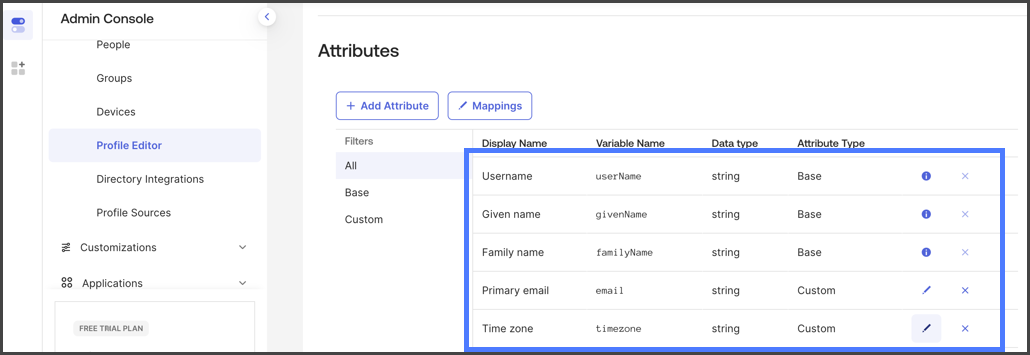
4. プロビジョニングのために次の属性が有効になっていることを確認してください:
   1. **ユーザー名**
   2. **名（Given name）**
   3. **姓（Family name）**
   4. **主要メール（Primary email）**
   5. **タイムゾーン**&#x20;

      <figure><img src="https://1457003412-files.gitbook.io/~/files/v0/b/gitbook-x-prod.appspot.com/o/spaces%2FsEk2hU5IMh3HEY5dJZjR%2Fuploads%2Fm1PWQPSGRWVio8sC74wy%2FOktaScimConfig-S02-01.png?alt=media&amp;token=39abcdc4-8a4f-4175-925e-0b2f4e1d1872" alt=""><figcaption></figcaption></figure>

{% endstep %}

{% step %}

### 割り当て

ユーザーを Flosum SCIM アプリケーションに割り当てます。

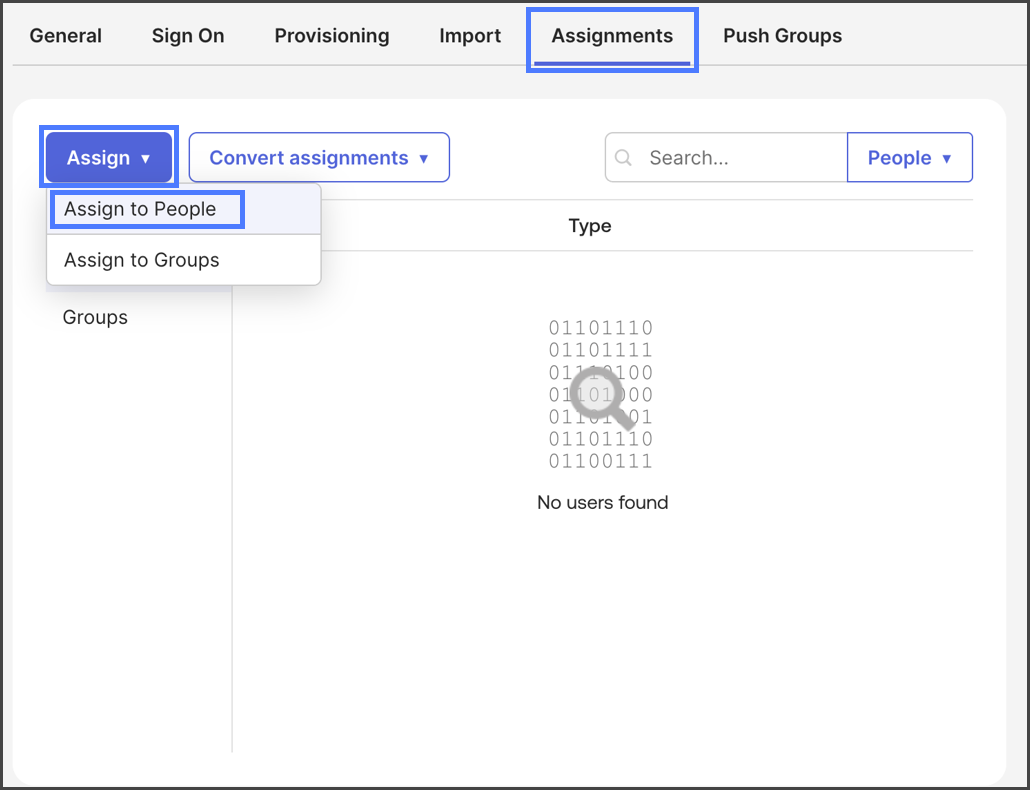
1. クリック **割り当て** タブ。
2. クリック **割り当て** ドロップダウンメニュー。
3. クリック **人に割り当て**.&#x20;

   <div align="left"><figure><img src="https://1457003412-files.gitbook.io/~/files/v0/b/gitbook-x-prod.appspot.com/o/spaces%2FsEk2hU5IMh3HEY5dJZjR%2Fuploads%2FkX4dWVggoRphnM0hG2Cs%2FOktaScimConfig-S03-01.png?alt=media&amp;token=c53f45db-764c-4779-a471-33ae3a7fce36" alt="" width="563"><figcaption></figcaption></figure></div>
4. このアプリケーションに割り当てるユーザーを選択します。
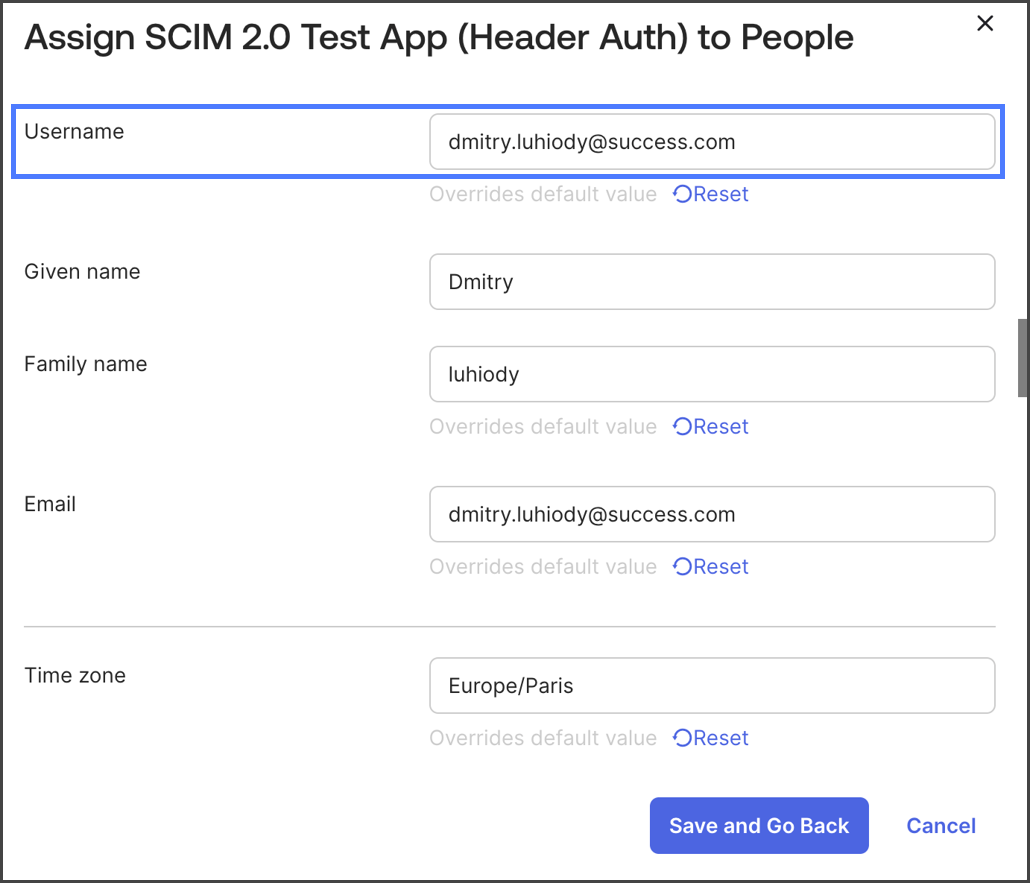
5. このアプリケーションで使用するユーザー情報を指定します。
   1. のために **ユーザー名** フィールドには、ユーザーのメールアドレスを入力します。&#x20;

      <div align="left"><figure><img src="https://1457003412-files.gitbook.io/~/files/v0/b/gitbook-x-prod.appspot.com/o/spaces%2FsEk2hU5IMh3HEY5dJZjR%2Fuploads%2F5mGOqbWP4Ahk255u7Zgp%2FOktaScimConfig-S03-02.png?alt=media&amp;token=db540502-4d4d-47f9-b6c2-95d307b22d76" alt="" width="563"><figcaption></figcaption></figure></div>

{% hint style="warning" %}
Flosum はメールアドレスをユーザー名として使用します。必ず `ユーザー名` 属性がユーザーのメールアドレスにマップされていることを確認してください。
{% endhint %}

{% hint style="info" %}
もし **タイムゾーン** フィールドが空白のままの場合、タイムゾーンは既定で Etc/UTC になります。
{% endhint %}
{% endstep %}

{% step %}

### ユーザーのインポート

Okta 経由でプロビジョニングするのではなく、既に Flosum テナントにユーザーを直接追加している場合は、Flosum からインポートすることでアイデンティティプロバイダーと同期できます。

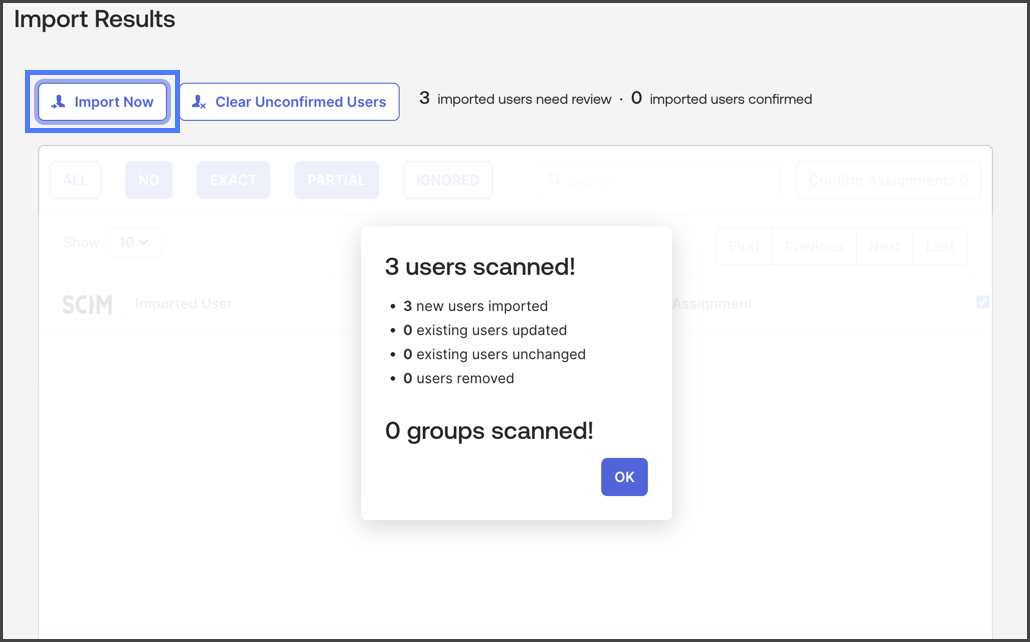
1. クリック **インポート** タブ。
2. クリック **今すぐインポート**.&#x20;

   <div align="left"><figure><img src="https://1457003412-files.gitbook.io/~/files/v0/b/gitbook-x-prod.appspot.com/o/spaces%2FsEk2hU5IMh3HEY5dJZjR%2Fuploads%2FTGMBM9n47js0XZfCYXr6%2FOktaScimConfig-S04-01.png?alt=media&amp;token=415a232e-1b07-4a3b-a06d-8bb021f9801a" alt="" width="563"><figcaption></figcaption></figure></div>
3. Flosum のユーザーが Okta アイデンティティプロバイダーにインポートされます。
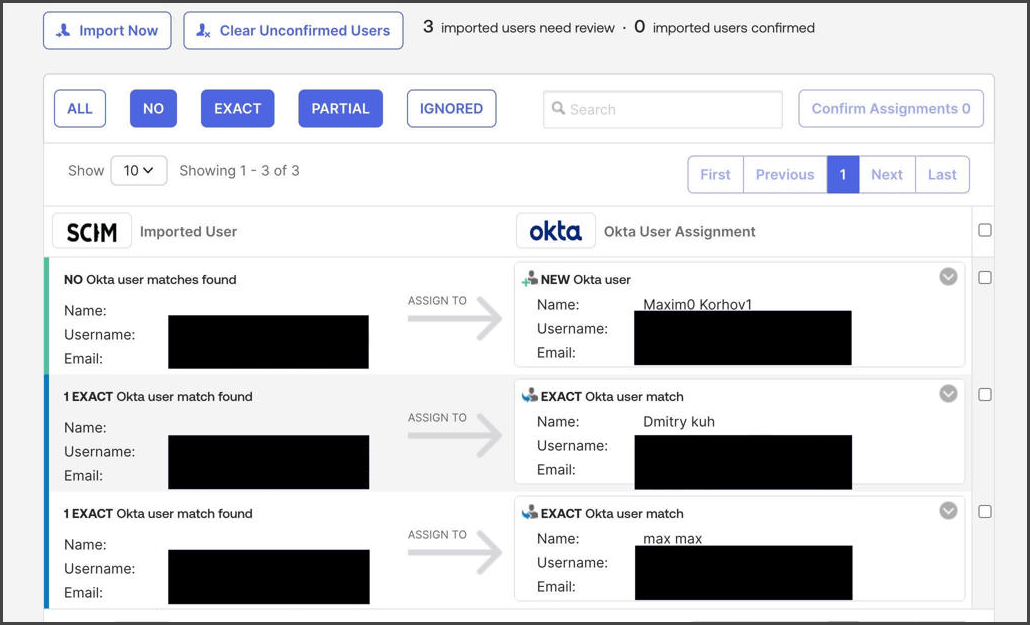
4. インポートされた **SCIM** ユーザーを **Okta に** 割り当てる方法を決定します。&#x20;

   <div align="left"><figure><img src="https://1457003412-files.gitbook.io/~/files/v0/b/gitbook-x-prod.appspot.com/o/spaces%2FsEk2hU5IMh3HEY5dJZjR%2Fuploads%2FQghTBBcPGeig84GJisHM%2FOktaScimConfig-S04-02.png?alt=media&amp;token=36c29c27-0cef-4f19-a4e7-ae0c24a39b6e" alt="" width="563"><figcaption></figcaption></figure></div>

{% hint style="info" %}
これによりシステム間のユーザーの不一致が防止され、SSO を有効にした後のログイン問題を回避できます。
{% endhint %}
{% endstep %}
{% endstepper %}


---

# Agent Instructions
This documentation is published with GitBook. GitBook is the documentation platform designed so that both humans and AI agents can read, navigate, and reason over technical content effectively. Learn more at gitbook.com.

## Querying This Documentation
If you need additional information that is not directly available in this page, you can query the documentation by asking a question.

Perform an HTTP GET request on the following URL with the `ask` and `goal` query parameters:

```
GET https://docs.flosum.com/global-settings/global-settings-docs-ja/sekyuriti/id-purobaidsso/scim-she-ding/okta-scim-she-ding.md?ask=<question>&goal=<user_goal>
```

`ask` is the immediate question: it should be specific, self-contained, and written in natural language.
`goal` is what the user is ultimately trying to achieve, the reason they need the answer. Sharing it helps GitBook give you a better, more relevant answer. A goal is most helpful when it describes the outcome the user wants rather than restating the question. For example, with `ask=how do I create an API token`, a goal like `automate deployments from our CI pipeline` lets GitBook tailor the answer to that use case.

The response will contain a direct answer to the question and relevant excerpts and sources from the documentation.

Use this mechanism when the answer is not explicitly present in the current page, you need clarification or additional context, or you want to retrieve related documentation sections.