> For the complete documentation index, see [llms.txt](https://docs.flosum.com/llms.txt). Markdown versions of documentation pages are available by appending `.md` to page URLs; this page is available as [Markdown](https://docs.flosum.com/global-settings/global-settings-docs-ja/sekyuriti/id-purobaidsso/tkunwosuruno-sso-roguinno.md).
# 接続トークンを更新する際の SSO ログイン問題の解決
##  概要
Flosum のグローバル設定で組織トークンを更新する際に、シングルサインオン(SSO)が指定されたサービスユーザアカウントではなく、現在ログイン中の SSO ユーザでグローバル設定の認証を行わせる可能性があります。
{% hint style="info" %}
#### ベストプラクティス
Flosum は、任意の Flosum 製品に Salesforce 組織を接続する際に、SSO が設定されていない専用のサービスユーザアカウントを使用することを強く推奨します。
{% endhint %}
もしあなたの **専用のサービスユーザ** が SSO に設定されていない場合、Global が正しいアカウントを使用するようにログイン URL を調整する必要があるかもしれません。
## 解決方法
{% hint style="info" %}
手順は Chrome ブラウザ用に記載していますが、他のブラウザでもプロセスを完了できる場合があります。Chrome を推奨します。
{% endhint %}
{% stepper %}
{% step %}
### ネットワークアクティビティの監視
1. Chrome ブラウザを開き、にログインします **グローバル設定**.
2. をクリックします **三点リーダー** メニュー。
3. クリック **その他のツール > デベロッパーツール**.
4. を選択します **ネットワーク** タブ。
{% endstep %}
{% step %}
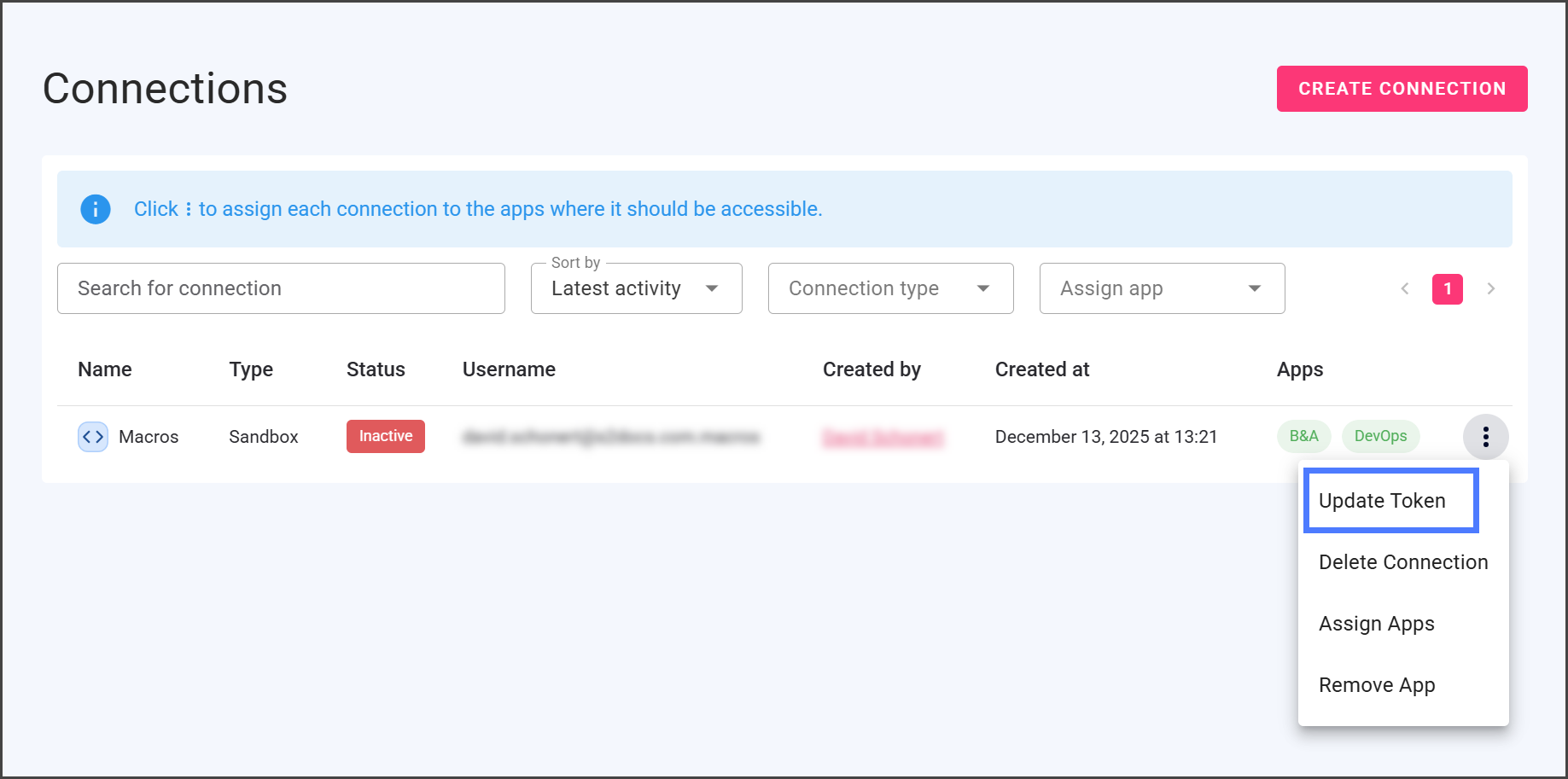
### トークンの更新
1. にログインします **グローバル設定**。詳細手順は [グローバル設定にログインする](/global-settings/global-settings-docs-ja/hajimeni/gurbaruniroguinsuru.md) 記事を参照してください。
2. クリック **接続** サイドバーのメニューから**.**
3. クリック **トークンの更新** 更新したい接続のために。
{% endstep %}
{% step %}
### 認可 URL を取得する
1. authorize で始まるネットワークエントリを監視します **authorize**.
2. それを見つけたらすぐに、 **ESC** を押してブラウザの更新を停止します。
3. これによりリダイレクトが防止され、ログイン URL を取得できます。
{% endstep %}
{% step %}
### **ログイン URL を修正して認証する**
1. 取得した URL をコピーしてブラウザに貼り付けます。
2. カスタムドメイン部分を次のいずれかに置き換えます:
| Salesforce 組織の種類 | ドメイン |
| ---------------- | -------------------- |
| **サンドボックス組織** | test.salesforce.com |
| **本番組織** | login.salesforce.com |
3. URL の残りは変更しないでください。
4. を押して **Enter** で URL を起動します。
5. 専用のサービスユーザの資格情報(SSO アカウントではない)を使ってログインします。
{% endstep %}
{% step %}
### 接続ユーザ名の確認
1. グローバル設定に戻ります。
2. クリック **接続** サイドバーのメニューから**.**
3. が現在、下に表示されていることを確認します **専用のサービスユーザ** 現在、が表示されている **ユーザ名** 接続された組織のための。
{% endstep %}
{% endstepper %}
---
# Agent Instructions
This documentation is published with GitBook. GitBook is the documentation platform designed so that both humans and AI agents can read, navigate, and reason over technical content effectively. Learn more at gitbook.com.
## Querying This Documentation
If you need additional information that is not directly available in this page, you can query the documentation by asking a question.
Perform an HTTP GET request on the following URL with the `ask` and `goal` query parameters:
```
GET https://docs.flosum.com/global-settings/global-settings-docs-ja/sekyuriti/id-purobaidsso/tkunwosuruno-sso-roguinno.md?ask=&goal=
```
`ask` is the immediate question: it should be specific, self-contained, and written in natural language.
`goal` is what the user is ultimately trying to achieve, the reason they need the answer. Sharing it helps GitBook give you a better, more relevant answer. A goal is most helpful when it describes the outcome the user wants rather than restating the question. For example, with `ask=how do I create an API token`, a goal like `automate deployments from our CI pipeline` lets GitBook tailor the answer to that use case.
The response will contain a direct answer to the question and relevant excerpts and sources from the documentation.
Use this mechanism when the answer is not explicitly present in the current page, you need clarification or additional context, or you want to retrieve related documentation sections.