> For the complete documentation index, see [llms.txt](https://docs.flosum.com/llms.txt). Markdown versions of documentation pages are available by appending `.md` to page URLs; this page is available as [Markdown](https://docs.flosum.com/global-settings/global-settings-docs-ja/sekyuriti/nettowkuakusesu/nettowkuakusesuno-ip-no.md).
# ネットワークアクセスの IP 範囲の作成
{% hint style="success" %}
#### 必要なユーザー認証情報
\[**Flosumユーザー**] - **システム管理者** 役割
{% endhint %}
## 概要
この **ネットワークアクセス** 設定では、信頼済みの IP アドレス範囲を定義できるため、Flosum Cloud Apps へのアクセスをきめ細かく制御できます。設定すると、このセキュリティ機能により Flosum 組織へのすべてのアクセスが制限され、指定した IP 範囲からの接続のみが許可されます。これにより、認可されたネットワークのみが Flosum 環境にアクセスできるようになります。
重要な考慮事項:
* アクセスが必要なすべてのユーザーが、設定した IP 範囲に含まれていることを確認してください。
* その範囲が、すべてのオフィス拠点および承認済みのリモートワーク環境をカバーしていることを確認してください。
* 組織のネットワークインフラが進化するに伴い、IP 範囲を定期的に見直し、更新してください。
{% hint style="info" %}
**ベストプラクティス**
Network Access 制限を有効にする前に、すべての IP 範囲を文書化し、さまざまな場所からアクセスをテストして、正当なユーザーが誤って締め出されないようにしてください。ネットワーク変更や設定の問題が発生した場合に備えて、信頼できる固定 IP アドレスを持つ管理者用範囲を作成することを検討してください。
{% endhint %}
{% hint style="warning" %}
**リモートおよび出張時のアクセス**
出張中またはリモートで作業しているユーザーは、オフィスから接続する場合とは異なる IP アドレスを使用します。リモートユーザーに一貫した IP アドレスを提供するため、VPN ソリューションの導入を検討してください。これにより、オフィス外でも途切れないアクセスを確保できます。
{% endhint %}
### ネットワークエラー 500
Salesforce 組織を Backup & Archive に接続する際にネットワークエラー 500 が発生する場合は、Flosum テナントが使用しているリージョンの以下の IP アドレスを必ず含めてください。
| 地域 | IPアドレス1 | IPアドレス2 |
|---|
| アメリカ合衆国 | 3.20.76.2 | 18.224.75.98 |
| ドイツ | 3.125.87.81 | 18.199.42.135 |
| 日本 | 18.176.22.236 | 54.238.106.128 |
| オーストラリア | 13.237.137.32 | 54.66.210.123 |
## IP 範囲の作成
{% stepper %}
{% step %}
### グローバル設定を開く
1. 任意の **Flosum Cloud App**で、 **アプリスイッチャー** アイコンを左側のサイドバーメニュー上部でクリックします。
2. クリック **グローバル設定**.
3. その **グローバル設定** アプリは新しいタブで開きます。
{% hint style="info" %}
グローバル設定には、Flosum Cloud Apps のログインURLから直接ログインしてアクセスすることもできます。ログイン手順については、以下の記事を参照してください。
* [グローバル設定にログインする](/global-settings/global-settings-docs-ja/hajimeni/gurbaruniroguinsuru.md)
{% endhint %}
{% endstep %}
{% step %}
### IP 範囲を作成
標準的なドット区切り表記を使用して IP 範囲を指定できます。これにより、IPv4 空間全体の任意の数のアドレスを含めることができます。有効な範囲の例をいくつか示します。
| 開始 IP アドレス | 終了 IP アドレス | 説明 |
| ----------- | -------------- | -------------------------------------------------- |
| 47.96.21.34 | 47.96.21.34 | IP 範囲には IP アドレス 47.96.21.34 のみが含まれます。 |
| 47.96.21.0 | 47.96.21.100 | 47.96.21 のアドレス空間の 0~100 をカバーする IP 範囲。 |
| 47.96.20.0 | 47.96.24.255 | 47.96.20 から 47.96.24 のアドレス空間のすべてのアドレスをカバーする IP 範囲。 |
| 47.92.0.0 | 47.98.255.255 | 47.92 から 47.98 のアドレス空間のすべてのアドレスをカバーする IP 範囲。 |
| 46.0.0.0 | 47.255.255.255 | 46 から 47 のアドレス空間のすべてのアドレスをカバーする IP 範囲。 |
{% hint style="warning" %}
事前に範囲がない状態で IP 範囲を作成すると、IP アドレスがその範囲に含まれていない場合にエラーメッセージが表示されます。この予防措置により、現在の IP アドレスから Flosum Cloud Apps へのアクセスを誤ってブロックすることを防ぎます。

{% endhint %}
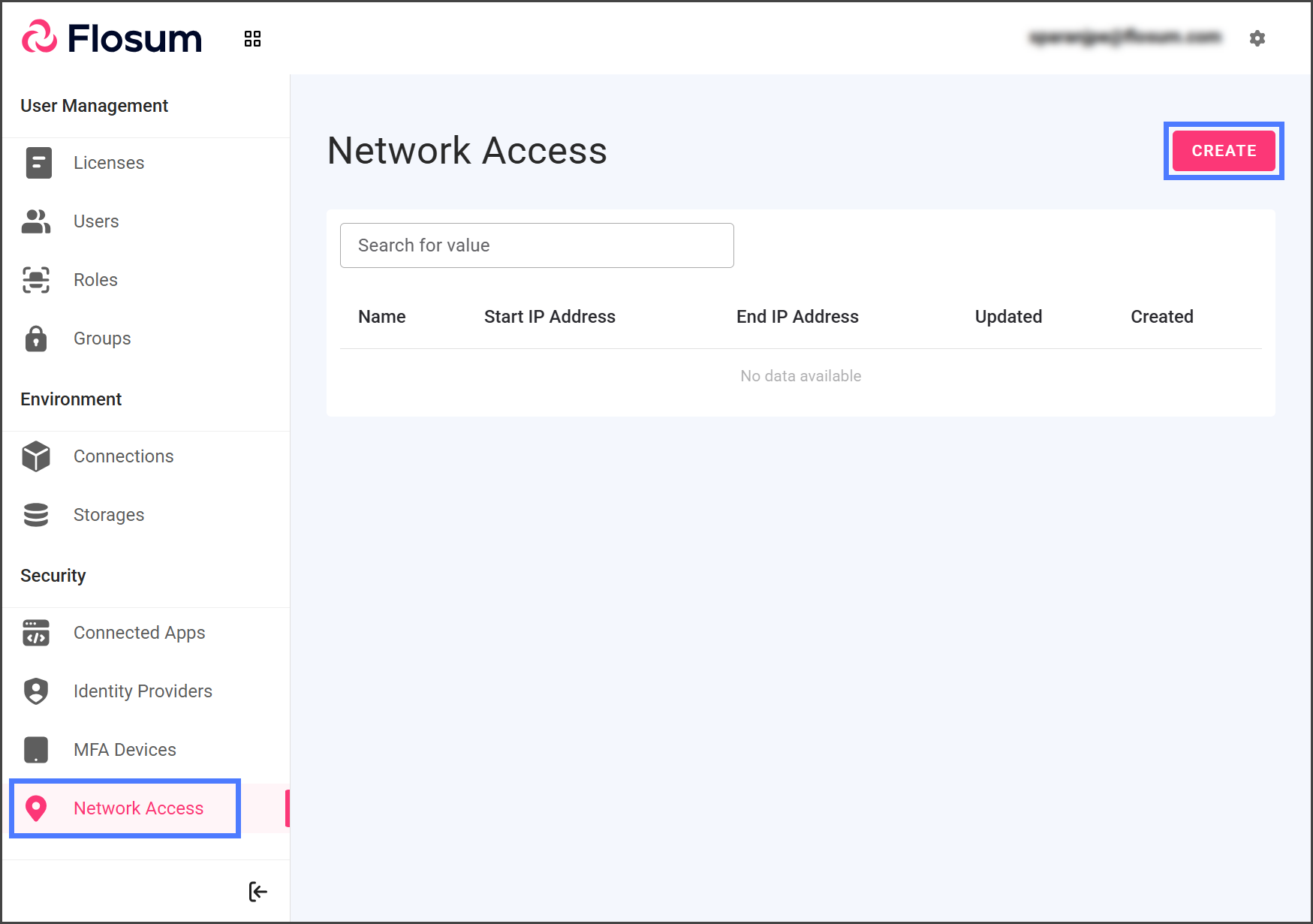
1. クリック **ネットワークアクセス** をサイドバーメニューから。
2. クリック **作成**.
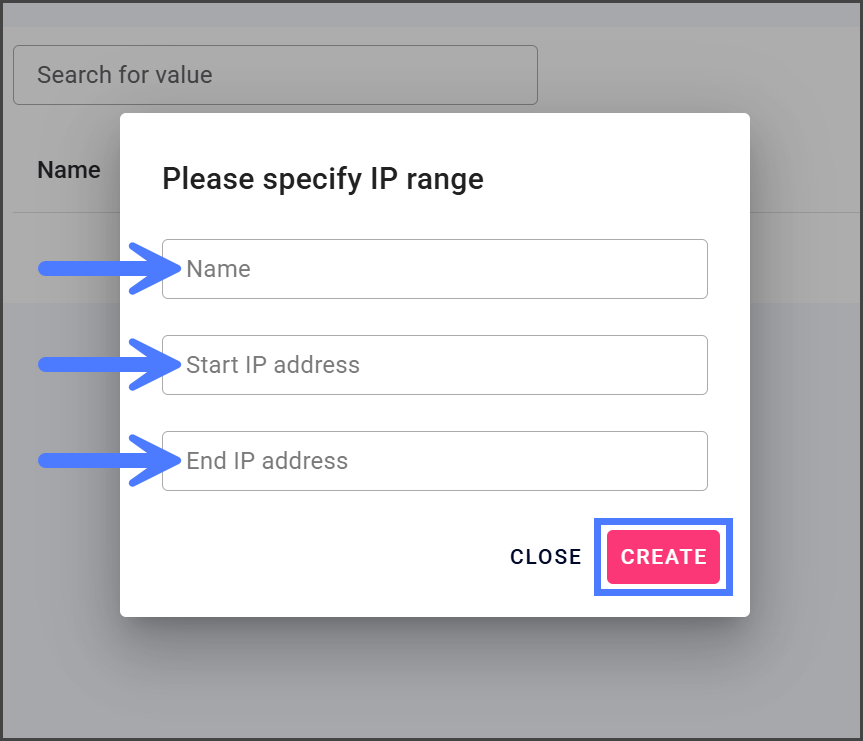
3. IP 範囲にわかりやすい名前を **名前** テキストボックスに入力します。
4. 最初の IP アドレスを **開始 IP アドレス** テキストボックスに入力します。
5. 最後の IP アドレスを **終了 IP アドレス** テキストボックスに入力します。
{% hint style="info" %}
単一の IP アドレスを追加するには、次の両方の **開始 IP アドレス** と **終了 IP アドレス** フィールドに同じ値を入力します。
{% endhint %}
6. クリック **作成**.
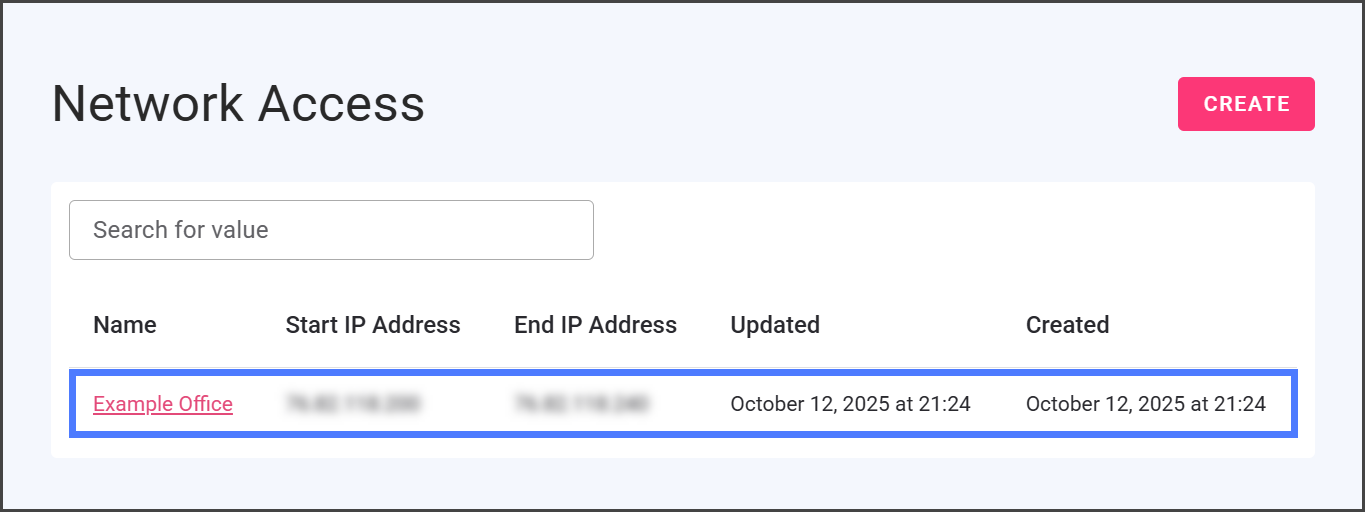
7. 新しい IP 範囲は Network Access 一覧に表示されます。
{% endstep %}
{% endstepper %}
---
# Agent Instructions
This documentation is published with GitBook. GitBook is the documentation platform designed so that both humans and AI agents can read, navigate, and reason over technical content effectively. Learn more at gitbook.com.
## Querying This Documentation
If you need additional information that is not directly available in this page, you can query the documentation by asking a question.
Perform an HTTP GET request on the following URL with the `ask` and `goal` query parameters:
```
GET https://docs.flosum.com/global-settings/global-settings-docs-ja/sekyuriti/nettowkuakusesu/nettowkuakusesuno-ip-no.md?ask=&goal=
```
`ask` is the immediate question: it should be specific, self-contained, and written in natural language.
`goal` is what the user is ultimately trying to achieve, the reason they need the answer. Sharing it helps GitBook give you a better, more relevant answer. A goal is most helpful when it describes the outcome the user wants rather than restating the question. For example, with `ask=how do I create an API token`, a goal like `automate deployments from our CI pipeline` lets GitBook tailor the answer to that use case.
The response will contain a direct answer to the question and relevant excerpts and sources from the documentation.
Use this mechanism when the answer is not explicitly present in the current page, you need clarification or additional context, or you want to retrieve related documentation sections.