> For the complete documentation index, see [llms.txt](https://docs.flosum.com/llms.txt). Markdown versions of documentation pages are available by appending `.md` to page URLs; this page is available as [Markdown](https://docs.flosum.com/global-settings/global-settings-docs-ja/yz/yz/yznoroguin.md).

# 新規ユーザーの初回ログイン

## ![](https://1457003412-files.gitbook.io/~/files/v0/b/gitbook-x-prod.appspot.com/o/spaces%2FsEk2hU5IMh3HEY5dJZjR%2Fuploads%2FSxcnKlaJKPzDqONWoDNv%2FSummary2-Small-Icon.svg?alt=media\&token=5e3253d0-a069-4ba5-9c06-83c70bd0b21d)概要

システム管理者がユーザーアカウントを作成した後、ユーザーはパスワードの変更を含む初回ログインプロセスを完了する必要があります。この記事では、初めてアカウントにログインする手順を案内します。

## ユーザー初回ログイン

{% hint style="info" %}
ログインプロセスを開始する前に、システム管理者から次の情報が提供されていることを確認してください：

* アカウントにログインするためのメールアドレス。
* アカウントの一時パスワード。
  {% endhint %}

{% stepper %}
{% step %}

### ログイン

1. ブラウザにシステム管理者から渡されたログインURLを入力します。
2. を入力してください **メールアドレス** ユーザー登録に使用した。
3. をクリックします **続行**.&#x20;

   <div align="left"><figure><img src="https://1457003412-files.gitbook.io/~/files/v0/b/gitbook-x-prod.appspot.com/o/spaces%2FsEk2hU5IMh3HEY5dJZjR%2Fuploads%2FkXv4bL5mk8qZCKFNWWge%2FGSCreatingAUser-Login-01.png?alt=media&amp;token=065e80af-3515-46bd-a68e-7e012cb86334" alt="" width="375"><figcaption></figcaption></figure></div>
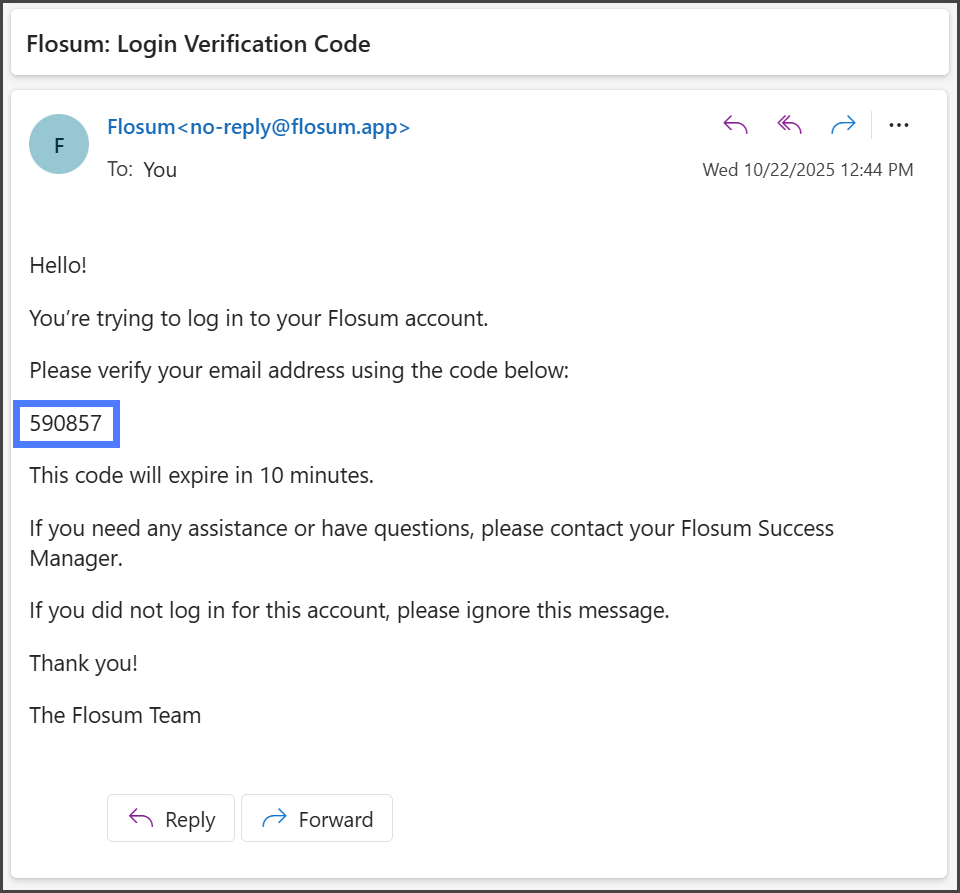
4. メールアカウントにアクセスして開きます **Flosum: ログイン確認コード**.

   <div data-gb-custom-block data-tag="hint" data-style="info" class="hint hint-info"><p>メールは次の送信元から送られます <strong>no-reply@flosum.app</strong>メールが届いていない場合は、迷惑メールフォルダを確認してください。</p></div>
5. 確認コードをコピーします。&#x20;

   <div align="left"><figure><img src="https://1457003412-files.gitbook.io/~/files/v0/b/gitbook-x-prod.appspot.com/o/spaces%2FsEk2hU5IMh3HEY5dJZjR%2Fuploads%2FcG4kQMuQuWuH6ylsIOYq%2FGSCreatingAUser-Login-02.png?alt=media&amp;token=9deb01a1-9ecc-46cd-a263-2902f994de79" alt="" width="563"><figcaption></figcaption></figure></div>
6. コピーした確認コードを次に入力します **確認コード** テキストボックス。
7. をクリックします **続行**.&#x20;

   <div align="left"><figure><img src="https://1457003412-files.gitbook.io/~/files/v0/b/gitbook-x-prod.appspot.com/o/spaces%2FsEk2hU5IMh3HEY5dJZjR%2Fuploads%2FOEBNHl4xsxjHtXLIWtcx%2FGSCreatingAUser-Login-03.png?alt=media&amp;token=355a1cfc-5eb1-4346-9751-ced2e2206f12" alt="" width="375"><figcaption></figcaption></figure></div>
8. ログインするテナントを選択します。

{% hint style="warning" %}
複数のテナントを持ち、どのテナントを選べばよいかわからない場合は、システム管理者にお問い合わせください。
{% endhint %}

8. をクリックします **続行**.&#x20;

   <div align="left"><figure><img src="https://1457003412-files.gitbook.io/~/files/v0/b/gitbook-x-prod.appspot.com/o/spaces%2FsEk2hU5IMh3HEY5dJZjR%2Fuploads%2Fc7pg3G3etIotlCItzGIz%2FGSCreatingAUser-Login-04.png?alt=media&amp;token=9a06d7eb-2acf-4916-8436-350046ee7479" alt="" width="375"><figcaption></figcaption></figure></div>

{% endstep %}

{% step %}

### 一時パスワードの変更

1. の **パスワード** テキストボックスに、次を入力します **一時パスワード** システム管理者が提供したもの。
2. をクリックします **ログイン**.&#x20;

   <div align="left"><figure><img src="https://1457003412-files.gitbook.io/~/files/v0/b/gitbook-x-prod.appspot.com/o/spaces%2FsEk2hU5IMh3HEY5dJZjR%2Fuploads%2F0tyJG7BCA78DIGDwucxH%2FGSCreatingAUser-Login-05.png?alt=media&amp;token=58666df6-737a-4e3c-8758-7da836052410" alt="" width="375"><figcaption></figcaption></figure></div>
3. を入力してください **新しいパスワード** 指定されたパスワード要件を満たすもの。
4. パスワードを再度入力します **新しいパスワードの確認** テキストボックス。
5. をクリックします **パスワードを変更**.&#x20;

   <div align="left"><figure><img src="https://1457003412-files.gitbook.io/~/files/v0/b/gitbook-x-prod.appspot.com/o/spaces%2FsEk2hU5IMh3HEY5dJZjR%2Fuploads%2FO1sblW9nqAmhWXLEH7C1%2FGSCreatingAUser-Login-06.png?alt=media&amp;token=5b2c4deb-2d15-4efa-b82c-529669313dcc" alt="" width="375"><figcaption></figcaption></figure></div>

{% endstep %}

{% step %}

### 新しいパスワードでログイン

1. を入力してください **メールアドレス** ユーザー登録に使用した。
2. をクリックします **続行**.&#x20;

   <div align="left"><figure><img src="https://1457003412-files.gitbook.io/~/files/v0/b/gitbook-x-prod.appspot.com/o/spaces%2FsEk2hU5IMh3HEY5dJZjR%2Fuploads%2FkXv4bL5mk8qZCKFNWWge%2FGSCreatingAUser-Login-01.png?alt=media&amp;token=065e80af-3515-46bd-a68e-7e012cb86334" alt="" width="375"><figcaption></figcaption></figure></div>
3. メールアカウントにアクセスして開きます **Flosum: ログイン確認コード**.

   <div data-gb-custom-block data-tag="hint" data-style="info" class="hint hint-info"><p>メールは次の送信元から送られます <strong>no-reply@flosum.app</strong>メールが届いていない場合は、迷惑メールフォルダを確認してください。</p></div>
4. 確認コードをコピーします。&#x20;

   <div align="left"><figure><img src="https://1457003412-files.gitbook.io/~/files/v0/b/gitbook-x-prod.appspot.com/o/spaces%2FsEk2hU5IMh3HEY5dJZjR%2Fuploads%2FcG4kQMuQuWuH6ylsIOYq%2FGSCreatingAUser-Login-02.png?alt=media&amp;token=9deb01a1-9ecc-46cd-a263-2902f994de79" alt="" width="563"><figcaption></figcaption></figure></div>
5. コピーした確認コードを次に入力します **確認コード** テキストボックス。
6. をクリックします **続行**.&#x20;

   <div align="left"><figure><img src="https://1457003412-files.gitbook.io/~/files/v0/b/gitbook-x-prod.appspot.com/o/spaces%2FsEk2hU5IMh3HEY5dJZjR%2Fuploads%2FOEBNHl4xsxjHtXLIWtcx%2FGSCreatingAUser-Login-03.png?alt=media&amp;token=355a1cfc-5eb1-4346-9751-ced2e2206f12" alt="" width="375"><figcaption></figcaption></figure></div>
7. ログインするテナントを選択します。

{% hint style="warning" %}
複数のテナントを持ち、どのテナントを選べばよいかわからない場合は、システム管理者にお問い合わせください。
{% endhint %}

8. をクリックします **続行**.&#x20;

   <div align="left"><figure><img src="https://1457003412-files.gitbook.io/~/files/v0/b/gitbook-x-prod.appspot.com/o/spaces%2FsEk2hU5IMh3HEY5dJZjR%2Fuploads%2Fc7pg3G3etIotlCItzGIz%2FGSCreatingAUser-Login-04.png?alt=media&amp;token=9a06d7eb-2acf-4916-8436-350046ee7479" alt="" width="375"><figcaption></figcaption></figure></div>
9. の **パスワード** テキストボックスに、作成した新しいパスワードを入力します。
10. をクリックします **ログイン**.&#x20;

    <div align="left"><figure><img src="https://1457003412-files.gitbook.io/~/files/v0/b/gitbook-x-prod.appspot.com/o/spaces%2FsEk2hU5IMh3HEY5dJZjR%2Fuploads%2F0tyJG7BCA78DIGDwucxH%2FGSCreatingAUser-Login-05.png?alt=media&amp;token=58666df6-737a-4e3c-8758-7da836052410" alt="" width="375"><figcaption></figcaption></figure></div>
11. 新しい Flosum アカウントに正常にログインしました。
    {% endstep %}
    {% endstepper %}


---

# Agent Instructions
This documentation is published with GitBook. GitBook is the documentation platform designed so that both humans and AI agents can read, navigate, and reason over technical content effectively. Learn more at gitbook.com.

## Querying This Documentation
If you need additional information that is not directly available in this page, you can query the documentation by asking a question.

Perform an HTTP GET request on the following URL with the `ask` and `goal` query parameters:

```
GET https://docs.flosum.com/global-settings/global-settings-docs-ja/yz/yz/yznoroguin.md?ask=<question>&goal=<user_goal>
```

`ask` is the immediate question: it should be specific, self-contained, and written in natural language.
`goal` is what the user is ultimately trying to achieve, the reason they need the answer. Sharing it helps GitBook give you a better, more relevant answer. A goal is most helpful when it describes the outcome the user wants rather than restating the question. For example, with `ask=how do I create an API token`, a goal like `automate deployments from our CI pipeline` lets GitBook tailor the answer to that use case.

The response will contain a direct answer to the question and relevant excerpts and sources from the documentation.

Use this mechanism when the answer is not explicitly present in the current page, you need clarification or additional context, or you want to retrieve related documentation sections.