

Backup & Archive (v4.8.8) ‐ Monthly Release Notes
Release Details - Backup & Archive - v4.8.8 - October 26, 2026
This article is intended for Salesforce administrators, compliance officers, and IT teams responsible for managing Salesforce backups and data governance.
Release Type
Monthly
Applies to Flosum-hosted and self-hosted
Prerequisites
A registered and configured Flosum Cloud Apps tenant
Appropriate Flosum user permissions (SystemAdministrator or equivalent)
 Summary
This article documents the monthly release for Backup & Archive (v4.8.8). This release adds the option to export an object's data directly from a specific backup. You can save the export to internal storage for download or send it to your configured external storage. Export requests can also be created through the API.
 Export Data from a Specific Backup
What Changed
Backup & Archive now lets you export data for a Salesforce object from a specific backup. This is an additional way to export data, and the existing export options remain available.
You can now:
Export an object's data directly from a specific backup.
Save the export to internal storage and download it later.
Send the export to your configured external storage.
Create export requests through the API.
Receive status and error information when an export request is invalid or the export fails.
Why It Was Done
This enhancement gives you more flexibility in accessing backed-up data, and it lets you export only the data you need to the destination you prefer. It also lets integrations and automated workflows start exports through the API.
What You Will Notice
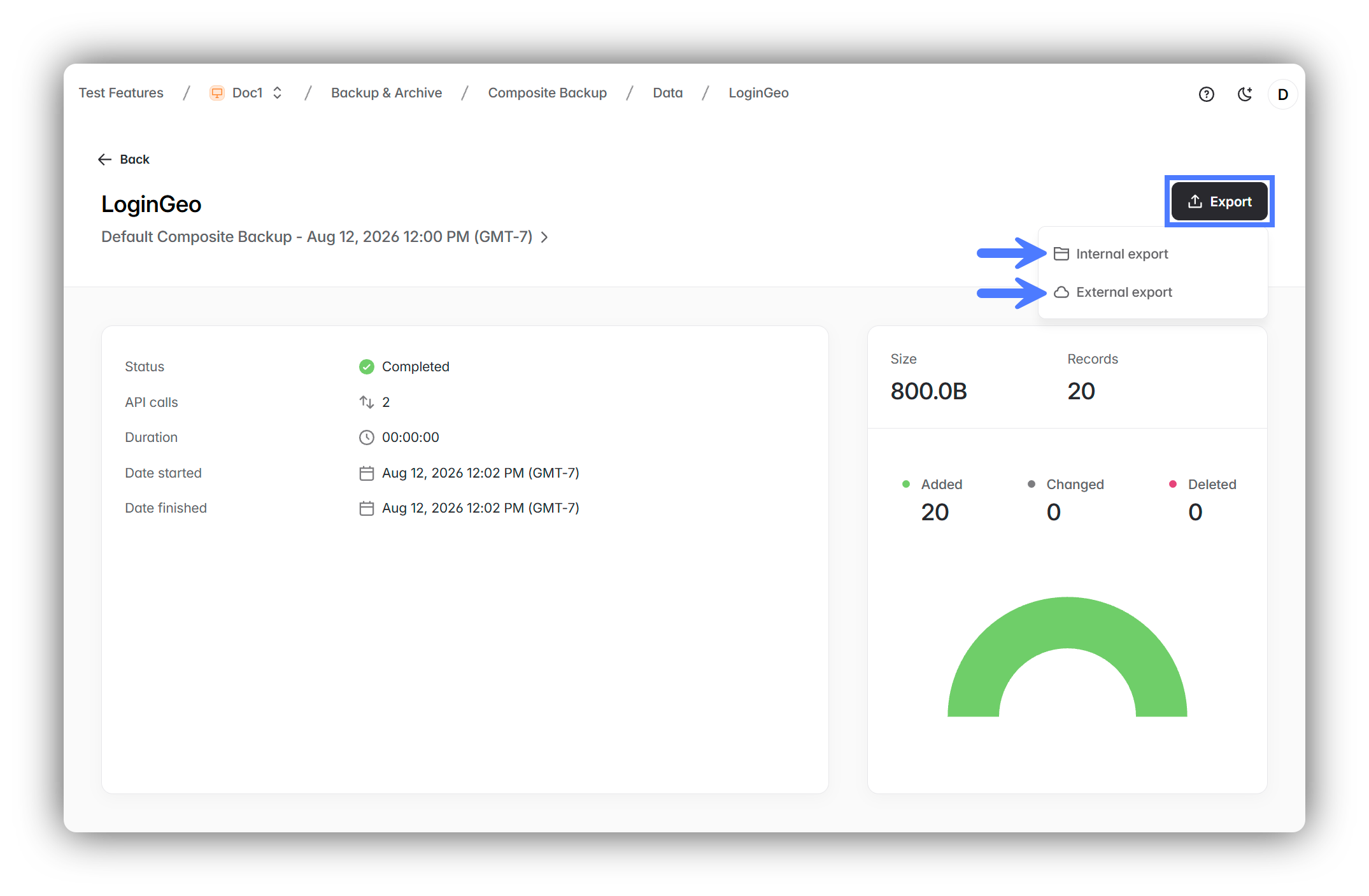
An object's page inside a backup now has an Export button. It creates an export request for that object from that backup, and you choose where the export goes:
An Internal export starts the export request immediately. The export file is stored internally and is available for download later.
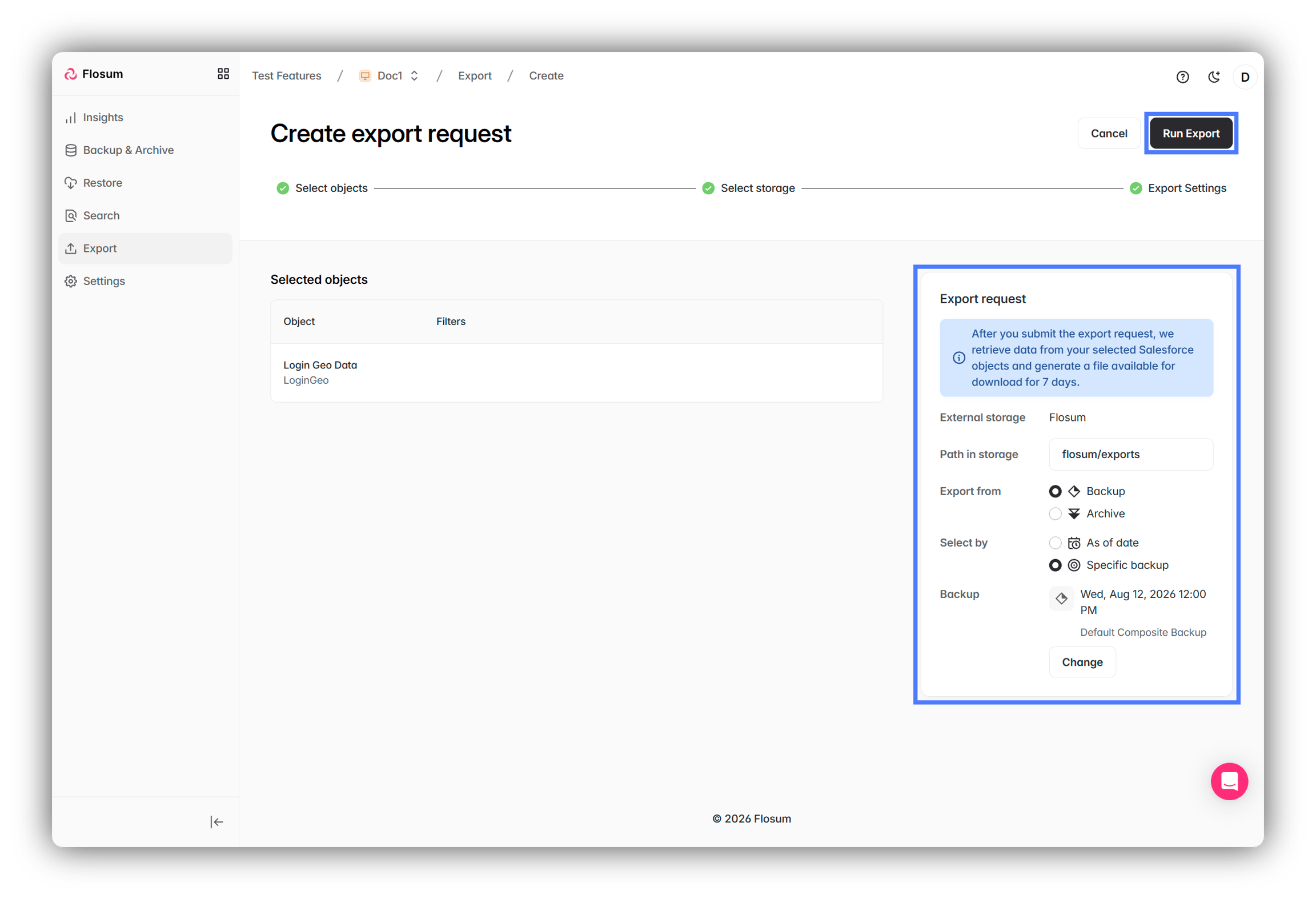
An External export opens the export request with the backup and object already selected. You select the external storage for the export, and then click Run Export to start it.
Last updated
Was this helpful?