Pull Request Step 2: Reviewing
Overview
This article explains how to complete the Review process for a Pull Request, which involves both the creator and the assigned reviewers. Conducting thorough reviews is vital to maintaining code quality.
Best Practices
Always add at least one reviewer for accountability.
Use the description field to summarize key changes for reviewers.
Only merge when all conflicts are resolved, and tests have passed.
Use Request Changes instead of simply not approving, as it maintains a clear workflow.
Avoid self-review and merging without a reviewer unless it’s a time-critical fix.
Pull Request Steps
Explore our series of articles that walk you through each step of the Pull Request process. You can read them in order or select a specific article for detailed guidance on a particular stage.
Pull Request Overview Tab
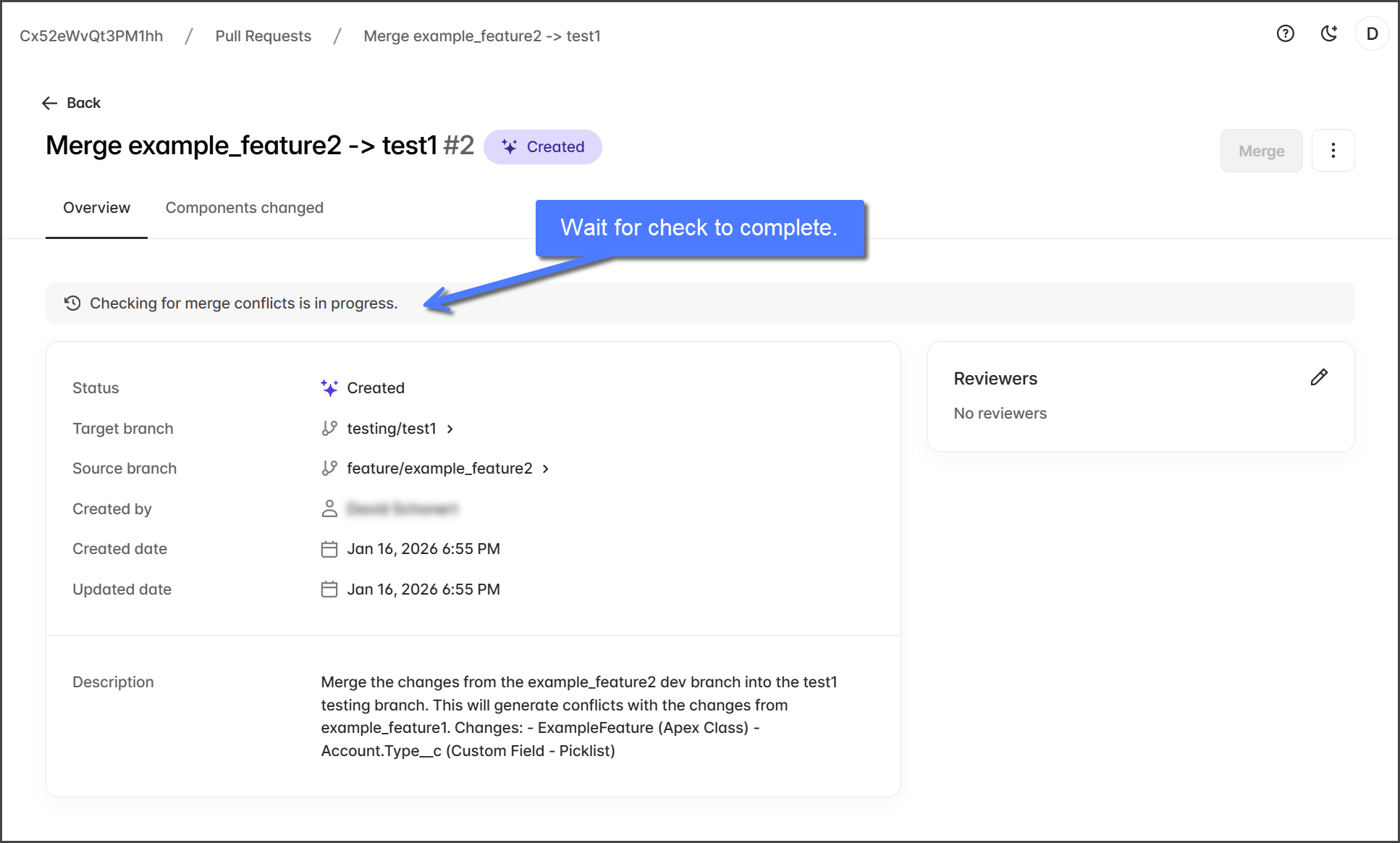
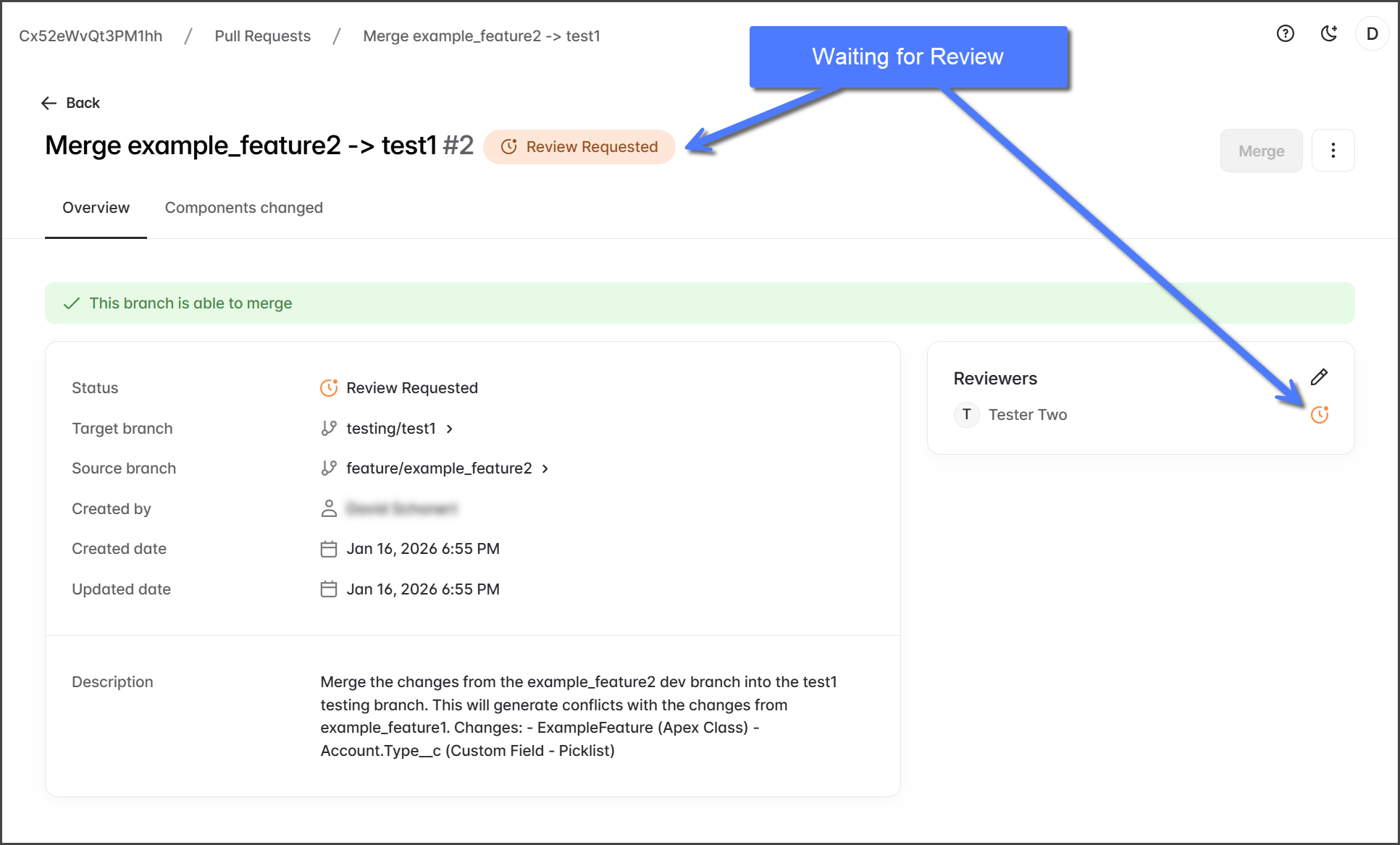
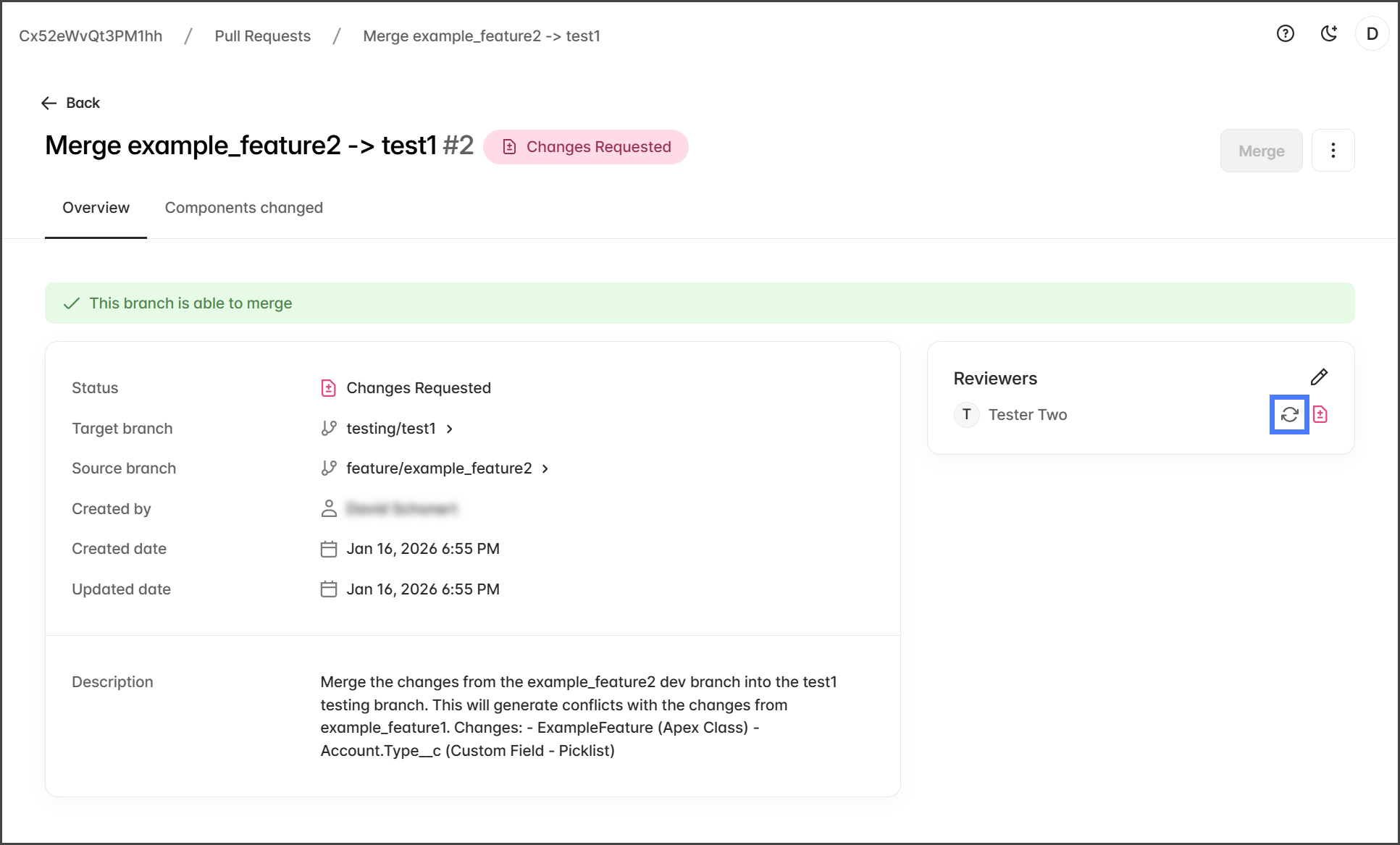
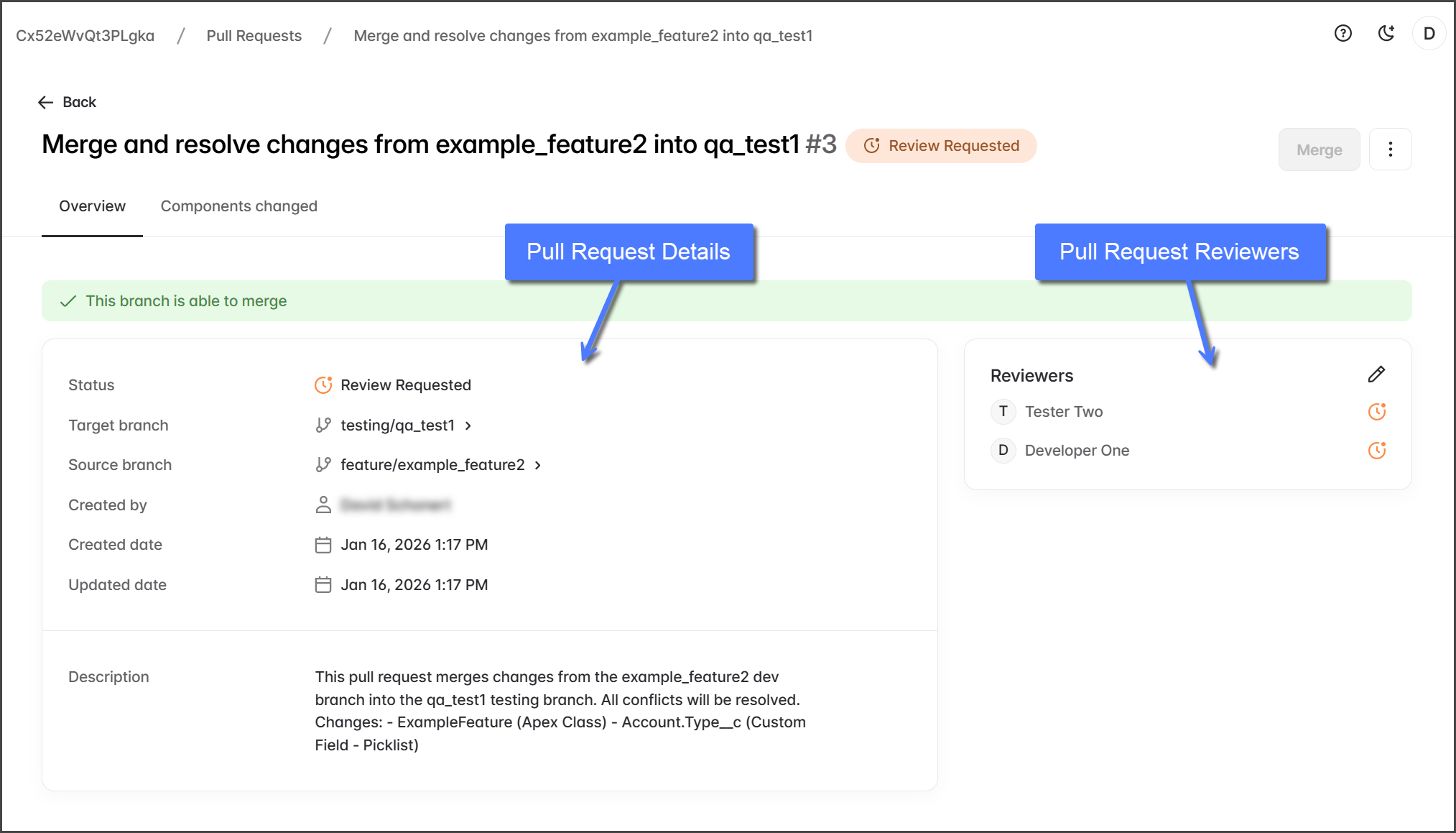
The details of a Pull Request help reviewers and contributors gain context about the request. The Overview tab has two sections to review: Pull Request Details and Pull Request Reviewers.

Pull Request Details
Status
Current state of the Pull Request (Created, Review Requested, Changes Requested, and Approved)
Target branch
The branch where changes will be merged.
Source branch
The branch where changes originate.
Created by
User who created the Pull Request.
Created date
When the Pull Request was first created.
Updated date
When the last activity or change to the Pull Request happened.
Description
Summary of the changed for this Pull Request. Written by the creator of the Pull Request.
Pull Request Reviewers
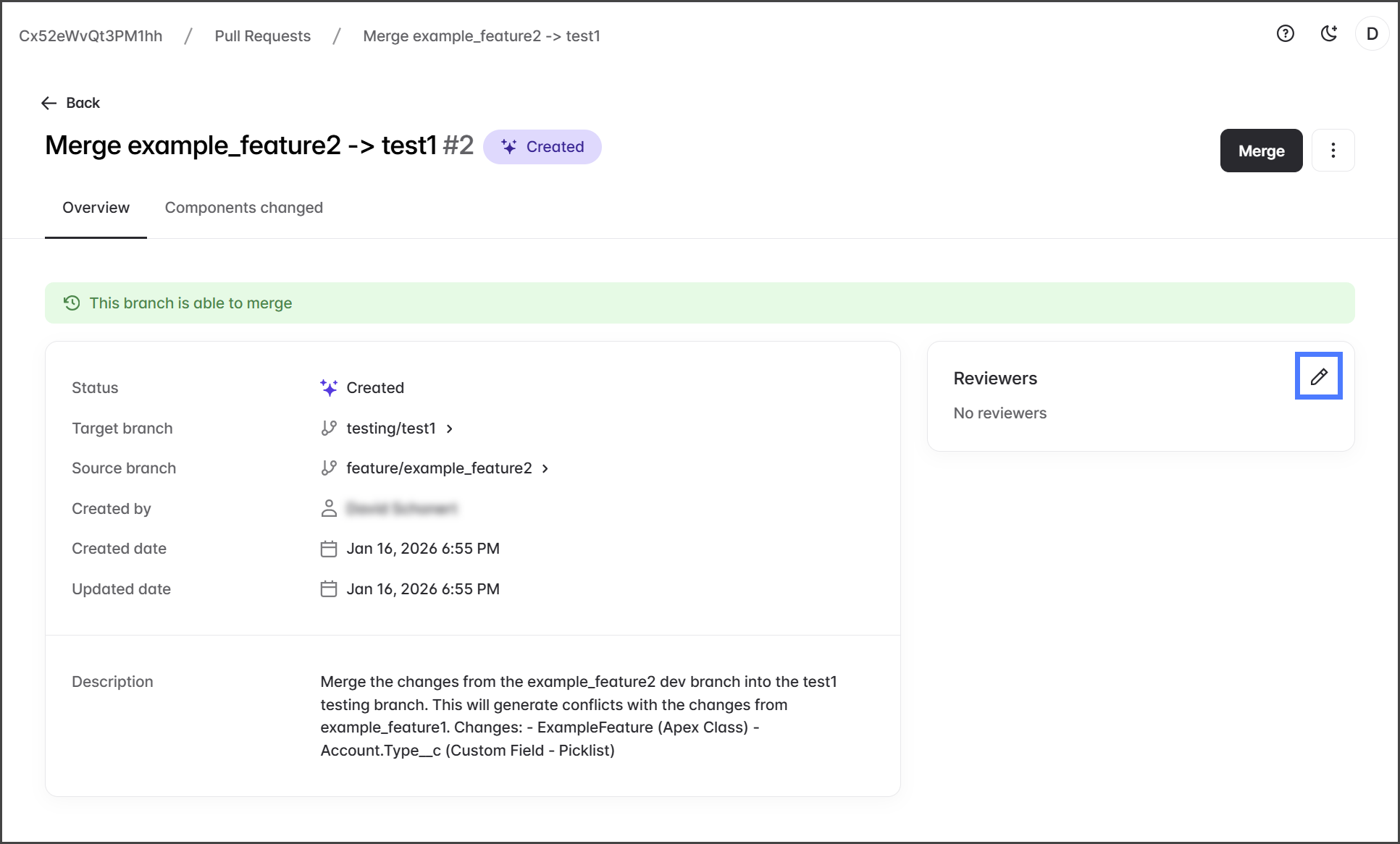
The Reviewers section shows the users assigned to review this Pull Request. The status of each reviewer is indicated by an icon that illustrates (review pending, requested changes, or approved). See the instructions below for more details on the review process.
Review Pull Request
Wait for Merge Conflicts Check
When a Pull Request is created, it initially checks for merge conflicts, indicated by a grey banner.

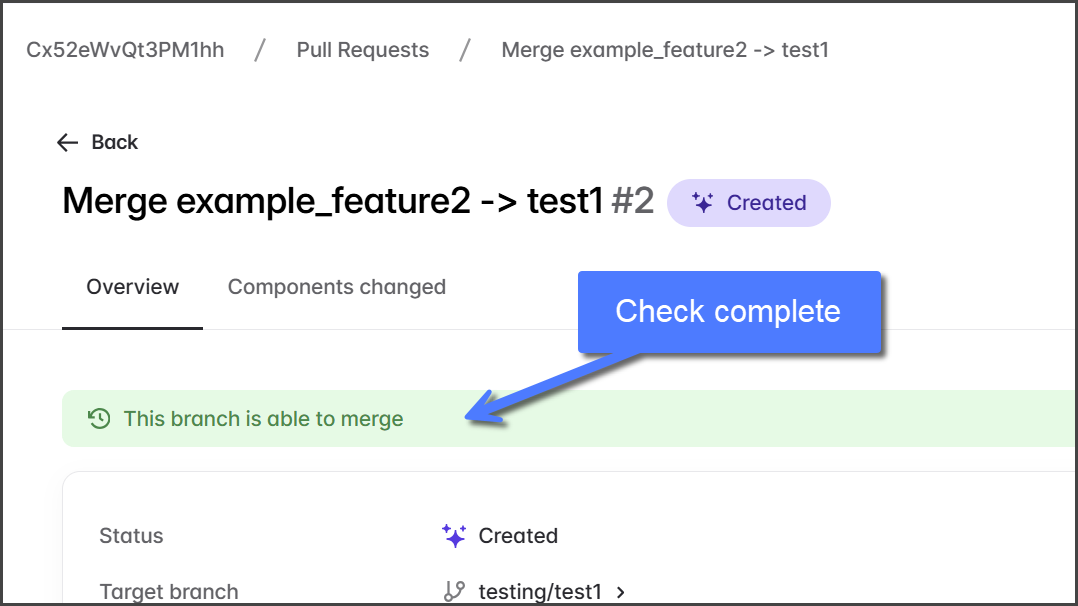
Wait for the banner to change to one of the following:
Green: This branch is able to merge
Orange: This branch has conflicts that must be resolved
If the branch is able to merge, you can continue reviewing the Pull Request by following the instructions in this article.

If the branch has conflicts, you must resolve the conflicts before continuing to review this Pull Request. See the following article to learning how to resolve conflicts.
(Optional) Add Reviewers
Adding reviewers ensures code quality, helps identify conflicts early, and enforces team approval processes. All reviewers must click Approve before the Pull Request can be merged.
Self-Review
If no reviewers are added, you can review your own Pull Request changes. No formal review or approval is required. After reviewing, you may merge without additional approval.
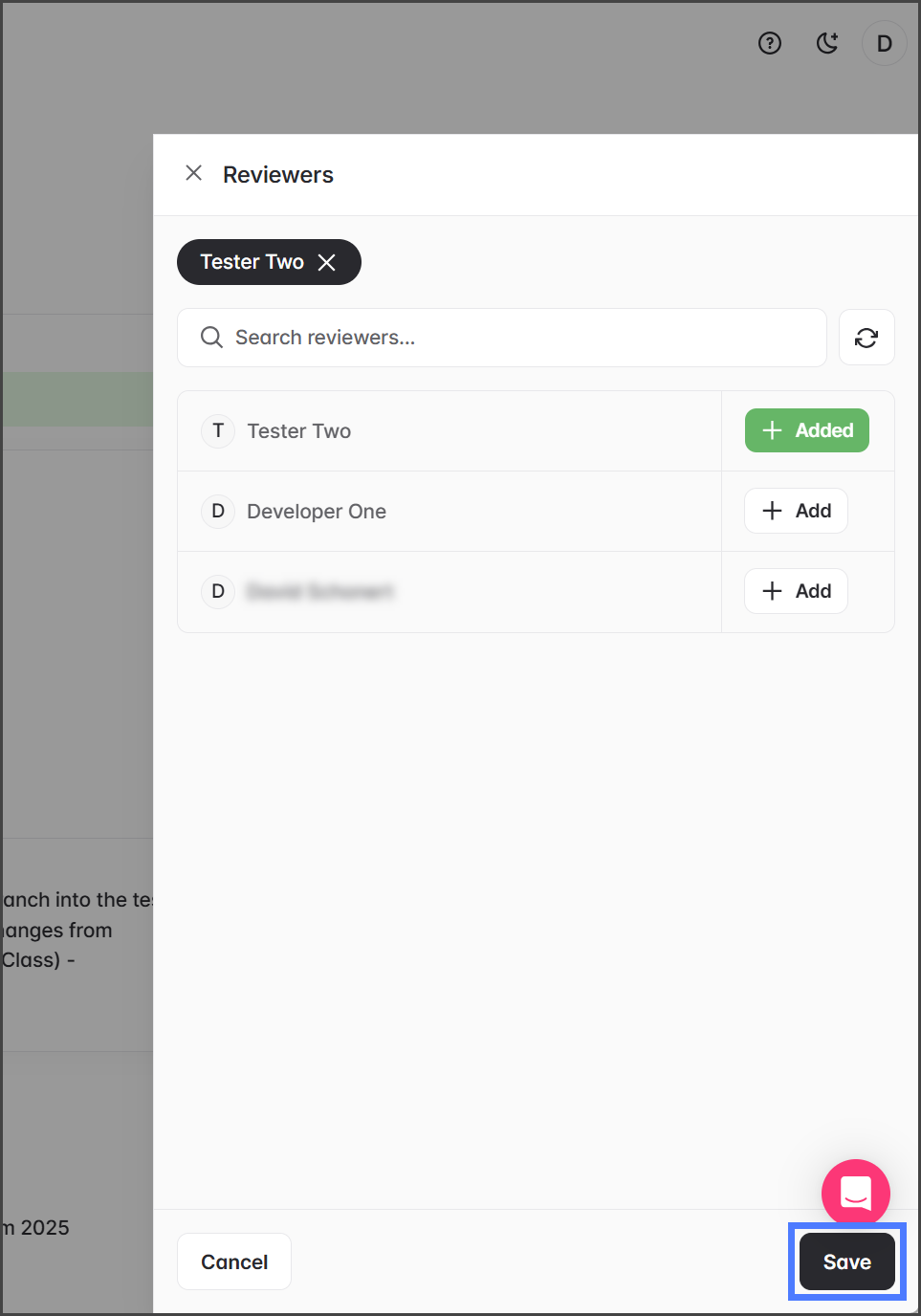
In the Reviewers section, click the Pencil icon.

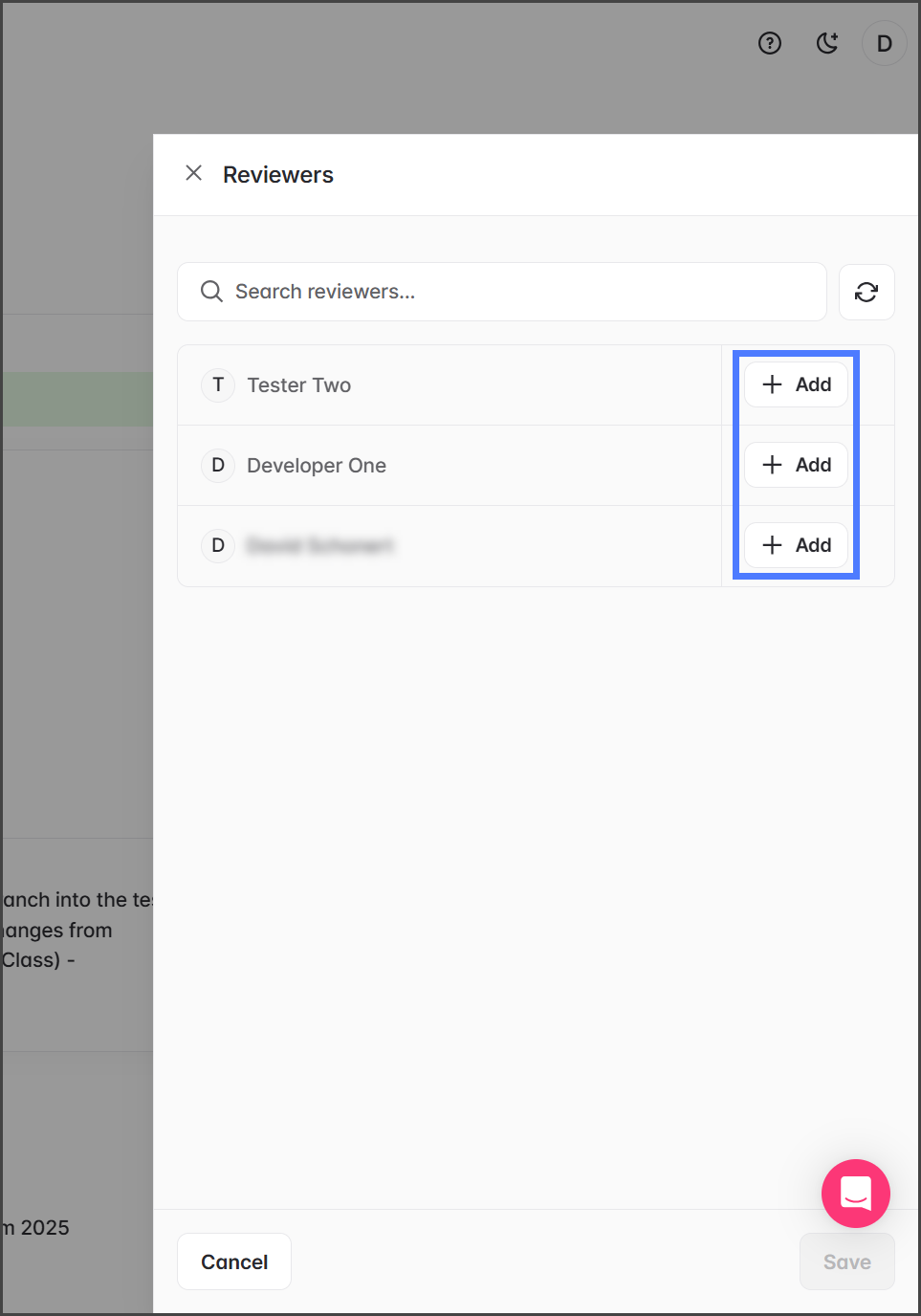
Click Add for each user you want to review this Pull Request.

Click Save.

The added reviewers will be listed in the Reviewers section, and the Pull Request status will change to Review Requested.

Review Changes
To review the Pull Request, each reviewer must log into Cloud DevOps and follow these steps:
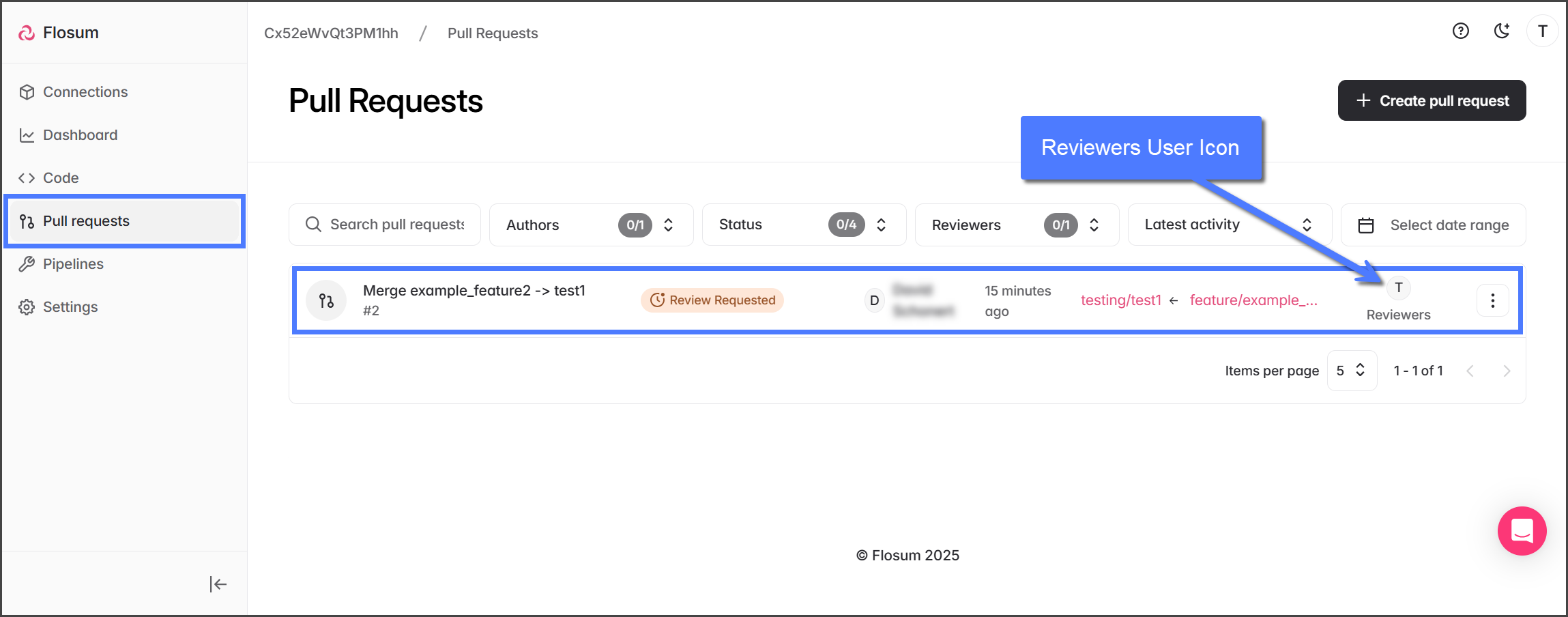
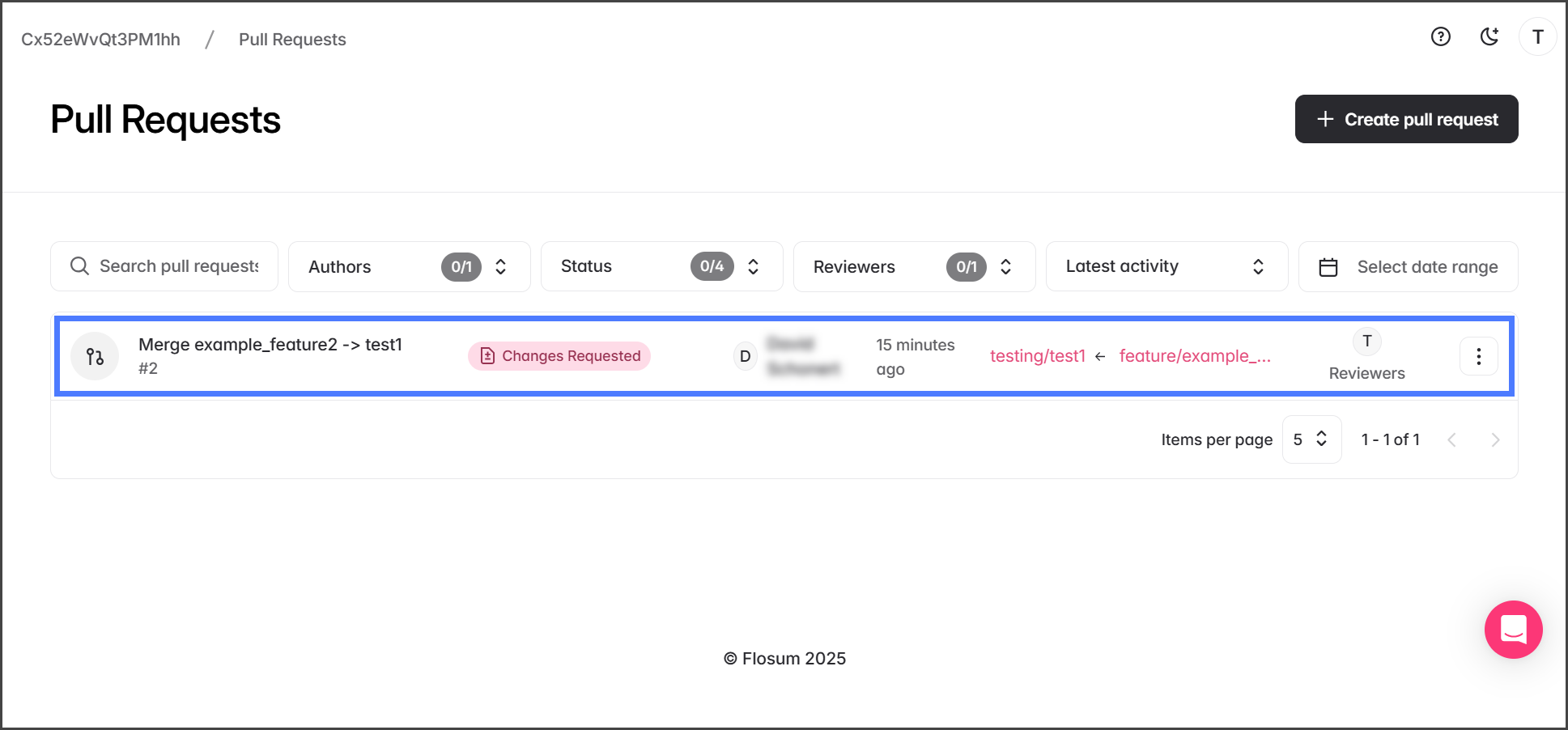
Pull requests awaiting review are marked with the status Review Requested, and the Reviewers' icons are displayed.
Click Pull requests from the left sidebar menu.
Click the Pull Request to review.

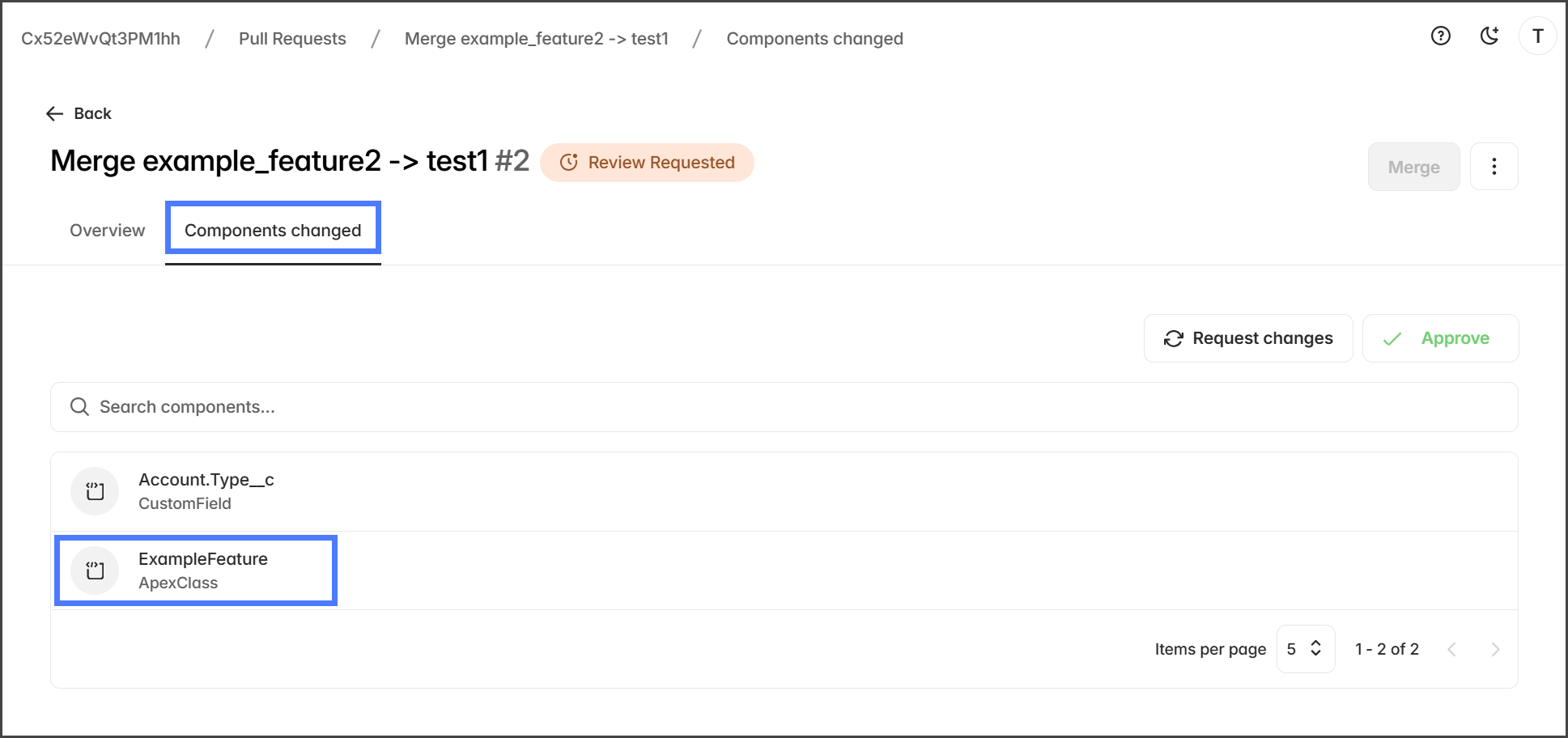
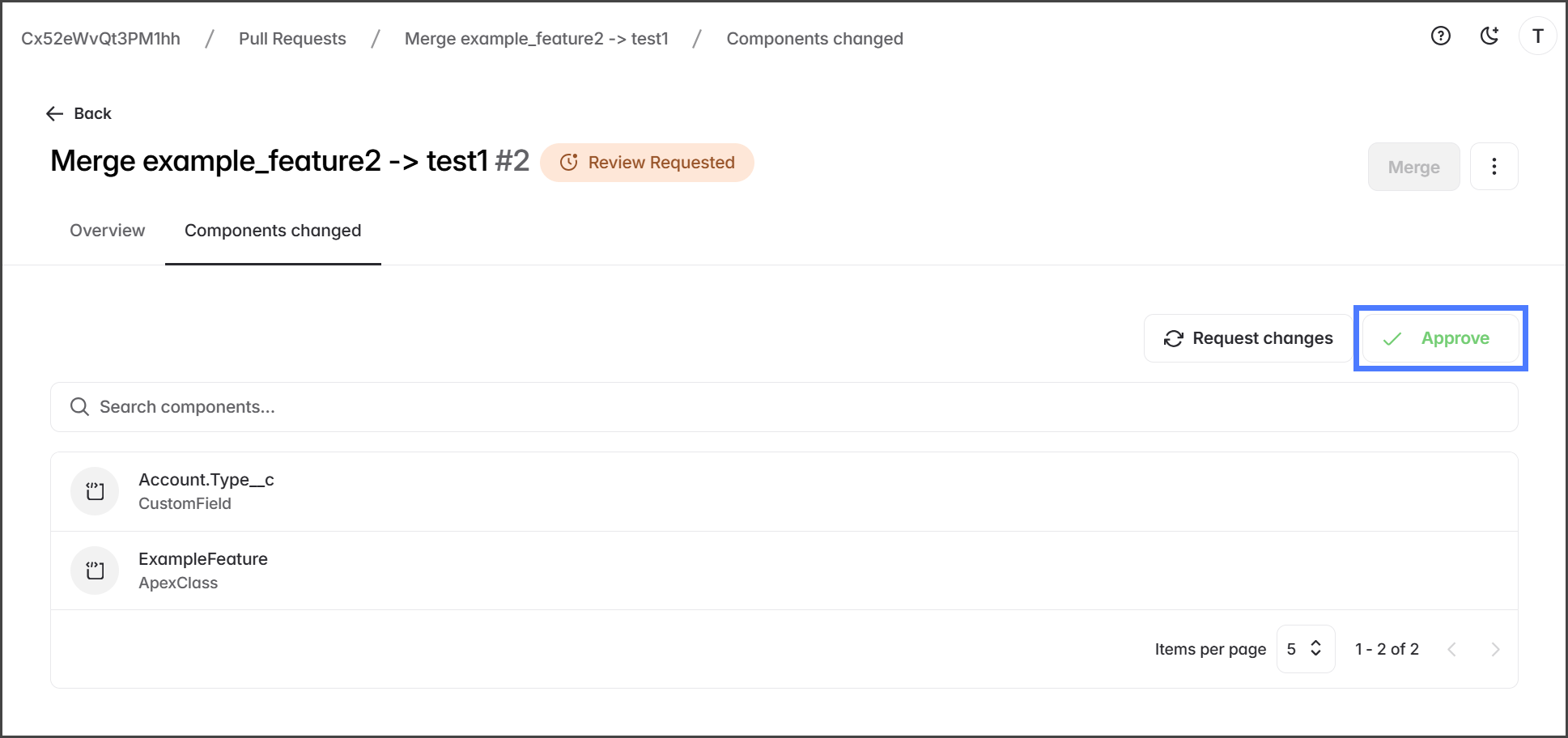
Click the Components changed tab.
Click a component to review.

All components should be reviewed.
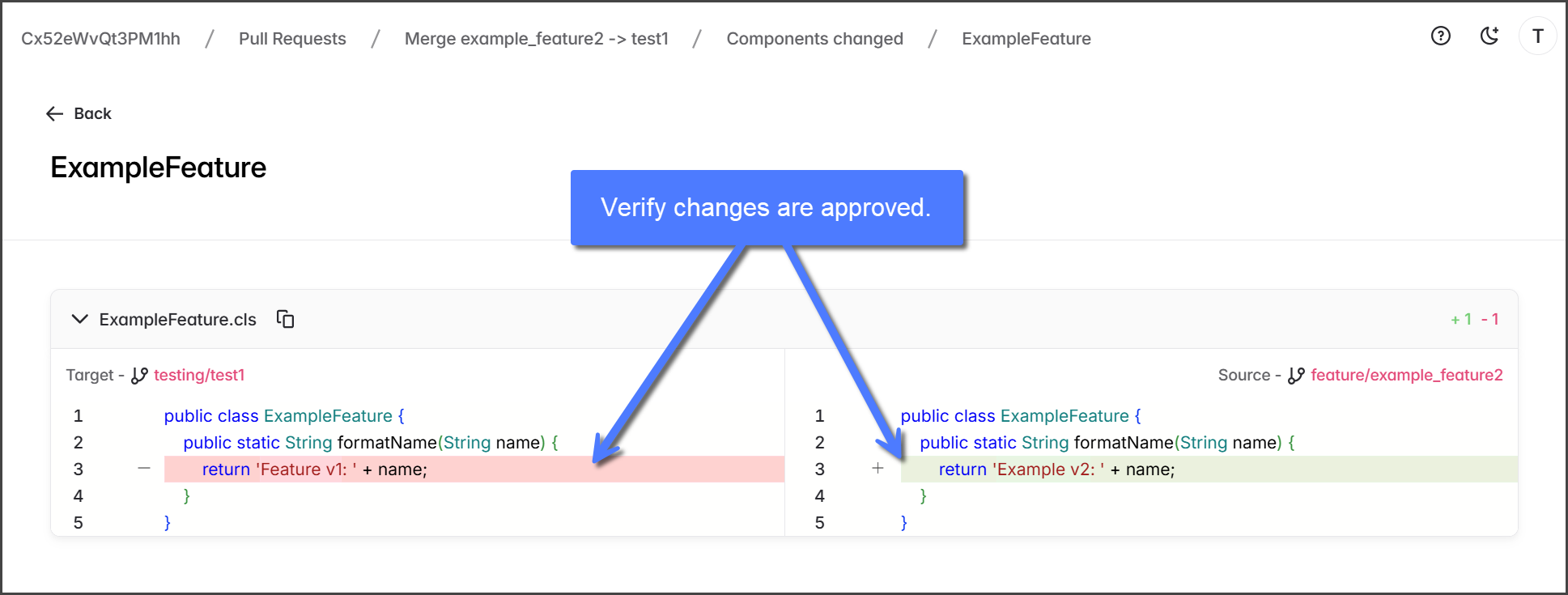
When viewing a component, the source code for Target and Source is displayed side-by-side with differences highlighted.
Red: Lines to be removed.
Green: Lines to be added.

Repeat the review process for each component.
(Optional) Request Changes
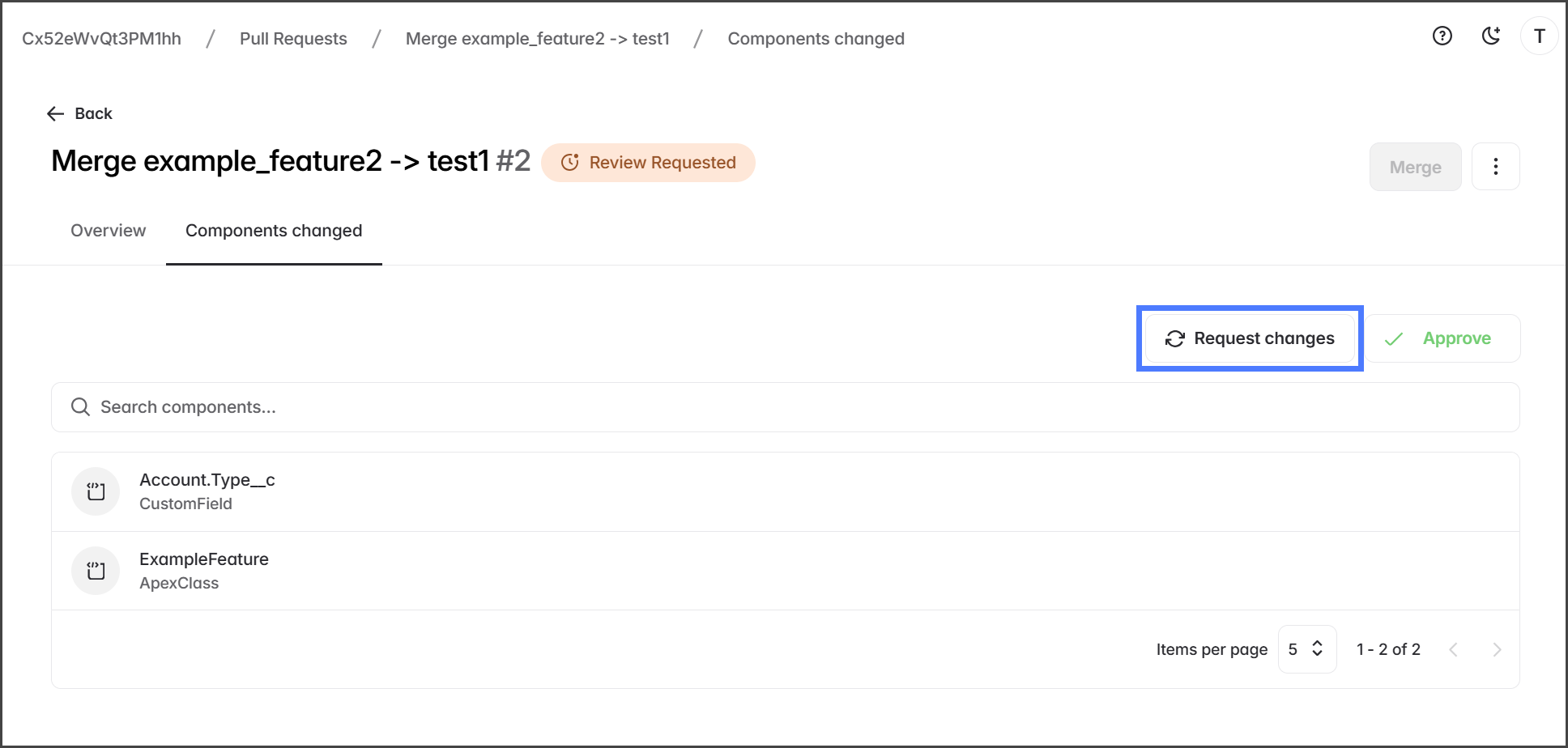
When reviewing, use Request Changes to indicate that fixes are needed before approval. This status prompts the Pull Request creator to update the source branch with the necessary changes. Since the request doesn't specify what needs to be changed, communicate the specific changes required directly to your team.
Click Request changes.

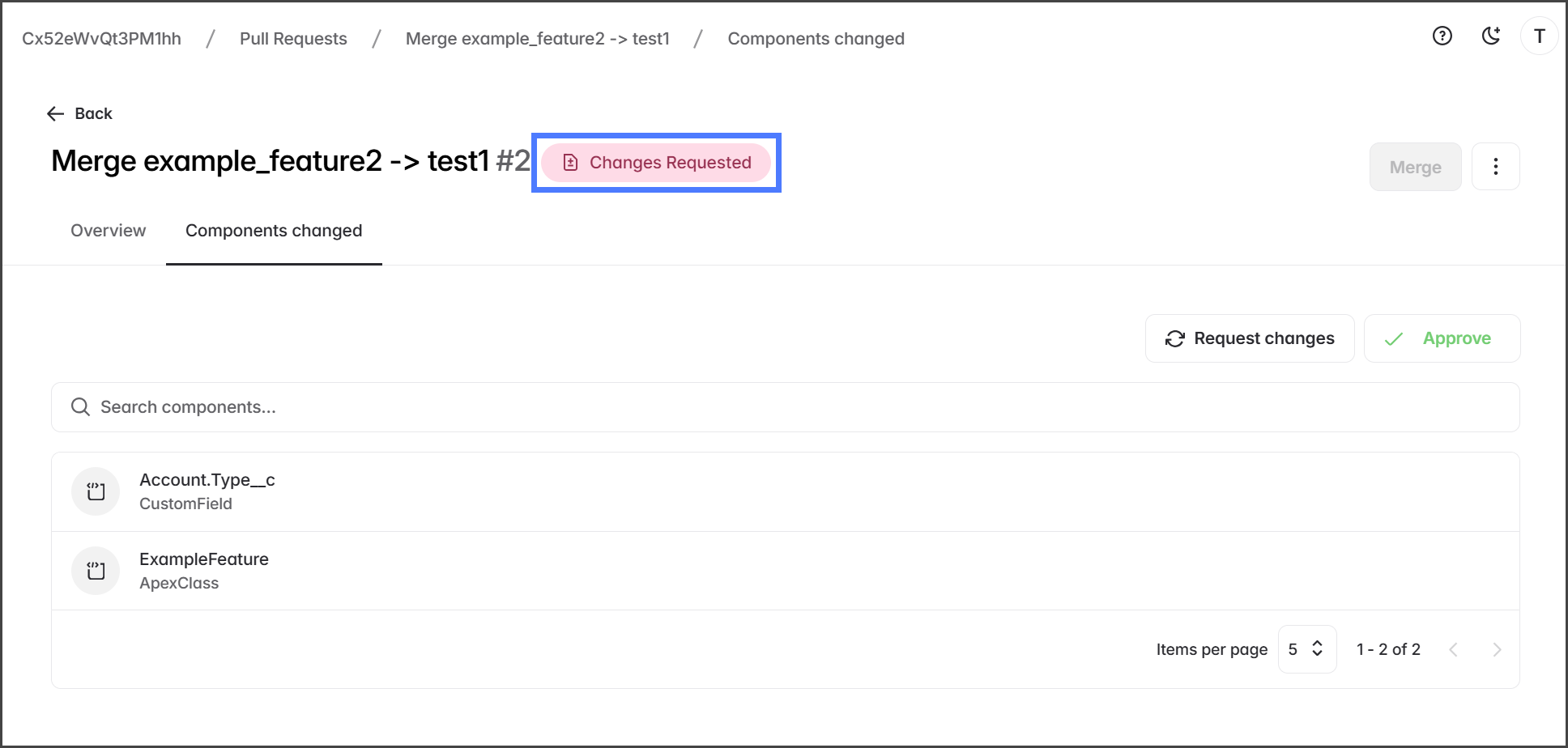
After requesting changes, the Pull Request status will change to Changes Requested.

Resubmit for Review
After making the requested changes, resubmit the Pull Request for review by the Reviewer who requested them.
Click the Pull Request.

Click the Refresh icon next to the reviewer who requested the review.

Approve
Once a reviewer has completed their review of all components and any completed change requests, they must approve the Pull Request before it can be merged.
The Pull Request will not be approved until all reviewers click Approve.
Self-Review
When self-reviewing, you can't Approve the Pull Request. But since there are no reviewers, approval is not required before merging.
Click Approve.

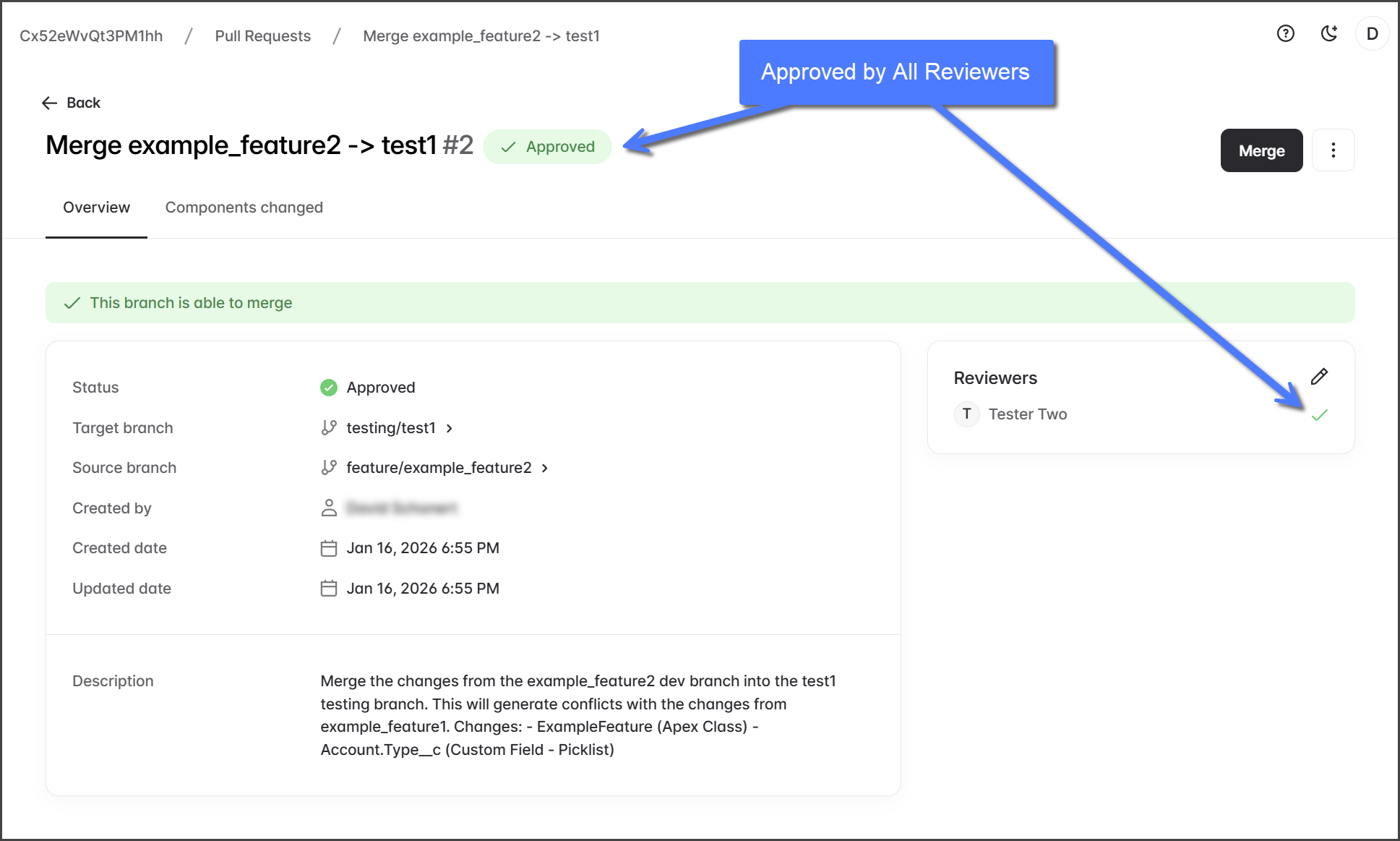
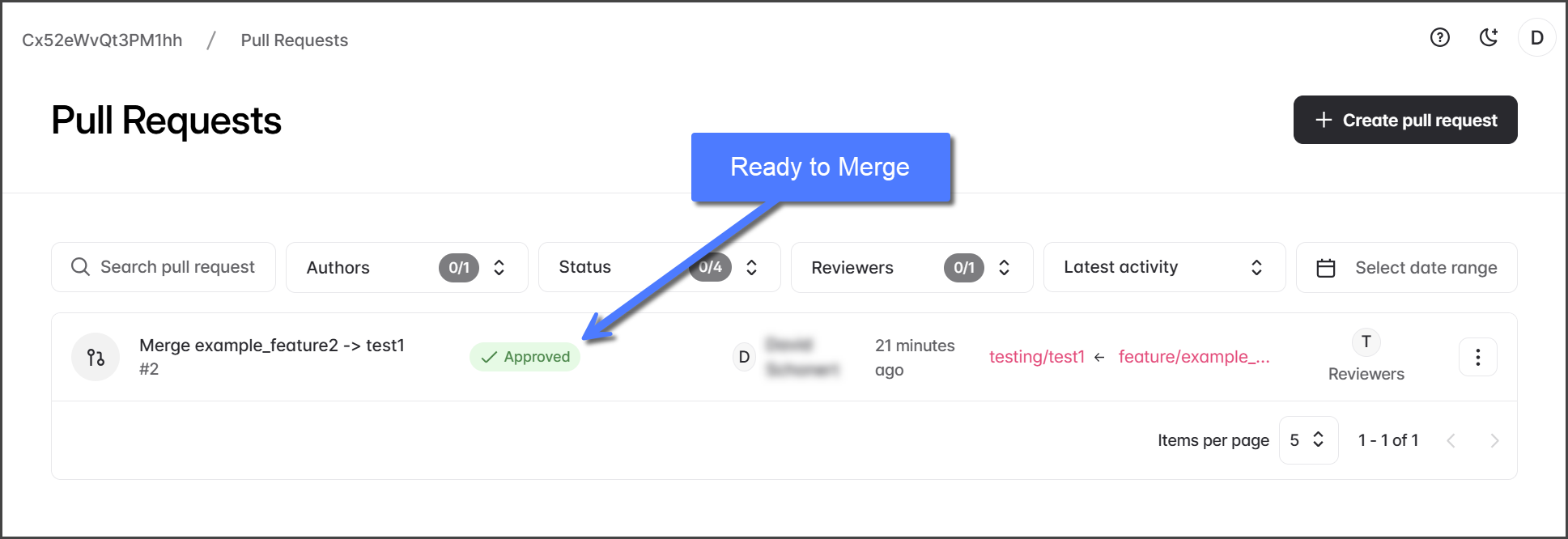
After all reviewers approve, the Pull Request status will change to Approved, and it can be merged.

Next Step: Merging
After the Pull Request is approved, the changes from the source branch are ready to be merged into the target branch. Proceed to the following article for instructions on the merge process.

Last updated
Was this helpful?