> For the complete documentation index, see [llms.txt](https://docs.flosum.com/llms.txt). Markdown versions of documentation pages are available by appending `.md` to page URLs; this page is available as [Markdown](https://docs.flosum.com/devops/pull-requests/pull-request-process/resolving-pull-request-conflicts.md).
# Resolving Pull Request Conflicts
{% hint style="warning" %}
#### Written for the Old UI
This article was written for the old UI. The instructions are still usable, but the screenshots are outdated. In some cases, items referenced in the instructions have moved or changed. If you cannot find an item, see the [Where Did It Go](/devops/new-ui-ux-transition/where-did-it-go.md) article.
{% endhint %}
##  Overview
This article explains the reasons behind Pull Request conflicts and the common scenarios in which they occur. It also provides detailed, step-by-step instructions for reviewing and resolving these conflicts effectively.
### What causes a Pull Request conflict?
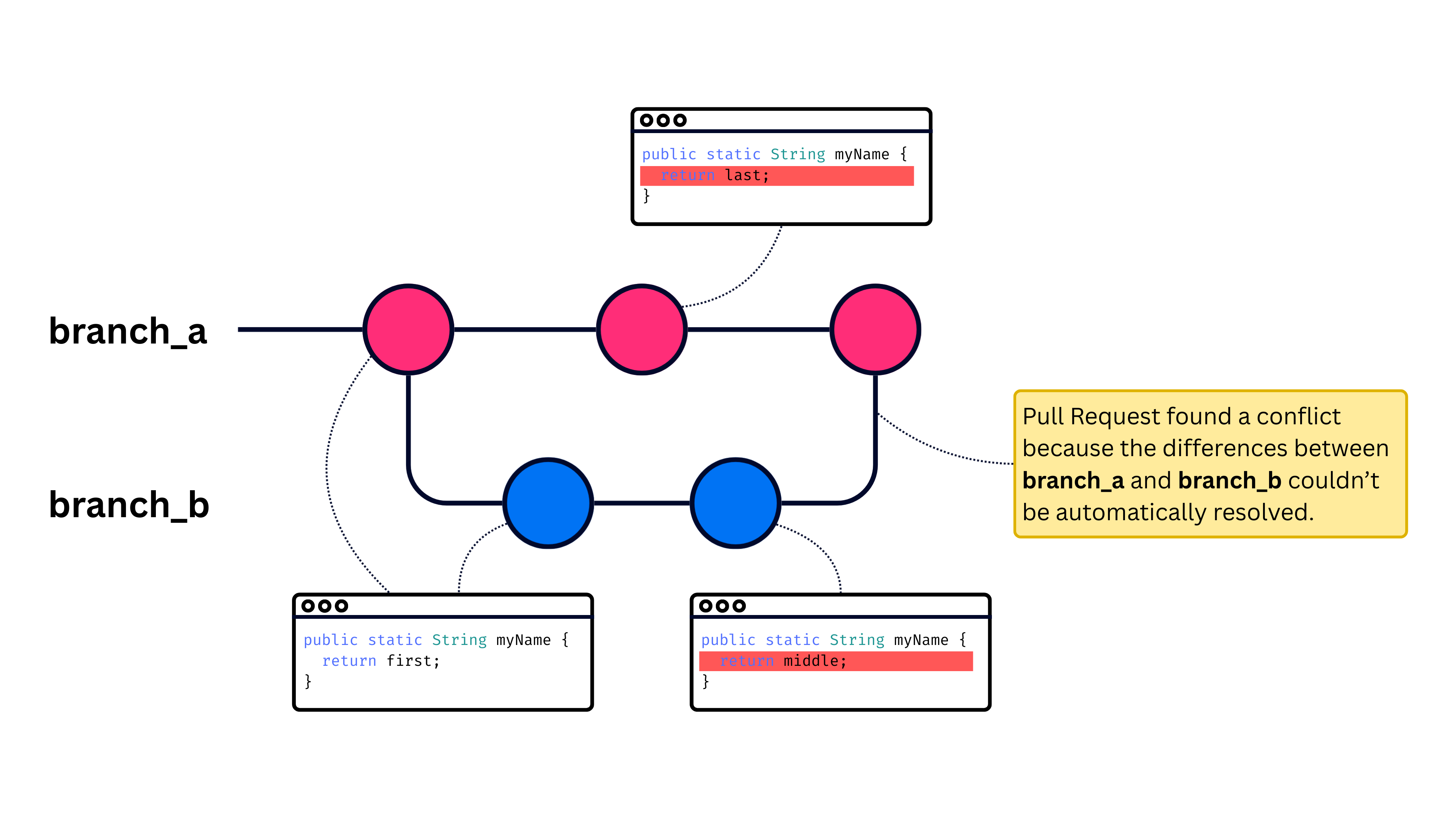
A Pull Request conflict can occur when two branches have commits that affect the same line of code, and the Pull Request is unable to automatically determine which line to preserve. To illustrate how this can happen, see the diagram below.
In this example, **branch\_b** is created from **branch\_a**. Next, a change affecting the *myName* function is committed to **branch\_b**, and a different change to the function is committed to **branch\_a**. When a Pull Request is created to merge **branch\_b** into **branch\_a**, the pull request detects that the same line of code has changed in both branches, resulting in a conflict. In the following section, you will see two different options for resolving the conflict.
### How to resolve a Pull Request conflict?
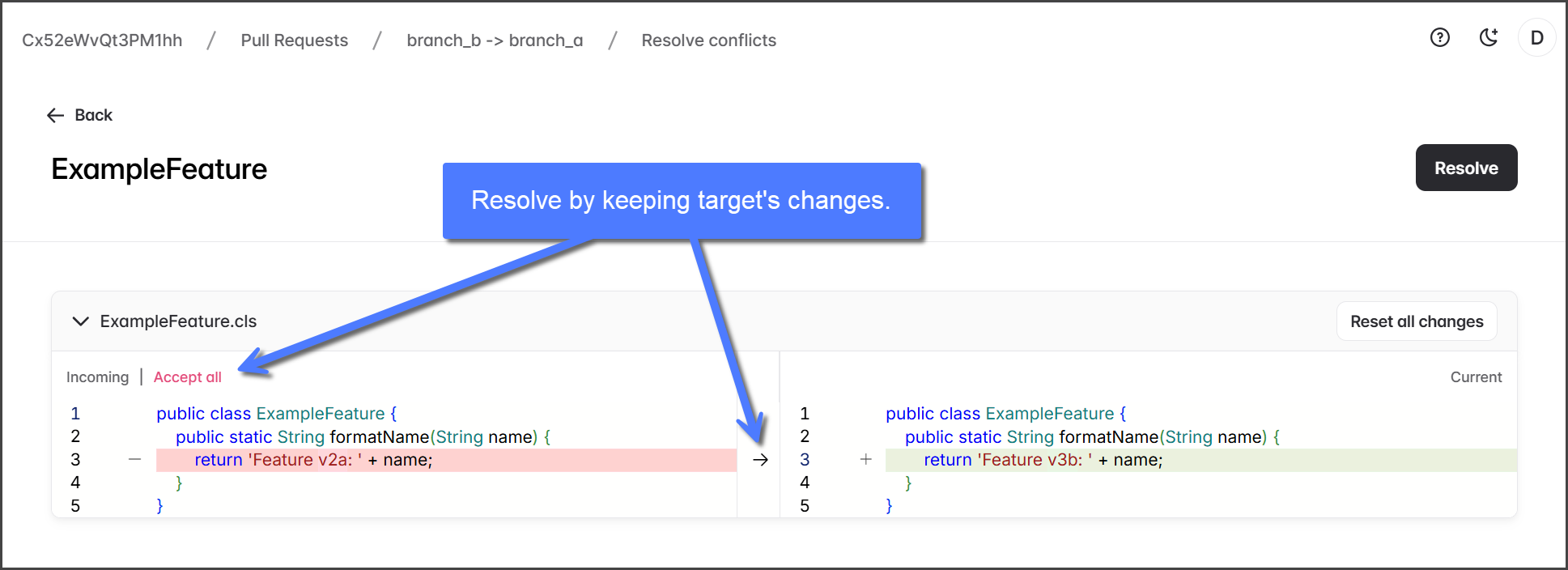
When a Pull Request encounters a conflict, you can resolve it by either retaining or overwriting the target's changes. For multiple conflicts, address each one separately using the most appropriate method; it's okay to use different approaches for different conflicts.
Retain Target Changes
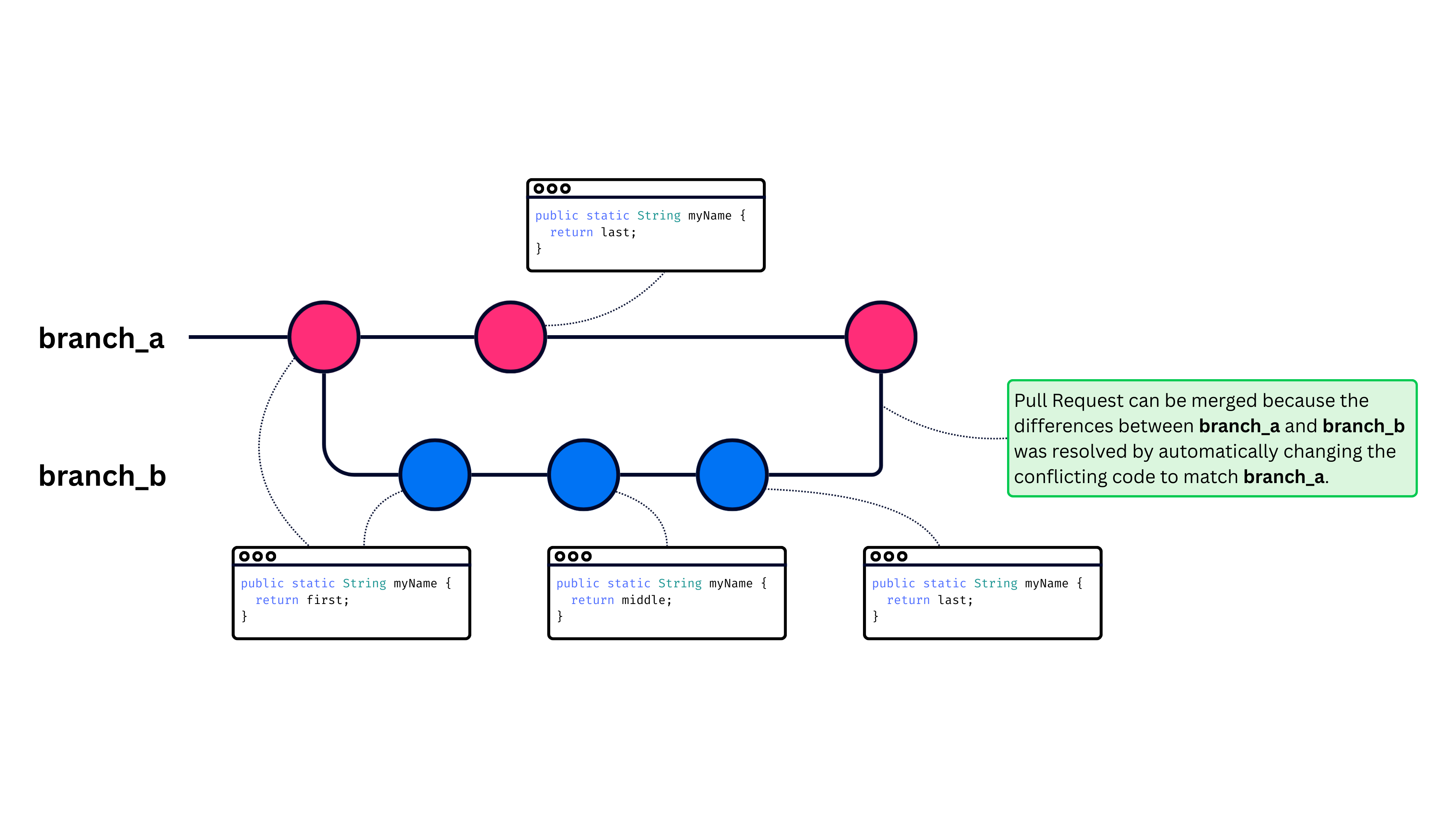
To resolve conflicts using this method, commit the conflicting lines from the **target** branch into the **source** branch. See the diagram for an illustration, and refer to the step-by-step instructions provided in the [#retain-target-changes-1](#retain-target-changes-1 "mention") section below.
{% hint style="info" %}
This method uses the **Resolve Conflicts** function in a Pull Request to automatically commit the changes to the source branch.
{% endhint %}
Overwrite Target Changes
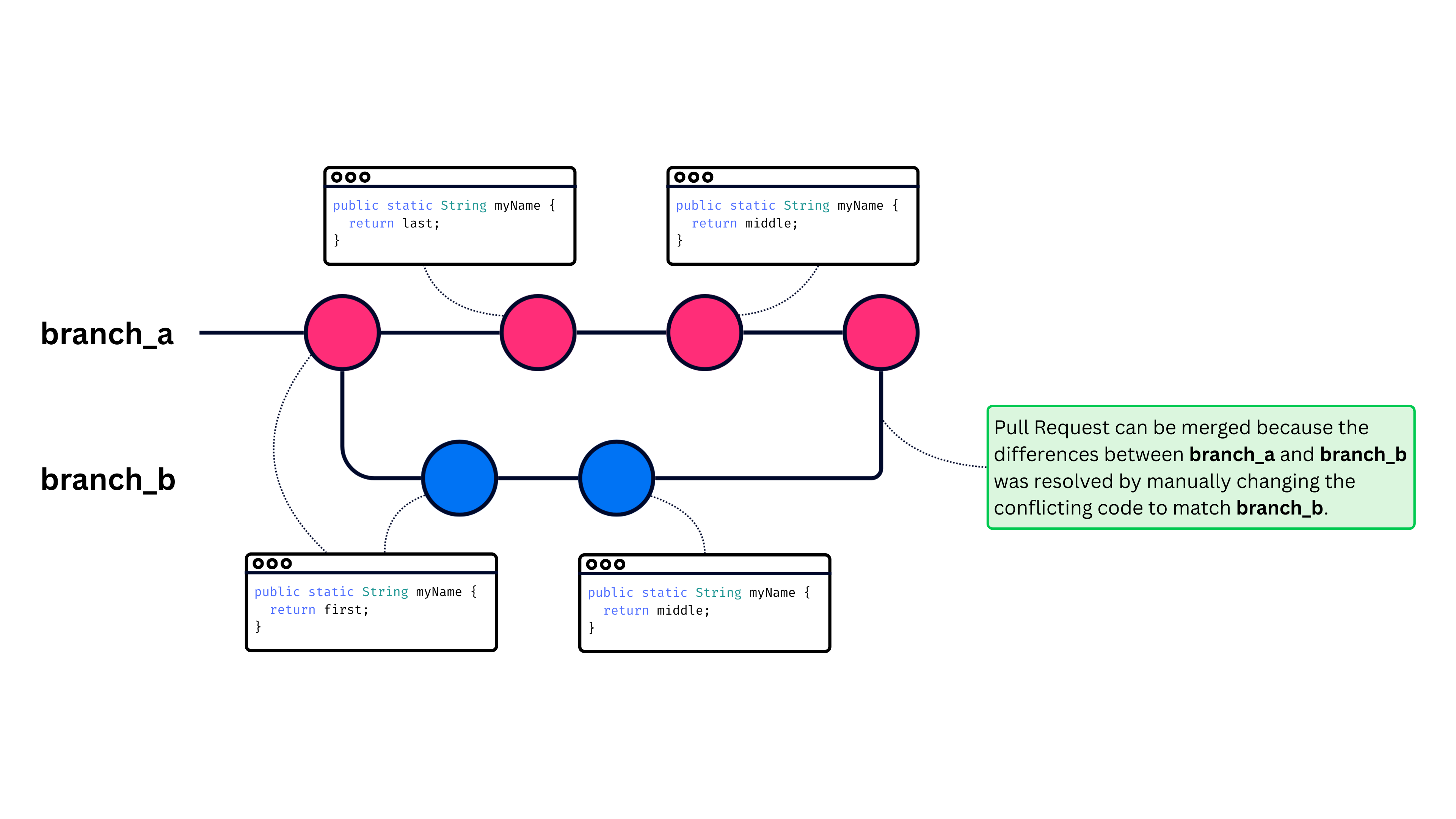
To resolve conflicts using this method, commit the conflicting lines from the **source** branch into the **target** branch. See the diagram for an illustration, and refer to the step-by-step instructions provided in the [#overwrite-target-changes-1](#overwrite-target-changes-1 "mention") section below.
{% hint style="info" %}
This method requires you to manually commit the changes from the **source** branch into the **target** branch.
{% endhint %}
## Resolving Conflicts
{% stepper %}
{% step %}
### Pull Request Conflicts
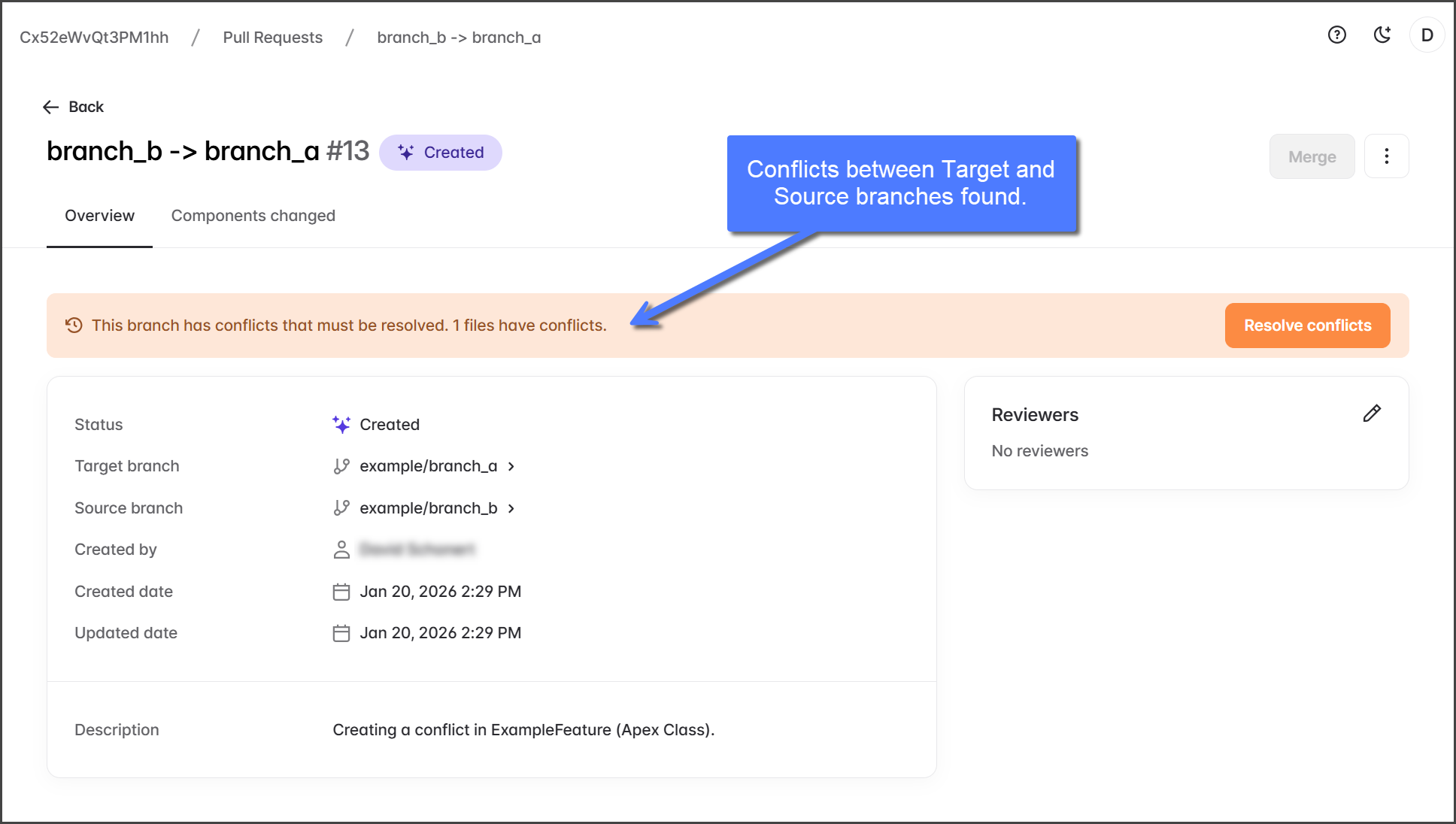
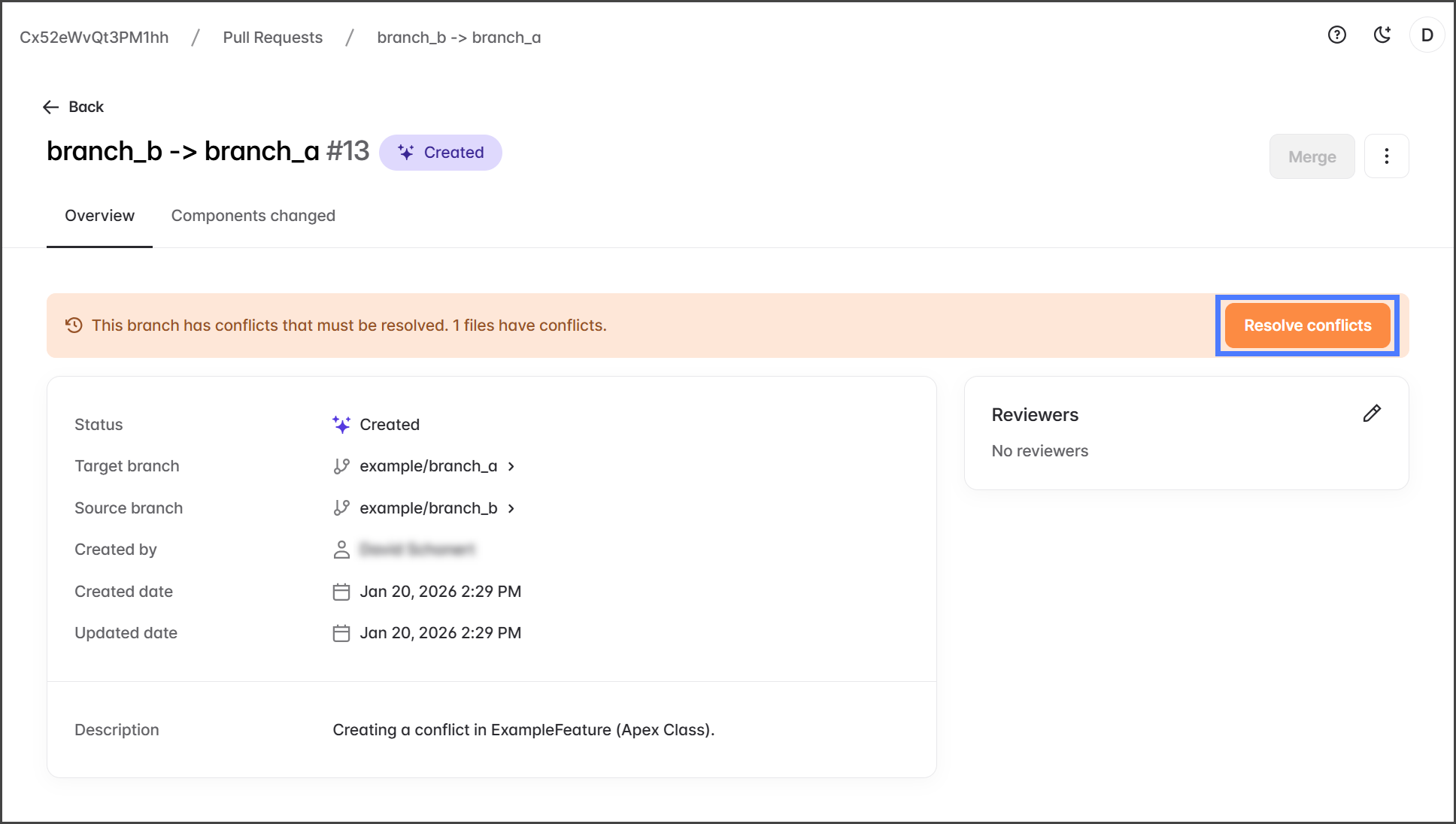
When a Pull Request is created, a conflict check is run initially. If any conflicts between the **Target** and **Source** branches are found, a warning will be displayed, and you must resolve the conflicts before the Pull Request can be merged.
{% hint style="warning" %}
All components need to be reviewed and resolved.
{% endhint %}
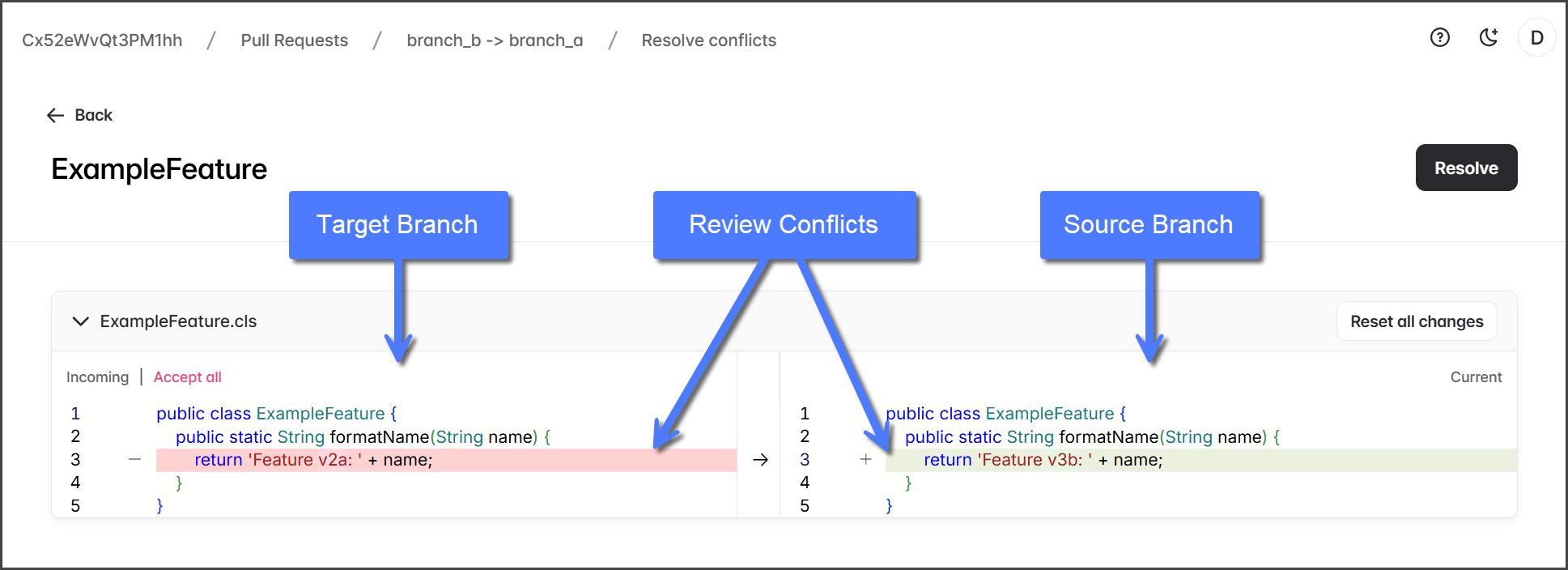
3. Review the conflicting code in the component and determine how to resolve the conflict.
{% hint style="info" %}
See the [#what-causes-a-pull-request-conflict](#what-causes-a-pull-request-conflict "mention") section above for an explanation of Pull Request conflicts.
{% endhint %}
4. There are two ways to resolve a Pull Request conflict. See the following sections for instructions about how to perform each.
1. **Retain Target Changes**: This method keeps the target's code by committing the conflicting lines from the **target** branch into the **source** branch.
2. **Overwrite Target Changes**: This method keeps the source's code by committing the conflicting lines from the **source** branch to the **target** branch.
{% hint style="info" %}
For multiple conflicts, address each one separately using the most appropriate method; it's okay to use different approaches for different conflicts.
{% endhint %}
{% endstep %}
{% step %}
### Retain Target Changes
This method uses the **Resolve conflicts** feature built into a Pull Request.
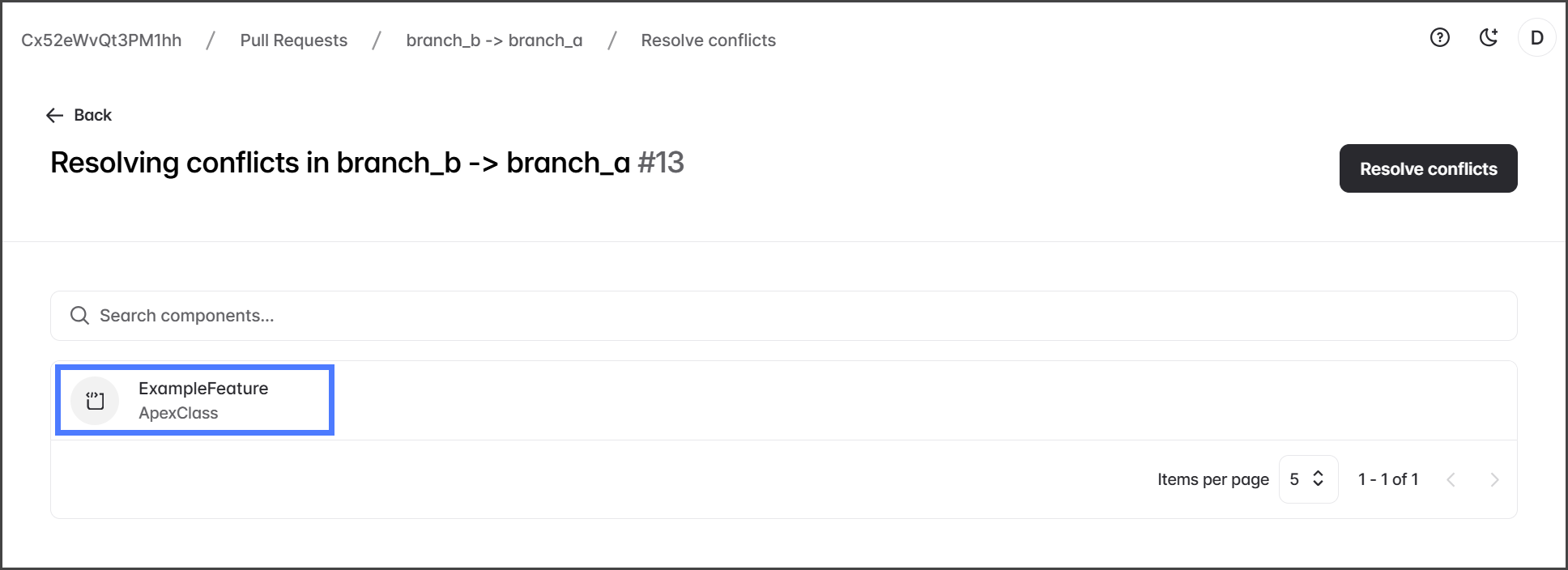
1. Click a component with conflicts to resolve.
2. Click **Accept all** to retain all lines, or click the **Right** **Arrow** for each line to retain. This copies the selected line from the target branch to the source branch.
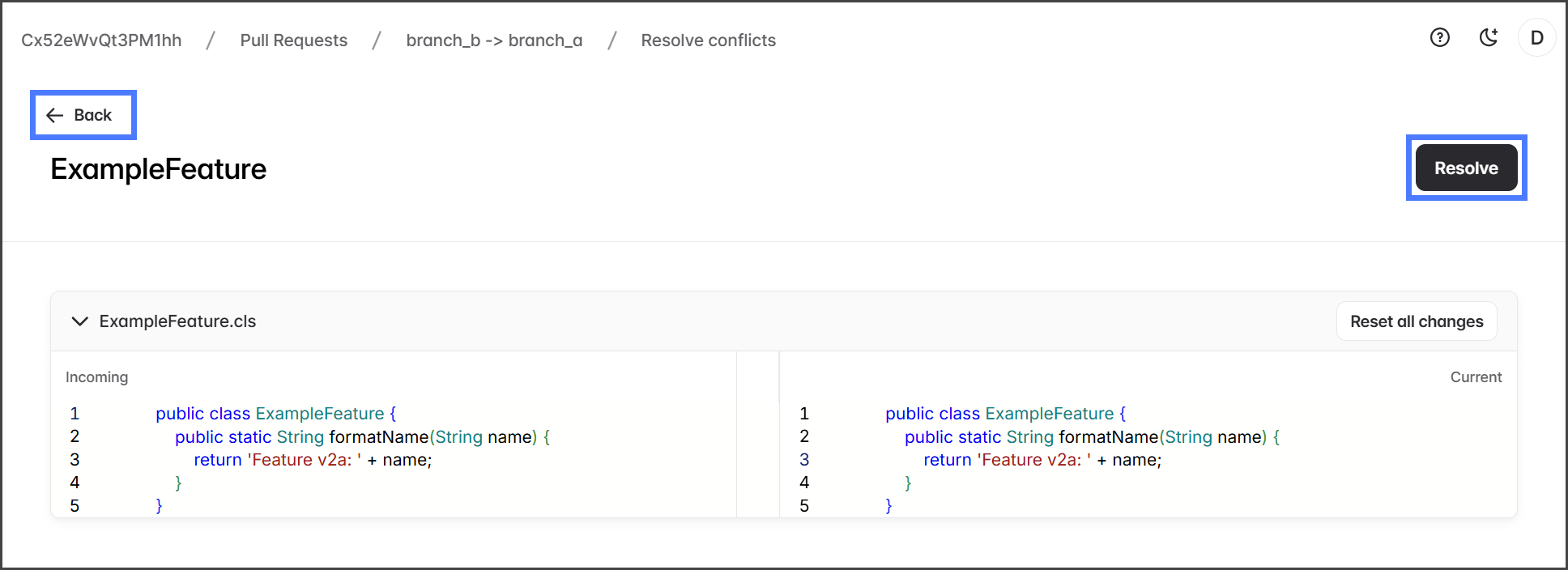
3. Once all necessary changes have been made to the source branch, click **Resolve**. This marks a component as **Resolved** so you can keep track of your changes.
4. Click **Back**.
{% hint style="info" %}
Repeat this process for all components with conflicts.
{% endhint %}
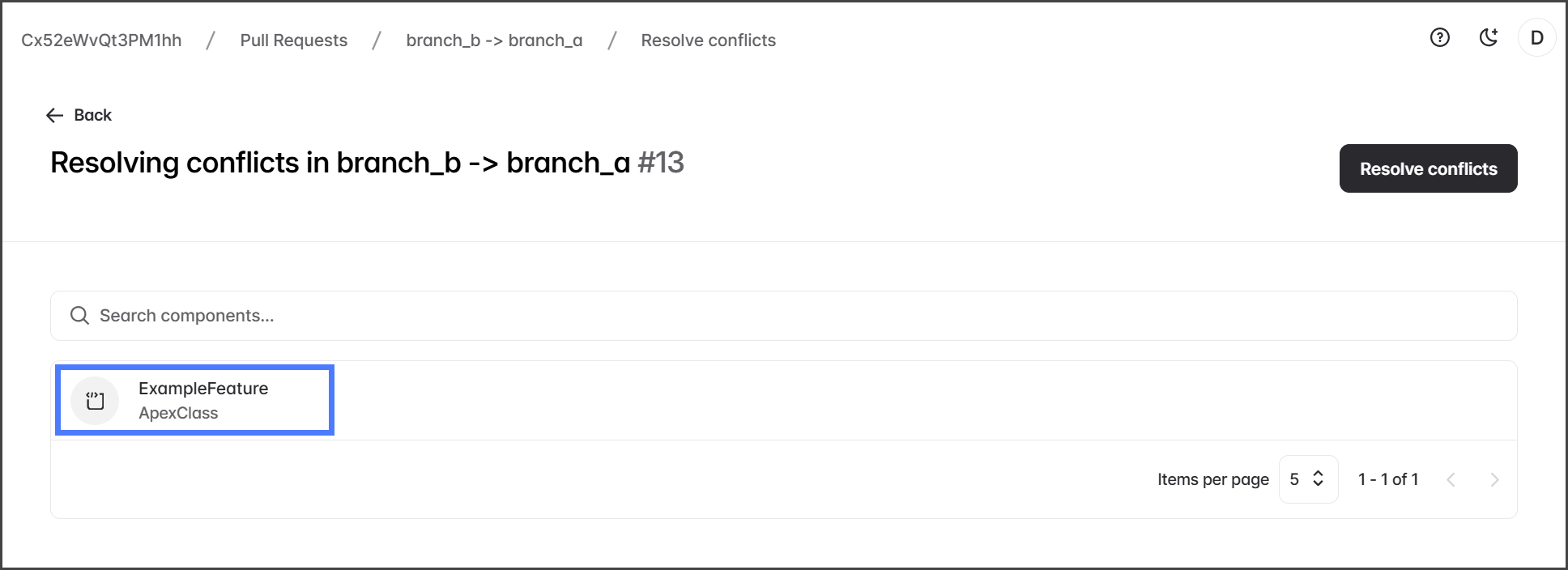
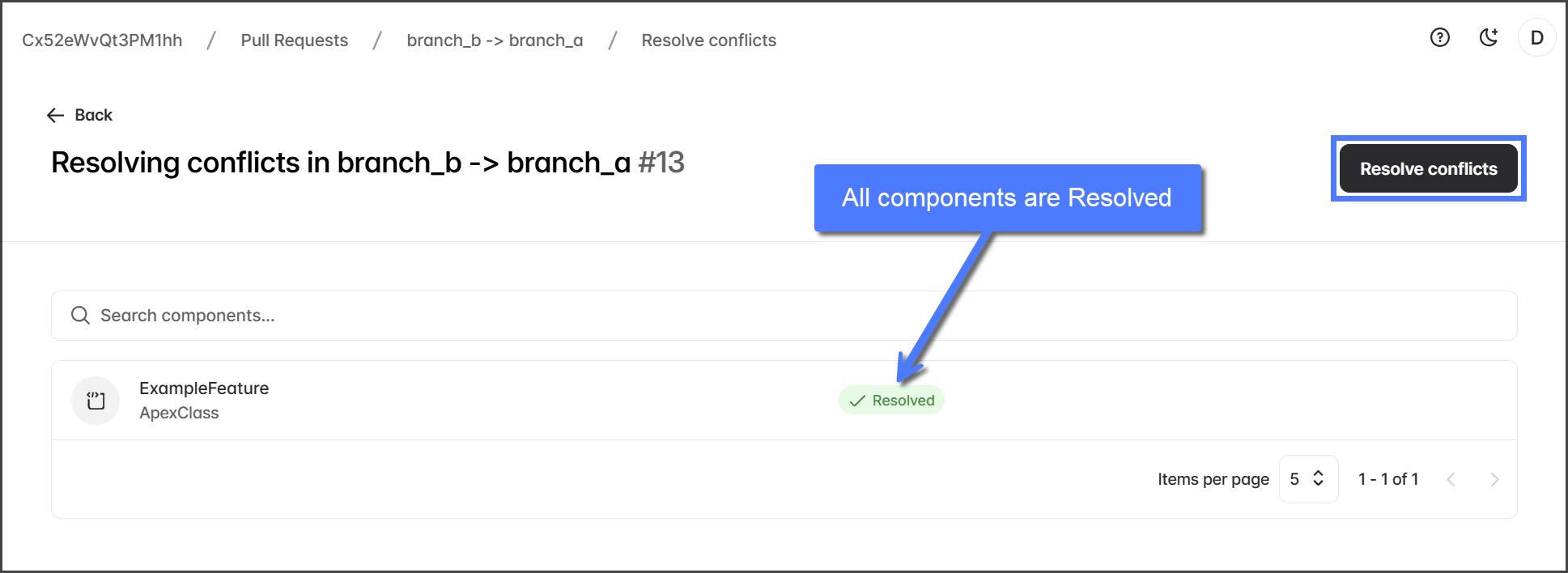
5. Once all components are marked as **Resolved**, click **Resolve conflicts**.
6. Enter a **Commit message**.
7. Click **Resolve**.
8. After resolving the conflicts, the Pull Request will check for conflicts again.
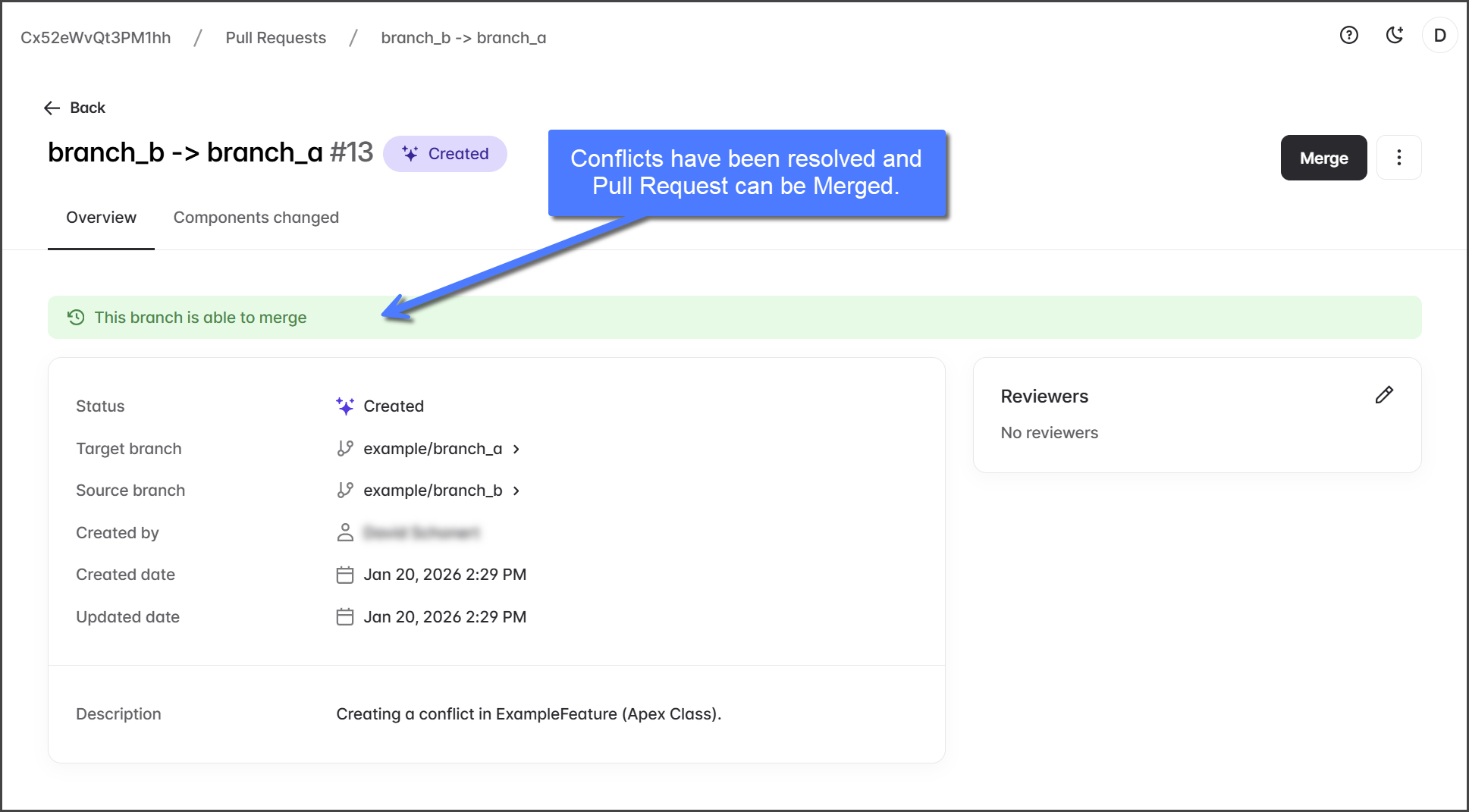
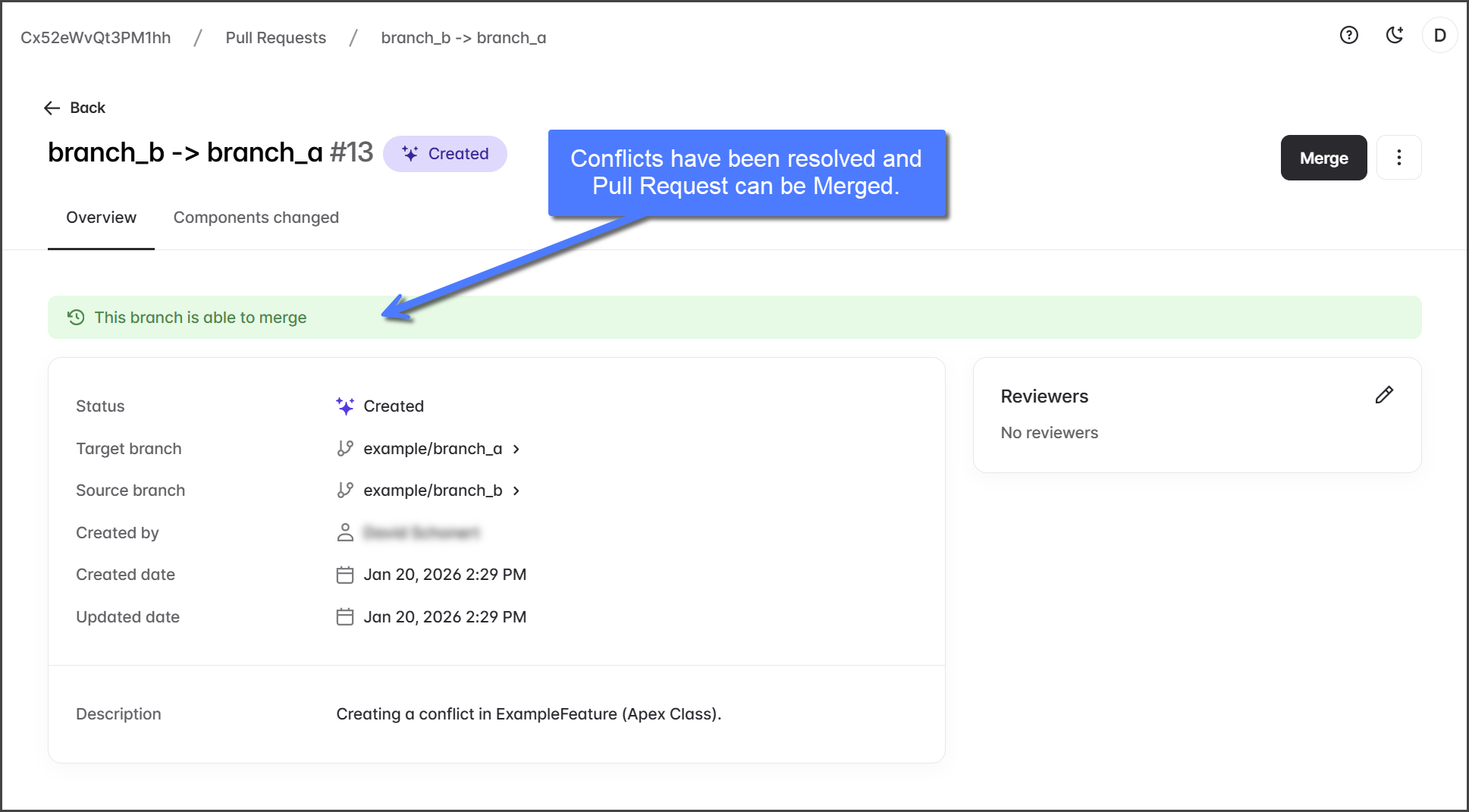
9. If there are no more conflicts, the Pull Request message will be green and state "This branch is able to merge".
{% hint style="info" %}
If conflicts persist in the Pull Request, review and resolve them. Repeat until all issues are resolved.
{% endhint %}
{% endstep %}
{% step %}
### Overwrite Target Changes
This method requires manually editing and committing changes to the target branch.
{% hint style="info" %}
To make it easier to resolve conflicts when overwriting changes in the target branch, note the specific lines and components causing conflicts as you review the Pull Request.
{% endhint %}
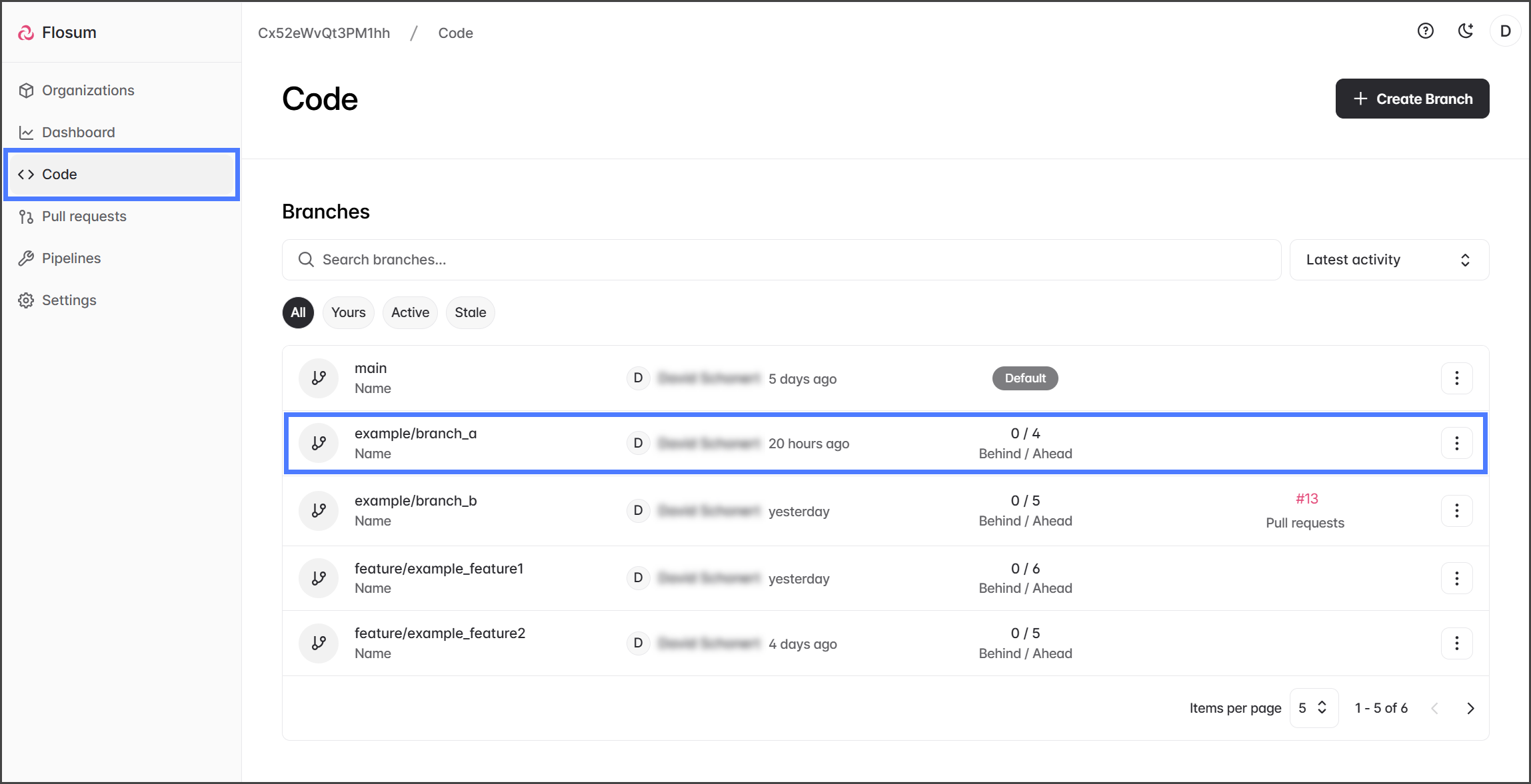
1. Click **Code** from the left sidebar menu.
2. Click the **target** branch of the Pull Request.
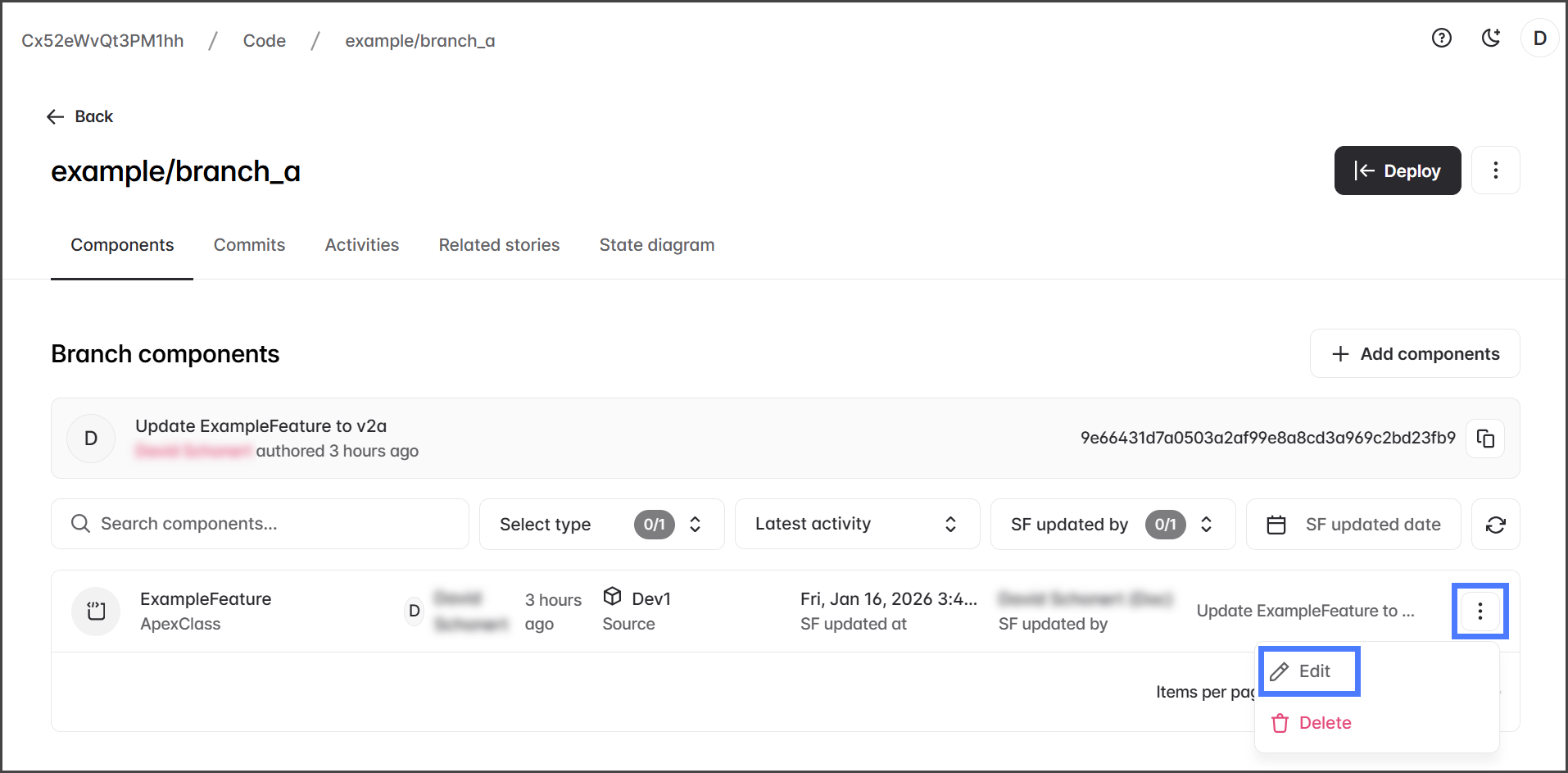
3. Click the **Three Vertical** dots at the right end of a component with conflicts in the Pull Request.
4. Click **Edit**.
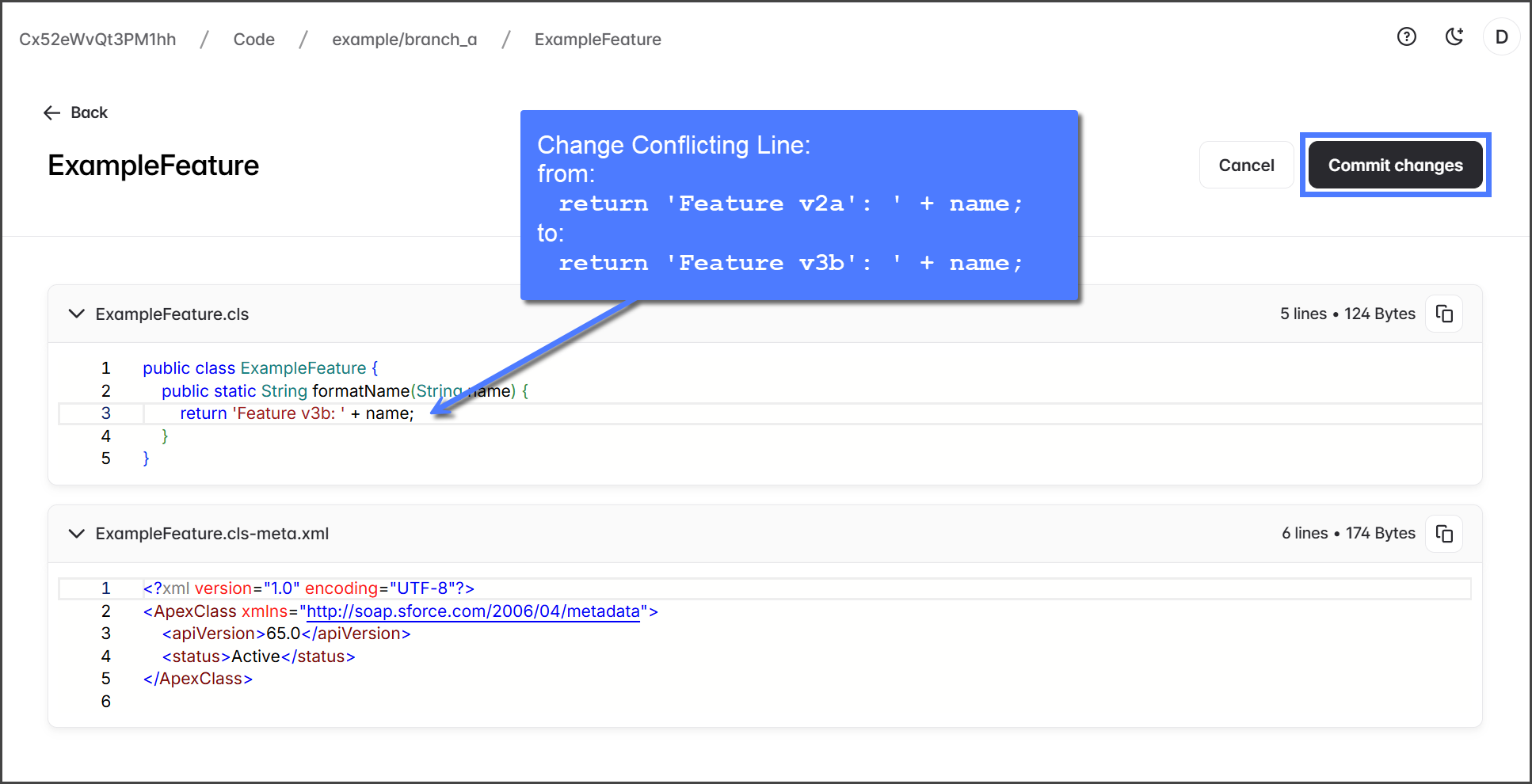
5. Edit the conflicting line or lines of code to match the **source** branch.
6. Click **Commit changes**.
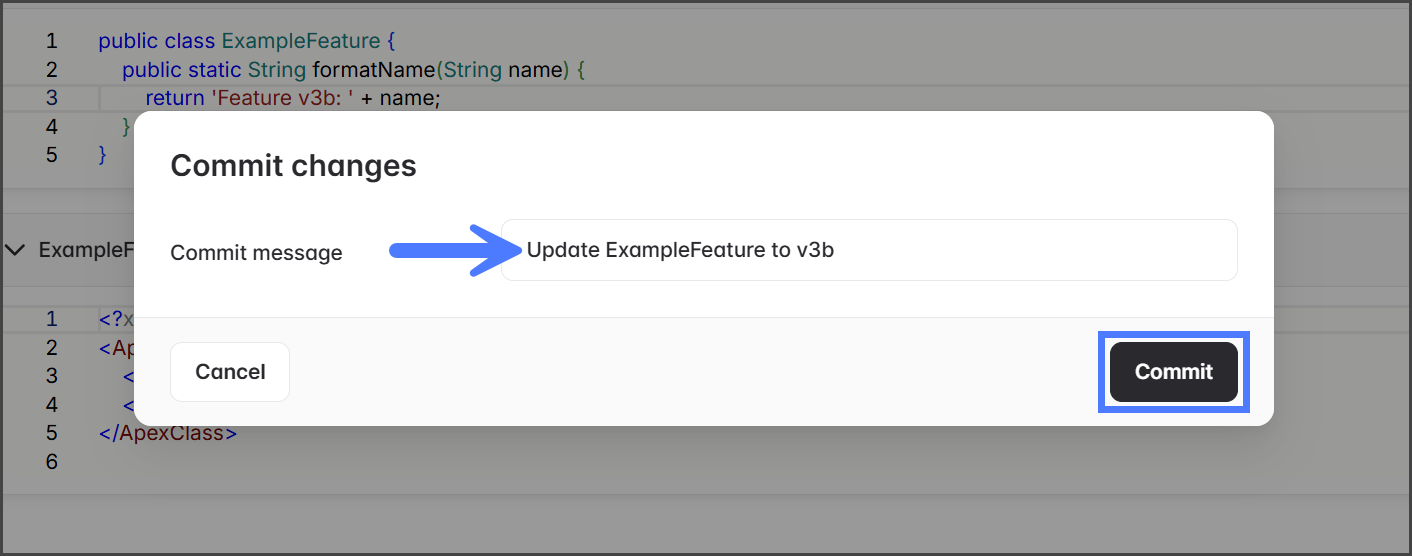
7. Enter a **Commit message**.
8. Click **Commit**.
{% hint style="info" %}
Repeat this process for all components with conflicts.
{% endhint %}
9. Once all components with conflicts are edited to match the **source** branch, return to the Pull Request.
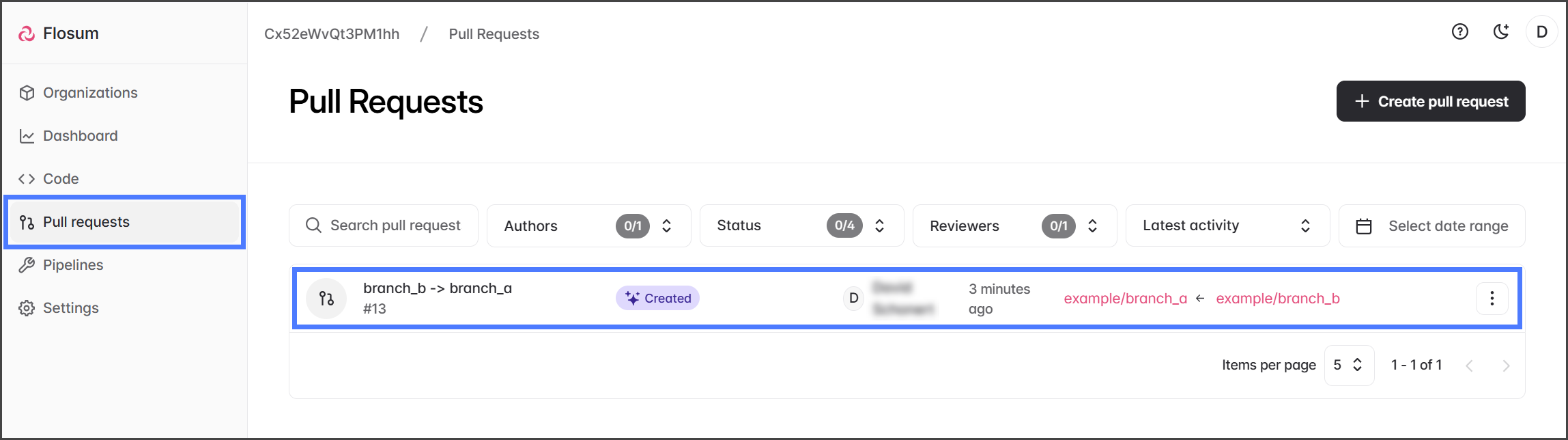
10. Click **Pull requests** from the left sidebar menu.
11. Click the Pull Request to check if all conflicts are resolved.
12. If there are no more conflicts, the Pull Request message will be green and state "This branch is able to merge".
{% hint style="info" %}
If conflicts persist in the Pull Request, review and resolve them. Repeat until all issues are resolved.
{% endhint %}
{% endstep %}
{% endstepper %}
---
# Agent Instructions
This documentation is published with GitBook. GitBook is the documentation platform designed so that both humans and AI agents can read, navigate, and reason over technical content effectively. Learn more at gitbook.com.
## Querying This Documentation
If you need additional information that is not directly available in this page, you can query the documentation by asking a question.
Perform an HTTP GET request on the following URL with the `ask` and `goal` query parameters:
```
GET https://docs.flosum.com/devops/pull-requests/pull-request-process/resolving-pull-request-conflicts.md?ask=&goal=
```
`ask` is the immediate question: it should be specific, self-contained, and written in natural language.
`goal` is what the user is ultimately trying to achieve, the reason they need the answer. Sharing it helps GitBook give you a better, more relevant answer. A goal is most helpful when it describes the outcome the user wants rather than restating the question. For example, with `ask=how do I create an API token`, a goal like `automate deployments from our CI pipeline` lets GitBook tailor the answer to that use case.
The response will contain a direct answer to the question and relevant excerpts and sources from the documentation.
Use this mechanism when the answer is not explicitly present in the current page, you need clarification or additional context, or you want to retrieve related documentation sections.