> For the complete documentation index, see [llms.txt](https://docs.flosum.com/llms.txt). Markdown versions of documentation pages are available by appending `.md` to page URLs; this page is available as [Markdown](https://docs.flosum.com/global-settings/security/mfa-devices/adding-an-mfa-device.md).
# Adding an MFA Device
{% hint style="success" %}
#### Required User Credentials
\[**Flosum User**] - Any Role
{% endhint %}
## Overview
Enabling Multi-Factor Authentication (MFA) adds an extra layer of protection to your login credentials for Flosum Cloud Apps. MFA works by requiring two separate forms of verification: your password and a time-based one-time passcode (TOTP), thereby significantly reducing the risk of unauthorized access and strengthening your organization's overall security posture. Flosum supports TOTP-based MFA and is compatible with mobile authenticator apps such as Google Authenticator and Microsoft Authenticator.
This article provides step-by-step instructions for adding MFA to your individual user account when logging into Flosum Cloud applications. It's important to note that MFA setup is user-specific—each team member must configure it for their own account.
{% hint style="info" %}
The **Global Settings > MFA Devices** page displays and manages MFA settings for the currently logged-in user only. Each user can view and modify only their own MFA devices—they cannot access or configure other users’ MFA.
Admins can see whether MFA is enabled for each user account, but they cannot view or edit individual MFA devices.
{% endhint %}
## Adding an MFA Device
{% stepper %}
{% step %}
### Access Global Settings
1. From any **Flosum Cloud App**, click the **App Switcher** icon at the top of the left sidebar menu.
2. Click **Global Settings**.
3. The **Global Settings** app will open in a new tab.
{% hint style="info" %}
Global Settings can also be accessed by logging in directly via the Flosum Cloud Apps Login URL. See the following article for login instructions.
* [Log In To Global Settings](/global-settings/getting-started/log-in-to-global-settings.md)
{% endhint %}
{% endstep %}
{% step %}
### Add Device
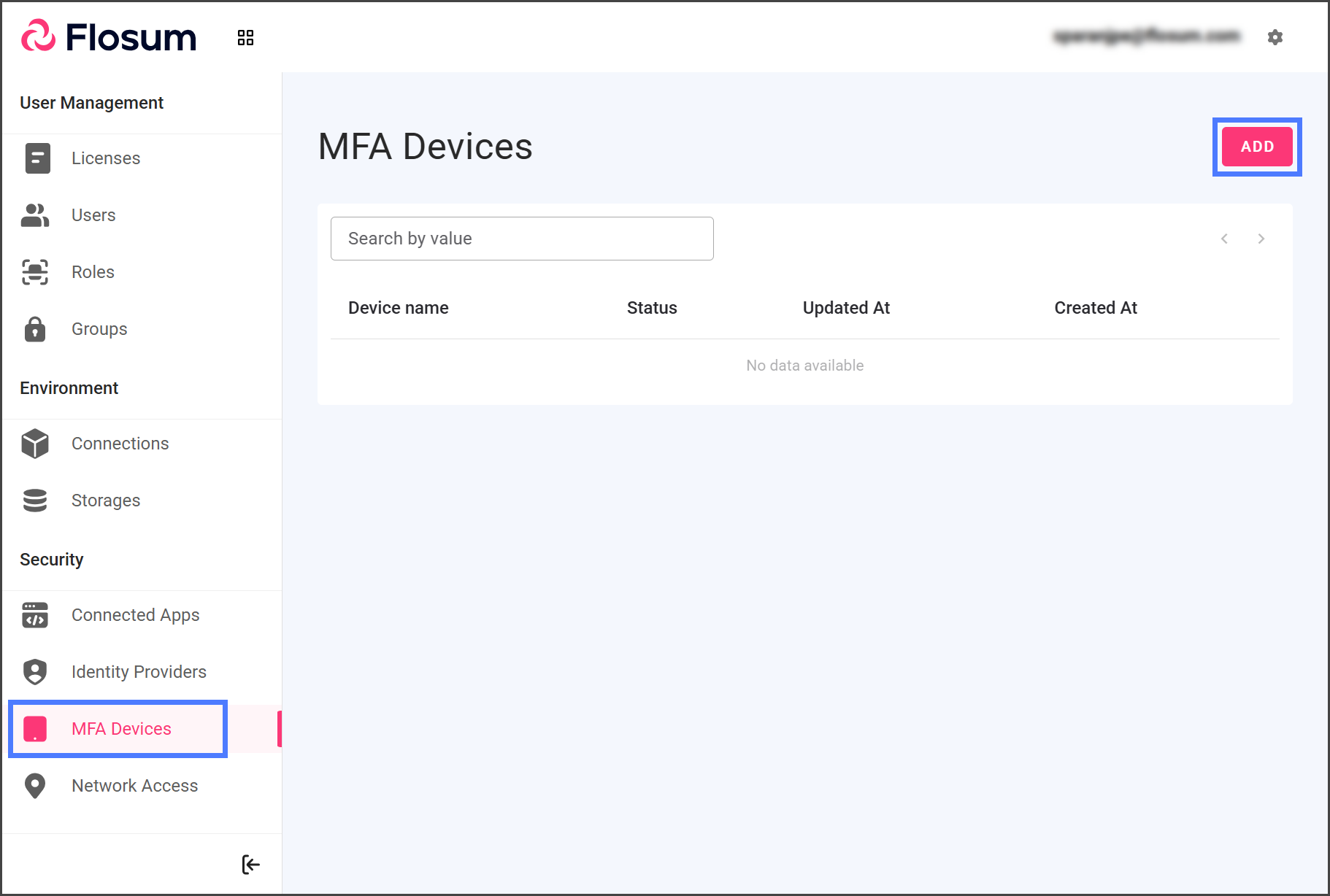
1. Click **MFA Devices** from the sidebar menu.
2. Click **Add**.
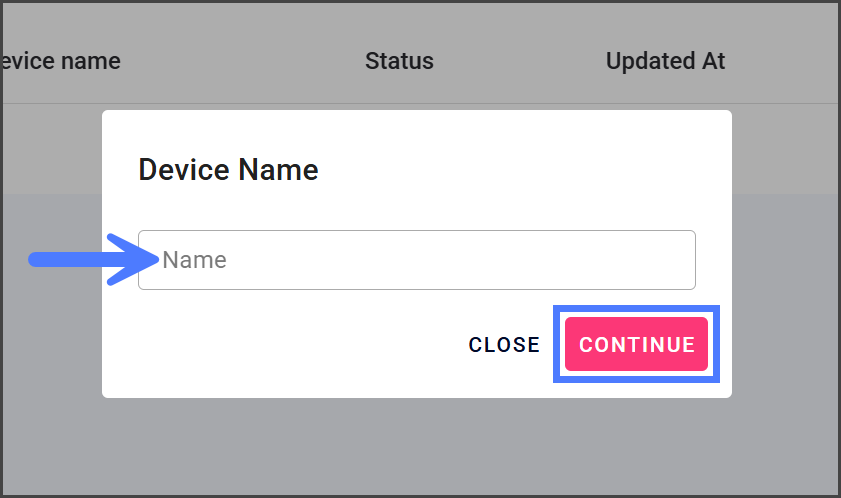
3. Enter a name for the MFA device in the **Name** textbox.
{% hint style="info" %}
Choose a descriptive name, as this will be the label shown in your authenticator app.
{% endhint %}
4. Click **Continue**.
{% endstep %}
{% step %}
### Confirm Authenticator App
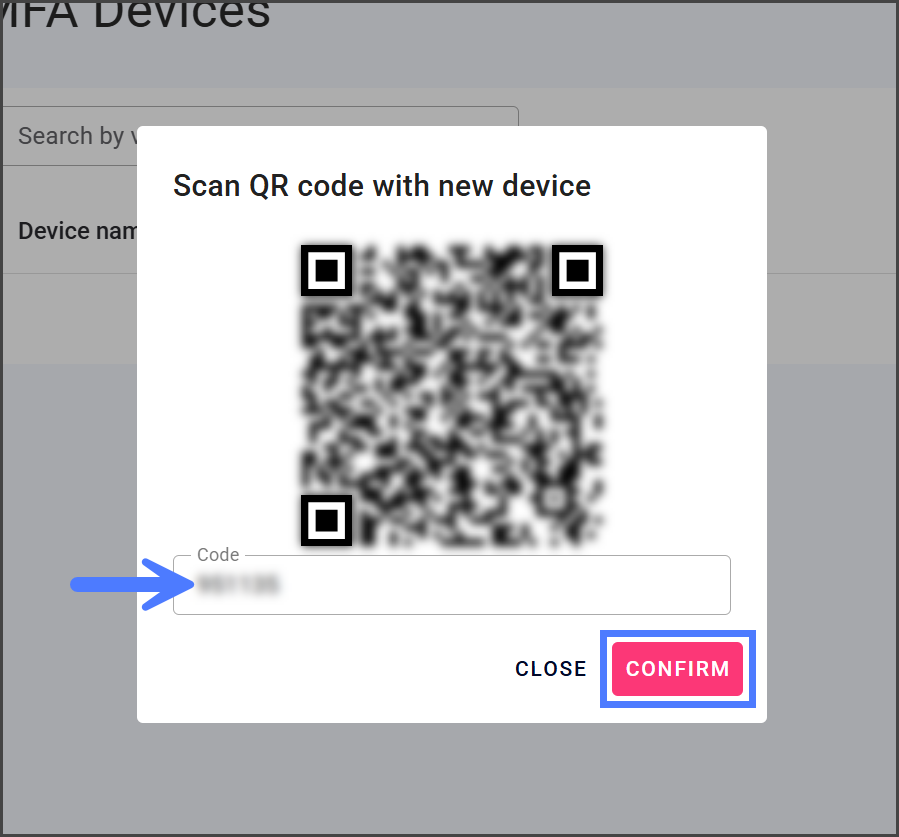
1. Scan the QR code with your authenticator app.
2. Enter the code from your authenticator app in the **Code** textbox.
3. Click **Confirm**.
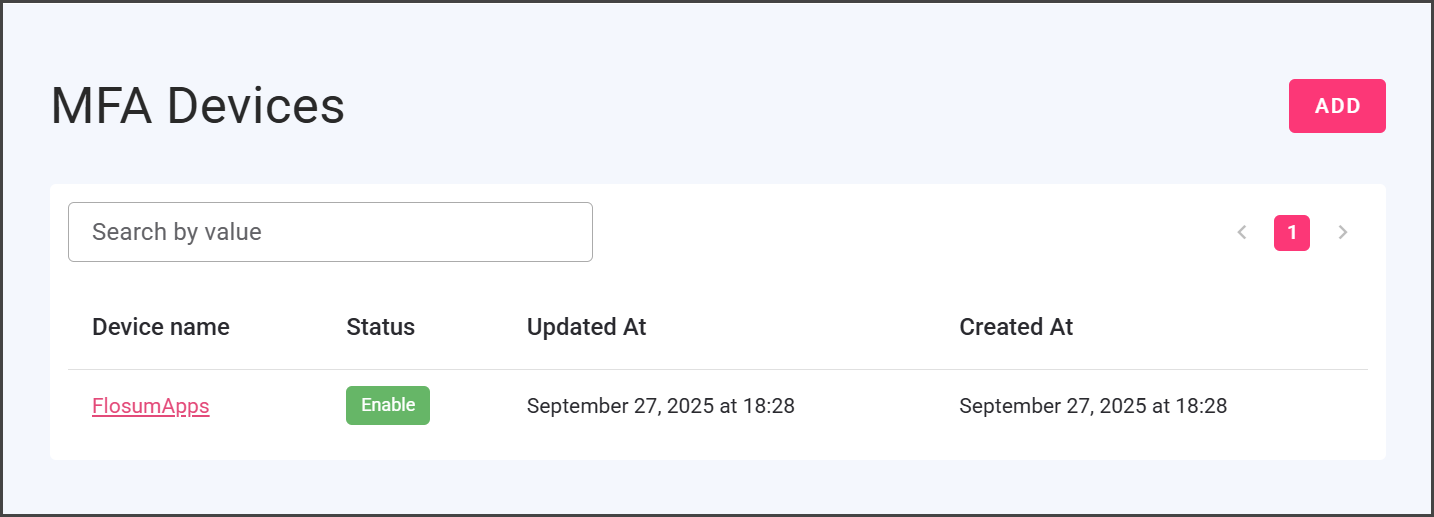
4. Once created, the new MFA device will be listed on the **MFA Devices** page.
{% hint style="info" %}
The next time you log in, you will be required to enter the code from your authenticator app.
{% endhint %}
{% endstep %}
{% endstepper %}
---
# Agent Instructions
This documentation is published with GitBook. GitBook is the documentation platform designed so that both humans and AI agents can read, navigate, and reason over technical content effectively. Learn more at gitbook.com.
## Querying This Documentation
If you need additional information that is not directly available in this page, you can query the documentation by asking a question.
Perform an HTTP GET request on the following URL with the `ask` and `goal` query parameters:
```
GET https://docs.flosum.com/global-settings/security/mfa-devices/adding-an-mfa-device.md?ask=&goal=
```
`ask` is the immediate question: it should be specific, self-contained, and written in natural language.
`goal` is what the user is ultimately trying to achieve, the reason they need the answer. Sharing it helps GitBook give you a better, more relevant answer. A goal is most helpful when it describes the outcome the user wants rather than restating the question. For example, with `ask=how do I create an API token`, a goal like `automate deployments from our CI pipeline` lets GitBook tailor the answer to that use case.
The response will contain a direct answer to the question and relevant excerpts and sources from the documentation.
Use this mechanism when the answer is not explicitly present in the current page, you need clarification or additional context, or you want to retrieve related documentation sections.