Using Branch Overwrite Protection

Overwrite Protection is a safeguard process that runs against a Salesforce org to prevent accidental overwrites of metadata.

Overview

Overwrite Protection helps prevent accidental overwrites by comparing branch components with those in your live org. It highlights components that are new, different, or the same, ensuring that critical metadata remains intact during deployment. This guide explains how to run an Overwrite Protection job, review the results, and address any differences.

circle-info

Best Practices

  • Always run Overwrite Protection before deploying to production or critical environments.

  • Focus on Different components — review carefully before deciding which version to keep.

  • Use meaningful commit messages when finalizing resolutions, so your team can track the reason for changes.

  • Resolve conflicts in the Overwrite Protection UI rather than skipping them — this keeps your branch and org in sync.

  • If the job fails or ends with an Exception, check the logs immediately and rerun once fixed.

  • Combine Overwrite Protection with Pre-Deploy Fix to catch both overwrites and missing dependencies before deployment.

Run Overwrite Protection Job

1

Select a Branch and Start Overwrite Protection

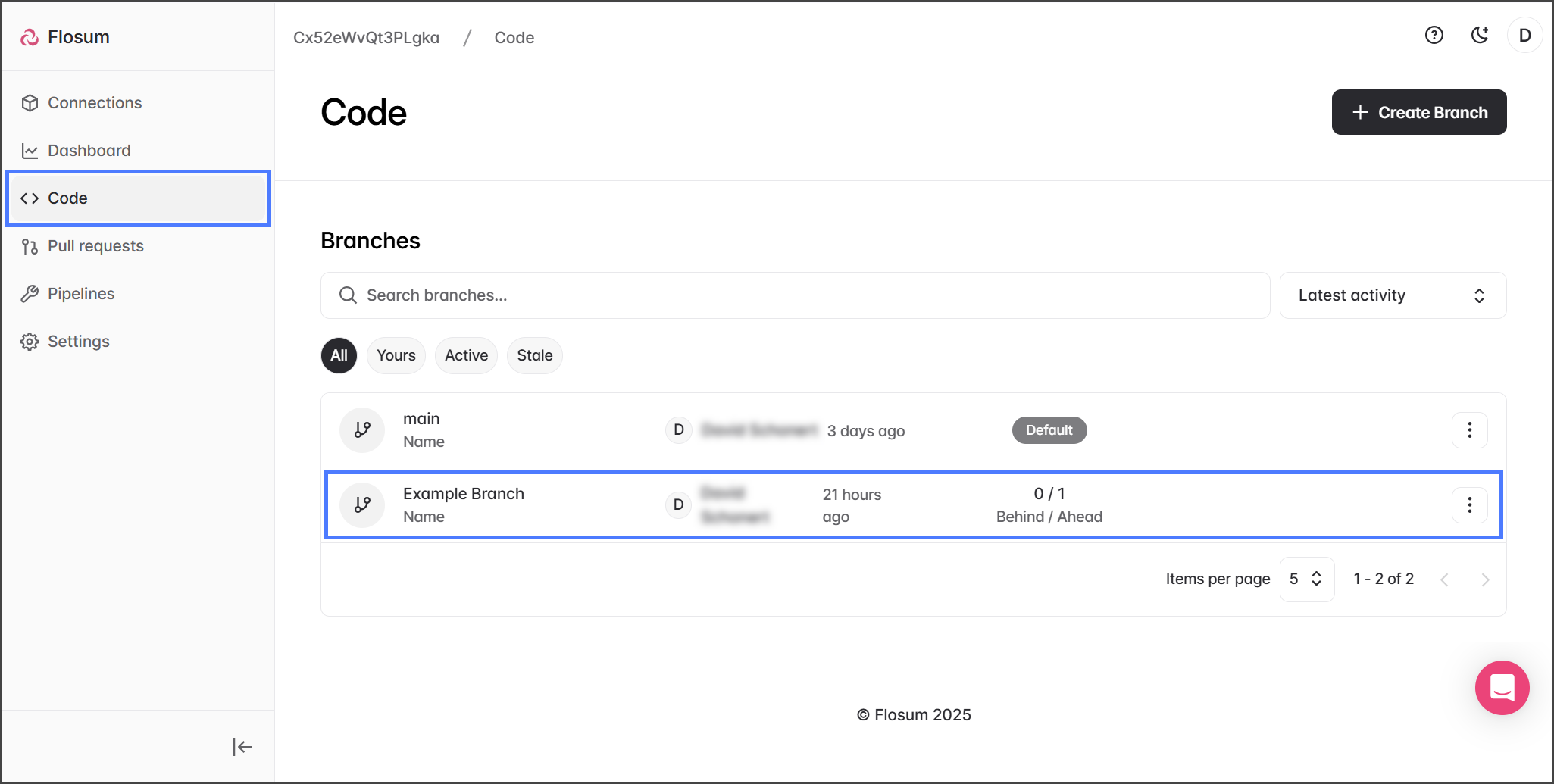
  1. Click Code from the left sidebar menu.

  2. Select a branch from the list.

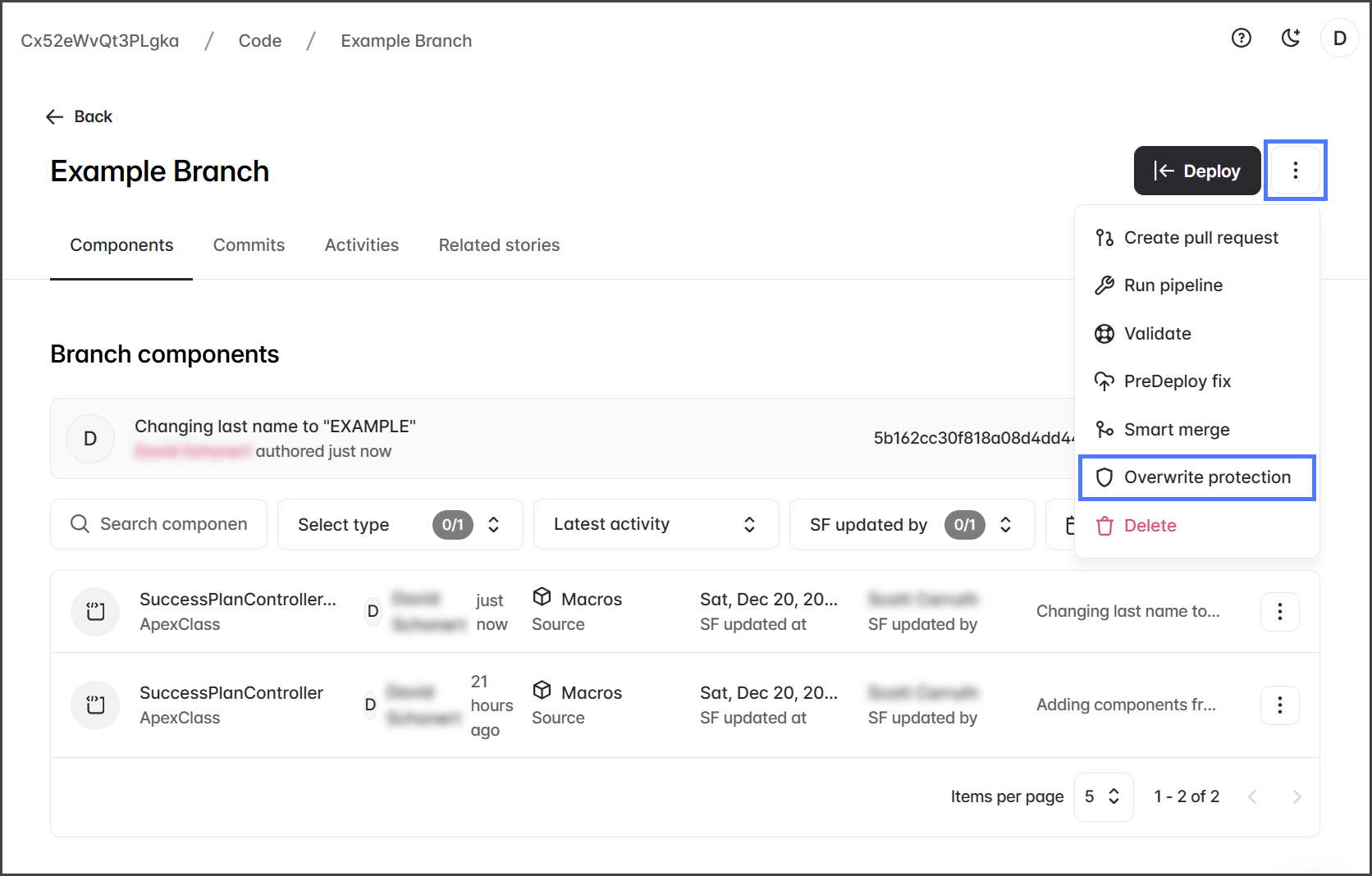
  3. Click the Three Vertical Dots â‹® dropdown menu next to Deploy.

  4. Click Overwrite Protection.

2

Select a Connection and Components

circle-info

Use the Search, Filter, and Sort options to help you find the correct connection and components.

  1. Click Select for the Salesforce org Connection to check for overwrites.

  2. Click Next.

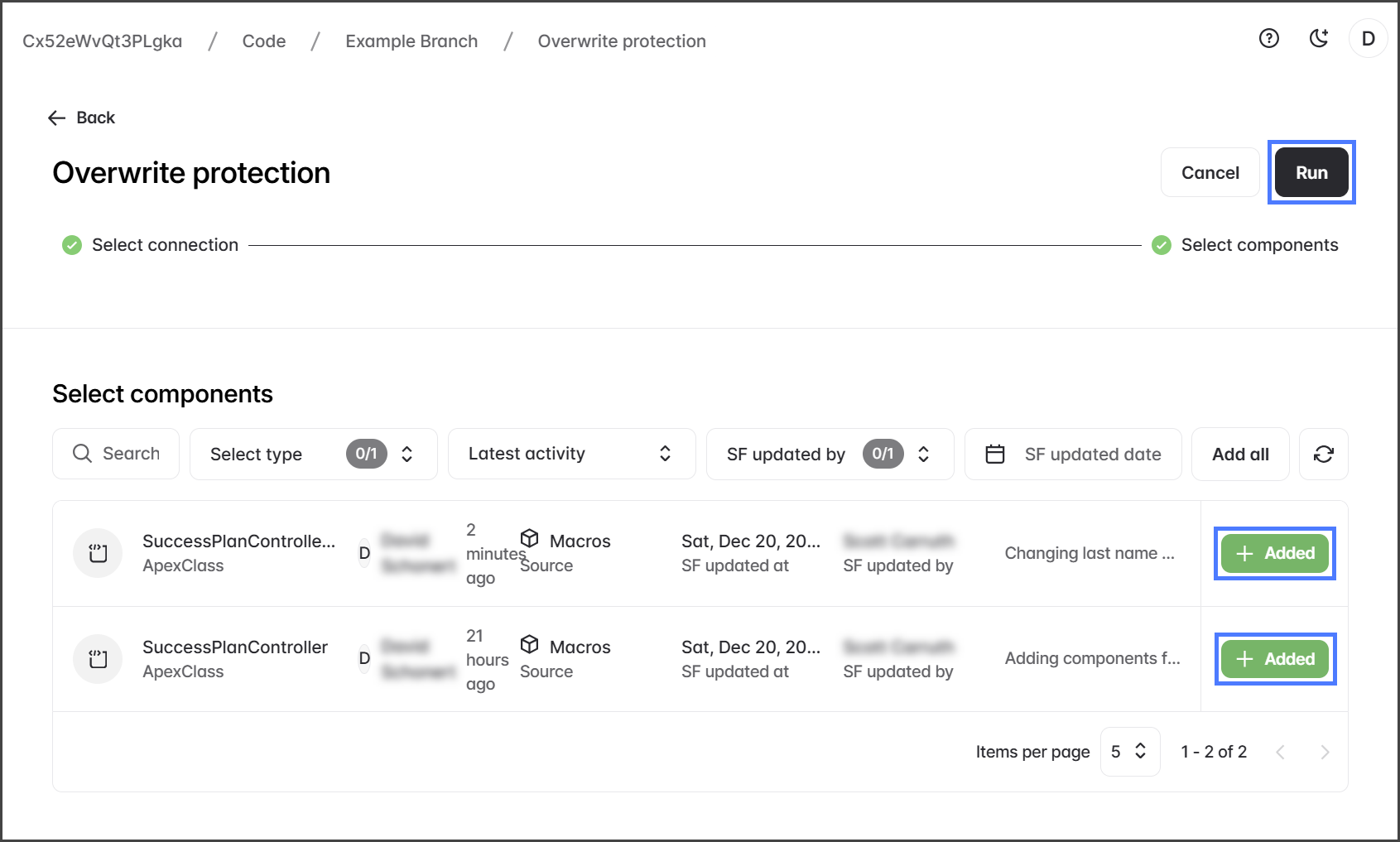
  3. Click Add for each component to check for overwrites.

  4. (Optional) Click Add All to include all components. Note: The search, filter, and sort options don't limit which components are added with the Add All button.

  5. Click Run.

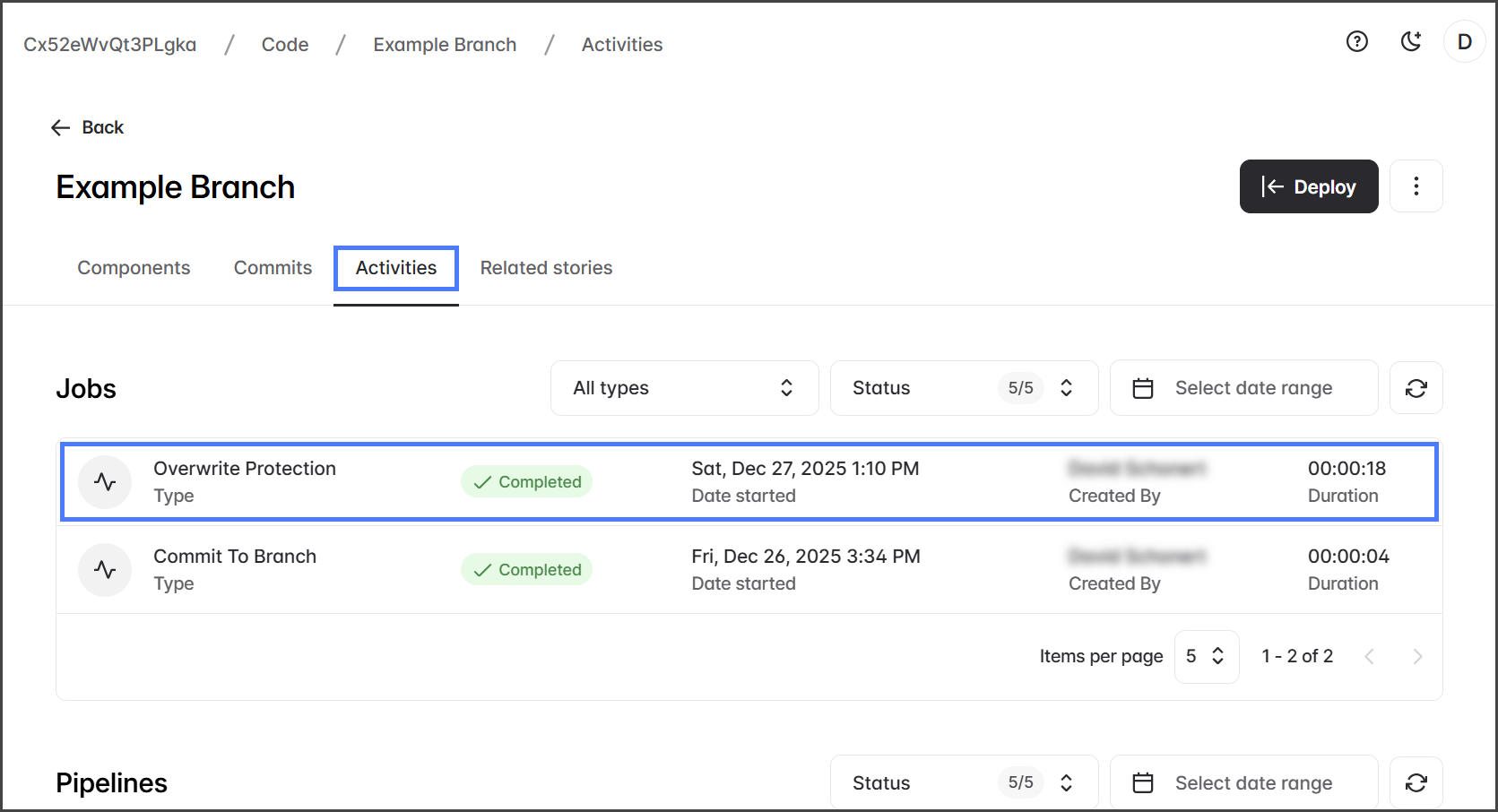
  6. After starting the Overwrite Protection job, it will be displayed on the Activities tab.

Overwrite Protection Results

1

View Results

  1. Click the Activities tab.

  2. Check that the Overwrite Protection job status is Completed.

  3. Click the Overwrite Protection job.

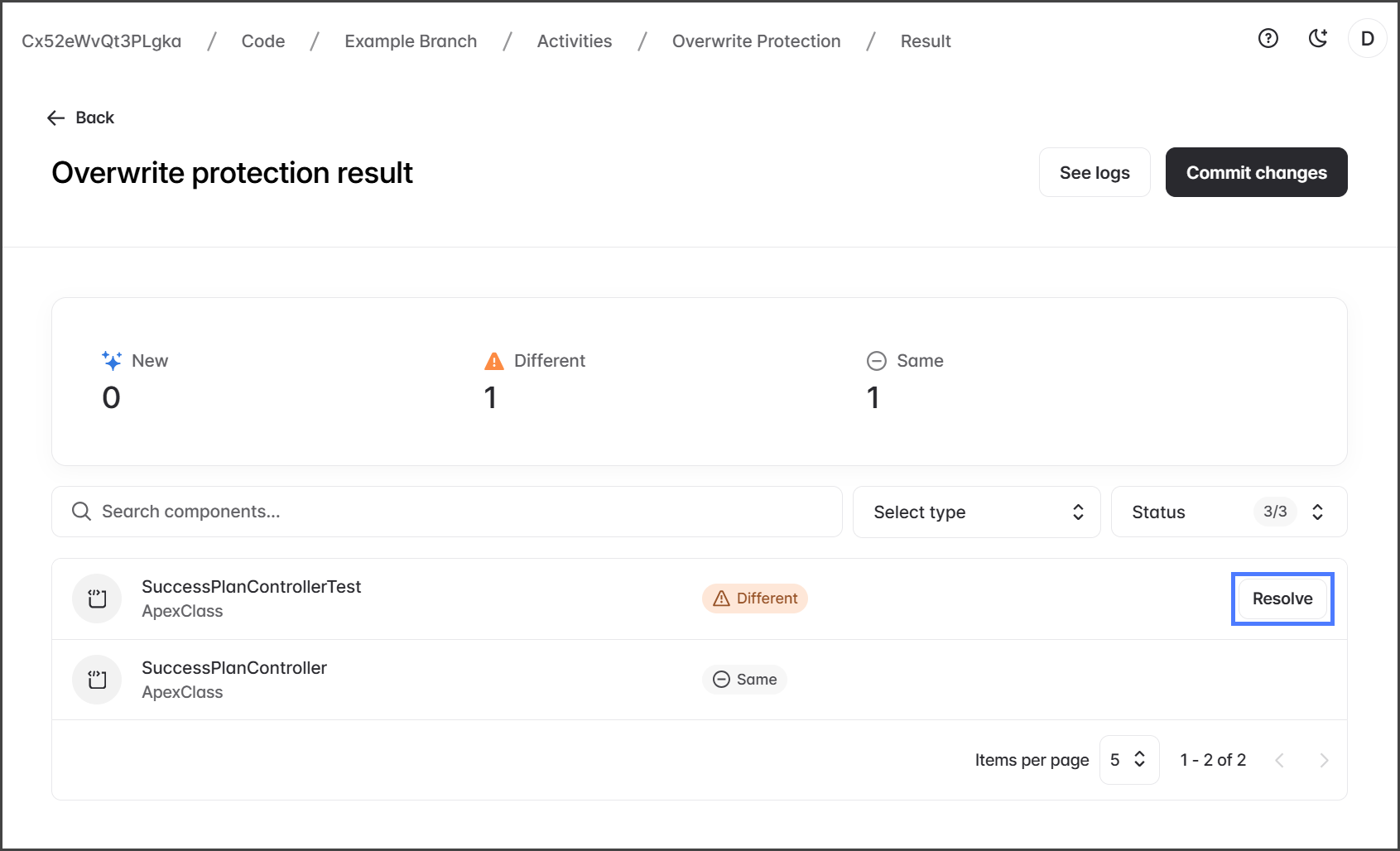
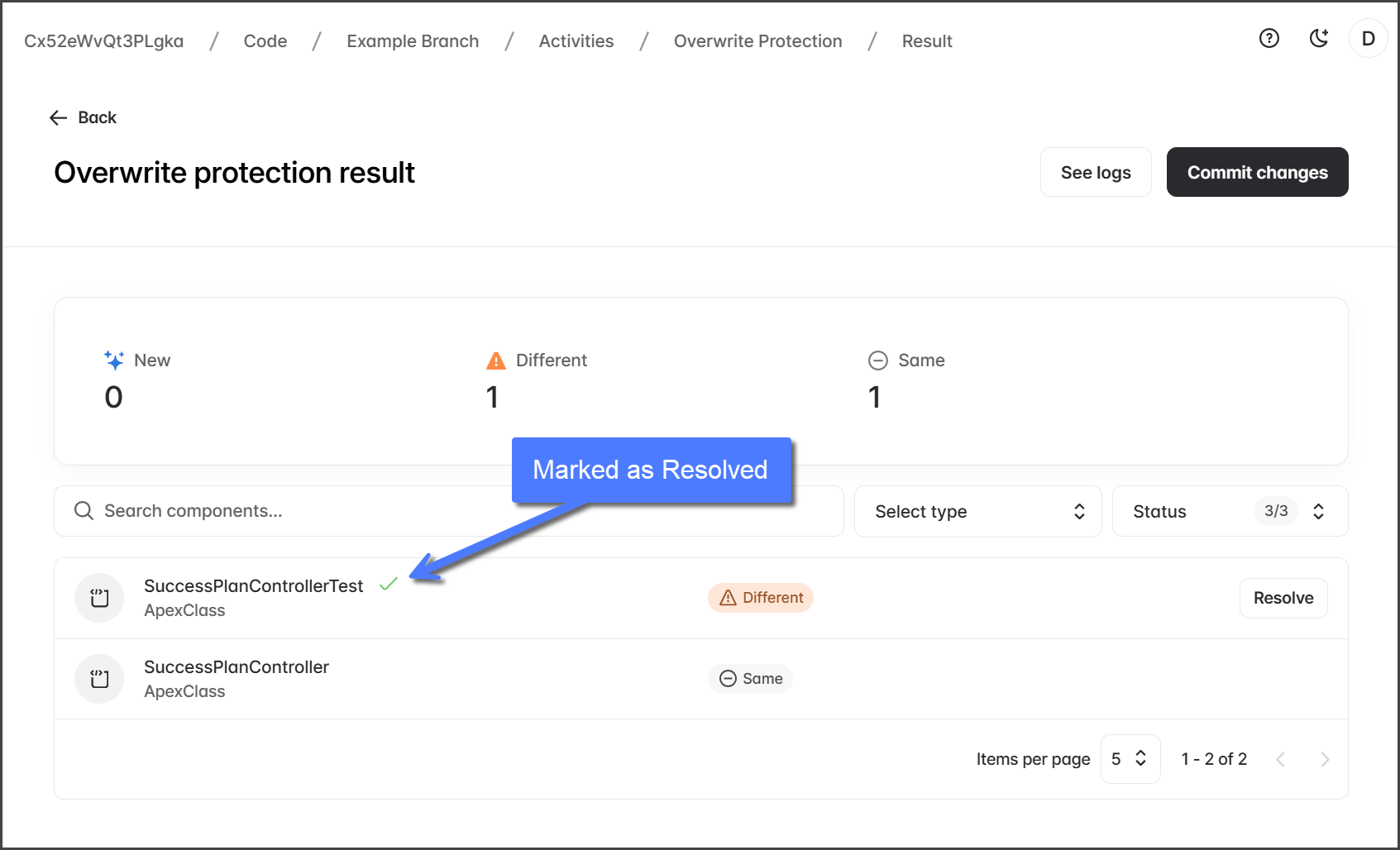
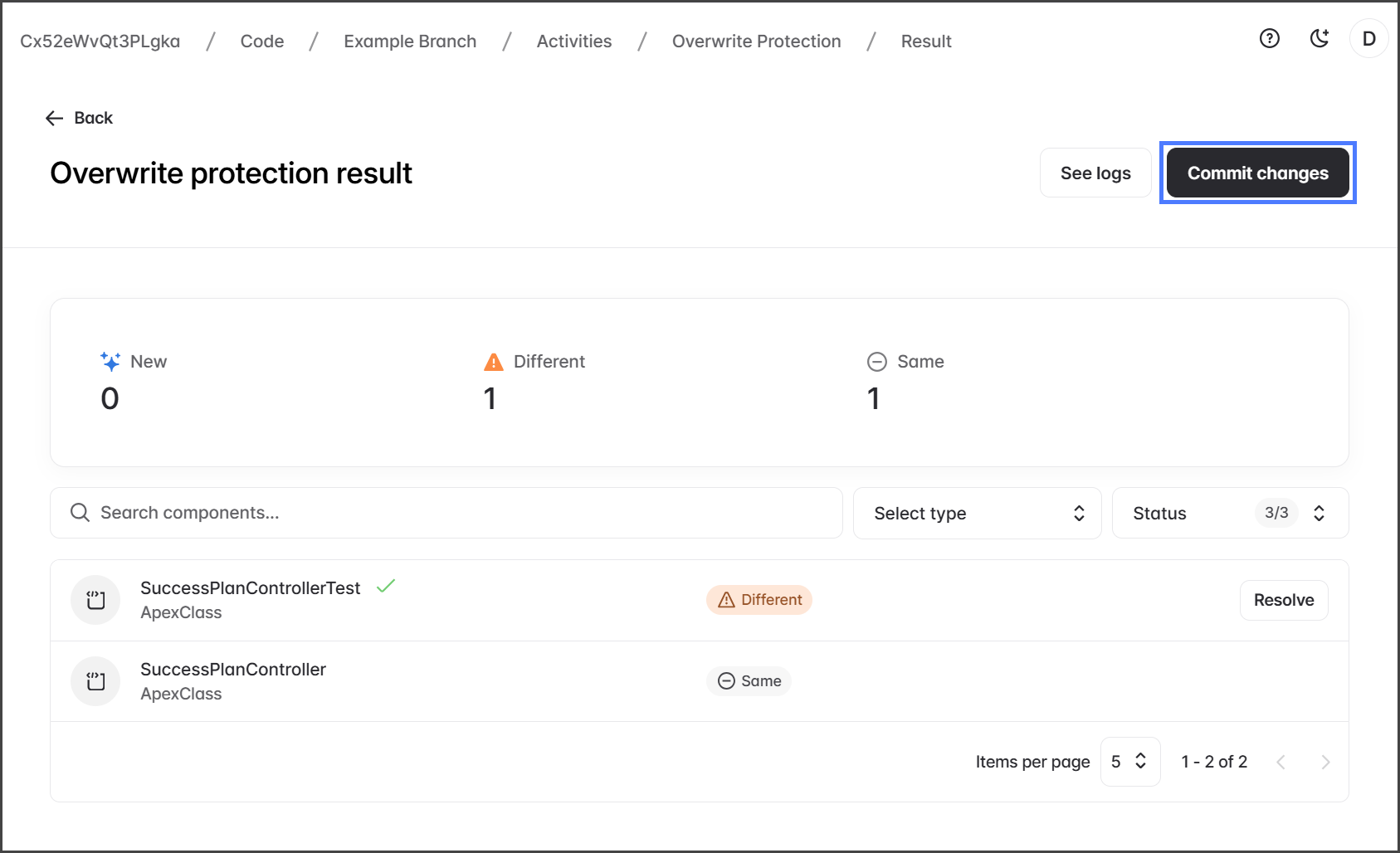
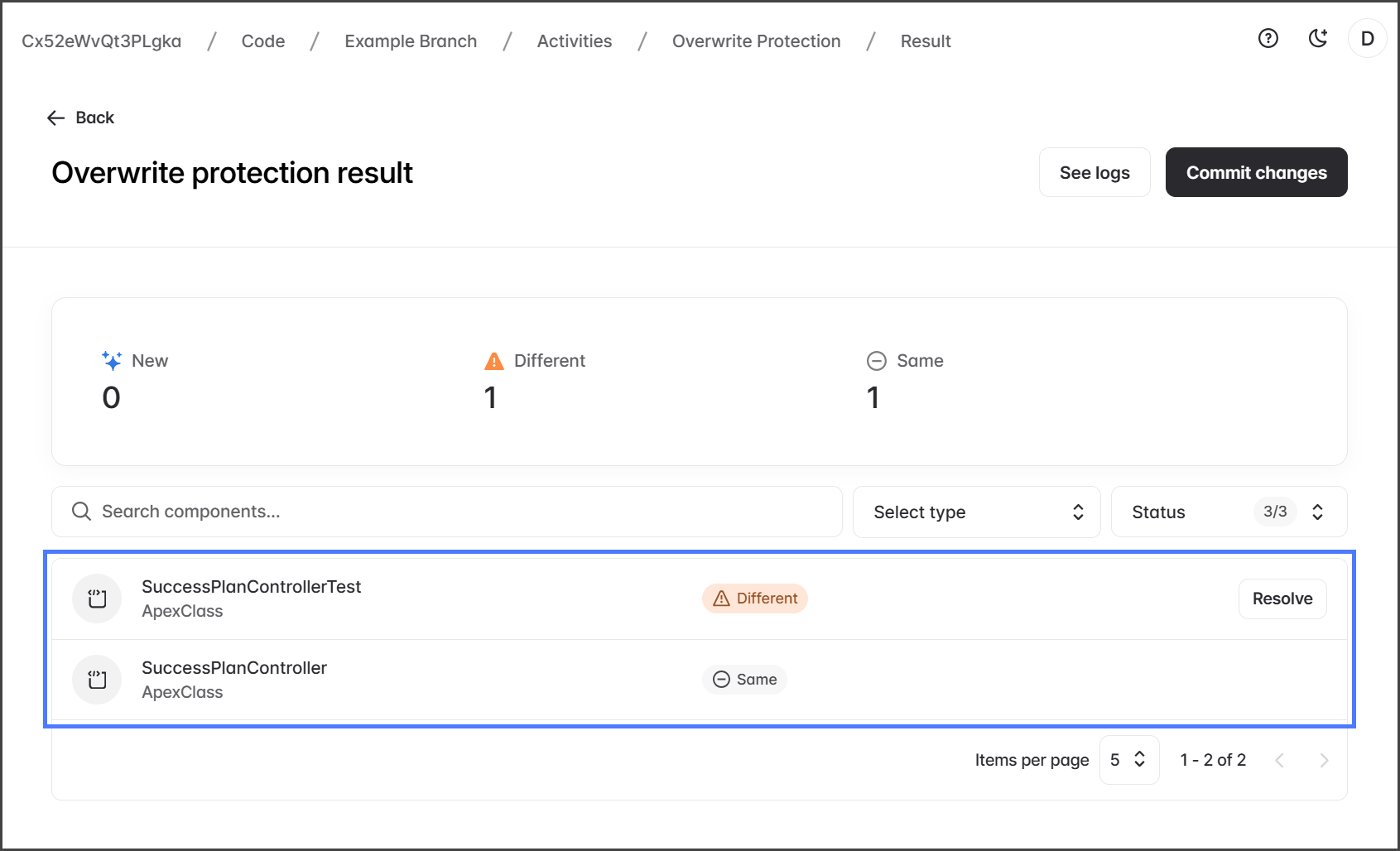
  4. The Overwrite Protection Results page lists the status of each component. See the table below for an explanation of each.

circle-info

The list of components can be searched and filtered. For example, you could set the Status only to display components marked as Different.

Status
Description

New

The component exists in the branch but not in the org. These can usually be committed safely since they don’t exist in the org yet. No action is needed.

Different

The component exists in both the branch and org, but their contents differ. Due to this difference, you need to confirm that the changes are accurate and address any conflicts.

Same

The component exists in both the branch and org, and the contents are identical. No action is needed.

2

Review Differences

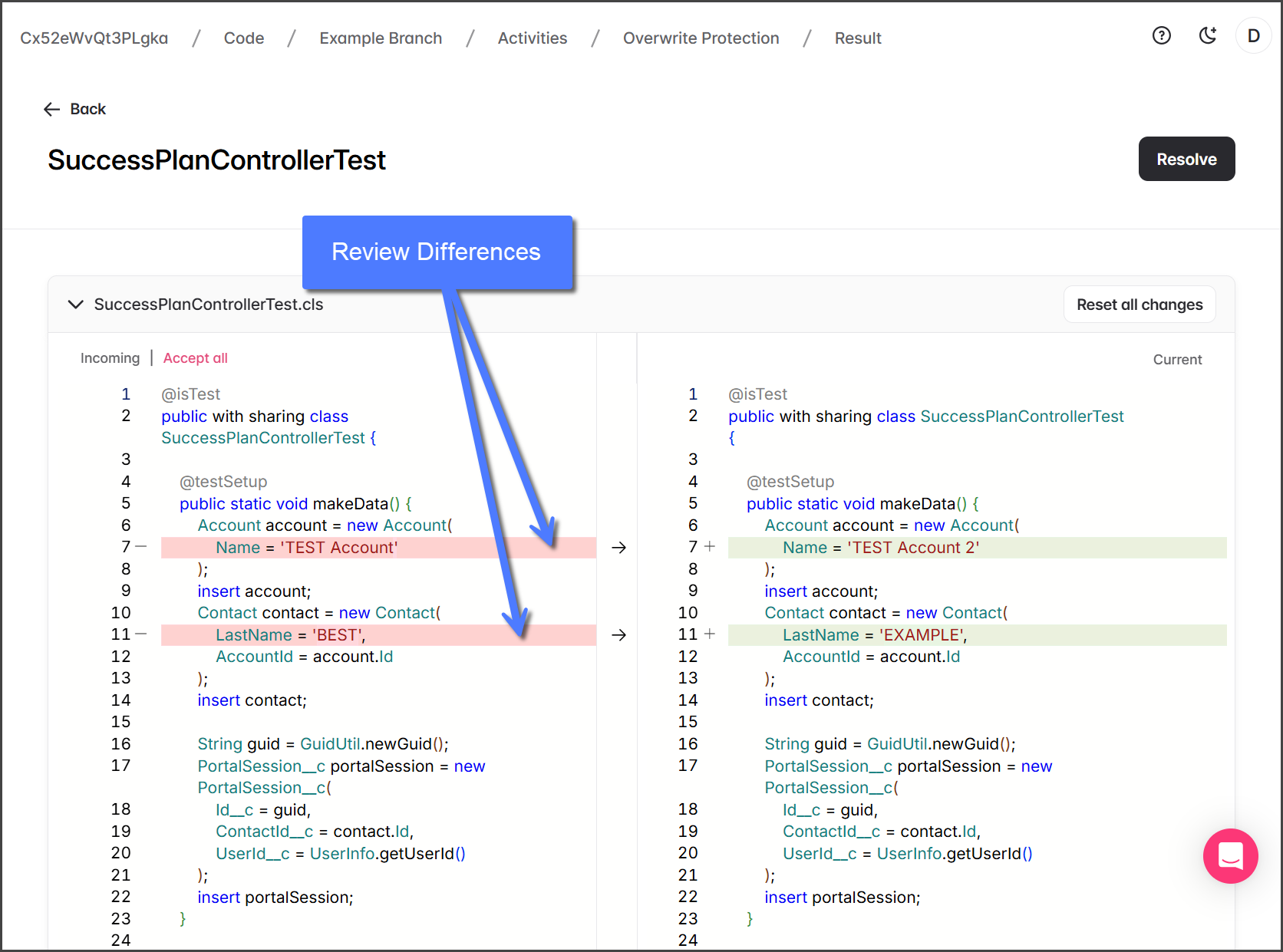
Review each component marked as Different to identify the differences and determine how to resolve them.

  1. Click Resolve.

  2. The component's differences will be displayed in side-by-side editors with the diffs highlighted.

    1. Incoming: Read-only editor with the selected org's version of the component.

    2. Current: Editable editor with the branch's current version of the component.

  3. Review each difference.

3

Accept Differences

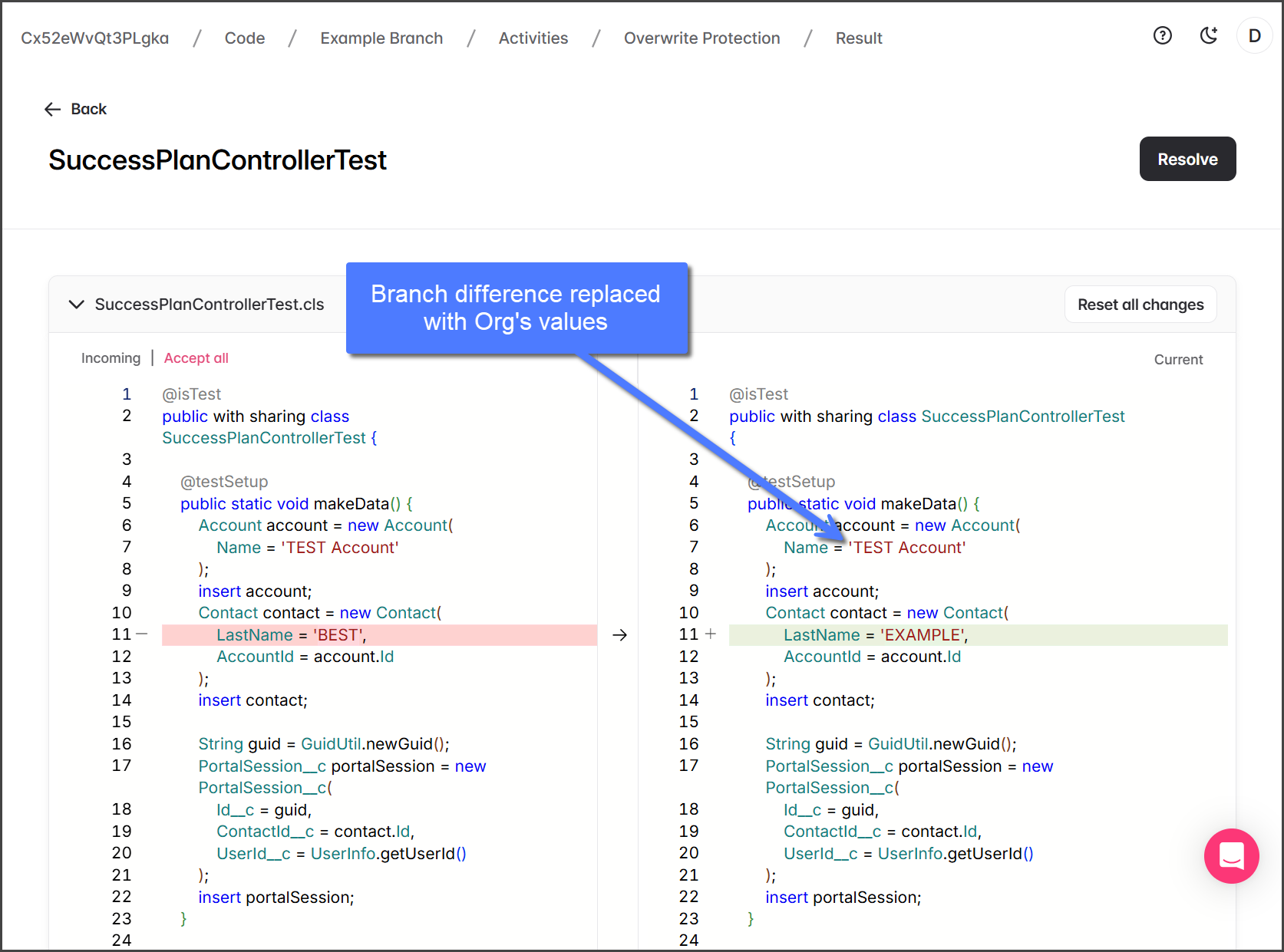
After you review the differences, you can accept any differences from the Incoming org by replacing the Current branch's values with the org's values. There are two ways to accept differences; see the following sections for examples.

Accept All

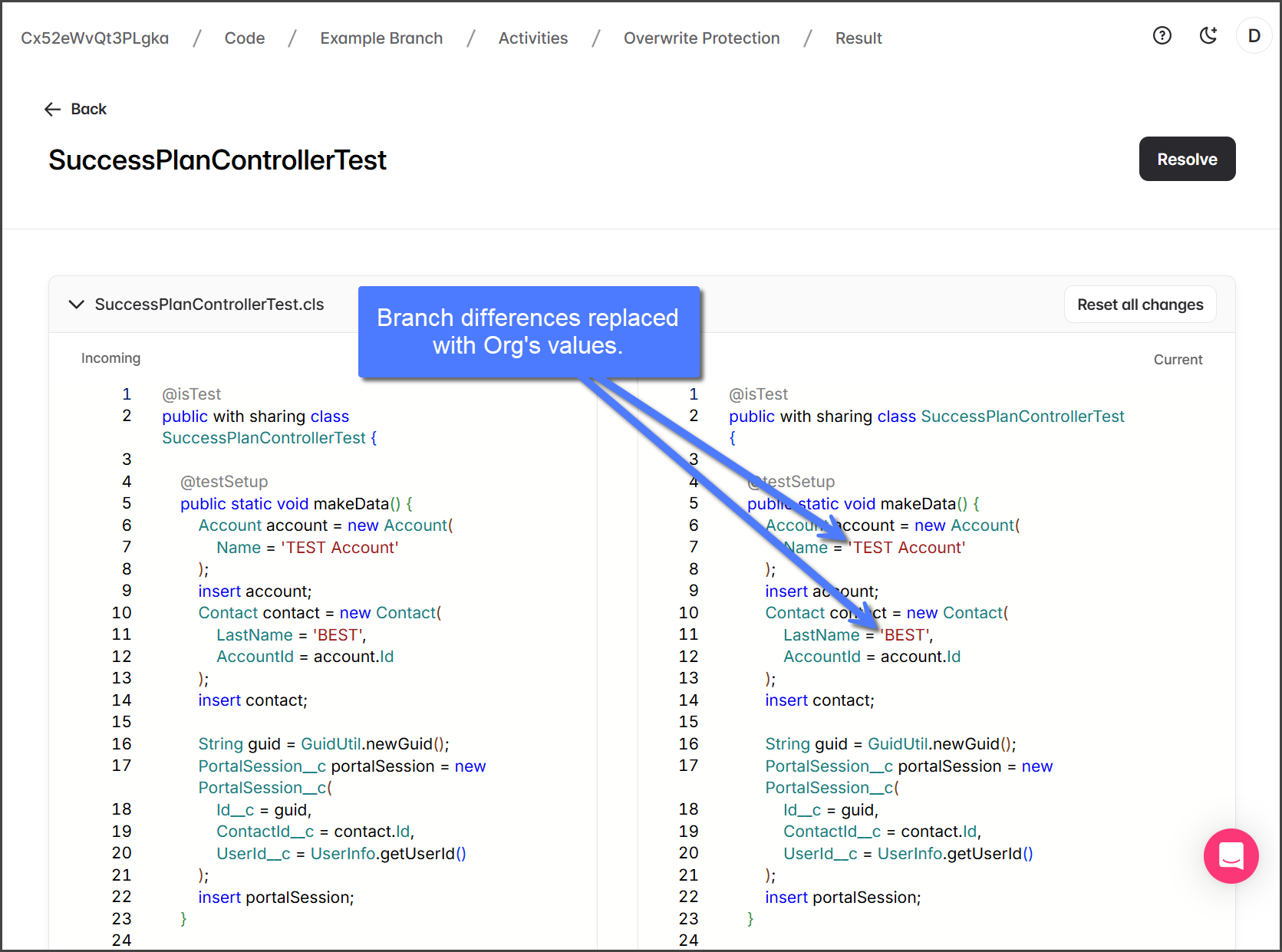
Accepting all differences from the Incoming org means that all changes in the Current branch will be replaced with the values in the org. See the following example:

  1. Click Accept all.

  2. All differences in Current are replaced with the Incoming values.

Line-By-Line

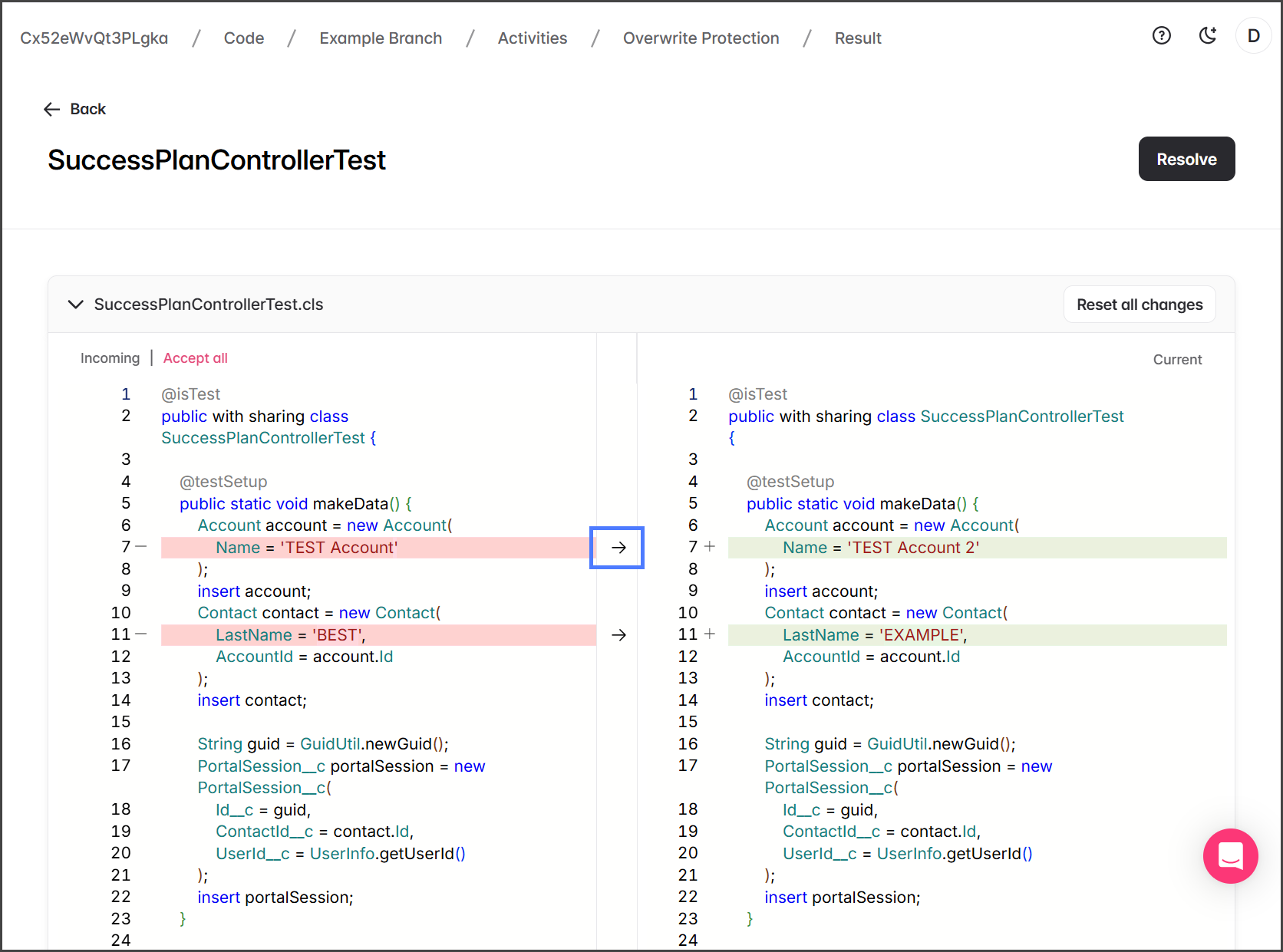
Accepting specific differences from the Incoming org means that only the selected changes in the Current branch will be replaced with the values in the org. See the following example:

  1. Click the Right Arrow for the line you want to replace the difference in Current with the Incoming value.

  2. The Current value is replaced with the Incoming value.

circle-info

Undo Changes

  • Reset all changes: lets you undo all changes made in the Current editor.

  • Ctrl + Z: lets you undo the last change made in the Current editor (the editor must be selected).

4

Mark Resolved

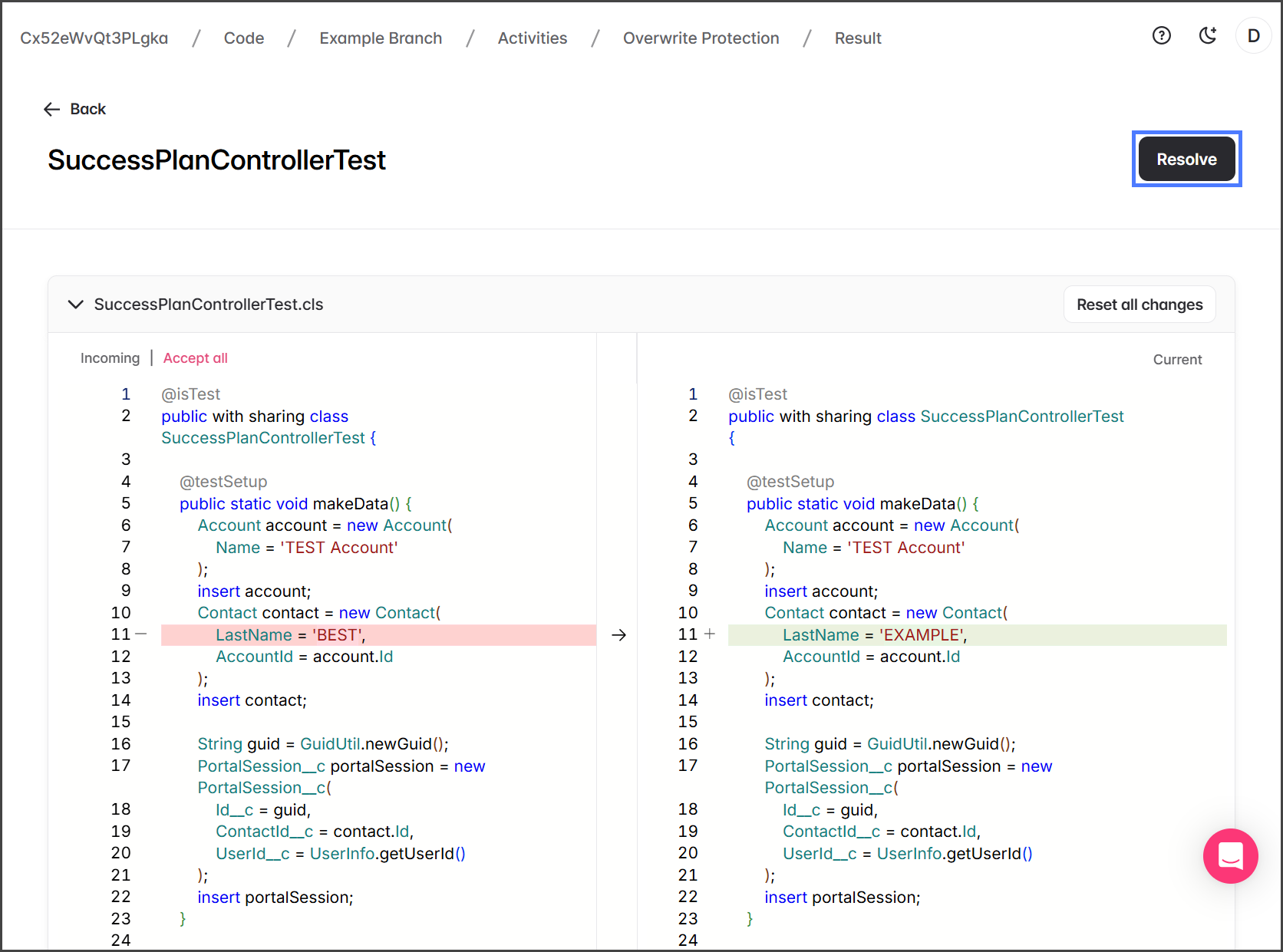
Once you have edited the Current branch to resolve any conflicts caused by the differences, you can mark the component as resolved.

  1. Click Resolve.

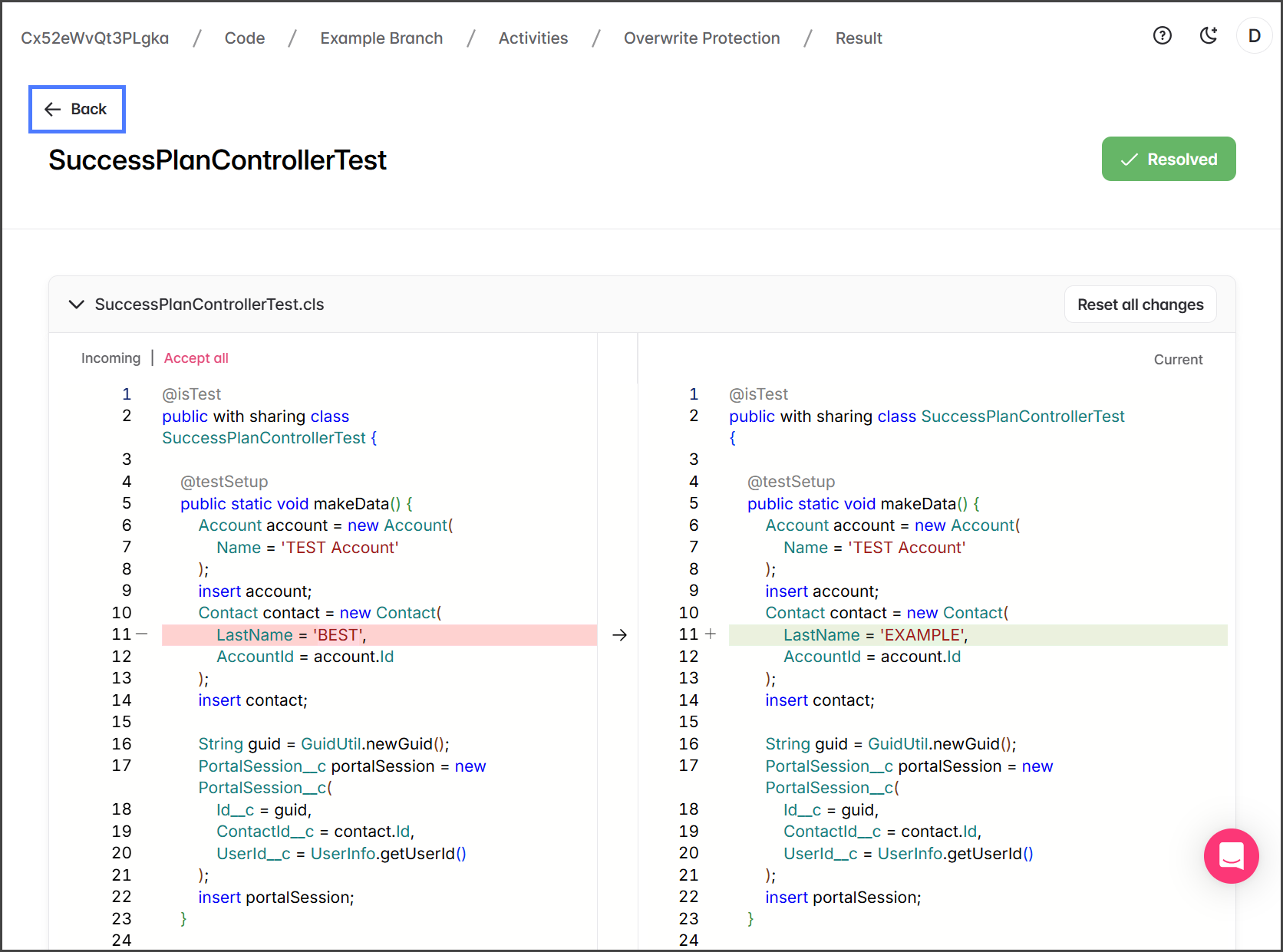
  2. The component is now marked as Resolved.

  3. Click Back.

  4. The resolved component will have a Green Checkmark to indicate it is resolved.

5

(Optional) View Log

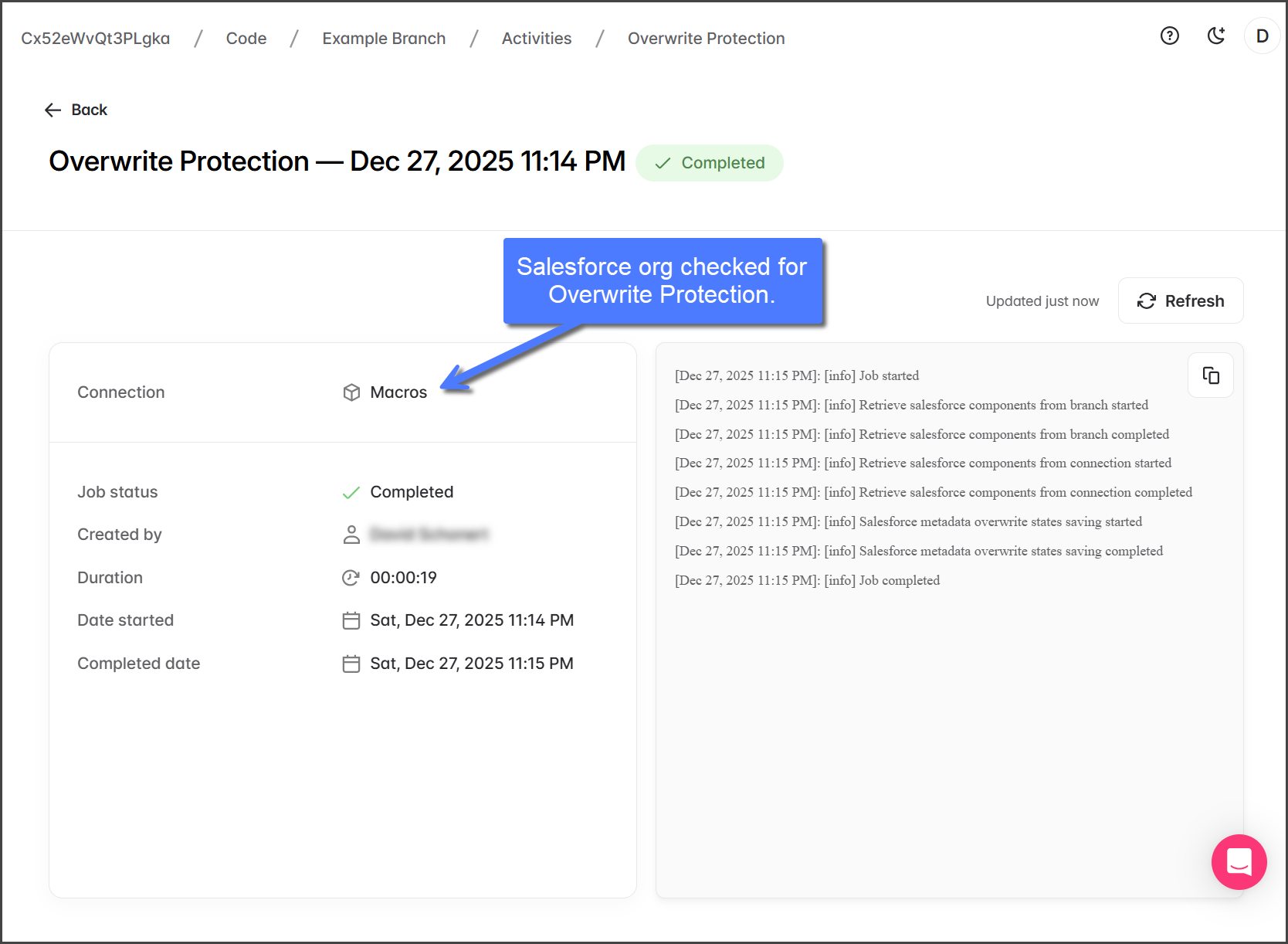
You can view the logs for the Overwrite Protection job to view any error messages and get job statistics.

  1. From the Overwrite Protection Results page.

  2. Click See logs.

  3. View the job statistics and execution log.

circle-info

The Connection field indicates which org was checked with this Overwrite Protection job.

6

Commit Changes

If any components have been changed while resolving differences, you need to commit those changes to the branch.

  1. Click Commit changes.

  2. Enter a Commit message to explain what changed.

  3. Click Resolve to commit the changes to the branch.

Last updated

Was this helpful?