Validate checks your branch metadata against a Salesforce org without deploying. It confirms compatibility, ensures dependencies are satisfied, and runs Apex tests if required.
Overview
The Validate feature checks your branch's components against a target Salesforce org without deploying. This ensures metadata compatibility, verifies dependencies, and runs Apex tests if needed. By validating before deployment, you can identify and fix issues, reducing deployment failures. Validation prevents failures by:
Checking metadata compatibility with the target org
Ensuring dependencies are satisfied
Running Apex tests (based on selected test level)
This process gives you confidence that the deployment will succeed. In this article, you will learn how to run a Validation job and view the results.
Best Practices
Always run Validate before deploying into UAT or Production.
Include dependent components to avoid validation errors.
Use Run Local Tests in lower environments for higher quality checks.
Use Do not run tests only for quick validations in sandboxes.
Review logs carefully before proceeding with deployment.
Re-run Validate after resolving conflicts, updating metadata, or retrieving missing dependencies.
Run Branch Validation Job
1
Select Branch and Start Validation
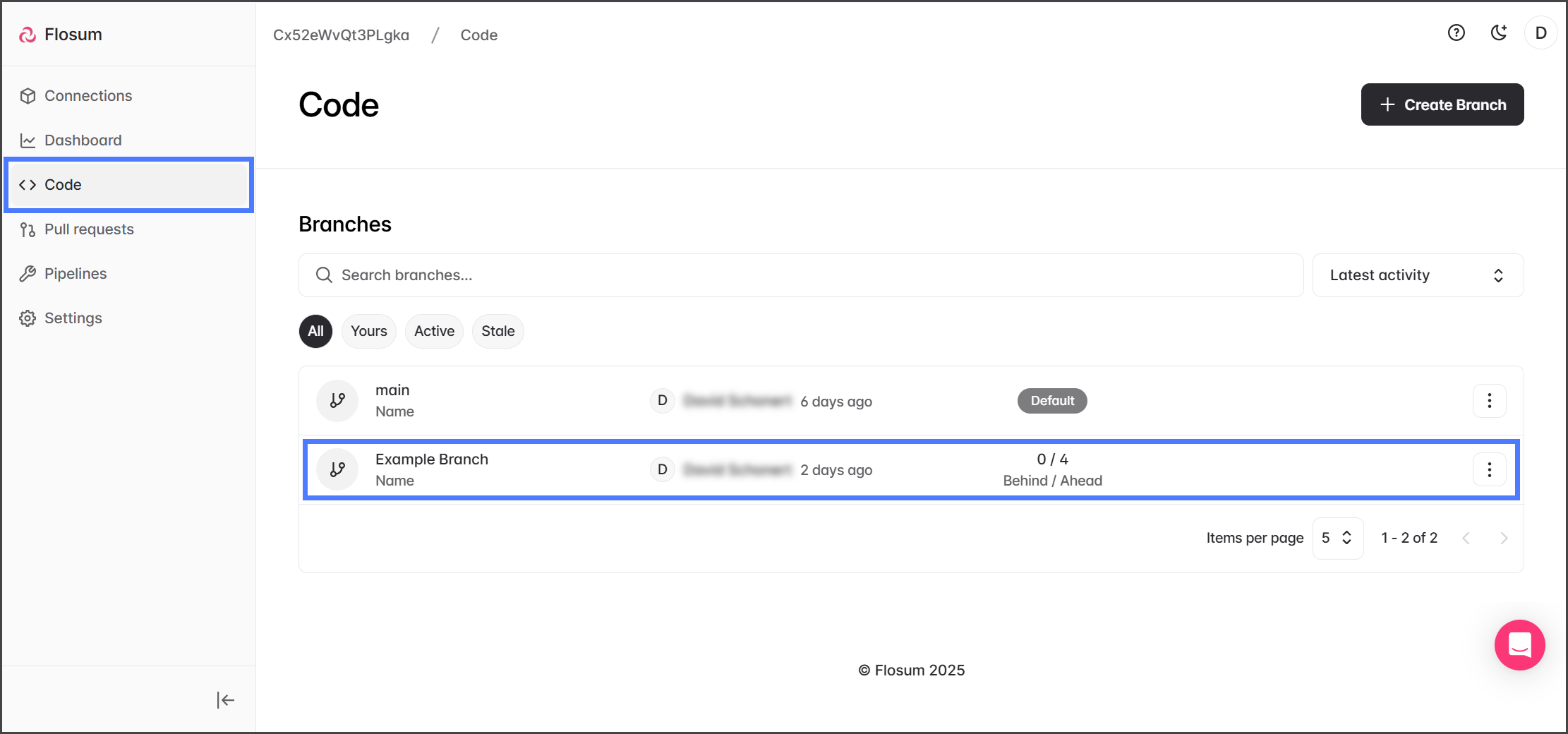
Click Code from the left sidebar menu.
Select a branch from the list.
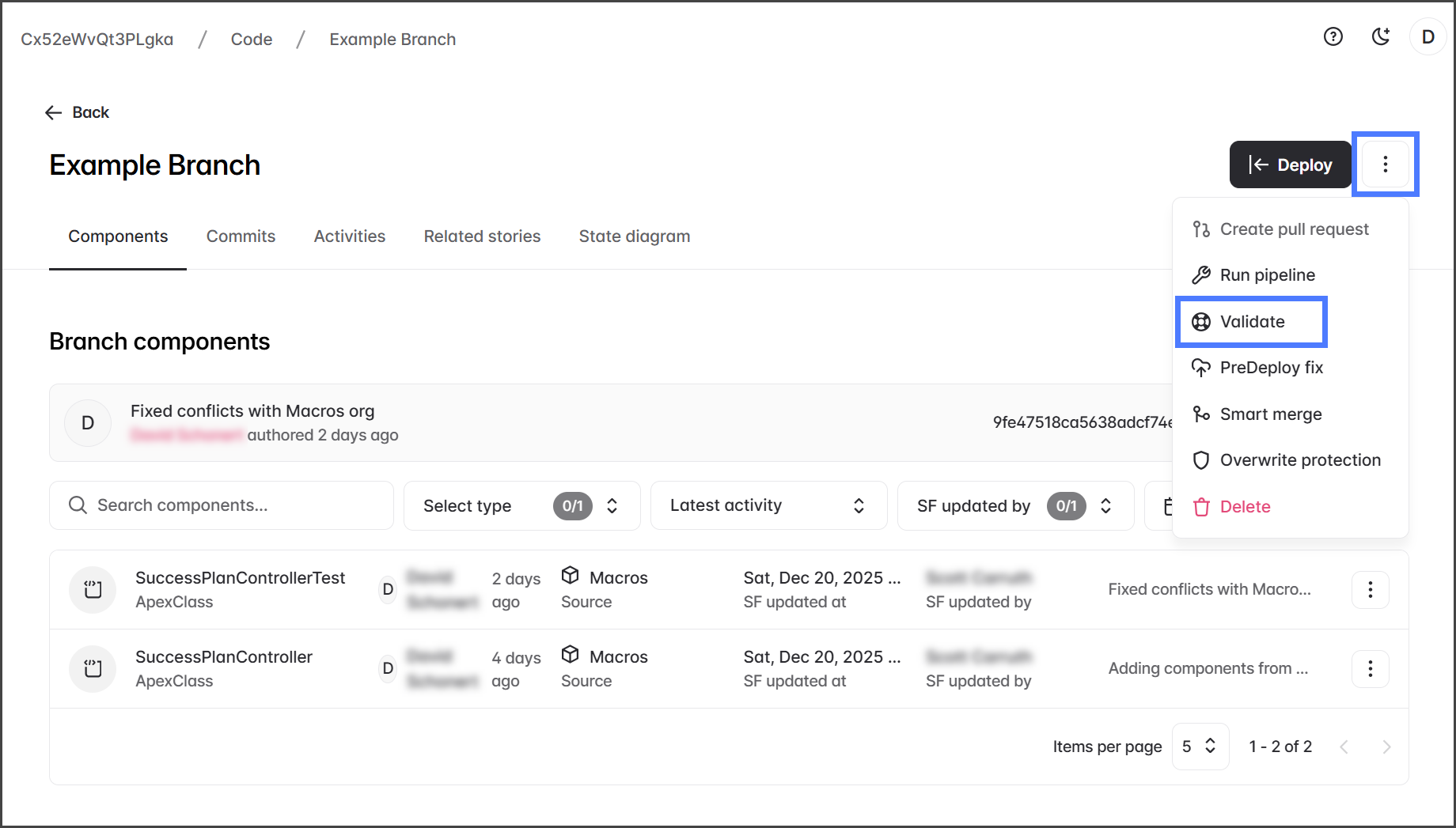
Click the Three Vertical Dots ⋮ dropdown menu next to Deploy.
Click Validate.
2
Select Components and Connections
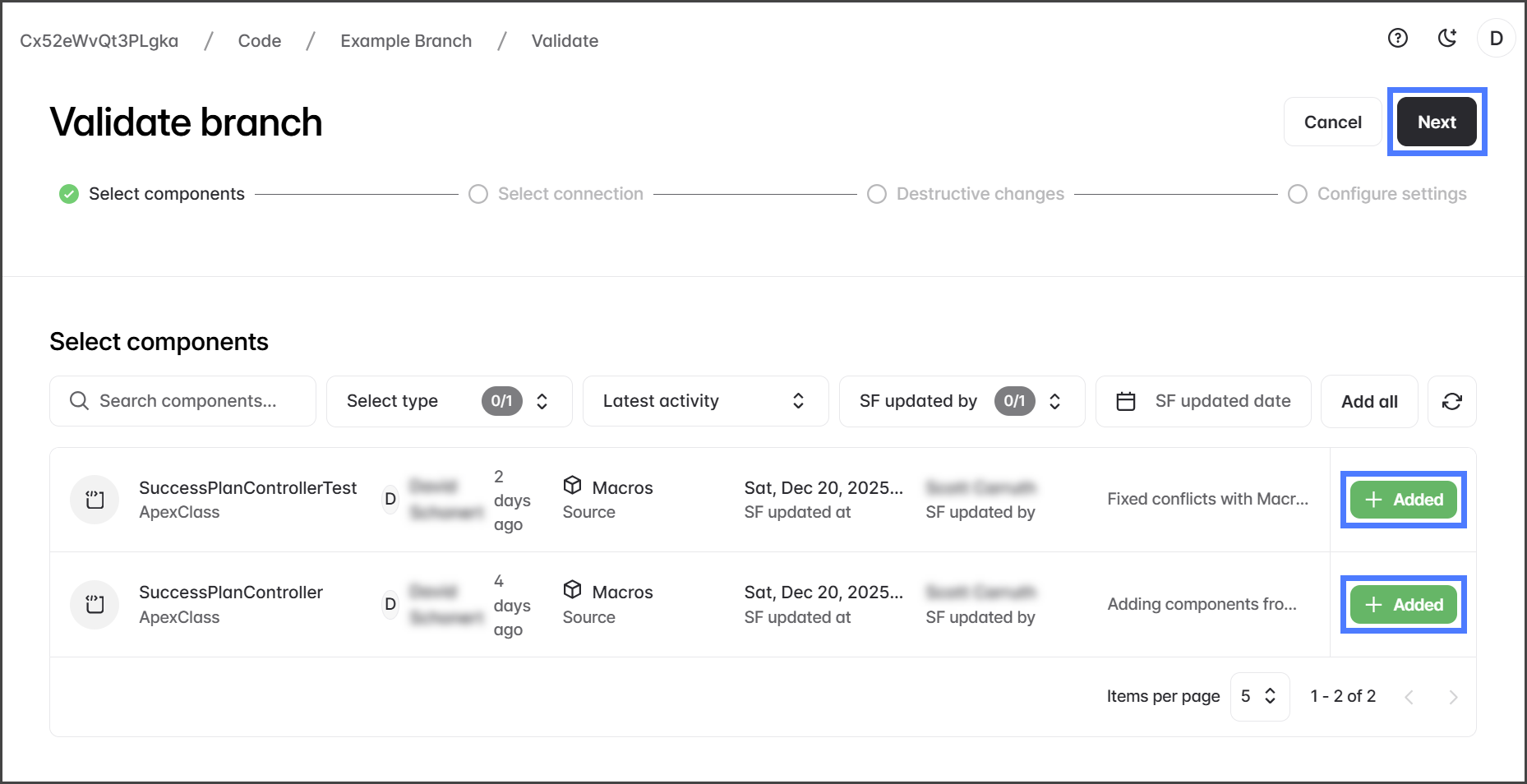
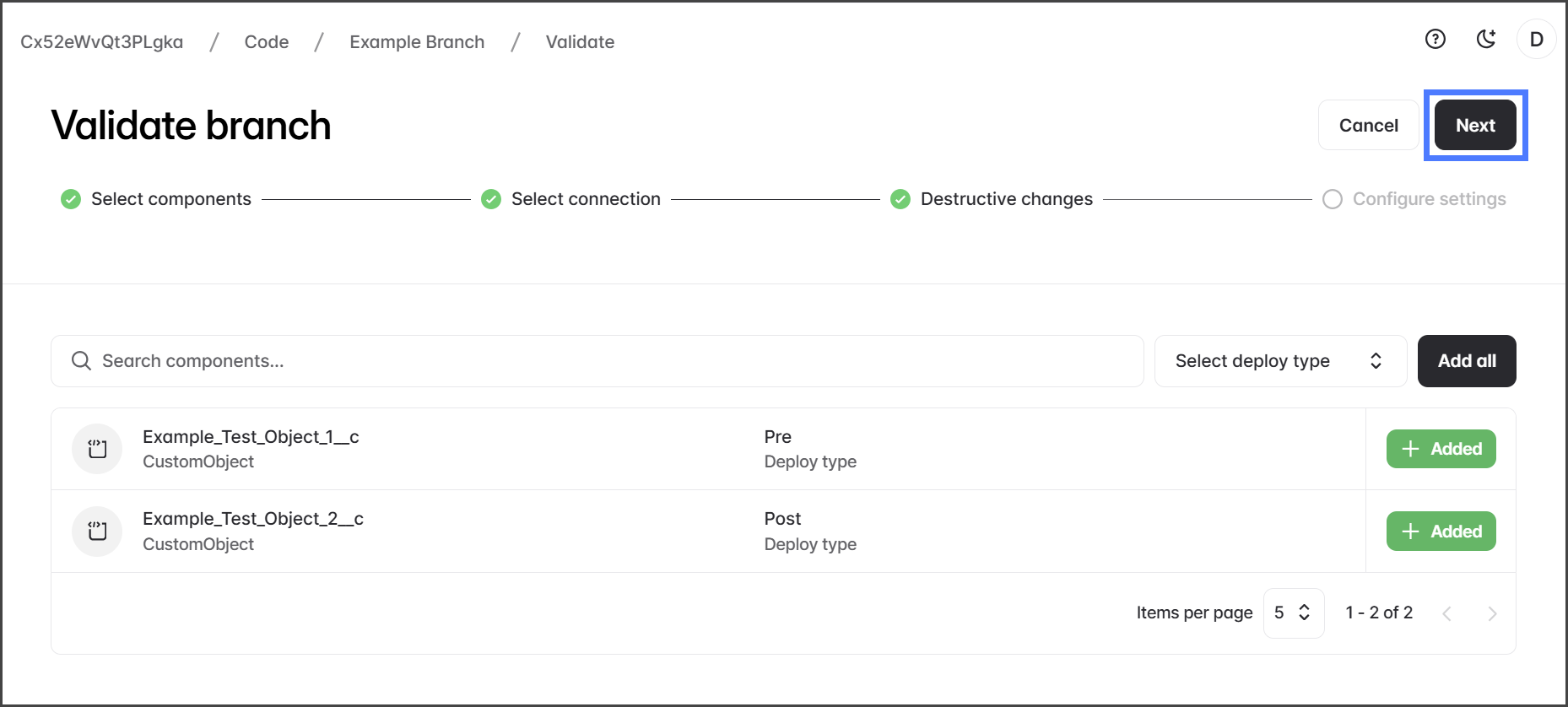
Click Add for each branch component to include in the validation.
(Optional) Click Add all to add all components to the validation.
Click Next.
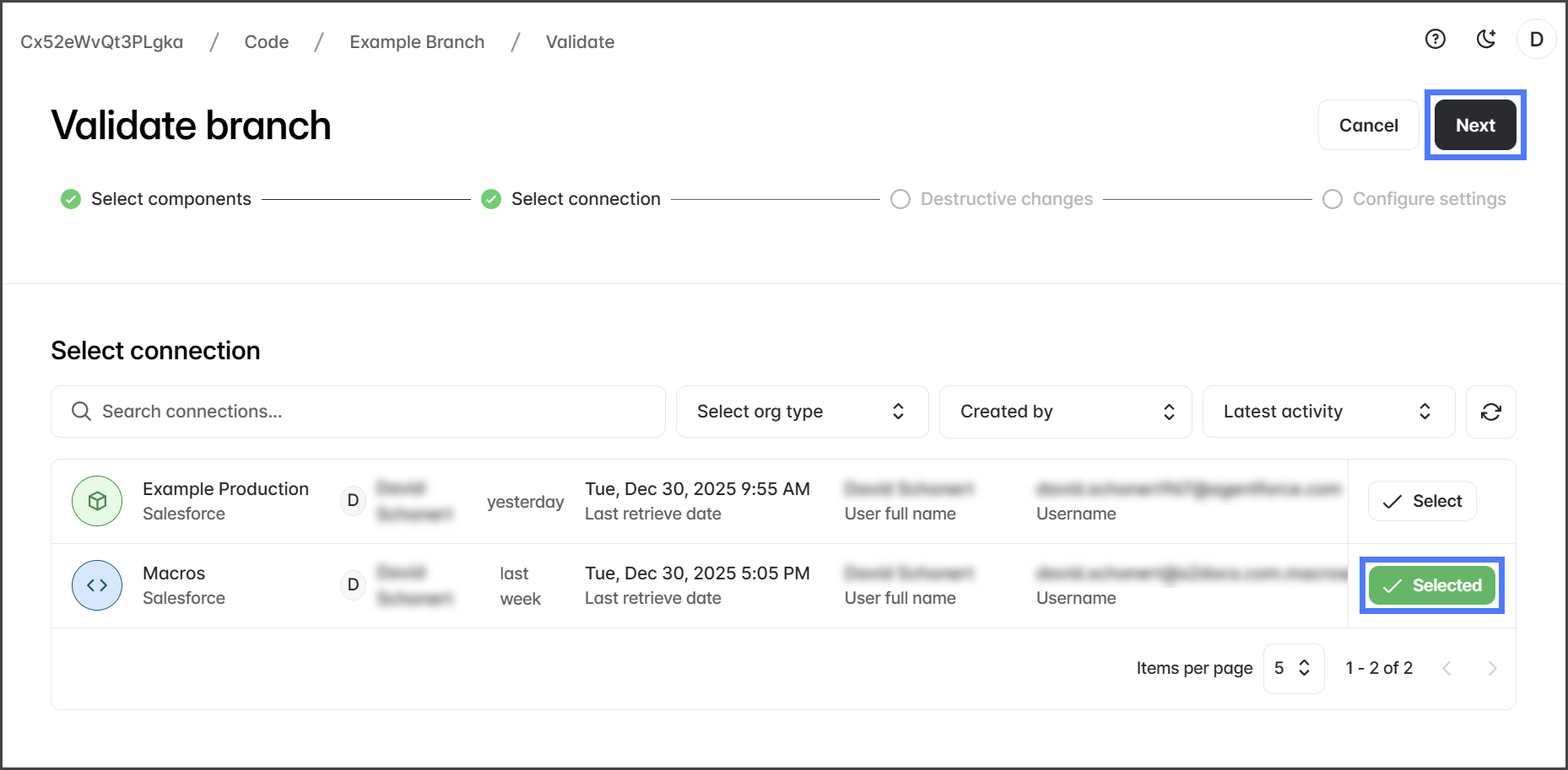
Click Select for the Salesforce org connection to use as the target org for the validation.
Click Next.
3
Select Destructive Changes
By default, all pre- and post-destructive changes are added.
(Optional) To remove a destructive change from the validation, click Added.
Click Next.
4
Configure and Run Validation
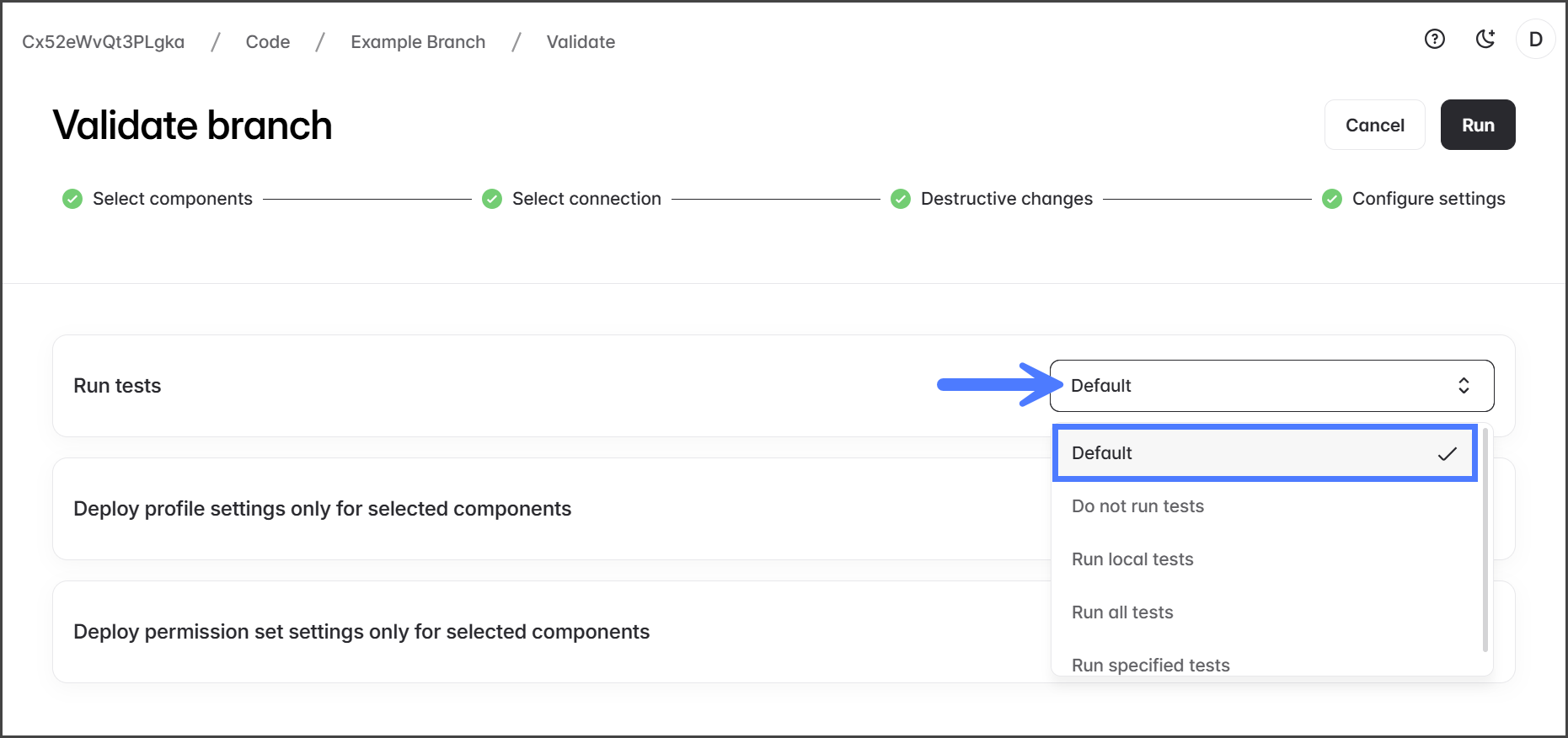
Click the Run tests dropdown menu to choose the level of Apex testing to perform. See the table below for a description of each.
Test Level
Description
Default
Runs only the tests included in the package.
Do not run tests
Skips all Apex tests (allowed only in non-production orgs).
Run local tests
Executes all tests in the org except those from installed managed packages.
Run all tests
Runs every test in the org, including managed package tests.
Run specified tests
Lets you define individual test classes or methods to run.
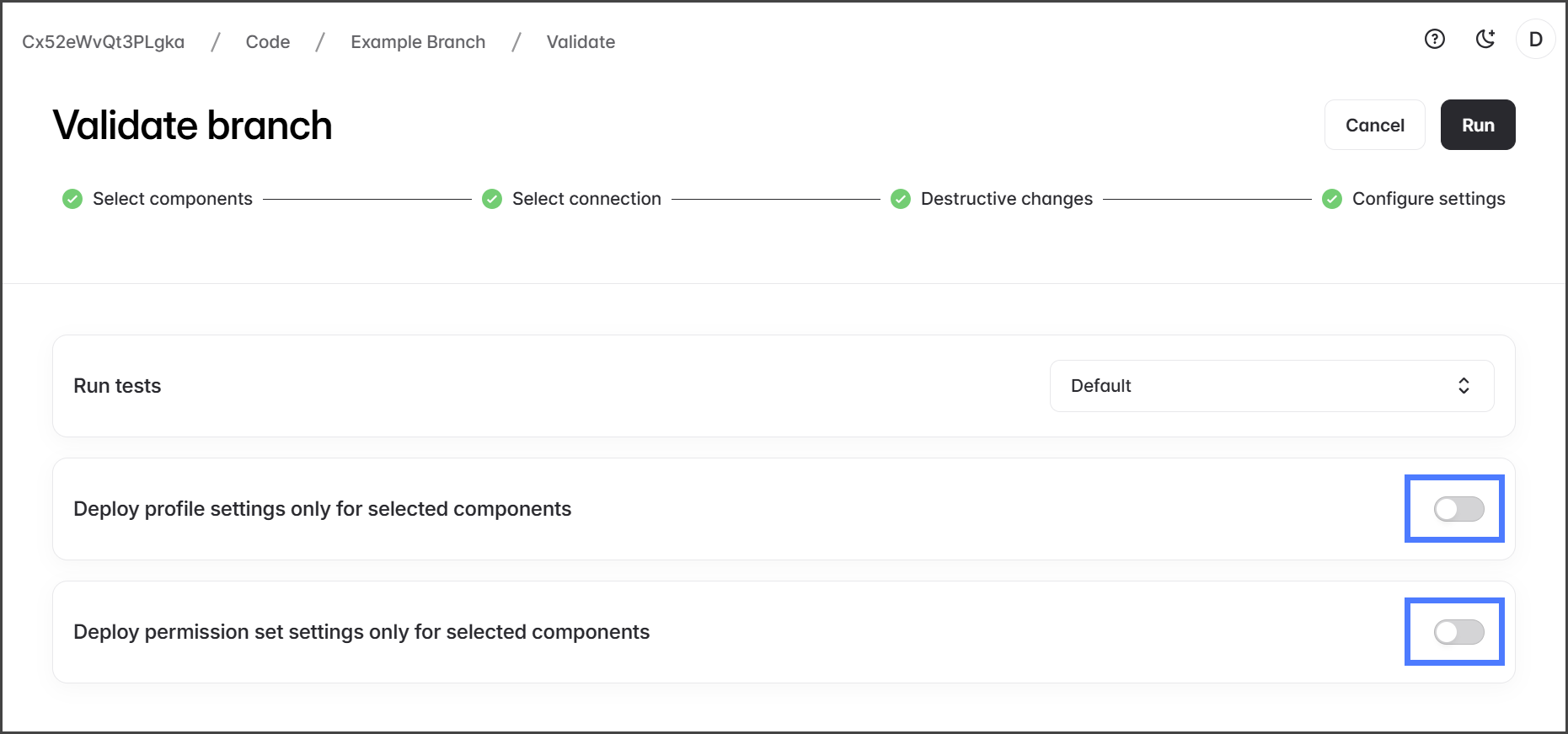
Click the deployment settings toggles to enable the settings. See the following table for an explanation of each setting.
Setting
Description
Deploy profile settings only for selected components
Only validate Profile Settings for the components you chose to include in this validation job.
Deploy permission set settings only for selected components
Only validate Permission Set Settings for the components you chose to include in this validation job.
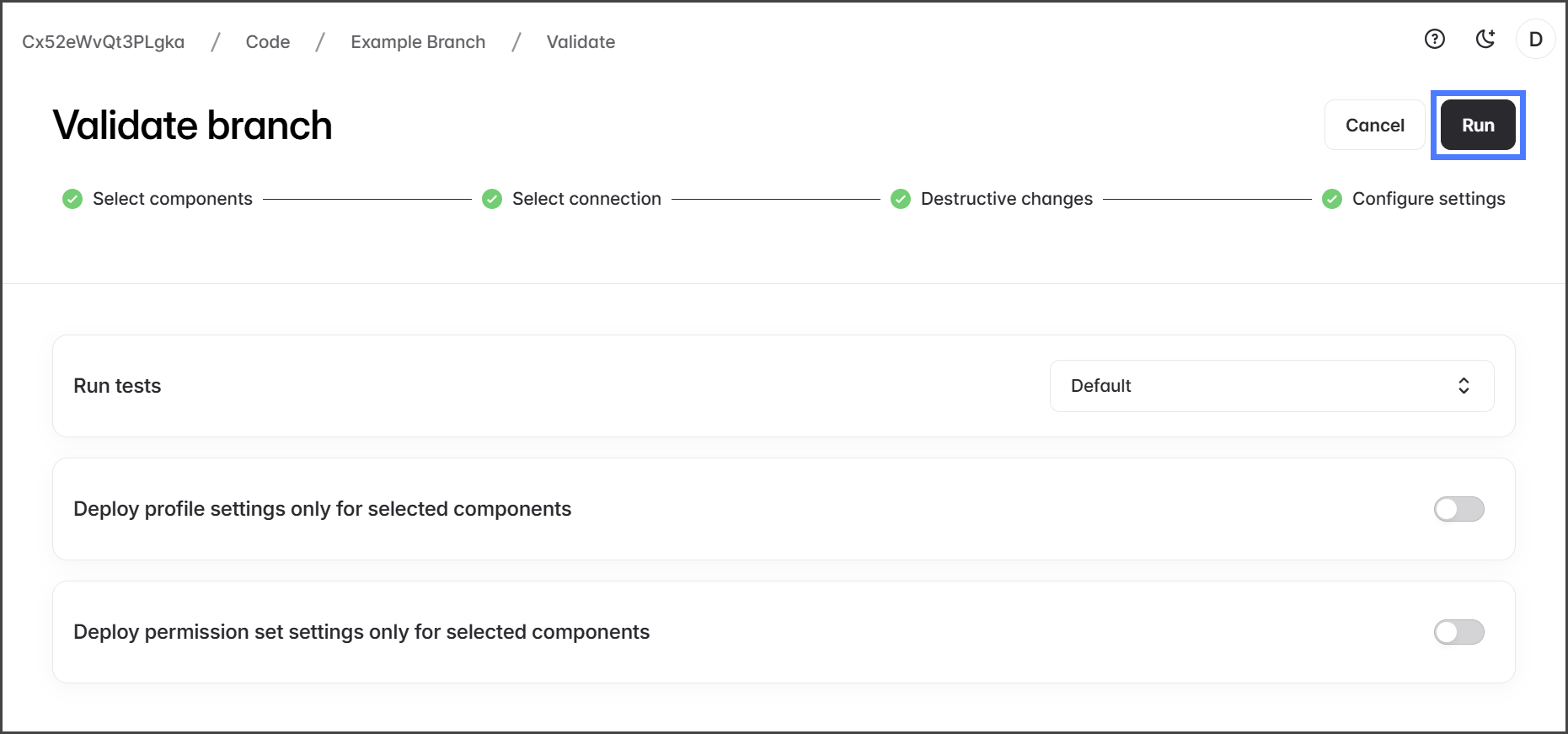
Click Run to start the Validation job.
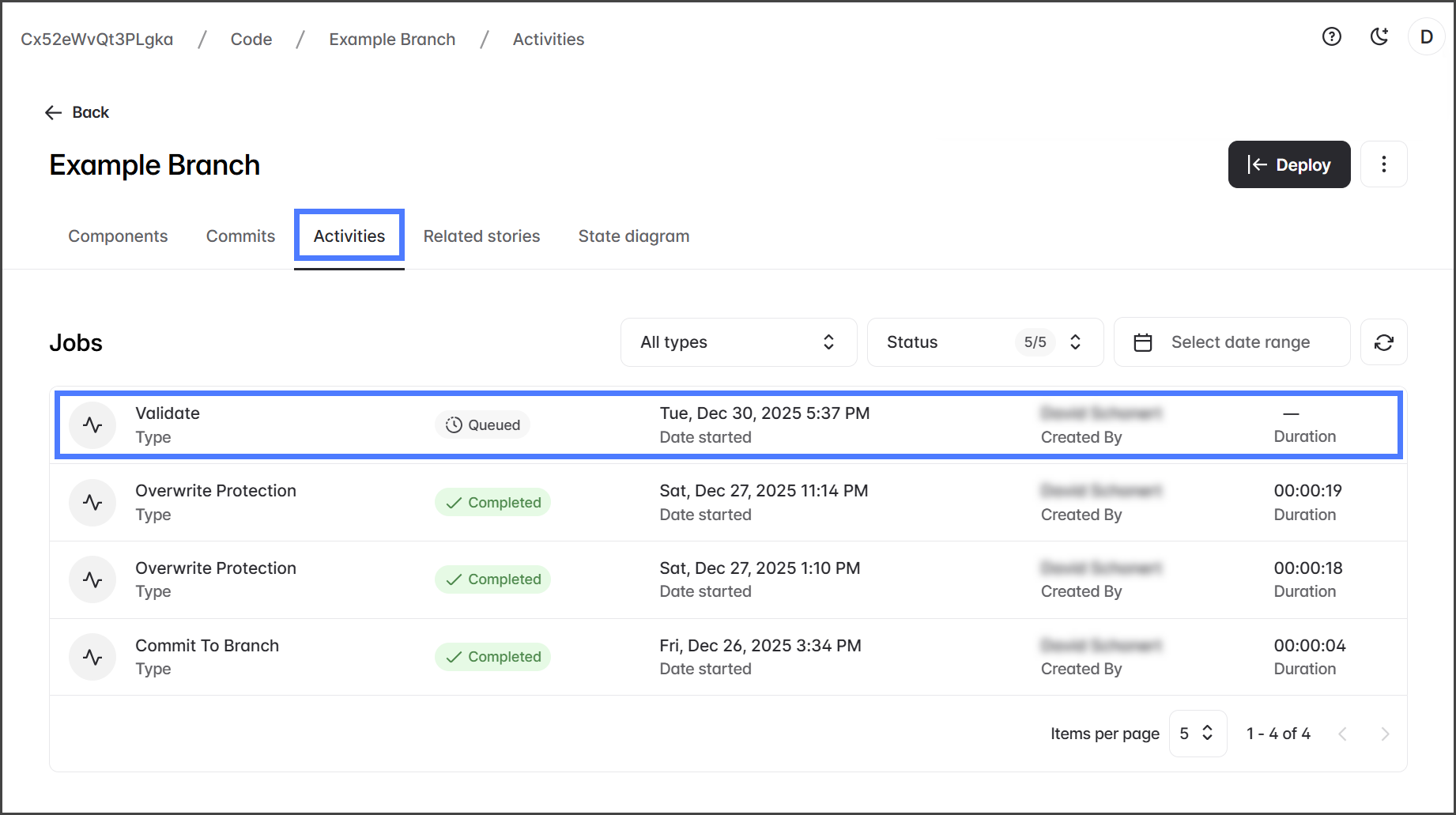
After starting the Validation job, it will be displayed on the Activities tab.
Validation Results
1
View Results
Click the Activities tab.
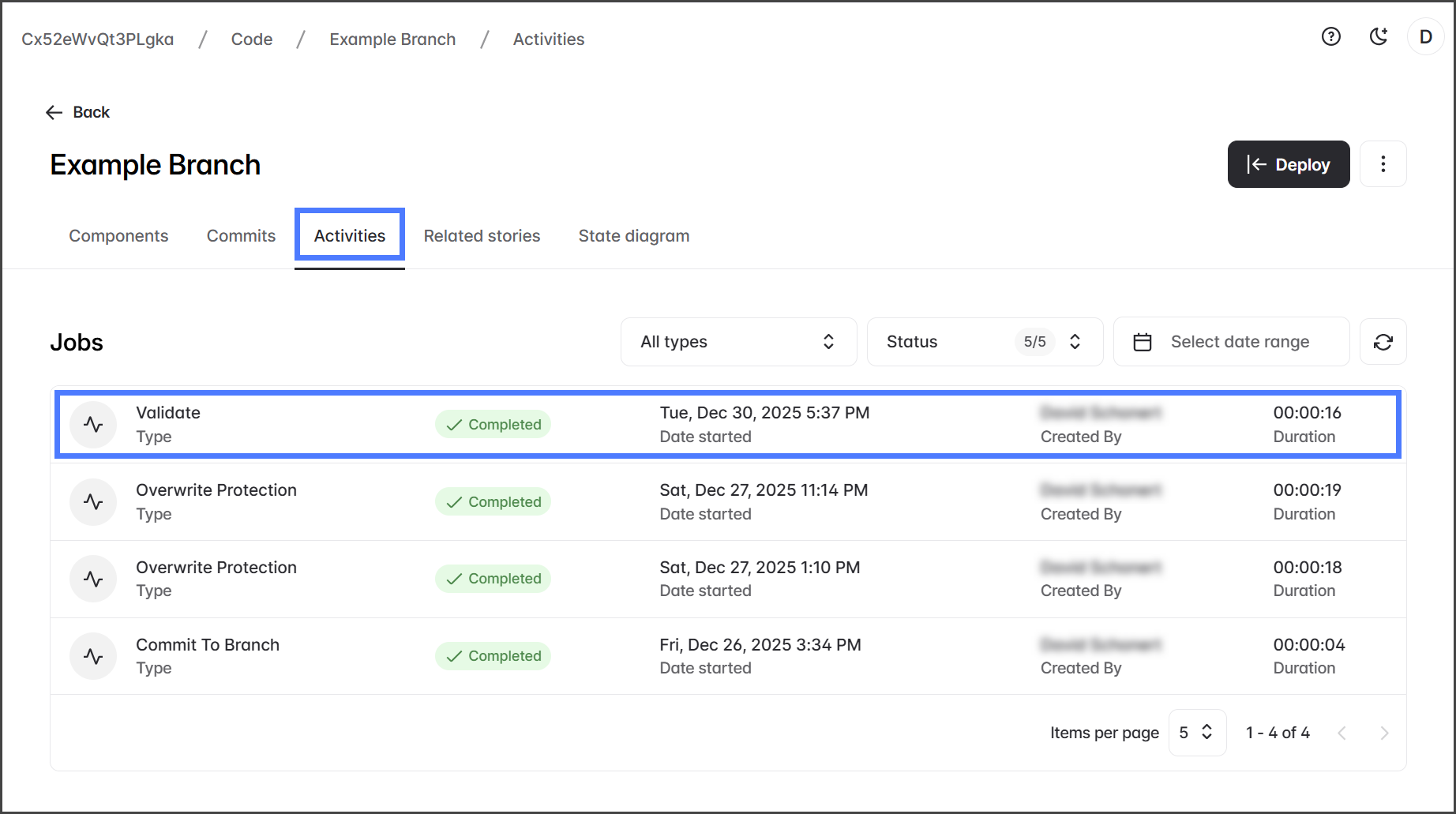
Check that the Validation job status is Completed.
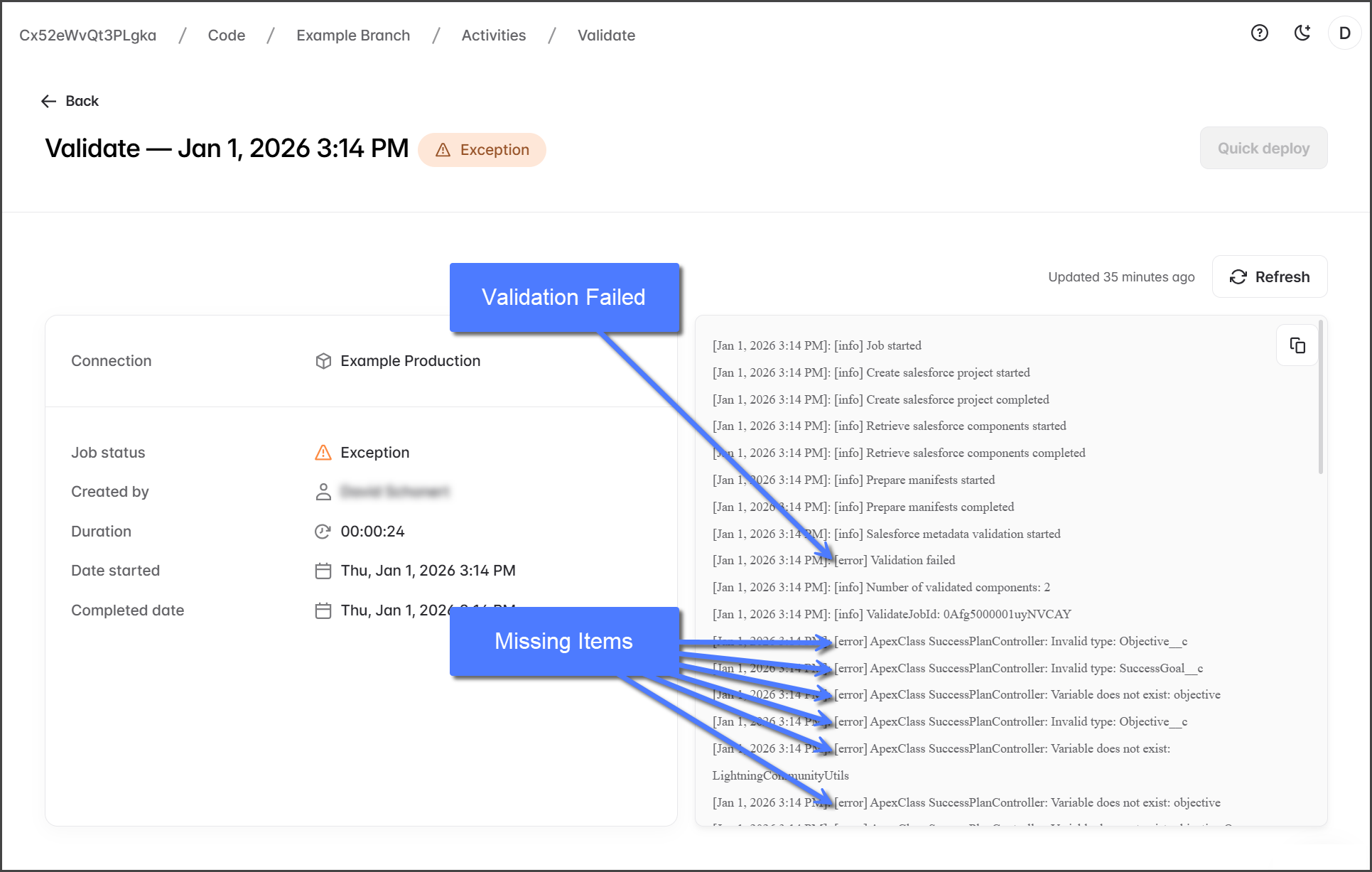
If an error occurs during the Validation job, its status will change to Exception. Review the Validation job log to identify the errors.
Job Status
Description
Queued
Job is created and waiting to run.
In Progress
Job is running.
Completed
Job completed successfully.
Exception
Job completed with errors.
Click the Validation job.
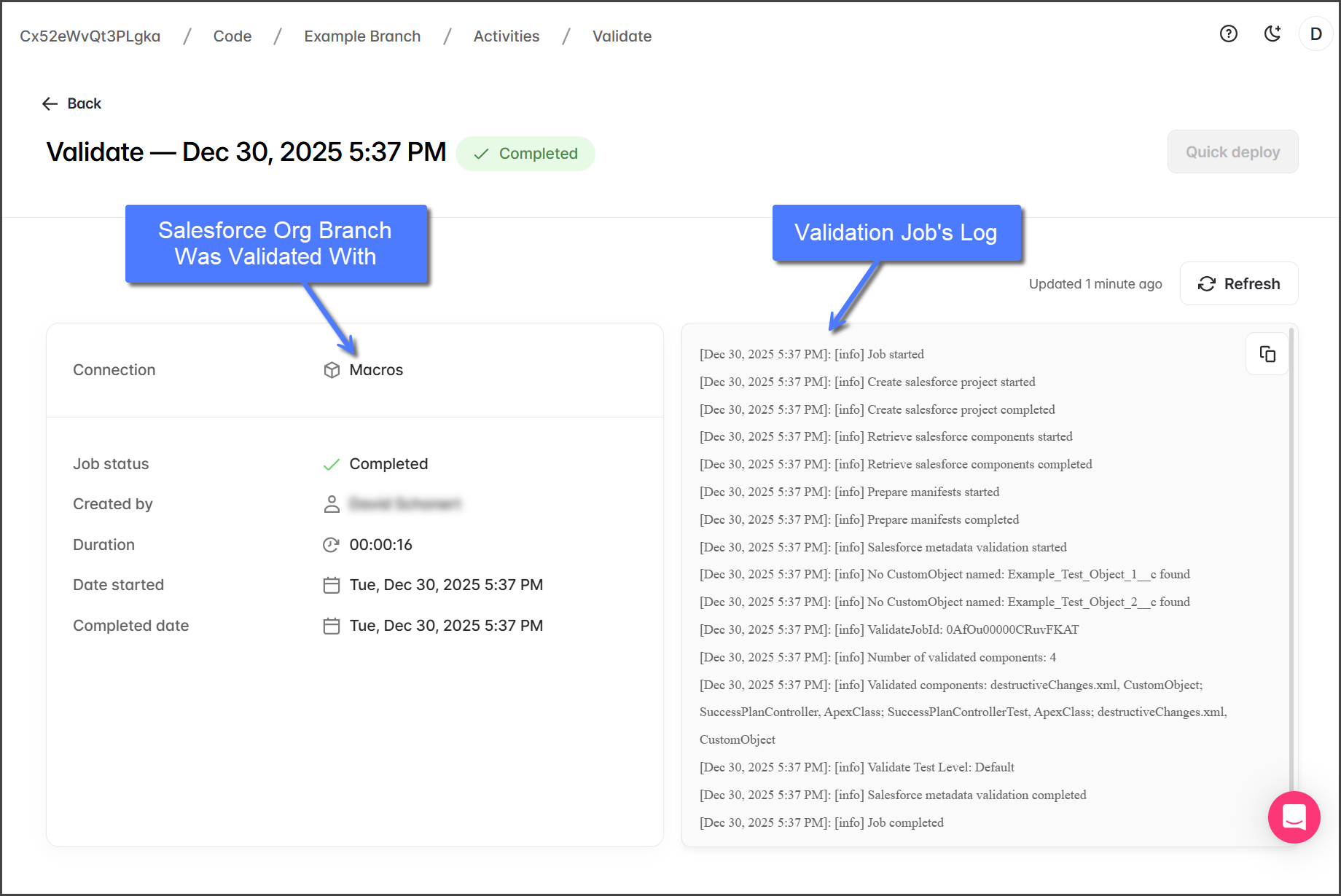
The Validate results page lists information about the job and a detailed log of the job.
2
Review Log (No Errors)
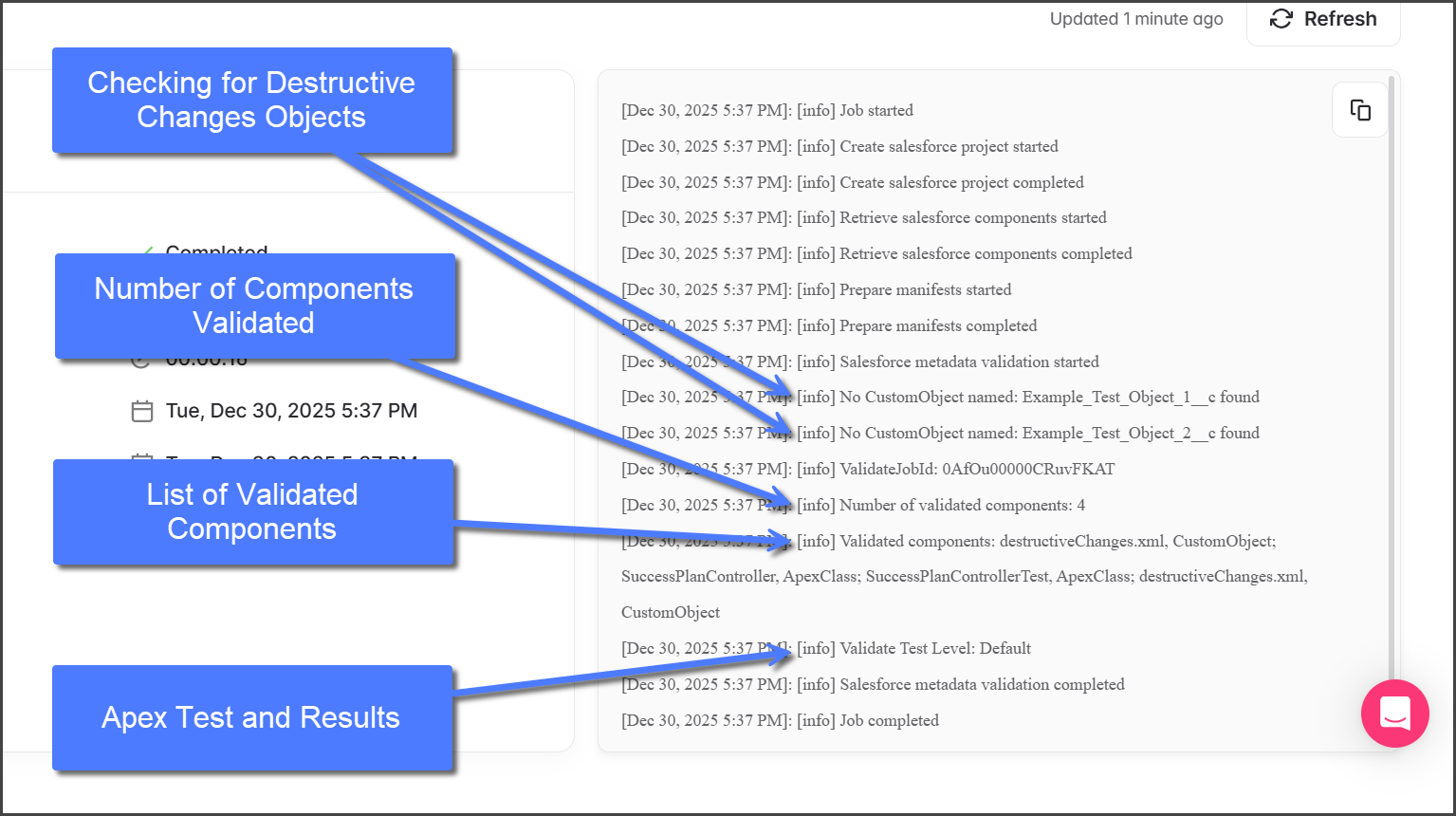
In the Validation job log, details include:
Presence of Destructive Changes objects.
Count and list of validated components.
Type and results of the Apex test run.
Validation steps completed.
3
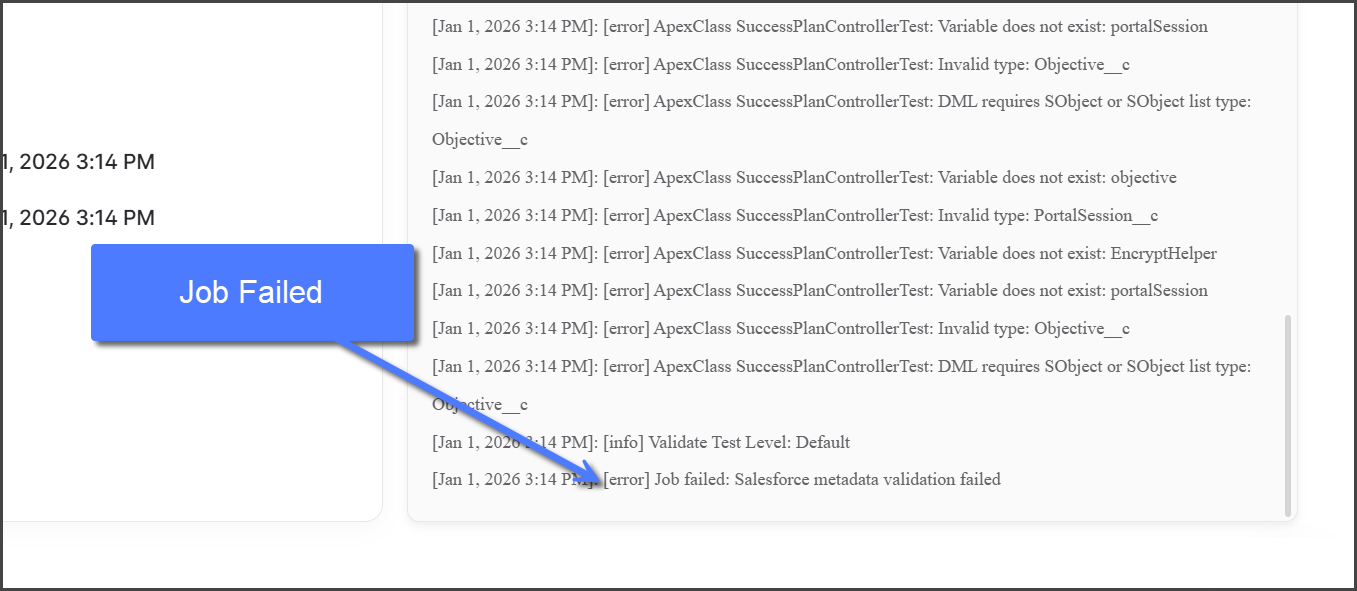
Review Log (With Errors)
When a Validation job error occurs, examine the log to find the cause. Focus on entries marked with [error]. The screenshots below show a Validation job run in which a Salesforce org lacks multiple components that are included in the branch.