> For the complete documentation index, see [llms.txt](https://docs.flosum.com/llms.txt). Markdown versions of documentation pages are available by appending `.md` to page URLs; this page is available as [Markdown](https://docs.flosum.com/global-settings/environment/organizations/how-to-install-the-flosum-connected-app-for-salesforce.md).
# How to Install the Flosum Connected App for Salesforce
Install the Flosum Connected App to prevent OAuth Errors.
{% hint style="success" %}
#### Required User Credentials
\[**Flosum User**] - **SystemAdministrator** Role
\[**Salesforce User**] - **Administrator** Credentials
{% endhint %}
##  Overview
Salesforce recently [announced](https://help.salesforce.com/s/articleView?id=005132365\&type=1\&utm_source=techcomms\&utm_medium=email\&utm_campaign=FY26_Core_4013001) new security policy changes that affect Connected Apps. To stay compliant and ensure seamless integration, all current Flosum customers should install the Flosum Connected App in their Salesforce orgs.
This installation is quick and ensures you won’t be caught off guard by Salesforce’s security changes. By completing this step, you’ll keep your Flosum Cloud Apps integrations running smoothly and avoid unexpected errors when connecting orgs to Flosum.
{% hint style="info" %}
### **Why Do You Need to Install the Connected App?**
Existing connections are unlikely to be affected immediately. However, any new connections, including those from new users, sandboxes, or Salesforce orgs, will require the Connected App to be installed.
Because the Connected App cannot be installed or deployed through the Metadata API, this process must be done manually. Skipping this step might lead to OAuth Errors like:
“***Connected app OAuth App blocked.***”
 {% endhint %}
## **Installing Flosum Connected App**
For any Salesforce org that you use with Flosum, a **System Administrator** must complete these steps:
{% stepper %}
{% step %}
### Check If Flosum Apps Are Installed
1. Log in to your Salesforce org.
2. Go to **Setup**.
3. In the Quick Find box, enter and then select **Connected Apps OAuth Usage**.
4. Find the **Flosum** Connected Application in the list.
5. If the **Uninstall** button is in the **Actions** column, the app is already installed, and no action is needed.
6. If the **Install** button is in the **Actions** column, the app hasn't been installed. You need to complete the rest of the steps in this article.
{% endstep %}
{% step %}
### Install the App
1. Click **Install**.
2. Click **Install**.
{% endstep %}
{% step %}
### Edit Connected App
1. Once installed, edit the connected app’s settings.
2. Set the **Permitted Users** policy to: “**Admin approved users are pre-authorized.**”
3. Click **Save** at the bottom of the form.
4. Modify the **Profile** or **Permission Set** to grant access to those with the appropriate level.
{% endstep %}
{% step %}
### Refresh Token
{% hint style="info" %}
For more detailed instructions on updating a token, see the following article.
* [Updating an Organization Token](/global-settings/environment/organizations/updating-an-organization-token.md)
{% endhint %}
1. Log in to **Flosum Global Settings**.
2. Click **Organizations** from the left sidebar menu.
3. Click the **Three Dot** menu for the Salesforce organization you are installing the connected app for.
4. Click **Update Token**.
5. Log in to Salesforce to complete the authentication.
{% endstep %}
{% step %}
### Confirm App Installed
1. After installing the app, confirm that it is listed in the following places in Salesforce:
1. **Manage Connected Apps**
2. **Connected Apps OAuth Usage**
{% endstep %}
{% endstepper %}
{% hint style="info" %}
To re-authenticate, click **Unblock**, then update the org's token in **Global Settings → Organizations.** **Note:** Once unblocked, the connected app will no longer be visible in the managed connected apps list.
{% endhint %}
***
## **Troubleshooting**
If you’re having issues logging into Flosum or connecting to an organization, double-check the policy settings:
1. Go to **Setup → Connected Apps OAuth Usage.**
2. Select **Manage App Policies** for the Flosum Connected App(s).
3. Check which **Permitted Users** setting you are using:
1. **All users may self-authorize**: Flosum works as before; any user can connect.
2. **Admin-approved users are pre-authorized**: Only users explicitly granted access can connect.
If the **Admin-approved users are pre-authorized** option is chosen, you’ll need to explicitly grant users access. See the section below for instructions on how to do this.
### **How to Grant Access to Users**
If a Connected App's **Permitted Users** option is set to **Admin approved users are pre-authorized**, users won’t automatically have access to the Connected App. To grant access, add the **Profiles** and **Permission Sets** that include the users who need access.
{% hint style="info" %}
Adding Profiles and Permission Sets to a Connected App provides access to all users associated with them. If you need more control over access, create a custom Permission Set for users who need access to the app.
{% endhint %}
{% stepper %}
{% step %}
#### **Add Profiles**
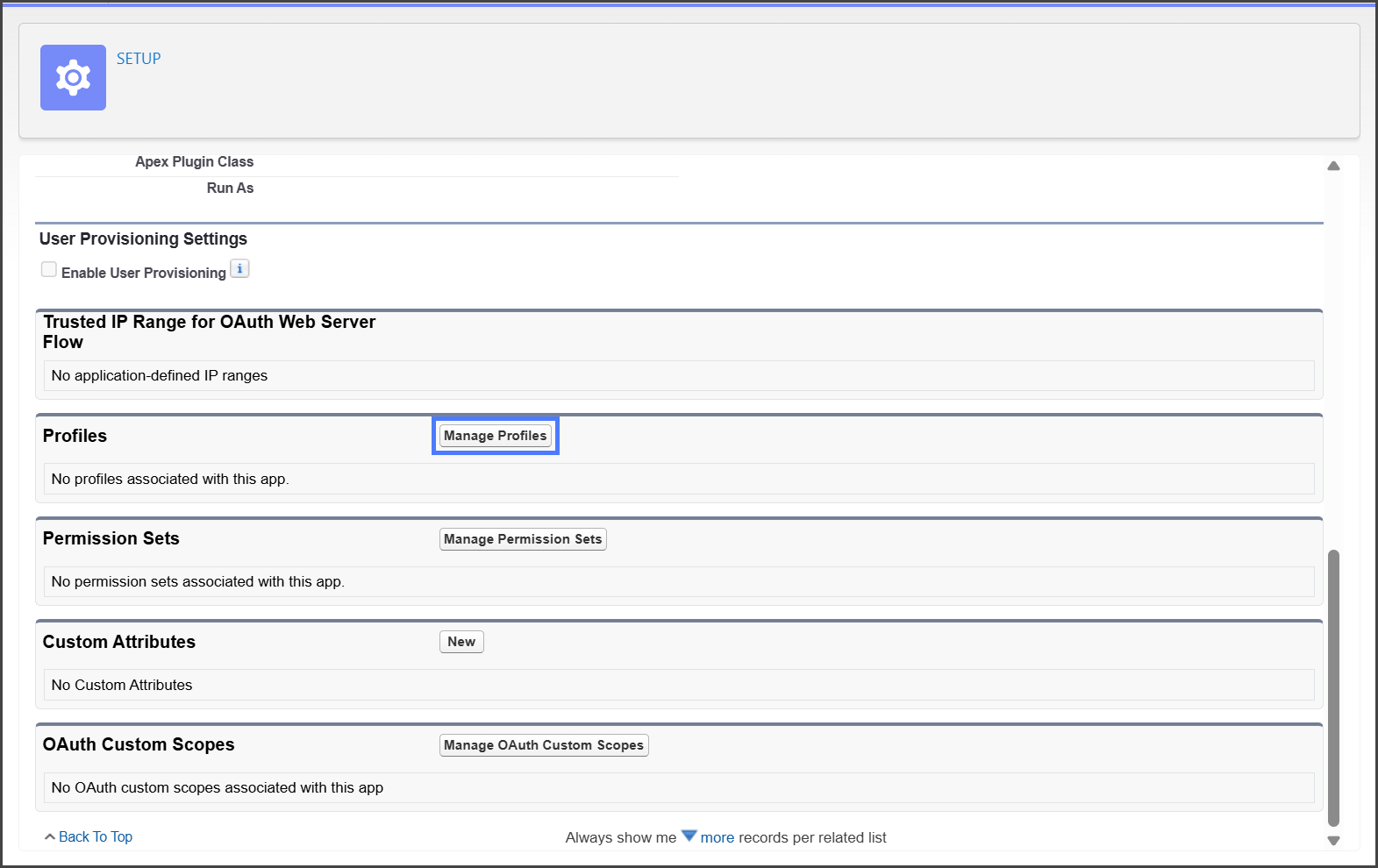
1. Access the Connected App.
2. Find the **Profiles** section.
3. Click **Manage Profiles**.
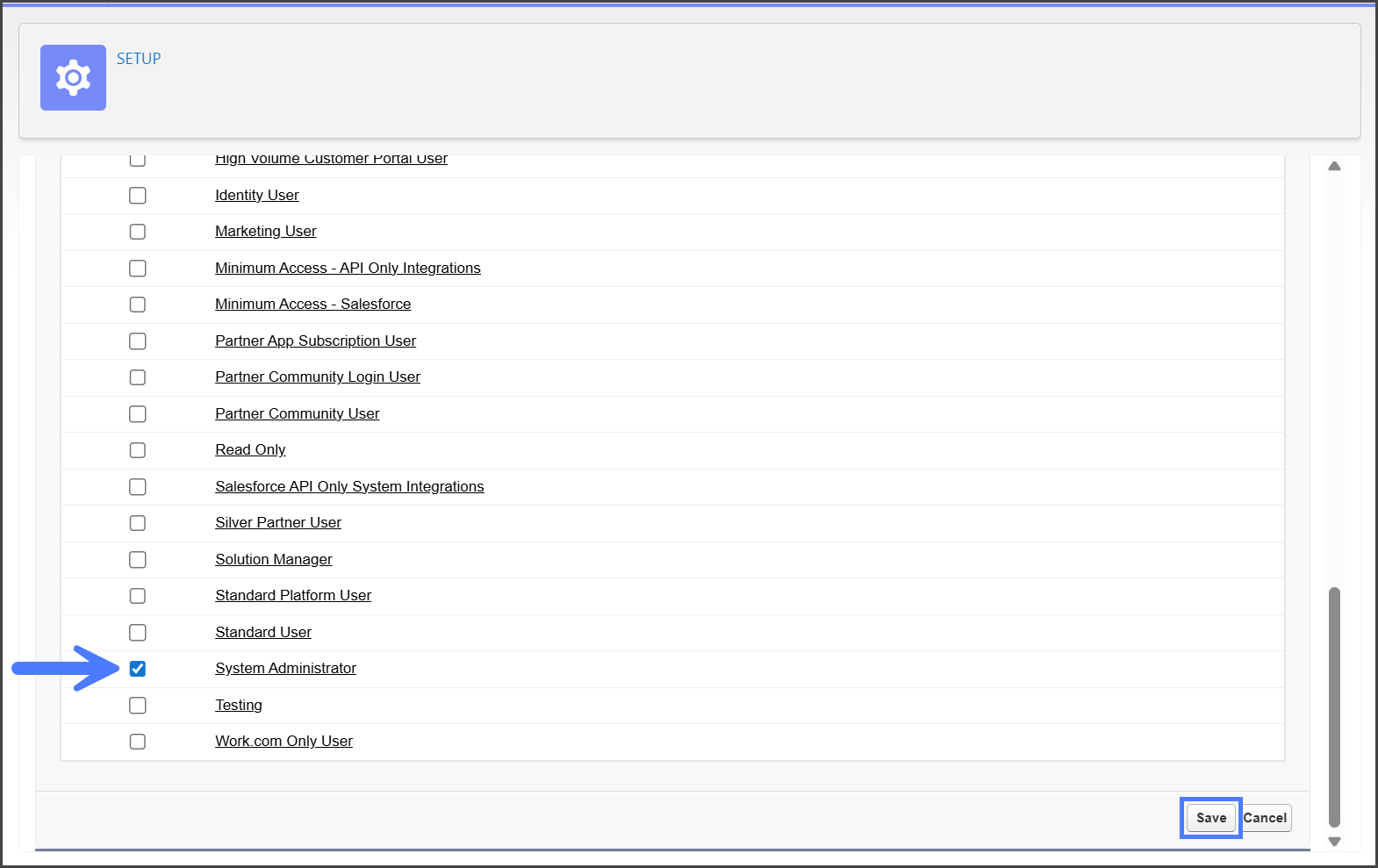
4. Check all the profiles to grant access to.
5. Click **Save**.
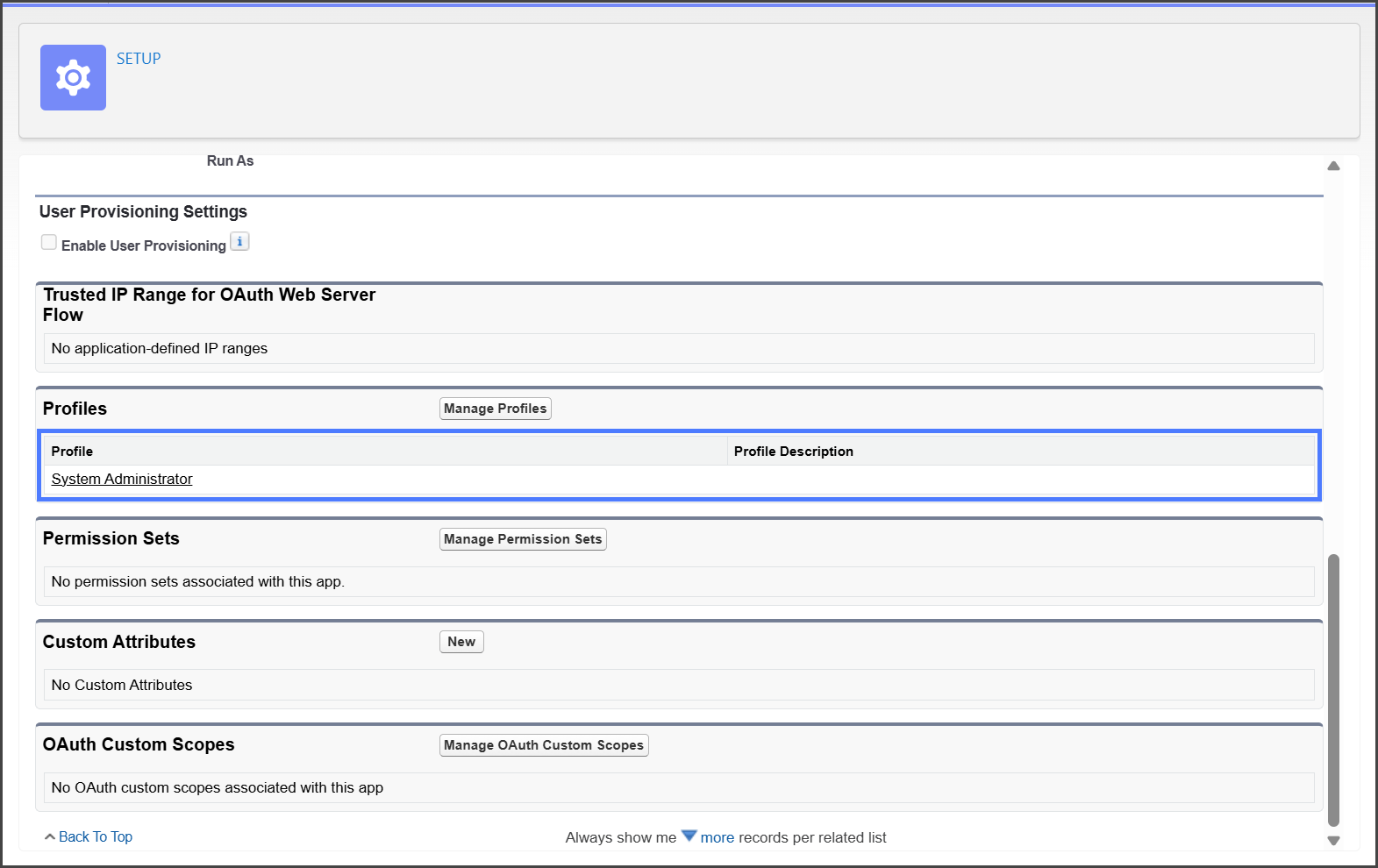
6. All added profiles will be listed.
{% endstep %}
{% step %}
### Add Permission Sets
{% hint style="info" %}
#### Alternate Method
A Connected App can be assigned to a Permission Set when the Permission Set is created or edited.
{% endhint %}
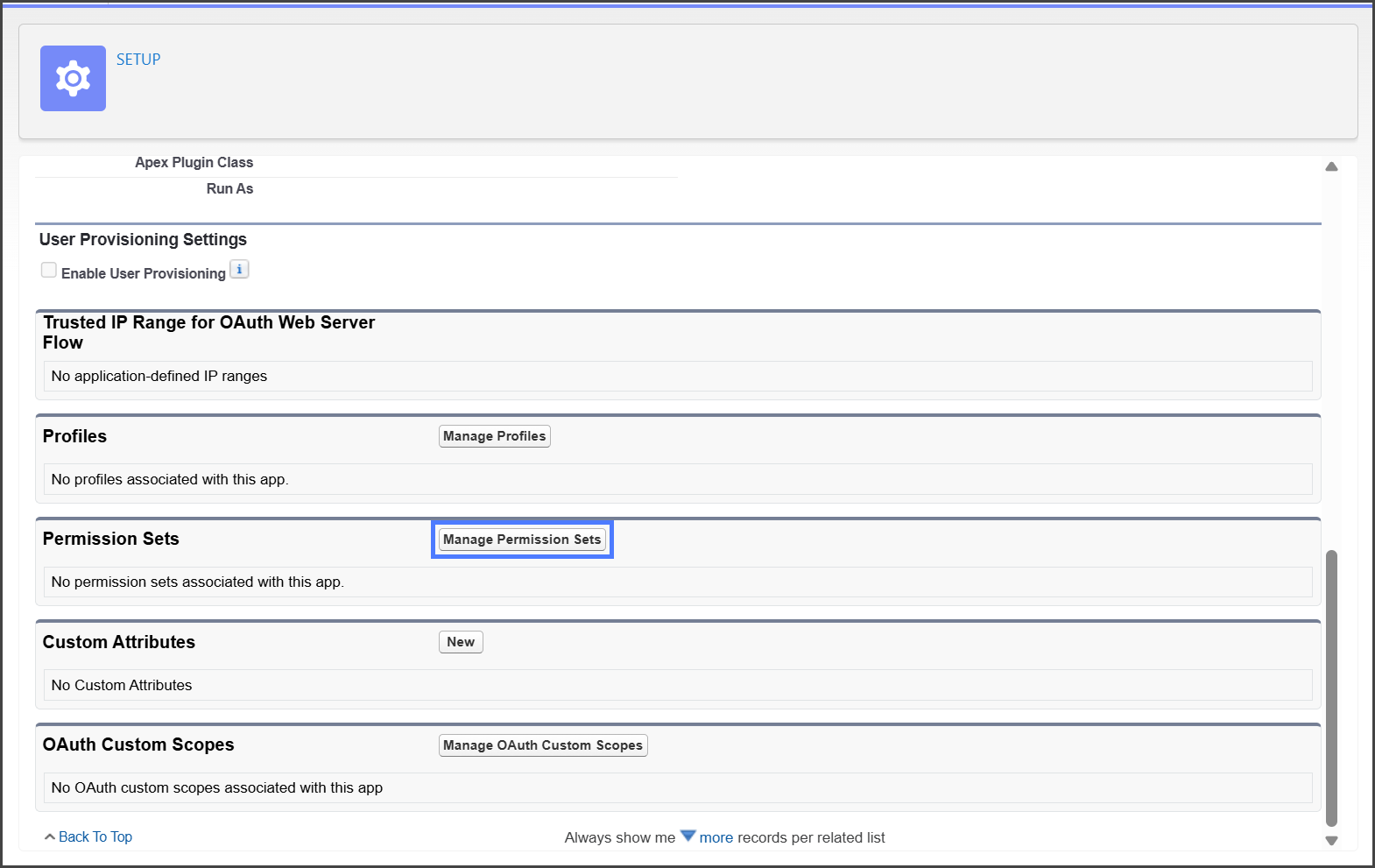
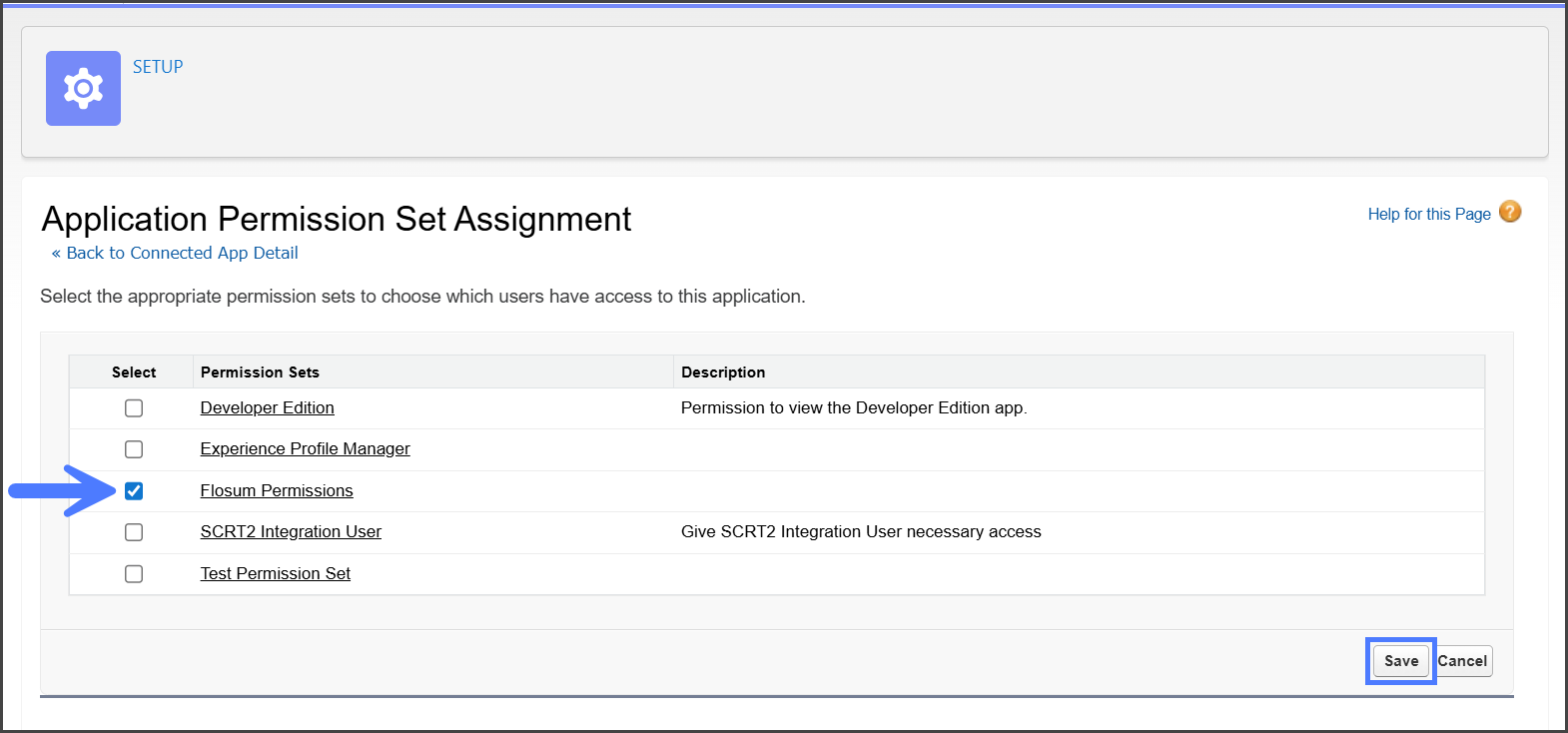
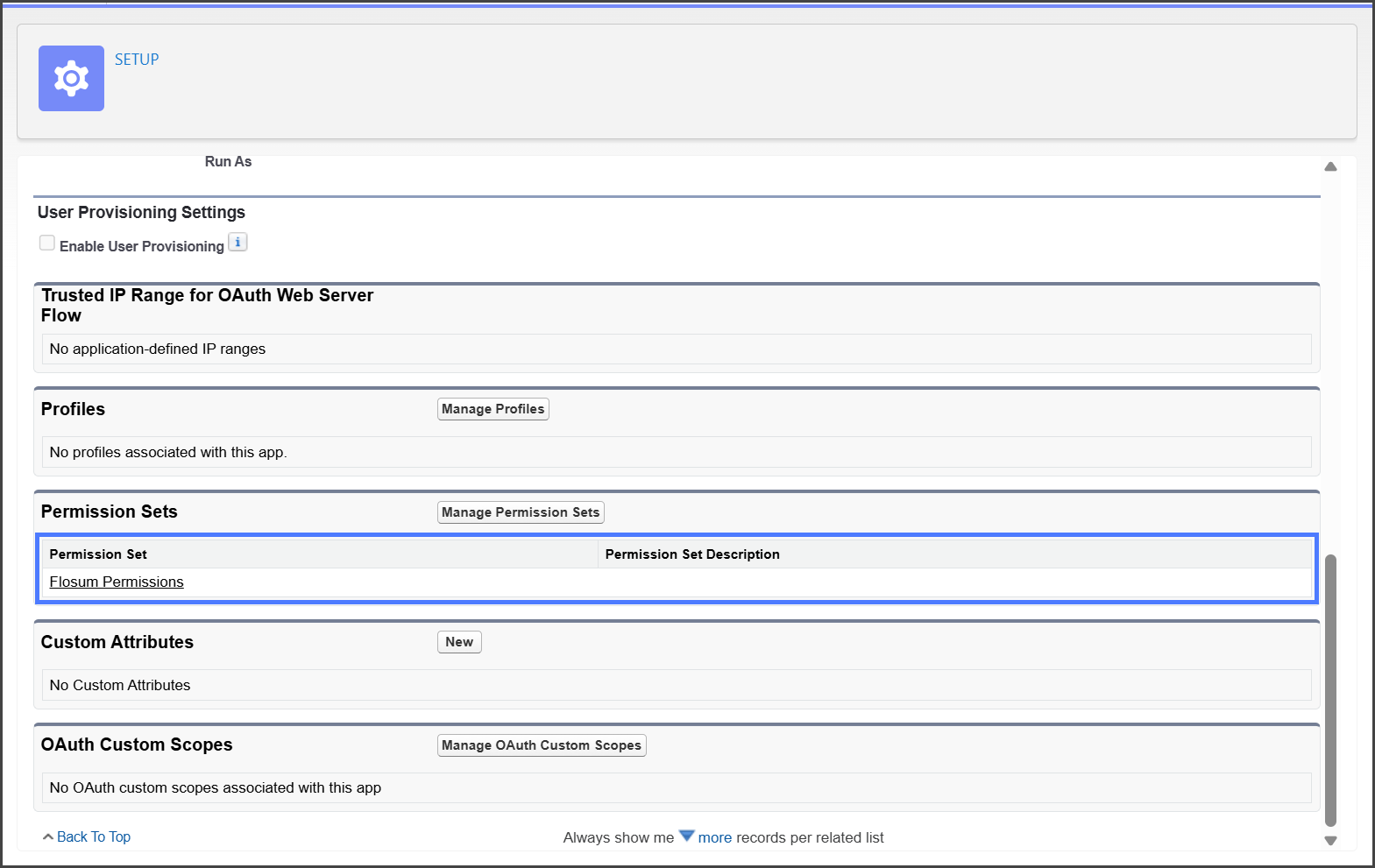
1. Access the Connected App.
2. Find the **Permission Sets** section.
3. Click **Manage Permission Sets**.
4. Check all the permission sets to grant access to.
5. Click **Save**.
6. All added permission sets will be listed.
{% endstep %}
{% endstepper %}
---
# Agent Instructions
This documentation is published with GitBook. GitBook is the documentation platform designed so that both humans and AI agents can read, navigate, and reason over technical content effectively. Learn more at gitbook.com.
## Querying This Documentation
If you need additional information that is not directly available in this page, you can query the documentation by asking a question.
Perform an HTTP GET request on the following URL with the `ask` and `goal` query parameters:
```
GET https://docs.flosum.com/global-settings/environment/organizations/how-to-install-the-flosum-connected-app-for-salesforce.md?ask=&goal=
```
`ask` is the immediate question: it should be specific, self-contained, and written in natural language.
`goal` is what the user is ultimately trying to achieve, the reason they need the answer. Sharing it helps GitBook give you a better, more relevant answer. A goal is most helpful when it describes the outcome the user wants rather than restating the question. For example, with `ask=how do I create an API token`, a goal like `automate deployments from our CI pipeline` lets GitBook tailor the answer to that use case.
The response will contain a direct answer to the question and relevant excerpts and sources from the documentation.
Use this mechanism when the answer is not explicitly present in the current page, you need clarification or additional context, or you want to retrieve related documentation sections.
{% endhint %}
## **Installing Flosum Connected App**
For any Salesforce org that you use with Flosum, a **System Administrator** must complete these steps:
{% stepper %}
{% step %}
### Check If Flosum Apps Are Installed
1. Log in to your Salesforce org.
2. Go to **Setup**.
3. In the Quick Find box, enter and then select **Connected Apps OAuth Usage**.
4. Find the **Flosum** Connected Application in the list.
5. If the **Uninstall** button is in the **Actions** column, the app is already installed, and no action is needed.
6. If the **Install** button is in the **Actions** column, the app hasn't been installed. You need to complete the rest of the steps in this article.
{% endstep %}
{% step %}
### Install the App
1. Click **Install**.
2. Click **Install**.
{% endstep %}
{% step %}
### Edit Connected App
1. Once installed, edit the connected app’s settings.
2. Set the **Permitted Users** policy to: “**Admin approved users are pre-authorized.**”
3. Click **Save** at the bottom of the form.
4. Modify the **Profile** or **Permission Set** to grant access to those with the appropriate level.
{% endstep %}
{% step %}
### Refresh Token
{% hint style="info" %}
For more detailed instructions on updating a token, see the following article.
* [Updating an Organization Token](/global-settings/environment/organizations/updating-an-organization-token.md)
{% endhint %}
1. Log in to **Flosum Global Settings**.
2. Click **Organizations** from the left sidebar menu.
3. Click the **Three Dot** menu for the Salesforce organization you are installing the connected app for.
4. Click **Update Token**.
5. Log in to Salesforce to complete the authentication.
{% endstep %}
{% step %}
### Confirm App Installed
1. After installing the app, confirm that it is listed in the following places in Salesforce:
1. **Manage Connected Apps**
2. **Connected Apps OAuth Usage**
{% endstep %}
{% endstepper %}
{% hint style="info" %}
To re-authenticate, click **Unblock**, then update the org's token in **Global Settings → Organizations.** **Note:** Once unblocked, the connected app will no longer be visible in the managed connected apps list.
{% endhint %}
***
## **Troubleshooting**
If you’re having issues logging into Flosum or connecting to an organization, double-check the policy settings:
1. Go to **Setup → Connected Apps OAuth Usage.**
2. Select **Manage App Policies** for the Flosum Connected App(s).
3. Check which **Permitted Users** setting you are using:
1. **All users may self-authorize**: Flosum works as before; any user can connect.
2. **Admin-approved users are pre-authorized**: Only users explicitly granted access can connect.
If the **Admin-approved users are pre-authorized** option is chosen, you’ll need to explicitly grant users access. See the section below for instructions on how to do this.
### **How to Grant Access to Users**
If a Connected App's **Permitted Users** option is set to **Admin approved users are pre-authorized**, users won’t automatically have access to the Connected App. To grant access, add the **Profiles** and **Permission Sets** that include the users who need access.
{% hint style="info" %}
Adding Profiles and Permission Sets to a Connected App provides access to all users associated with them. If you need more control over access, create a custom Permission Set for users who need access to the app.
{% endhint %}
{% stepper %}
{% step %}
#### **Add Profiles**
1. Access the Connected App.
2. Find the **Profiles** section.
3. Click **Manage Profiles**.
4. Check all the profiles to grant access to.
5. Click **Save**.
6. All added profiles will be listed.
{% endstep %}
{% step %}
### Add Permission Sets
{% hint style="info" %}
#### Alternate Method
A Connected App can be assigned to a Permission Set when the Permission Set is created or edited.
{% endhint %}
1. Access the Connected App.
2. Find the **Permission Sets** section.
3. Click **Manage Permission Sets**.
4. Check all the permission sets to grant access to.
5. Click **Save**.
6. All added permission sets will be listed.
{% endstep %}
{% endstepper %}
---
# Agent Instructions
This documentation is published with GitBook. GitBook is the documentation platform designed so that both humans and AI agents can read, navigate, and reason over technical content effectively. Learn more at gitbook.com.
## Querying This Documentation
If you need additional information that is not directly available in this page, you can query the documentation by asking a question.
Perform an HTTP GET request on the following URL with the `ask` and `goal` query parameters:
```
GET https://docs.flosum.com/global-settings/environment/organizations/how-to-install-the-flosum-connected-app-for-salesforce.md?ask=&goal=
```
`ask` is the immediate question: it should be specific, self-contained, and written in natural language.
`goal` is what the user is ultimately trying to achieve, the reason they need the answer. Sharing it helps GitBook give you a better, more relevant answer. A goal is most helpful when it describes the outcome the user wants rather than restating the question. For example, with `ask=how do I create an API token`, a goal like `automate deployments from our CI pipeline` lets GitBook tailor the answer to that use case.
The response will contain a direct answer to the question and relevant excerpts and sources from the documentation.
Use this mechanism when the answer is not explicitly present in the current page, you need clarification or additional context, or you want to retrieve related documentation sections.