Google IDP - OIDC - Configuration

circle-check

Required User Credentials

circle-check

Important Note

Overview

This guide explains how to integrate Google IDP using OpenID Connect (OIDC) with Flosum Cloud Apps to enable Single Sign-On (SSO) for seamless login.

circle-info

For more general instructions about adding an Identity Provider, see the following article.

circle-exclamation

Customer-Hosted

Outline Of Steps Involved

  • Create a Client with Google IDP

  • Set up the Redirect URL

  • Obtain the Client ID and Client Secret

  • Create an Identity Provider with Flosum Global Settings

  • Test the SSO

Configuring Google IDP for Flosum Cloud Apps

This section shows you how to configure a Google IDP to work with Flosum Cloud Apps for SSO.

1

Create an OAuth Client ID in Google Cloud Console

  1. Access the Google Cloud Console.

  2. Navigate to the API & Services section.

  3. Select Credentials.

  4. Click Create Credentials.

  5. From the dropdown menu, choose OAuth Client ID.

2

Specify Application Type and Name

  1. Under the Application type section, select the appropriate option (e.g., Web application).

  2. Enter a name for your application in the Name field.

3

Configure Authorized Redirect URIs and Retrieve Credentials

  1. In the Authorized redirect URIs section, add the URL of your region for each Flosum Cloud App you want to use with SSO. See the table below for the URLs for your region.

Flosum Cloud App
Callback URL

Global Settings

https://global-us.flosum.app/api/v1/oauth/callback

Backup & Archive

https://backup-us.flosum.app/api/v1/oauth/callback

DevOps

https://devops-us.flosum.app/api/v1/oauth/callback

  1. Click Create. Note: After creating, the client's credentials will be displayed in a dialog box. Keep this open for the next step.

4

Retrieve Google IDP Client Details

circle-info

You will need Your Client ID and Your Client Secret values when creating the Identity Provider in Flosum Global Settings.

  1. Copy the Your Client ID value.

  2. Copy the Your Client Secret value.

circle-info

The Issuer URL for most configurations is: https://accounts.google.com . However, it is recommended to confirm the URL and copy it if it is different.

Create Identity Provider In Global Settings

1

Create Identity Provider

Follow the general instructions in the article below to get started creating an OIDC Identity Provider.

  1. Complete the Basic information section.

    1. Select OPEN_ID for the identity provider Type.

  2. Complete the Button information section.

  3. (Optional) Complete the Group information section.

Complete OpenId Information Fields

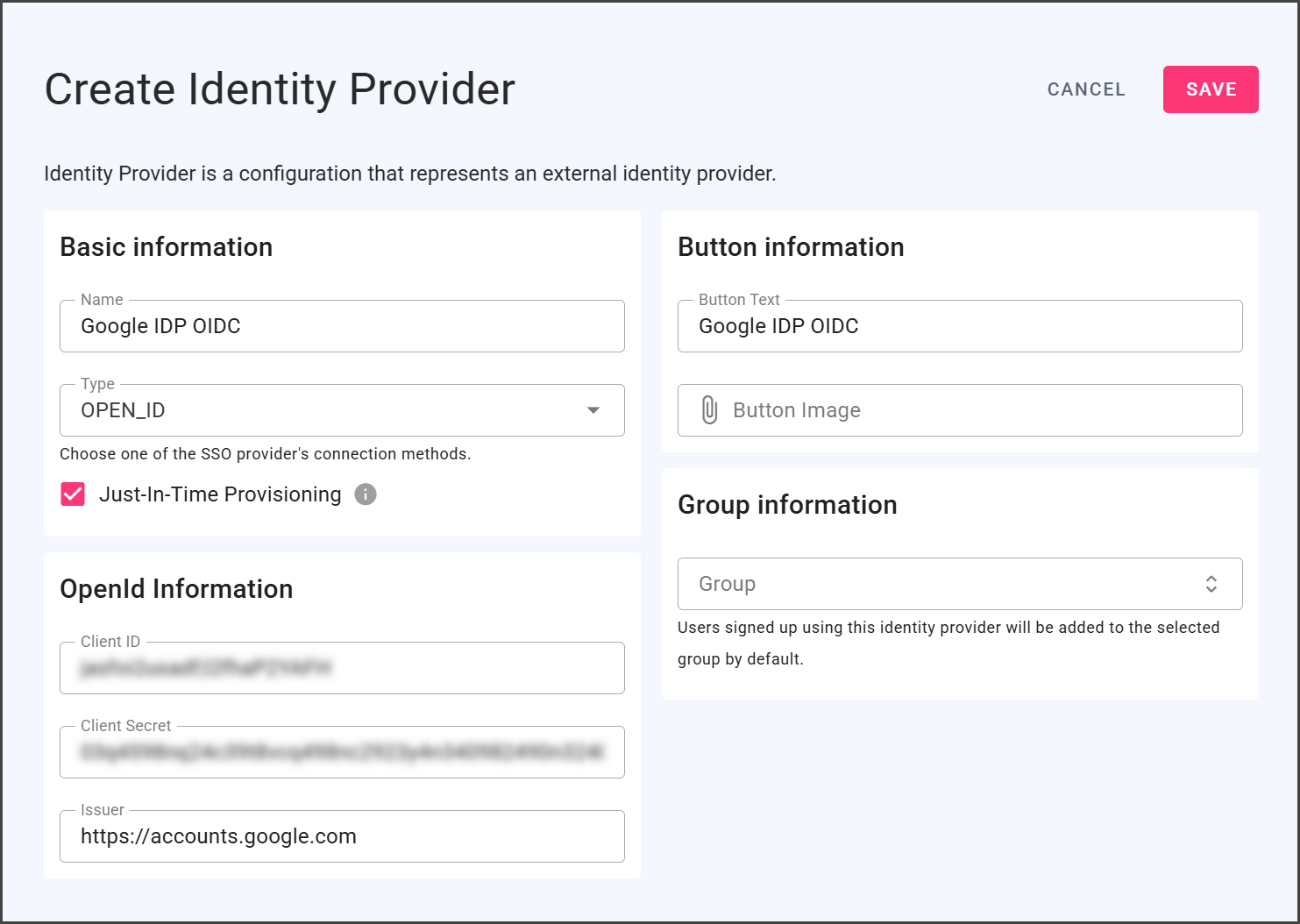
Copy the information from your Google IDP application into the OpenId Information section. The table explains which Google IDP fields to enter into which Flosum Fields. The final screenshot shows a completed identity provider for a Google IDP ODIC application.

The sections above show you how to find the values found in the Google IDP Fields column.

Flosum Fields
Google IDP Fields

Client ID

Your Client ID

Client Secret

Your Client Secret

Issuer

https://accounts.google.com (unless otherwise noted)

2

Save and Test

circle-info

For instructions on logging in with SSO, see the following article.

  1. Click Save to save the identity provider.

  2. To test, open an incognito window.

  3. Start logging in to Global Settings with your tenant name.

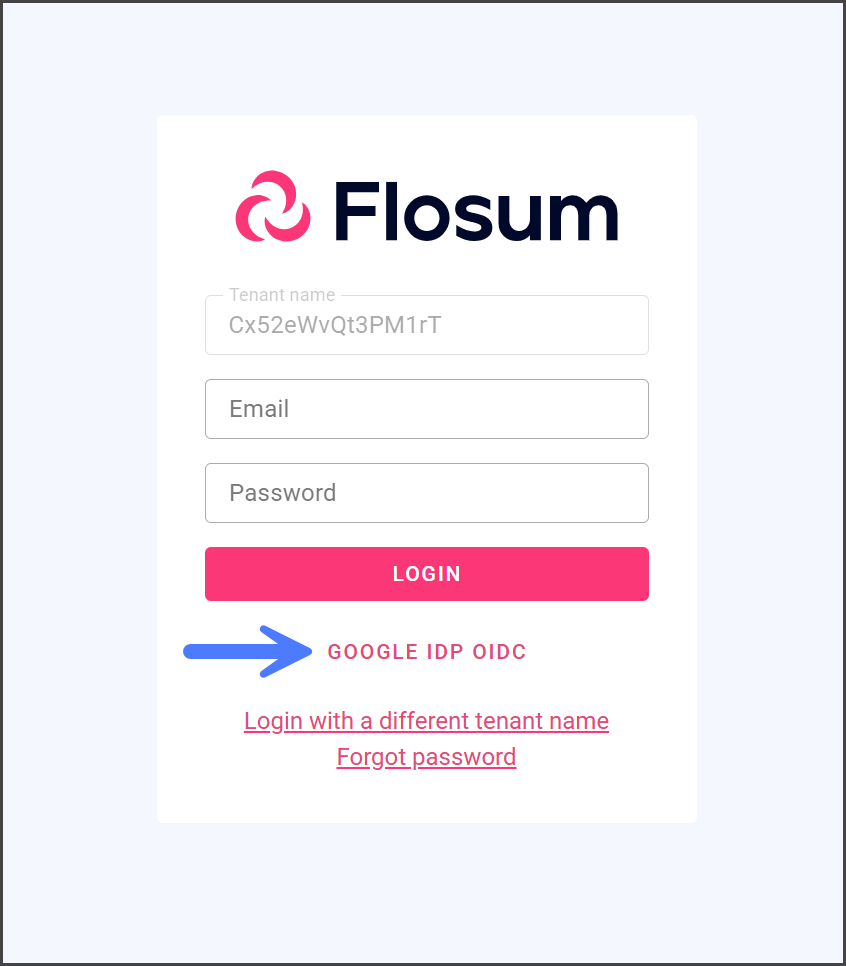
  4. If the identity provider was configured successfully, you should see the SSO button you created.

Last updated

Was this helpful?