Microsoft Entra ID - OIDC - Configuration
Important Note
The instructions in this article cover a third-party app and may not reflect the latest version. Please use these instructions as a guide to complete the task, but be aware that some screens, field names, and steps may have changed.
Overview
This guide explains how to integrate Microsoft Entra ID using OpenID Connect (OIDC) with Flosum Cloud Apps to enable Single Sign-On (SSO) for seamless login. If you prefer to integrate Entra ID via SAML, refer to the following article.
For more general instructions about adding an Identity Provider, see the following article.
Customer-Hosted
Customers who host Flosum Apps on their own infrastructure will have a custom URL for logging into their apps. When using this documentation, replace any Flosum Hosted URLs with your own URLs.
Outline Of Steps Involved
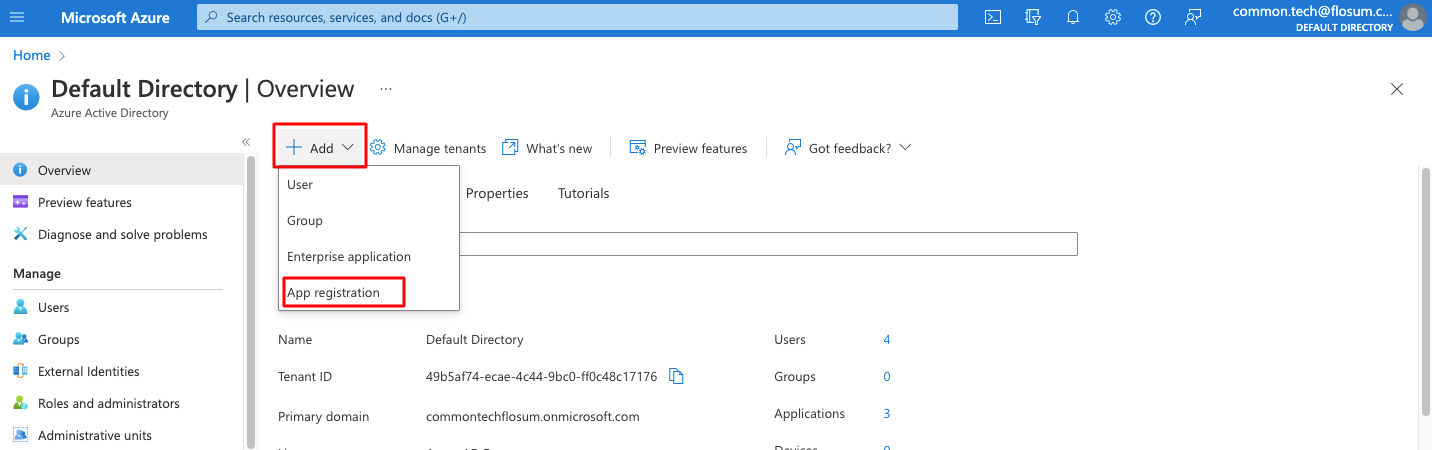
Create an Azure Active Directory App
Set the Redirect URL
Determin Issuer URL
Obtain the Client ID and Client Secret
Create an Identity Provider with Flosum Global Settings
Test the SSO
Configuring Entra ID for Flosum Cloud Apps
This section shows you how to configure an Entra ID App to work with Flosum Cloud Apps for SSO.
These instructions were written for Microsoft Azure Active Directory, which has since been rebranded as Entra ID. While there may be some minor differences with the instructions, they can still be used to complete the process.
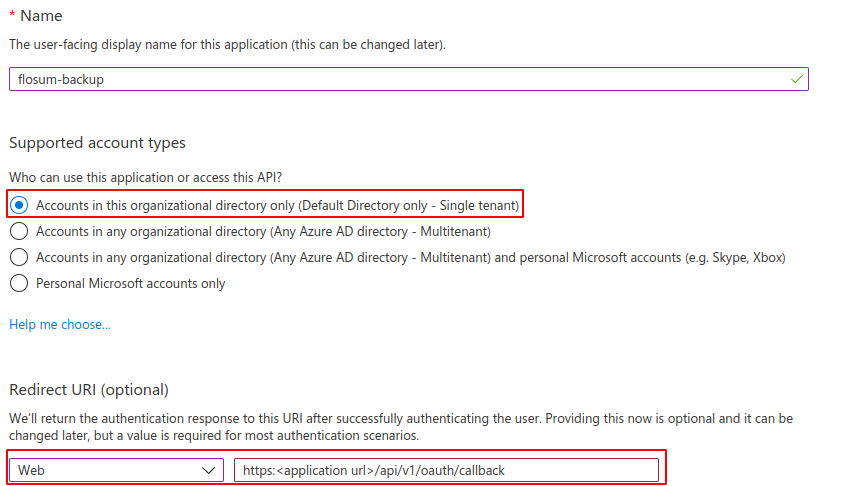
Complete the App Registration
Enter a name for your application in the Name field.
Select the Supported account types based on your organization's requirements.
Input the Redirect URI where Azure AD will send the authentication response.

In the Callback URL field, add the URL of your region for each Flosum Cloud App you want to use with SSO. See the table below for the URLs for your region.
Global Settings
https://global-us.flosum.app/api/v1/auth/login/open-id
Backup & Archive
https://backup-us.flosum.app/api/v1/auth/login/open-id
DevOps
https://devops-us.flosum.app/api/v1/auth/login/open-id
Global Settings
https://global-de.flosum.app/api/v1/auth/login/open-id
Backup & Archive
https://backup-de.flosum.app/api/v1/auth/login/open-id
DevOps
https://devops-ed.flosum.app/api/v1/auth/login/open-id
Global Settings
https://global-jp.flosum.app/api/v1/auth/login/open-id
Backup & Archive
https://backup-jp.flosum.app/api/v1/auth/login/open-id
DevOps
https://devops-jp.flosum.app/api/v1/auth/login/open-id
Global Settings
https://global-au.flosum.app/api/v1/auth/login/open-id
Backup & Archive
https://backup-au.flosum.app/api/v1/auth/login/open-id
DevOps
https://devops-au.flosum.app/api/v1/auth/login/open-id
Set Up Authentication and Logout URL
Navigate to the Authentication section.
In the Logout URL field, add the URL of your region for each Flosum Cloud App you want to use with SSO. See the table below for the URLs for your region. Note: This field is mandatory.

Global Settings
https://global-us.flosum.app/api/v1/oauth/login
Backup & Archive
https://backup-us.flosum.app/api/v1/oauth/login
DevOps
https://devops-us.flosum.app/api/v1/oauth/login
Global Settings
https://global-de.flosum.app/api/v1/oauth/login
Backup & Archive
https://backup-de.flosum.app/api/v1/oauth/login
DevOps
https://devops-de.flosum.app/api/v1/oauth/login
Global Settings
https://global-jp.flosum.app/api/v1/oauth/login
Backup & Archive
https://backup-jp.flosum.app/api/v1/oauth/login
DevOps
https://devops-jp.flosum.app/api/v1/oauth/login
Global Settings
https://global-au.flosum.app/api/v1/oauth/login
Backup & Archive
https://backup-au.flosum.app/api/v1/oauth/login
DevOps
https://devops-au.flosum.app/api/v1/oauth/login
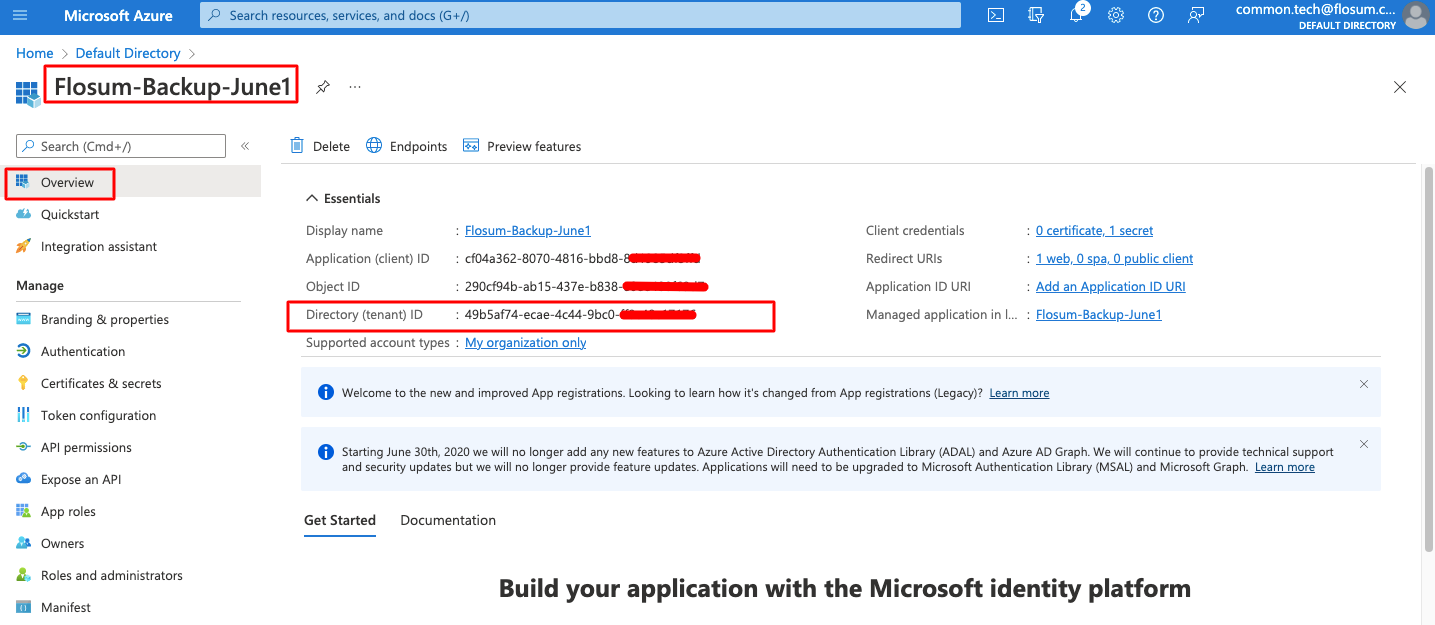
Retrieve the Issuer URL
You will need the ISSUER_BASE_URL value when creating the Identity Provider in Flosum Global Settings.
Navigate to App registrations in Azure Active Directory.
Select your App Name and go to the Overview section.
Find and copy the ISSUER_BASE_URL, which will appear like
https://login.microsoftonline.com/<tenant id>
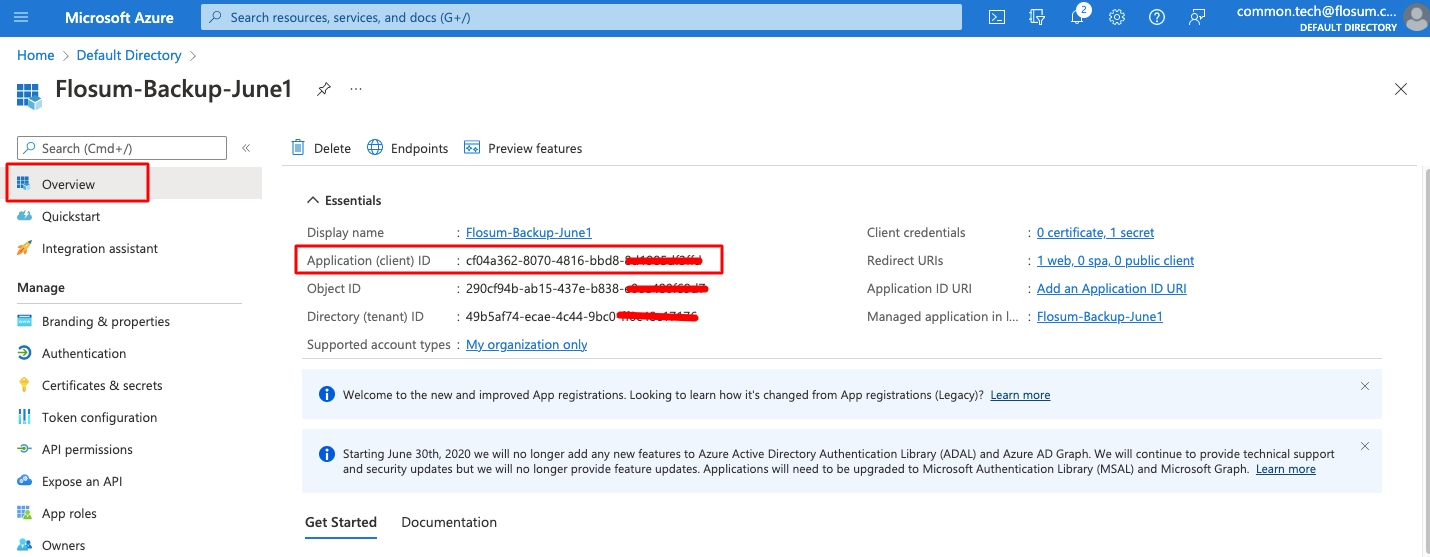
Retrieve the Client ID and Client Secret
You will need the Application (client) ID and Client Secrets Value when creating the Identity Provider in Flosum Global Settings.
In Azure Active Directory, go to App registrations.
Select your App Name.
Your client ID will be listed under Application (client) ID; copy the value.

In the Certificates & secrets section, find and copy the Value under the Client Secret tab.

Create Identity Provider In Global Settings
Create Identity Provider
Follow the general instructions in the article below to get started creating an OIDC Identity Provider.
Complete the Basic information section.
Select OPEN_ID for the identity provider Type.
Complete the Button information section.
(Optional) Complete the Group information section.
Complete OpenId Information Fields
Copy the information from your Entra ID application into the OpenId Information section. The table explains which Entra ID values to enter into which Flosum Fields. The final screenshot shows a completed identity provider for an Entra ID ODIC application.
The sections above show you how to find the values found in the Entra ID Field/Value column.
Client ID
Application (client) ID
Client Secret
Client Secrets Value
Issuer
ISSUER_BASE_URL

Save and Test
For instructions on logging in with SSO, see the following article.
Click Save to save the identity provider.
To test, open an incognito window.
Start logging in to Global Settings with your tenant name.
If the identity provider was configured successfully, you should see the SSO button you created.

Last updated
Was this helpful?