Microsoft Entra ID - SAML - Configuration

circle-check

Required User Credentials

circle-check

Important Note

Overview

This article explains how to integrate Microsoft Entra ID with Flosum Cloud Apps using SAML authentication to enable Single Sign-On (SSO), allowing users to access the platform seamlessly with their existing credentials. If you prefer to integrate Entra ID via OIDC, refer to the following article.

circle-info

For more general instructions about adding an Identity Provider, see the following article.

circle-exclamation

Customer-Hosted

Configure Entra ID

1

Create Application

  1. Log in to your Entra Admin Center account.

  2. Select Enterprise applications.

  3. Click New application.

  4. Select Create your own application.

  5. Enter Application name.

  6. Select Integrate any other application you don't find in the gallery (Non-gallery).

  7. Click Create.

2

Configure Single Sign On

  1. Click Single sign-on under the Manage section in the left sidebar menu.

  2. Click SAML.

Basic SAML Configuration

  1. Click Edit for Basic SAML Configuration.

  2. Click Add identifier and enter a unique identity for this SSO. This can be any unique string value.

  3. Click Add reply URL and enter the SAML URL for your region from the table below.

Region
SAML URL

United States

https://global-us.flosum.app/api/v1/saml/acs

Germany

https://global-de.flosum.app/api/v1/saml/acs

Japan

https://global-jp.flosum.app/api/v1/saml/acs

Australia

https://global-au.flosum.app/api/v1/saml/acs

  1. Click Save.

Attributes & Claims

  1. Click Edit for Attributes & Claims.

  2. Click Add new claim to add each of the following claims.

Name
Source attribute

firstName

user.givenname

lastName

user.surname

email

user.mail

uniqueUserId

user.userprincipalname

circle-info

The uniqueUserId claim can be mapped to any user attribute that is both unique and constant.

SAML Certificates

Token signing certificate

  1. Don't edit the Token signing certificate.

circle-info

A custom signing certificate can be used for the Token signing certificate if required by security or compliance policies.

Verification certificates (optional)

(Optional) Verification certificates aren't required to work with Flosum SSO. Configure this setting only if required by your security or compliance policies.

If you enable Require verification certificates:

  1. Generate a private/public key pair.

  2. Upload the Service Provider's public certificate using the Upload certificate button.

  3. Click Save.

3

Create Identity Provider in Global Settings

Follow the general instructions in the article below to get started creating a SAML Identity Provider.

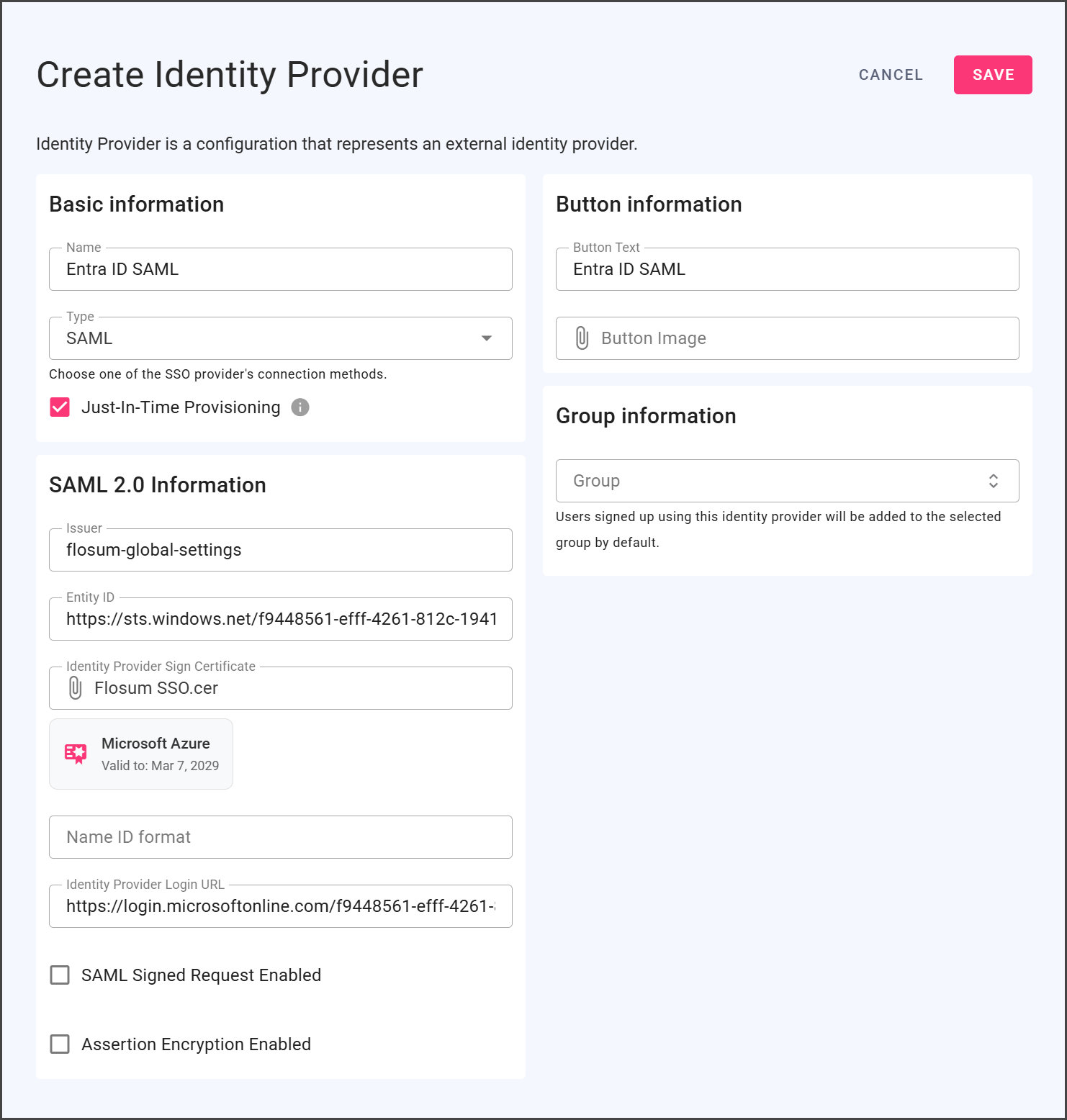
  1. Complete the Basic information section.

    1. Select OPEN_ID for the identity provider Type.

  2. Complete the Button information section.

  3. (Optional) Complete the Group information section.

Complete SAML 2.0 Information Fields

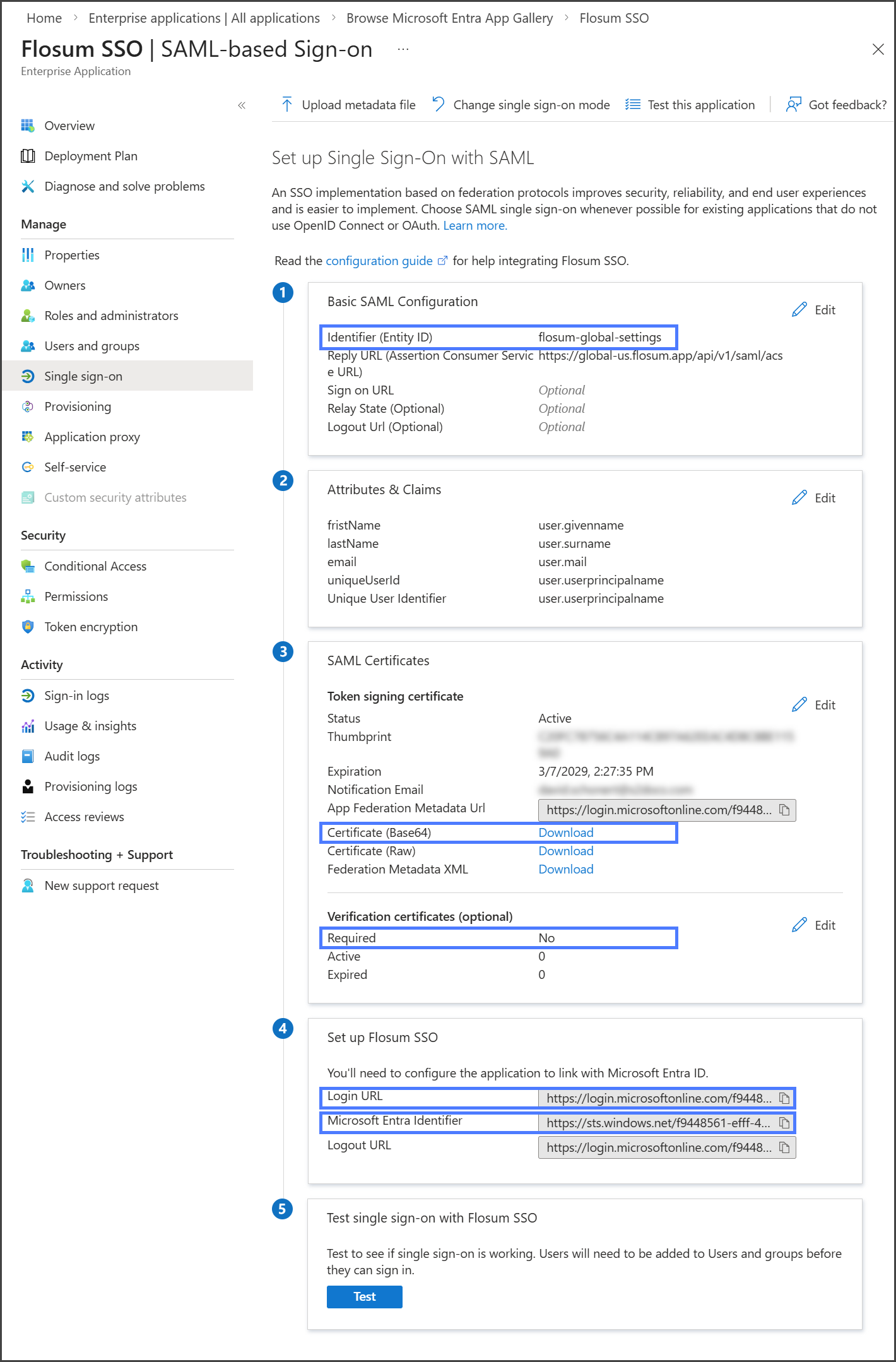
Copy the information from your Entra ID application into the SAML 2.0 Information section. The first screenshot below shows which Entra ID application fields to copy. The table explains where to enter this information. The final screenshot shows a completed identity provider for an Entra ID SAML application.

Flosum Field
Entra ID Field
Instructions

Issuer

Basic SAML Configuration → Identifier (Entity ID)

Entity ID

Set up {application name} → Microsoft Entra Identifier

Click the Copy icon to copy this link.

Identity Provider Sign Certificate

SAML Certificates → Token signing certificate → Certificate (Base64)

Click Download to download the certificate. Once downloaded, click Identity Provider Sign Certificate and upload it.

Name ID format

Leave blank

Identity Provider Login URL

Set up {application name} → Login URL

Click the Copy icon to copy this link.

SAML Signed Request Enabled

If SAML Certificates → Verification certificates (optional) → Required is Yes:

  1. Check the SAML Signed Request Enabled checkbox.

  2. Complete the fields in the table below.

Flosum Field
Value

Auth Sign Certificate

Click to upload the public certificate that corresponds to the verification certificate.

Auth Private Key

Click to upload the private key that matches the public certificate.

Auth Private Key Password

Enter the passphrase for the private key if encrypted.

Auth Sign Algorithm

Leave blank (or specify if required).

Assertion Encryption Enabled

If Assertion Encryption is enabled in Entra ID:

  1. Check the Assertion Encryption Enabled checkbox.

  2. Complete the fields in the table below.

Field
Description

Encryption Certificate

Click to upload the public certificate that is used for assertion encryption.

Encryption Private Key

Click to upload the private key that pairs with the public certificate.

Encryption Private Key Password

Enter the passphrase for the private key if encrypted.

4

Save and Test

circle-info

For instructions on logging in with SSO, see the following article.

  1. Click Save to save the identity provider.

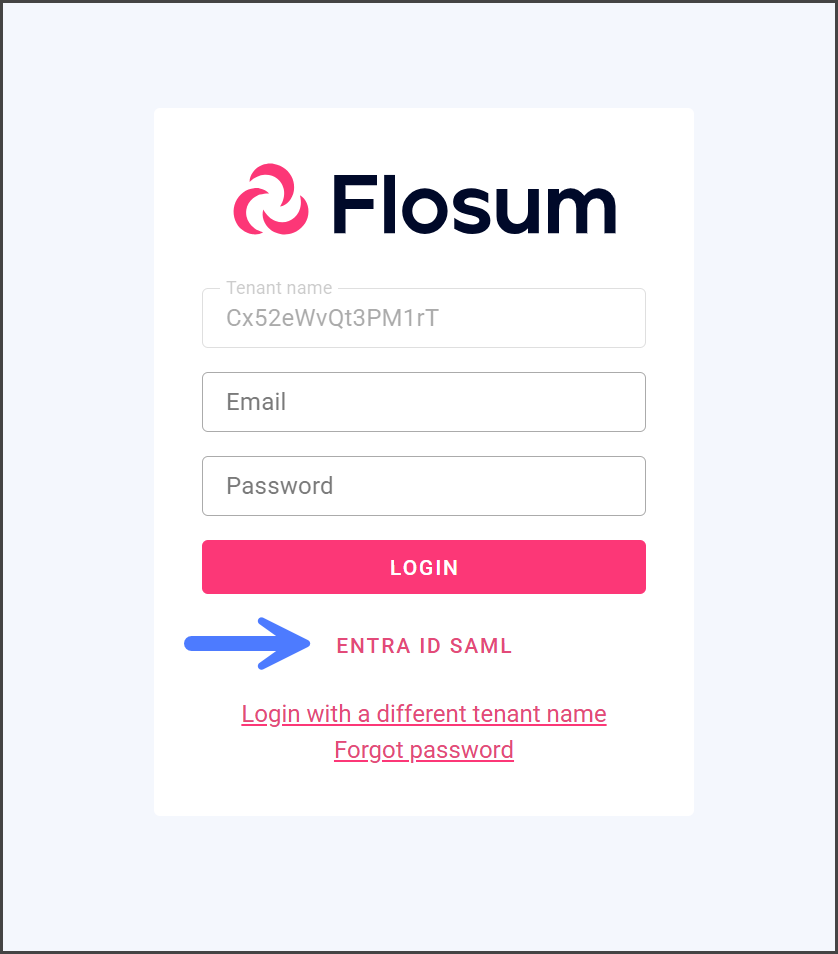
  2. To test, open an incognito window.

  3. Start logging in to Global Settings with your tenant name.

  4. If the identity provider was configured successfully, you should see the SSO button you created.

Last updated

Was this helpful?