> For the complete documentation index, see [llms.txt](https://docs.flosum.com/llms.txt). Markdown versions of documentation pages are available by appending `.md` to page URLs; this page is available as [Markdown](https://docs.flosum.com/backup-and-archive/backup-and-archive-in-salesforce/searching-with-flosum-backup-and-archive-in-salesforce.md).
# Searching Backup & Archive in Salesforce
##  Overview
The **Backup & Archive** Salesforce app enables users to retrieve, view, and compare historical data directly within Salesforce. Whether you’re investigating data changes, reviewing historical records, or restoring specific fields, this app provides a complete audit and recovery interface—without storing backup data in Salesforce.
This article outlines how to:
* Create and manage search requests
* View and compare record versions
## Search Backup & Archive Data In Salesforce
To search your Backups and Archives from within your Salesforce org, you must first enable access to your Flosum Backup & Archive data. Follow the instructions in the article below to learn how to do this.
* [Enable Access to Flosum Backup & Archive Data](/global-settings/security/connected-apps/enable-access-to-flosum-backup-and-archive-data.md)
{% stepper %}
{% step %}
### Create a New Search Request
{% hint style="info" %}
Search results remain available for 7 days after completion, after which they will be deleted.
{% endhint %}
1. Click the **App Launcher**.
2. Search for and click **Backup & Archive**.
3. Click the **Searches** tab.
4. Click **New** to start a new search.
{% endstep %}
{% step %}
### Add Objects
You can search your backups for any number of objects and use filters to refine the results.
1. Click the **Objects** search menu.
2. Select an object to include.
3. (Optional) Add more objects by clicking the **Objects** search menu.
4. (Optional) Select another object to include.
5. (Optional) Repeat until all objects to search for are added.
{% endstep %}
{% step %}
### Add Filters
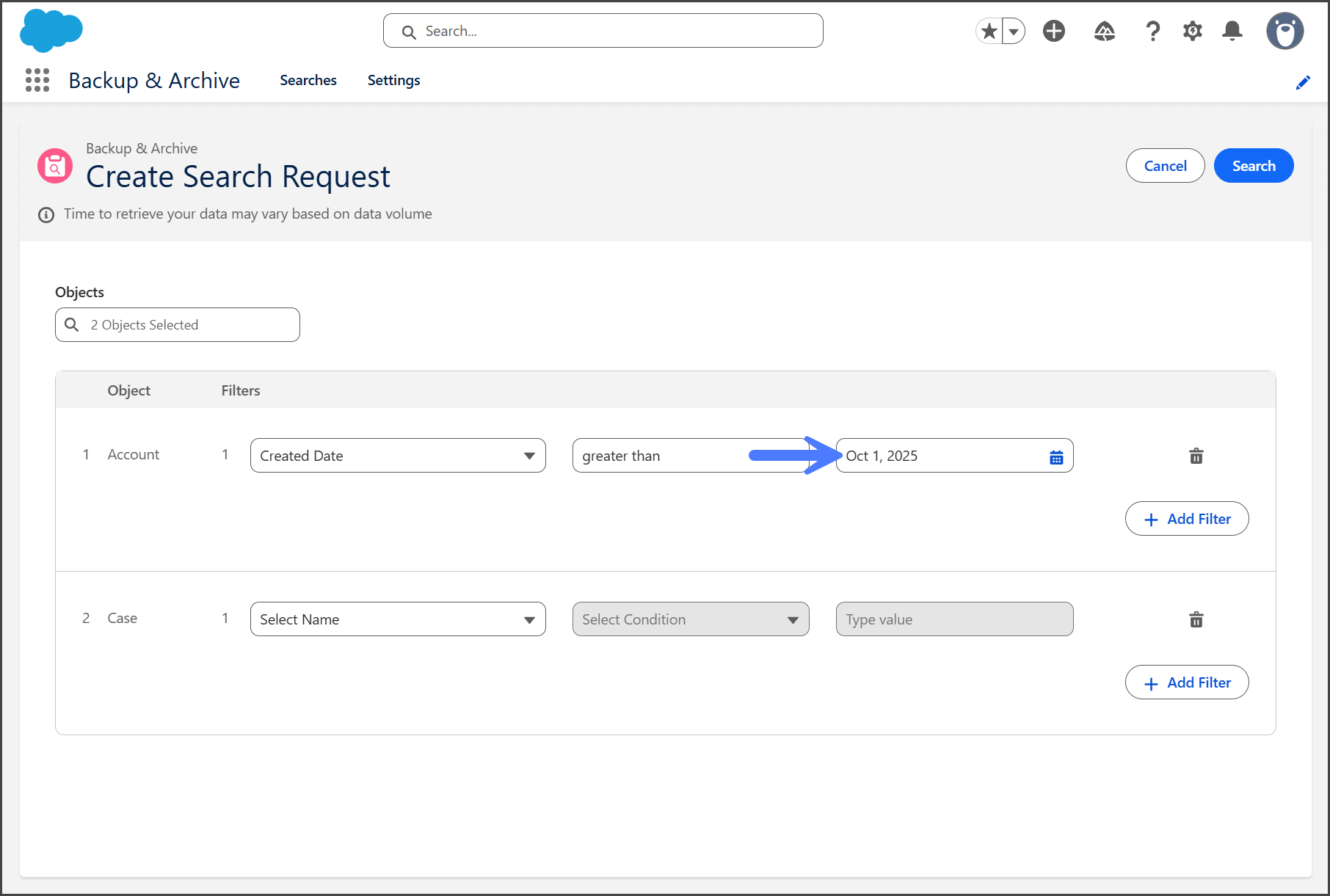
Each object must have a filter to perform the search.
{% hint style="info" %}
To include all records of an object, apply a filter that will be true for all records. For example: `Object ID not equals 0`
{% endhint %}
1. Click the **Select Name** dropdown menu.
2. Select a **Field Name** to filter with.
3. Click the **Select Condition** dropdown menu**.**
4. Select a **Condition** to filter for.
5. Enter the value to filter for in the **Value** textbox.
6. Repeat until all filters are completed.
{% endstep %}
{% step %}
### Advanced Filters
**Multiple Filters**
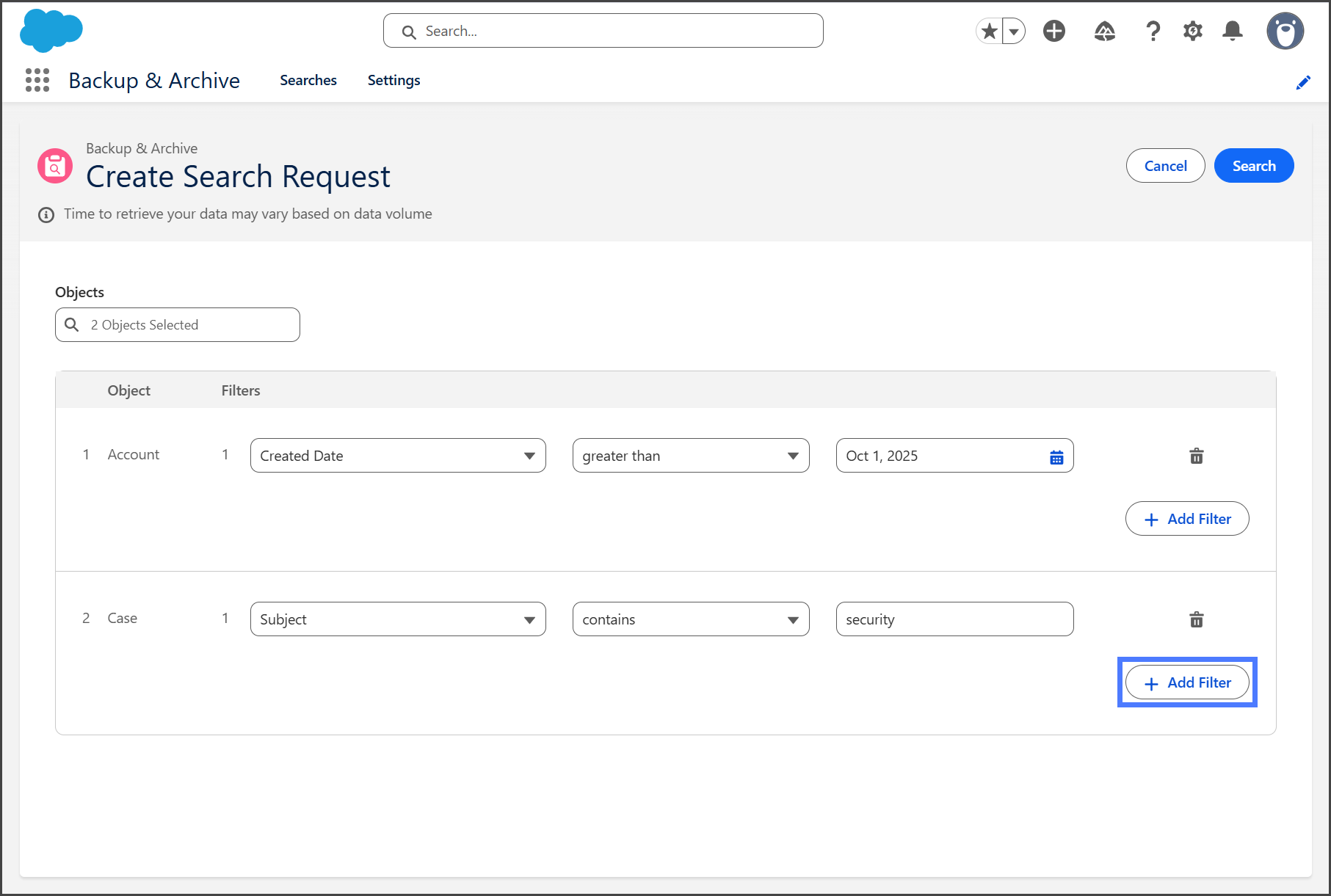
An object can have multiple filters applied to it for more advanced filtering.
1. Click **Add Filter**.
2. Complete the **Select Name**, **Select Condition**, and **Value** fields for the filter.
**Custom Logic**
By default, multiple filters for an object are combined using a logical **AND**. The **Custom Logic** checkbox allows you to combine filters with different logic.
{% hint style="info" %}
When entering your custom logic, each filter for the object is denoted by the filter number at the start of the filter row. Available logic operations are: **OR, AND, ( )**
{% endhint %}
1. Check the **Custom Logic** checkbox to use an alternative to the default **AND** when combining filters.
2. In the textbox below **Custom Logic**, enter your custom logic to combine your filters. (Example logic is displayed by default.)
3. In the screenshot below, the **Case** object has two filters with custom logic that use **OR** to combine them.
{% endstep %}
{% step %}
### Start Search
1. Review the **Objects** and **Filters** to ensure everything is correct.
2. Click **Search**.
3. Once started, you will see a **Search request successfully queued** message.
4. The search job will be **In Progress**.
{% hint style="info" %}
Processing time varies depending on object count, filters, and data volume.
{% endhint %}
{% endstep %}
{% endstepper %}
## View Search Results
Search results are retrieved live from your Backup & Archive tenant and are available for 7 days. After this period, the results are deleted, as no search data is stored in Salesforce.
{% stepper %}
{% step %}
### View Results
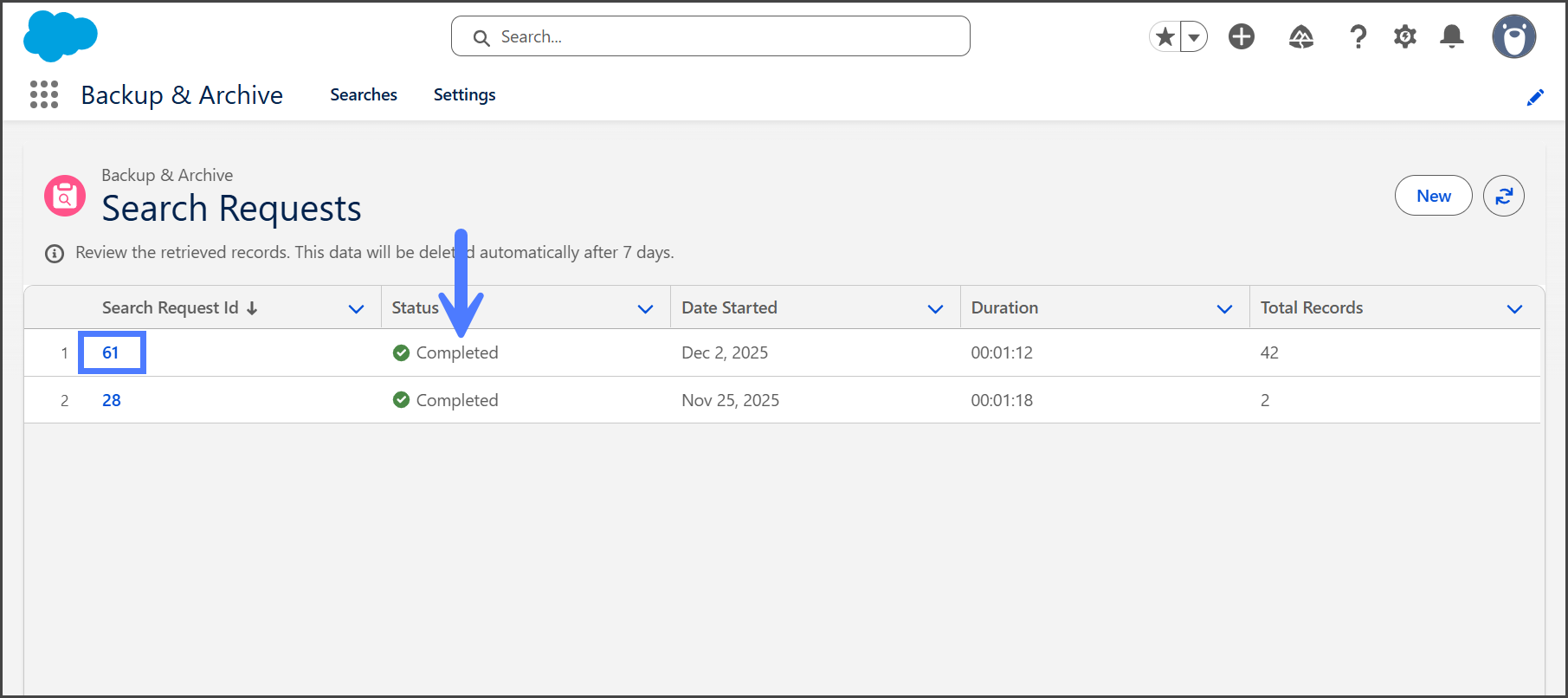
1. Once completed, the status will update to **Completed**.
2. Click the **Search Request ID** to open results.
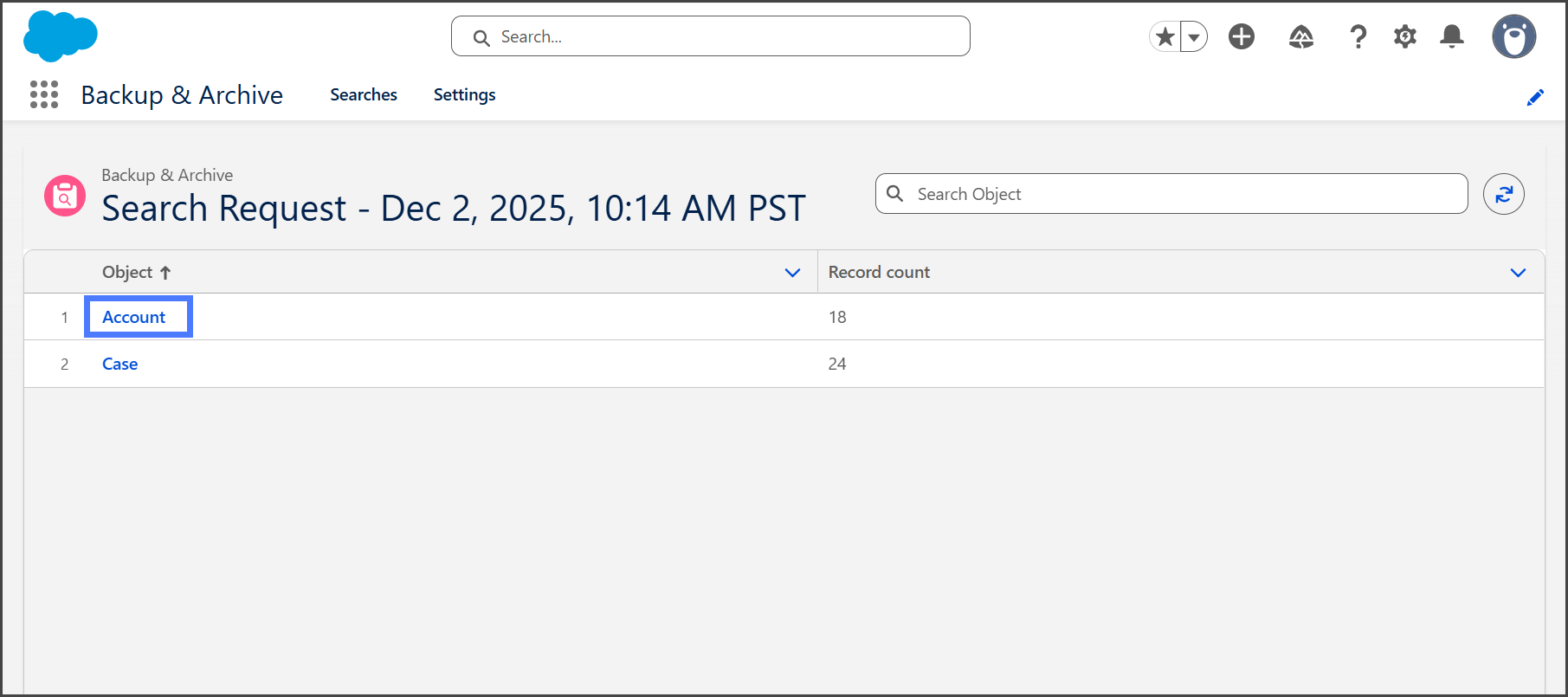
3. Search results are categorized by objects, with each object displaying the count of records found.
4. Click on an object to view the matched records.
{% endstep %}
{% step %}
### View Record Details
Each object lists the backed-up records matching your search.
1. Click a **Record ID** to open the record and get more details.
**Change Record Version**
{% hint style="info" %}
By default, the record displays the details for the most recent backup or archive.
{% endhint %}
1. Click the **Timestamp** dropdown menu.
2. Select the timestamp of the backup version to display field values for.
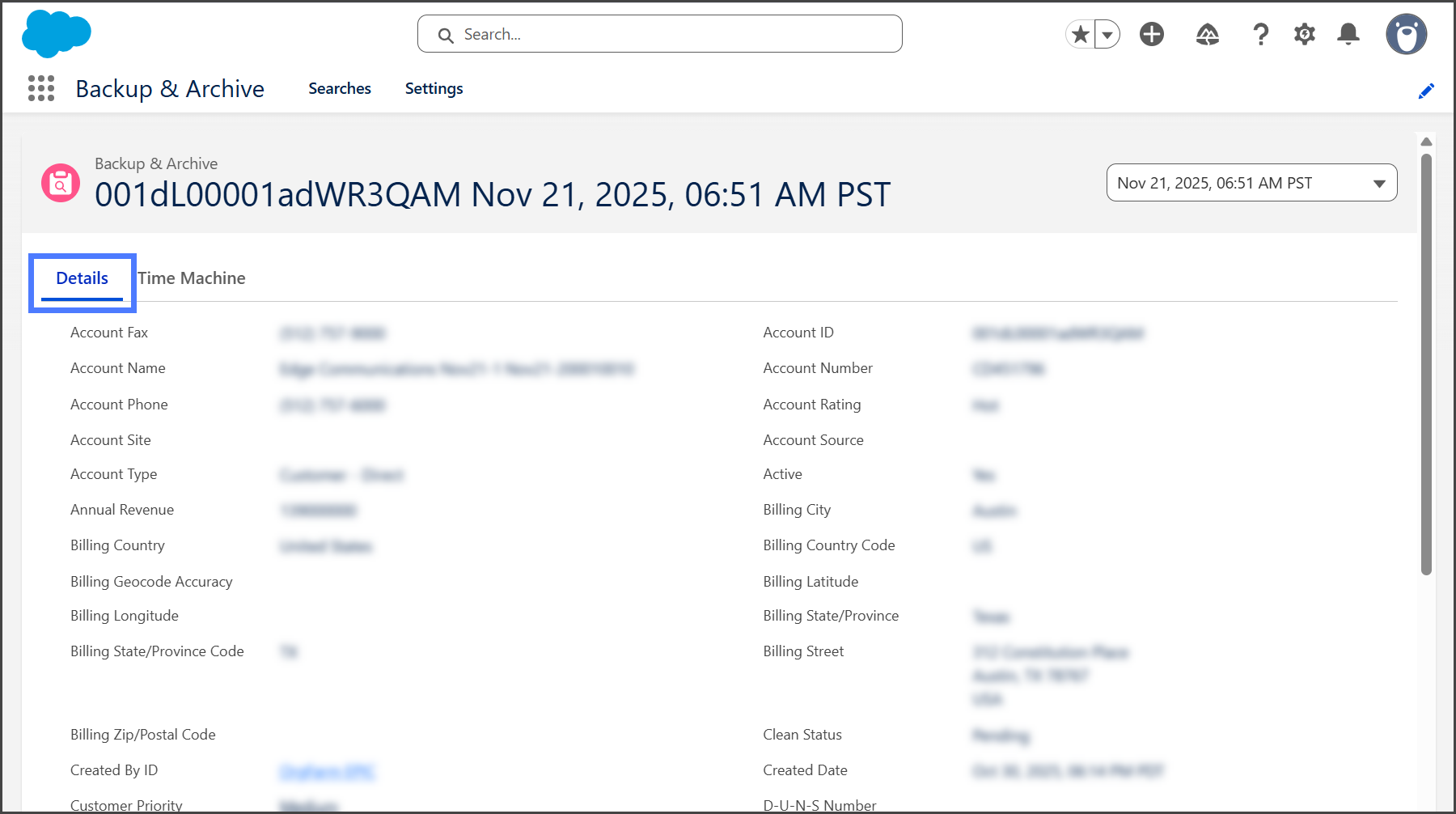
**Details Tab**
* View field-level values in **read-only mode**.
* All fields displayed honor your **Field-Level Security (FLS)** settings.
* Sensitive fields will be masked based on your access rights.
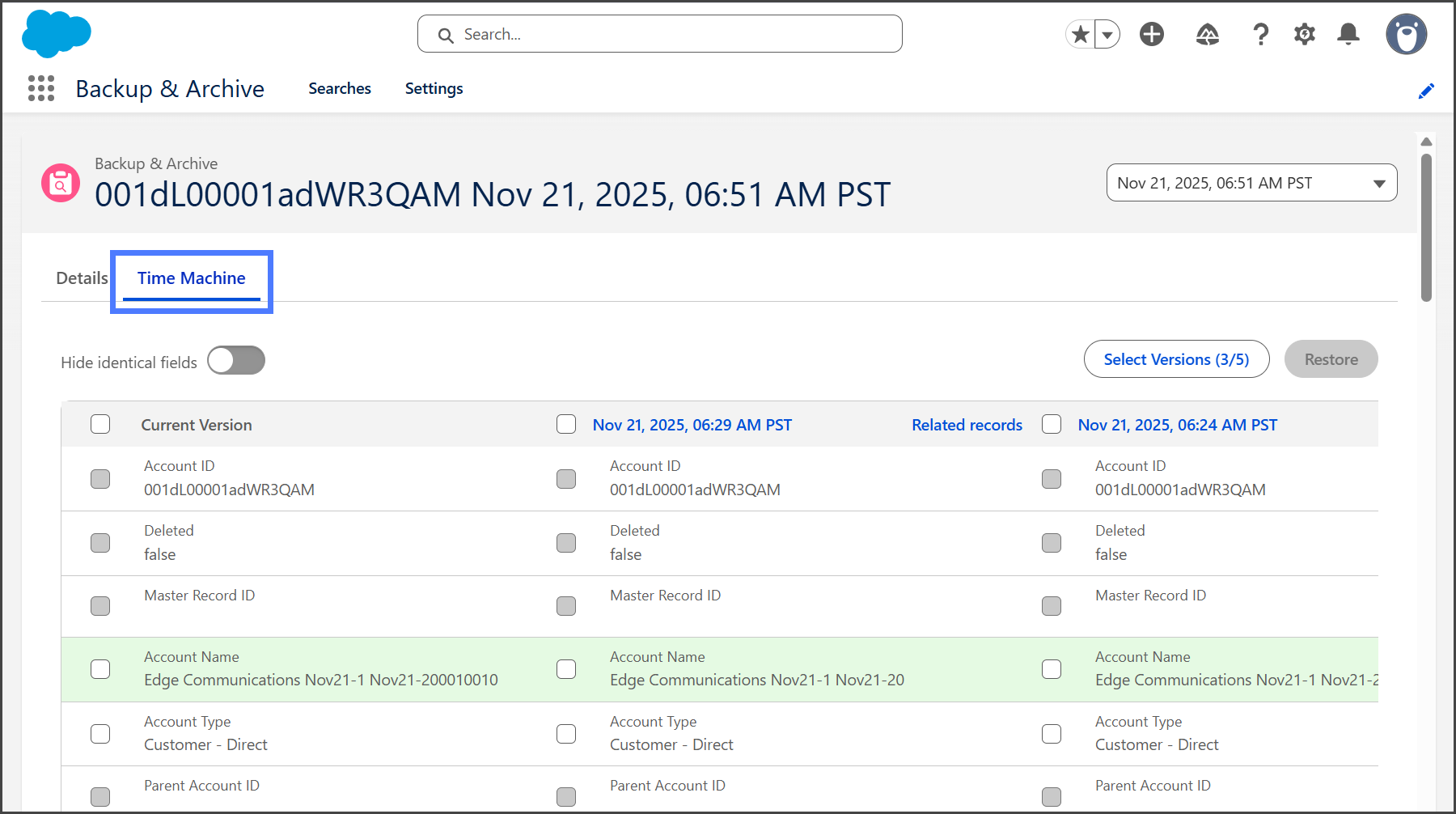
**Time Machine Tab**
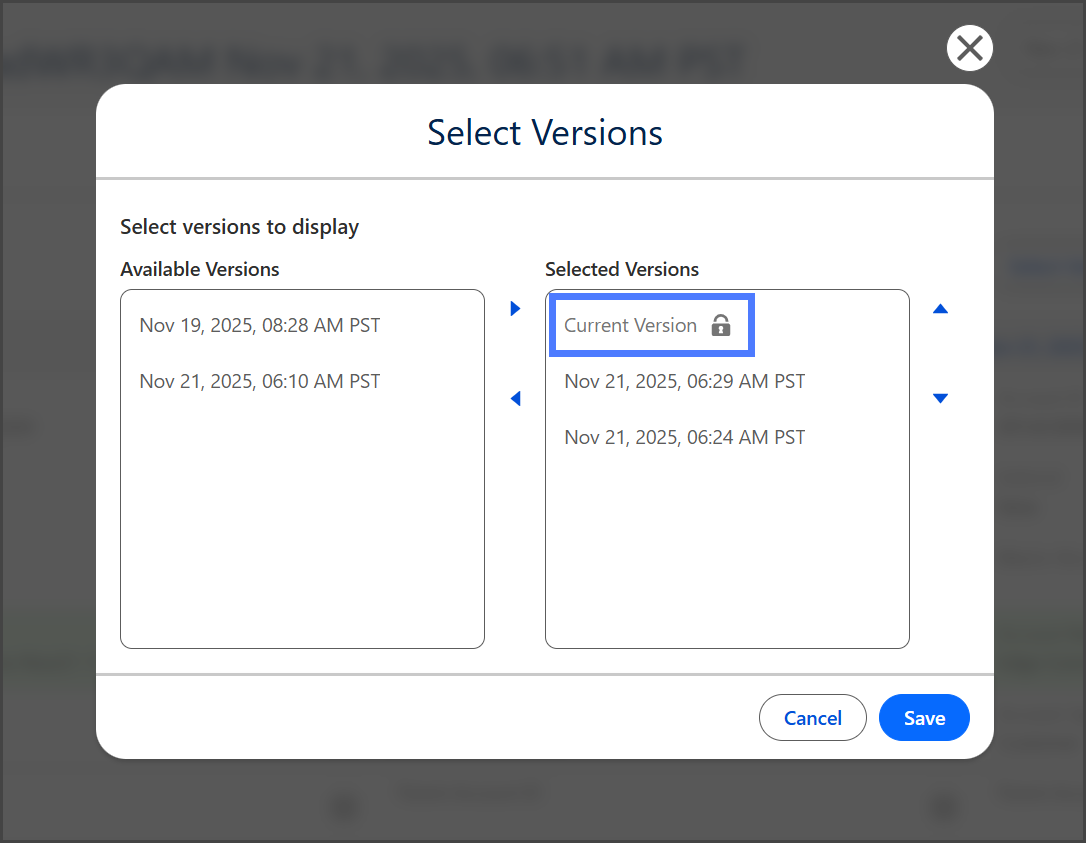
* Compare the current field values of the record against up to 4 backed-up versions.
* Highlight changes and selectively **restore non-reference field values** to the current record.
* Displays **related records** for the selected version.
{% hint style="info" %}
The **Current Version** represents the existing Salesforce values and is always selected as the comparison baseline.
 {% endhint %}
{% hint style="info" %}
For a more in-depth guide on using the **Time Machine** feature, see the following article.
* [Using Time Machine Component](/backup-and-archive/backup-and-archive-in-salesforce/time-machine/using-time-machine-component.md)
{% endhint %}
{% endstep %}
{% endstepper %}
---
# Agent Instructions
This documentation is published with GitBook. GitBook is the documentation platform designed so that both humans and AI agents can read, navigate, and reason over technical content effectively. Learn more at gitbook.com.
## Querying This Documentation
If you need additional information that is not directly available in this page, you can query the documentation by asking a question.
Perform an HTTP GET request on the following URL with the `ask` and `goal` query parameters:
```
GET https://docs.flosum.com/backup-and-archive/backup-and-archive-in-salesforce/searching-with-flosum-backup-and-archive-in-salesforce.md?ask=&goal=
```
`ask` is the immediate question: it should be specific, self-contained, and written in natural language.
`goal` is what the user is ultimately trying to achieve, the reason they need the answer. Sharing it helps GitBook give you a better, more relevant answer. A goal is most helpful when it describes the outcome the user wants rather than restating the question. For example, with `ask=how do I create an API token`, a goal like `automate deployments from our CI pipeline` lets GitBook tailor the answer to that use case.
The response will contain a direct answer to the question and relevant excerpts and sources from the documentation.
Use this mechanism when the answer is not explicitly present in the current page, you need clarification or additional context, or you want to retrieve related documentation sections.
{% endhint %}
{% hint style="info" %}
For a more in-depth guide on using the **Time Machine** feature, see the following article.
* [Using Time Machine Component](/backup-and-archive/backup-and-archive-in-salesforce/time-machine/using-time-machine-component.md)
{% endhint %}
{% endstep %}
{% endstepper %}
---
# Agent Instructions
This documentation is published with GitBook. GitBook is the documentation platform designed so that both humans and AI agents can read, navigate, and reason over technical content effectively. Learn more at gitbook.com.
## Querying This Documentation
If you need additional information that is not directly available in this page, you can query the documentation by asking a question.
Perform an HTTP GET request on the following URL with the `ask` and `goal` query parameters:
```
GET https://docs.flosum.com/backup-and-archive/backup-and-archive-in-salesforce/searching-with-flosum-backup-and-archive-in-salesforce.md?ask=&goal=
```
`ask` is the immediate question: it should be specific, self-contained, and written in natural language.
`goal` is what the user is ultimately trying to achieve, the reason they need the answer. Sharing it helps GitBook give you a better, more relevant answer. A goal is most helpful when it describes the outcome the user wants rather than restating the question. For example, with `ask=how do I create an API token`, a goal like `automate deployments from our CI pipeline` lets GitBook tailor the answer to that use case.
The response will contain a direct answer to the question and relevant excerpts and sources from the documentation.
Use this mechanism when the answer is not explicitly present in the current page, you need clarification or additional context, or you want to retrieve related documentation sections.