> For the complete documentation index, see [llms.txt](https://docs.flosum.com/llms.txt). Markdown versions of documentation pages are available by appending `.md` to page URLs; this page is available as [Markdown](https://docs.flosum.com/backup-and-archive/restore/overview-of-backup-and-archive-restore.md).
# Overview of Restore
{% hint style="success" %}
#### Required User Credentials
\[**Flosum User**] - **Backup & Archive** license with **Restore** permissions
{% endhint %}
## Overview
Restoring data in Salesforce can be complex, but Flosum Backup & Archive simplifies the process with a highly accurate, flexible, and visual restore workflow. Whether you’re recovering from data corruption, user error, or a security incident, Flosum lets you:
* Restore from backups, archives, or metadata snapshots.
* Filter what to restore by object, record, and field.
* Visually compare record versions before confirming the restore.
* Speed up recovery by restoring only what has changed.
This article provides a high-level overview of how the restore process works and how to get started with Flosum’s two-step backup and restore workflow.
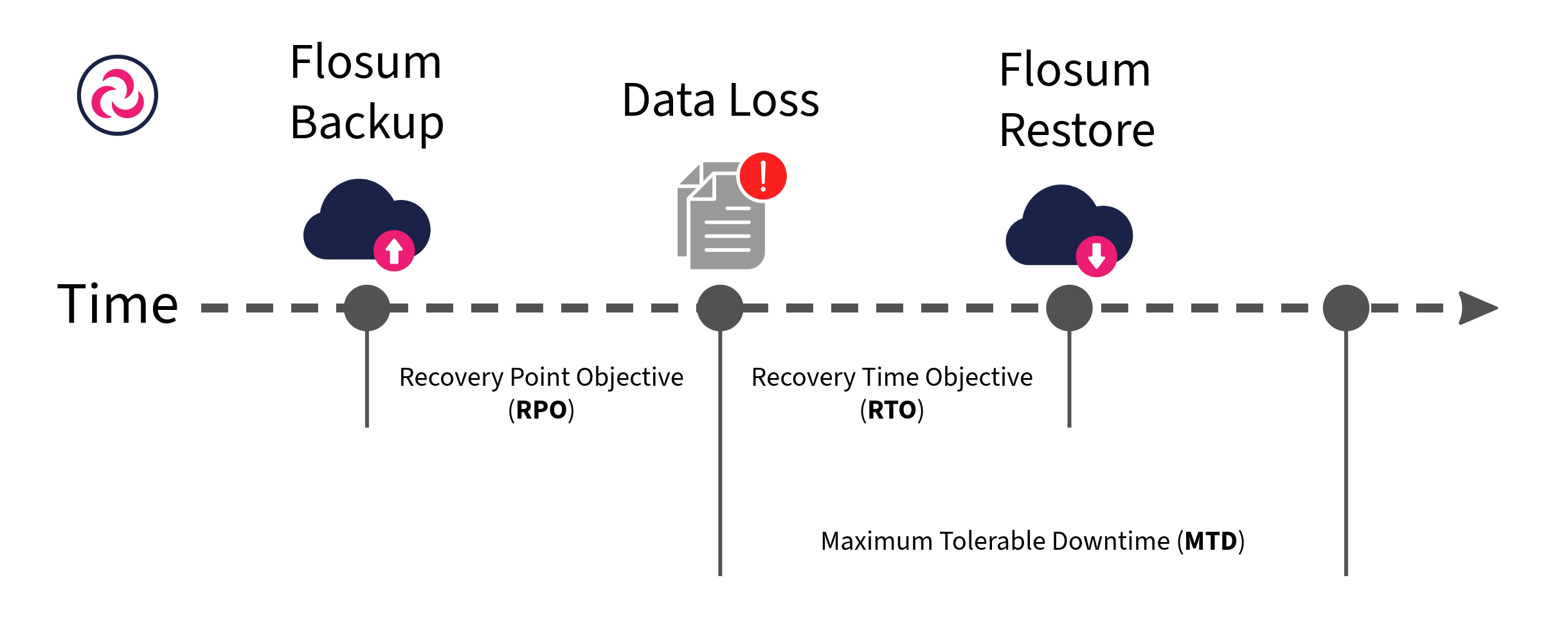
Flosum's Restore feature provides powerful filtering and comparison capabilities that let you restore precisely what you need—at the object, record, or field level. This targeted approach minimizes risk and reduces Recovery Time Objectives (RTO). When using a Composite Backup, the system compares snapshots to identify only the changes, eliminating the need to scan millions of records individually. This approach dramatically improves performance and shortens restore times.
Restore operations are a two-part process. First, you create a restore request that selects the objects and fields to retrieve, including using filters to choose the records that matter. The second step is to actually retrieve the data once the records to be retrieved have been validated.
{% hint style="info" %}
To minimize scope and impact during restore operations, you can:
* Restore specific **child objects** (e.g., ContentDocumentLinks).
* Filter by **field values.**
* Skip automation during restore.
{% endhint %}
## When to Use Restore
Restoring Salesforce data is valuable in many situations, such as:
* **Data loss recovery:** After identifying missing records or data corruption due to system errors, failed integrations, or other technical issues
* **User error correction:** To undo unintentional mass deletes, overwrites, or data imports that introduced incorrect information
* **Historical retrieval:** To restore specific historical field values when needing to revert changes or recover previous configurations
### Two Restore Methods
* **Filter-based Restore:** When you know the event timeframe, use declarative filters to select only the specific objects, records, and fields you need to restore.
* **Visual Compare & Restore:** When the exact changes are unknown, visually compare record versions and manually select which values to restore.
***
## Restore Process Overview
The Backup Restore process follows two streamlined steps designed for precision and control. Although there are slight differences among restore types (Backup, Archive, and Backup Metadata), the general process remains consistent across all types. You can find specific instructions for each restore type in their corresponding articles.
{% hint style="info" %}
No changes are made to your Salesforce data until the **Restore** job is Executed in Step 2.
{% endhint %}
### Step 1: Create a Restore Request Job (Preparation)
This preparation phase helps you identify what can be restored before making any changes to your org.
1. Select Restore Type: **Backup**, **Archive**, or **Metadata.**
2. Select the **Compromised Backup** (data loss suspected).
3. Select the **Correct Backup** (last clean snapshot).
4. Choose objects and child records to restore.
5. Configure object settings and field-level options.
6. Run the **Restore Request** job.
See complete instructions in the articles below:
* [Creating a Backup Restore Job (Preparation)](/backup-and-archive/restore/prepare-restore/creating-a-backup-restore-job-preparation.md)
* [Creating an Archive Restore Job (Preparation)](/backup-and-archive/restore/prepare-restore/creating-an-archive-restore-job-preparation.md)
* [Creating and Running a Backup Metadata Restore Job](/backup-and-archive/restore/execute-restore/creating-a-backup-metadata-restore-job-preparation.md)
### Step 2: Run a Restore Job (Execution)
After your preparation job completes:
1. Select the **Restore Request** job marked as **Ready for Restore.**
2. Review the records by object and status.
3. Run the **Restore** job to restore selected records to Salesforce.
4. Monitor progress and completion in the **Restore History Table.**
See complete instructions in the article below:
* [Running a Restore Job (Execution)](/backup-and-archive/restore/execute-restore/running-a-restore-job-execution.md)
---
# Agent Instructions
This documentation is published with GitBook. GitBook is the documentation platform designed so that both humans and AI agents can read, navigate, and reason over technical content effectively. Learn more at gitbook.com.
## Querying This Documentation
If you need additional information that is not directly available in this page, you can query the documentation by asking a question.
Perform an HTTP GET request on the following URL with the `ask` and `goal` query parameters:
```
GET https://docs.flosum.com/backup-and-archive/restore/overview-of-backup-and-archive-restore.md?ask=&goal=
```
`ask` is the immediate question: it should be specific, self-contained, and written in natural language.
`goal` is what the user is ultimately trying to achieve, the reason they need the answer. Sharing it helps GitBook give you a better, more relevant answer. A goal is most helpful when it describes the outcome the user wants rather than restating the question. For example, with `ask=how do I create an API token`, a goal like `automate deployments from our CI pipeline` lets GitBook tailor the answer to that use case.
The response will contain a direct answer to the question and relevant excerpts and sources from the documentation.
Use this mechanism when the answer is not explicitly present in the current page, you need clarification or additional context, or you want to retrieve related documentation sections.